> ## Documentation Index
> Fetch the complete documentation index at: https://help-plum.xoxoday.com/llms.txt
> Use this file to discover all available pages before exploring further.
# Plum Gift Cards API Report
> Learn how to access and read the Plum gift cards API report, used to track gift card transactions sent through the API.
*Access detailed Gift Card reports for insights on product usage and recipient details.*
***
## Accessing Gift Card Reports
Follow these steps to view detailed reports for Gift Card Reports:
Go to dashboard and click "**Reports**".
Within the "**Reports**" section, click on "**Gift Card**". You can select the sent date by clicking in the box "**Sent Date UTC**".
Here you'll find detailed reports containing the following information fields:
* Order ID
* Product Name
* Product ID
* Recipient Email
* Currency
* Denominations
* Date with Timestamp
* Amount Charged
* Status
* Actions
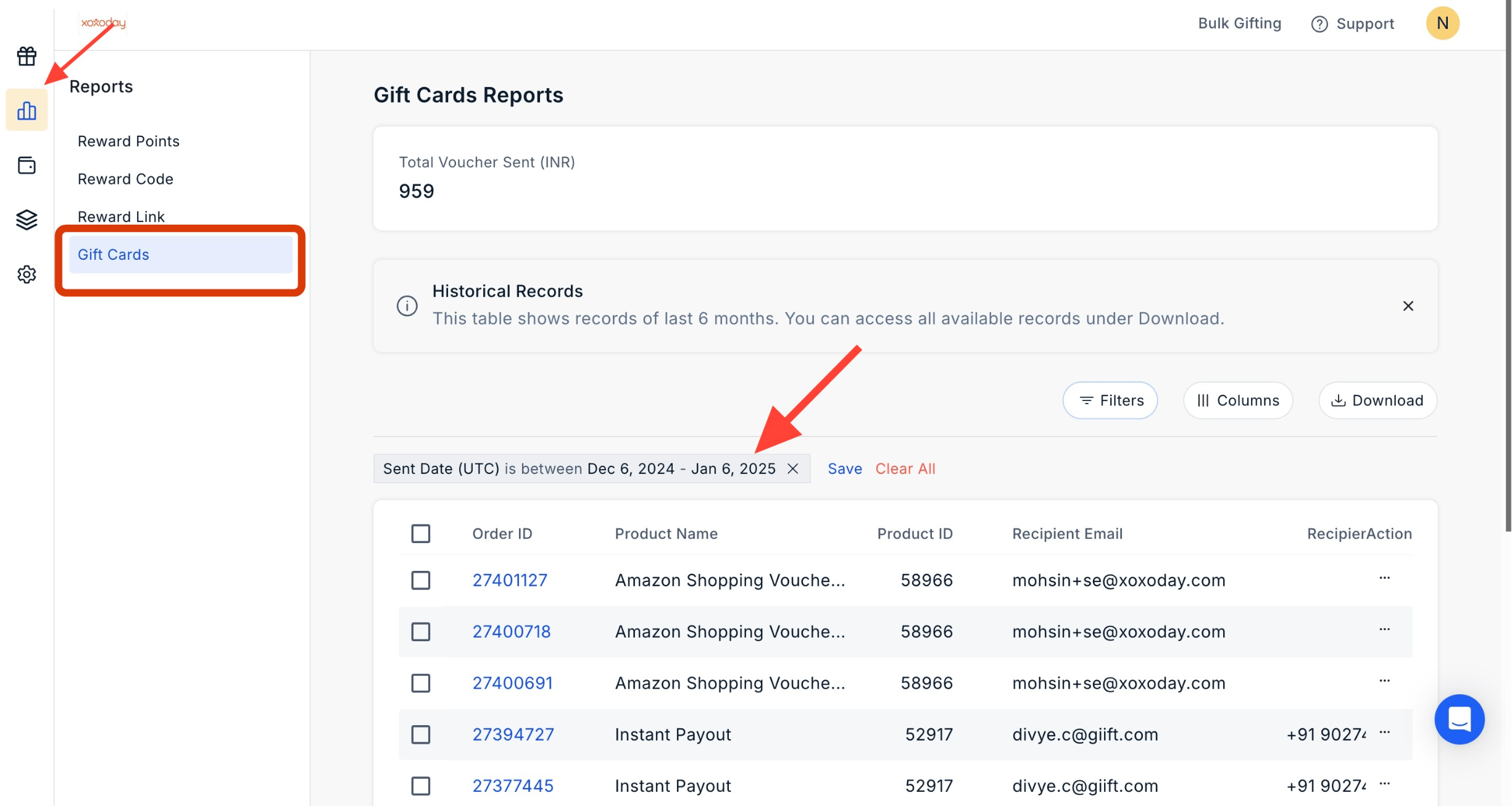 By following these steps, you can easily access and review reports specific to gift cards, providing valuable insights into product usage and recipient details.
***
## Filter the Report
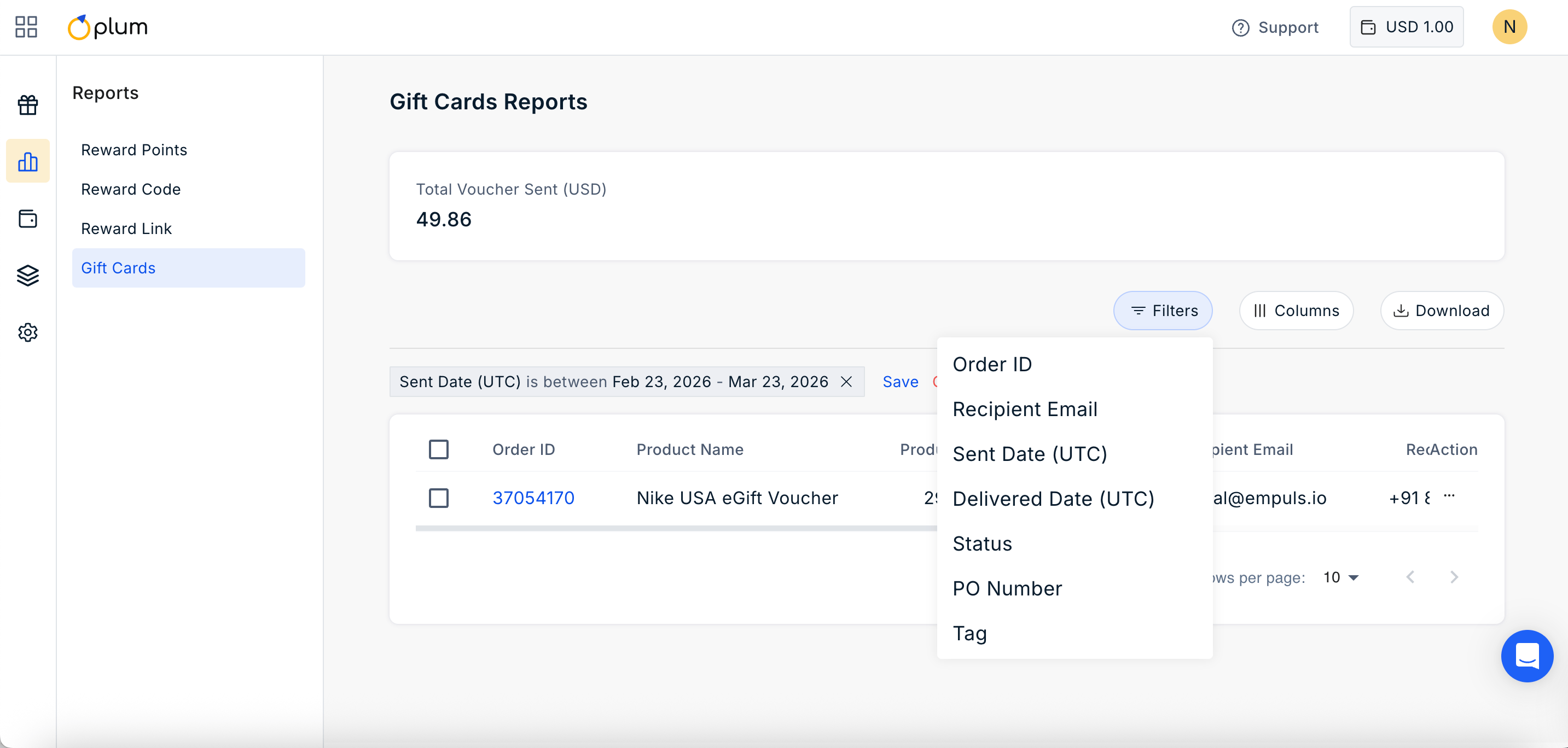
Click on the filter icon to filter the report by:
* Order ID
* Recipient Email
* Sent Date
* Delivered Date
* Status
* PO Number
* Tag
By following these steps, you can easily access and review reports specific to gift cards, providing valuable insights into product usage and recipient details.
***
## Filter the Report
Click on the filter icon to filter the report by:
* Order ID
* Recipient Email
* Sent Date
* Delivered Date
* Status
* PO Number
* Tag
 ***
## Manage Columns
Click on ||| Columns Icon to manage the columns you wish to show in the report. Simply check or uncheck the boxes based on your requirement.
***
## Manage Columns
Click on ||| Columns Icon to manage the columns you wish to show in the report. Simply check or uncheck the boxes based on your requirement.
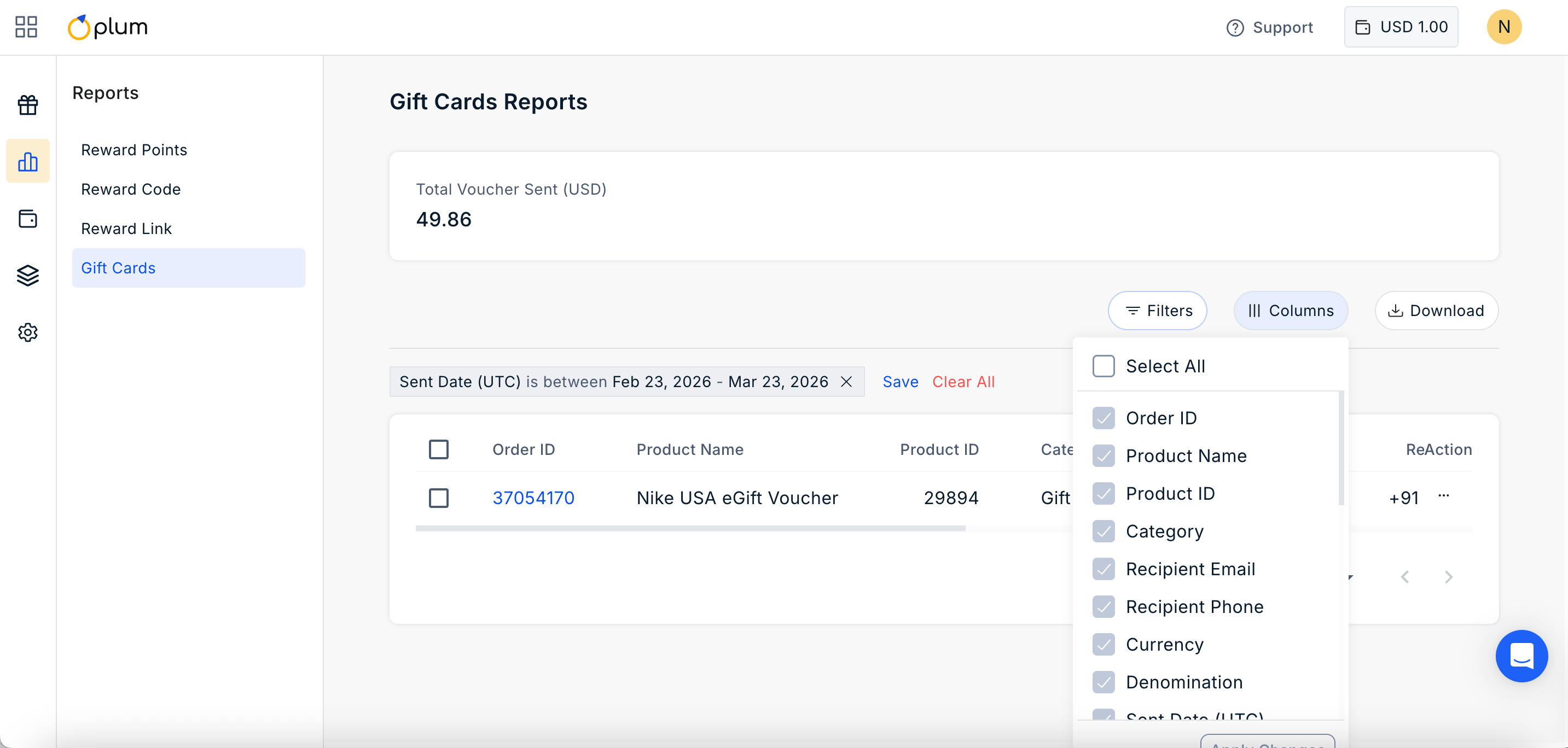 The reports can be downloaded using the "Download" button on the top right.
Feedback or Questions: Reach out to us at [cs@xoxoday.com](mailto:cs@xoxoday.com)
The reports can be downloaded using the "Download" button on the top right.
Feedback or Questions: Reach out to us at [cs@xoxoday.com](mailto:cs@xoxoday.com)