> ## Documentation Index
> Fetch the complete documentation index at: https://help-plum.xoxoday.com/llms.txt
> Use this file to discover all available pages before exploring further.

# Reward Points Reports

*Easily view and download Reward Points transaction reports.*

To view transaction reports for Reward Point, navigate to **Reports > Wallet History > Reward Point** tab. The reports provide detailed information such as recipient name, recipient email, date of delivery, campaign details, status, and more.

***

## How to Access Reward Points Reports

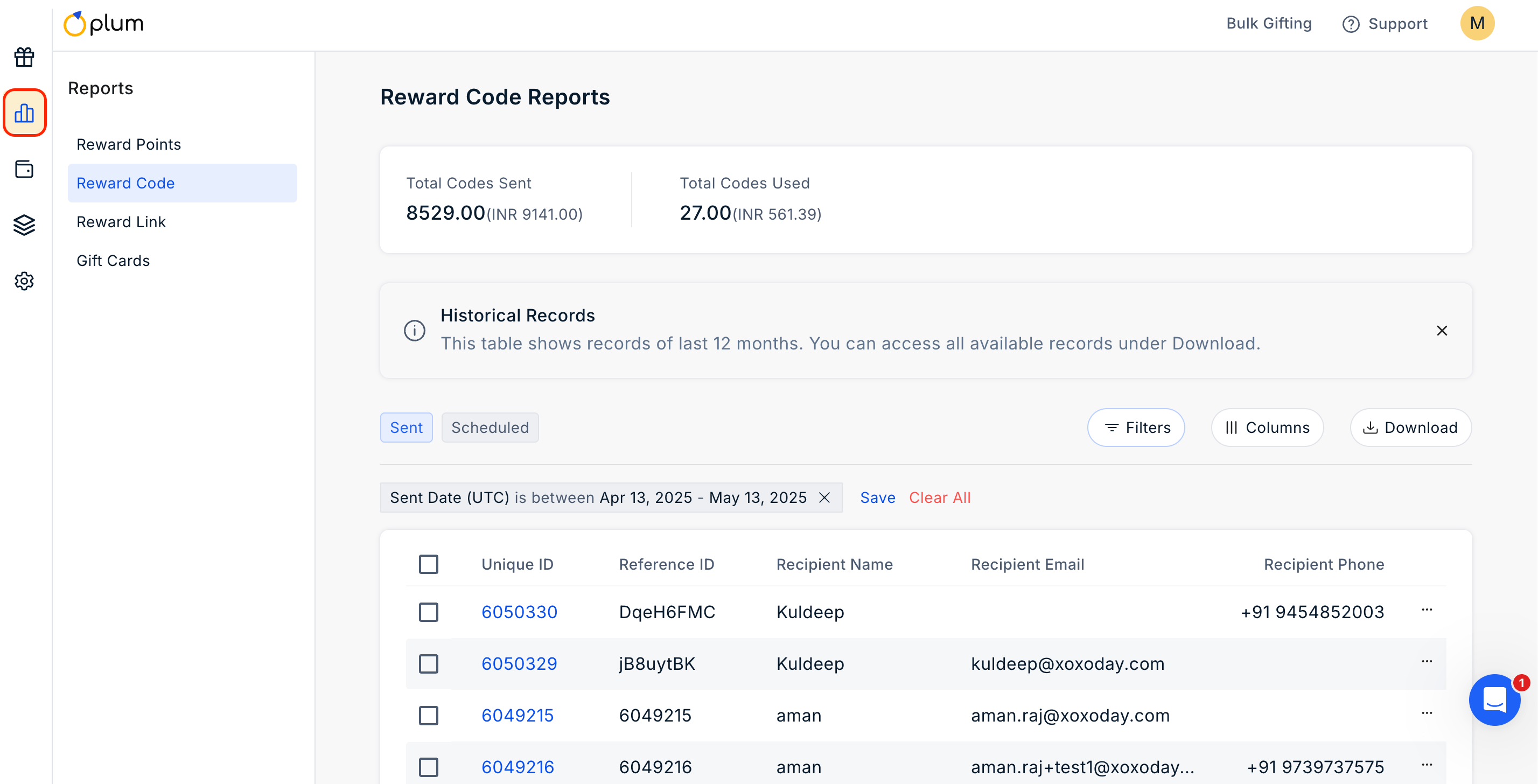
* Navigate to **Reports.**
<Frame>
  <img src="https://mintcdn.com/plum/kNcyLek1bA74PNJE/images/intercom/help-center-account-administration-reporting-reward-points-reports-9395141/920f3065e793c1bfd0e5f476bfad6b970e978be4311fd247e642a066aa11cff5-Screenshot_2025-05-13_at_7_54_09_PM.png?fit=max&auto=format&n=kNcyLek1bA74PNJE&q=85&s=d8027e9cf27e93ae1b361307b07ea89f" alt="" width="2856" height="1456" data-path="images/intercom/help-center-account-administration-reporting-reward-points-reports-9395141/920f3065e793c1bfd0e5f476bfad6b970e978be4311fd247e642a066aa11cff5-Screenshot_2025-05-13_at_7_54_09_PM.png" />
</Frame>

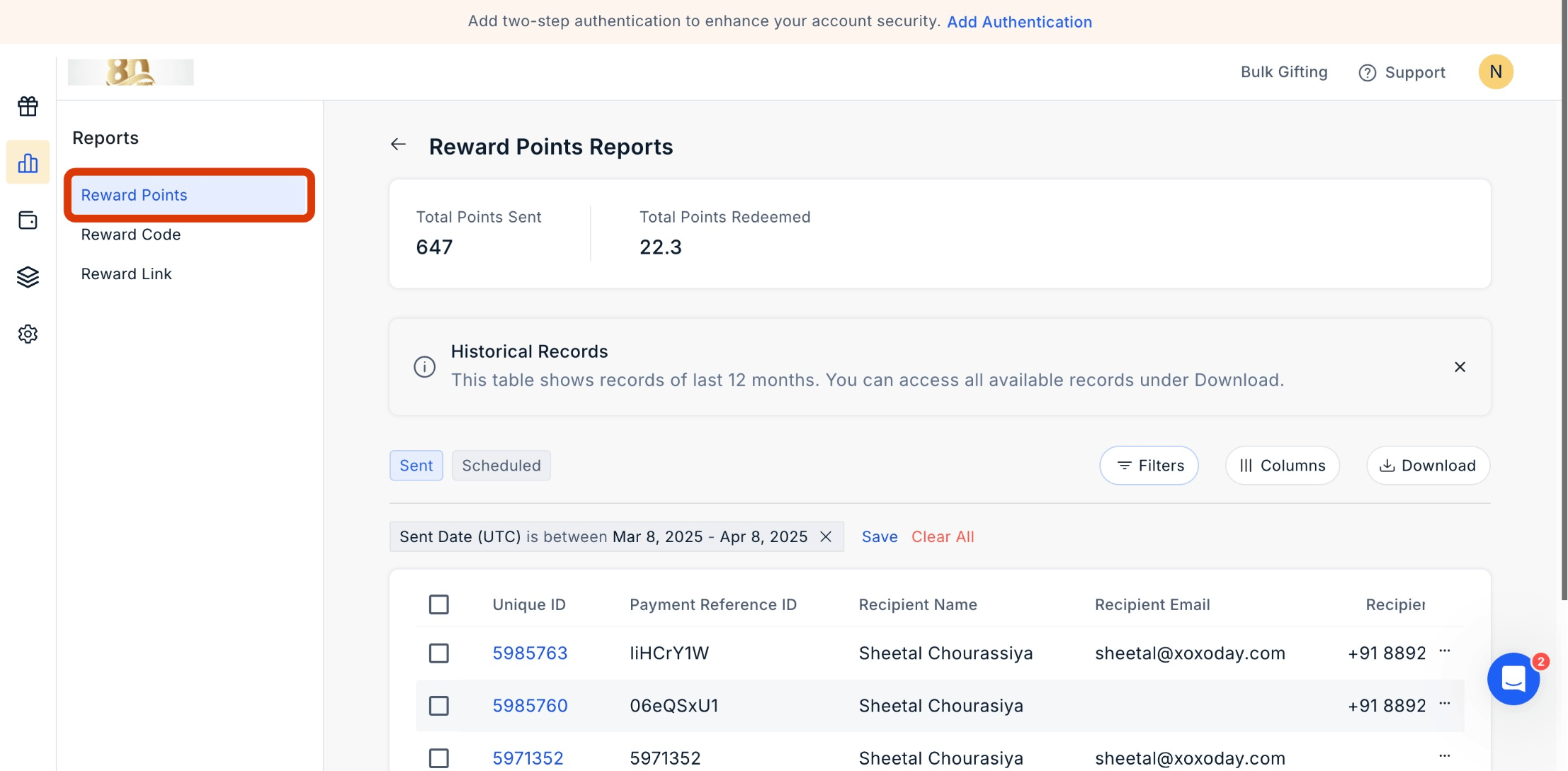
* Click on **Reward Points.**

<Frame>
  <img src="https://mintcdn.com/plum/kNcyLek1bA74PNJE/images/intercom/help-center-account-administration-reporting-reward-points-reports-9395141/f0a376c9d33622f83ae8b6400bfcec35d520027bfa4421983f00598a23dbc63e-screenshot_-_2025-04-08T104816_125.png?fit=max&auto=format&n=kNcyLek1bA74PNJE&q=85&s=51fa1240f5562a79826e9b471ebbd80f" alt="" width="2214" height="1088" data-path="images/intercom/help-center-account-administration-reporting-reward-points-reports-9395141/f0a376c9d33622f83ae8b6400bfcec35d520027bfa4421983f00598a23dbc63e-screenshot_-_2025-04-08T104816_125.png" />
</Frame>

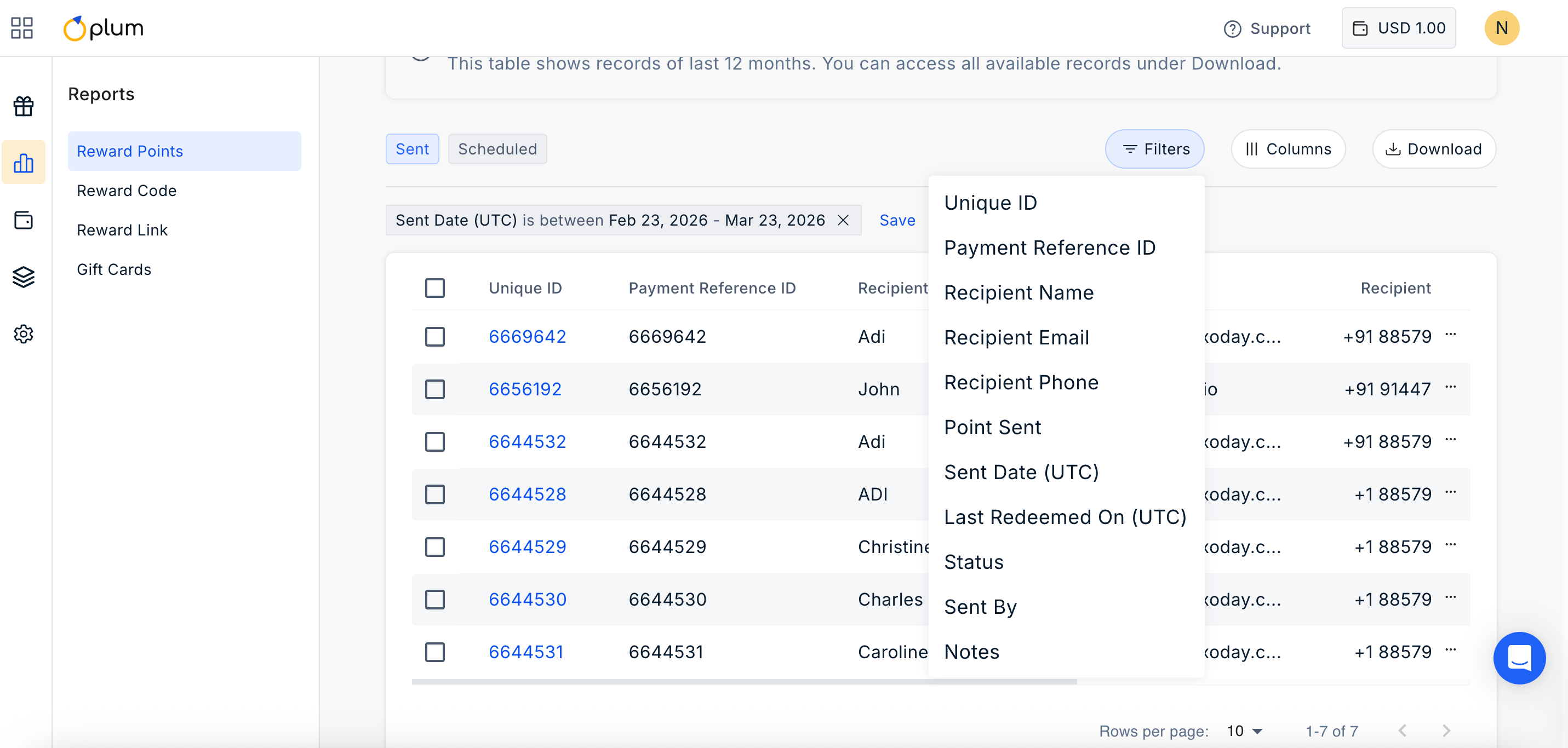
* Utilize the filter options to obtain specific reports based on criteria such as recipient name, recipient email, batch ID, phone number, generation date range, and more.
* Download the report using the top **download button.**
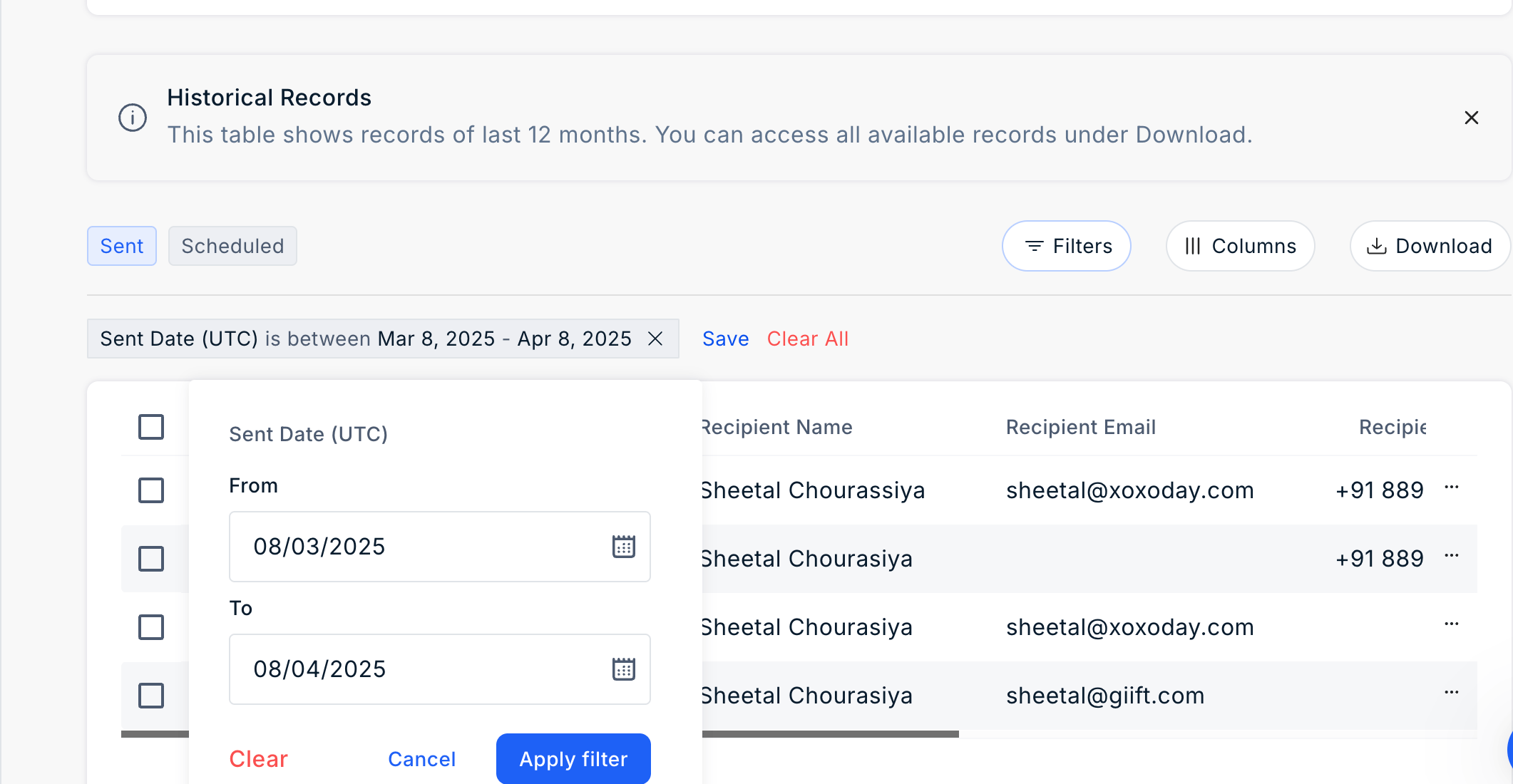
* You can also select your desired time frame by clicking on Sent Date (UTC) and choosing the range.
<Frame>
  <img src="https://mintcdn.com/plum/kNcyLek1bA74PNJE/images/intercom/help-center-account-administration-reporting-reward-points-reports-9395141/96aaf82d32ee1f1cc839ccfe294cae1d77825af78171bc0198268de8dfdc0d0c-Screenshot_2025-04-08_at_10_54_10_AM.png?fit=max&auto=format&n=kNcyLek1bA74PNJE&q=85&s=e01772e5614f85144f9026c8b45e8c5a" alt="" width="2122" height="1100" data-path="images/intercom/help-center-account-administration-reporting-reward-points-reports-9395141/96aaf82d32ee1f1cc839ccfe294cae1d77825af78171bc0198268de8dfdc0d0c-Screenshot_2025-04-08_at_10_54_10_AM.png" />
</Frame>

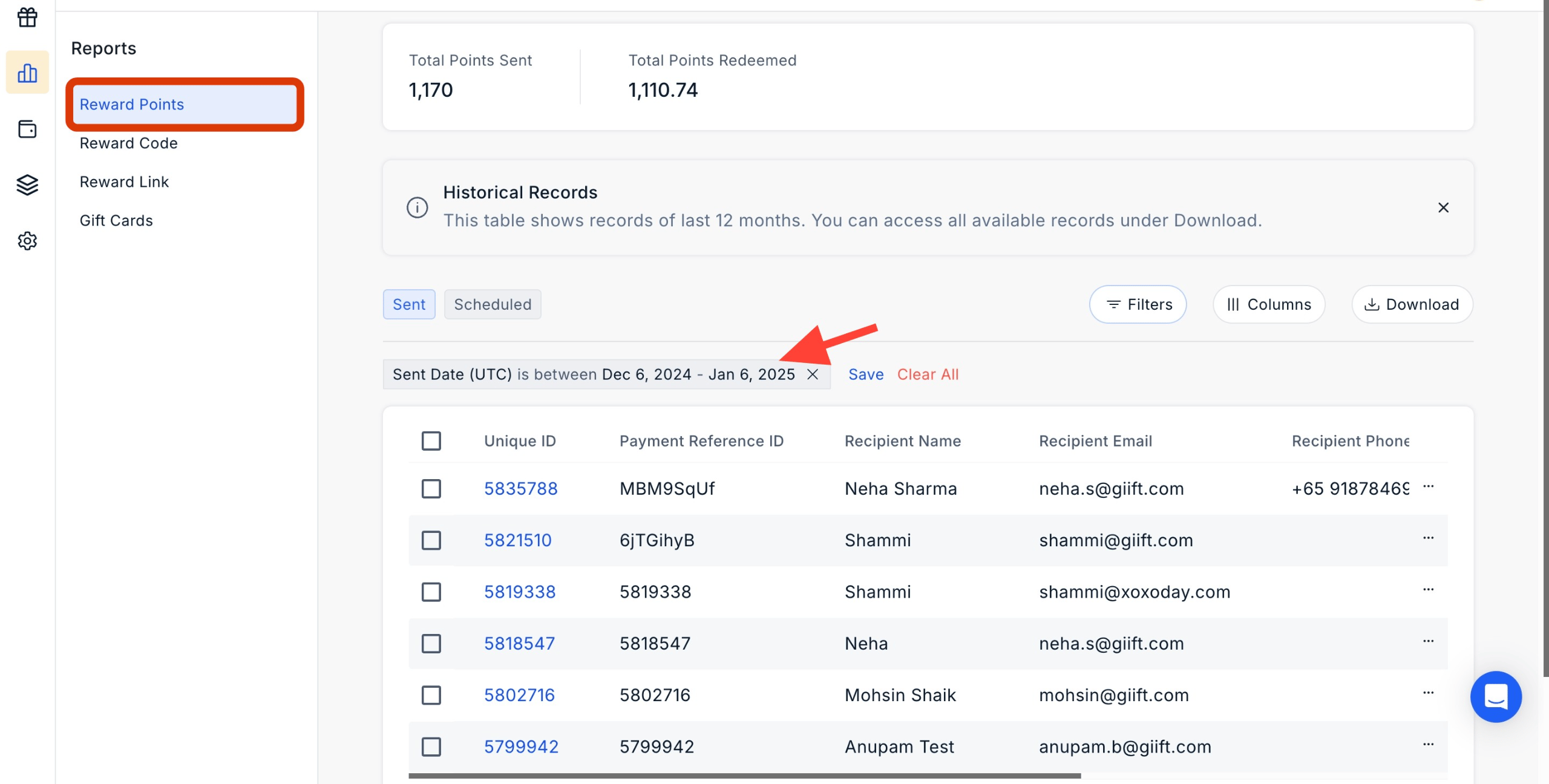
Select your desired time frame by clicking on **Sent Date (UTC)** and choosing the range.
<Frame>
  <img src="https://mintcdn.com/plum/kNcyLek1bA74PNJE/images/intercom/help-center-account-administration-reporting-reward-points-reports-9395141/screenshot__78_.png?fit=max&auto=format&n=kNcyLek1bA74PNJE&q=85&s=2e133e1c533a8b065c190bd2ffafc1de" alt="" width="2560" height="1296" data-path="images/intercom/help-center-account-administration-reporting-reward-points-reports-9395141/screenshot__78_.png" />
</Frame>

***

## Tracking Email and SMS Activity in Rewards Reports

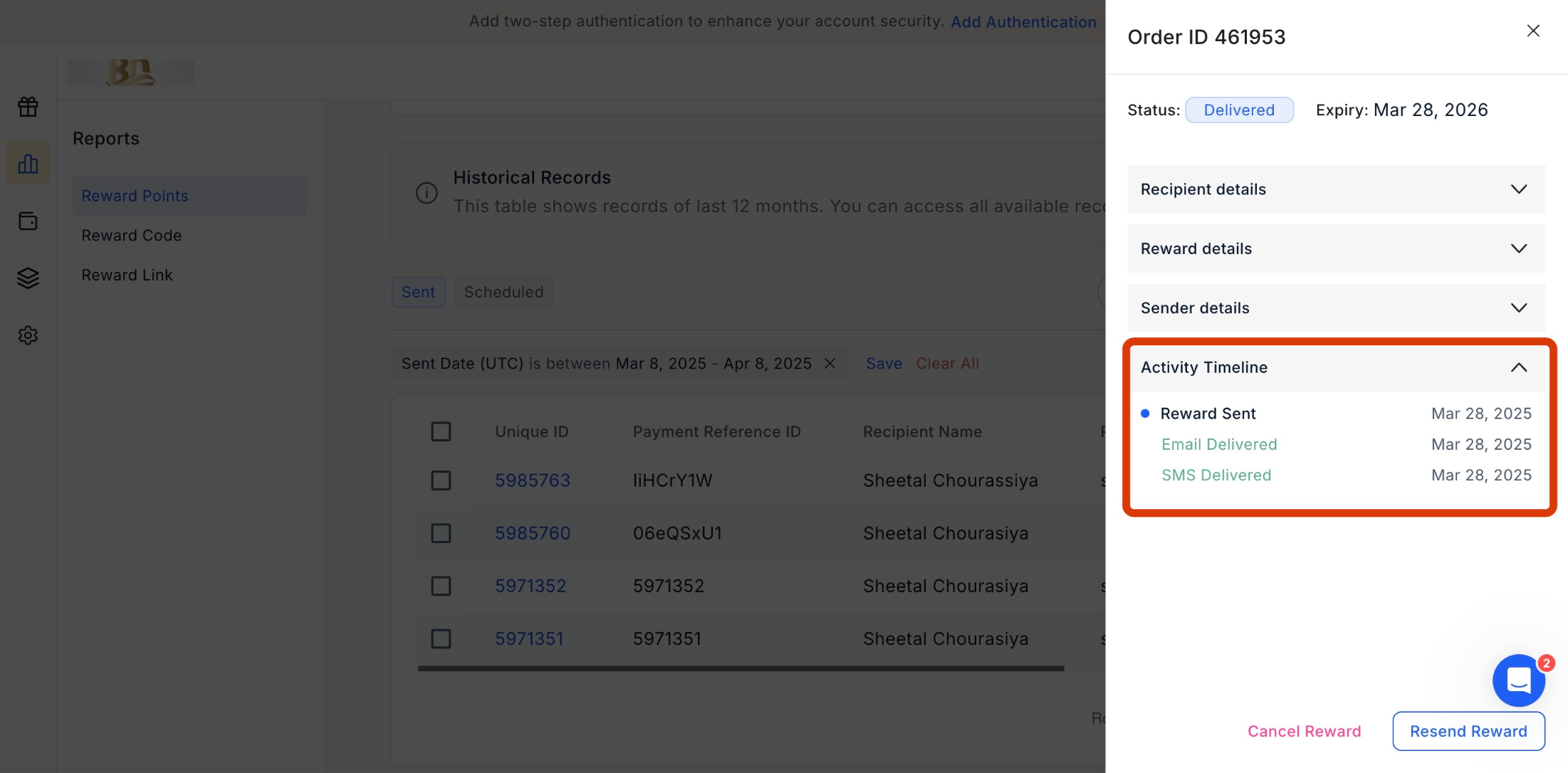
You can easily track Email and SMS activity in the Rewards Points report, enabling you to monitor and analyze the communication activities related to rewards distribution.

<Steps>
  <Step title="Navigate to Reports > Reward Points">
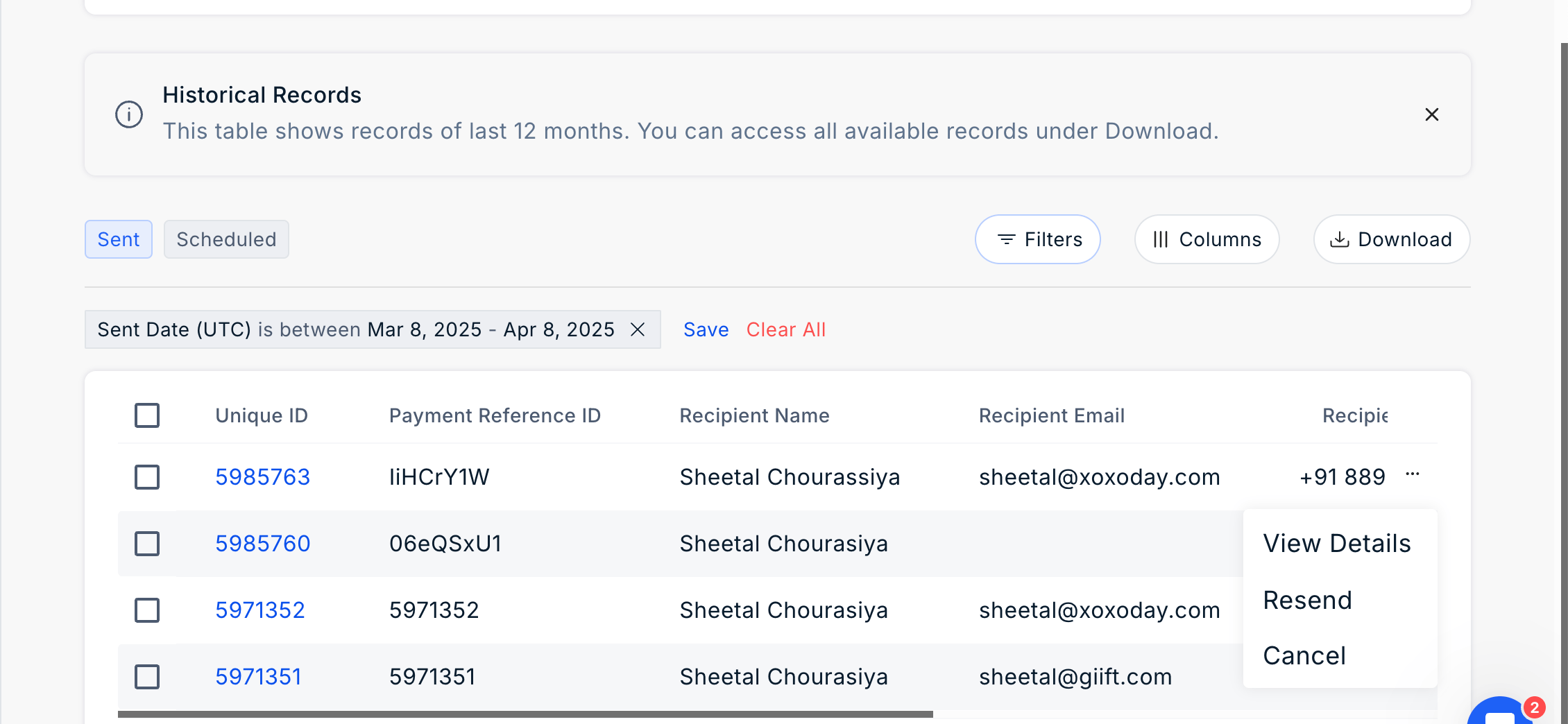
    Navigate to **Admin Dashboard > Reports > Wallet History > Reward Points.** Click the **'three dots icon'** to move ahead.
    <Frame>
      <img src="https://mintcdn.com/plum/kNcyLek1bA74PNJE/images/intercom/help-center-account-administration-reporting-reward-points-reports-9395141/43892aff59935aff8abc83123f080a1f39914e44b9997b06af3feb2a46773965-Screenshot_2025-04-08_at_10_50_01_AM.png?fit=max&auto=format&n=kNcyLek1bA74PNJE&q=85&s=74f81948c451bbd765f593a7d14592dc" alt="" width="2260" height="1044" data-path="images/intercom/help-center-account-administration-reporting-reward-points-reports-9395141/43892aff59935aff8abc83123f080a1f39914e44b9997b06af3feb2a46773965-Screenshot_2025-04-08_at_10_50_01_AM.png" />
    </Frame>
  </Step>

  <Step title="View Activity Timeline">
    Click **'Take Action'** and the using dropdown view **'Activity Timeline'.**
    <Frame>
      <img src="https://mintcdn.com/plum/kNcyLek1bA74PNJE/images/intercom/help-center-account-administration-reporting-reward-points-reports-9395141/2362c5df2099bab01e698713c03bdb7ac1de9cb7e33fb410b6dbeeb5fea6961a-screenshot_-_2025-04-08T105027_400.png?fit=max&auto=format&n=kNcyLek1bA74PNJE&q=85&s=0fb078ba912d5b25a1e9aa57b9155532" alt="" width="2202" height="1086" data-path="images/intercom/help-center-account-administration-reporting-reward-points-reports-9395141/2362c5df2099bab01e698713c03bdb7ac1de9cb7e33fb410b6dbeeb5fea6961a-screenshot_-_2025-04-08T105027_400.png" />
    </Frame>
  </Step>
</Steps>

***

## Filter the Report

Click on the filter icon to filter the report.
<Frame>
  <img src="https://mintcdn.com/plum/kNcyLek1bA74PNJE/images/intercom/help-center-account-administration-reporting-reward-points-reports-9395141/Screenshot_2026-03-23_at_5_21_58_PM.png?fit=max&auto=format&n=kNcyLek1bA74PNJE&q=85&s=3ad8fa83faabb60d1a864167186a52da" alt="" width="2862" height="1366" data-path="images/intercom/help-center-account-administration-reporting-reward-points-reports-9395141/Screenshot_2026-03-23_at_5_21_58_PM.png" />
</Frame>

***

## Manage Columns

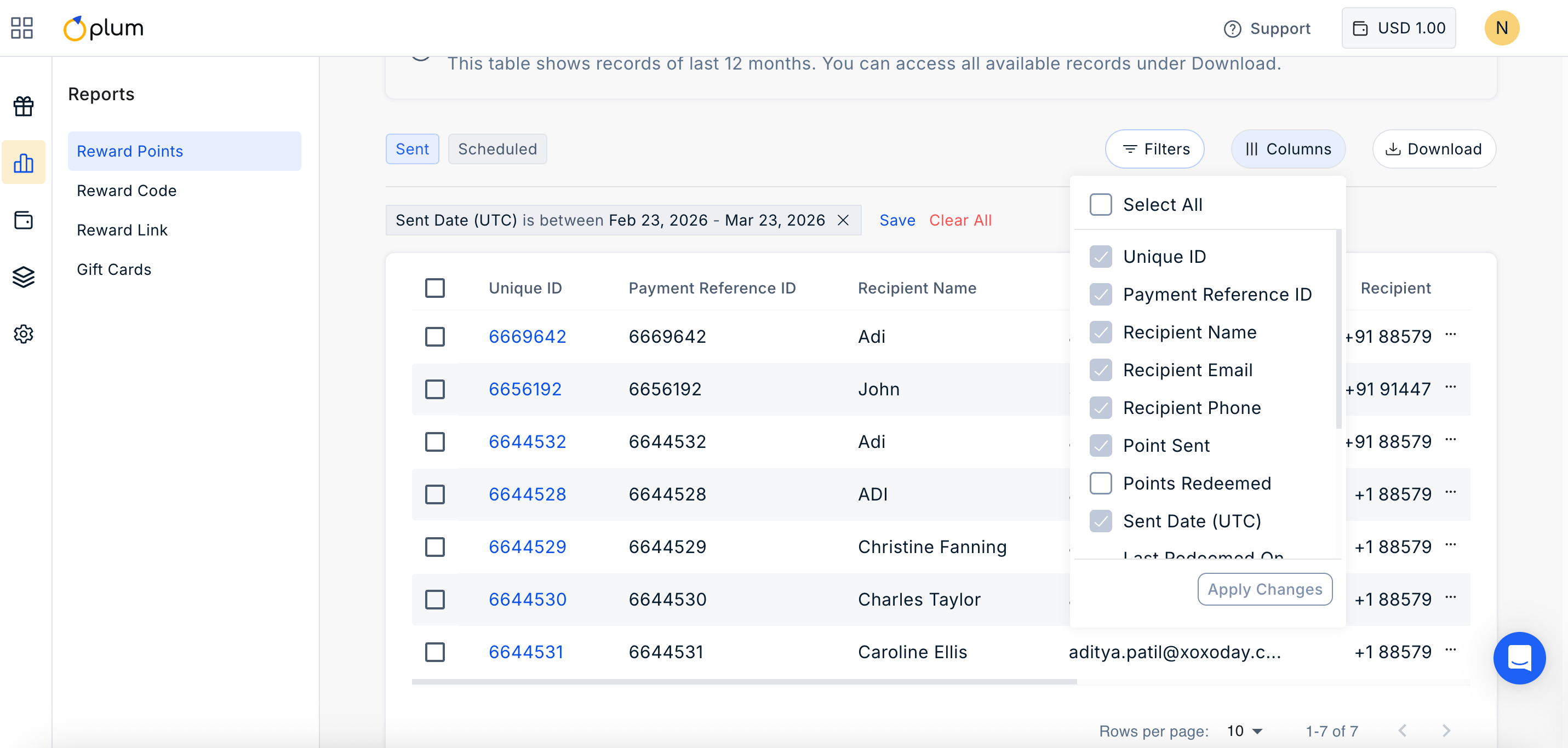
Click on ||| Columns Icon to manage the columns you wish to show in the report. Simply check or uncheck the boxes based on your requirement.
<Frame>
  <img src="https://mintcdn.com/plum/kNcyLek1bA74PNJE/images/intercom/help-center-account-administration-reporting-reward-points-reports-9395141/Screenshot_2026-03-23_at_5_22_04_PM.png?fit=max&auto=format&n=kNcyLek1bA74PNJE&q=85&s=9cd82de19f2d47679130d08dc6550d27" alt="" width="2862" height="1366" data-path="images/intercom/help-center-account-administration-reporting-reward-points-reports-9395141/Screenshot_2026-03-23_at_5_22_04_PM.png" />
</Frame>

Feedback or Questions: Reach out to us at [cs@xoxoday.com](mailto:cs@xoxoday.com).