> ## Documentation Index
> Fetch the complete documentation index at: https://help-plum.xoxoday.com/llms.txt
> Use this file to discover all available pages before exploring further.
# Add Admin User
> Learn how to add a new admin user to your Plum account, including how to set their access level and permissions during setup.
*In this article you'll learn how to invite your colleague to co-manage Xoxoday.*
Invite colleagues to co-manage your Xoxoday Plum account by adding them as Super Admins or admins. Super admins have full control, while admins have limited access.
***
## Adding a User
Adding a Super Admin or an Admin user is easy, just follow the steps below:
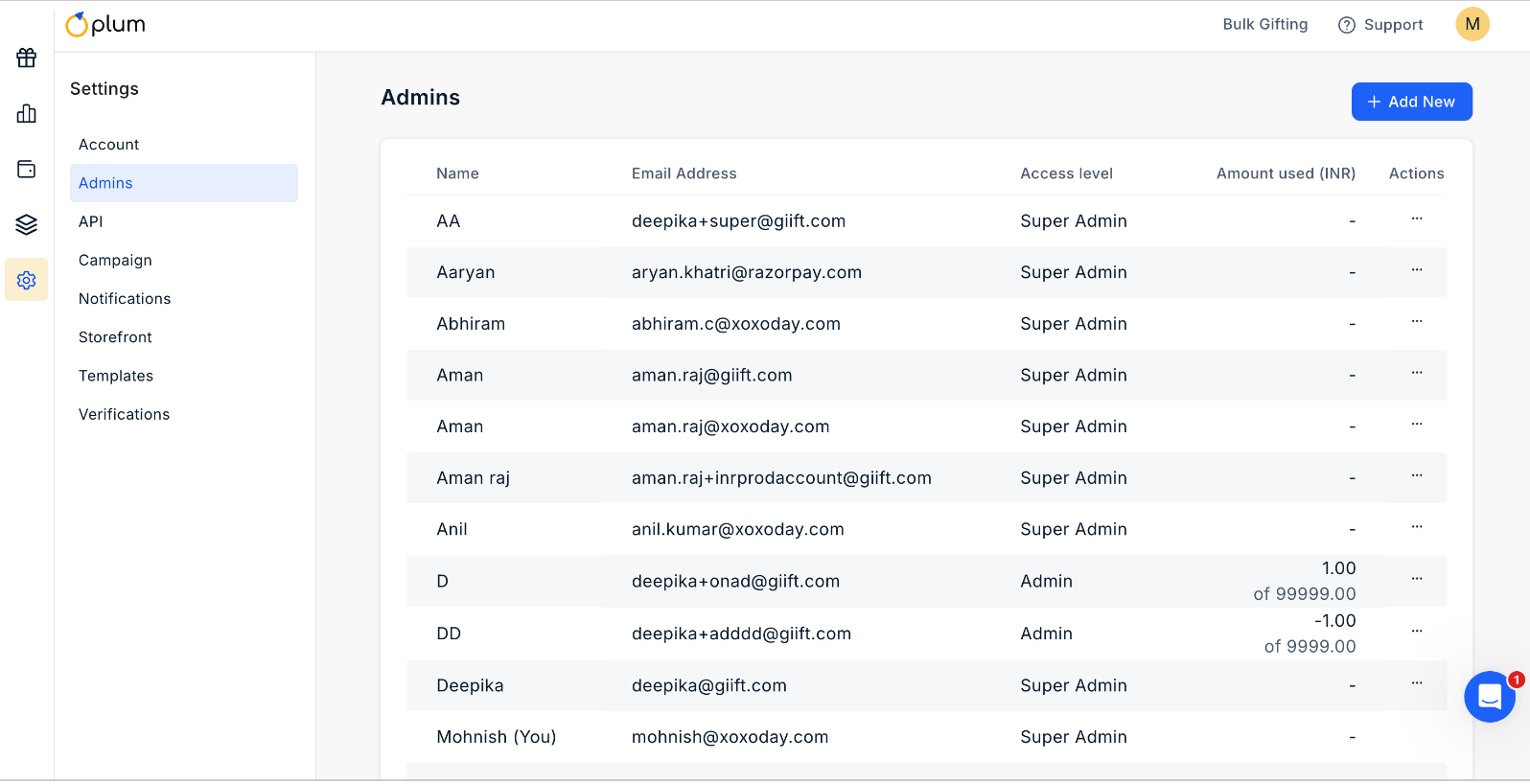
Navigate to "**Admins**" in the "**Settings**" section of the main dashboard.
Here, you can view existing admins and super-admins, as well as the threshold amount for each admin.
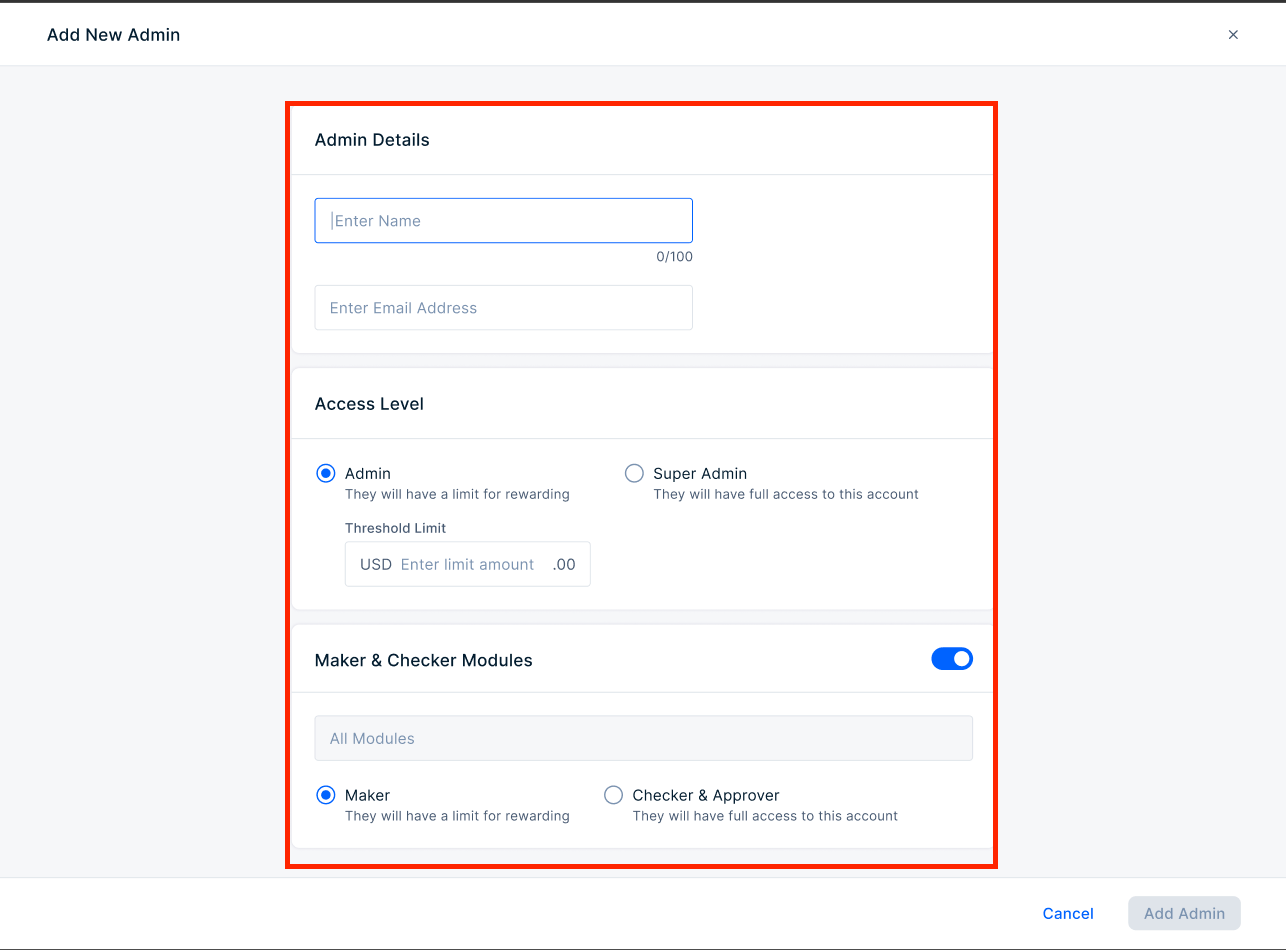
 Enter the "**Name**", "**Email**", and "**Threshold Amount**", and select the "**Role**".
Click on "**Add Admin**".
Enter the "**Name**", "**Email**", and "**Threshold Amount**", and select the "**Role**".
Click on "**Add Admin**".
 ***
## Switch to Admin to Super Admin (and vice versa)
Optionally, you can switch an admin user into Super admin and vice-versa. This operation can be done only by Super Admins in a Xoxoday account. Here's how:
Go to "**Settings**" > "**Admins**".
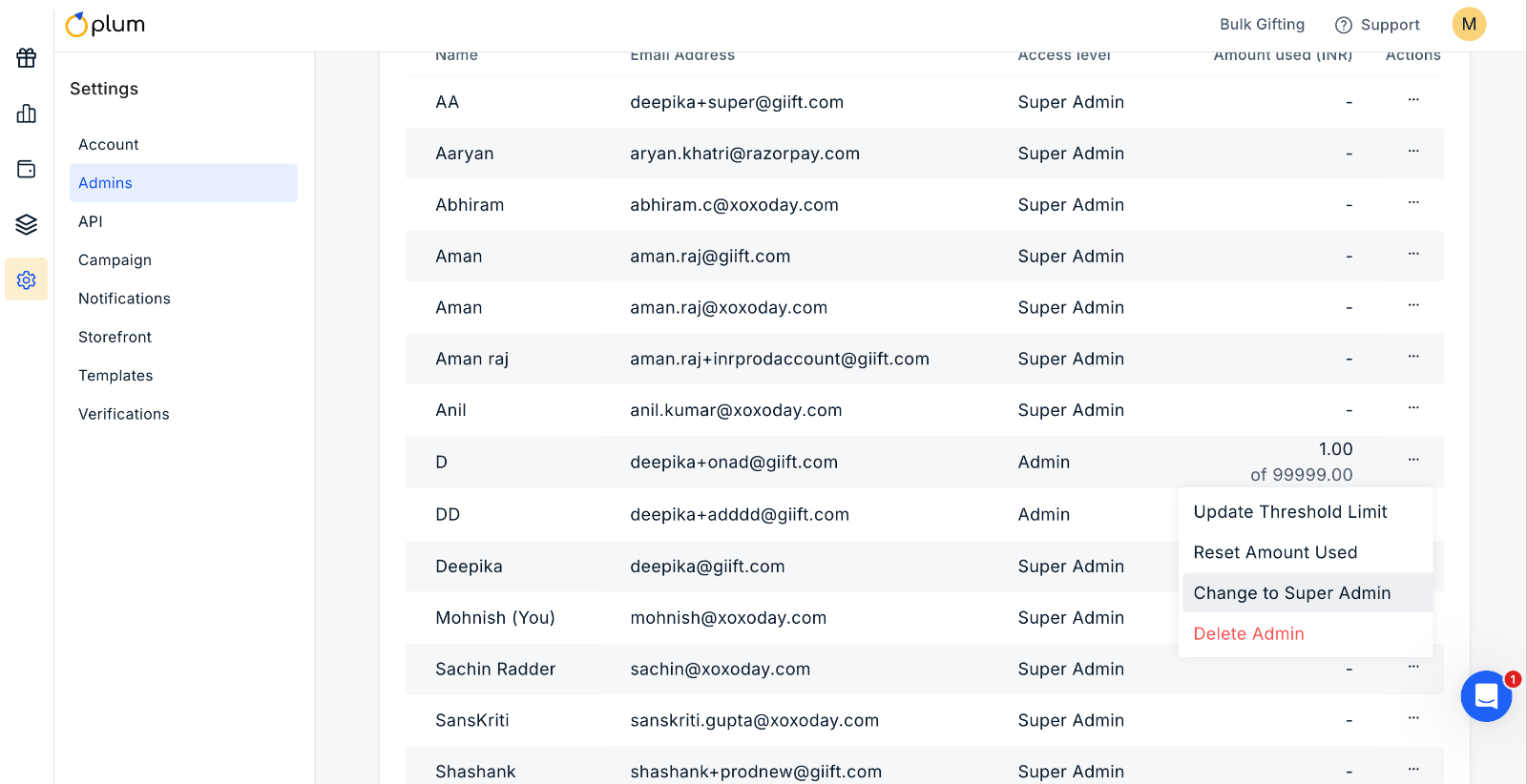
Click on the three dots (...) \[under the Actions] in the same row as the admin you want to delete.
Click on "**Change to Super Admin (or Admin as needed!)**".
Confirm your selection by clicking on "**Yes**". (on the pop-up prompt)
***
## Switch to Admin to Super Admin (and vice versa)
Optionally, you can switch an admin user into Super admin and vice-versa. This operation can be done only by Super Admins in a Xoxoday account. Here's how:
Go to "**Settings**" > "**Admins**".
Click on the three dots (...) \[under the Actions] in the same row as the admin you want to delete.
Click on "**Change to Super Admin (or Admin as needed!)**".
Confirm your selection by clicking on "**Yes**". (on the pop-up prompt)
 Need help? Reach out to your support team or [cs@xoxoday.com](mailto:cs@xoxoday.com).