> ## Documentation Index
> Fetch the complete documentation index at: https://help-plum.xoxoday.com/llms.txt
> Use this file to discover all available pages before exploring further.
# Managing Threshold
> See how to configure approval thresholds for admin users in Plum, controlling how much they can send without additional sign-off.
*Learn everything you need about threshold (hard limit of budget for Admins) on your Xoxoday platform.*
### Threshold — user budget management feature
In Plum, the threshold value refers to the limit set by Super Admins on the funds that an Admin can access from the Company Wallet.
It's a great way to manage budget for individual Plum Admin user.
***
## Updating Threshold Value for Admins
**Pro Tip:** Thresholds can be set only by Super Admin users for **Admin** users. By default, Super Admins can utilize all of the funds in the company wallet without any restriction.
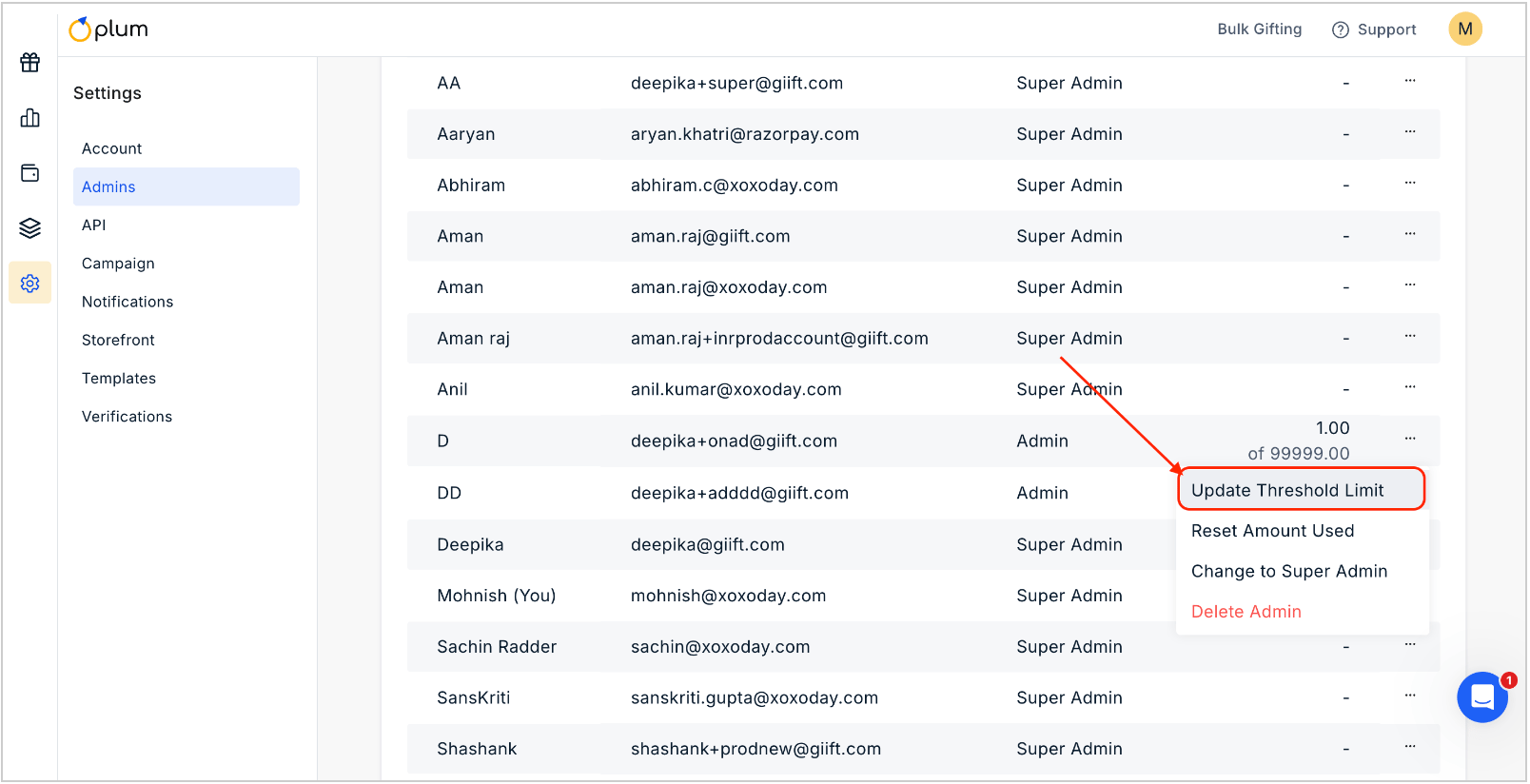
Go to **Settings > Admins**, click the three dots next to the username, and select "**Update Threshold Limit.**"
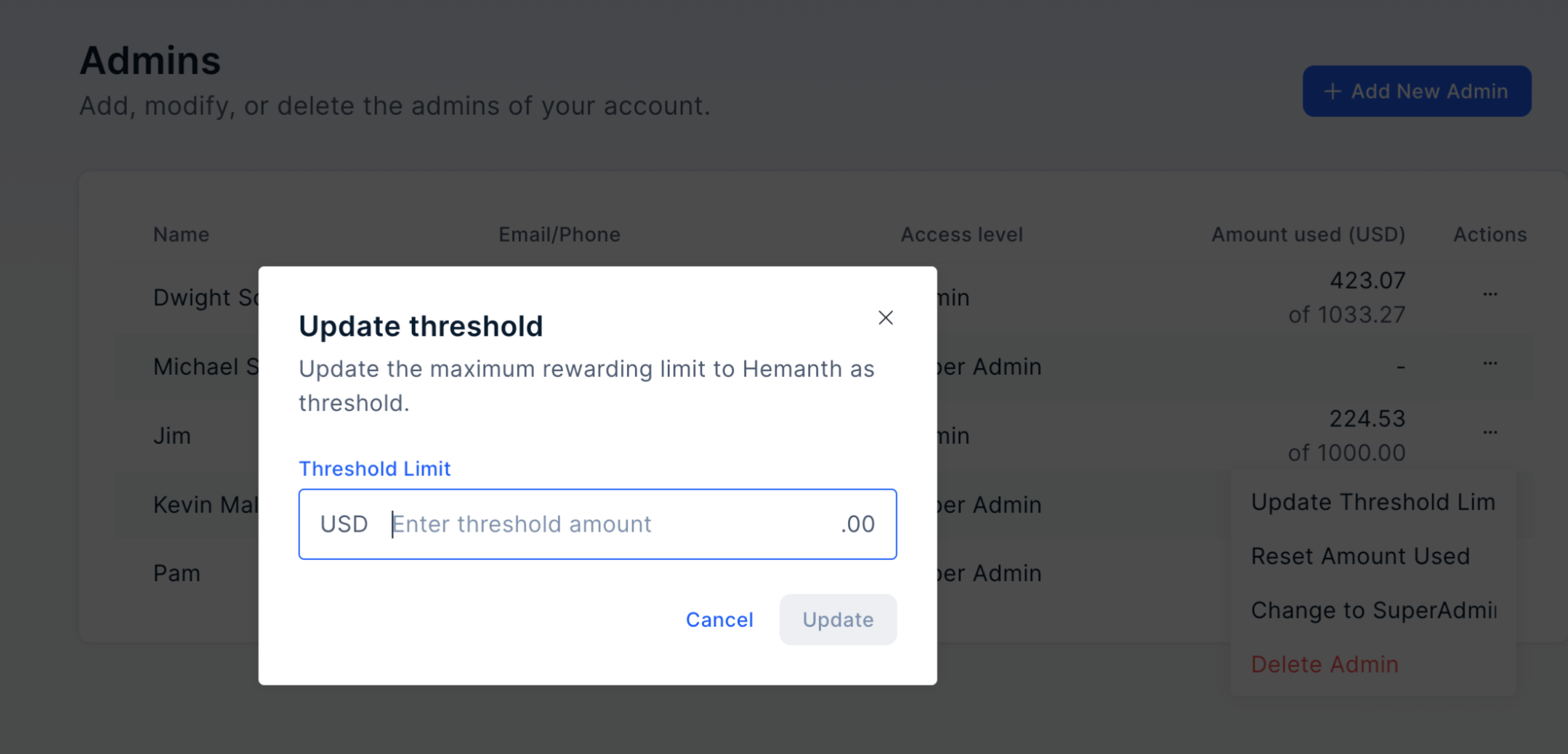
 A pop-up will prompt you to input the new threshold amount. Enter the desired value and click "**Update**".
 Feedback or Questions - Reply to [cs@xoxoday.com](mailto:cs@xoxoday.com)