> ## Documentation Index
> Fetch the complete documentation index at: https://help-plum.xoxoday.com/llms.txt
> Use this file to discover all available pages before exploring further.
# Switching Account
> See how to switch between multiple Plum accounts as an admin, useful if you manage rewards across more than one organization.
*Learn how you can switch between multiple Xoxoday accounts.*
This article walks you through how to switch between multiple Xoxoday Plum account.
***
## Step by step guide to switch between multiple Plum Account
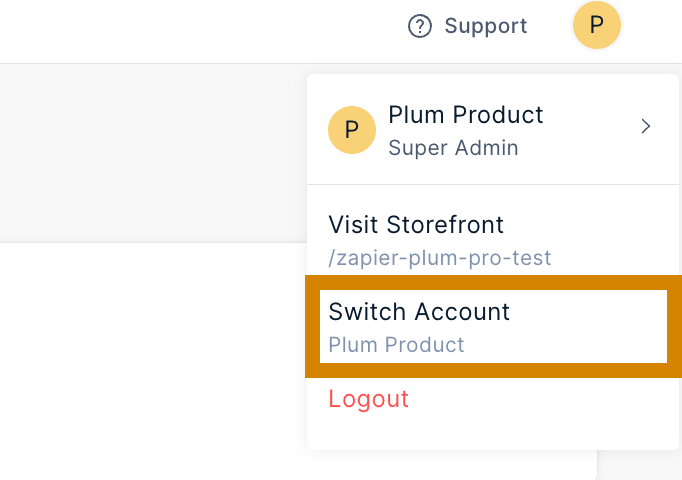
Click on the Profile Icon on the top right-hand side. Select "**Switch Account**."
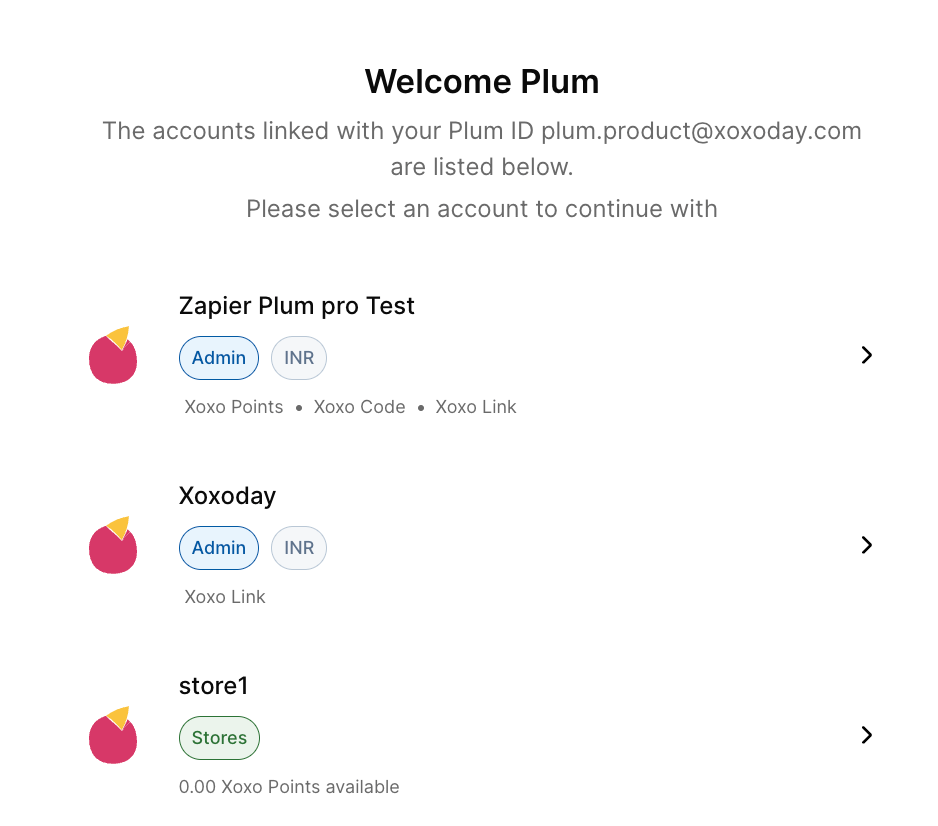
 Select the account from the list of associated accounts.
 Feedback or Questions: Reach out to us at [cs@xoxoday.com](mailto:cs@xoxoday.com).