> ## Documentation Index
> Fetch the complete documentation index at: https://help-plum.xoxoday.com/llms.txt
> Use this file to discover all available pages before exploring further.
# Email Whitelisting
> Learn how to whitelist Plum's sending domain with your email provider so reward emails don't get filtered as spam.
*Learn how to whitelist your email.*
For emails to not land in spam and properly open images in email services like Microsoft Outlook and Gmail, follow the steps below.
***
## Microsoft Outlook Email Whitelisting Process
### Option 1: For Individual Email Addresses to be whitelisted from inside email message
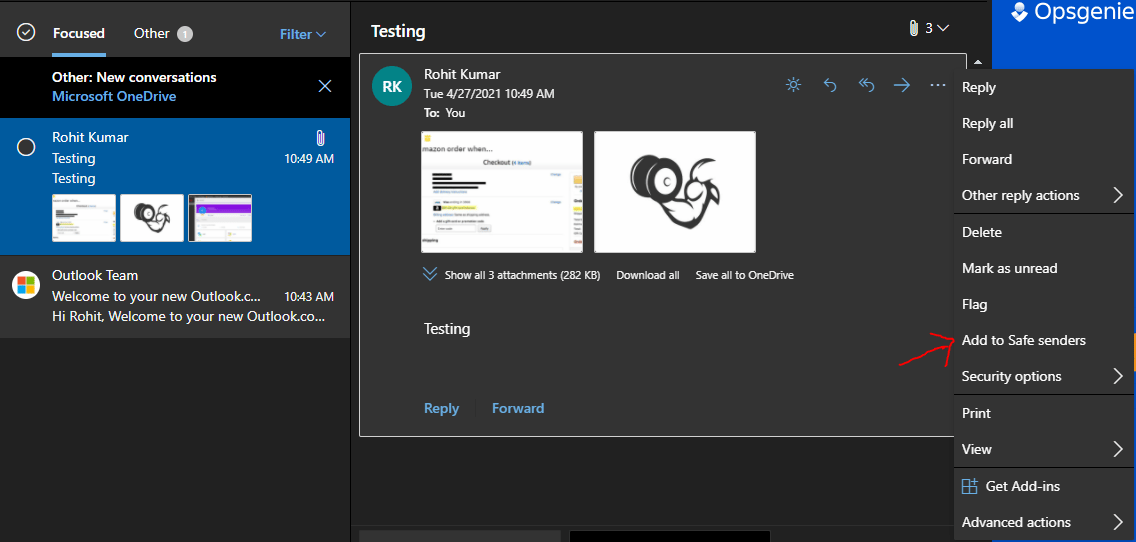
In an open message that was sent from a particular email address or domain, right-click on a blocked item.
Do one of the following:
* Click Add Sender to Safe Senders List.
* Click Add the Domain \[@domain] to Safe Senders List.
***
### Option 2: For Email Address to be whitelisted from settings
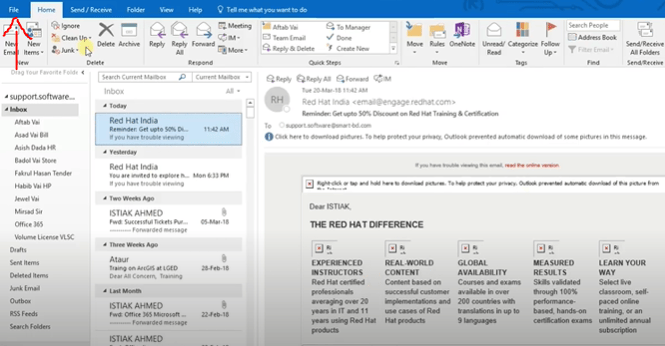
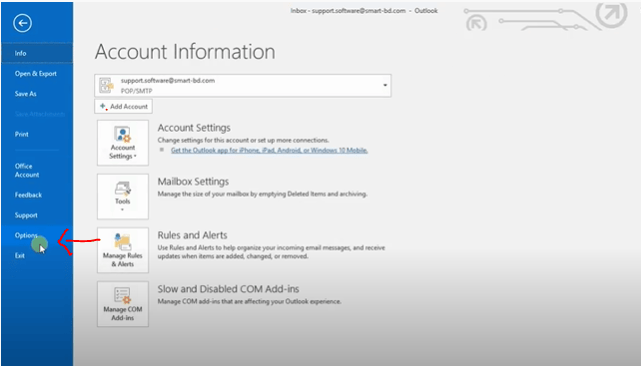
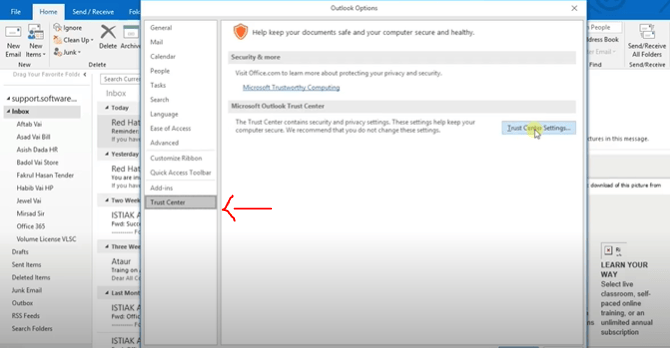
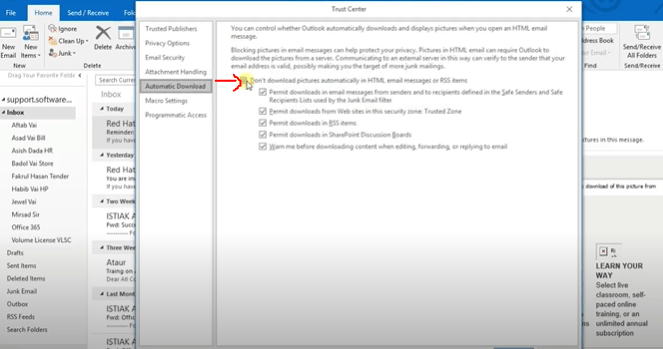
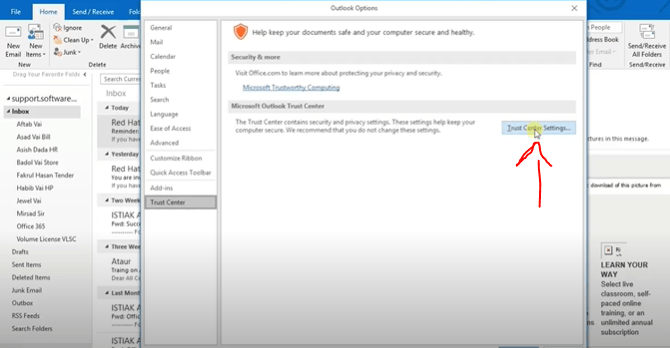 Untick the option which says "Don't download pictures automatically in HTML email messages or RSS items."
 ***
### Option 3: For Email Address to be whitelisted from Microsoft Admin
Step by Step Instructions (Admin Side)
* Login to [https://portal.microsoftonlie.com](https://portal.microsoftonlie.com/)
* Go to **Admin > Exchange > Mail Flow**
Mail Flow enables you to set rules on the server before the email is delivered to Outlook.
* This is similar to setting rules using Outlook's built in rules.
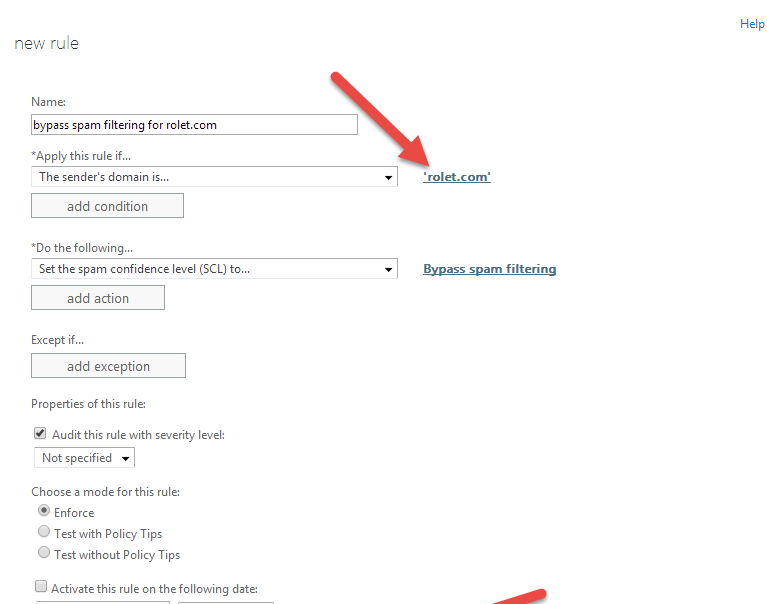
* New rule details in Office 365. Click to view larger.
* Click the + and select Bypass Spam Filtering
* Apply this rule if… > The sender… > domain is
Enter the domain name (example: rolet.com)
* Under specify domain, be sure to click the + to add the domain to the list.
You can come back to this rule and add domain names for each domain you want to whitelist. There is no need to create additional global rules in Mail Flow for each domain.
* Click ok
* Check Stop processing more rules
* Click save
***
### Option 3: For Email Address to be whitelisted from Microsoft Admin
Step by Step Instructions (Admin Side)
* Login to [https://portal.microsoftonlie.com](https://portal.microsoftonlie.com/)
* Go to **Admin > Exchange > Mail Flow**
Mail Flow enables you to set rules on the server before the email is delivered to Outlook.
* This is similar to setting rules using Outlook's built in rules.
* New rule details in Office 365. Click to view larger.
* Click the + and select Bypass Spam Filtering
* Apply this rule if… > The sender… > domain is
Enter the domain name (example: rolet.com)
* Under specify domain, be sure to click the + to add the domain to the list.
You can come back to this rule and add domain names for each domain you want to whitelist. There is no need to create additional global rules in Mail Flow for each domain.
* Click ok
* Check Stop processing more rules
* Click save
 ***
## Google Email Whitelisting Process
* In the Admin console Go to **Apps > G Suite Gmail > Advanced settings.**
* Scroll to the Spam section, hover over the setting, and click **"Configure".**
* Enter a unique name for the setting.
* Check the Bypass spam filters for messages received from addresses or domains within this approved senders lists box.
* Click **"Use existing or Create a new one"**, enter a new list name, and click **"Create".**
* Hover over the list name, click **"Edit"**, and then click **"Add".**
* Enter domain name 'abc.com'
* **Save**
***
## DMARC Quarantine Issue
Error Message:
DMARC Message from domain xoxoday.com, DMARC fail, (SPF aligned False, DKIM aligned False) DMARC policy is quarantine, applied policy is quarantine.
For the above Error, please do the whitelisting process for your respective email services.
Feedback or Questions: Reach out to us [cs@xoxoday.com](mailto:cs@xoxoday.com).
***
## Google Email Whitelisting Process
* In the Admin console Go to **Apps > G Suite Gmail > Advanced settings.**
* Scroll to the Spam section, hover over the setting, and click **"Configure".**
* Enter a unique name for the setting.
* Check the Bypass spam filters for messages received from addresses or domains within this approved senders lists box.
* Click **"Use existing or Create a new one"**, enter a new list name, and click **"Create".**
* Hover over the list name, click **"Edit"**, and then click **"Add".**
* Enter domain name 'abc.com'
* **Save**
***
## DMARC Quarantine Issue
Error Message:
DMARC Message from domain xoxoday.com, DMARC fail, (SPF aligned False, DKIM aligned False) DMARC policy is quarantine, applied policy is quarantine.
For the above Error, please do the whitelisting process for your respective email services.
Feedback or Questions: Reach out to us [cs@xoxoday.com](mailto:cs@xoxoday.com).