> ## Documentation Index
> Fetch the complete documentation index at: https://help-plum.xoxoday.com/llms.txt
> Use this file to discover all available pages before exploring further.
# Email Settings
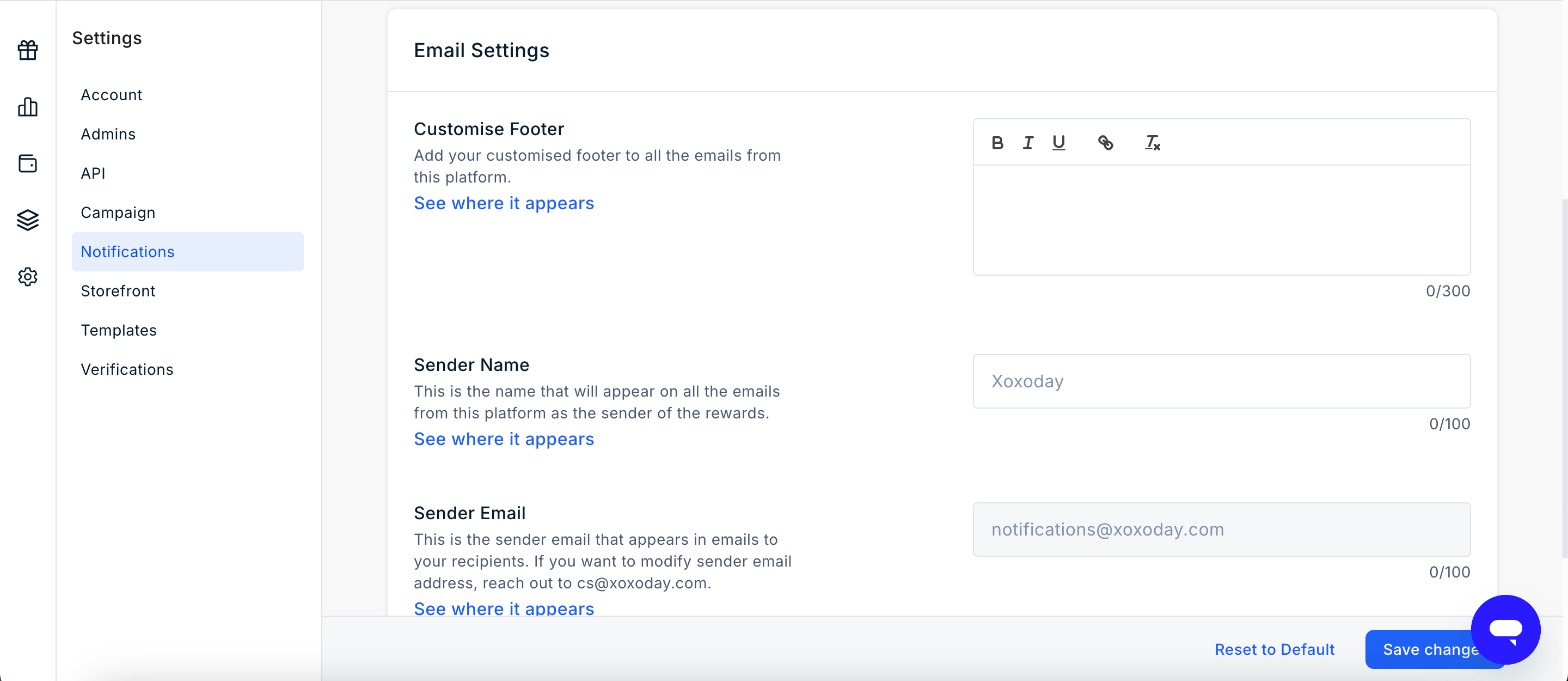
The **Email Settings** page allows Admins to customise the emails sent to reward recipients. Admins can configure the email footer, sender details, and PDF gift certificate settings.
To access **Email Settings**, navigate to **Settings > Notifications**.
 ## Customize the Email Footer
The **Custom Footer** setting allows Admins to add custom text to the footer of reward emails.
You can use the footer to include:
* Company contact information
* Support details
* Legal disclaimers
* Other relevant information that should appear in reward emails
The configured footer is included in reward emails sent to recipients.
## Configure the Sender Name
The **Sender Name** determines the name displayed in the **From** field of reward emails.
By default, **Xoxoday** is displayed as the sender. Admins can replace this with a custom sender name, such as **Acme Rewards** or **HR Team**, to provide a branded email experience.
## Configure the Sender Email Address
The **Sender Email** determines the email address displayed in the **From** field of reward emails.
By default, reward emails are sent from [**notifications@xoxoday.com**](mailto:notifications@xoxoday.com). Organiszations can configure a custom sender email address, such as [**rewards@company.com**](mailto:rewards@company.com), to align reward communications with their corporate domain.
A custom sender email address requires **domain authentication** using SPF, DKIM, and DMARC DNS records. Without domain authentication, emails may be delivered to spam folders or rejected by recipient mail servers.
## Enable PDF Generation
The **Enable PDF Generation** setting allows reward emails to include a **PDF gift certificate** as an attachment.
The PDF contains the relevant reward or gift card details and can be downloaded or printed by the recipient.
This setting is available for:
* **Reward Codes (Xoxo Codes)**
* **Gift Cards (Plum Pro)**
## Customize the Email Footer
The **Custom Footer** setting allows Admins to add custom text to the footer of reward emails.
You can use the footer to include:
* Company contact information
* Support details
* Legal disclaimers
* Other relevant information that should appear in reward emails
The configured footer is included in reward emails sent to recipients.
## Configure the Sender Name
The **Sender Name** determines the name displayed in the **From** field of reward emails.
By default, **Xoxoday** is displayed as the sender. Admins can replace this with a custom sender name, such as **Acme Rewards** or **HR Team**, to provide a branded email experience.
## Configure the Sender Email Address
The **Sender Email** determines the email address displayed in the **From** field of reward emails.
By default, reward emails are sent from [**notifications@xoxoday.com**](mailto:notifications@xoxoday.com). Organiszations can configure a custom sender email address, such as [**rewards@company.com**](mailto:rewards@company.com), to align reward communications with their corporate domain.
A custom sender email address requires **domain authentication** using SPF, DKIM, and DMARC DNS records. Without domain authentication, emails may be delivered to spam folders or rejected by recipient mail servers.
## Enable PDF Generation
The **Enable PDF Generation** setting allows reward emails to include a **PDF gift certificate** as an attachment.
The PDF contains the relevant reward or gift card details and can be downloaded or printed by the recipient.
This setting is available for:
* **Reward Codes (Xoxo Codes)**
* **Gift Cards (Plum Pro)**