> ## Documentation Index
> Fetch the complete documentation index at: https://help-plum.xoxoday.com/llms.txt
> Use this file to discover all available pages before exploring further.
# Reminders
# **Low Balance Alert**
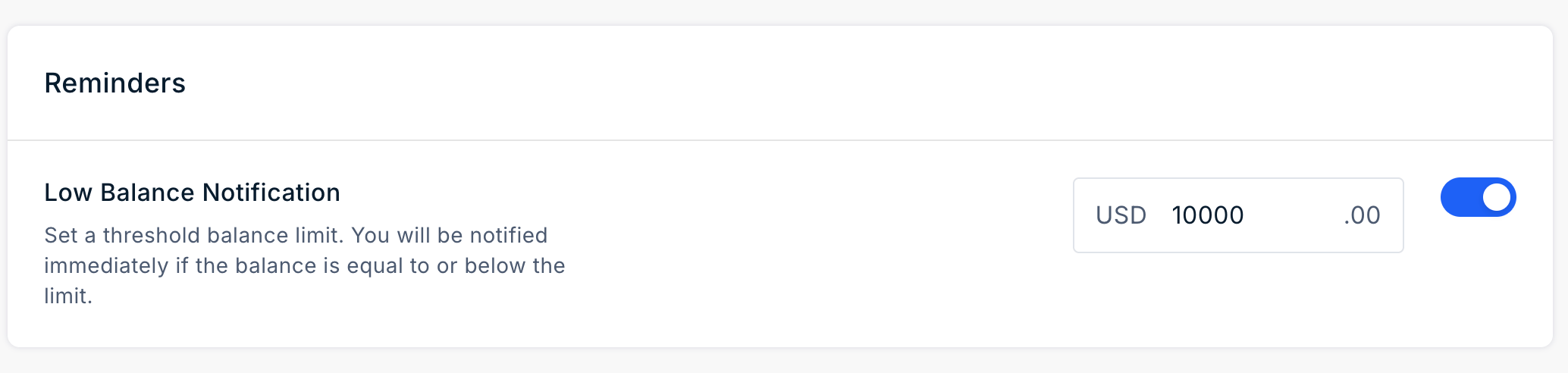
The **Low Balance Alert** feature helps organizations monitor their Plum wallet balance and avoid interruptions to their reward programs. Super Admins can configure a minimum wallet balance and receive email notifications when the wallet balance falls below the specified threshold.
These alerts allow administrators to add funds to the wallet in advance and help prevent failed rewards, bookings, or order cancellations due to insufficient balance.
## Set Up Low Balance Alerts
To enable Low Balance Alerts:
1. Navigate to **Settings > Notifications**.
2. Locate the **Low Balance Notification** section.
3. Turn on the notification toggle.
4. Enter the **wallet balance threshold** at which the notification should be triggered.
5. Click **Save Changes**.
 ## How Low Balance Alerts Work
When the wallet balance falls below the configured threshold, Plum sends an email notification to the **Super Admin**.
The notification includes:
* The current wallet balance.
* An **Add Funds to Wallet** button that redirects to the wallet recharge page.
If the wallet balance remains below the configured threshold, the platform sends up to **two reminder emails**.
Once the wallet is recharged, the reminder counter is automatically reset. Future notifications will be triggered again when the wallet balance falls below the configured threshold.
# Emails for Redemption
The **Reminder Emails for Redemption** feature allows organizations to automatically notify recipients about rewards that have not yet been redeemed. These reminders help recipients redeem their rewards before they expire.
## Reminder Types
You can configure the following types of redemption reminders:
### Scheduled Reminders
Scheduled reminders are sent at regular intervals until the reward is redeemed or expires. This option is useful for rewards with longer validity periods.
The available frequencies are:
* **Monthly**
* **Quaterly**
### Pre-Expiry Reminders
Pre-expiry reminders are sent once before the reward expires. These reminders encourage recipients to redeem their rewards before the expiry date.
The available reminder intervals are:
* **30 days before expiry**
* **15 days before expiry**
* **7 days before expiry**
## Configure Reminder Emails
To configure Reminder Emails for Redemption:
1. Navigate to **Settings > Notifications**.
2. Locate the **Reminder Emails** section.
3. Select the required reminder type and frequency.
4. Click **Save Changes**.
## How Low Balance Alerts Work
When the wallet balance falls below the configured threshold, Plum sends an email notification to the **Super Admin**.
The notification includes:
* The current wallet balance.
* An **Add Funds to Wallet** button that redirects to the wallet recharge page.
If the wallet balance remains below the configured threshold, the platform sends up to **two reminder emails**.
Once the wallet is recharged, the reminder counter is automatically reset. Future notifications will be triggered again when the wallet balance falls below the configured threshold.
# Emails for Redemption
The **Reminder Emails for Redemption** feature allows organizations to automatically notify recipients about rewards that have not yet been redeemed. These reminders help recipients redeem their rewards before they expire.
## Reminder Types
You can configure the following types of redemption reminders:
### Scheduled Reminders
Scheduled reminders are sent at regular intervals until the reward is redeemed or expires. This option is useful for rewards with longer validity periods.
The available frequencies are:
* **Monthly**
* **Quaterly**
### Pre-Expiry Reminders
Pre-expiry reminders are sent once before the reward expires. These reminders encourage recipients to redeem their rewards before the expiry date.
The available reminder intervals are:
* **30 days before expiry**
* **15 days before expiry**
* **7 days before expiry**
## Configure Reminder Emails
To configure Reminder Emails for Redemption:
1. Navigate to **Settings > Notifications**.
2. Locate the **Reminder Emails** section.
3. Select the required reminder type and frequency.
4. Click **Save Changes**.
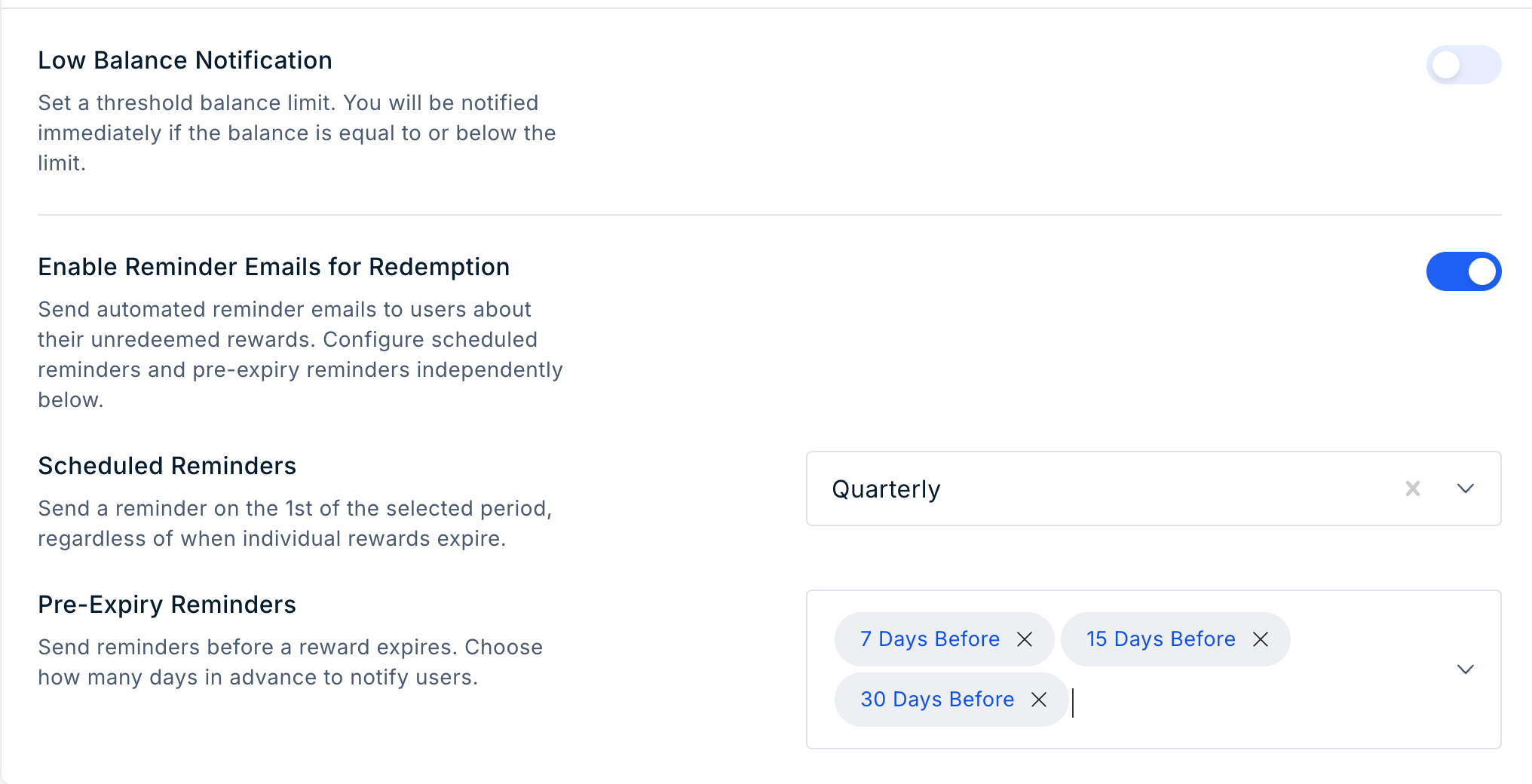 Once configured, the platform automatically sends reminder emails according to the selected schedule. Scheduled reminders continue until the reward is redeemed or expires, while pre-expiry reminders are sent once before the reward expires.