> ## Documentation Index
> Fetch the complete documentation index at: https://help-plum.xoxoday.com/llms.txt
> Use this file to discover all available pages before exploring further.
# Branding
The **Storefront** page allows Admins to customise the Plum storefront and manage the rewards available to users. You can configure the storefront URL, company logo, favicon, theme colour, and global reward catalog.
To access these settings, navigate to **Settings > Storefront**.
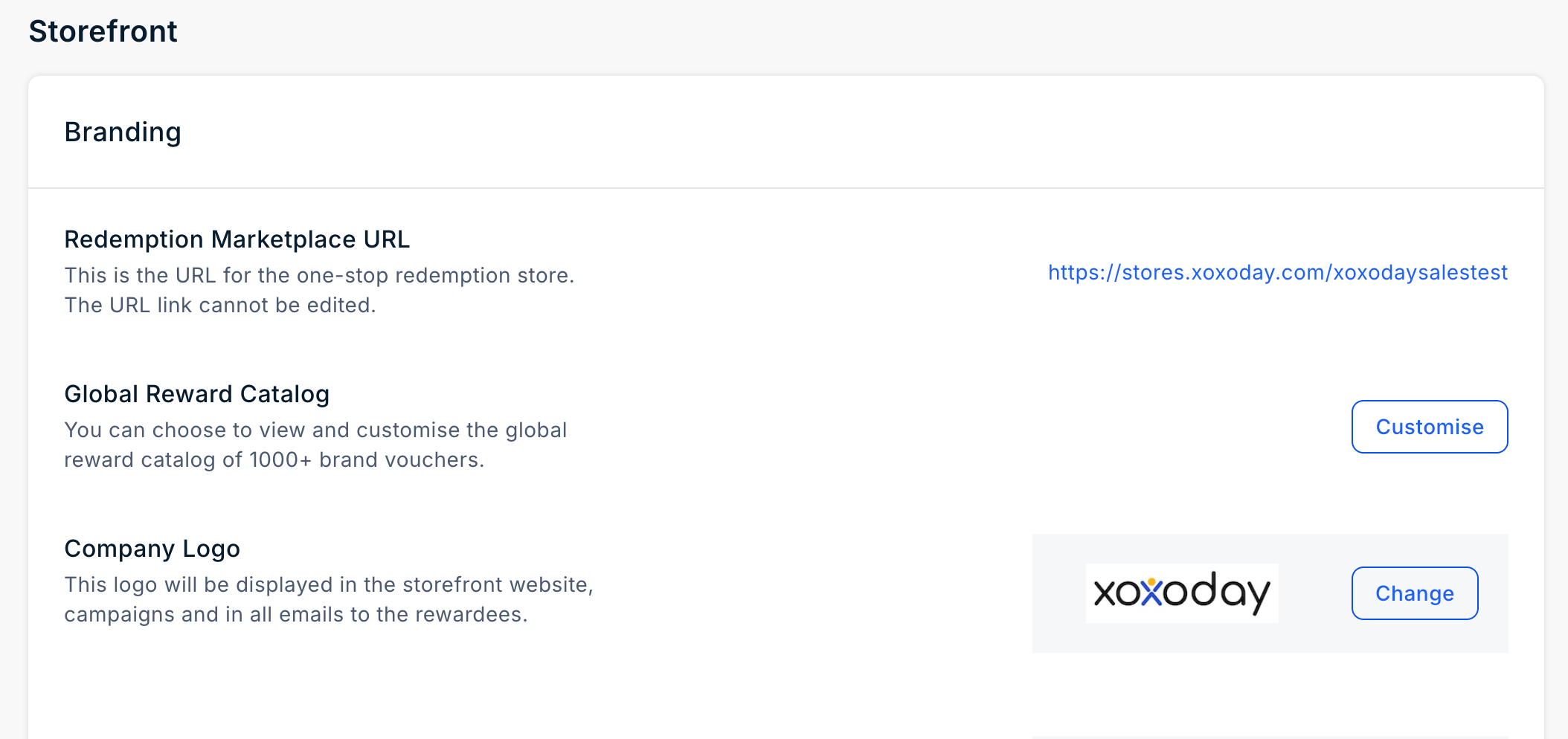
## Redemption Marketplace URL
The Storefront URL (also referred to as the Marketplace URL or Domain) is the unique web address for your Plum storefront, for example:
`https://stores.xoxoday.com/{company-name}`
The storefront URL is generated automatically during account setup based on your company name and can be configured only once.
Once your account is created, the storefront URL cannot be changed from the Plum Admin Dashboard. If you need to update your storefront URL, please contact the Xoxoday Plum Support team.
 ***
## Company Logo
You can also upload a custom logo. Navigate to **Settings > Storefront > Company Logo** and click on **"Change".**
***
## Company Logo
You can also upload a custom logo. Navigate to **Settings > Storefront > Company Logo** and click on **"Change".**
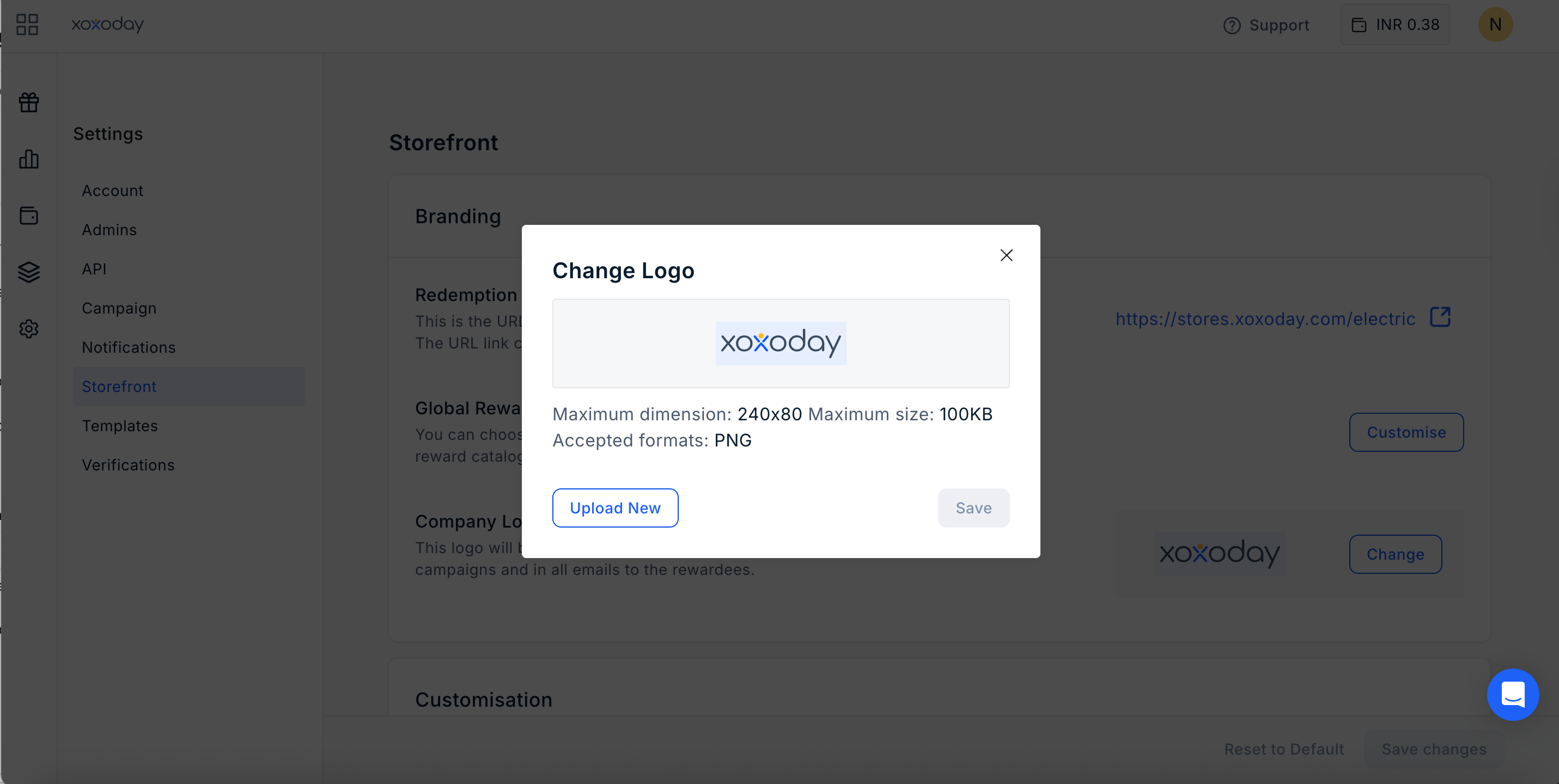
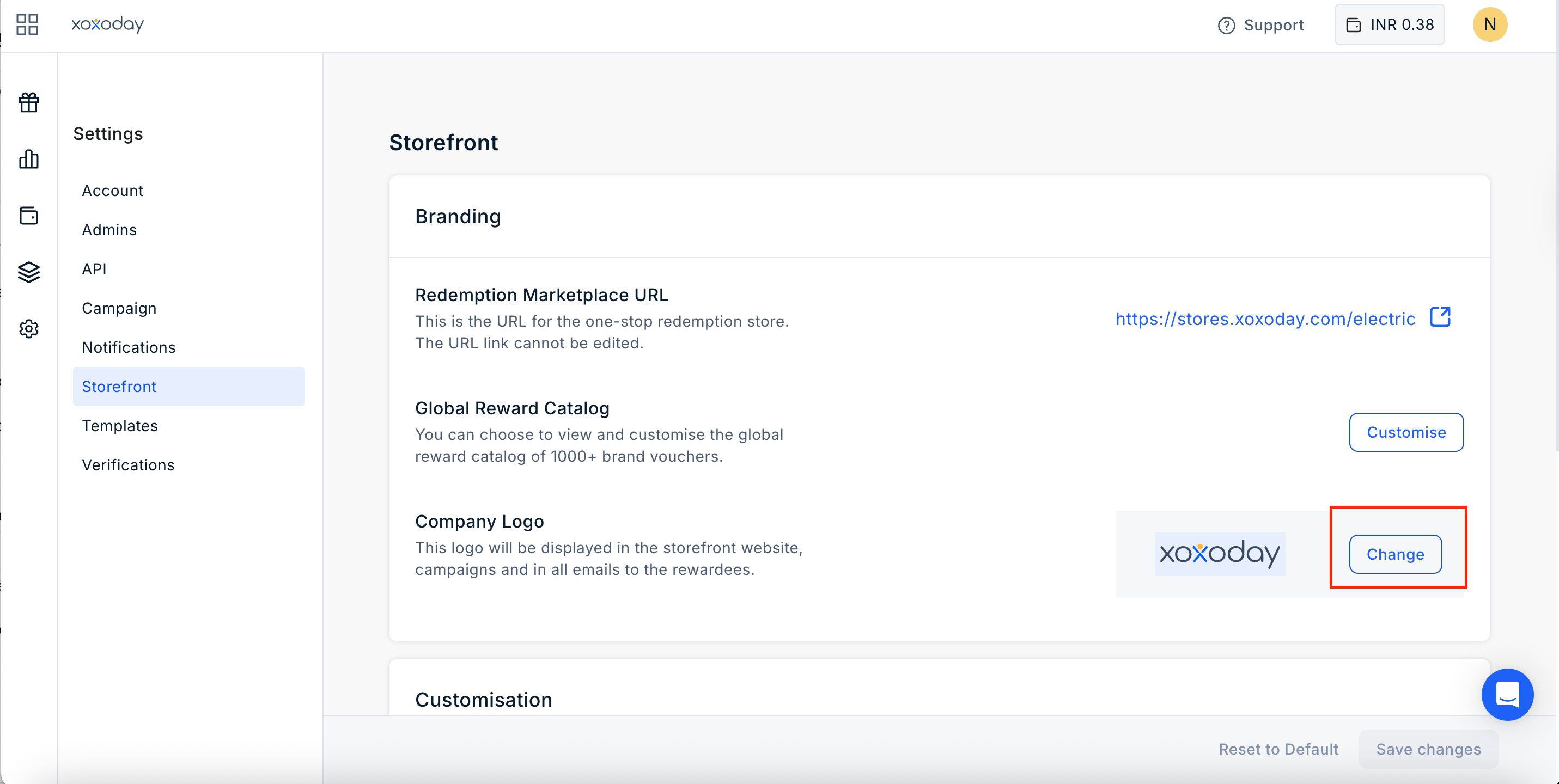 * Choose a transparent logo file (maximum size: 240 x 80 px).
* Upload it to the platform and click **"Save".**
Your brand logo will prominently appear in the upper left corner of your website and in all email communications. Switch to the storefront to preview its placement and appearance.
* Choose a transparent logo file (maximum size: 240 x 80 px).
* Upload it to the platform and click **"Save".**
Your brand logo will prominently appear in the upper left corner of your website and in all email communications. Switch to the storefront to preview its placement and appearance.
 ***
## Update the Favicon
The favicon is the small icon displayed in the browser tab when users open your storefront.
Navigate to **Settings > Storefront > Branding** and click **Change** under Favicon.
Choose the favicon image and upload it to the platform. Click **Save**.
The uploaded favicon replaces the default Xoxoday icon and is displayed in the browser tab whenever users visit your storefront.
***
## Storefront Theme
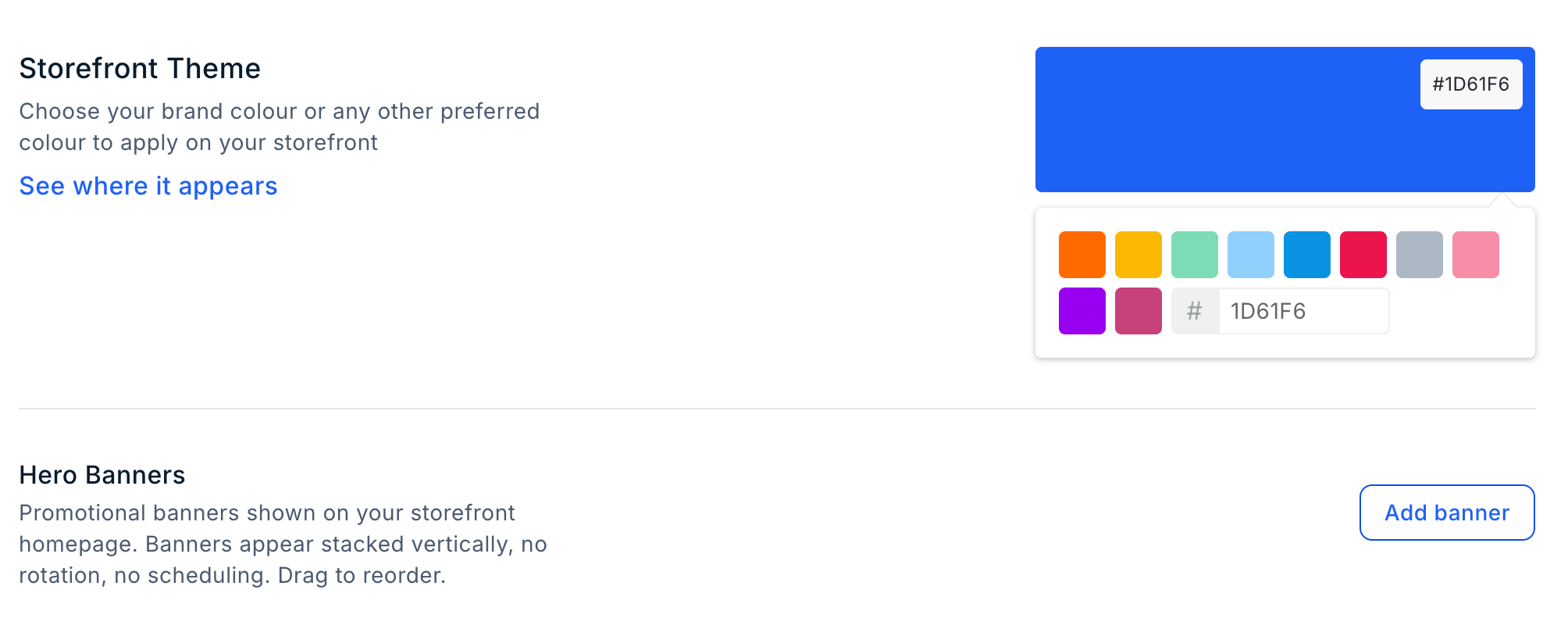
The theme color controls the primary color used across your storefront.
Navigate to **Settings > Storefront > Branding** and select or enter your preferred theme color (Hex code). Click **Save**.
The selected color is applied across the storefront, including buttons, the navigation bar, category highlights, and call-to-action (CTA) links, giving your storefront a consistent branded appearance.
***
## Update the Favicon
The favicon is the small icon displayed in the browser tab when users open your storefront.
Navigate to **Settings > Storefront > Branding** and click **Change** under Favicon.
Choose the favicon image and upload it to the platform. Click **Save**.
The uploaded favicon replaces the default Xoxoday icon and is displayed in the browser tab whenever users visit your storefront.
***
## Storefront Theme
The theme color controls the primary color used across your storefront.
Navigate to **Settings > Storefront > Branding** and select or enter your preferred theme color (Hex code). Click **Save**.
The selected color is applied across the storefront, including buttons, the navigation bar, category highlights, and call-to-action (CTA) links, giving your storefront a consistent branded appearance.
 ***
## Hero Banner
The **Hero Banners** feature allows you to add promotional banners to the homepage of your Plum storefront. You can use banners to highlight campaigns, offers, announcements, or other relevant information.
Banners are displayed vertically on the storefront homepage in the order configured by the Admin.
## Add a Hero Banner
To add a banner:
1. Navigate to **Settings > Storefront**.
2. Locate the **Hero Banner** section.
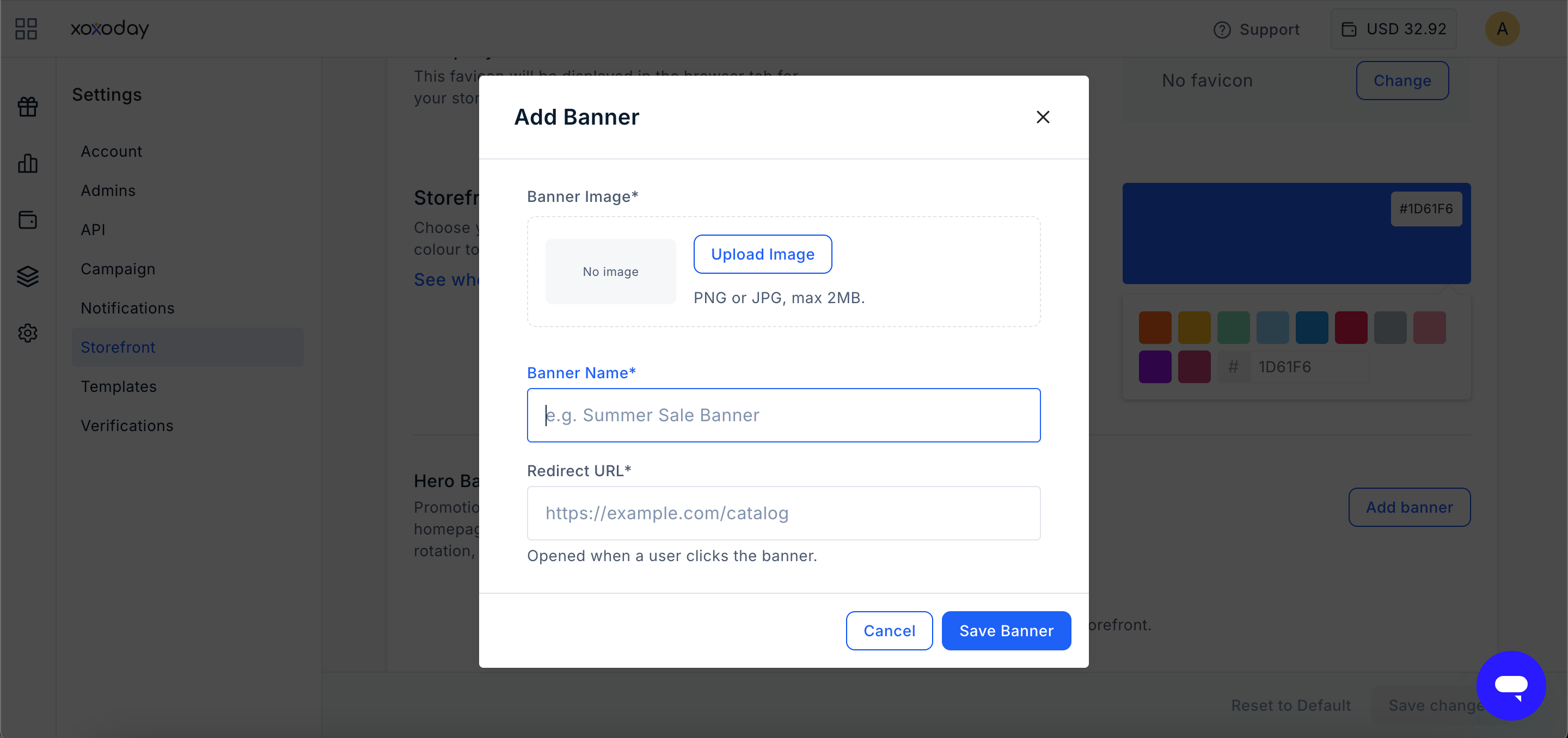
3. Click **Add Banner**.
4. Upload the **Banner Image**.
* The image must be in **PNG or JPG** format.
* The maximum file size is **2 MB**.
5. Enter a **Banner Name**.
6. Enter the **Redirect URL**. This is the URL that opens when a user clicks the banner.
7. Click **Save Banner**.
***
## Hero Banner
The **Hero Banners** feature allows you to add promotional banners to the homepage of your Plum storefront. You can use banners to highlight campaigns, offers, announcements, or other relevant information.
Banners are displayed vertically on the storefront homepage in the order configured by the Admin.
## Add a Hero Banner
To add a banner:
1. Navigate to **Settings > Storefront**.
2. Locate the **Hero Banner** section.
3. Click **Add Banner**.
4. Upload the **Banner Image**.
* The image must be in **PNG or JPG** format.
* The maximum file size is **2 MB**.
5. Enter a **Banner Name**.
6. Enter the **Redirect URL**. This is the URL that opens when a user clicks the banner.
7. Click **Save Banner**.
 ## Manage Promotional Banners
You can manage the banners displayed on your storefront homepage.
* Banners are displayed **vertically** on the homepage.
* Banners do not rotate automatically.
* Banners cannot be scheduled for specific dates or times.
* You can **drag and drop** banners to change their display order.
The updated banner order is reflected on the storefront homepage.
***
## Global Reward Catalog
This feature allow to customise the reward catalog shown in our marketplace. You can enable or disable categories like Gift Cards, Merchandise, Experience and Perks along with control of restricting some catalog for different countries.
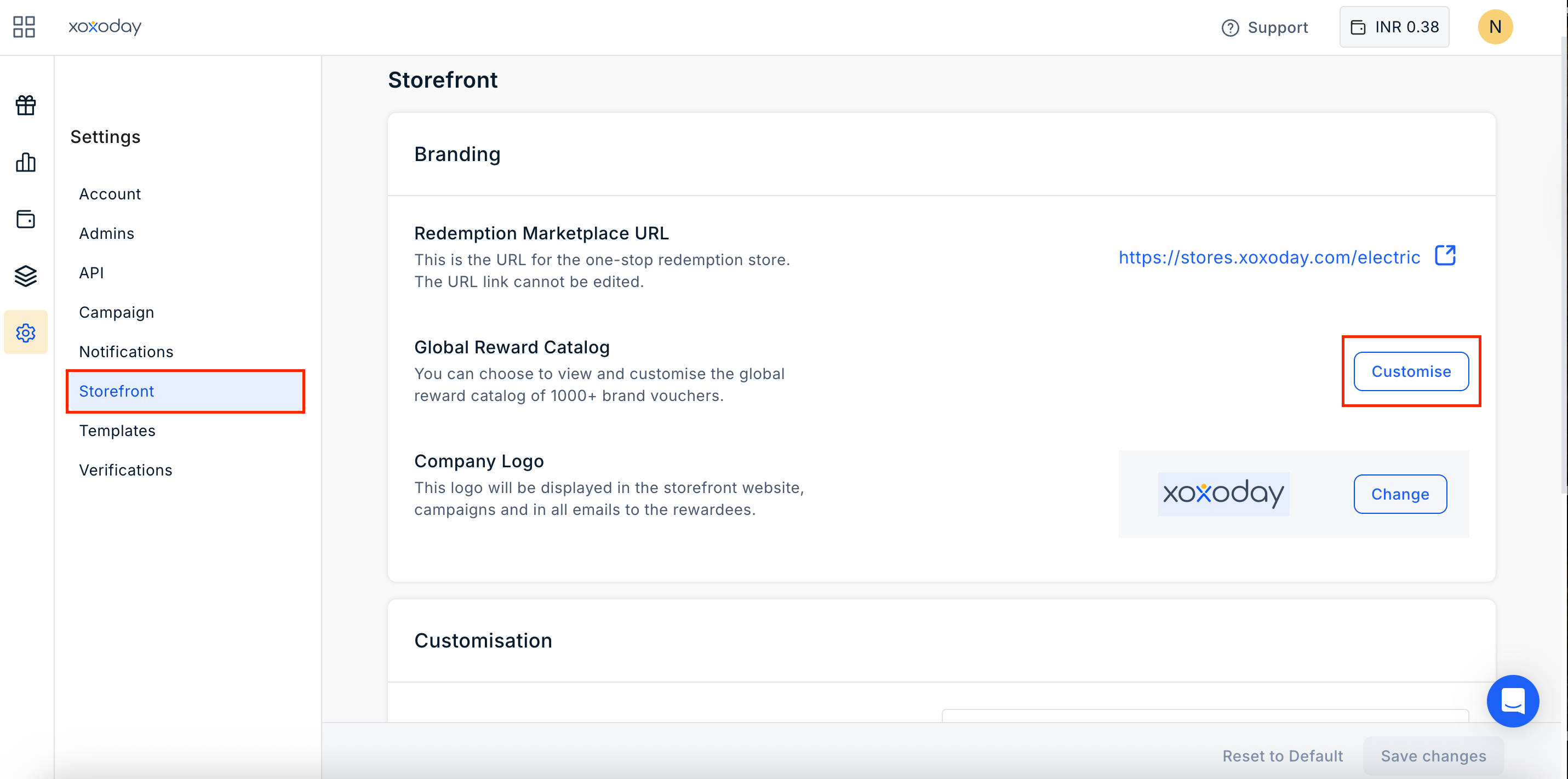
Navigate to **Settings > Storefront > Global Reward Catalog** and click on **"Customize".**
## Manage Promotional Banners
You can manage the banners displayed on your storefront homepage.
* Banners are displayed **vertically** on the homepage.
* Banners do not rotate automatically.
* Banners cannot be scheduled for specific dates or times.
* You can **drag and drop** banners to change their display order.
The updated banner order is reflected on the storefront homepage.
***
## Global Reward Catalog
This feature allow to customise the reward catalog shown in our marketplace. You can enable or disable categories like Gift Cards, Merchandise, Experience and Perks along with control of restricting some catalog for different countries.
Navigate to **Settings > Storefront > Global Reward Catalog** and click on **"Customize".**
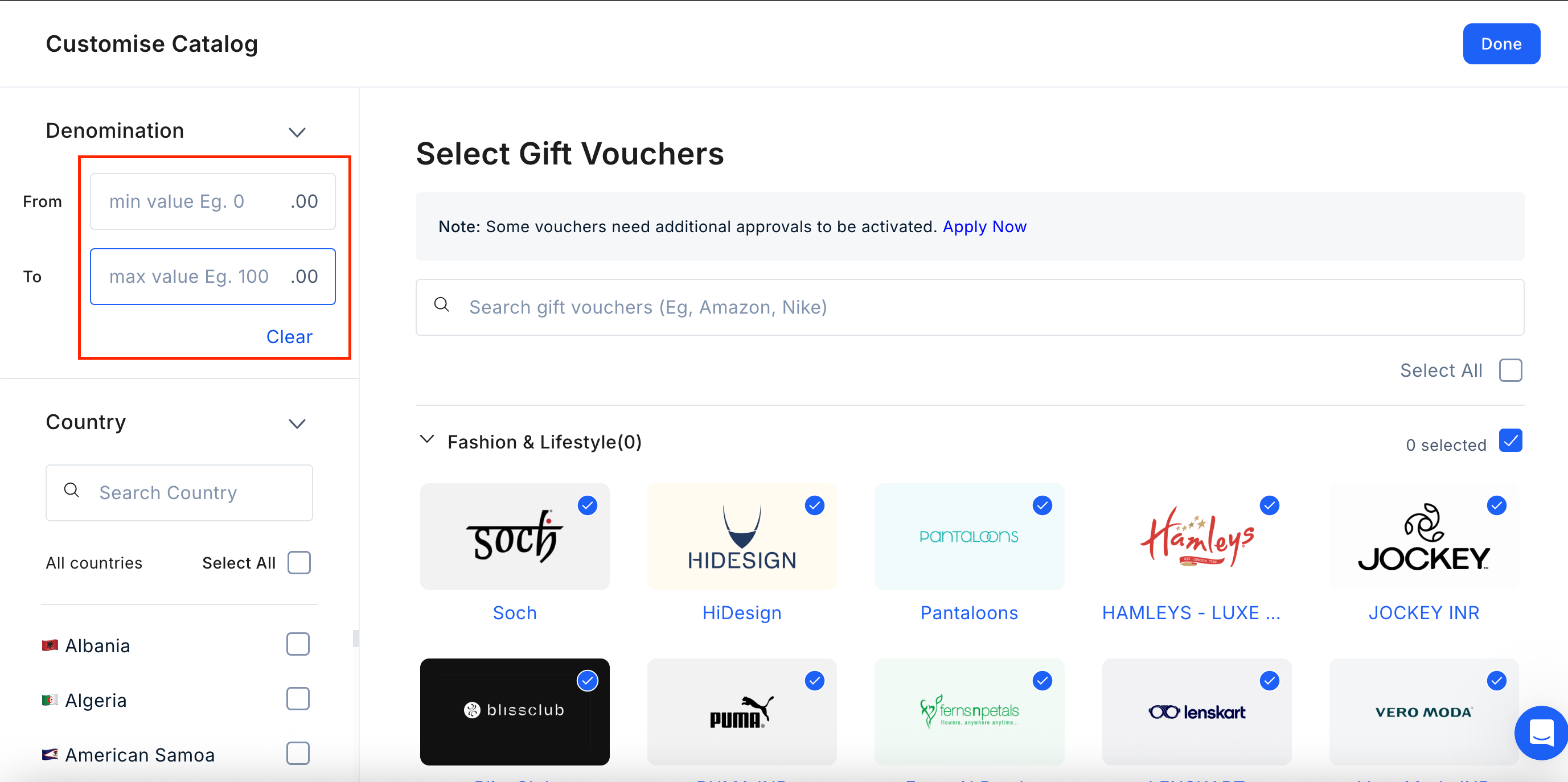
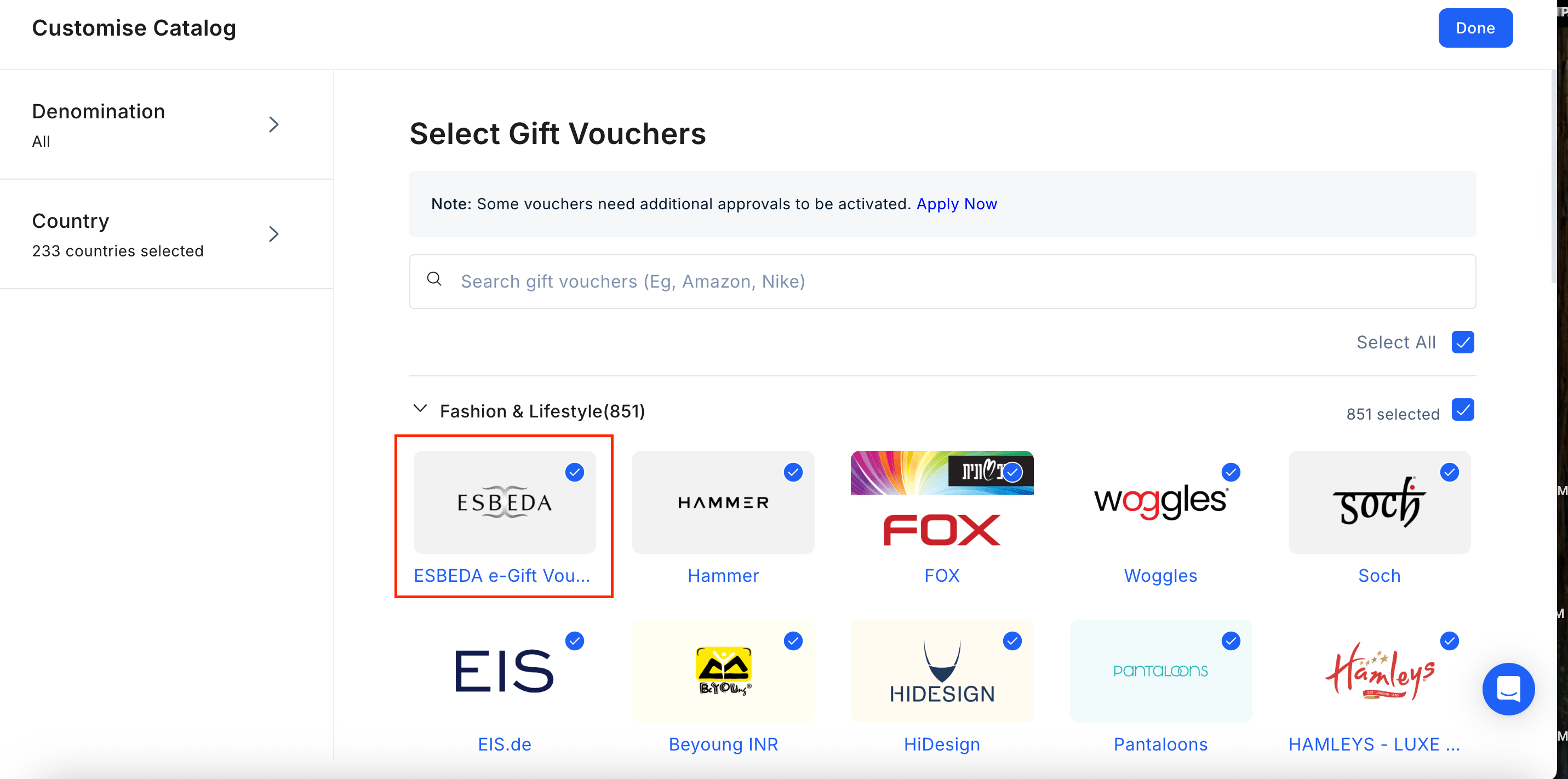
 Define the value range by entering a minimum and maximum denomination.
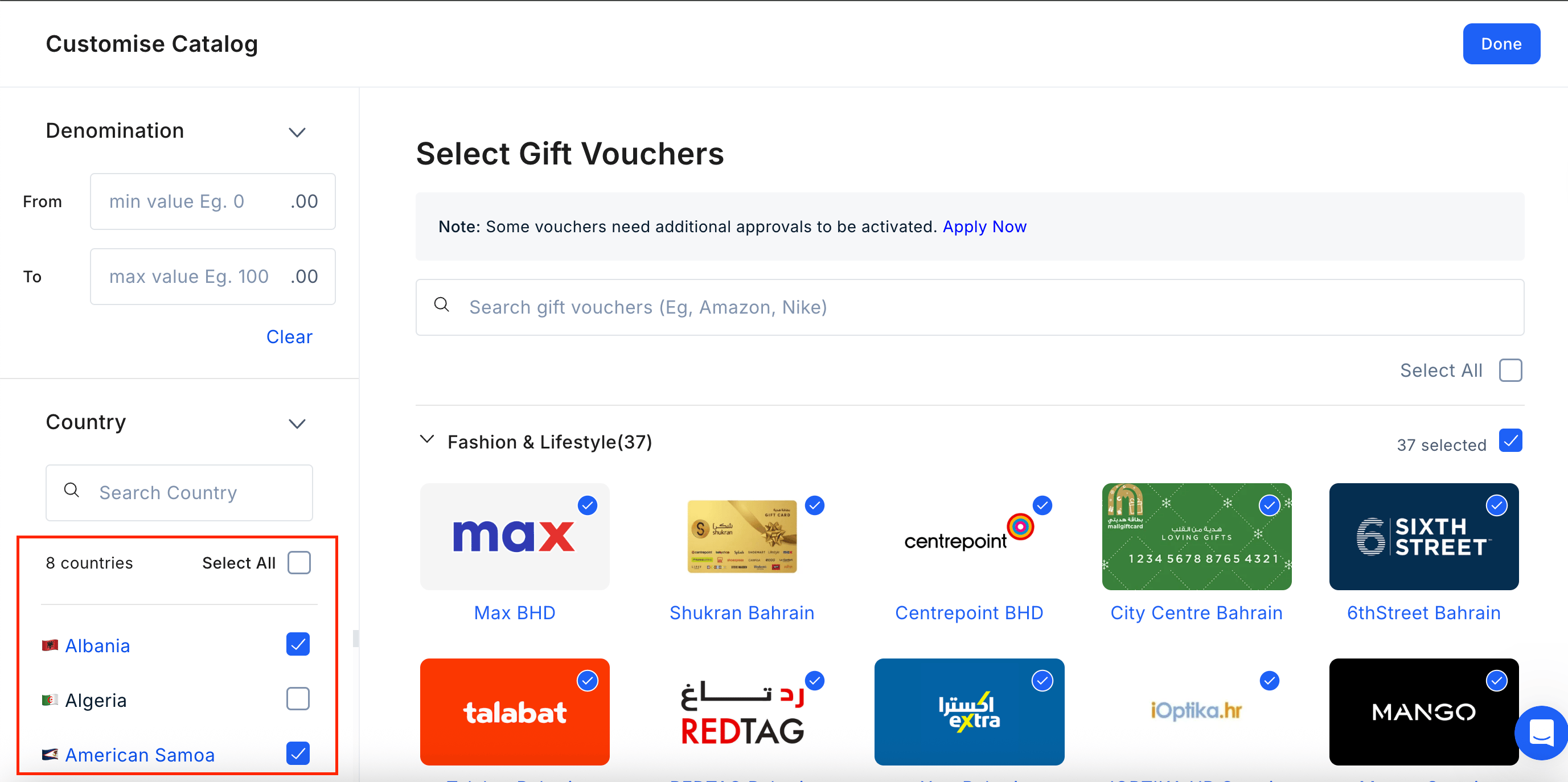
 Filter your results by selecting the specific countries or geographic regions you wish to include.
 You can choose to view and customise the global reward catalog of 1000+ brand vouchers. You can see a list of categories which includes:
* Gift Card
* Merchandise
* Lounge
* Charity
* Experience
* Perks
* Flights
* Hotels
* Miles
* Mobile Top-ups
You can choose to view and customise the global reward catalog of 1000+ brand vouchers. You can see a list of categories which includes:
* Gift Card
* Merchandise
* Lounge
* Charity
* Experience
* Perks
* Flights
* Hotels
* Miles
* Mobile Top-ups
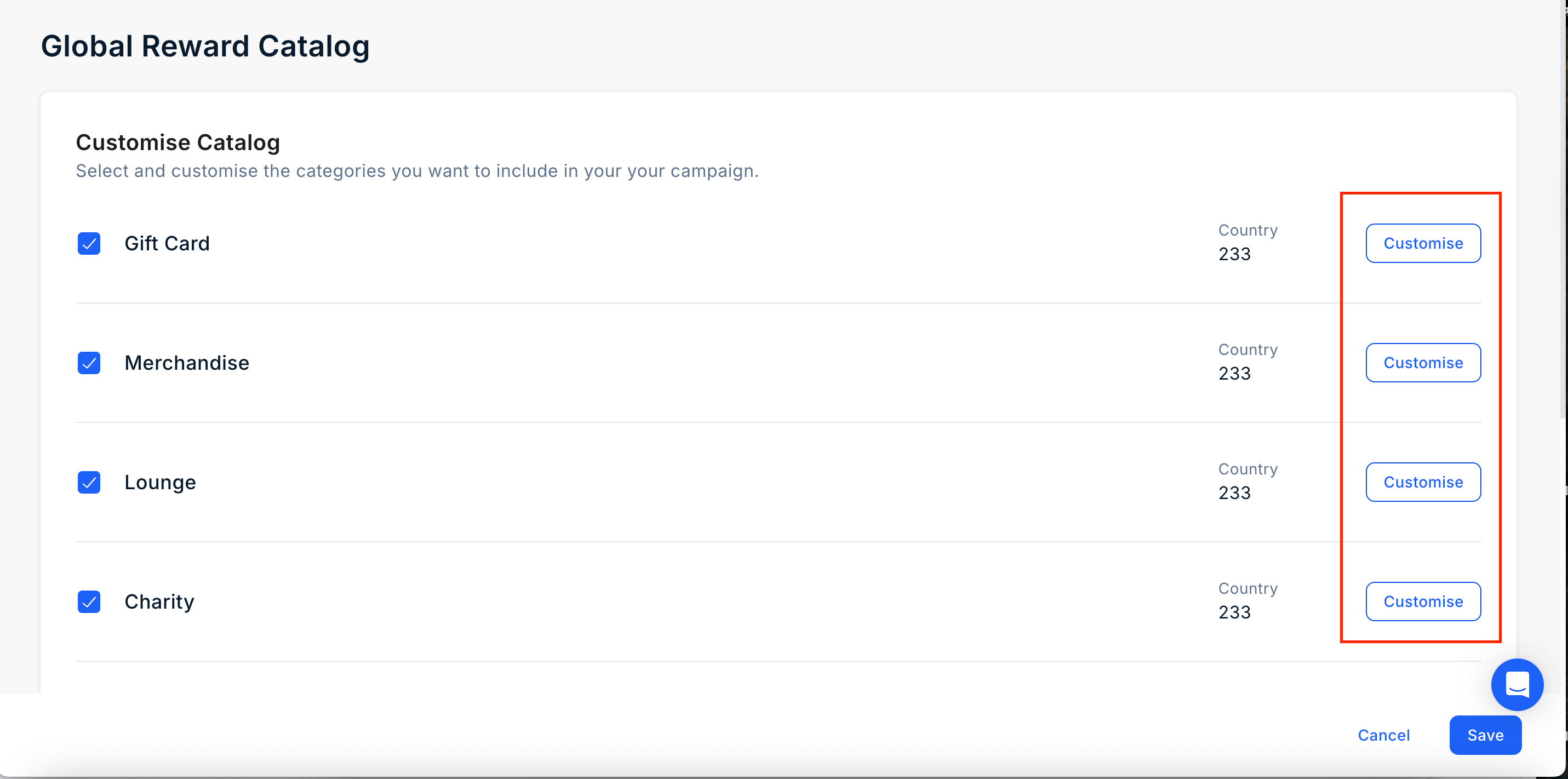
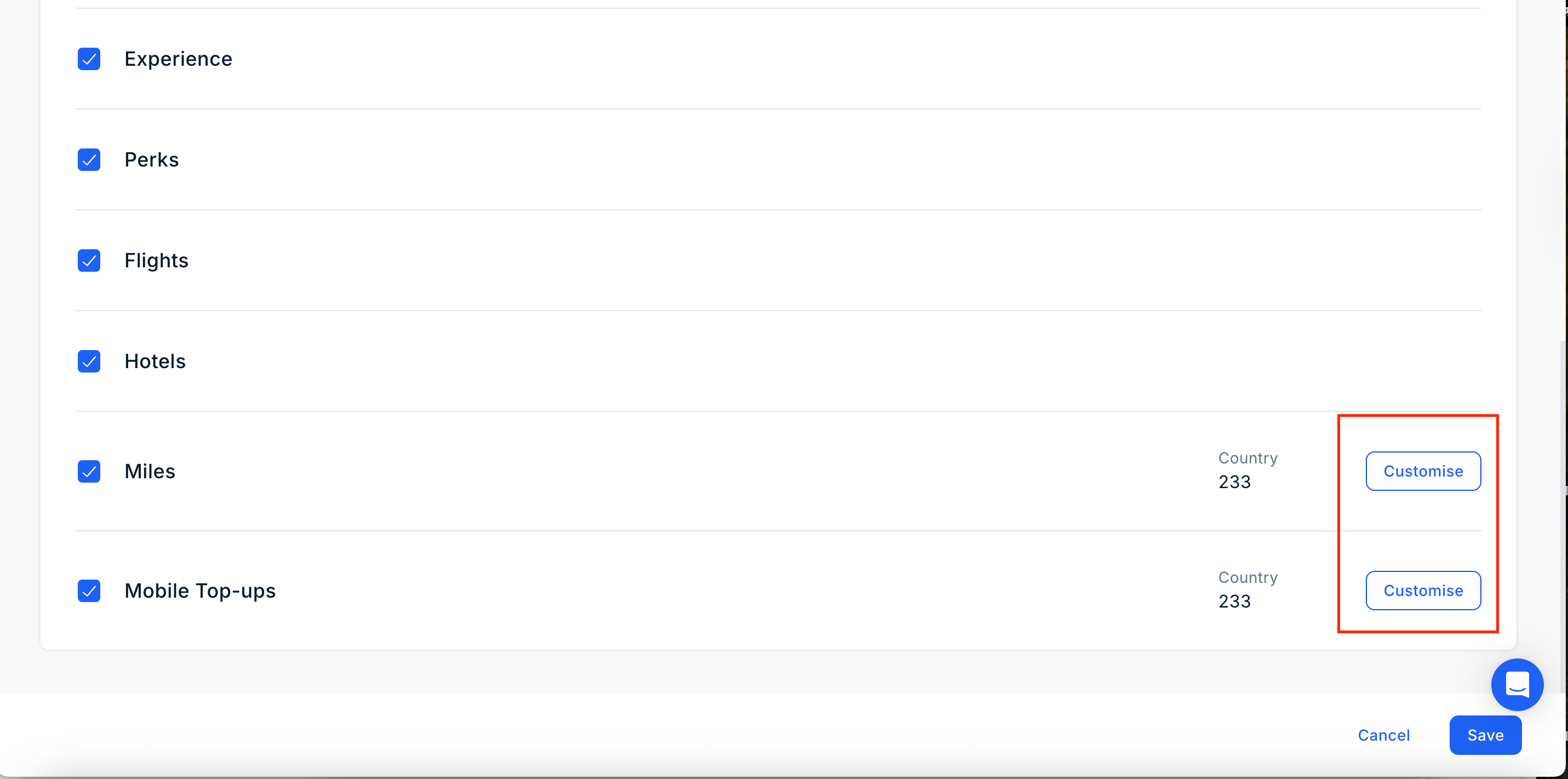 Click on "**Customise**" next to the catalog item.
You will a list of items here. Simply check and uncheck the box to include or exclude the item on storefront.
Click on "**Customise**" next to the catalog item.
You will a list of items here. Simply check and uncheck the box to include or exclude the item on storefront.
 Feedback or Questions: Reach out to us at [cs@xoxoday.com](mailto:cs@xoxoday.com).