> ## Documentation Index
> Fetch the complete documentation index at: https://help-plum.xoxoday.com/llms.txt
> Use this file to discover all available pages before exploring further.
# Storefront Branding Customization
*Learn about Storefront Branding Customization settings.*
***
## Redemption Marketplace URL
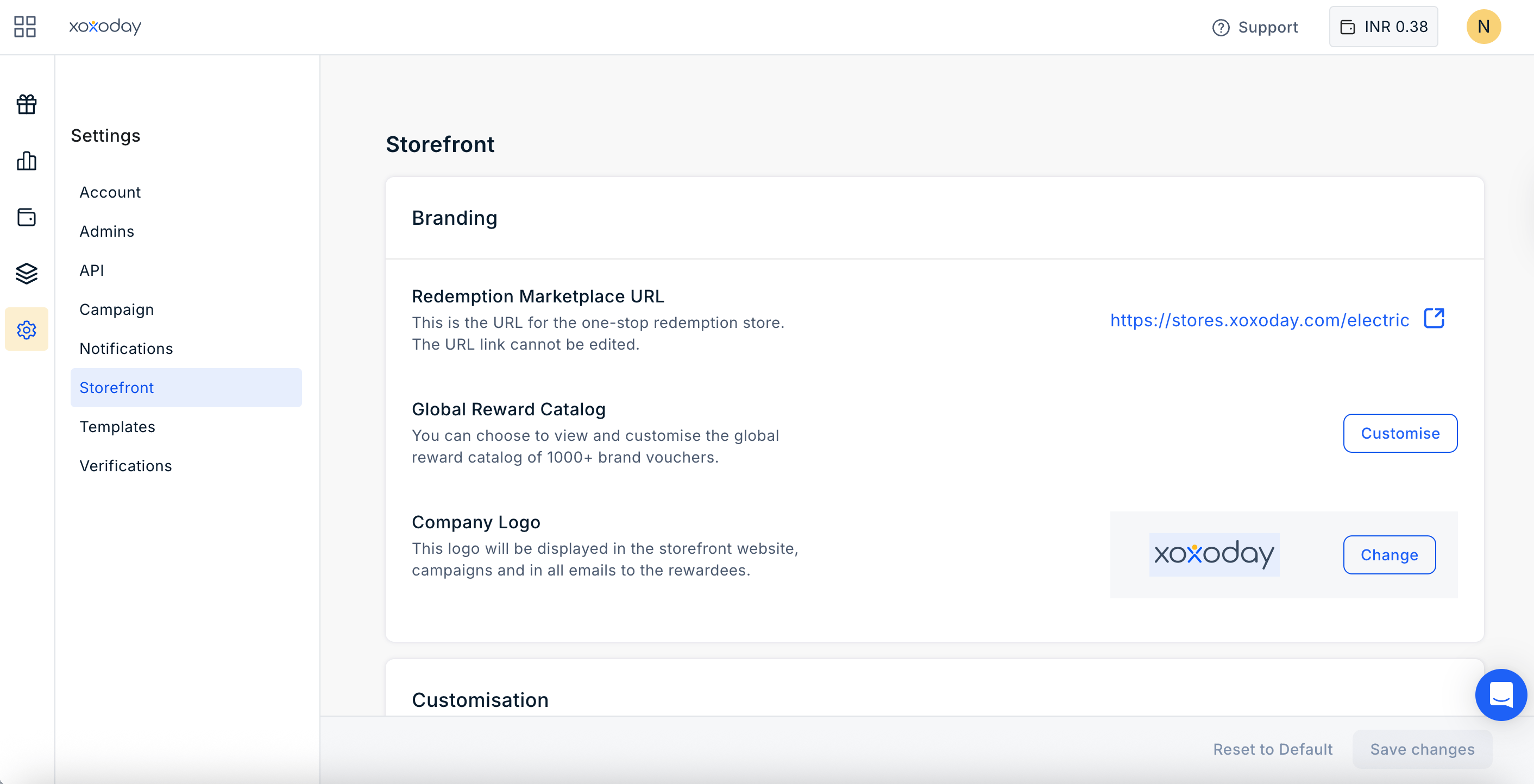
An exclusive feature allows you to set a personalized URL key for your customers or employees to access the storefront. This URL reflects your white-label settings and can be configured only once.
Navigate to **Settings > Storefront > Redemption Marketplace URL.** This is the URL for the one-stop redemption store. The URL link cannot be edited.
 ***
## Global Reward Catalog
This feature allow to customise the reward catalog shown in our marketplace. You can enable or disable categories like Gift Cards, Merchandise, Experience and Perks along with control of restricting some catalog for different countries.
Navigate to **Settings > Storefront > Global Reward Catalog** and click on **"Customize".**
***
## Global Reward Catalog
This feature allow to customise the reward catalog shown in our marketplace. You can enable or disable categories like Gift Cards, Merchandise, Experience and Perks along with control of restricting some catalog for different countries.
Navigate to **Settings > Storefront > Global Reward Catalog** and click on **"Customize".**
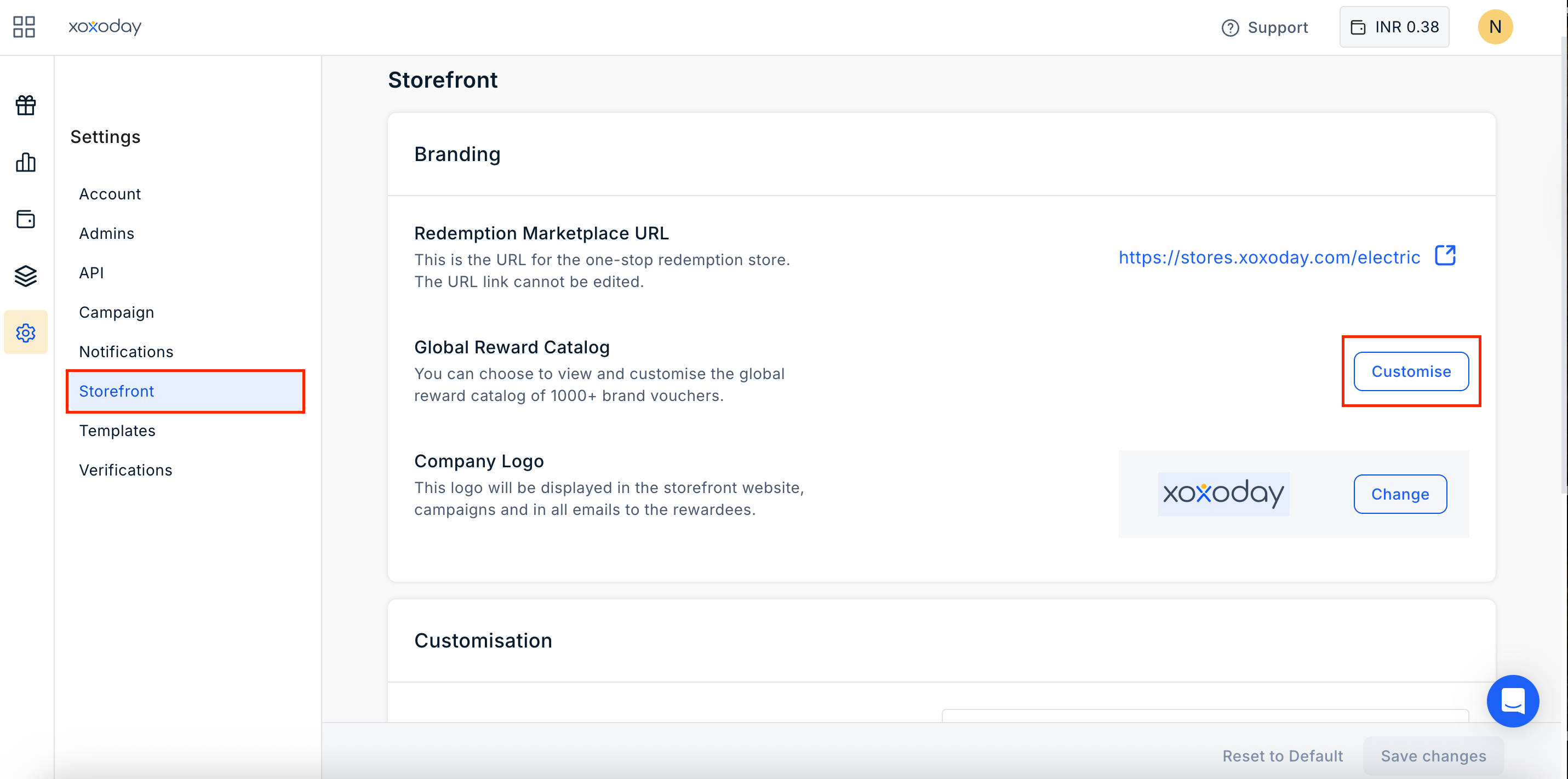 Define the value range by entering a minimum and maximum denomination.
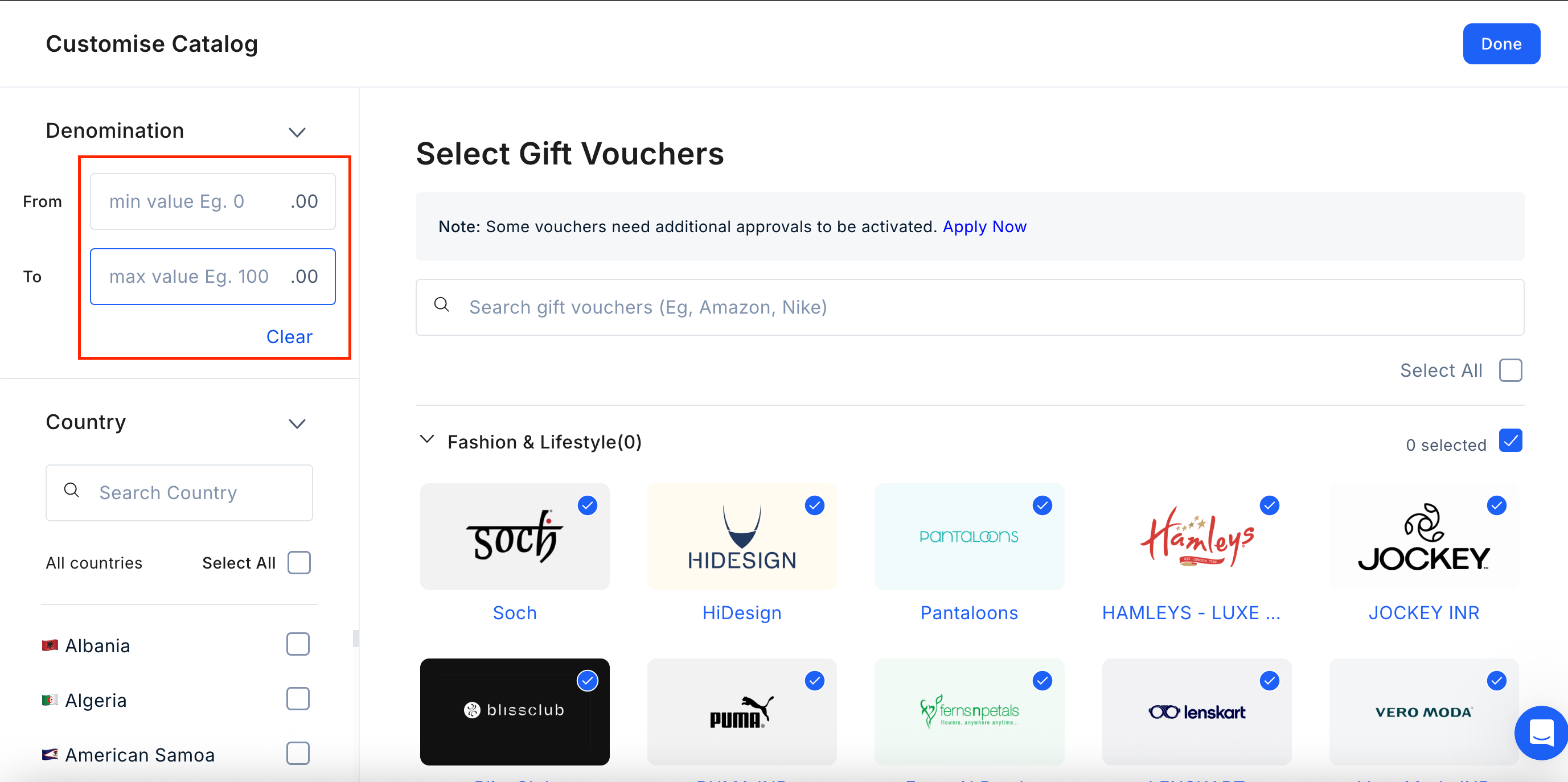 Filter your results by selecting the specific countries or geographic regions you wish to include.
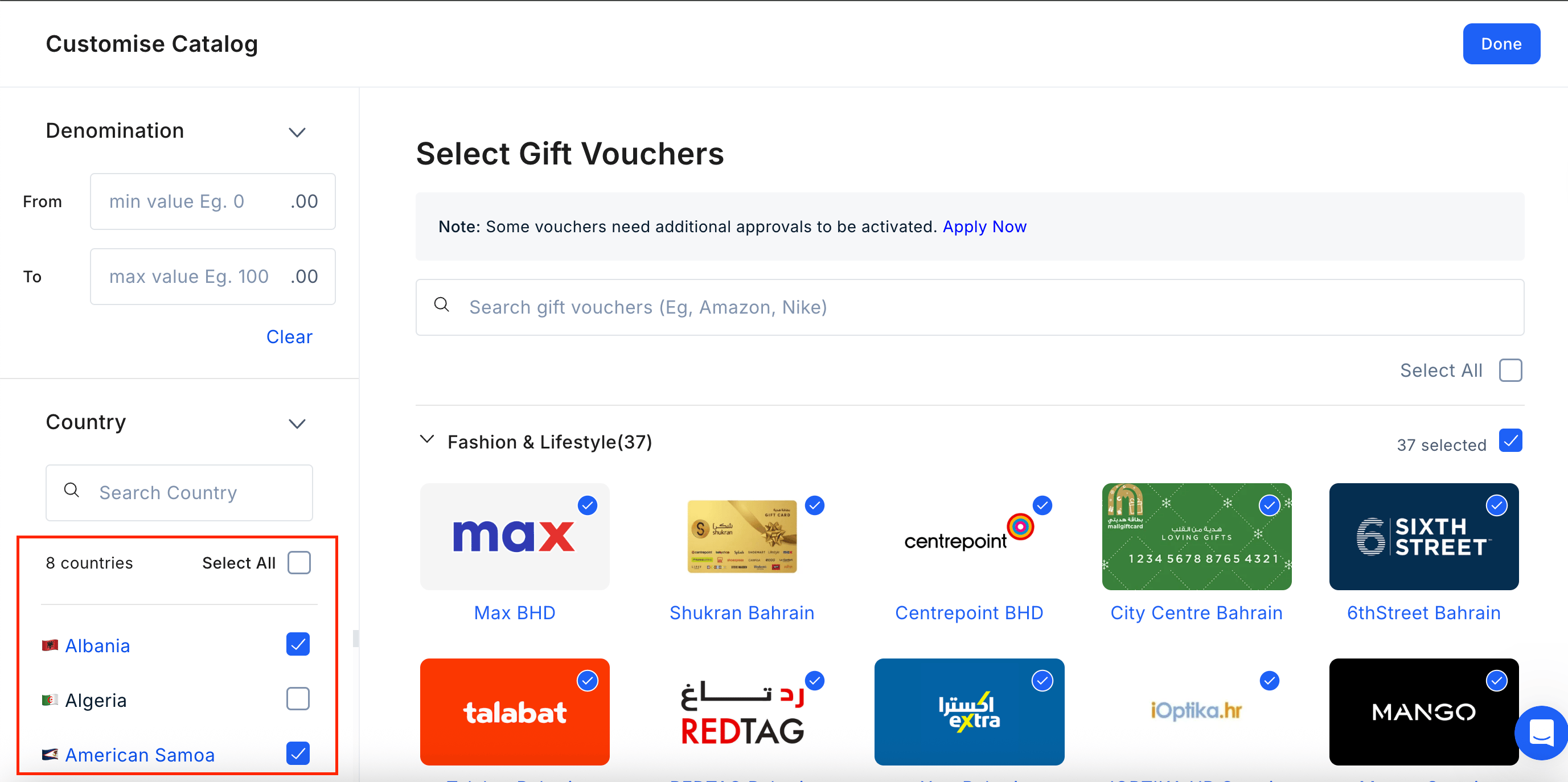 You can choose to view and customise the global reward catalog of 1000+ brand vouchers. You can see a list of categories which includes:
* Gift Card
* Merchandise
* Lounge
* Charity
* Experience
* Perks
* Flights
* Hotels
* Miles
* Mobile Top-ups
You can choose to view and customise the global reward catalog of 1000+ brand vouchers. You can see a list of categories which includes:
* Gift Card
* Merchandise
* Lounge
* Charity
* Experience
* Perks
* Flights
* Hotels
* Miles
* Mobile Top-ups
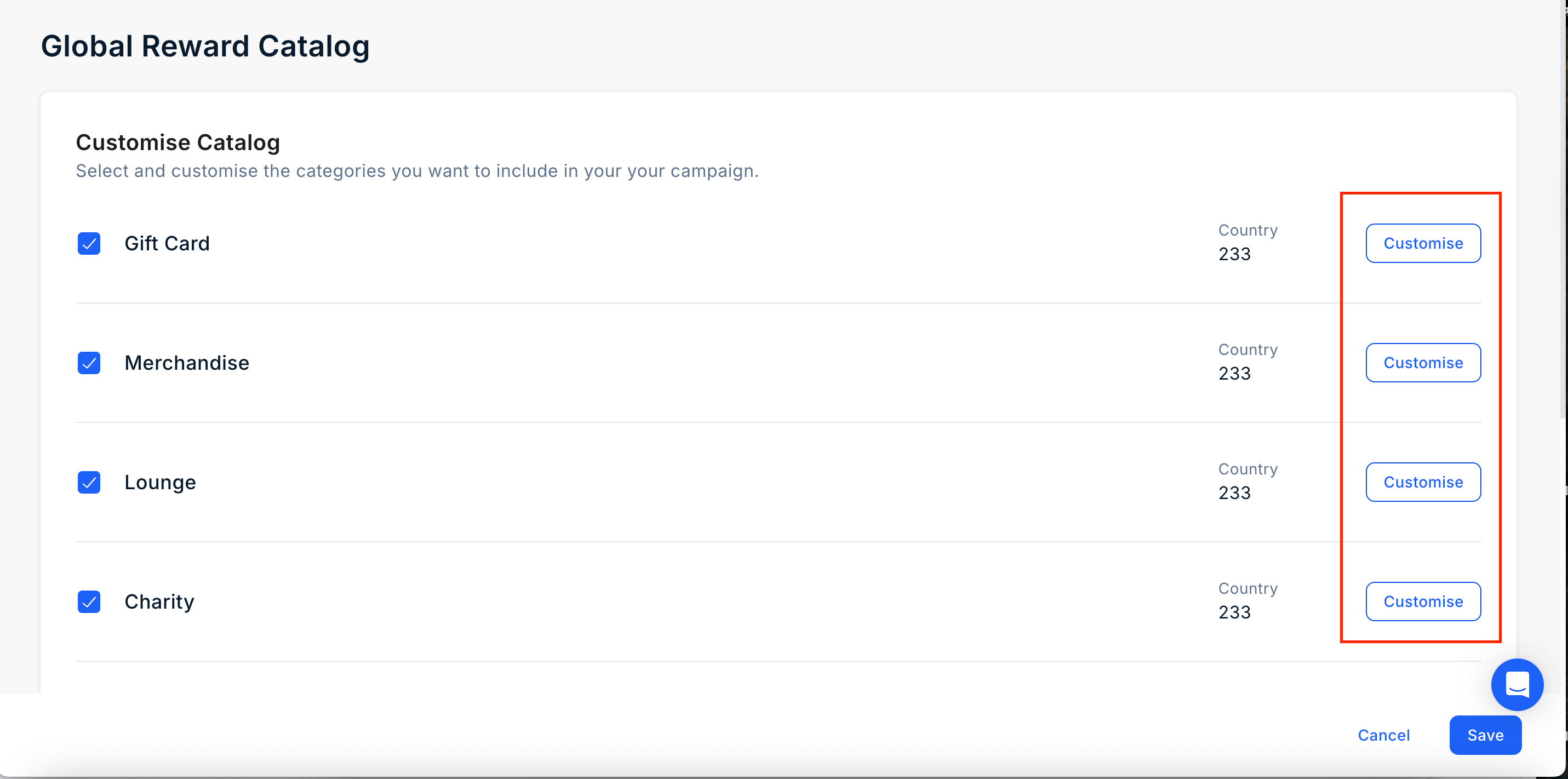
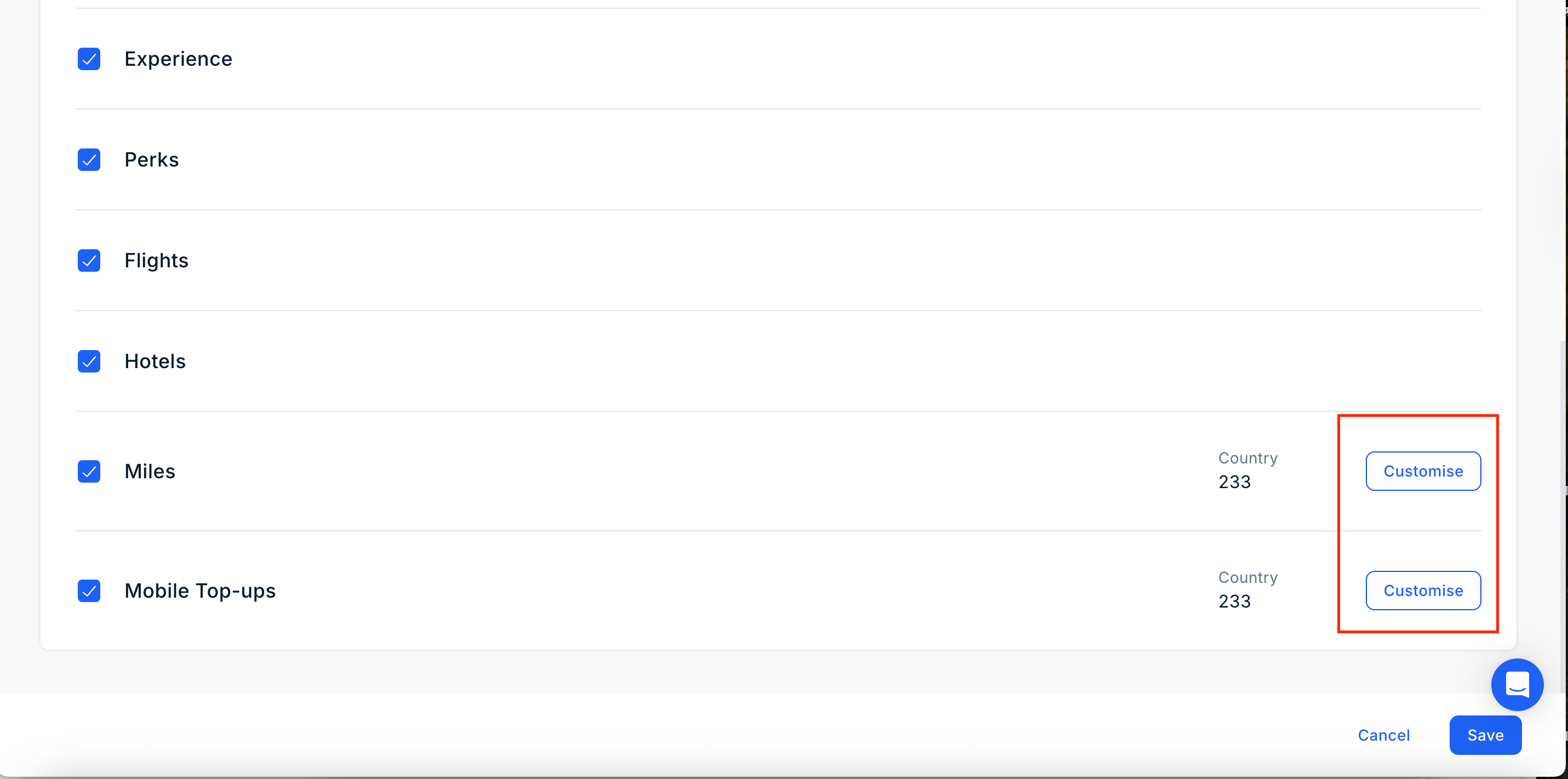 Click on "**Customise**" next to the catalog item.
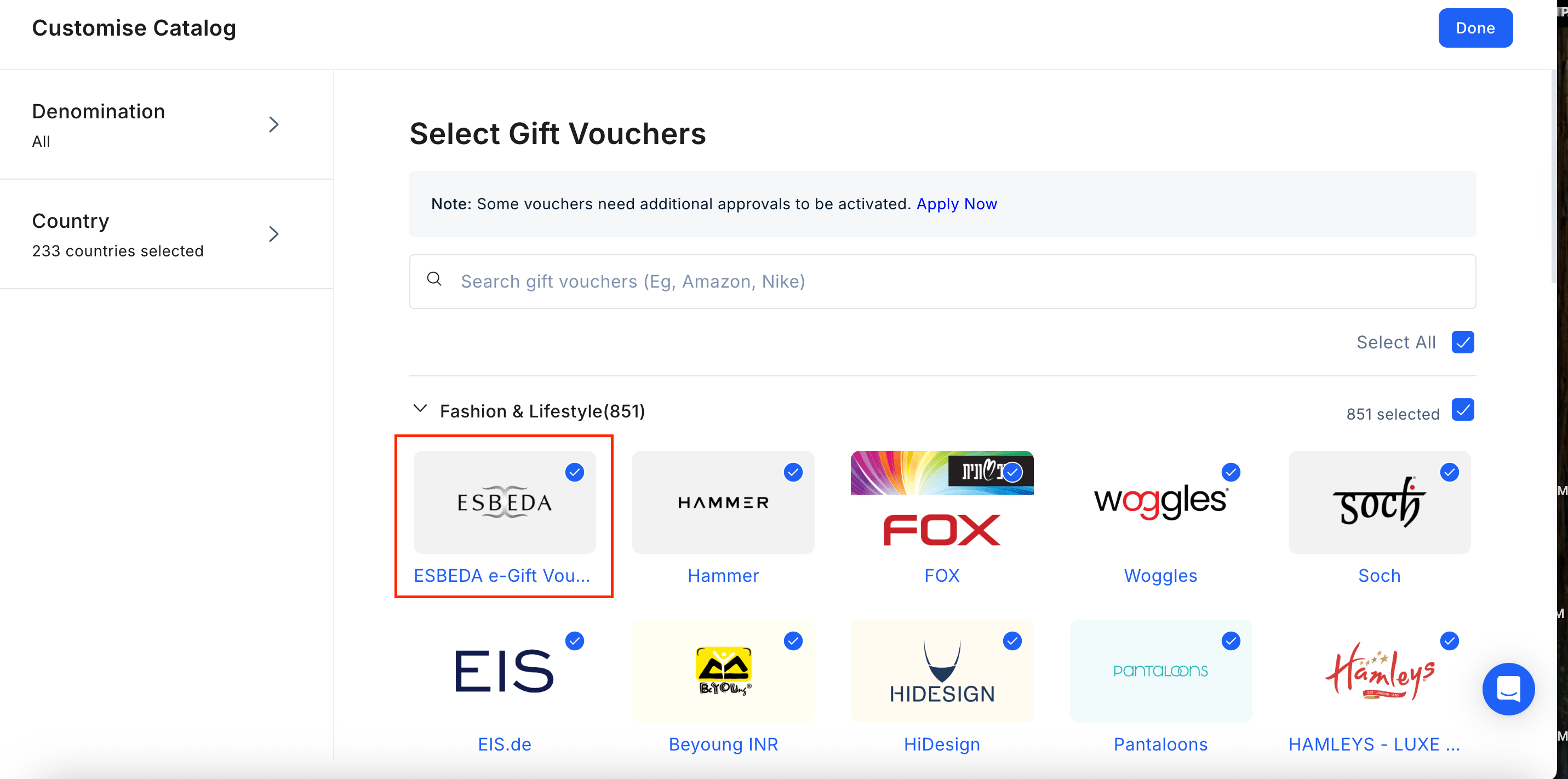
You will a list of items here. Simply check and uncheck the box to include or exclude the item on storefront.
Click on "**Customise**" next to the catalog item.
You will a list of items here. Simply check and uncheck the box to include or exclude the item on storefront.
 ***
## Company Logo
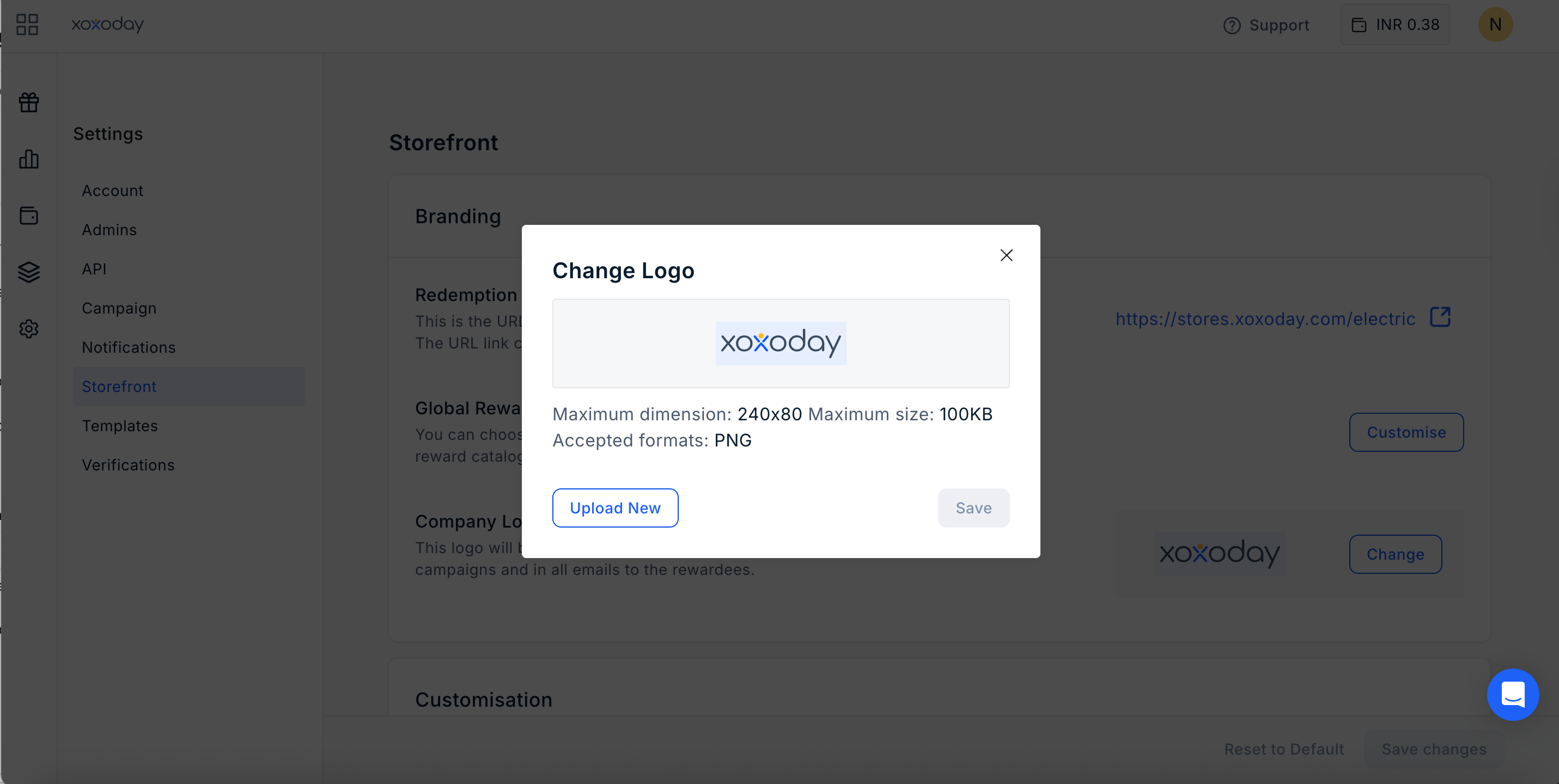
You can also upload a custom logo. Navigate to **Settings > Storefront > Company Logo** and click on **"Change".**
***
## Company Logo
You can also upload a custom logo. Navigate to **Settings > Storefront > Company Logo** and click on **"Change".**
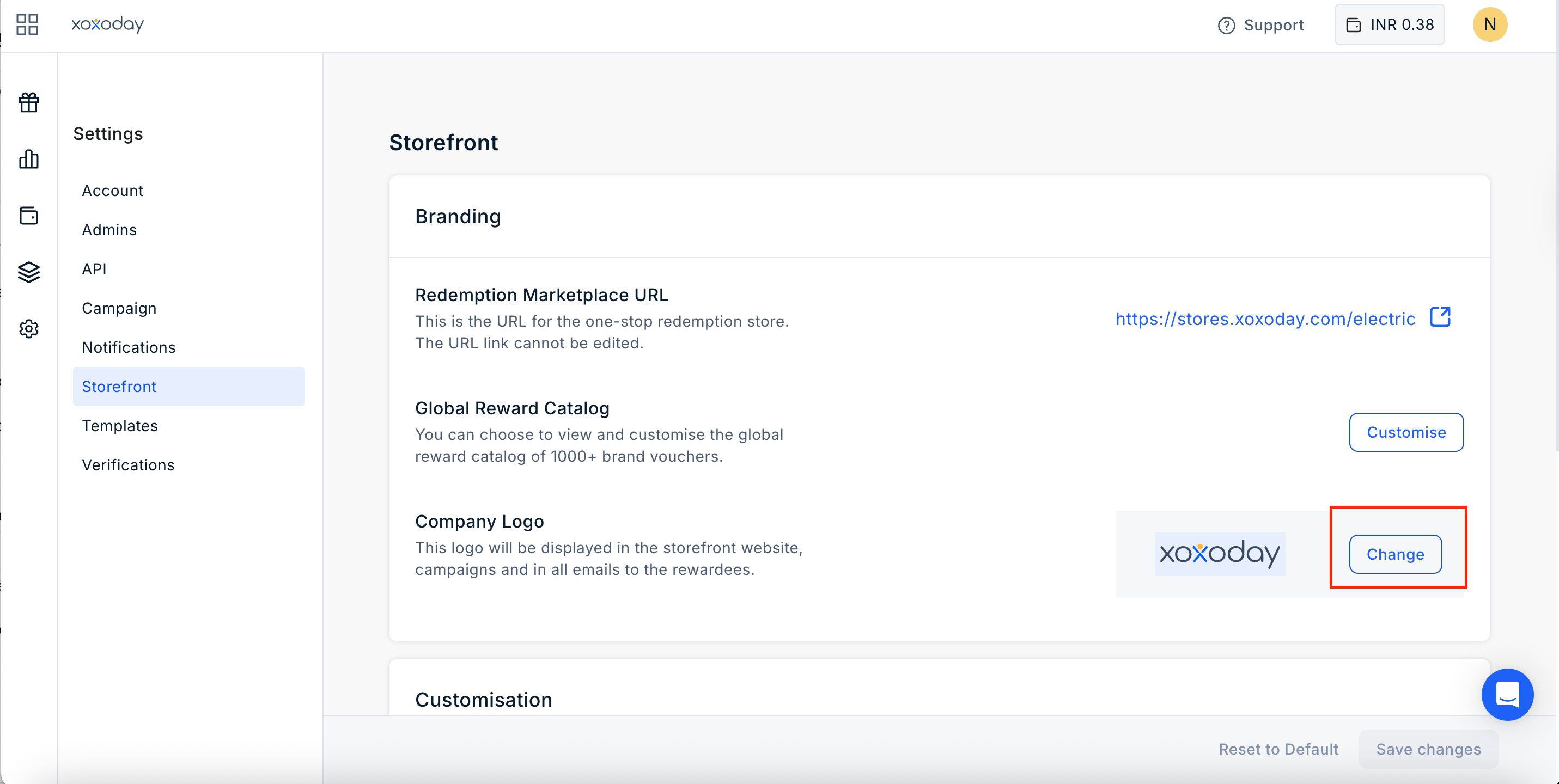 * Choose a transparent logo file (maximum size: 240 x 80 px).
* Upload it to the platform and click **"Save".**
Your brand logo will prominently appear in the upper left corner of your website and in all email communications. Switch to the storefront to preview its placement and appearance.
* Choose a transparent logo file (maximum size: 240 x 80 px).
* Upload it to the platform and click **"Save".**
Your brand logo will prominently appear in the upper left corner of your website and in all email communications. Switch to the storefront to preview its placement and appearance.
 ***
## Customisations
### Change Points Name
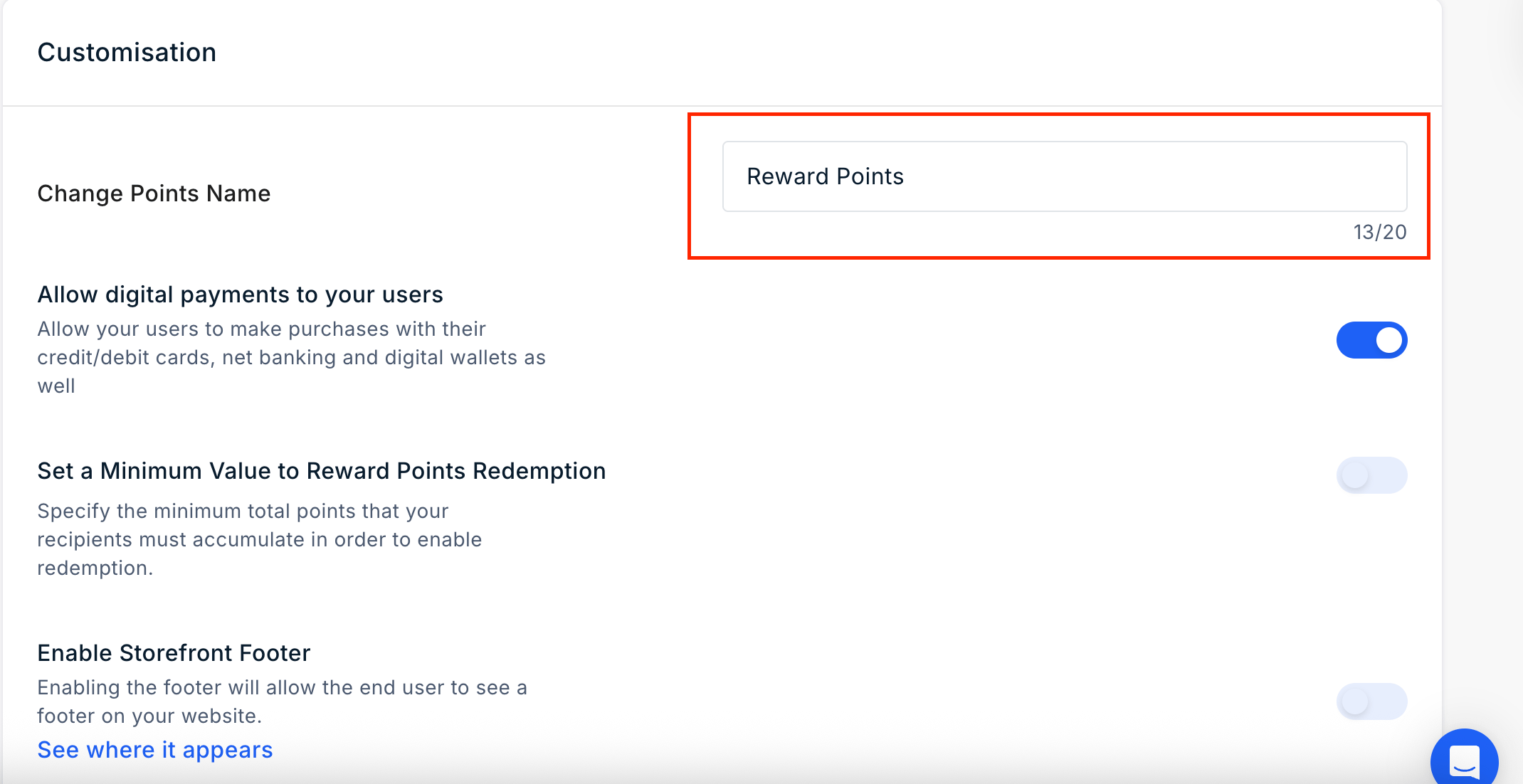
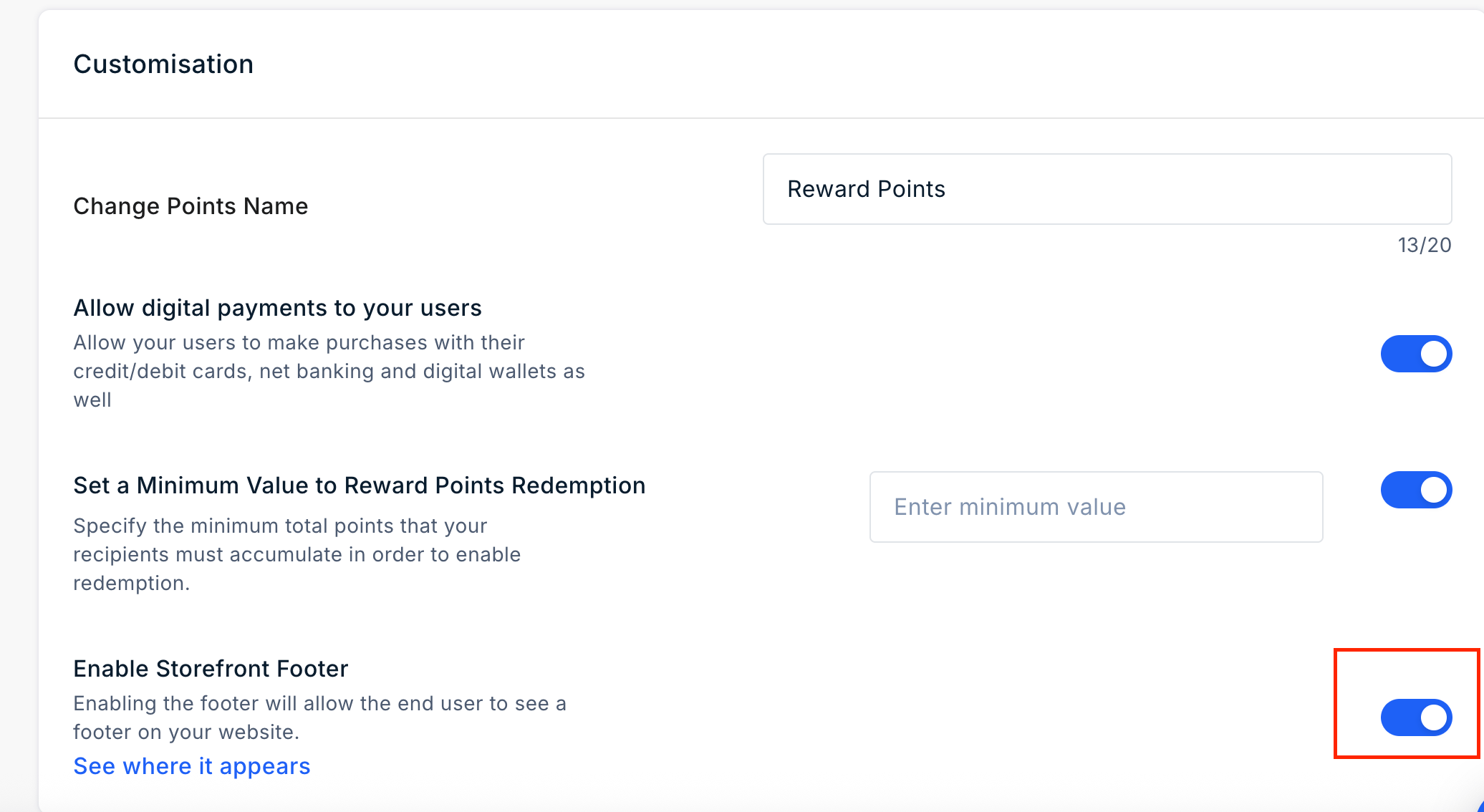
You can customize the terminology used for displaying points on the Xoxoday storefront. For example, ABC Inc. refers to their points as **"Ace Points"**, while others may use terms such as **"Coins"**, **"Credits"**, etc.
Navigate to **Settings > Storefront > Customise** and click on **"Change Point Name".** In the space provided, add the custom nomenclature.
***
## Customisations
### Change Points Name
You can customize the terminology used for displaying points on the Xoxoday storefront. For example, ABC Inc. refers to their points as **"Ace Points"**, while others may use terms such as **"Coins"**, **"Credits"**, etc.
Navigate to **Settings > Storefront > Customise** and click on **"Change Point Name".** In the space provided, add the custom nomenclature.
 ### Allow digital payments to your users
By default, users can make partial payments using their personal credit/debit cards or bank accounts after deducting the amount with available codes/points. If you prefer not to display this option, you can deactivate it here.
Navigate to **Settings > Storefront > Customise** and **toggle on or off** next to Allow digital payments to users.
### Allow digital payments to your users
By default, users can make partial payments using their personal credit/debit cards or bank accounts after deducting the amount with available codes/points. If you prefer not to display this option, you can deactivate it here.
Navigate to **Settings > Storefront > Customise** and **toggle on or off** next to Allow digital payments to users.
 ### Set a Minimum Value to Reward Points Redemption
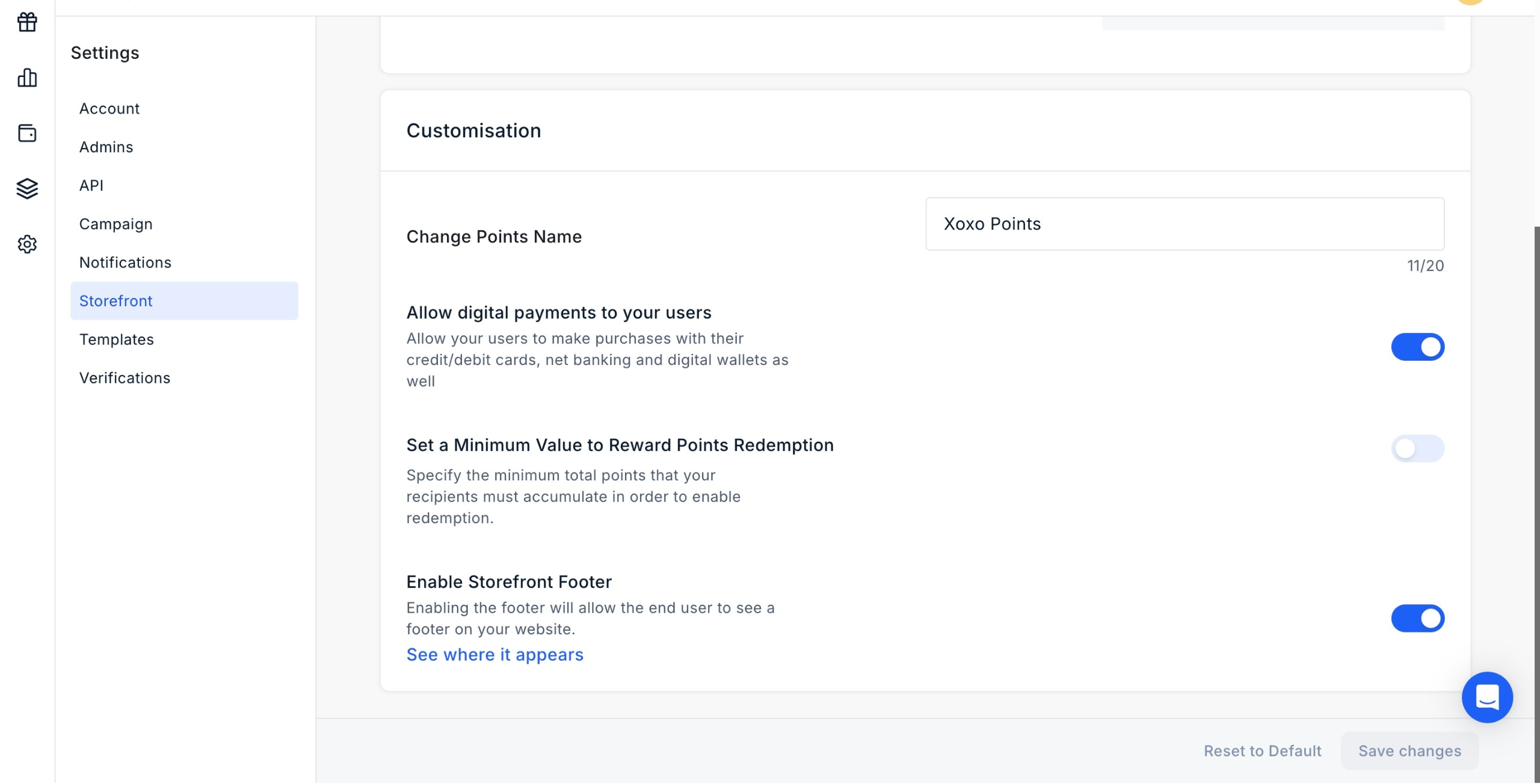
Specify the minimum total points that your recipients must accumulate in order to enable redemption.
Navigate to **Settings > Storefront > Customise** and **toggle on or off** next to Set a Minimum Value to Reward Points Redemption. If you enable this setting, you need to specify the minimum value as shown below.
### Set a Minimum Value to Reward Points Redemption
Specify the minimum total points that your recipients must accumulate in order to enable redemption.
Navigate to **Settings > Storefront > Customise** and **toggle on or off** next to Set a Minimum Value to Reward Points Redemption. If you enable this setting, you need to specify the minimum value as shown below.
 ### Enable Storefront Footer
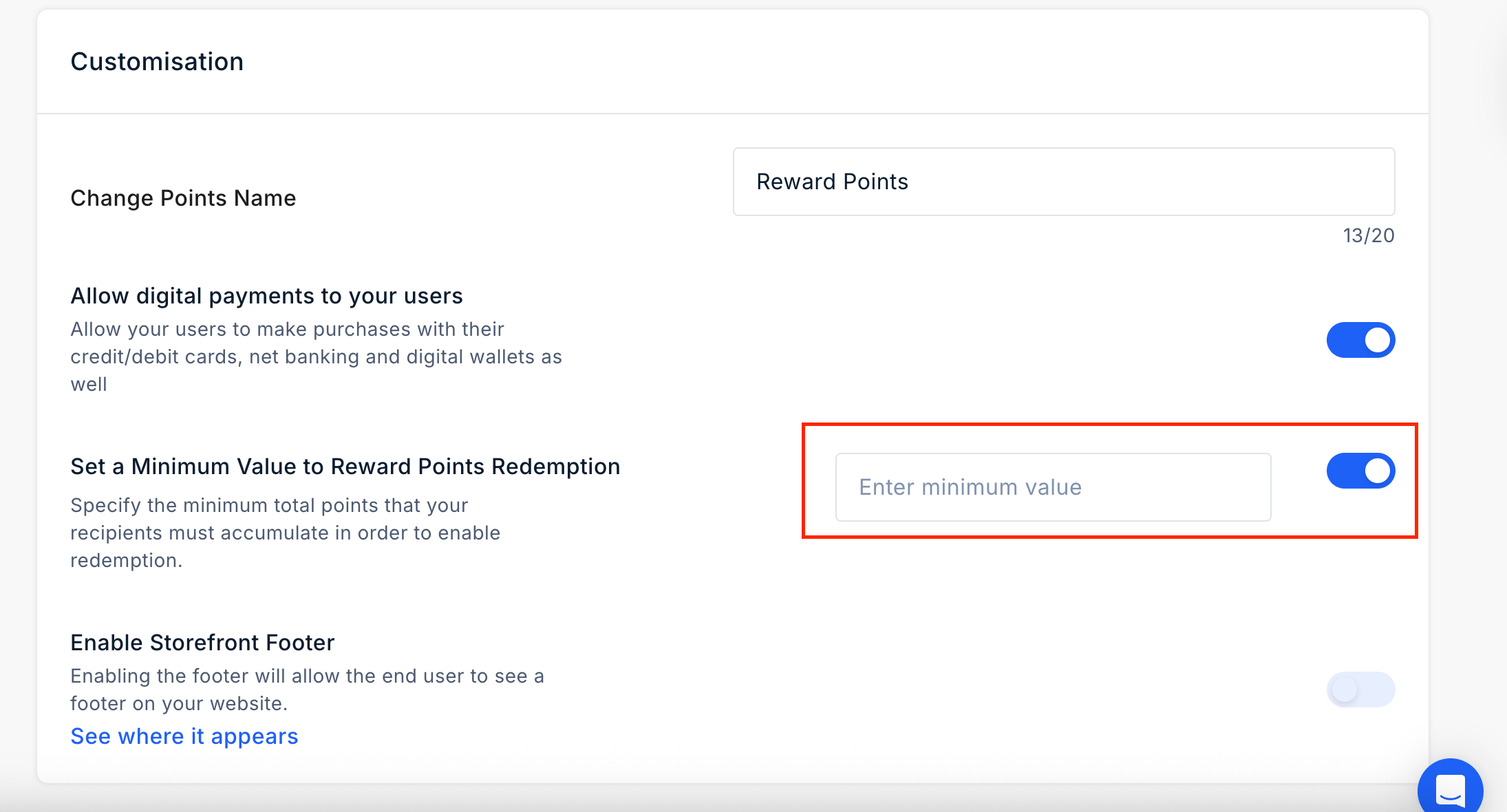
Enabling the footer will allow the end user to see a footer on your website.
Navigate to **Settings > Storefront > Customise** and toggle on or off next to Enable Storefront Footer.
### Enable Storefront Footer
Enabling the footer will allow the end user to see a footer on your website.
Navigate to **Settings > Storefront > Customise** and toggle on or off next to Enable Storefront Footer.
 If you enable it, it is displayed as below.
Note that disabling the payment gateway will prevent customers from completing their purchases if they have insufficient points/codes.
Feedback or Questions: Reach out to us at [cs@xoxoday.com](mailto:cs@xoxoday.com).
If you enable it, it is displayed as below.
Note that disabling the payment gateway will prevent customers from completing their purchases if they have insufficient points/codes.
Feedback or Questions: Reach out to us at [cs@xoxoday.com](mailto:cs@xoxoday.com).