> ## Documentation Index
> Fetch the complete documentation index at: https://help-plum.xoxoday.com/llms.txt
> Use this file to discover all available pages before exploring further.

# Updating Billing Address

*Learn more about changing your billing address*

## Overview

This guide explains how administrators can change the billing address when a client adds funds to their wallet. The selected billing address will be reflected in Performa and Invoice PDFs.

***

## Updating the Billing Address while Adding Funds to the wallet

<Steps>
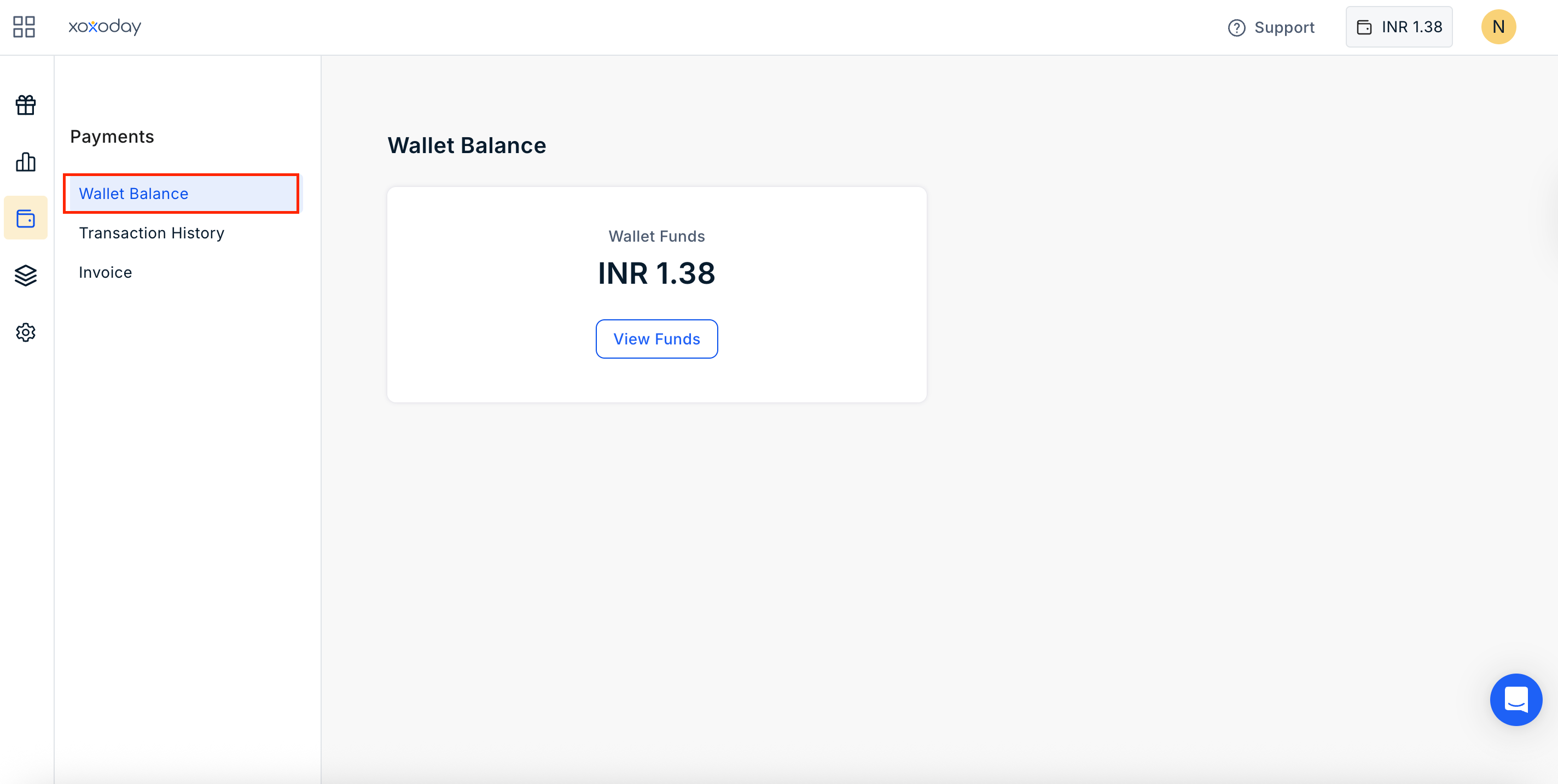
  <Step title="Navigate to Wallet Balance">
    Navigate to Plum Admin Dashboard > Payments > Wallet Balance and click on "**View Funds**".
    <Frame>
      <img src="https://mintcdn.com/plum/kNcyLek1bA74PNJE/images/intercom/help-center-getting-started-getting-started-for-admins-changing-billing-address-during-wallet-recharge-12838984/Screenshot_2025-11-14_at_2_30_44_PM.png?fit=max&auto=format&n=kNcyLek1bA74PNJE&q=85&s=001740b13ee58c381a4c14ff9aa7e9dc" alt="" width="2848" height="1434" data-path="images/intercom/help-center-getting-started-getting-started-for-admins-changing-billing-address-during-wallet-recharge-12838984/Screenshot_2025-11-14_at_2_30_44_PM.png" />
    </Frame>
  </Step>

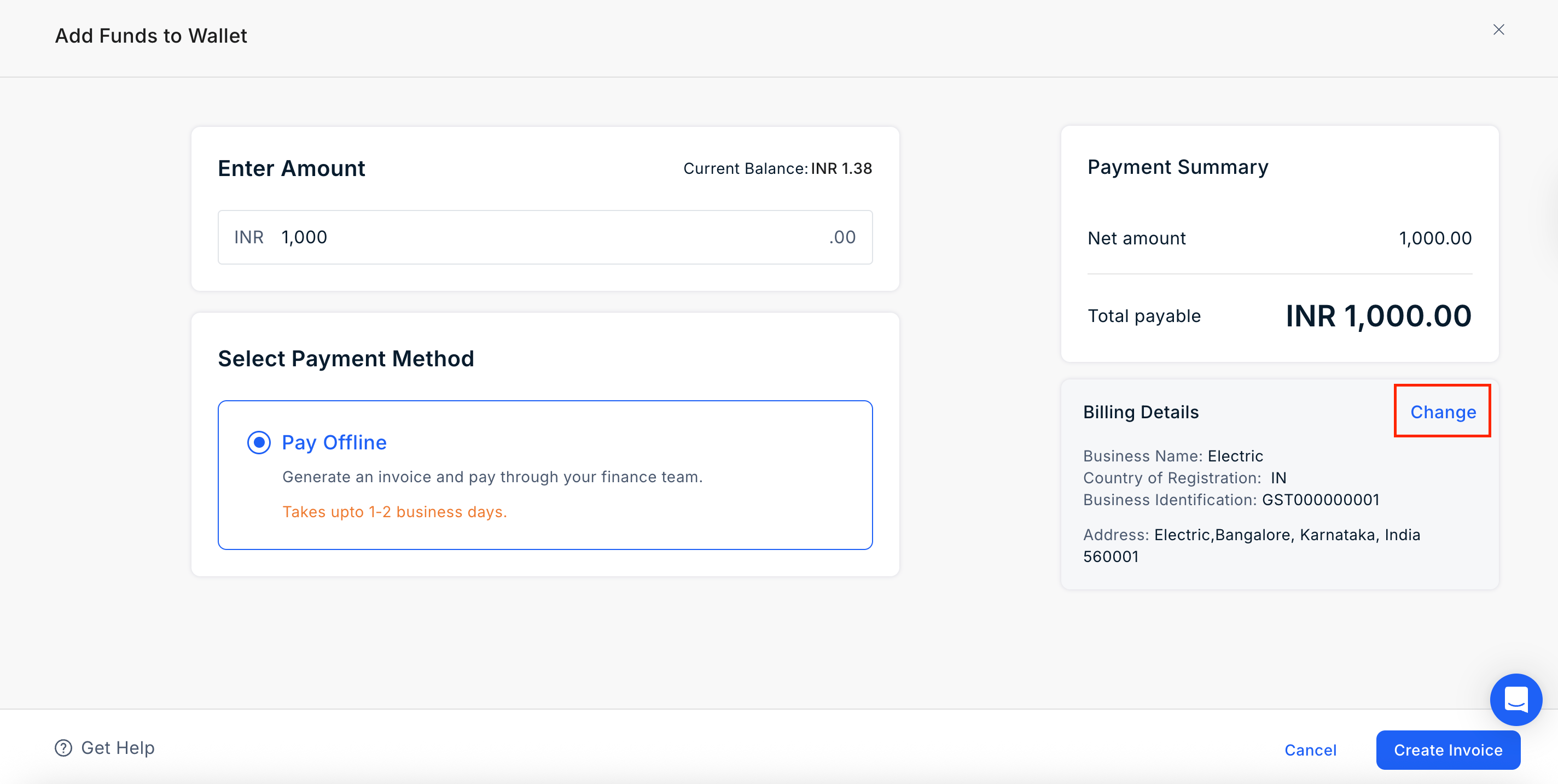
  <Step title="Locate the Billing Details section">
    On the Add Funds to Wallet screen, locate the **Billing Details** section.

    Click on "**Change**".
    <Frame>
      <img src="https://mintcdn.com/plum/kNcyLek1bA74PNJE/images/intercom/help-center-getting-started-getting-started-for-admins-changing-billing-address-during-wallet-recharge-12838984/Screenshot_2025-11-14_at_2_30_11-E2-80-AFPM.png?fit=max&auto=format&n=kNcyLek1bA74PNJE&q=85&s=6059371ad6cbd4a5c56c14e6e0b1810a" alt="" width="2848" height="1434" data-path="images/intercom/help-center-getting-started-getting-started-for-admins-changing-billing-address-during-wallet-recharge-12838984/Screenshot_2025-11-14_at_2_30_11-E2-80-AFPM.png" />
    </Frame>
  </Step>

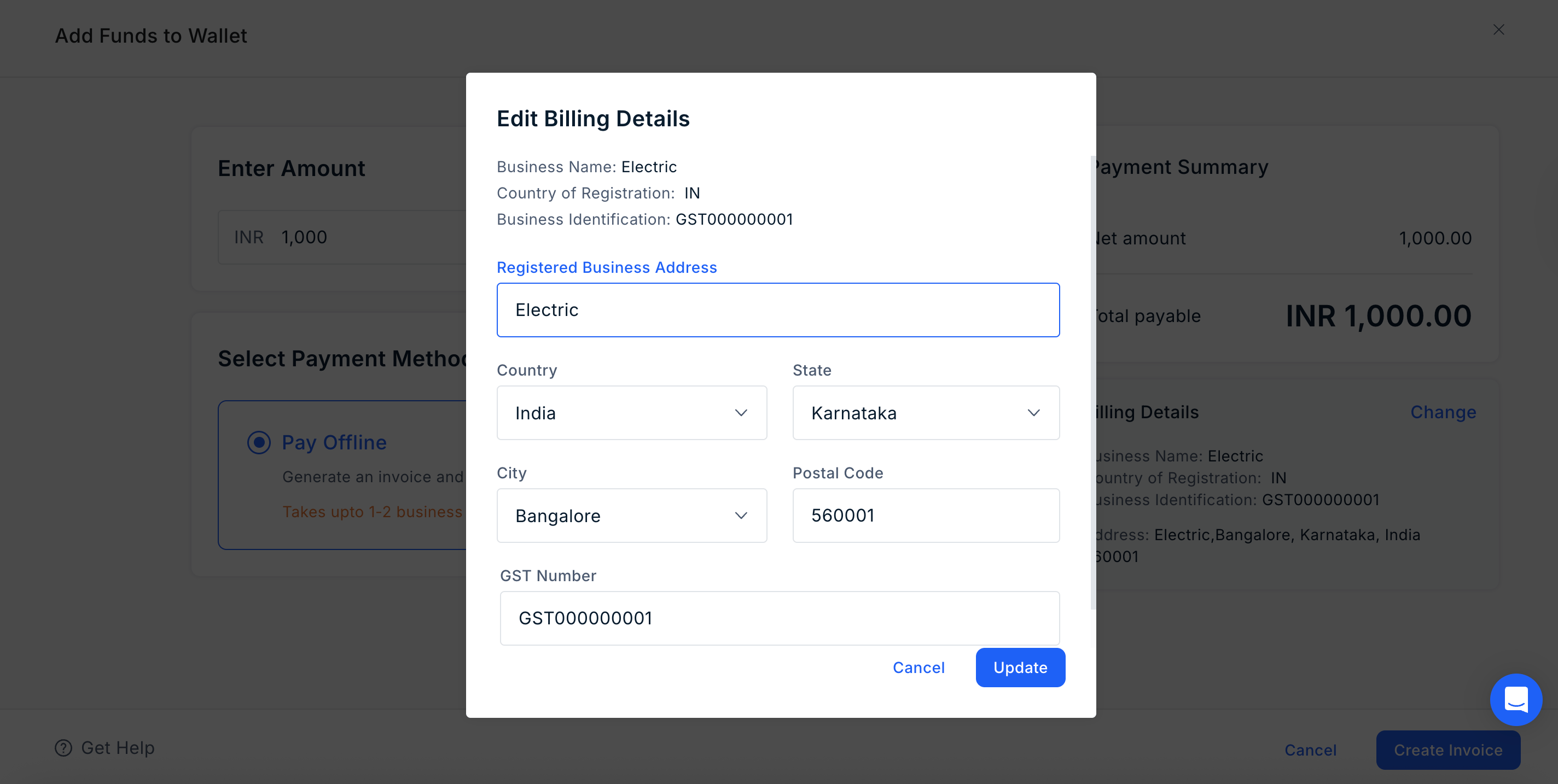
  <Step title="Update the Address fields as required">
    * GST/Identification Number (Mandatory if India; optional for other countries)
    * Country, State, City
    * Billing Address
    * Other Details (Client POC, email, phone – auto-filled from admin)
    <Frame>
      <img src="https://mintcdn.com/plum/kNcyLek1bA74PNJE/images/intercom/help-center-getting-started-getting-started-for-admins-changing-billing-address-during-wallet-recharge-12838984/Screenshot_2025-11-14_at_2_30_32_PM.png?fit=max&auto=format&n=kNcyLek1bA74PNJE&q=85&s=db36348ac3ea472decfb7ee84ac72d57" alt="" width="2848" height="1434" data-path="images/intercom/help-center-getting-started-getting-started-for-admins-changing-billing-address-during-wallet-recharge-12838984/Screenshot_2025-11-14_at_2_30_32_PM.png" />
    </Frame>
  </Step>

  <Step title="Save and Proceed">
    Once done, click **Save** and Proceed to generate the invoice.

    The selected address will appear on all invoice documents.
  </Step>
</Steps>

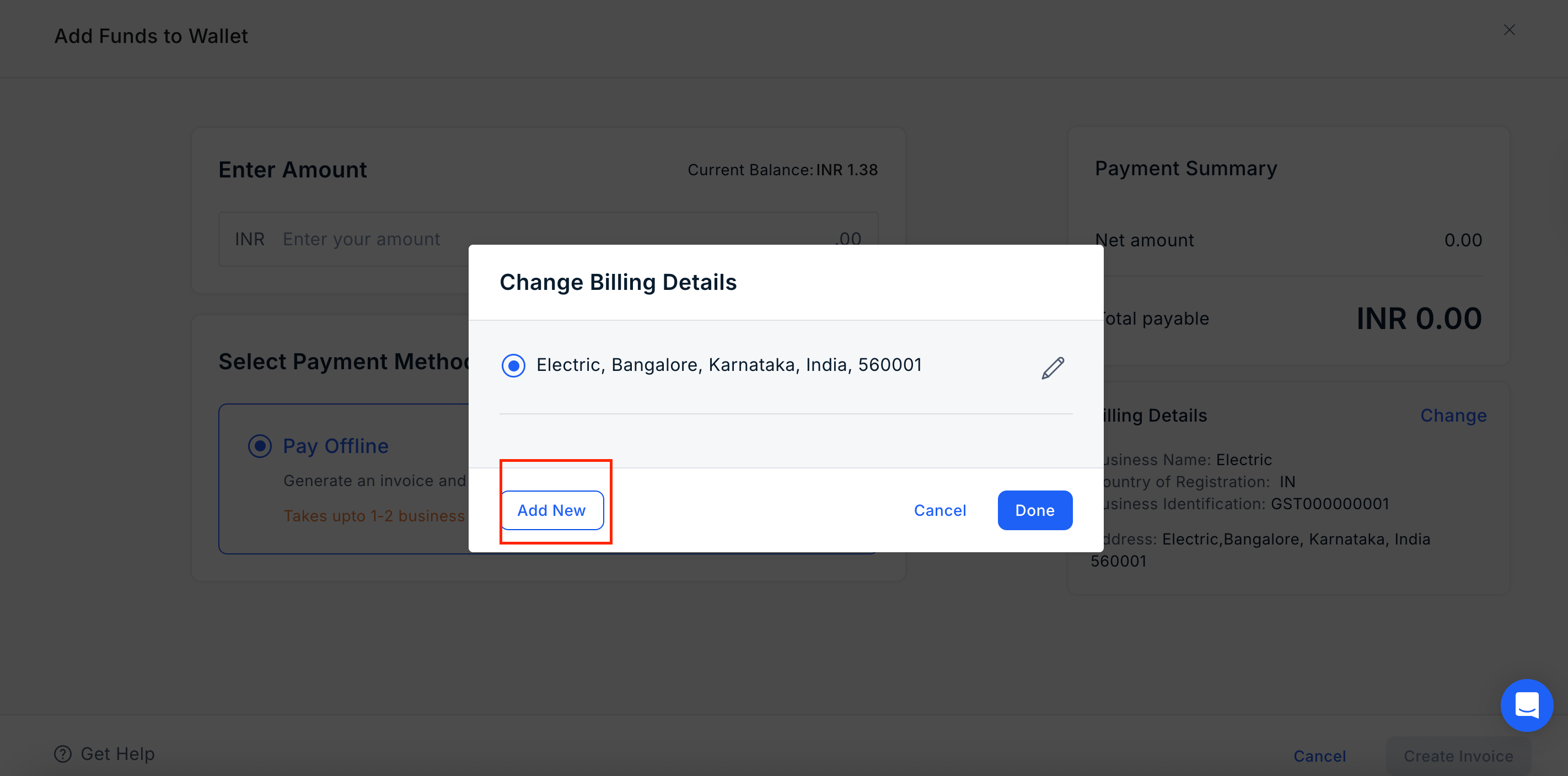
### You can also add a New Billing Address while adding funds to the wallet

* Click **Add New**.
<Frame>
  <img src="https://mintcdn.com/plum/kNcyLek1bA74PNJE/images/intercom/help-center-getting-started-getting-started-for-admins-changing-billing-address-during-wallet-recharge-12838984/Screenshot_2025-11-14_at_2_38_47_PM.png?fit=max&auto=format&n=kNcyLek1bA74PNJE&q=85&s=1ab5c45c69e338bae4d5322feecdf525" alt="" width="2844" height="1408" data-path="images/intercom/help-center-getting-started-getting-started-for-admins-changing-billing-address-during-wallet-recharge-12838984/Screenshot_2025-11-14_at_2_38_47_PM.png" />
</Frame>

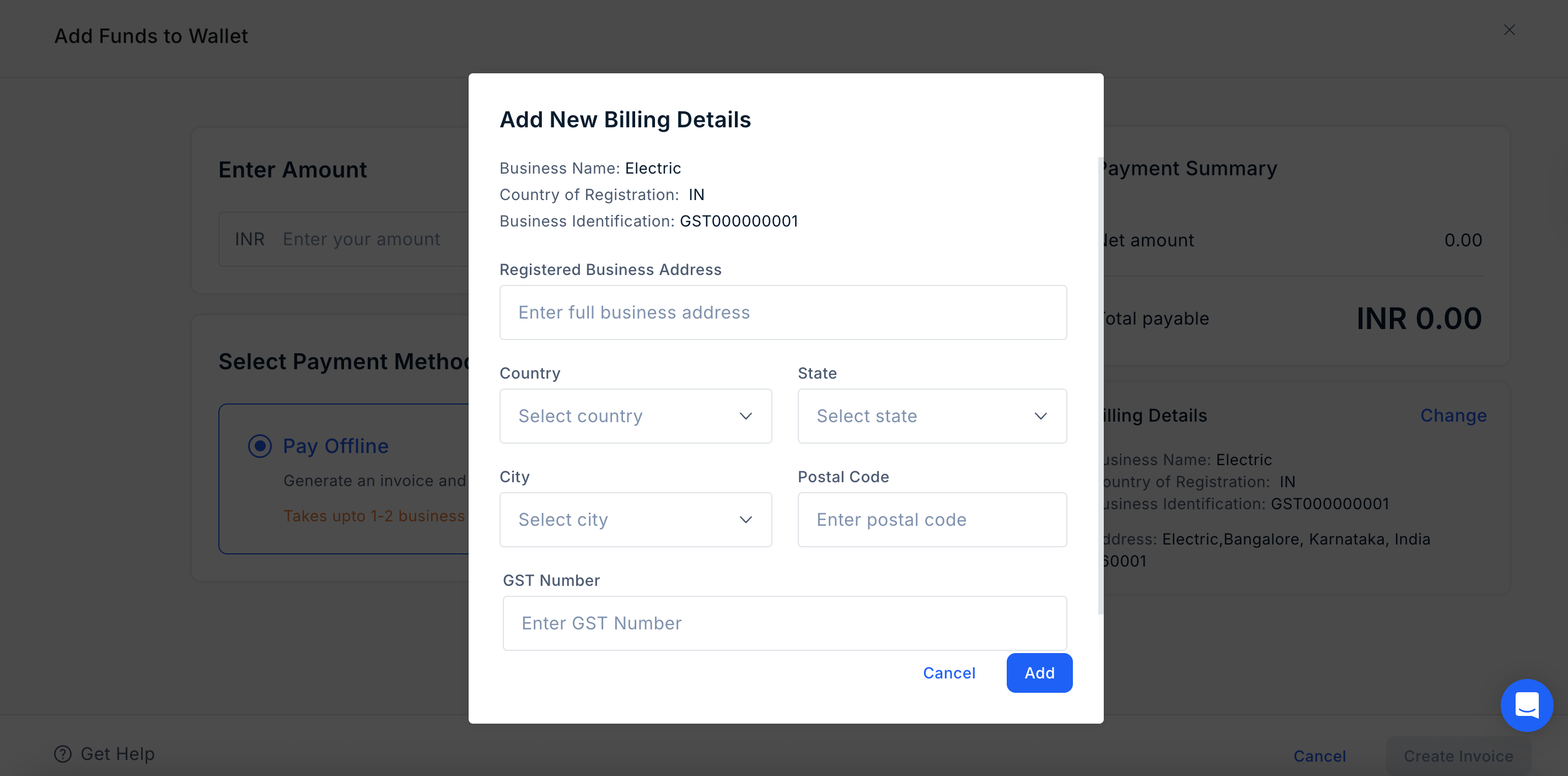
* Fill in the following fields:

  * **GST/Identification Number** (Mandatory if India; optional for other countries)
  * **Country, State, City**
  * **Billing Address**
  * **Other Details** (Client POC, email, phone – auto-filled from admin)
<Frame>
  <img src="https://mintcdn.com/plum/kNcyLek1bA74PNJE/images/intercom/help-center-getting-started-getting-started-for-admins-changing-billing-address-during-wallet-recharge-12838984/Screenshot_2025-11-14_at_2_39_00_PM.png?fit=max&auto=format&n=kNcyLek1bA74PNJE&q=85&s=44d5d0f3442e92f2c10edee4ff5858b6" alt="" width="2844" height="1408" data-path="images/intercom/help-center-getting-started-getting-started-for-admins-changing-billing-address-during-wallet-recharge-12838984/Screenshot_2025-11-14_at_2_39_00_PM.png" />
</Frame>

* Click **Save**.

The new address is saved and available for selection.

***

## Managing Billing Address in Account Settings

You can easily add, modify, or remove your billing addresses directly from your account settings.

**Add a New Billing Address**

<Steps>
  <Step title="Navigate to Settings">
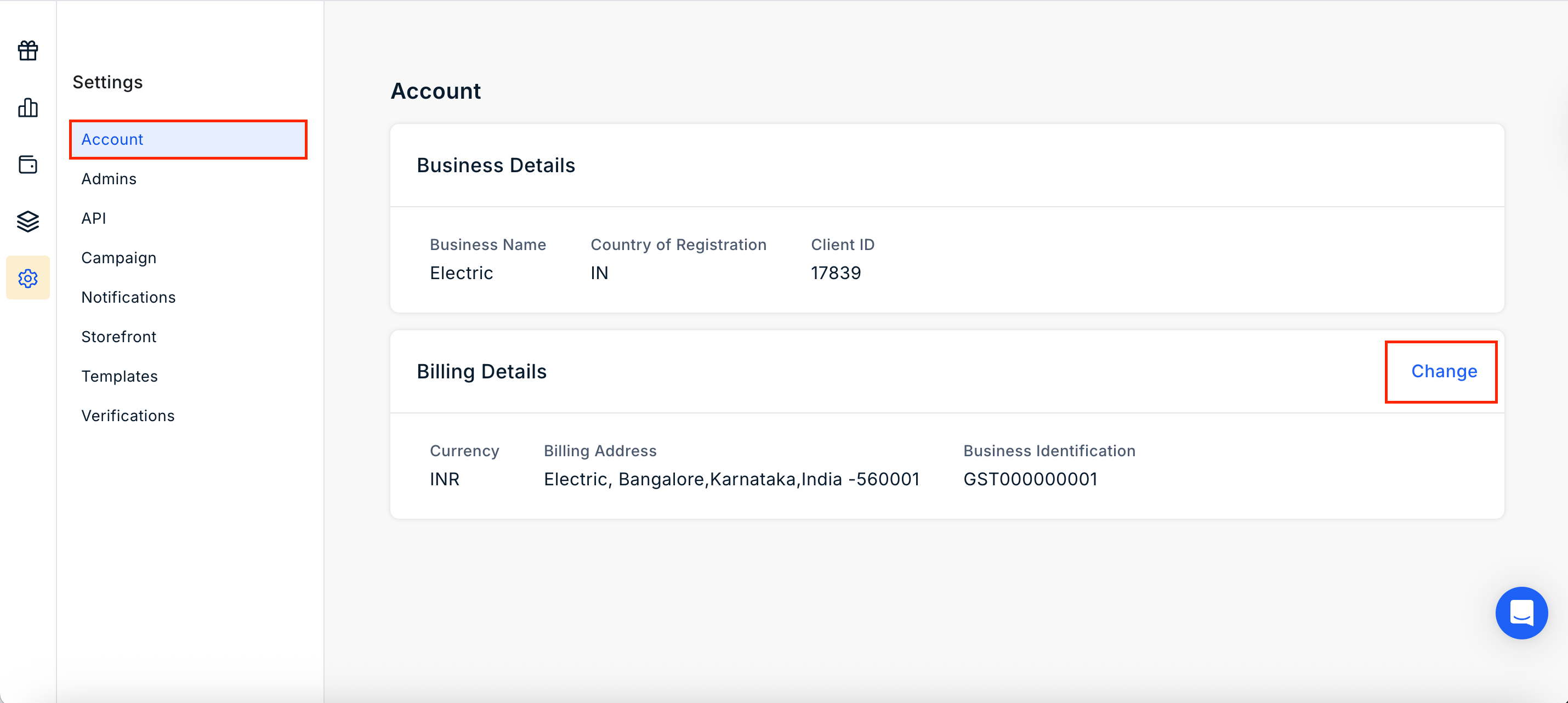
    Navigate to **Settings > Account & Billing Address. Click on Change**.
    <Frame>
      <img src="https://mintcdn.com/plum/kNcyLek1bA74PNJE/images/intercom/help-center-getting-started-getting-started-for-admins-changing-billing-address-during-wallet-recharge-12838984/Screenshot_2025-11-14_at_2_44_07-E2-80-AFPM.png?fit=max&auto=format&n=kNcyLek1bA74PNJE&q=85&s=93a140bb9af23313fbf60b246f9dbed5" alt="" width="2860" height="1282" data-path="images/intercom/help-center-getting-started-getting-started-for-admins-changing-billing-address-during-wallet-recharge-12838984/Screenshot_2025-11-14_at_2_44_07-E2-80-AFPM.png" />
    </Frame>
  </Step>

  <Step title="Add New">
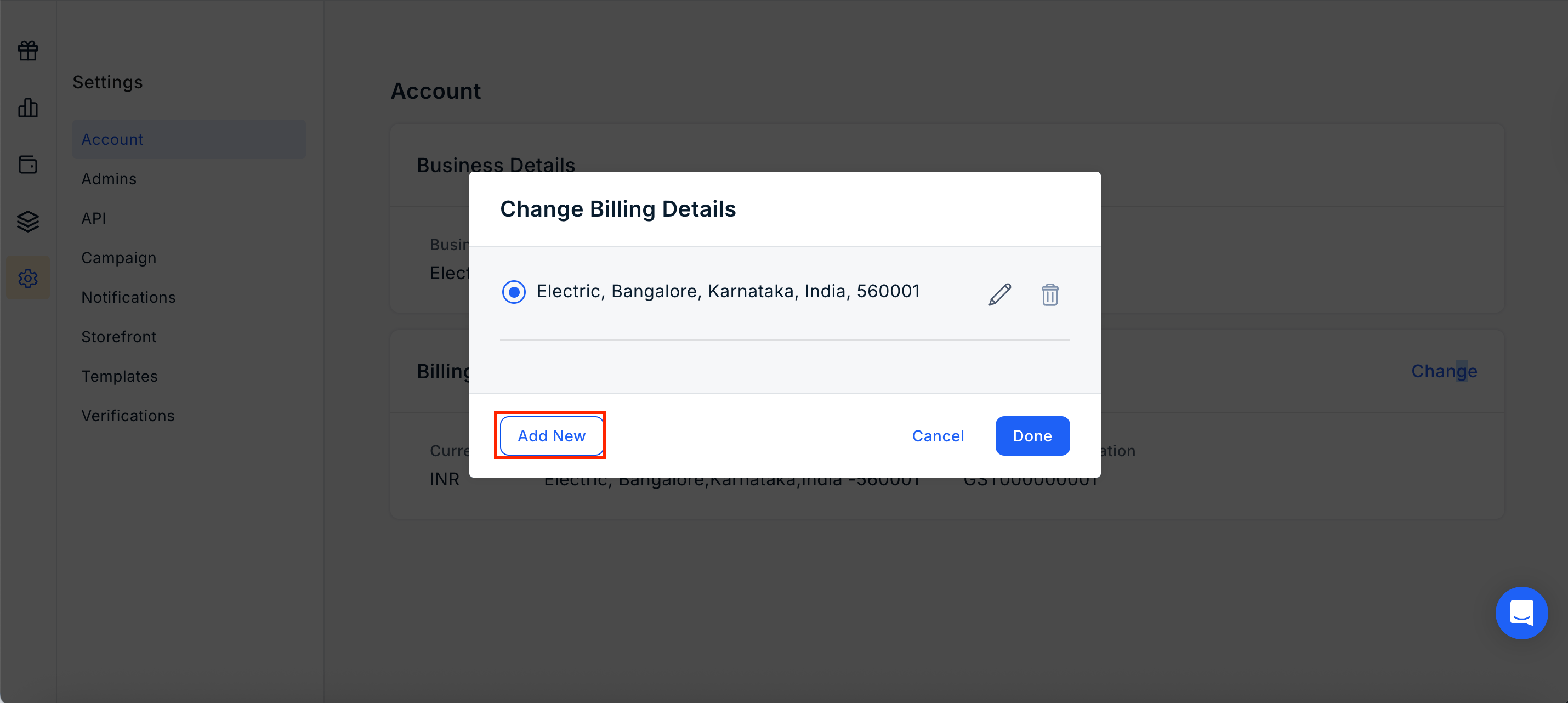
    Click on "Add New" and enter the required address details.
    <Frame>
      <img src="https://mintcdn.com/plum/kNcyLek1bA74PNJE/images/intercom/help-center-getting-started-getting-started-for-admins-changing-billing-address-during-wallet-recharge-12838984/Screenshot_2025-11-14_at_2_44_44-E2-80-AFPM.png?fit=max&auto=format&n=kNcyLek1bA74PNJE&q=85&s=28c8de65dbd679f8854de1ba1ae736c8" alt="" width="2860" height="1282" data-path="images/intercom/help-center-getting-started-getting-started-for-admins-changing-billing-address-during-wallet-recharge-12838984/Screenshot_2025-11-14_at_2_44_44-E2-80-AFPM.png" />
    </Frame>
  </Step>

  <Step title="Save">
    Click **Save** to confirm.
  </Step>
</Steps>

***

**Modify an Existing Billing Address**
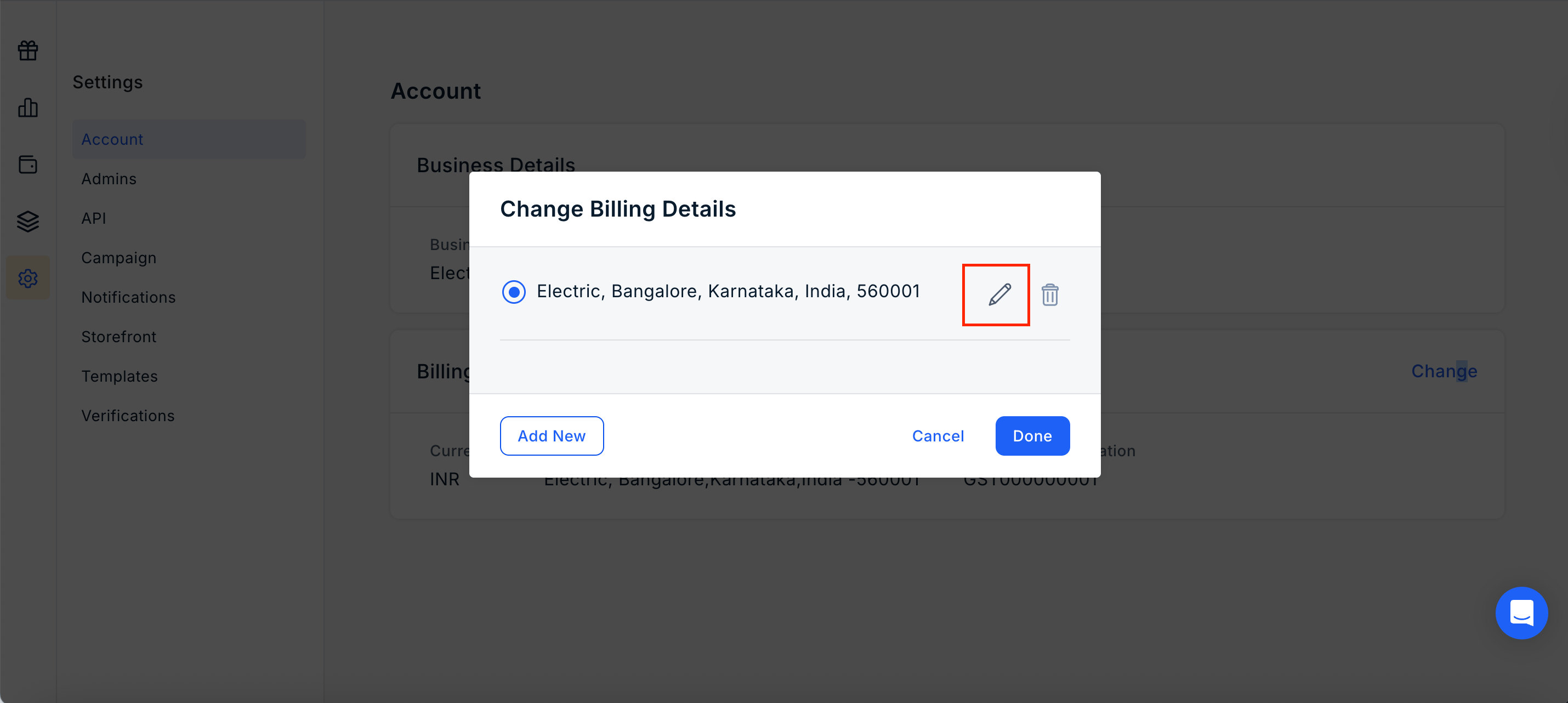
<Steps>
  <Step title="Select the billing address you want to update" />

  <Step title="Click on the Edit icon">
    <Frame>
      <img src="https://mintcdn.com/plum/kNcyLek1bA74PNJE/images/intercom/help-center-getting-started-getting-started-for-admins-changing-billing-address-during-wallet-recharge-12838984/Screenshot_2025-11-14_at_2_44_33-E2-80-AFPM.png?fit=max&auto=format&n=kNcyLek1bA74PNJE&q=85&s=50ad392da4e05de56764454c4de4d699" alt="" width="2860" height="1282" data-path="images/intercom/help-center-getting-started-getting-started-for-admins-changing-billing-address-during-wallet-recharge-12838984/Screenshot_2025-11-14_at_2_44_33-E2-80-AFPM.png" />
    </Frame>
  </Step>

  <Step title="Update the necessary details" />

  <Step title="Click Save" />
</Steps>

***

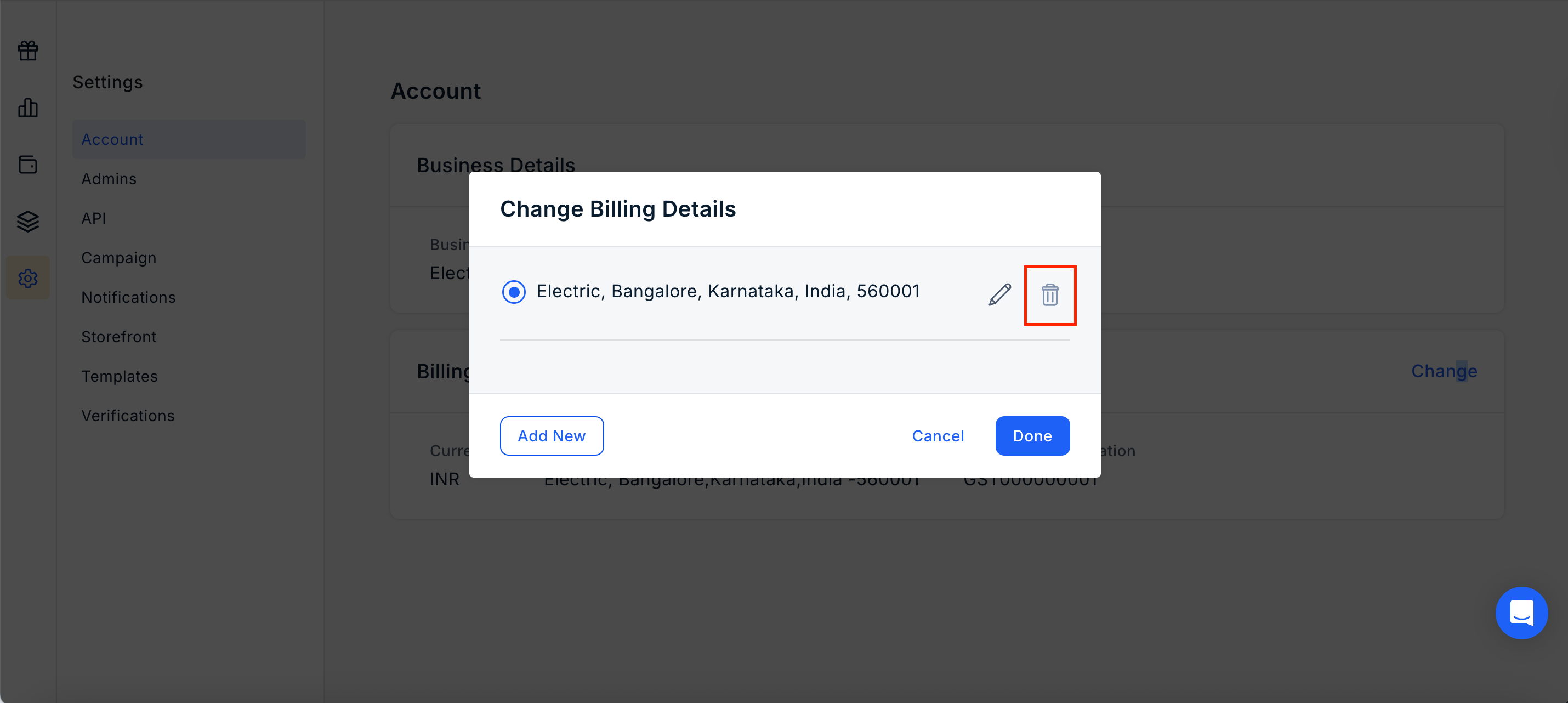
**Remove a Billing Address**

<Steps>
  <Step title="Select the address you want to remove" />

  <Step title="Click on the Remove / Delete icon" />

  <Step title="Confirm the deletion">
    <Frame>
      <img src="https://mintcdn.com/plum/6wSexiZf9KkmnAHl/images/intercom/help-center-getting-started-getting-started-for-admins-changing-billing-address-during-wallet-recharge-12838984/Screenshot_2025-11-14_at_2_44_56_PM.png?fit=max&auto=format&n=6wSexiZf9KkmnAHl&q=85&s=8c33dc2d4d9078a3ac6f8d16edd07771" alt="" width="2860" height="1282" data-path="images/intercom/help-center-getting-started-getting-started-for-admins-changing-billing-address-during-wallet-recharge-12838984/Screenshot_2025-11-14_at_2_44_56_PM.png" />
    </Frame>
  </Step>
</Steps>