> ## Documentation Index
> Fetch the complete documentation index at: https://help-plum.xoxoday.com/llms.txt
> Use this file to discover all available pages before exploring further.
# Payment Methods
> Learn about the payment methods available for funding your Plum wallet, and how to choose the right one for your account.
*Learn about different ways to fund your Plum account.*
Plum supports multiple ways for you to fund your account. Below is a list of a few, please select as applicable:
***
## 1. Online Payment Methods
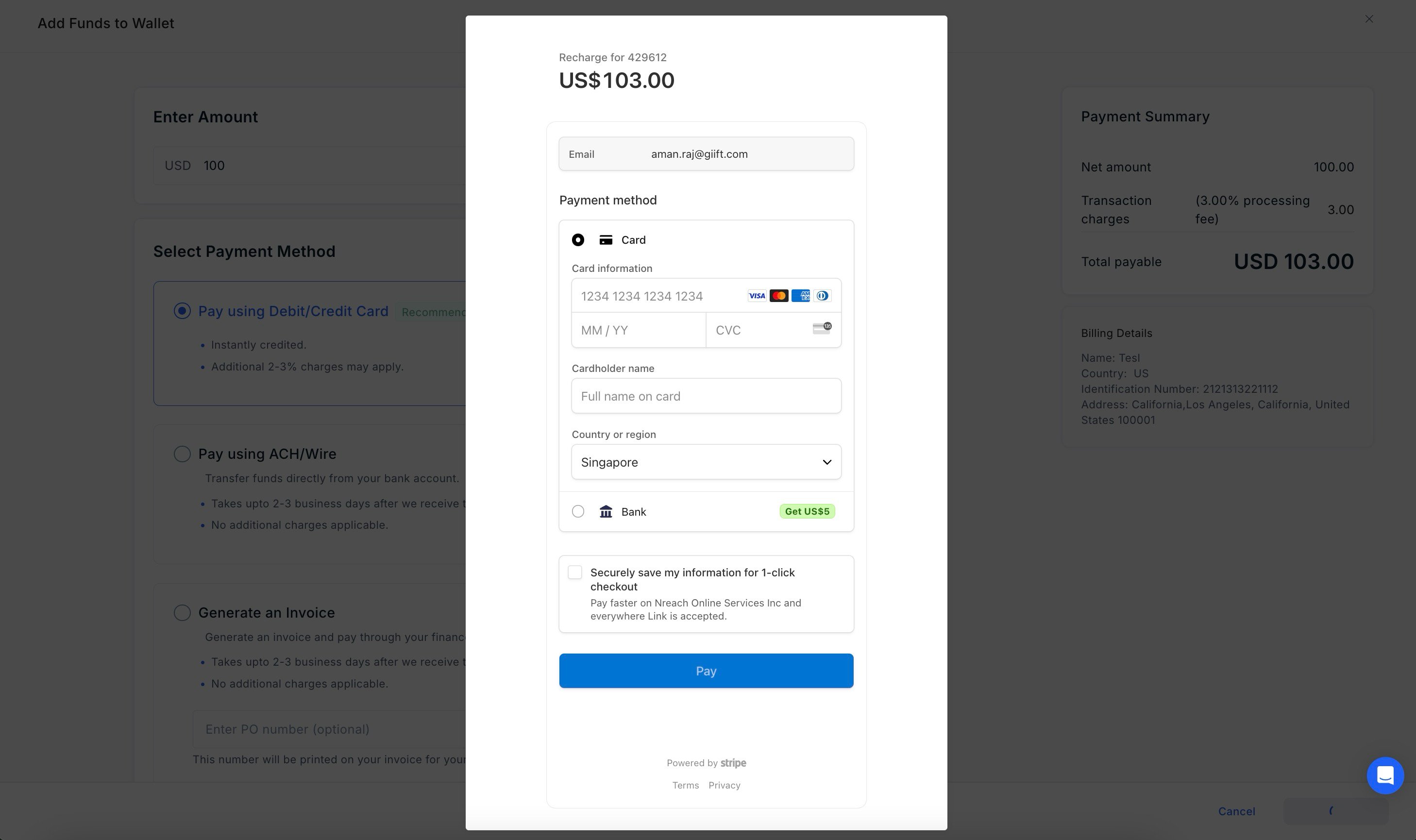
Online Payment Methods using Credit Card & Debit Card.
 ### Fund addition for INR Accounts
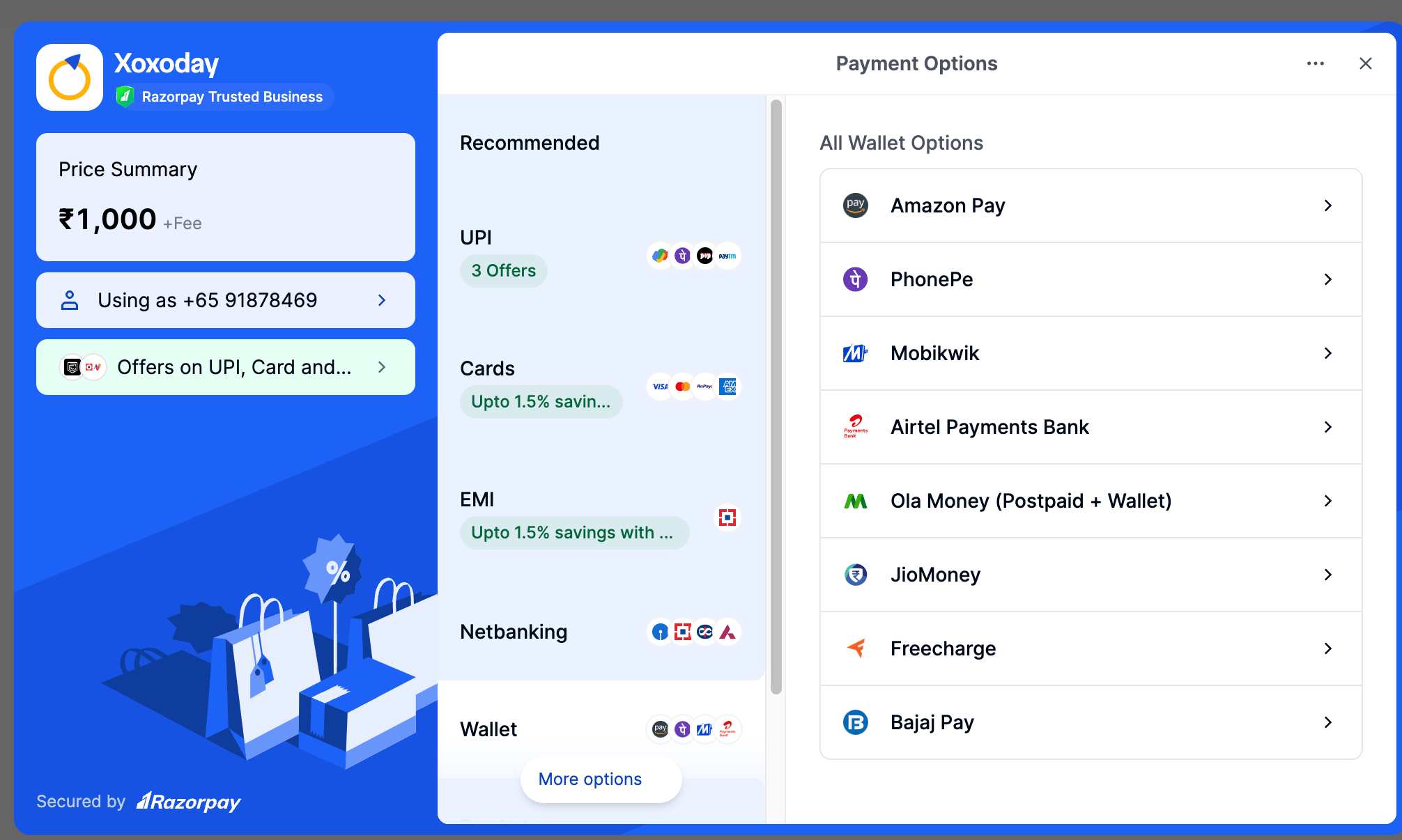
Online options available - UPI, Credit/Debit Card, Net banking, e-Wallets and more.
### Fund addition for INR Accounts
Online options available - UPI, Credit/Debit Card, Net banking, e-Wallets and more.
 ***
## 2. Pay Offline
### Create an Invoice
An invoice (or pre-payment invoice) is a great way if you want to get your finance team involved in making the payment. Here's how to do this:
Input the desired amount in your base currency click "Create Invoice" to proceed.
Enter the Purchase Order Number (Optional) and Purchase Order Date using the calendar icon.
The selected date is stored in the system and displayed clearly on the invoice template, giving finance and procurement teams the visibility they need for smooth tracking and reporting.
***
## 2. Pay Offline
### Create an Invoice
An invoice (or pre-payment invoice) is a great way if you want to get your finance team involved in making the payment. Here's how to do this:
Input the desired amount in your base currency click "Create Invoice" to proceed.
Enter the Purchase Order Number (Optional) and Purchase Order Date using the calendar icon.
The selected date is stored in the system and displayed clearly on the invoice template, giving finance and procurement teams the visibility they need for smooth tracking and reporting.
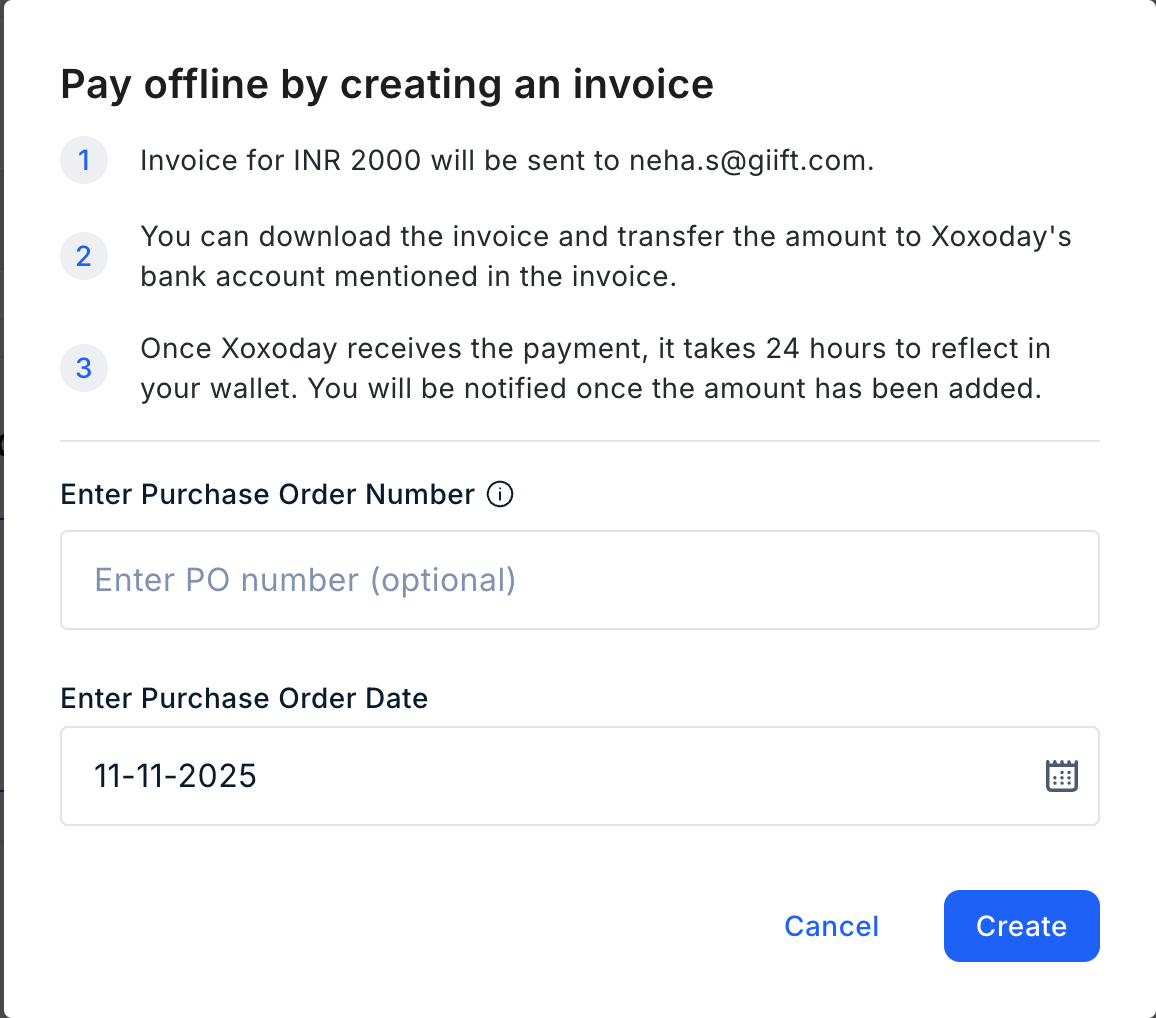 That's it! The invoice will be sent to your email address.
After the payment is made, share the details with [ar@xoxoday.com](mailto:ar@xoxoday.com). The finance team will verify the details, and after the verification, the funds will be credited to your account.
**Pro tip**
* You can optionally enter a PO number at the time of generating the invoice.
* You can view the status in the reports section. It might take a couple of minutes to show up on the dashboard.
***
Feedback or Questions: Reach out to [cs@xoxoday.com](mailto:cs@xoxoday.com)
That's it! The invoice will be sent to your email address.
After the payment is made, share the details with [ar@xoxoday.com](mailto:ar@xoxoday.com). The finance team will verify the details, and after the verification, the funds will be credited to your account.
**Pro tip**
* You can optionally enter a PO number at the time of generating the invoice.
* You can view the status in the reports section. It might take a couple of minutes to show up on the dashboard.
***
Feedback or Questions: Reach out to [cs@xoxoday.com](mailto:cs@xoxoday.com)