> ## Documentation Index
> Fetch the complete documentation index at: https://help-plum.xoxoday.com/llms.txt
> Use this file to discover all available pages before exploring further.
# Redeem Reward Link
Learn how to redeem a Reward Link as an end user.
 ***
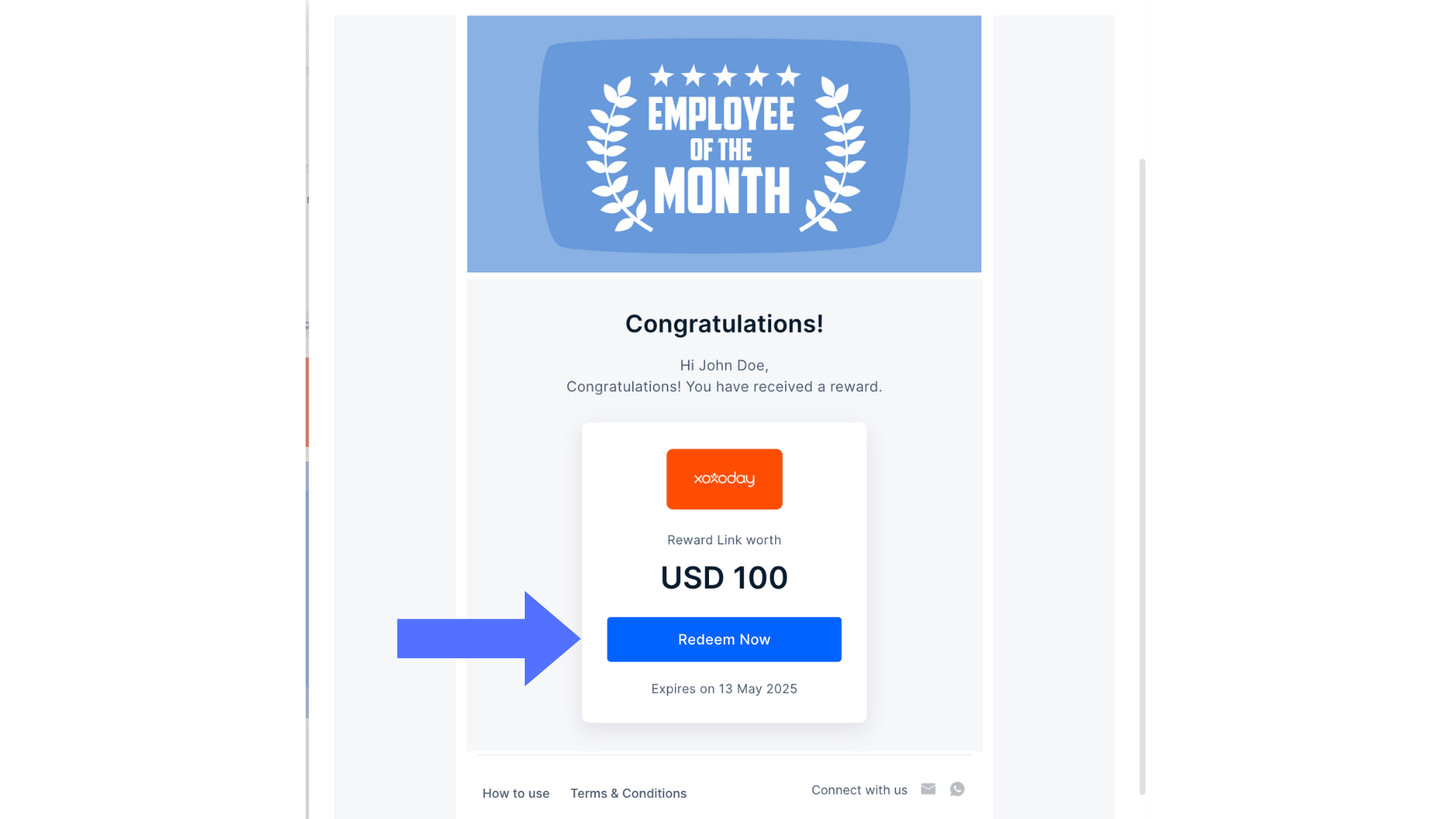
Click "**Redeem Now**" when you get the email about the reward. You'll be taken to a page where all of your vouchers are listed.
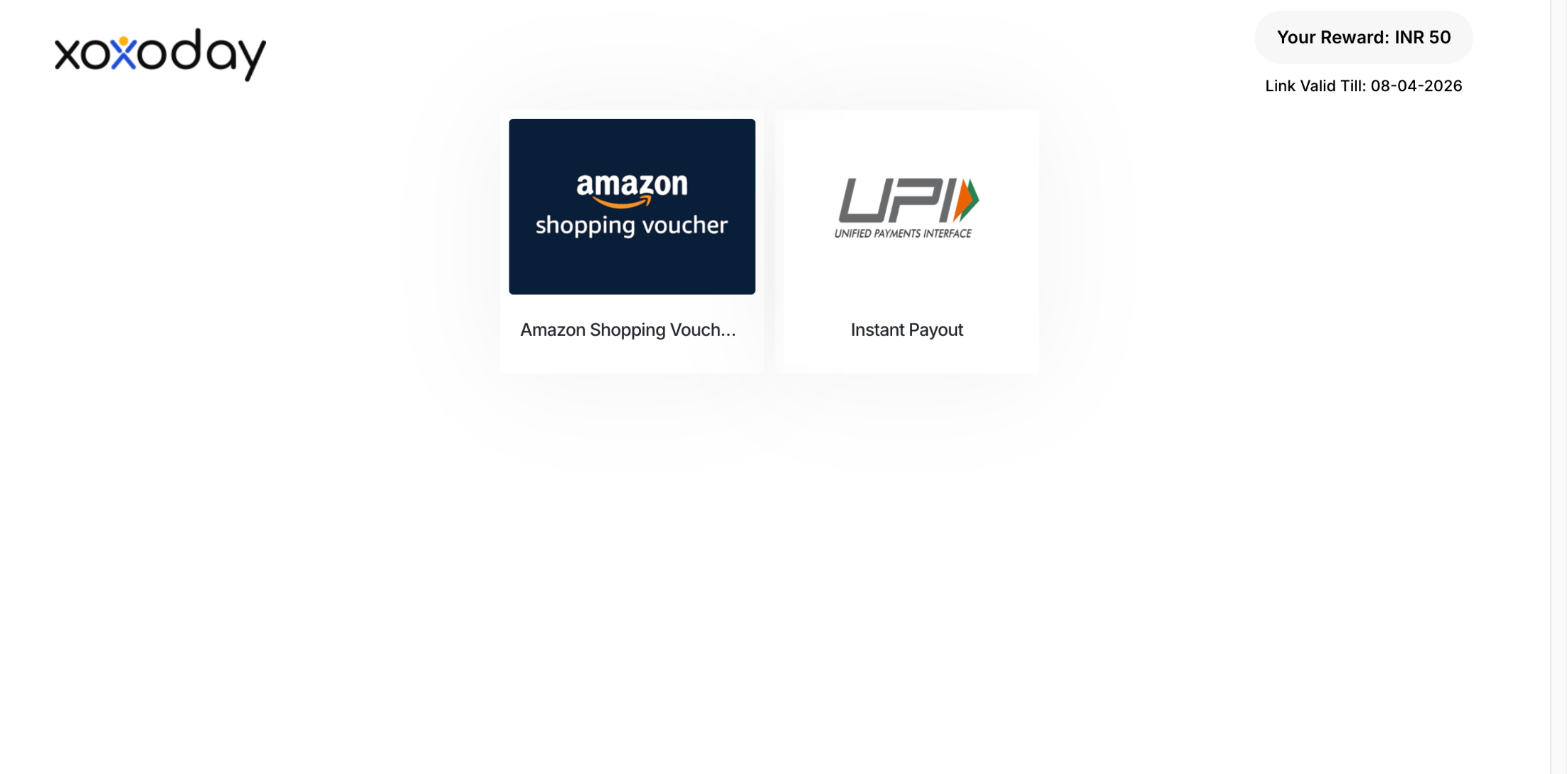
On click of '**Redeem Now**', you will see a landing page. Here, you can view your reward value and the link validity.
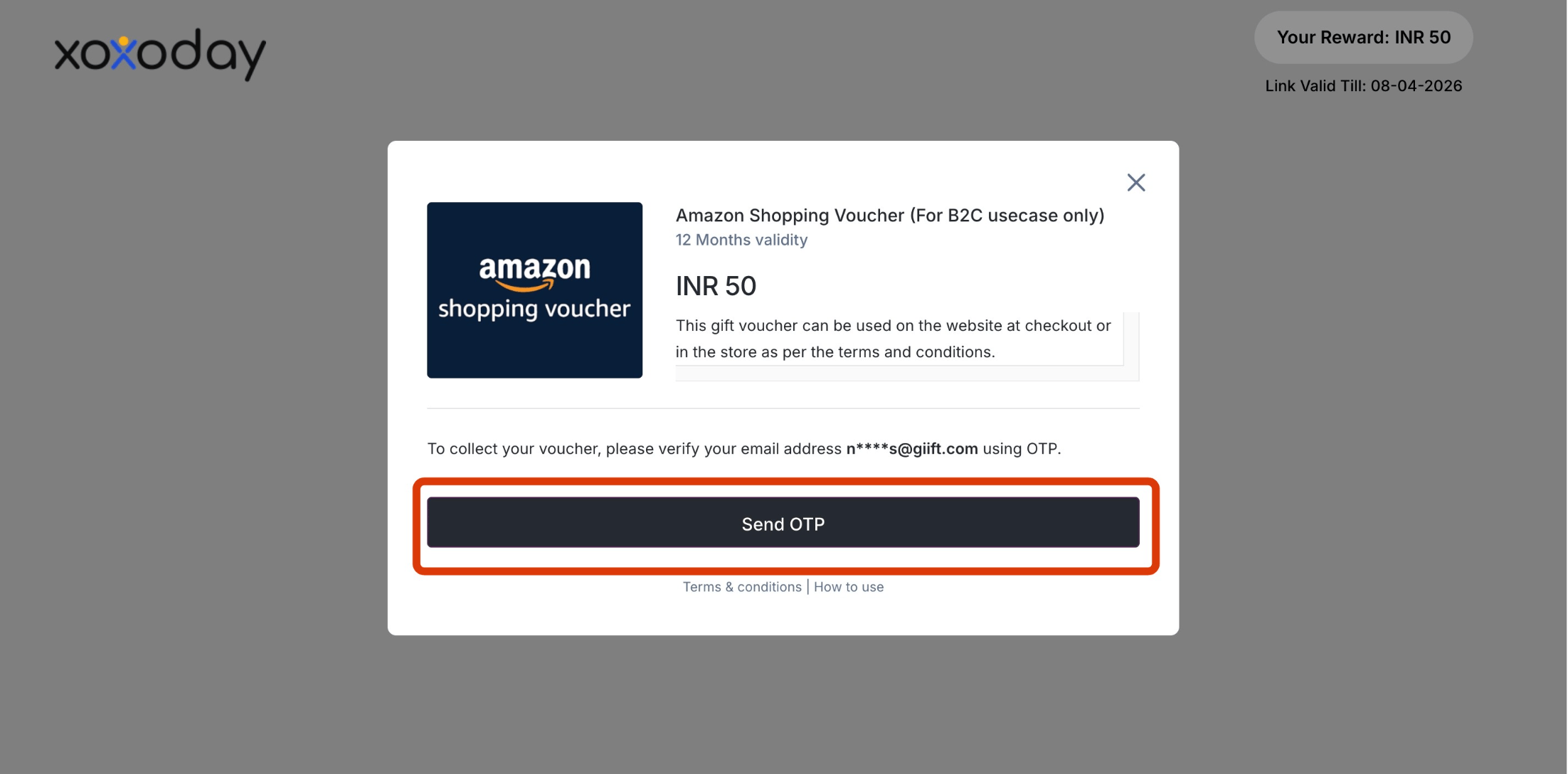
Pick the brand you like the most. Click on **Send OTP.**
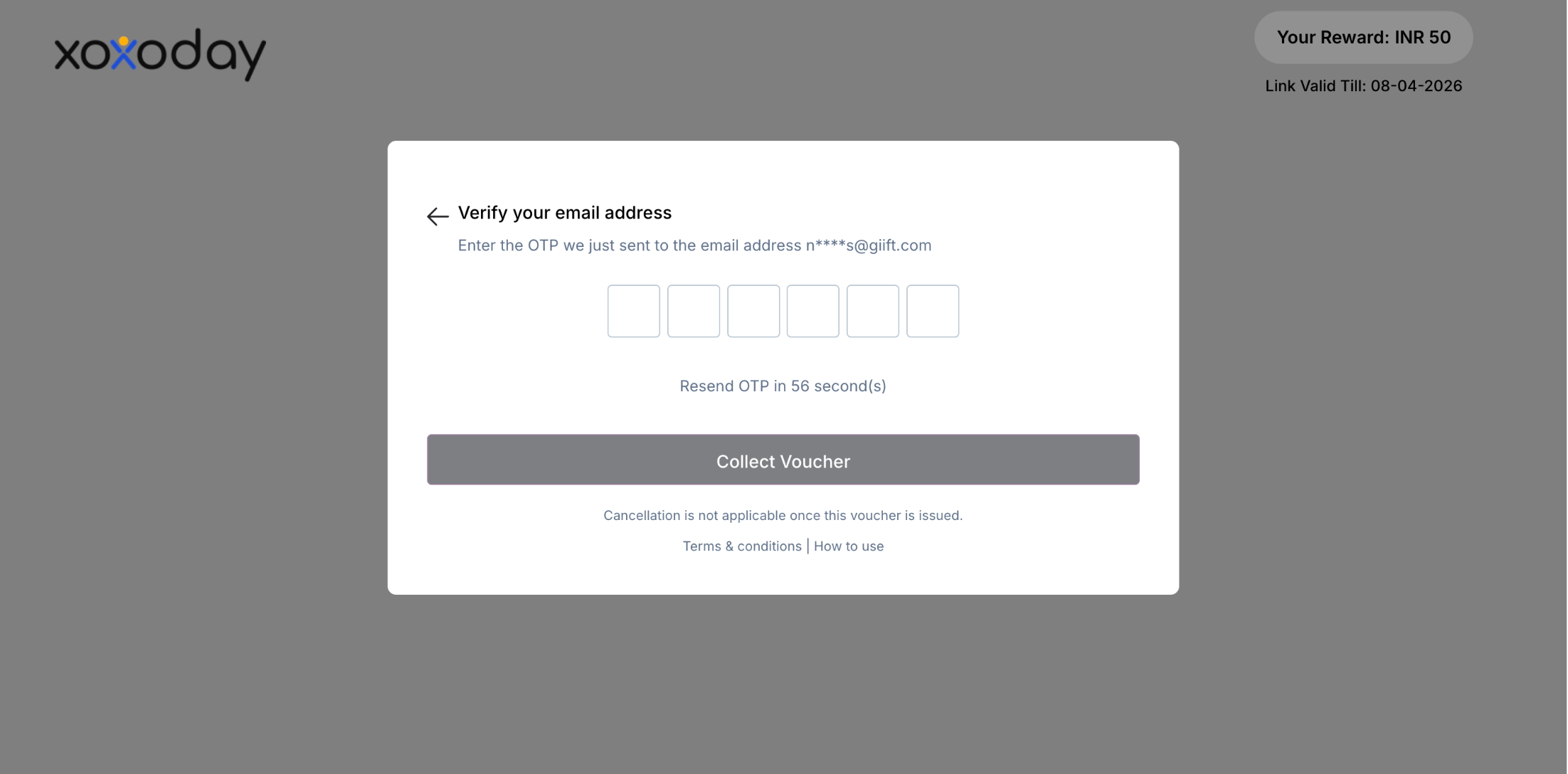
Enter your information, either your email address or phone number, if asked to get vouchers. You'll be asked to enter the OTP for verification purposes.
You can also choose other gift cards by clicking on the cross. This will take you back to the previous page so you can use another gift card.
Once you have the code, you can copy it or click the "**Send me a copy**" button to send it to your email or phone number.
***
## HRMS such as Darwinbox, Here is how you can redeem
**Here are the steps to redeem:**
* Login to your SAP® SuccessFactors account.
* Under the “**Home”** tab, click the **“Compensation”** module.
* You can check your accumulated reward points under “**My Team”.**
* Now, click **“Redeem**”; with a single sign-on, you will be redirected to the Plum Storefront.
* Choose any experience, gift vouchers, etc, from 30+ categories based on location.
* Click on **“Add to cart”** on the selected option.
* Please read the item's Terms and Conditions, Validity, and Description before proceeding.
* After adding all the items to the cart, click on the cart icon to proceed with the purchase. Verify your items and click on “**Proceed to Checkout”.**
Under "**My Access**", click the "**Recognition**" tile.
Within the "**Recognition Overview**", you check your accumulated reward points balance.
Click **"Redeem".**
You will now be redirected to the Plum Storefront via single sign-on.
You can check your points balance in the top right corner of the page.
Choose any experience, gift vouchers, etc, from categories based on location.
Click on "**Add to cart**" on the selected option.
Please read the item's Terms and Conditions, Validity, and Description before proceeding.
After adding all the items to the cart, click on the cart icon to proceed with the purchase. Verify your items and click on "**Proceed to Checkout**".
***
## If you are using SAP® SuccessFactors or a custom platform, here is how you can redeem
Under the **"Home"** tab, click the **"Compensation"** module.
You can check your accumulated reward points under "**My Team**".
Now, click **"Redeem"**; with a single sign-on, you will be redirected to the Plum Storefront.
Choose any experience, gift vouchers, etc, from 30+ categories based on location.
Click on **"Add to cart"** on the selected option.
Please read the item's Terms and Conditions, Validity, and Description before proceeding.
After adding all the items to the cart, click on the cart icon to proceed with the purchase. Verify your items and click on **"Proceed to Checkout".**
[**Check out our integrations section**](https://intercom.help/plum-6776cde28382/en/articles/9398629-integration-overview) for more integrations that Plum supports.
***
## How to redeem Mastercard/Virtual Visa Card using Reward Code/Reward Points
**To redeem your Mastercard/Virtual Visa Card, follow these steps below:**
* Visit [**https://stores.xoxoday.com/**](https://stores.xoxoday.com/).
* Select the Product of your choice and choose the “**Guest Checkout”** option on the landing page.
* Enter a valid email ID to proceed as a guest user.
* You can successfully place an order by choosing the Guest Checkout option.
* Mention your name, email, dialling code, and phone number. Before continuing with the purchase, an OTP will be sent to the mobile number provided.
* Select the option to use available reward points for the purchase.
* If you have a gift card, add the gift card code and click on **“Apply**”.
* You can also pay the excess amount by selecting the option to pay via “Credit Card” and choosing the card of your choice.
* Click “**Pay Now”** to continue with the selected payment mode.
Visit [**https://stores.xoxoday.com/**](https://stores.xoxoday.com/).
Select the Product of your choice and choose the "**Guest Checkout**" option on the landing page.
Enter a valid email ID to proceed as a guest user.
You can successfully place an order by choosing the Guest Checkout option.
Mention your name, email, dialling code, and phone number. Before continuing with the purchase, an OTP will be sent to the mobile number provided.
Select the option to use available reward points for the purchase.
If you have a gift card, add the gift card code and click on **"Apply"**.
You can also pay the excess amount by selecting the option to pay via "Credit Card" and choosing the card of your choice.
Click "**Pay Now**" to continue with the selected payment mode.
***
Click "**Redeem Now**" when you get the email about the reward. You'll be taken to a page where all of your vouchers are listed.
On click of '**Redeem Now**', you will see a landing page. Here, you can view your reward value and the link validity.
Pick the brand you like the most. Click on **Send OTP.**
Enter your information, either your email address or phone number, if asked to get vouchers. You'll be asked to enter the OTP for verification purposes.
You can also choose other gift cards by clicking on the cross. This will take you back to the previous page so you can use another gift card.
Once you have the code, you can copy it or click the "**Send me a copy**" button to send it to your email or phone number.
***
## HRMS such as Darwinbox, Here is how you can redeem
**Here are the steps to redeem:**
* Login to your SAP® SuccessFactors account.
* Under the “**Home”** tab, click the **“Compensation”** module.
* You can check your accumulated reward points under “**My Team”.**
* Now, click **“Redeem**”; with a single sign-on, you will be redirected to the Plum Storefront.
* Choose any experience, gift vouchers, etc, from 30+ categories based on location.
* Click on **“Add to cart”** on the selected option.
* Please read the item's Terms and Conditions, Validity, and Description before proceeding.
* After adding all the items to the cart, click on the cart icon to proceed with the purchase. Verify your items and click on “**Proceed to Checkout”.**
Under "**My Access**", click the "**Recognition**" tile.
Within the "**Recognition Overview**", you check your accumulated reward points balance.
Click **"Redeem".**
You will now be redirected to the Plum Storefront via single sign-on.
You can check your points balance in the top right corner of the page.
Choose any experience, gift vouchers, etc, from categories based on location.
Click on "**Add to cart**" on the selected option.
Please read the item's Terms and Conditions, Validity, and Description before proceeding.
After adding all the items to the cart, click on the cart icon to proceed with the purchase. Verify your items and click on "**Proceed to Checkout**".
***
## If you are using SAP® SuccessFactors or a custom platform, here is how you can redeem
Under the **"Home"** tab, click the **"Compensation"** module.
You can check your accumulated reward points under "**My Team**".
Now, click **"Redeem"**; with a single sign-on, you will be redirected to the Plum Storefront.
Choose any experience, gift vouchers, etc, from 30+ categories based on location.
Click on **"Add to cart"** on the selected option.
Please read the item's Terms and Conditions, Validity, and Description before proceeding.
After adding all the items to the cart, click on the cart icon to proceed with the purchase. Verify your items and click on **"Proceed to Checkout".**
[**Check out our integrations section**](https://intercom.help/plum-6776cde28382/en/articles/9398629-integration-overview) for more integrations that Plum supports.
***
## How to redeem Mastercard/Virtual Visa Card using Reward Code/Reward Points
**To redeem your Mastercard/Virtual Visa Card, follow these steps below:**
* Visit [**https://stores.xoxoday.com/**](https://stores.xoxoday.com/).
* Select the Product of your choice and choose the “**Guest Checkout”** option on the landing page.
* Enter a valid email ID to proceed as a guest user.
* You can successfully place an order by choosing the Guest Checkout option.
* Mention your name, email, dialling code, and phone number. Before continuing with the purchase, an OTP will be sent to the mobile number provided.
* Select the option to use available reward points for the purchase.
* If you have a gift card, add the gift card code and click on **“Apply**”.
* You can also pay the excess amount by selecting the option to pay via “Credit Card” and choosing the card of your choice.
* Click “**Pay Now”** to continue with the selected payment mode.
Visit [**https://stores.xoxoday.com/**](https://stores.xoxoday.com/).
Select the Product of your choice and choose the "**Guest Checkout**" option on the landing page.
Enter a valid email ID to proceed as a guest user.
You can successfully place an order by choosing the Guest Checkout option.
Mention your name, email, dialling code, and phone number. Before continuing with the purchase, an OTP will be sent to the mobile number provided.
Select the option to use available reward points for the purchase.
If you have a gift card, add the gift card code and click on **"Apply"**.
You can also pay the excess amount by selecting the option to pay via "Credit Card" and choosing the card of your choice.
Click "**Pay Now**" to continue with the selected payment mode.