> ## Documentation Index
> Fetch the complete documentation index at: https://help-plum.xoxoday.com/llms.txt
> Use this file to discover all available pages before exploring further.
# Redeem Reward Points
> Learn how to redeem the reward points you've received as an end user on Plum, from browsing options to confirming your choice.
*Learn how to redeem Reward Points as an end user.*
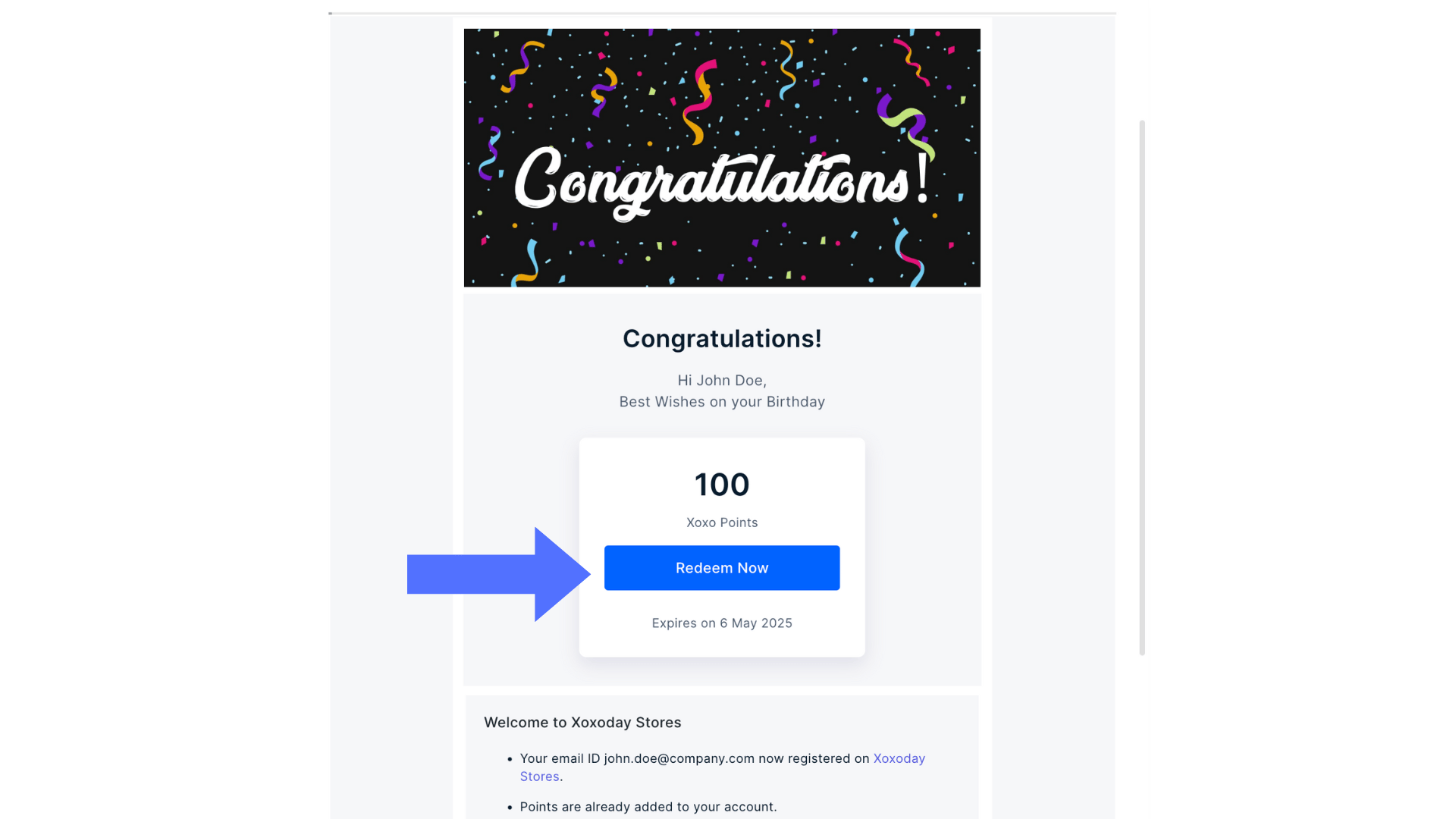
Upon registration, you will receive mail from Xoxoday to set up your account as shown below.
 ***
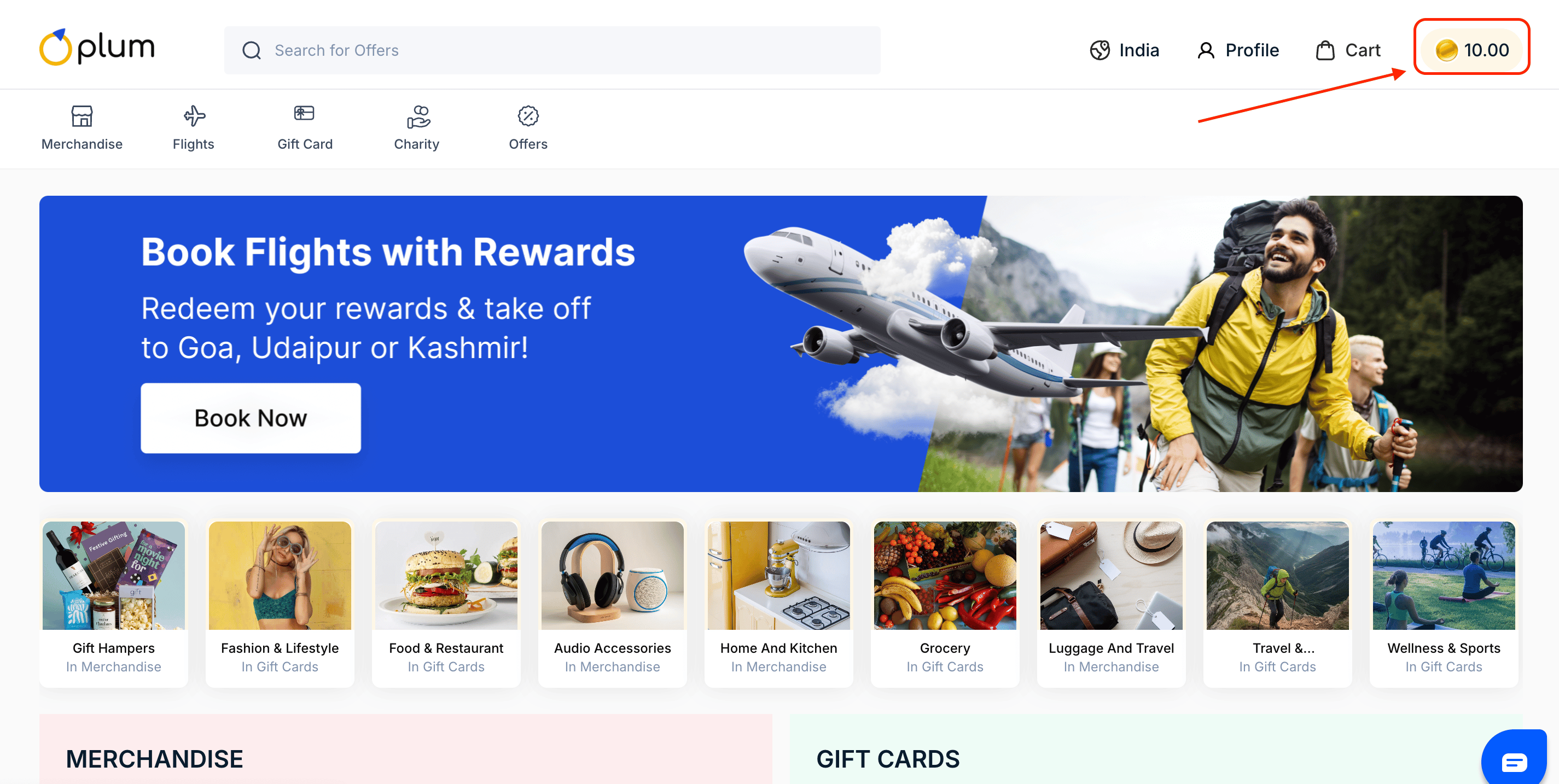
Your reward points balance is shown at the top right corner of the page.
Choose any gift vouchers, etc, from the different categories shown.
Click on "**Add to cart**" on the selected brand.
***
Your reward points balance is shown at the top right corner of the page.
Choose any gift vouchers, etc, from the different categories shown.
Click on "**Add to cart**" on the selected brand.
 Once you add the product to your card, "Add to cart" button will show the "**Go to Cart**" option making the journey simple. You can click on the "**Go to Cart**" button.
You can also "**Go to cart**" by clicking on the cart icon in the top right corner beside the profile.
Please read the Terms and Conditions, Validity, and Description of the item before proceeding.
Click on "**Checkout Now**" to move to the check-out page.
Once you add the product to your card, "Add to cart" button will show the "**Go to Cart**" option making the journey simple. You can click on the "**Go to Cart**" button.
You can also "**Go to cart**" by clicking on the cart icon in the top right corner beside the profile.
Please read the Terms and Conditions, Validity, and Description of the item before proceeding.
Click on "**Checkout Now**" to move to the check-out page.
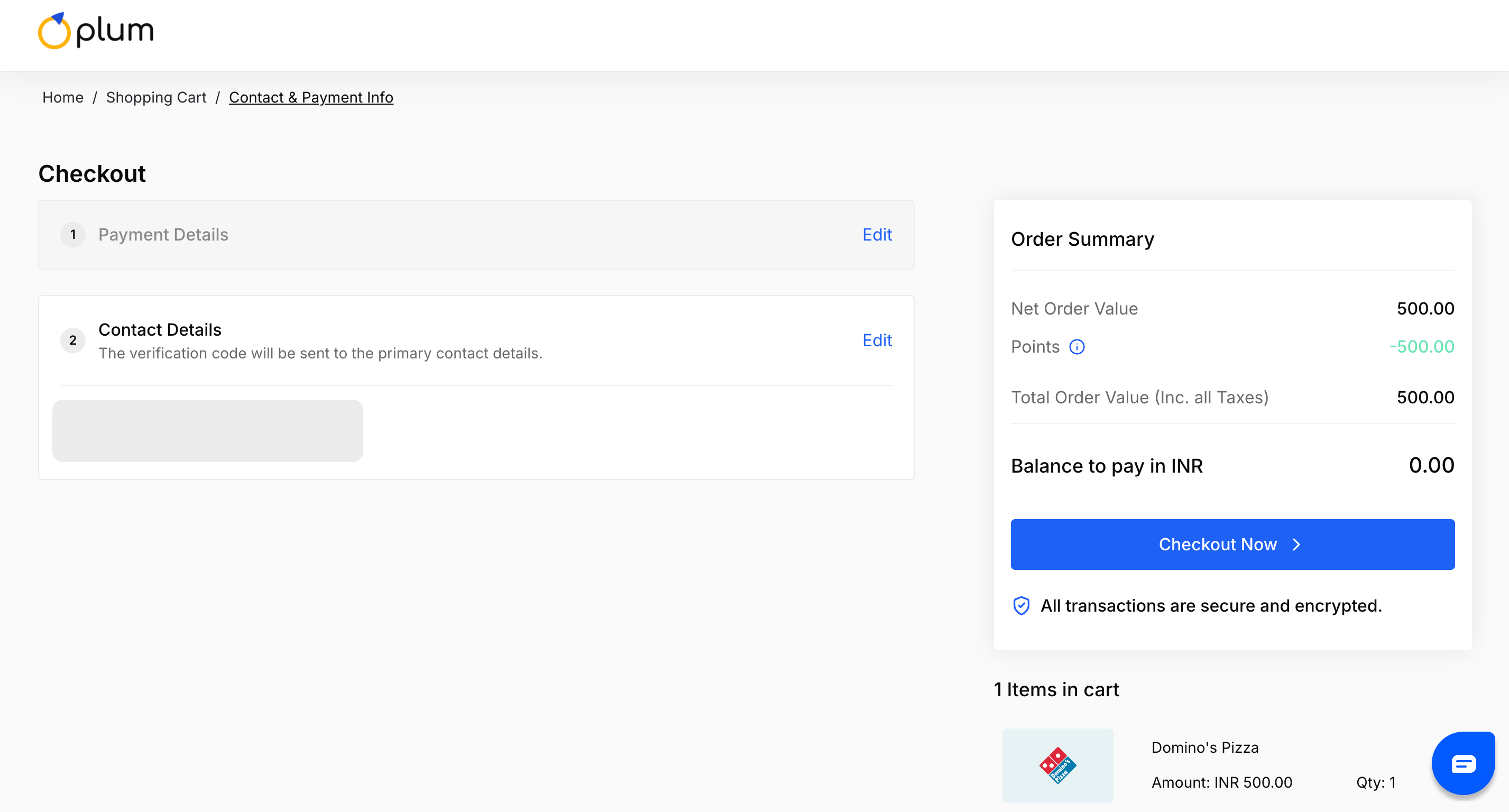 Enter your name, email, dialing code, and phone number. An OTP will also be sent to the mobile number provided before continuing with the purchase.
The user will be able to see the reward point balance and ask if he wants to use the points for the order payment.
Enter your name, email, dialing code, and phone number. An OTP will also be sent to the mobile number provided before continuing with the purchase.
The user will be able to see the reward point balance and ask if he wants to use the points for the order payment.