> ## Documentation Index
> Fetch the complete documentation index at: https://help-plum.xoxoday.com/llms.txt
> Use this file to discover all available pages before exploring further.
# Salesforce Loyalty Onboarding Guide for Xoxoday Plum
> Follow this onboarding guide to connect Xoxoday Plum with Salesforce Loyalty Cloud and set up automated loyalty reward disbursal.
This guide outlines the steps required to integrate Xoxoday Plum with **Salesforce Loyalty Cloud. By completing this onboarding process, customers can seamlessly connect their Salesforce Loyalty account** with Xoxoday to enable automated rewards and incentives.
***
## Step 1: Logging into Salesforce Loyalty Cloud
* Open a web browser and navigate to your **Salesforce Loyalty Cloud login page**.
* Enter your **username and password, then click Login**.
* Ensure that you have the necessary **admin permissions** to install external apps.
***
## Step 2: Installing the Xoxoday App Package in Salesforce
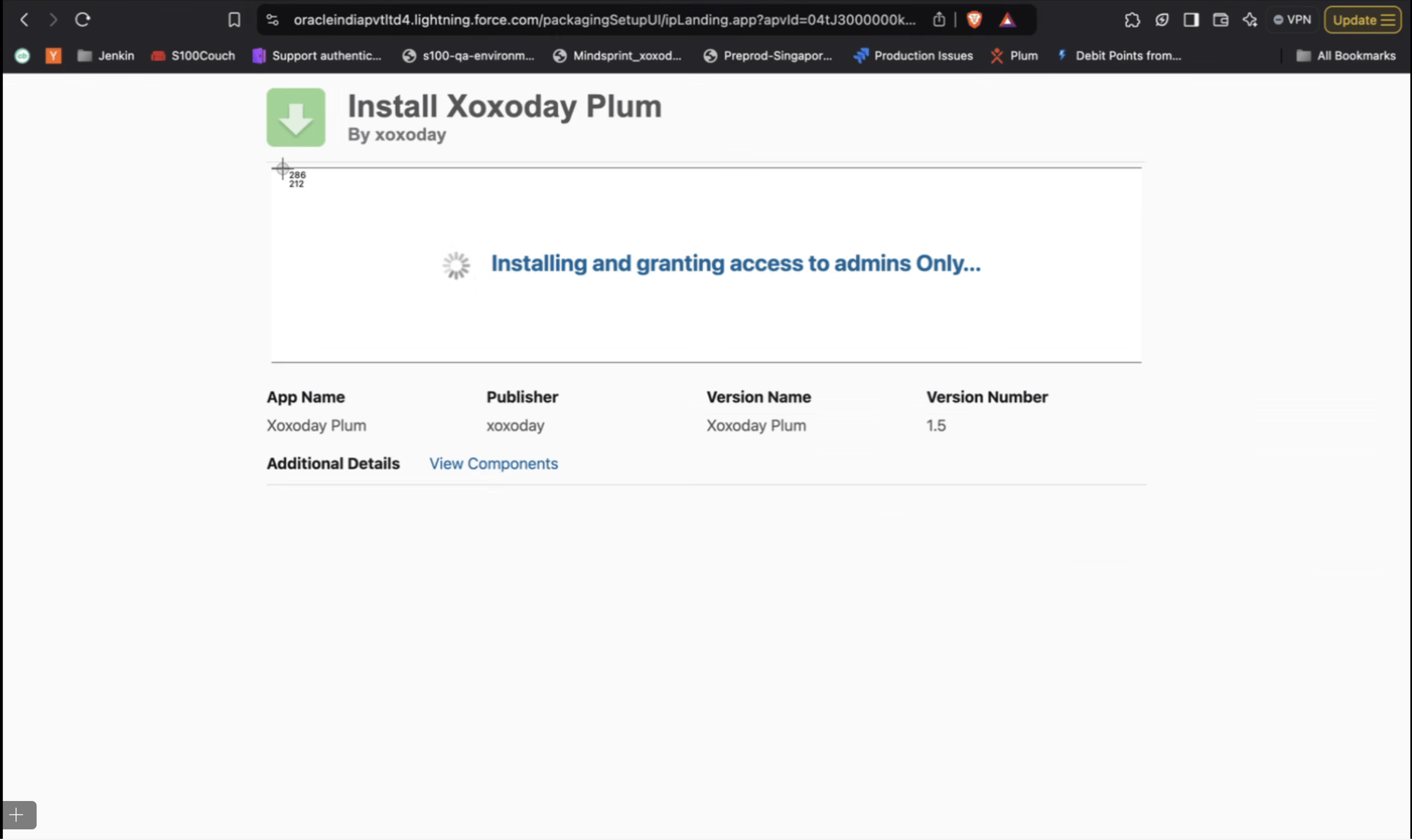
* Navigate to Salesforce AppExchange and search for the **Xoxoday Plum Integration Package**, or use the link below:[Xoxoday Plum, Version 1.5](https://login.salesforce.com/packaging/installPackage.apexp?p0=04tJ3000000kaLr)
* Choose the Salesforce environment (Production or **Sandbox**) where you want to install the package.
* Follow the **on-screen prompts** to complete the installation.
* Once installed, ensure that all **necessary permissions** are granted for the app to function properly.
##  ## Step 3: Connecting Salesforce Loyalty Cloud with Xoxoday Plum
## 3.1. Logging into Xoxoday Plum
* Open a new browser tab and navigate to **Xoxoday Plum**.
* Enter your **Xoxoday login credentials** and sign in.
## 3.2. Navigating to the Integration Page
* Once logged in, go to the Integration page from the **Xoxoday dashboard**.
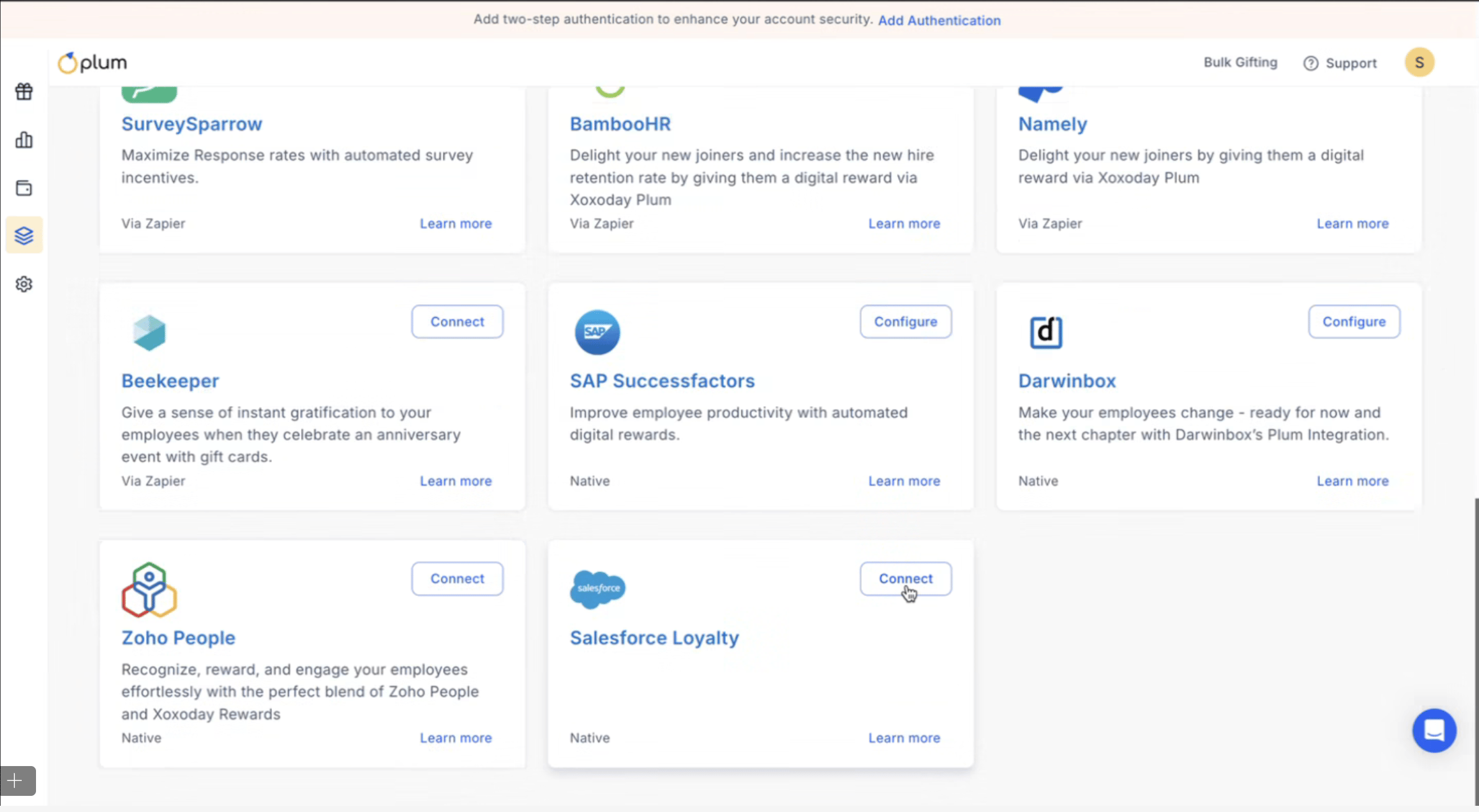
* Locate the **Salesforce Loyalty** card in the list of available integrations.
## Step 3: Connecting Salesforce Loyalty Cloud with Xoxoday Plum
## 3.1. Logging into Xoxoday Plum
* Open a new browser tab and navigate to **Xoxoday Plum**.
* Enter your **Xoxoday login credentials** and sign in.
## 3.2. Navigating to the Integration Page
* Once logged in, go to the Integration page from the **Xoxoday dashboard**.
* Locate the **Salesforce Loyalty** card in the list of available integrations.
 ## 3.3. Initiating the Connection
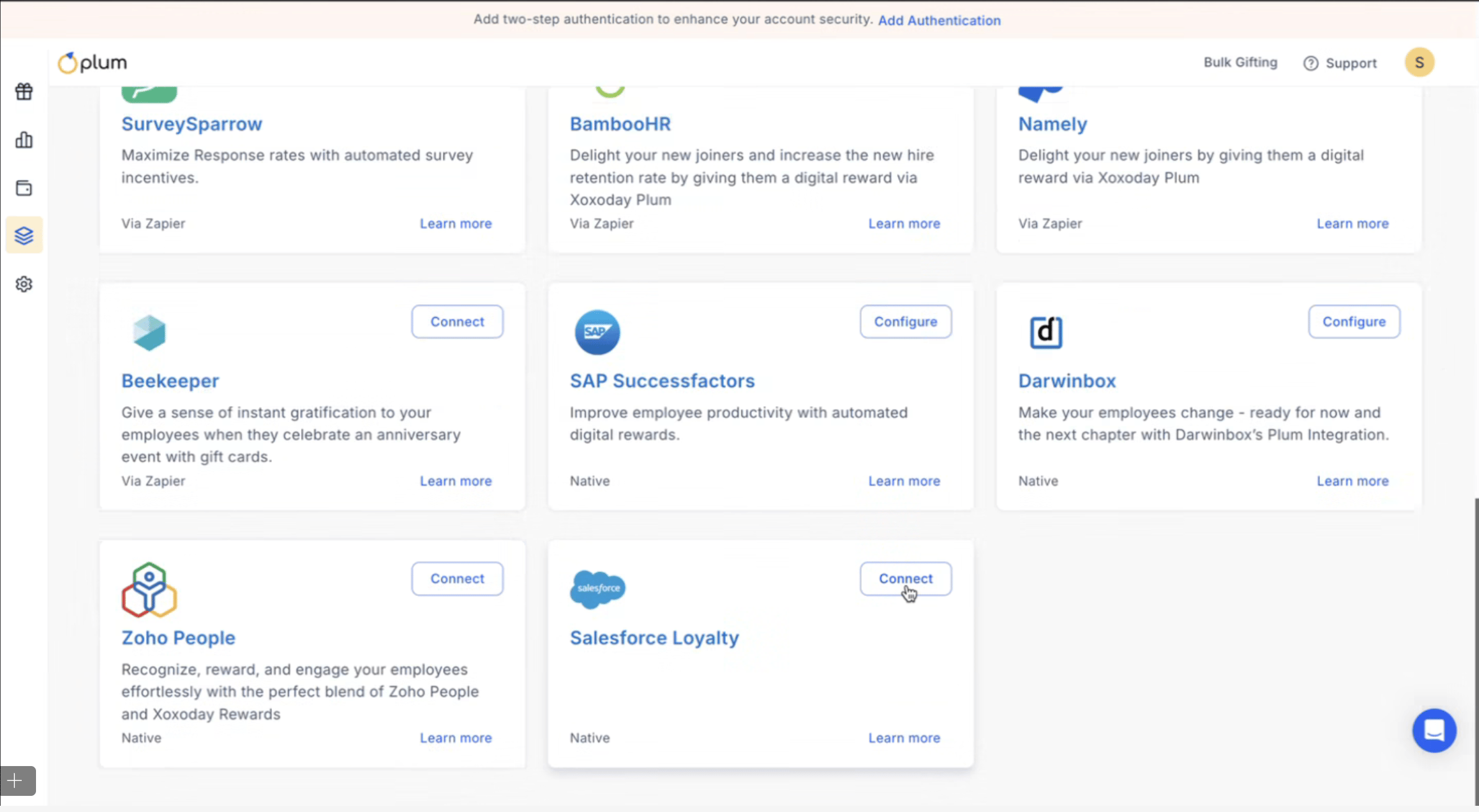
* Click the Connect button on the **Salesforce Loyalty integration card**.
* You will be redirected to the **Salesforce login page**.
## 3.3. Initiating the Connection
* Click the Connect button on the **Salesforce Loyalty integration card**.
* You will be redirected to the **Salesforce login page**.
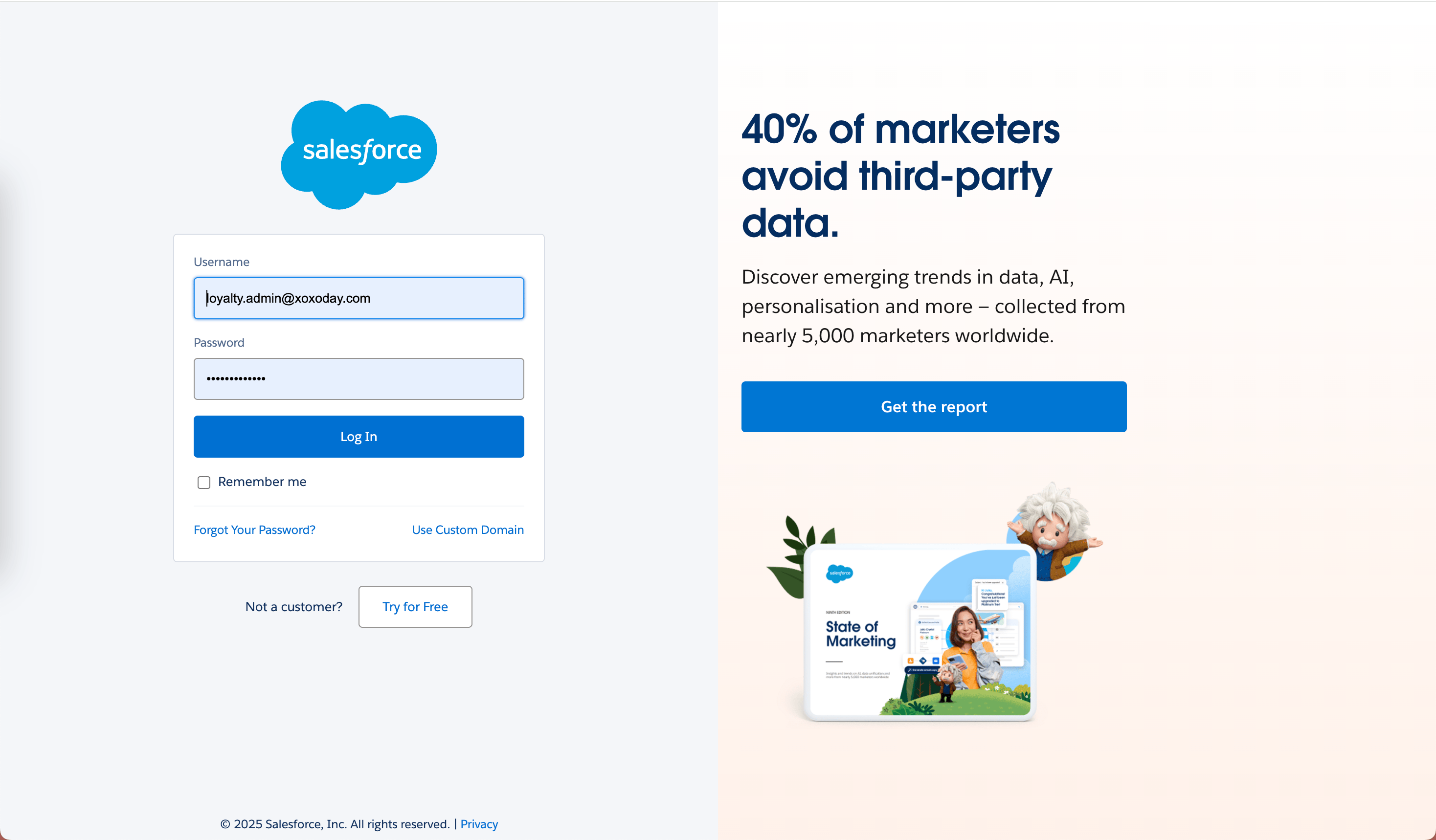
 ## 3.4. Logging into Salesforce Loyalty
* Enter your Salesforce Loyalty credentials and click **Login**.
* After successful authentication, you will be prompted to **approve permissions**.
## 3.4. Logging into Salesforce Loyalty
* Enter your Salesforce Loyalty credentials and click **Login**.
* After successful authentication, you will be prompted to **approve permissions**.
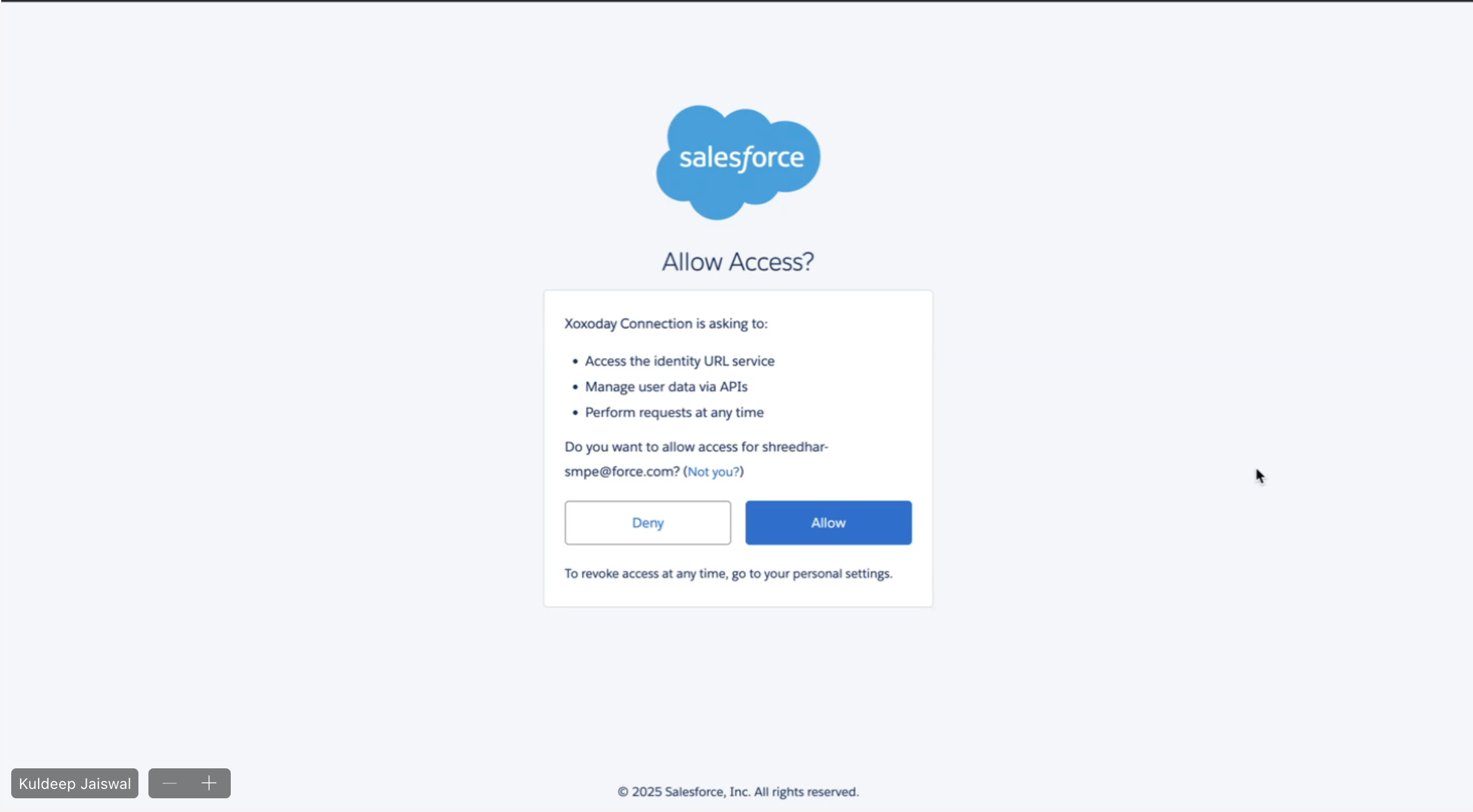
 ## 3.5. Approving Permissions
* Review the list of permissions required for Xoxoday to function within **Salesforce Loyalty**.
* Click **Allow** to grant access.
##
## 3.5. Approving Permissions
* Review the list of permissions required for Xoxoday to function within **Salesforce Loyalty**.
* Click **Allow** to grant access.
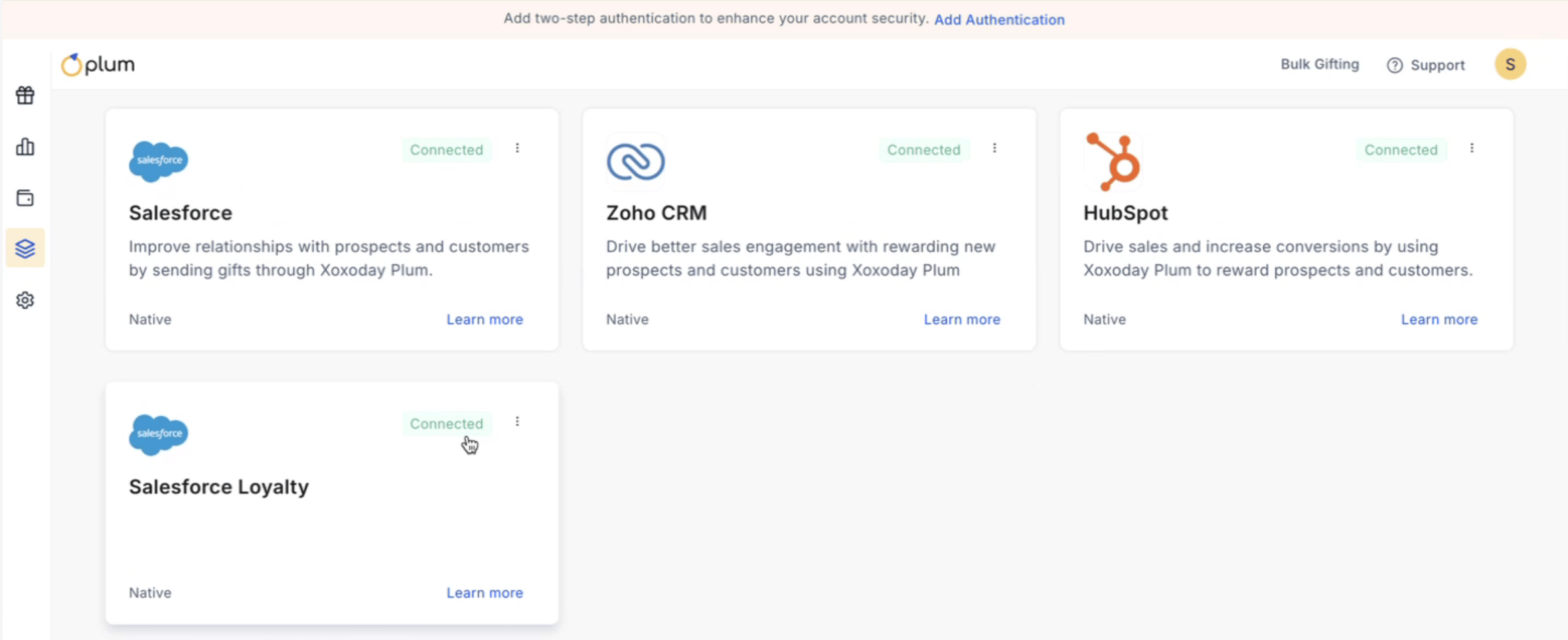
##  ## Final Steps & Confirmation
* Once the connection is **approved, you will be redirected back to Xoxoday Plum**.
* A **confirmation message** will indicate that the integration has been successfully established.
* The Salesforce Loyalty Integration Card on Xoxoday will now show a **Connected** status.
## Final Steps & Confirmation
* Once the connection is **approved, you will be redirected back to Xoxoday Plum**.
* A **confirmation message** will indicate that the integration has been successfully established.
* The Salesforce Loyalty Integration Card on Xoxoday will now show a **Connected** status.
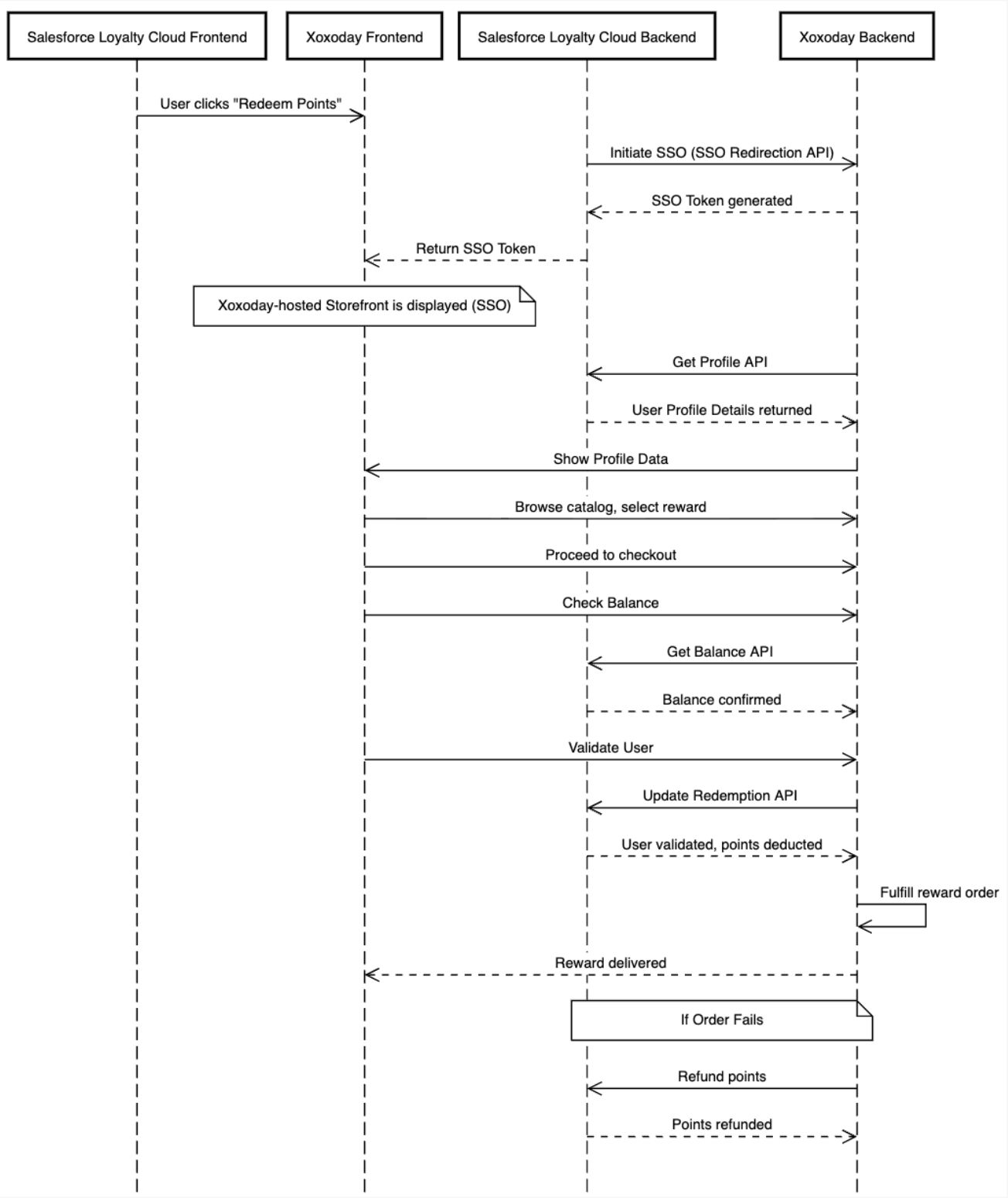
 This completes the Salesforce Loyalty & Xoxoday Plum integration. Your users can now seamlessly redeem **loyalty rewards** using Xoxoday’s marketplace.
## Standard Workflow for Salesforce Loyalty Cloud Integration
This completes the Salesforce Loyalty & Xoxoday Plum integration. Your users can now seamlessly redeem **loyalty rewards** using Xoxoday’s marketplace.
## Standard Workflow for Salesforce Loyalty Cloud Integration