> ## Documentation Index
> Fetch the complete documentation index at: https://help-plum.xoxoday.com/llms.txt
> Use this file to discover all available pages before exploring further.
# Create a Flow and Add Trigger Rewards
> Learn how to build a Salesforce Flow and add trigger-based rewards, so points or gift cards are sent automatically when conditions are met.
*Learn how to create a flow in Salesforce.*
# Creating a Flow in Salesforce for Xoxoday Plum Reward Automation
Before you get into creating your flows, you need to Create a Campaign and automation in Xoxoday Plum, Add the Xoxoday Refresh widget, and refresh it, to have all your old and new automation synced in.
Step 0: Once you have added the widget, click\*\*"Refresh".**Step 1: On the homepage, Go to Navbar->Select Setup and Click**"Setup"**Step 2: On the Setup Dashboard, Search for "Flows" under Process Automation and Click**"New Flow".**Step 3: Now select the template type and Configure the Start Trigger Settings, Under Object: Select Lead/Contact and Click**"done".\*\* \*\*
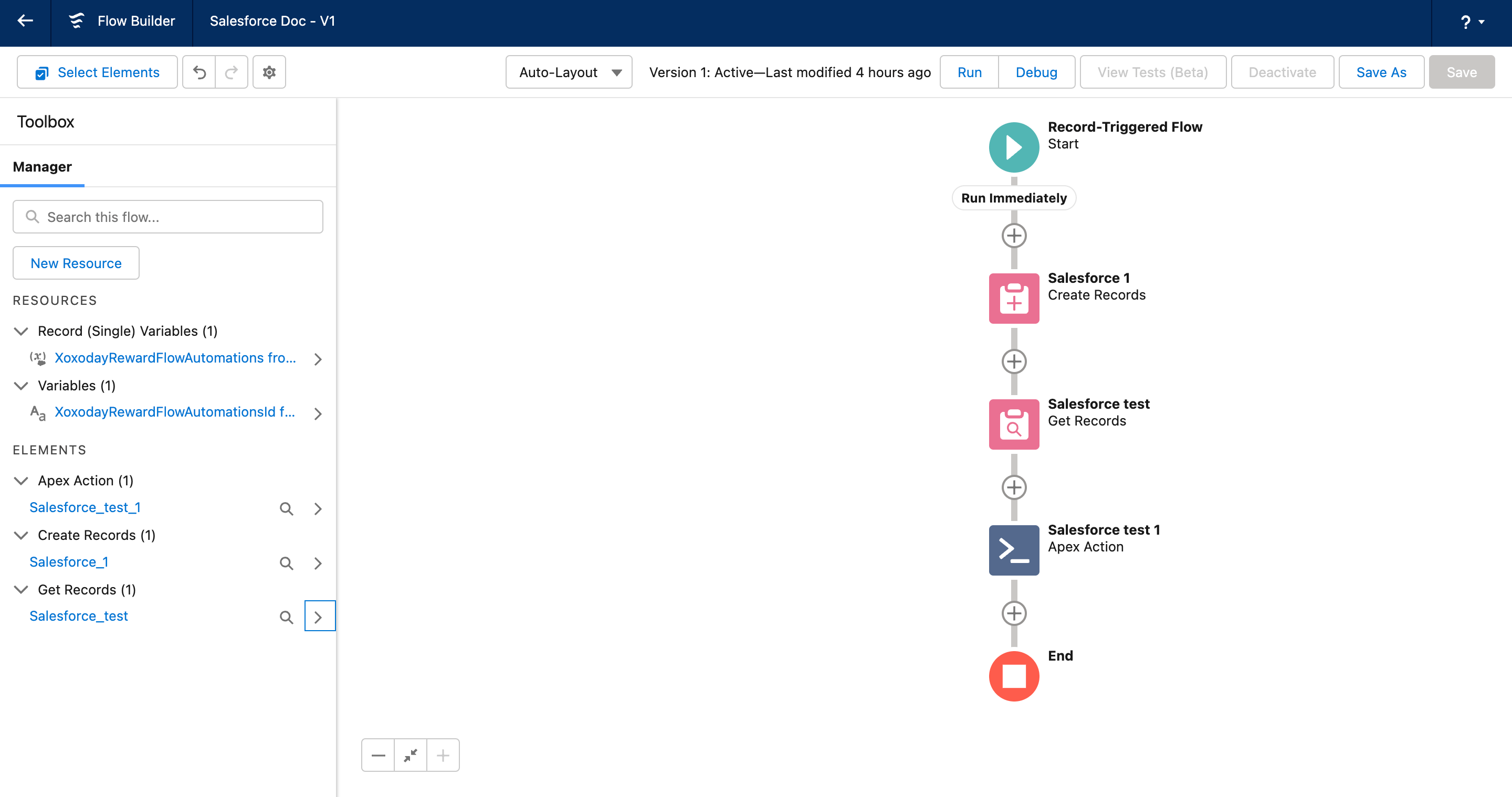
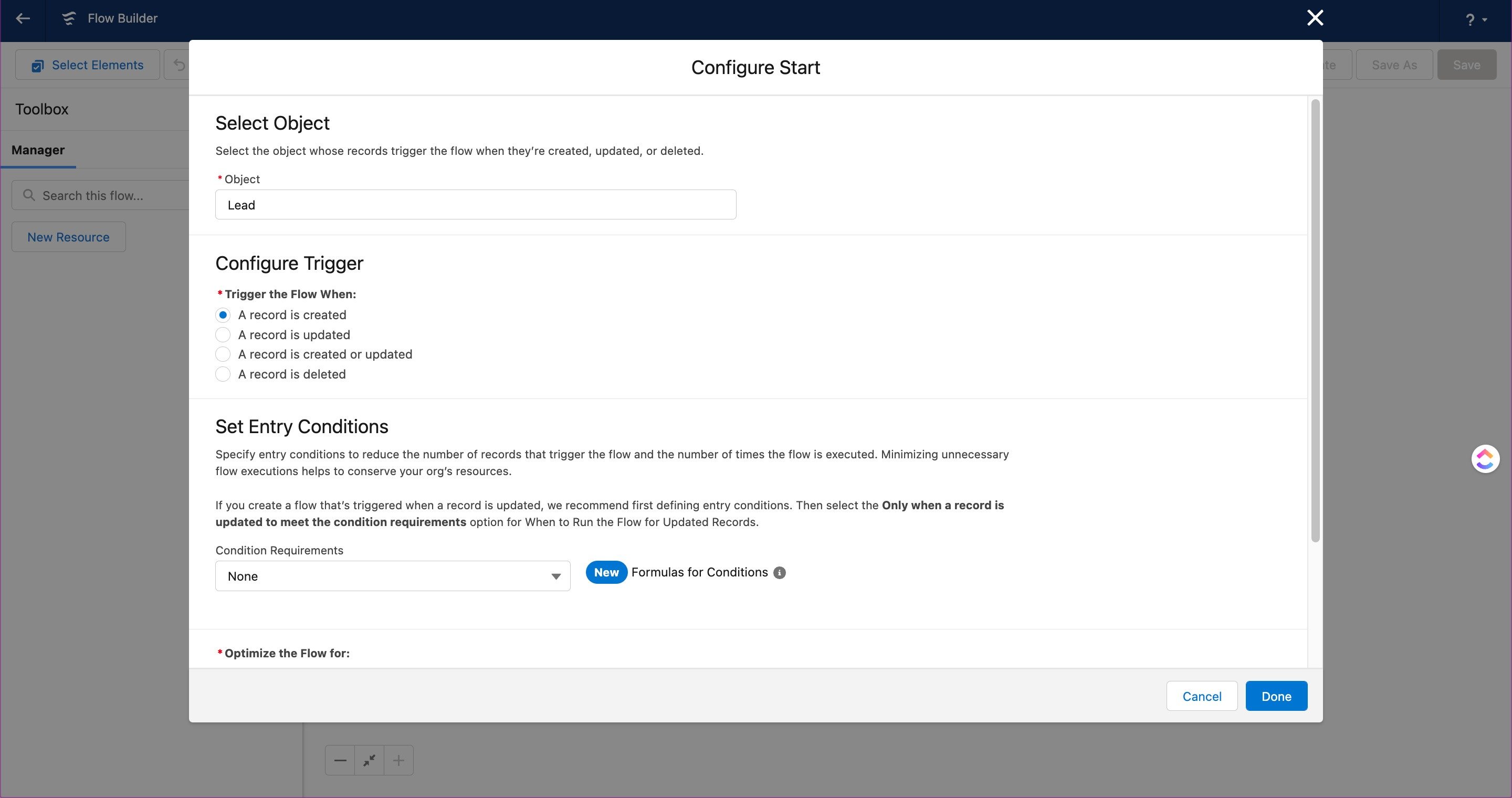 Step 4: **Now next step would be to add a new element: from options select**"Create records".\*\* \*\*
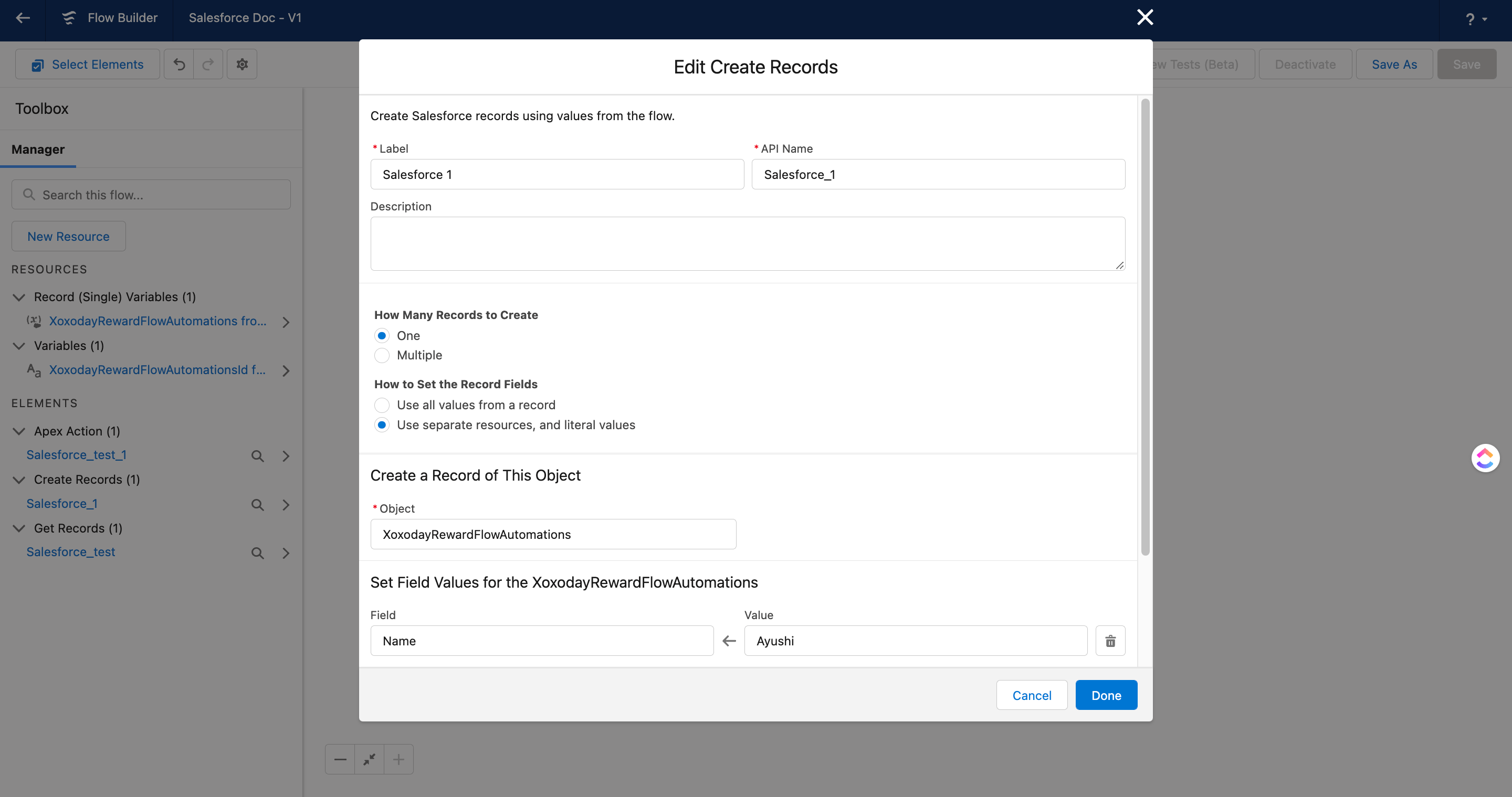 Step 5: Edit the Create Records settings and under object look for "XoxodayRewardFlowAutomations" and then Click "Done".\*\* (refer to above image)
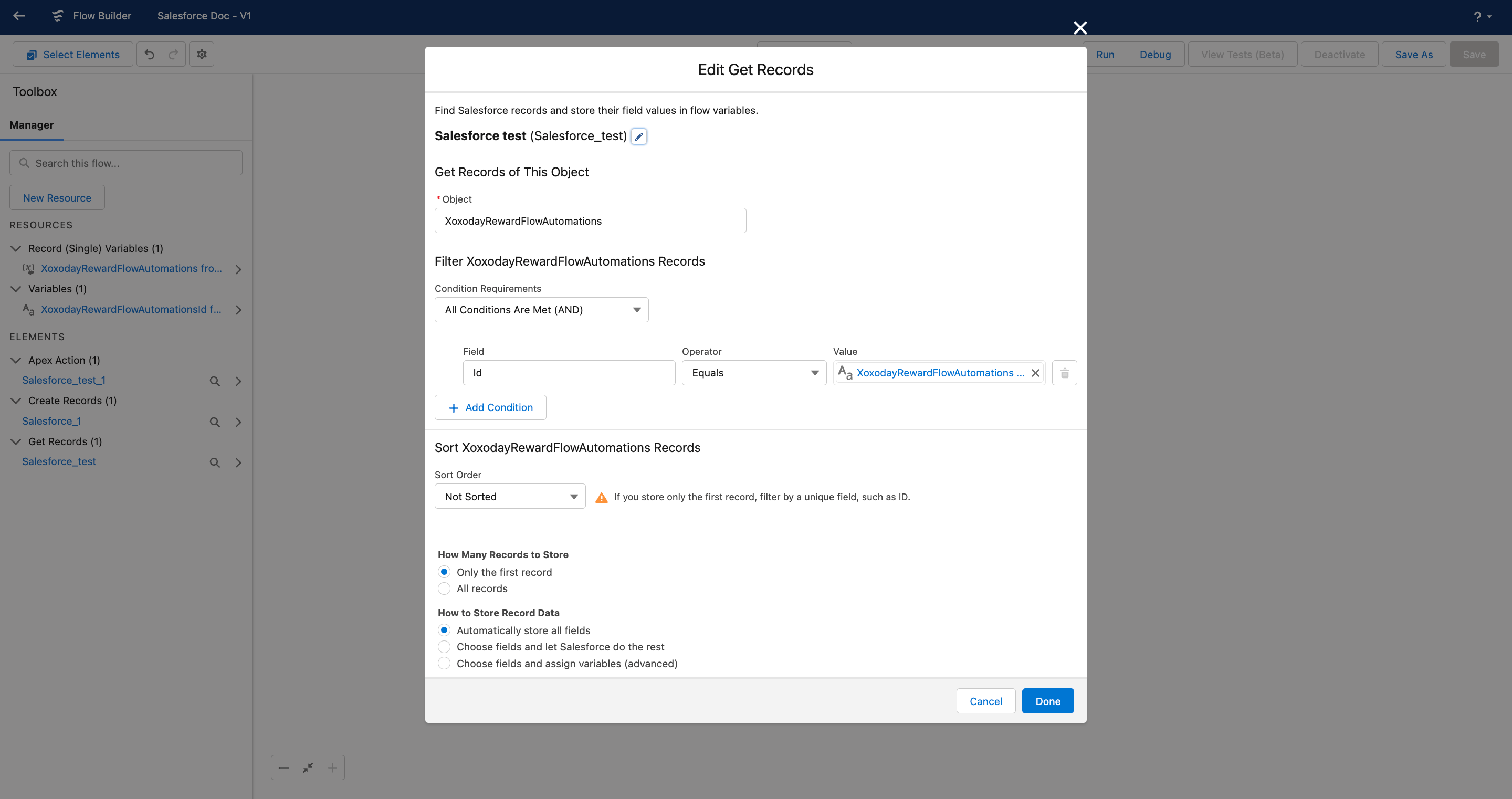
Step 6: Now add another element and Select "\*\*Get Records".\*\*Step 7: Edit the Get Records settings and under object look for "XoxodayRewardFlowAutomations" Once done, "Filter XoxodayRewardFlowAutomations Records" has to be updated. - In fields select "id" - In Values look for "Record (single) variables" ->Select your Xoxoday automation->Select "ID".
Step 5: Edit the Create Records settings and under object look for "XoxodayRewardFlowAutomations" and then Click "Done".\*\* (refer to above image)
Step 6: Now add another element and Select "\*\*Get Records".\*\*Step 7: Edit the Get Records settings and under object look for "XoxodayRewardFlowAutomations" Once done, "Filter XoxodayRewardFlowAutomations Records" has to be updated. - In fields select "id" - In Values look for "Record (single) variables" ->Select your Xoxoday automation->Select "ID".
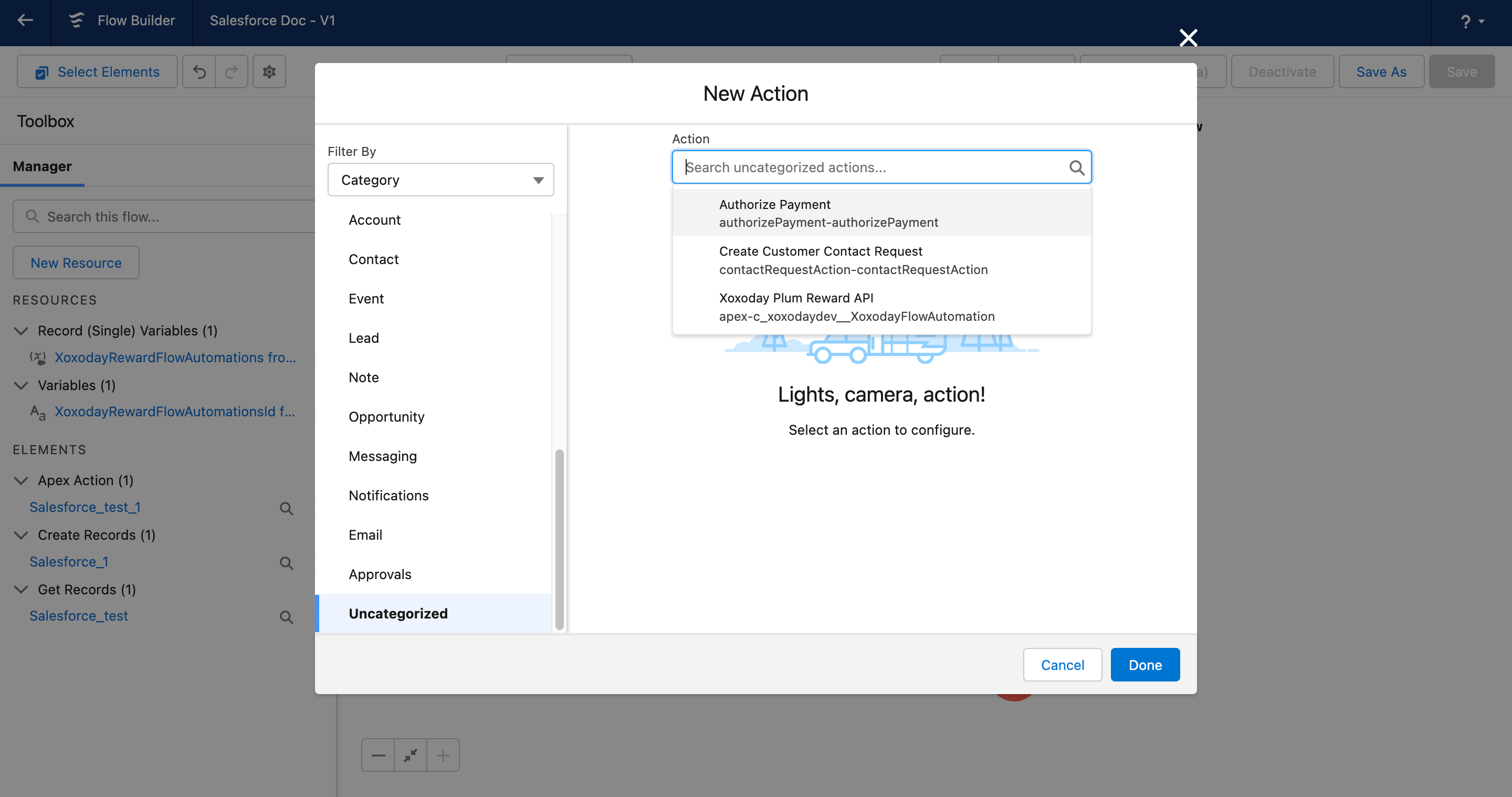
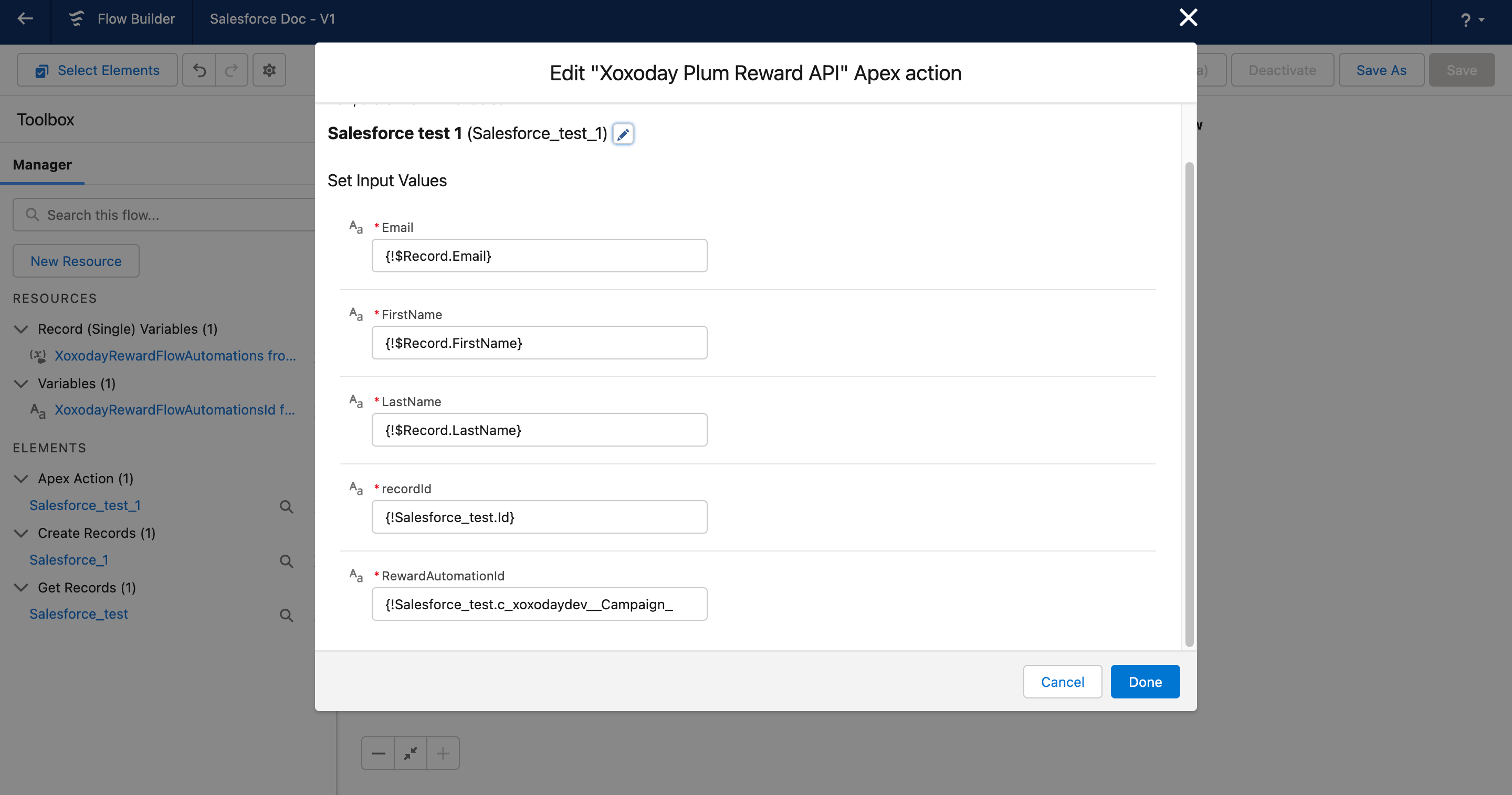
 Step 8: **Now the element that has to be added is "Action":** Add element->Select Action->Uncategorised-> Action name: Xoxoday Plum Reward API.
 **Step 9:** Update Input fields as per your flow (refer below image)
 Step 10: Now "Save" your flow and **Activate** it.