> ## Documentation Index
> Fetch the complete documentation index at: https://help-plum.xoxoday.com/llms.txt
> Use this file to discover all available pages before exploring further.
# Send 1-1 rewards
> See how to send an individual one-to-one reward directly from Zoho CRM using the Plum integration, without switching tools.
*Learn how to integration Zoho CRM with Xoxoday Plum*
# Integrating Zoho CRM and Plum
## STEP 1: Connect with Zoho CRM
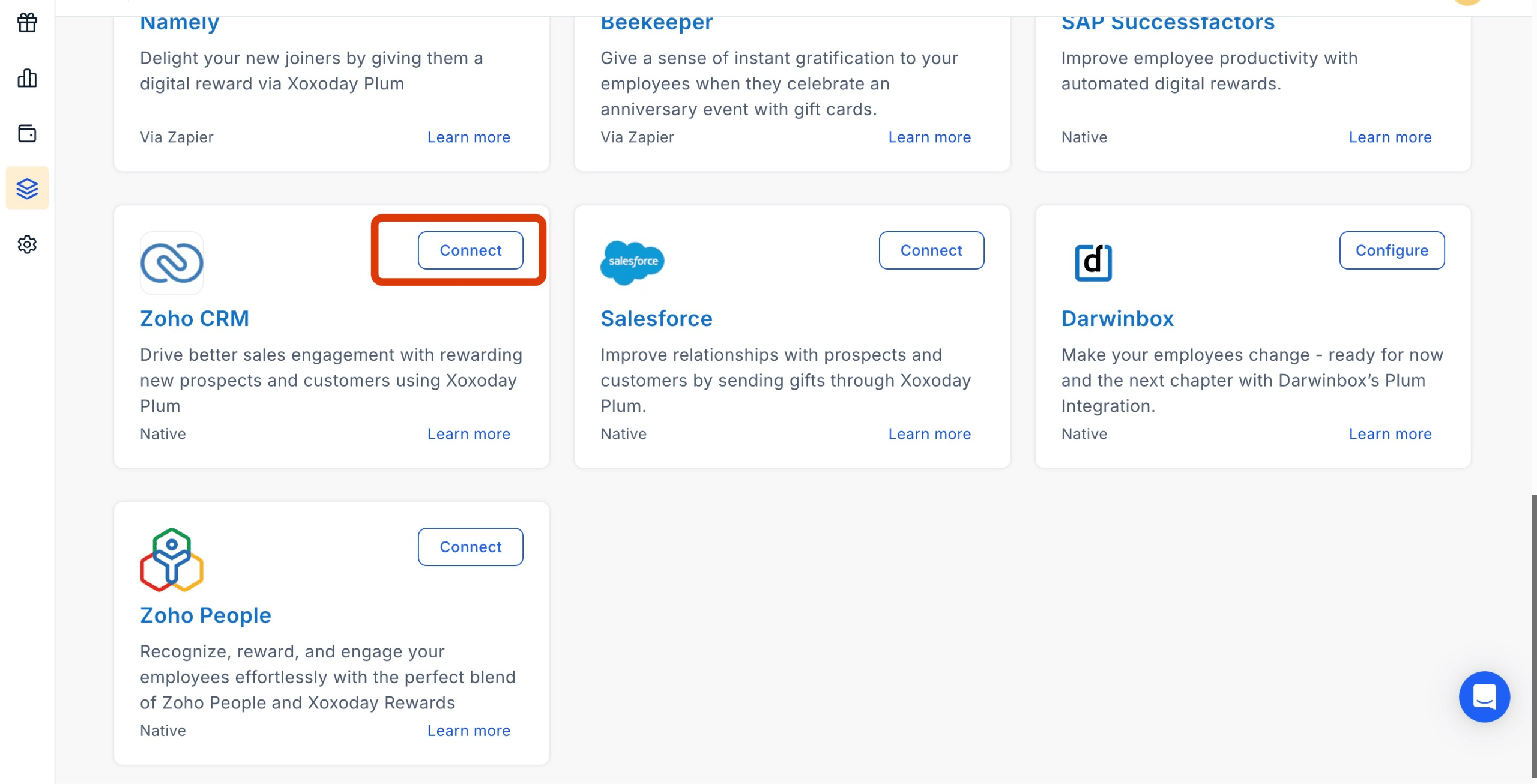
Go to Xoxoday Plum Admin Dashboard and click 'Integrations' and search for Zoho CRM. Click **"Connect"**, and you will land on ZohoPeople’s App Marketplace.
 ## STEP 2: Install Xoxoday Rewards for Zoho CRM App
Click on the Install button.
## STEP 2: Install Xoxoday Rewards for Zoho CRM App
Click on the Install button.
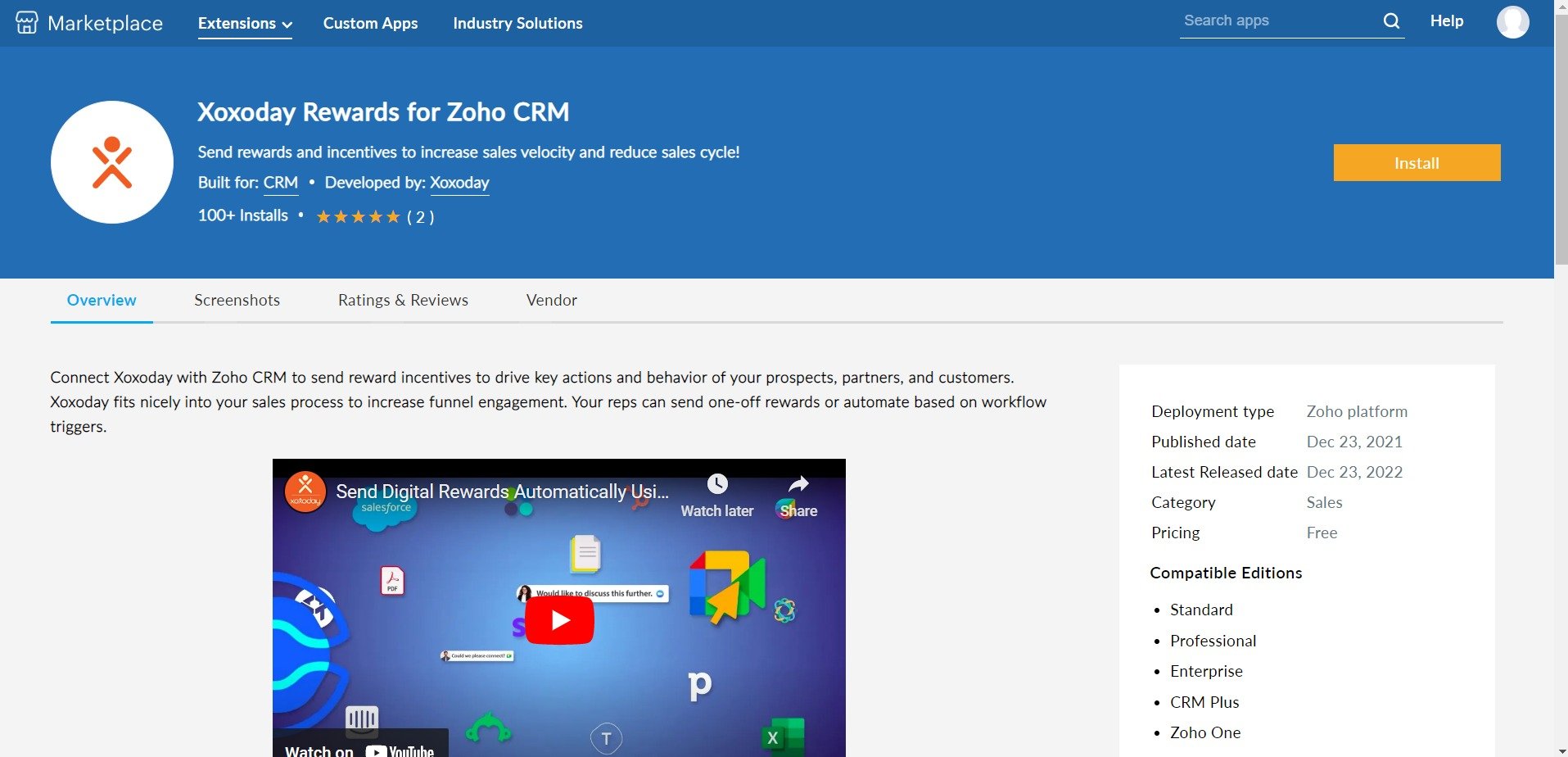 On Install, accept the terms and conditions and click 'Install'.
# Sending Rewards to Leads and Contacts
## STEP 3: Select the Contact or Lead you want to send Rewards.
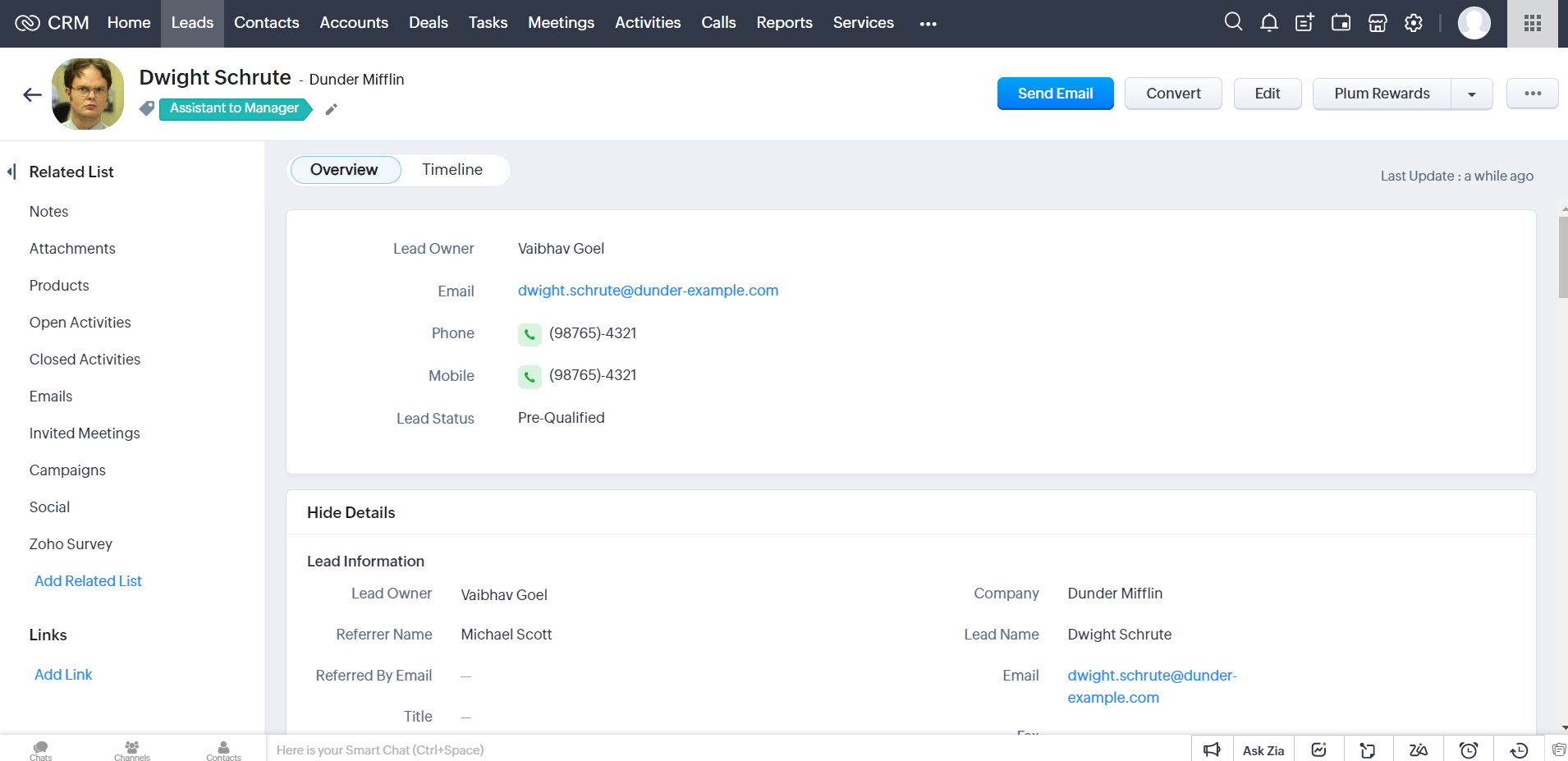
After the Xoxoday Plum App installation, click ‘Plum Rewards’ on the Leads and Contacts detail page.
On Install, accept the terms and conditions and click 'Install'.
# Sending Rewards to Leads and Contacts
## STEP 3: Select the Contact or Lead you want to send Rewards.
After the Xoxoday Plum App installation, click ‘Plum Rewards’ on the Leads and Contacts detail page.
 STEP 4: Open Xoxoday Plum Rewards Widget and Select Reward Campaign
**Prerequisites**
Zoho CRM users who need access to 1-1 rewards widget should be added as a user in Xoxoday Plum with Admin or Super admin access as required.\*\*Click on the ‘Plum Rewards’ button to open our rewards Widget. Via this widget, you can select the desired reward Campaigns that you already created in Xoxoday Plum.\*\*
STEP 4: Open Xoxoday Plum Rewards Widget and Select Reward Campaign
**Prerequisites**
Zoho CRM users who need access to 1-1 rewards widget should be added as a user in Xoxoday Plum with Admin or Super admin access as required.\*\*Click on the ‘Plum Rewards’ button to open our rewards Widget. Via this widget, you can select the desired reward Campaigns that you already created in Xoxoday Plum.\*\*
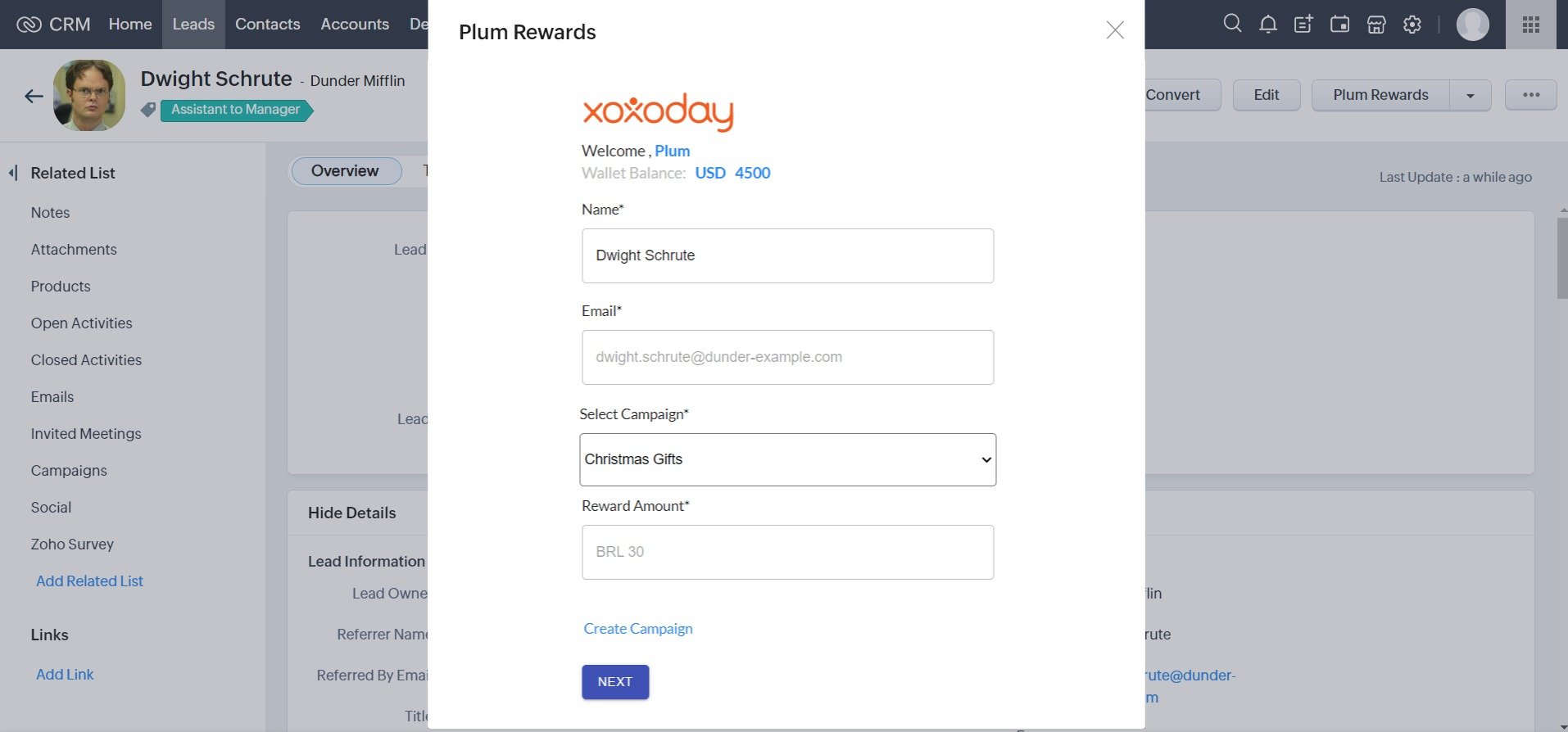 Click on Next
## STEP 5: Customize Reward Email
\*\*Now you can customize your reward Email. You can change the Email Subject and Message to send personalized rewards to your contact or lead.
Click on Next
## STEP 5: Customize Reward Email
\*\*Now you can customize your reward Email. You can change the Email Subject and Message to send personalized rewards to your contact or lead.
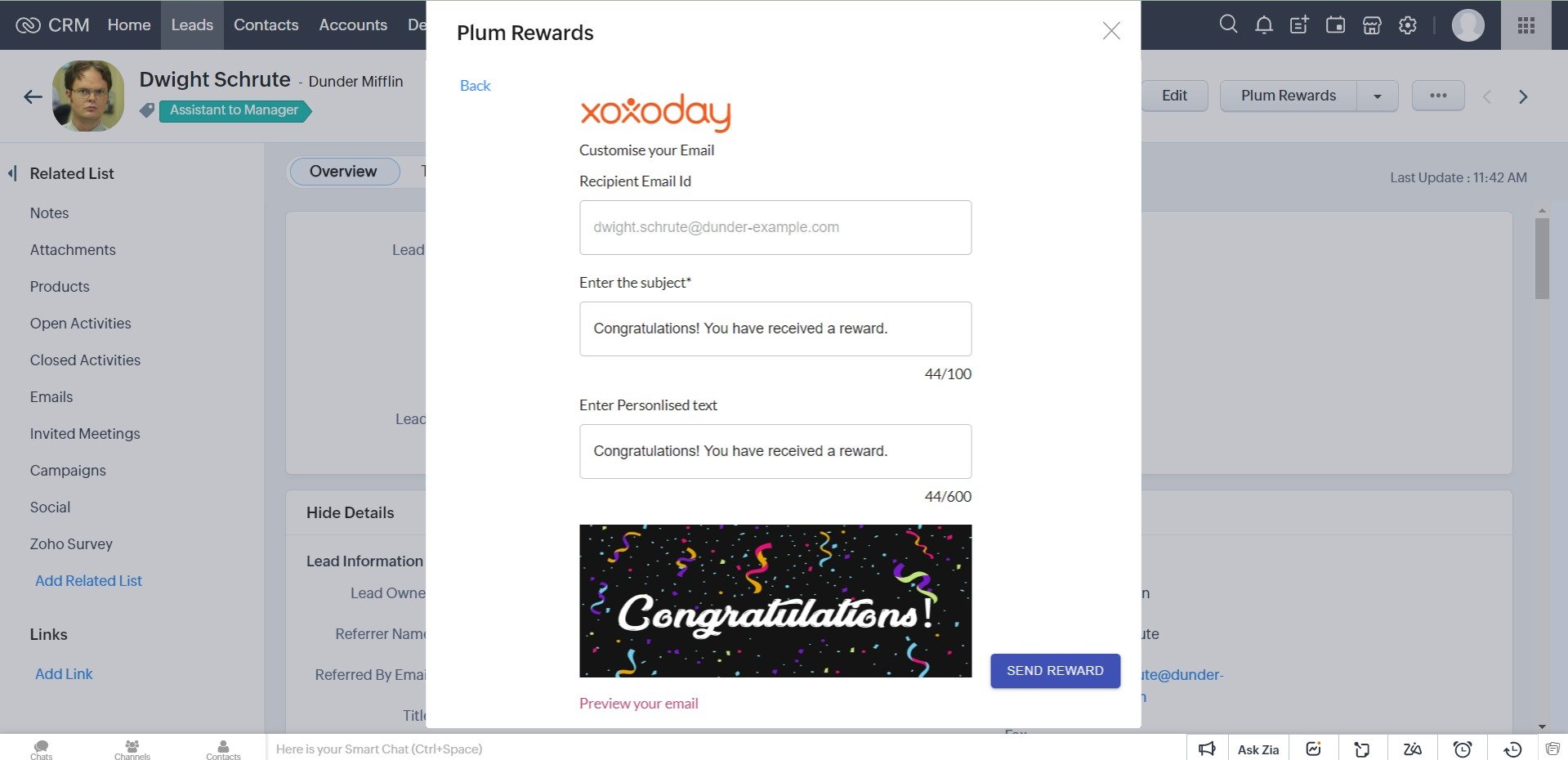 STEP 6: Change the Email Banner
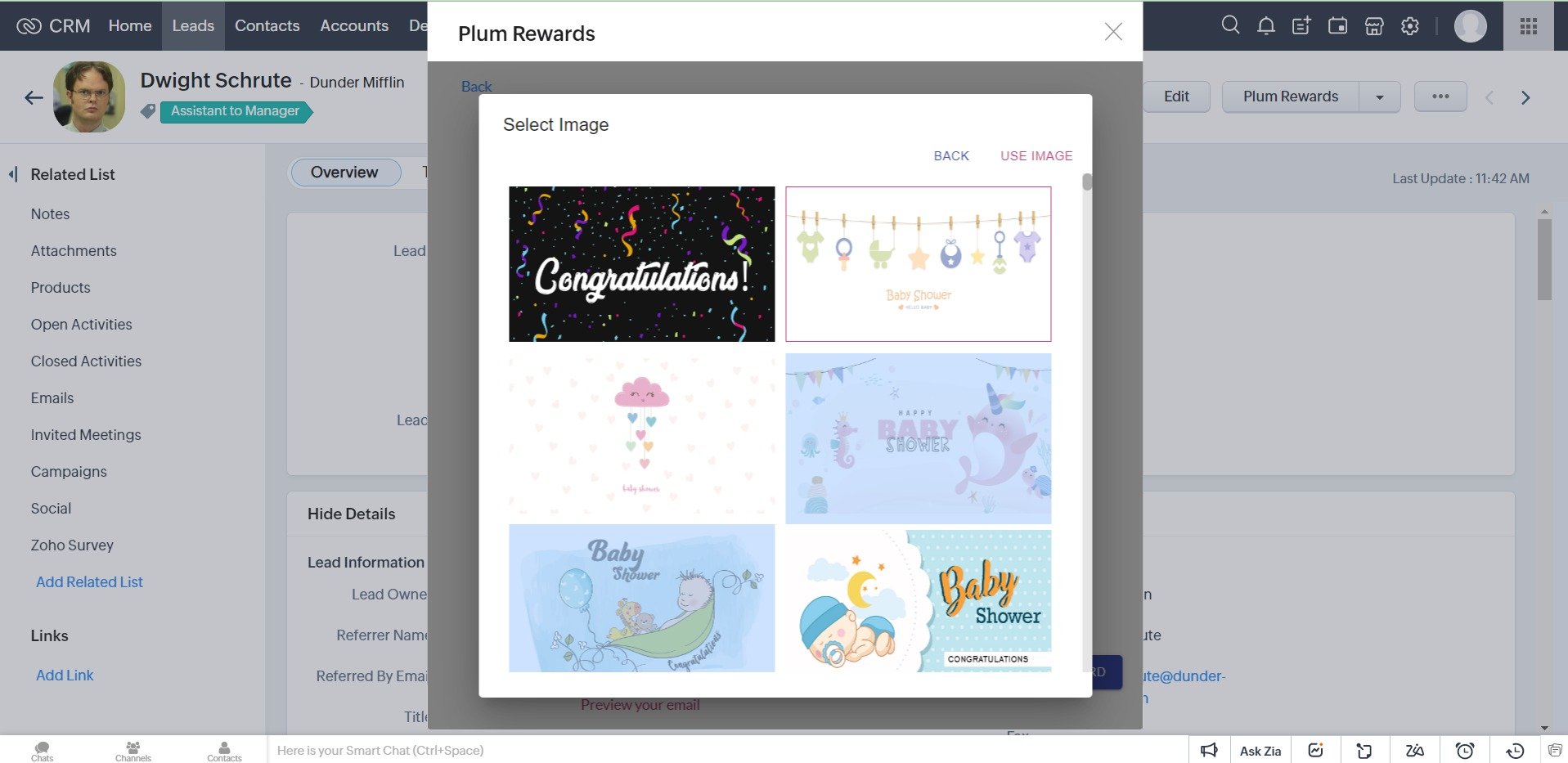
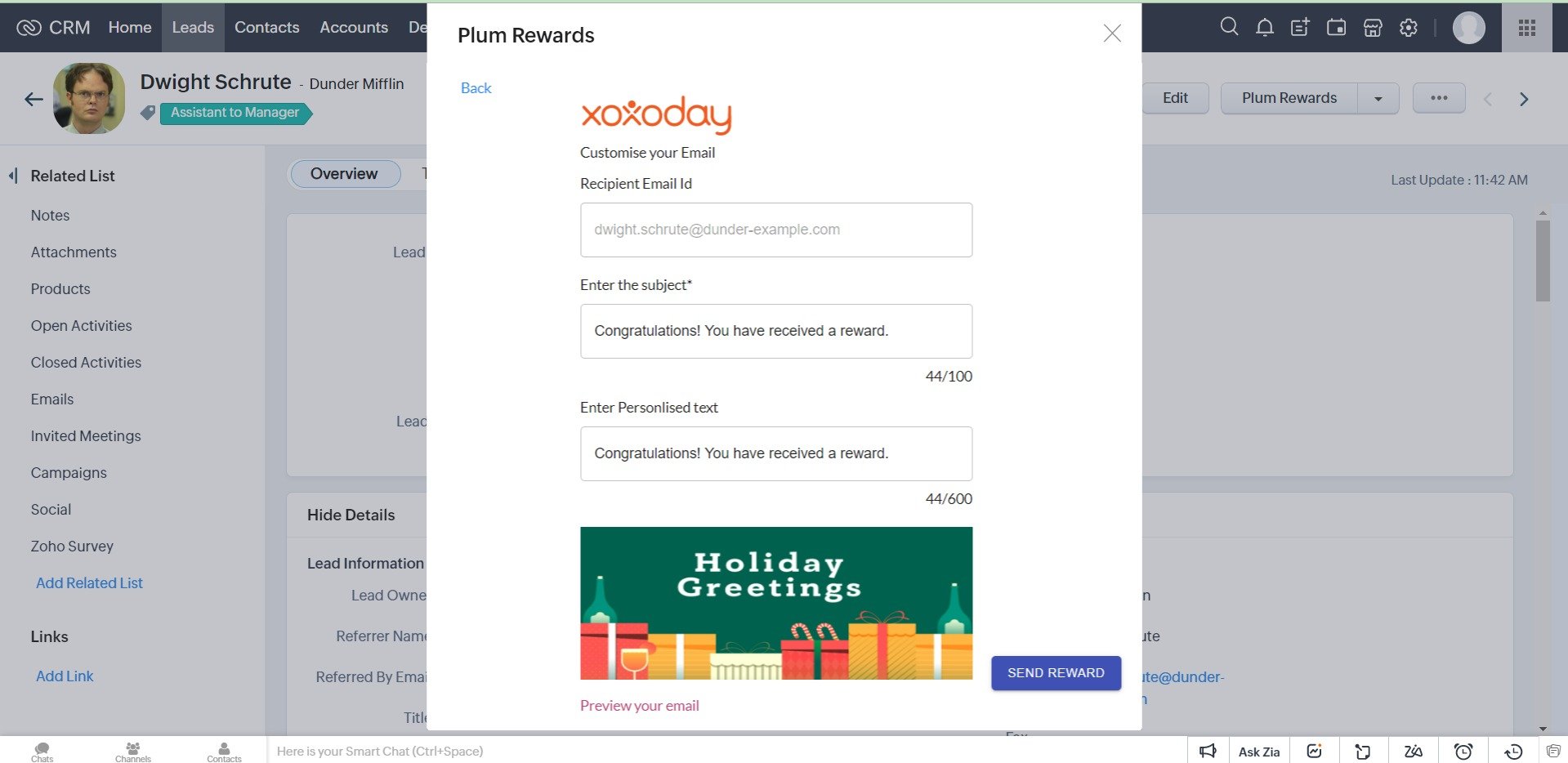
Click on Email Banner to open up available banners for different gifting occasions.
Select the desired banner and click 'Use Image'\*\*.
STEP 6: Change the Email Banner
Click on Email Banner to open up available banners for different gifting occasions.
Select the desired banner and click 'Use Image'\*\*.
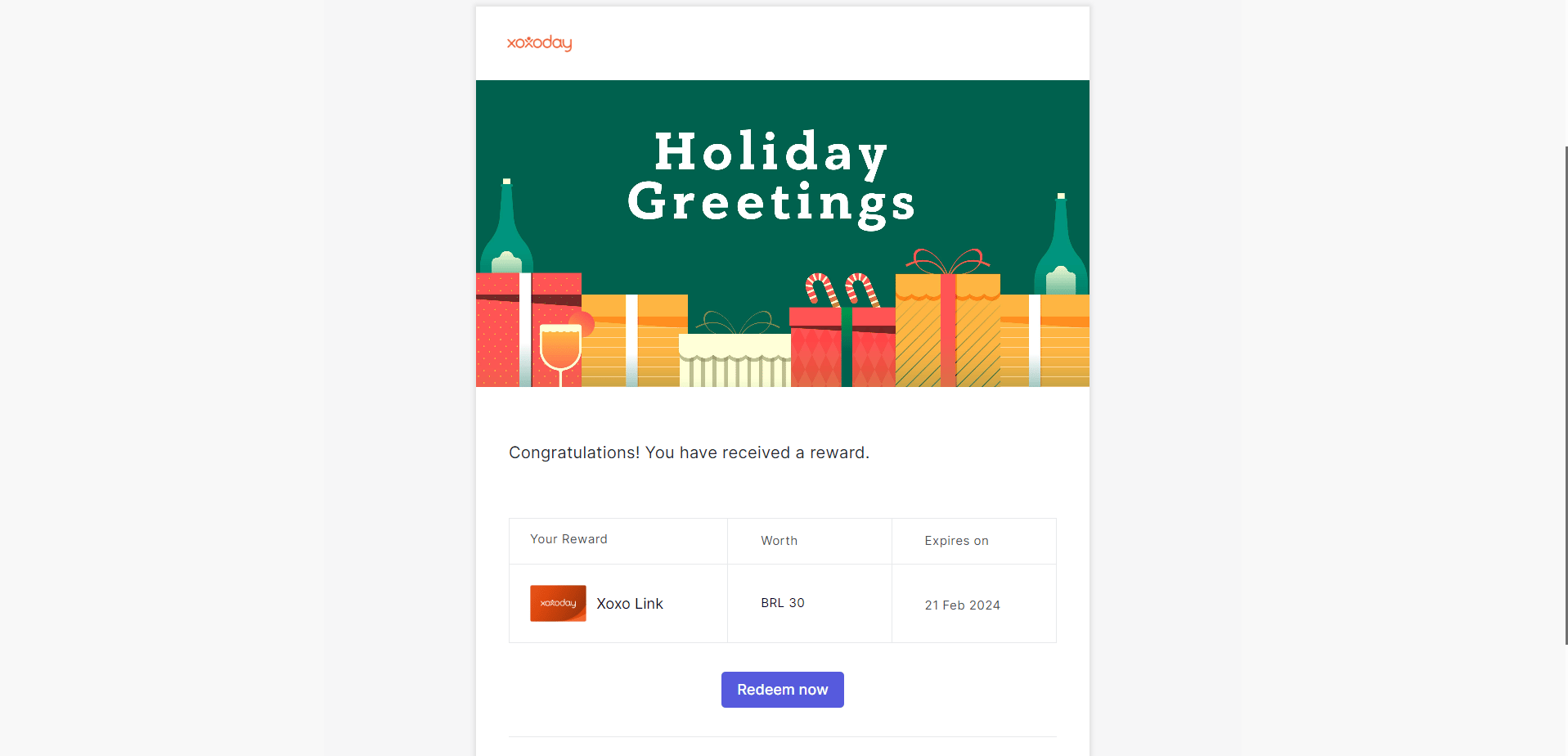
 ## \*\*STEP 7: Preview your Reward Email
Click 'Preview your email'\*\* below the banner to check how your reward email will look to your rewardee.
## \*\*STEP 7: Preview your Reward Email
Click 'Preview your email'\*\* below the banner to check how your reward email will look to your rewardee.
 ## STEP 8: Send Reward
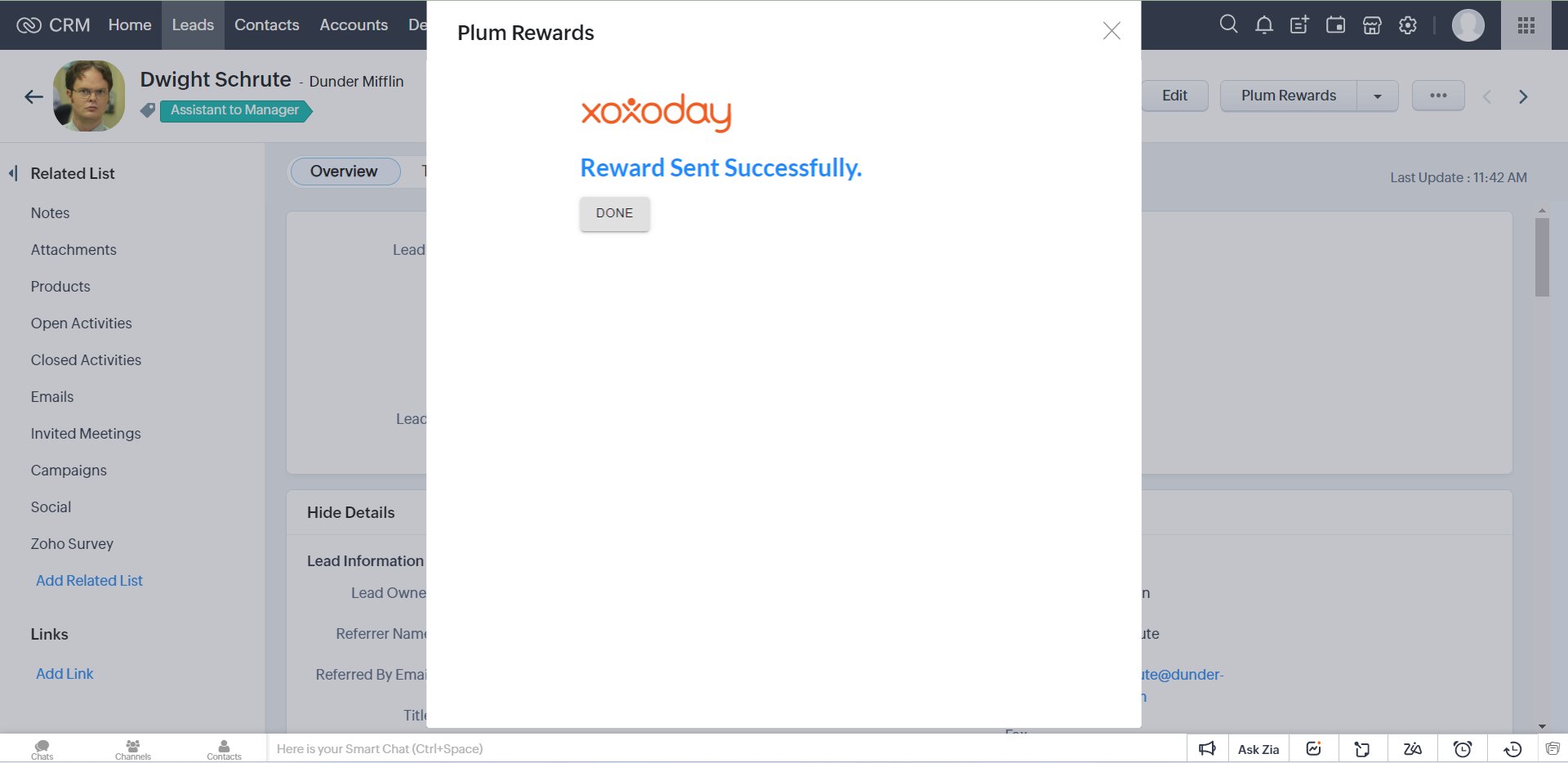
Congratulations! You have sent a reward to your contact or lead. Continue sending reward emails to win more deals and manage relationships with your customers for choosing you.
## STEP 8: Send Reward
Congratulations! You have sent a reward to your contact or lead. Continue sending reward emails to win more deals and manage relationships with your customers for choosing you.