> ## Documentation Index
> Fetch the complete documentation index at: https://help-plum.xoxoday.com/llms.txt
> Use this file to discover all available pages before exploring further.
# Creating and Managing Offers
> Learn how merchants create and manage their offers within Plum's Offers Management portal, from setup to publishing.
*Learn all about creating offers on Loopr merchant portal*
The Offers module in the merchant portal enables admins to create, customize, and manage a wide range of promotional offers.
## Creating Offers
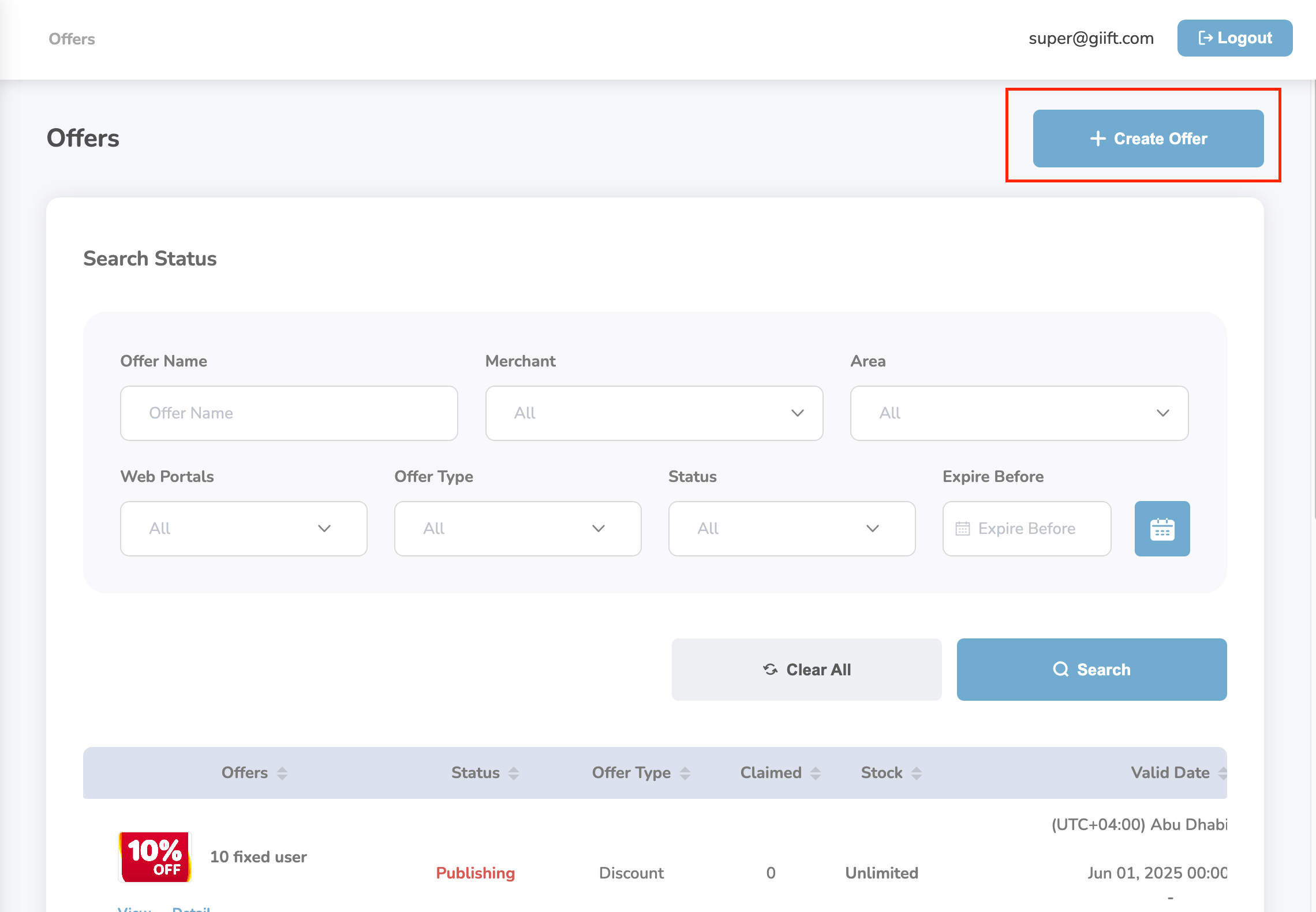
To create a new offer:
Click the "**Create Offer**" button.
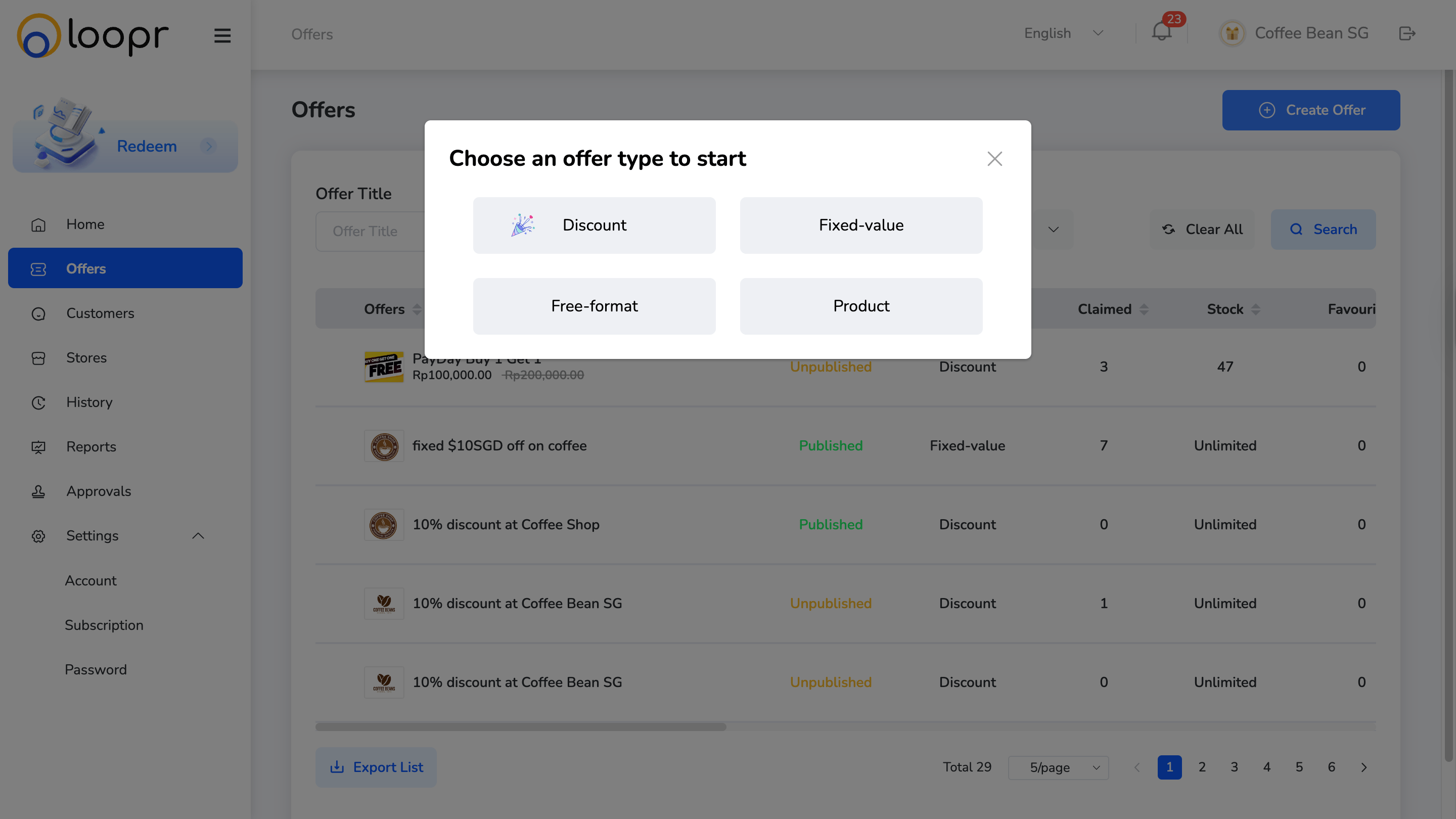
 * Discount (percentage-based)
* Fixed-value (e.g., \$10 off)
* Free-format (custom offer format)
* Product (physical or digital product)
* Discount (percentage-based)
* Fixed-value (e.g., \$10 off)
* Free-format (custom offer format)
* Product (physical or digital product)
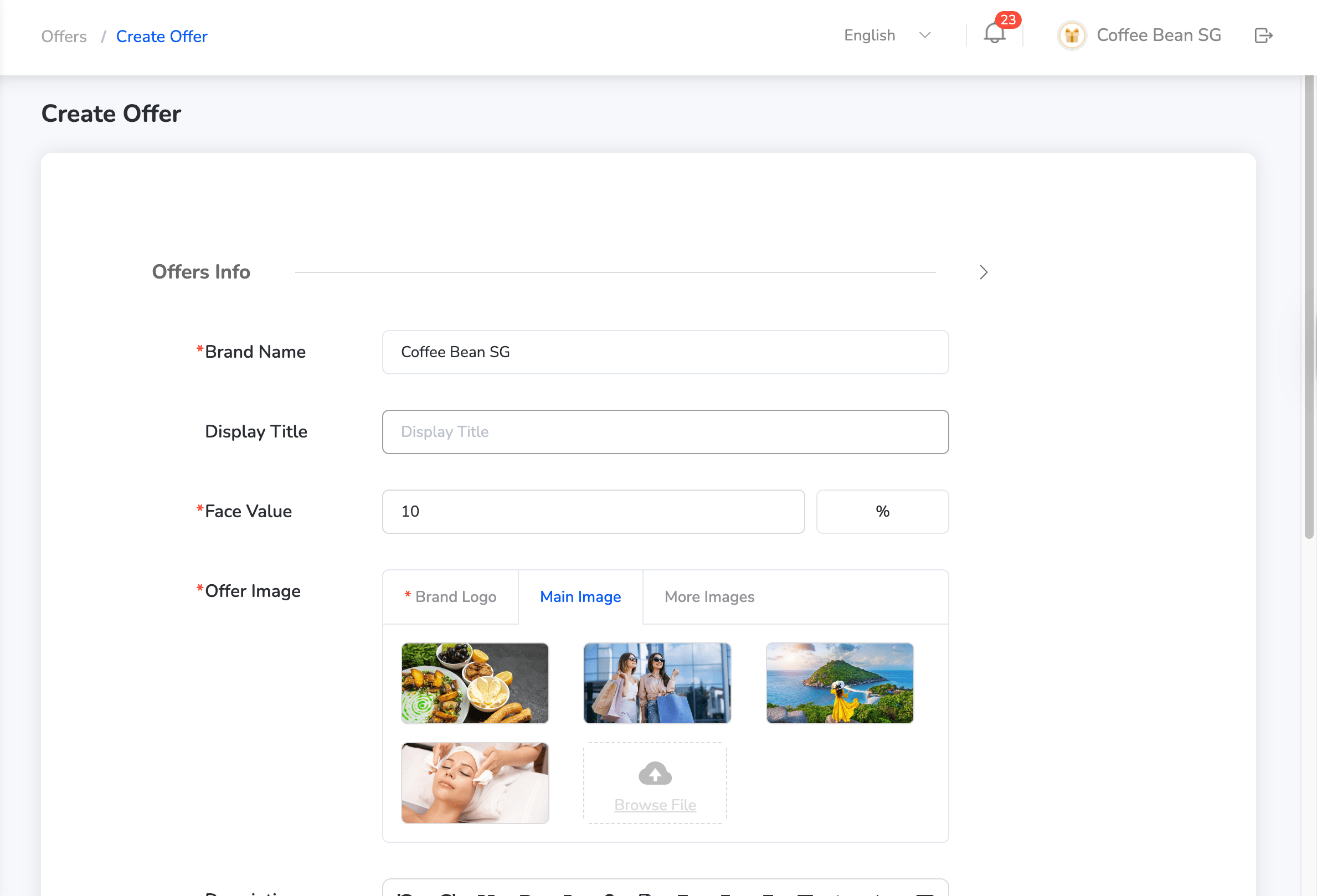
 After selecting the offer type, fill in all required fields across the following sections:
* Time Zone
* Brand Name
* Display Title
* Face Value (use drop-down menu to select)
* Offer Image
* Description
* Voucher Code Info
* Redemption Info
After selecting the offer type, fill in all required fields across the following sections:
* Time Zone
* Brand Name
* Display Title
* Face Value (use drop-down menu to select)
* Offer Image
* Description
* Voucher Code Info
* Redemption Info
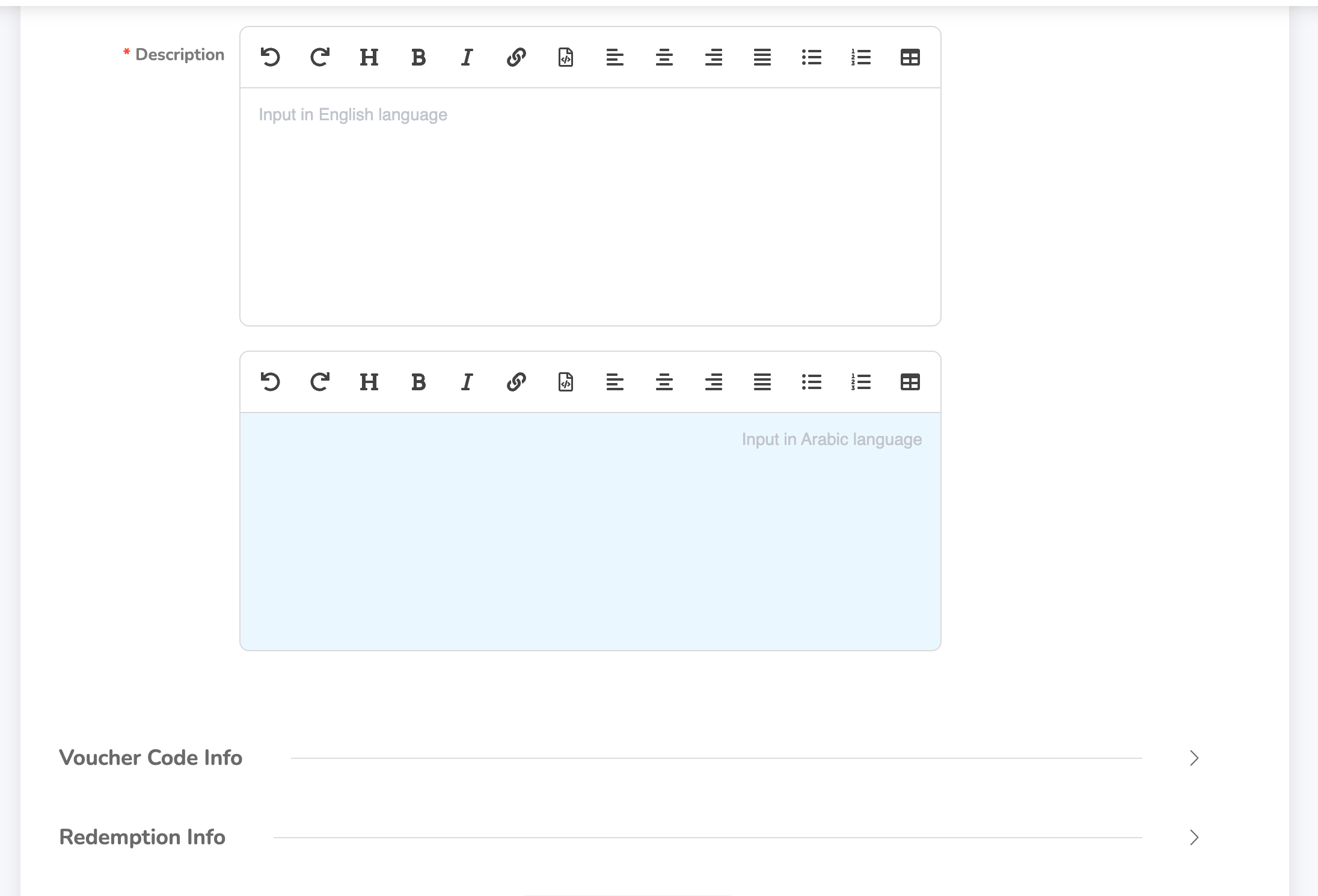 Once all the details are filled in, click the "**Create**" button to save the offer.
***
## Managing Offers
The Offers module in the Loopr Merchant Portal allows you to create, manage, and optimize promotional offers. Once offers are created, you can manage them using several built-in tools and actions.
### 1. Search & Filter Offers
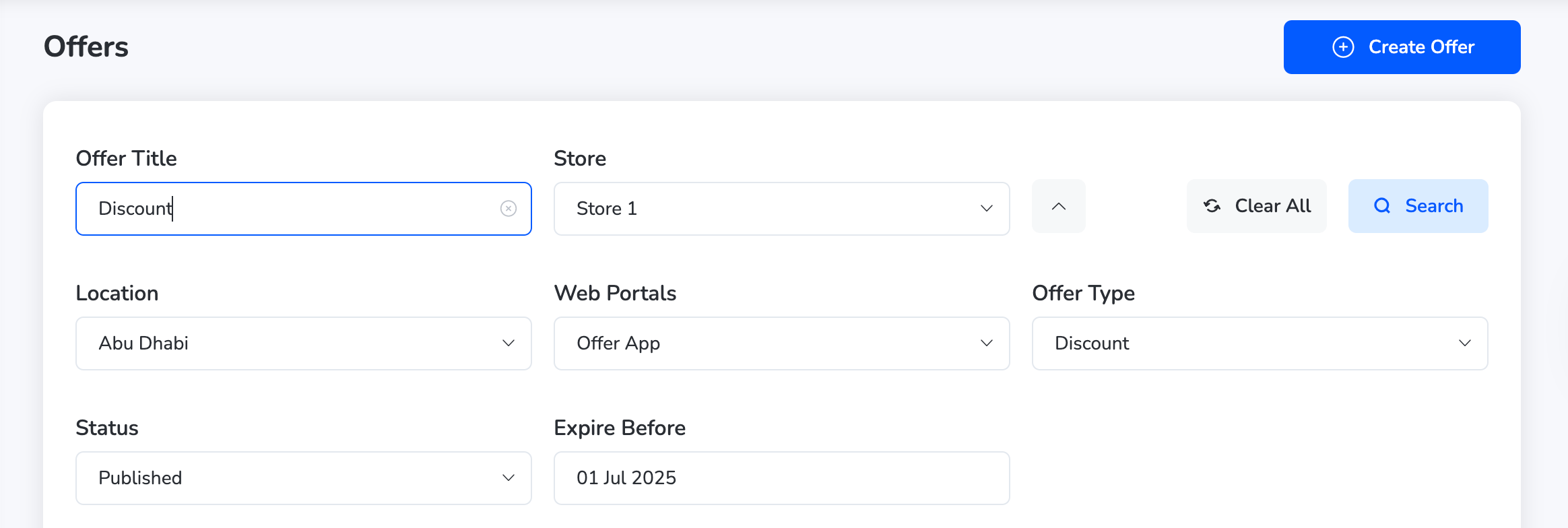
The Loopr Merchant Portal makes it easy to find specific offers with the help of a powerful search bar and filter system.
You can apply one or more filters to narrow down your offer list based on various attributes.
### Available Filters:
* **1.1 Offer Title** — Enter keywords or the full title of the offer to search directly by name.
* **1.2 Store** — Use the drop-down menu to select a specific store associated with the offer.
* **1.3 Location** — Filter offers by their associated location using the location drop-down list.
* **1.4 Web Portals** — Select one or more web portals through which the offer is published.
* **1.5 Offer Type** — Choose from the following types:
* Discount
* Fixed Value
* Free Format
* Product
* **1.6 Status** — Filter offers based on their current status:
* Published
* Unpublished
* Publishing
* Expired
* Draft
* **Expiry Date** — Use the calendar UI to select a date or range for when the offer is set to expire.
Once all the details are filled in, click the "**Create**" button to save the offer.
***
## Managing Offers
The Offers module in the Loopr Merchant Portal allows you to create, manage, and optimize promotional offers. Once offers are created, you can manage them using several built-in tools and actions.
### 1. Search & Filter Offers
The Loopr Merchant Portal makes it easy to find specific offers with the help of a powerful search bar and filter system.
You can apply one or more filters to narrow down your offer list based on various attributes.
### Available Filters:
* **1.1 Offer Title** — Enter keywords or the full title of the offer to search directly by name.
* **1.2 Store** — Use the drop-down menu to select a specific store associated with the offer.
* **1.3 Location** — Filter offers by their associated location using the location drop-down list.
* **1.4 Web Portals** — Select one or more web portals through which the offer is published.
* **1.5 Offer Type** — Choose from the following types:
* Discount
* Fixed Value
* Free Format
* Product
* **1.6 Status** — Filter offers based on their current status:
* Published
* Unpublished
* Publishing
* Expired
* Draft
* **Expiry Date** — Use the calendar UI to select a date or range for when the offer is set to expire.
 ***
## 2. Actions Available for Each Offer
For every offer listed, the following actions are available:
### 2.1 View
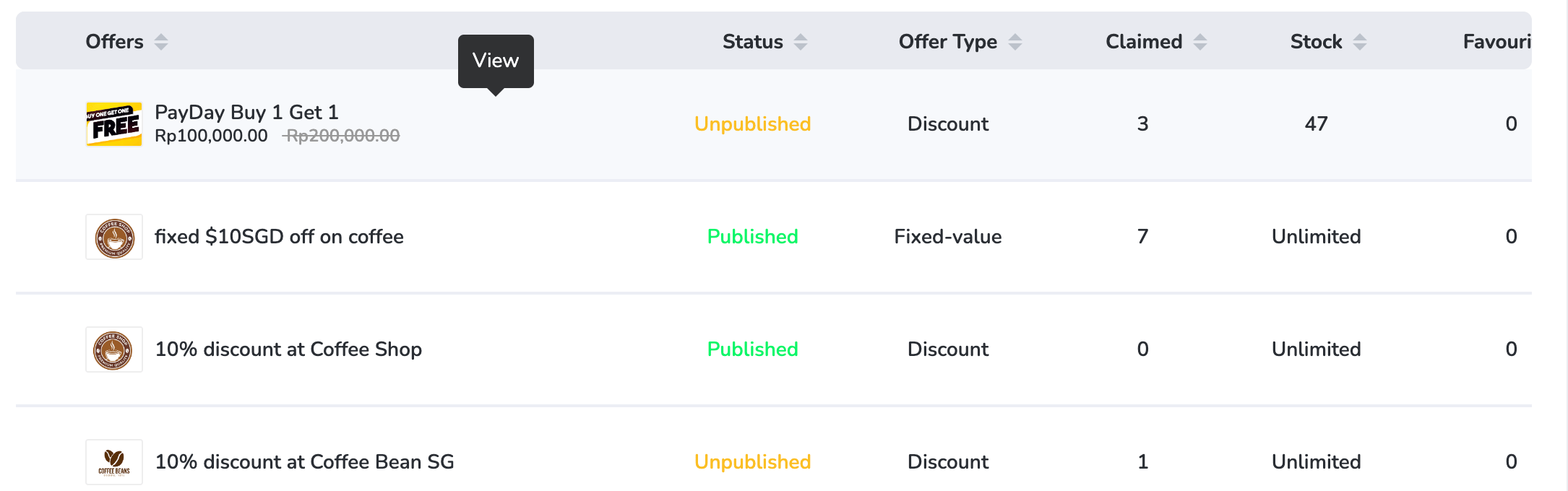
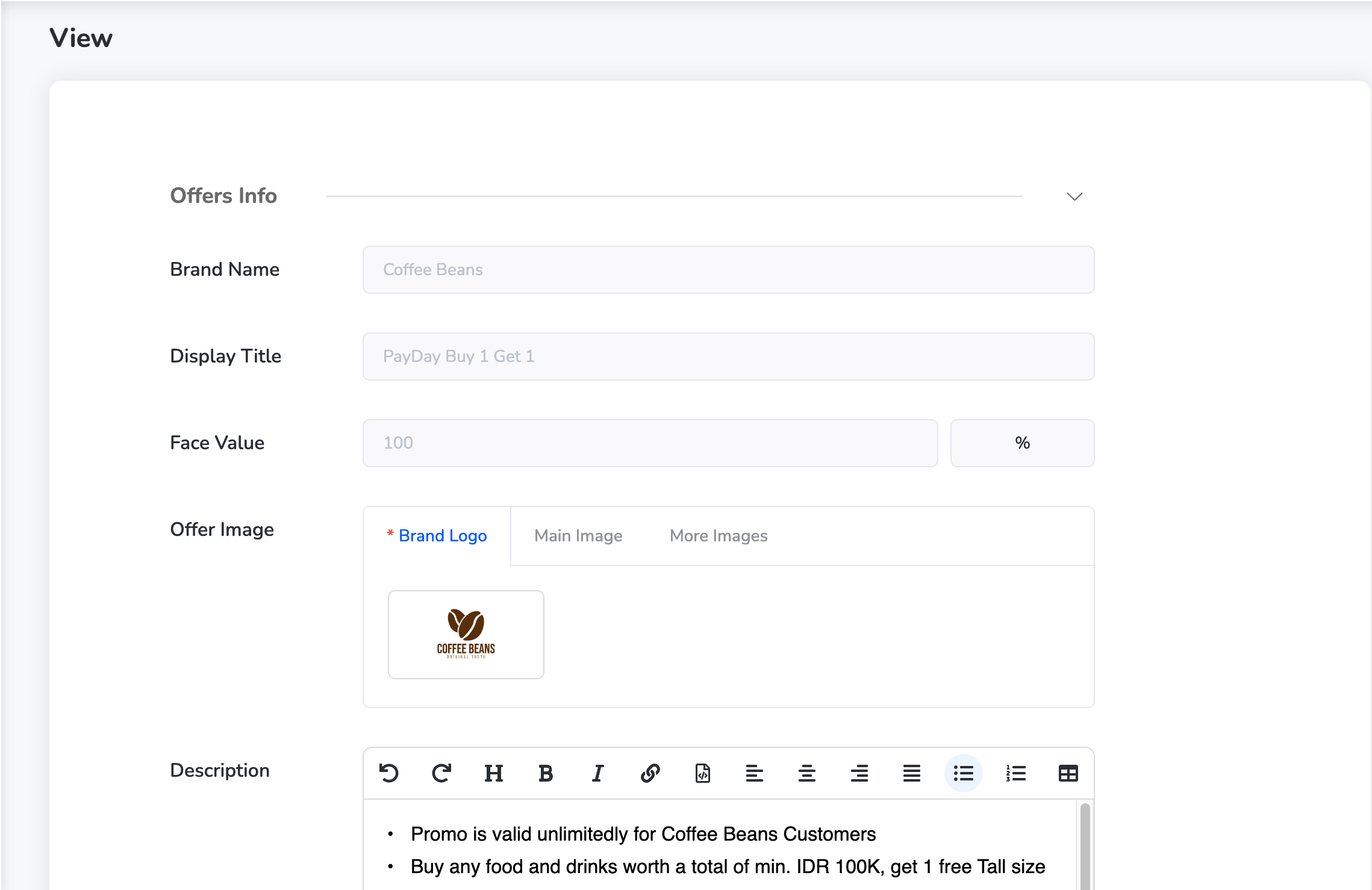
* Navigate to the offer and click on **View** next to the offer.
***
## 2. Actions Available for Each Offer
For every offer listed, the following actions are available:
### 2.1 View
* Navigate to the offer and click on **View** next to the offer.
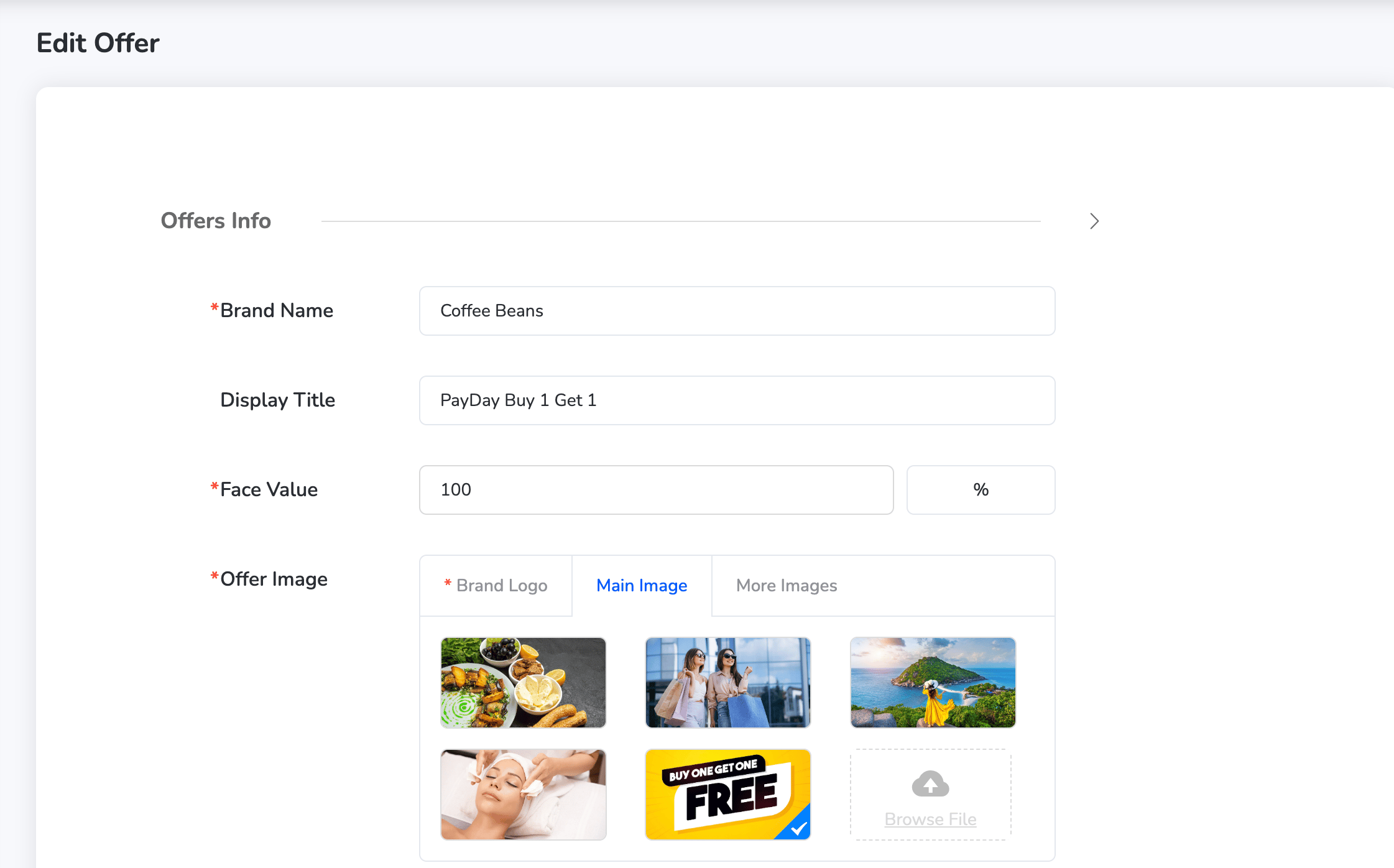
 ### 2.2 Edit
* Modify offer content, validity, T\&Cs, images, or any associated settings.
* Navigate to the offer and click on the **pencil icon** next to the offer.
### 2.2 Edit
* Modify offer content, validity, T\&Cs, images, or any associated settings.
* Navigate to the offer and click on the **pencil icon** next to the offer.
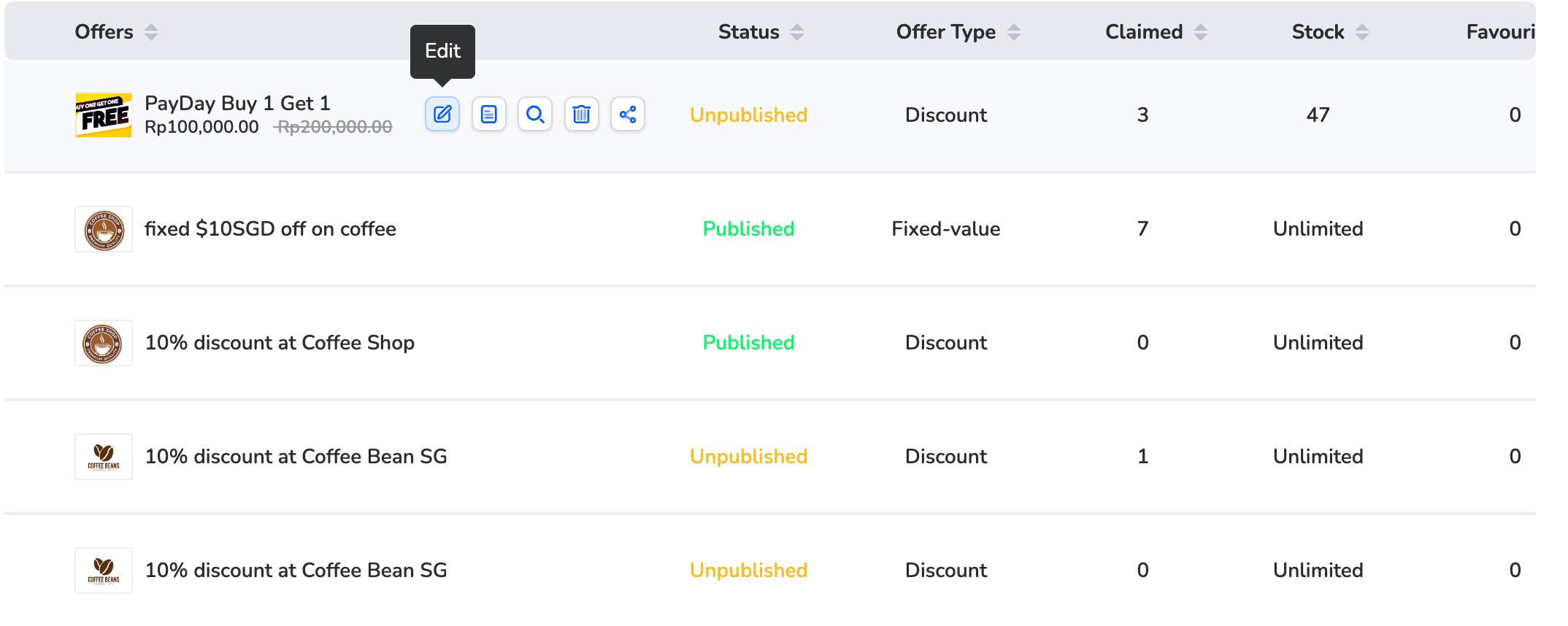 * Edit the details and click "**Save**" to proceed.
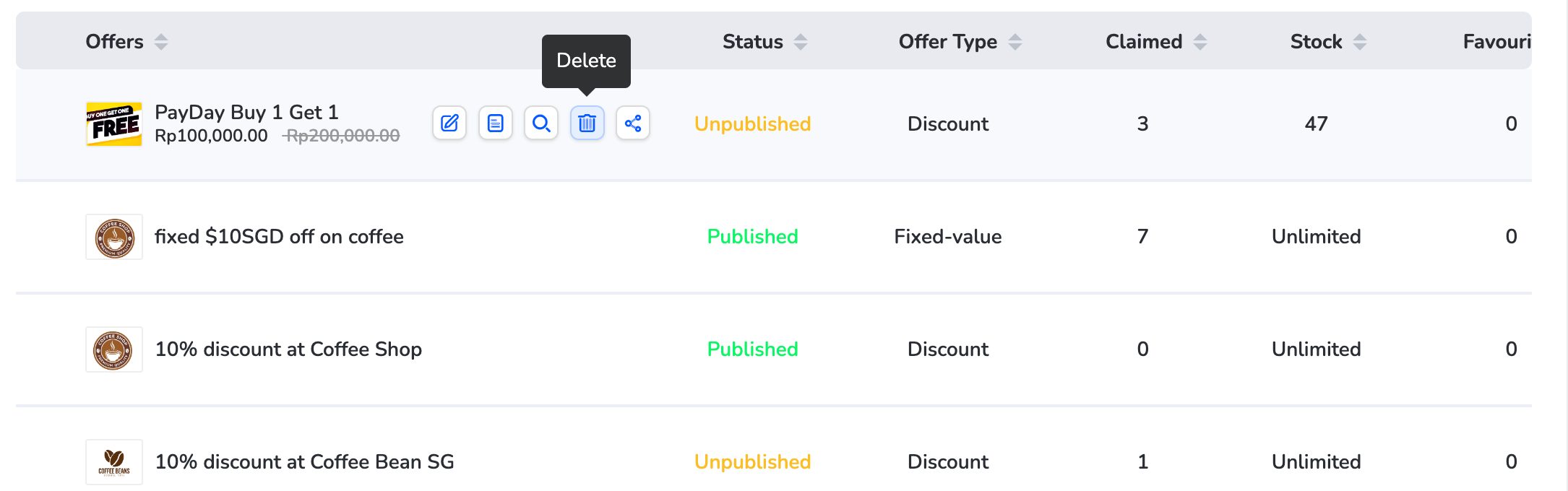
 ### 2.4 Delete
* Remove an outdated or inactive offer from the platform.
* Navigate to the offer. Click on the **delete icon** next to the offer.
### 2.4 Delete
* Remove an outdated or inactive offer from the platform.
* Navigate to the offer. Click on the **delete icon** next to the offer.
 * A confirmation pop-up will appear. Click "**Confirm**" to permanently delete the offer.
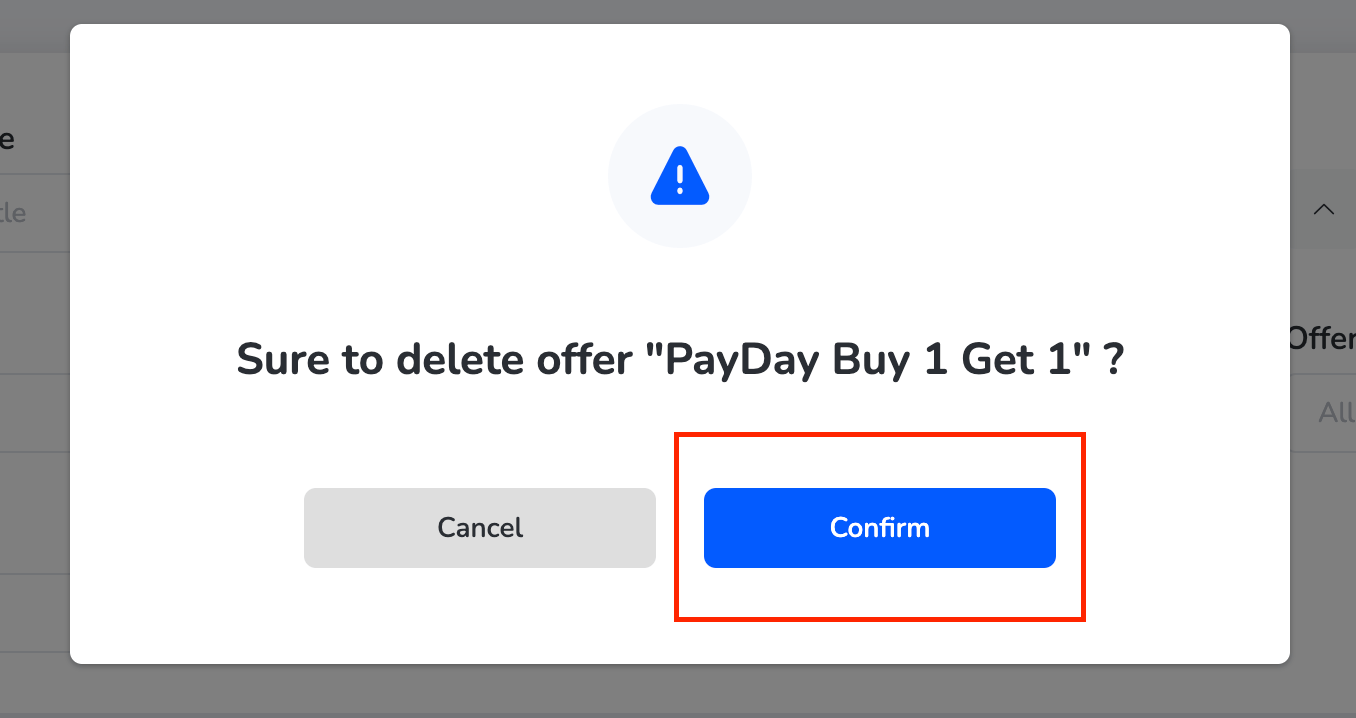 Note: Deletion may require confirmation and cannot be undone.
### 2.5 Detail
* Navigate to the Offers Module — From the dashboard, go to Offers.
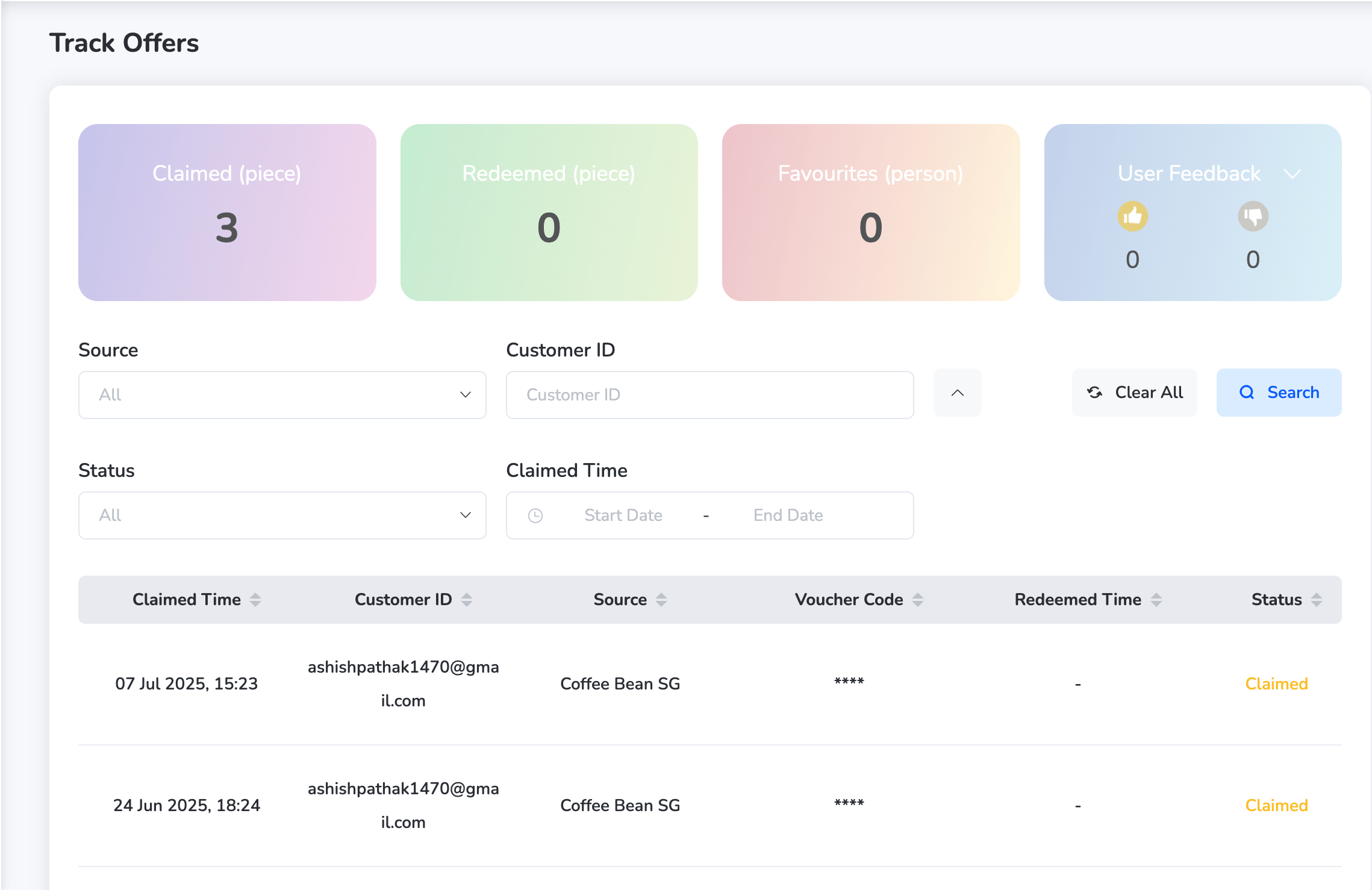
* Click on the "**Detail**" Button — Next to the offer you want to analyze, click "Detail" to open the offer performance page.
Note: Deletion may require confirmation and cannot be undone.
### 2.5 Detail
* Navigate to the Offers Module — From the dashboard, go to Offers.
* Click on the "**Detail**" Button — Next to the offer you want to analyze, click "Detail" to open the offer performance page.
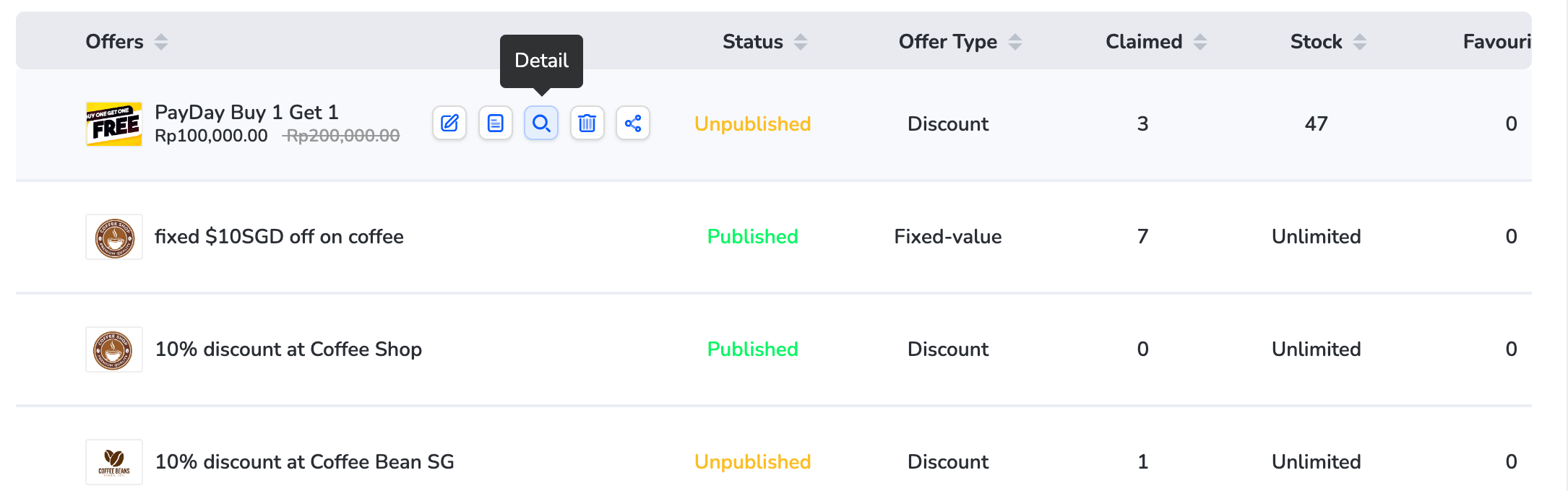 * Once inside the detail view, you'll see a complete breakdown of the offer's activity, including:
* Claimed – Number of times the offer was claimed
* Redeemed – Number of times it was successfully redeemed
* Favourited – How many users marked it as a favorite
* User Feedback – Comments or ratings submitted by users
* You can also filter this data by:
* Source (e.g., Web, App, Partner Portal)
* Customer ID
* Status (e.g., Claimed, Redeemed, Expired)
* Claimed Time (using the calendar filter)
* Once inside the detail view, you'll see a complete breakdown of the offer's activity, including:
* Claimed – Number of times the offer was claimed
* Redeemed – Number of times it was successfully redeemed
* Favourited – How many users marked it as a favorite
* User Feedback – Comments or ratings submitted by users
* You can also filter this data by:
* Source (e.g., Web, App, Partner Portal)
* Customer ID
* Status (e.g., Claimed, Redeemed, Expired)
* Claimed Time (using the calendar filter)
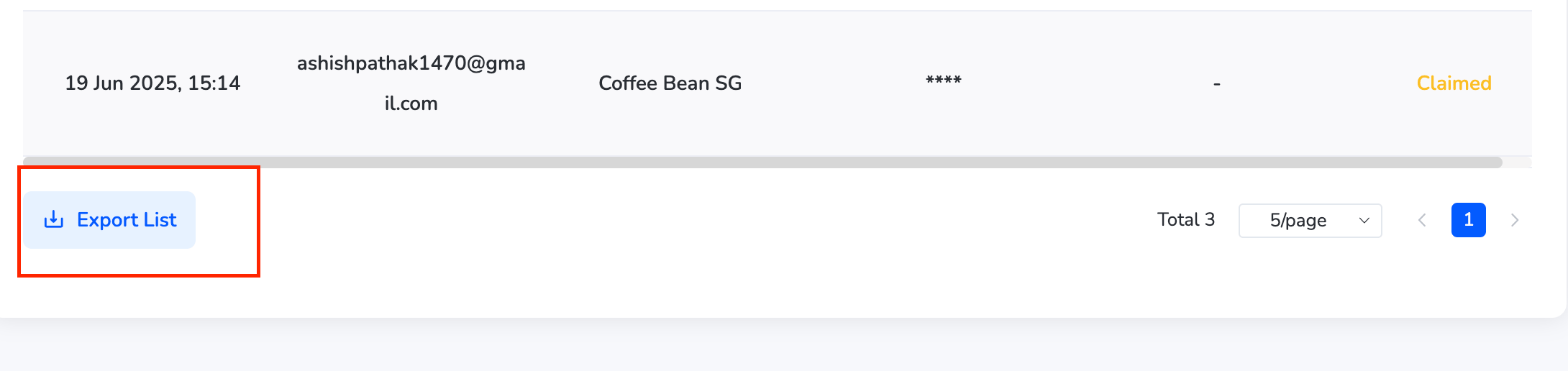
 * **Exporting the Offer Data** — To export the tracked data: Scroll to the bottom of the page. Click on the **Download icon** to export the list as a report.
 ### 2.6 Share
Generate a shareable link or code to distribute the offer through your desired marketing channels.
Need help? Reach out to your support team or [cs@xoxoday.com](mailto:cs@xoxoday.com).
### 2.6 Share
Generate a shareable link or code to distribute the offer through your desired marketing channels.
Need help? Reach out to your support team or [cs@xoxoday.com](mailto:cs@xoxoday.com).