> ## Documentation Index
> Fetch the complete documentation index at: https://help-plum.xoxoday.com/llms.txt
> Use this file to discover all available pages before exploring further.

# Customer Module

*Learn how to Create, View, and Manage Customers*

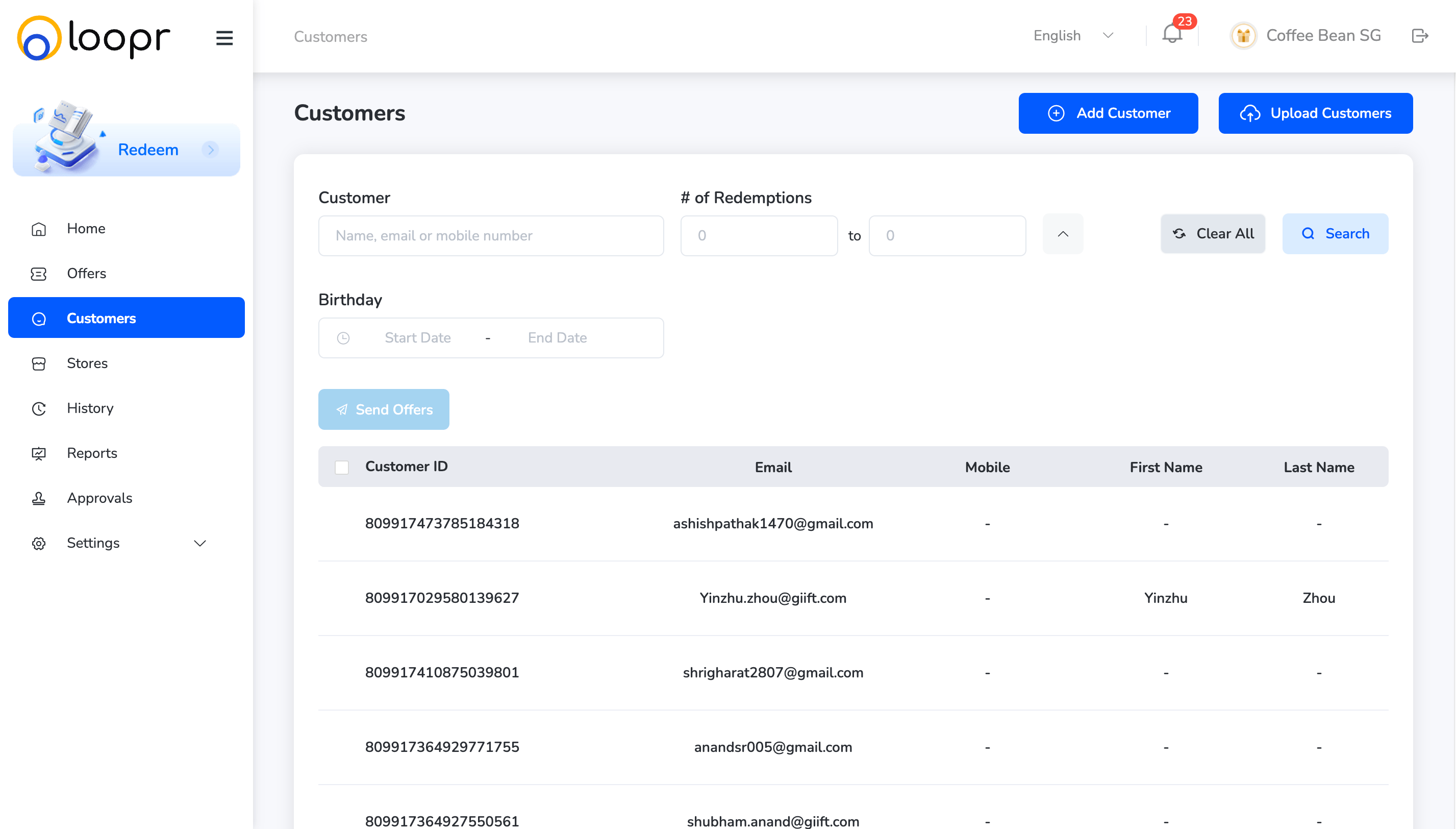
This section displays a customer list that merchants can use to send offers.

Navigate to **Customers** on the left hand of the dashboard.
<Frame>
  <img src="https://mintcdn.com/plum/FAXZYoma53rhWTdG/images/intercom/help-center-offers-management-offer-management-for-merchants-customer-module-13052123/849827d1a91df43c27603831dbc4a078df9ab77352af82d2503e4b0e91a26b7d-Screenshot_2025-07-10_at_10_49_33_AM.png?fit=max&auto=format&n=FAXZYoma53rhWTdG&q=85&s=2e436099ae8363cc9cd7d214b66539ec" alt="" width="2854" height="1624" data-path="images/intercom/help-center-offers-management-offer-management-for-merchants-customer-module-13052123/849827d1a91df43c27603831dbc4a078df9ab77352af82d2503e4b0e91a26b7d-Screenshot_2025-07-10_at_10_49_33_AM.png" />
</Frame>

***

## Search for customers

The Customers module allows merchants to search, filter, and export customer data. It also enables you to target specific users for personalized offers.

### How to Search for Customers:

* Use the search bar and filters to narrow down the customer list. You can search by:

  * Customer Name

  * Email Address

  * Registered Mobile Number

  * Redemption Date

  * Birthday Start and End Date

This makes it easy to find the right customer or group of customers for communication or promotional campaigns.

***

## Adding a customer

Customers can be added in two ways: manually or through bulk upload.

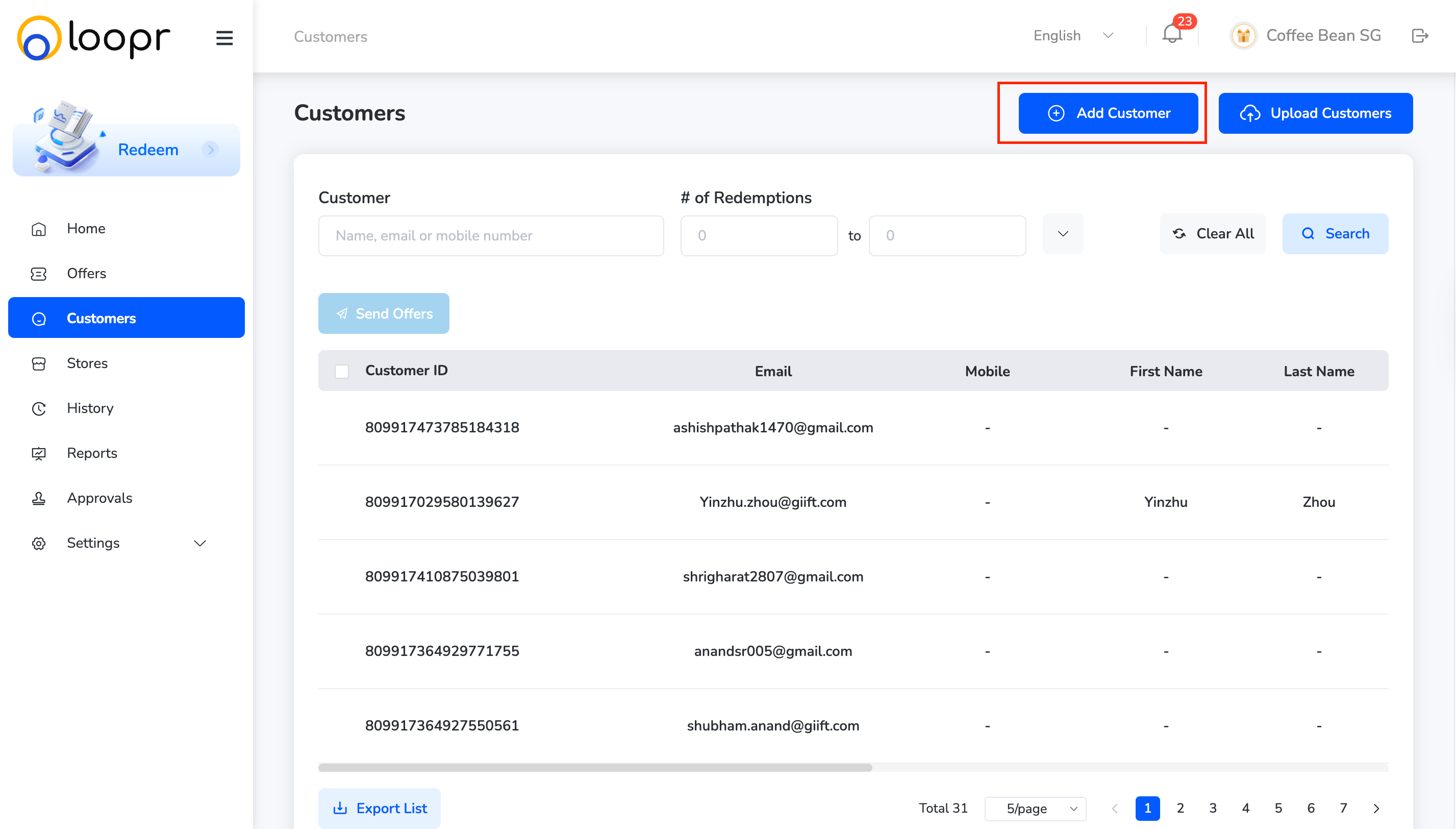
**Method 1: Manually Adding**

* Click "**Add Customer**" at the top of the Customers page.
<Frame>
  <img src="https://mintcdn.com/plum/FAXZYoma53rhWTdG/images/intercom/help-center-offers-management-offer-management-for-merchants-customer-module-13052123/cbd3666facb1cd418d4222a992c532726bb1b11ed4407647d5948ac66500cdf7-Screenshot_2025-07-10_at_10_54_25_AM.png?fit=max&auto=format&n=FAXZYoma53rhWTdG&q=85&s=8217f0cb020425f358543dafab8e528f" alt="" width="2854" height="1624" data-path="images/intercom/help-center-offers-management-offer-management-for-merchants-customer-module-13052123/cbd3666facb1cd418d4222a992c532726bb1b11ed4407647d5948ac66500cdf7-Screenshot_2025-07-10_at_10_54_25_AM.png" />
</Frame>

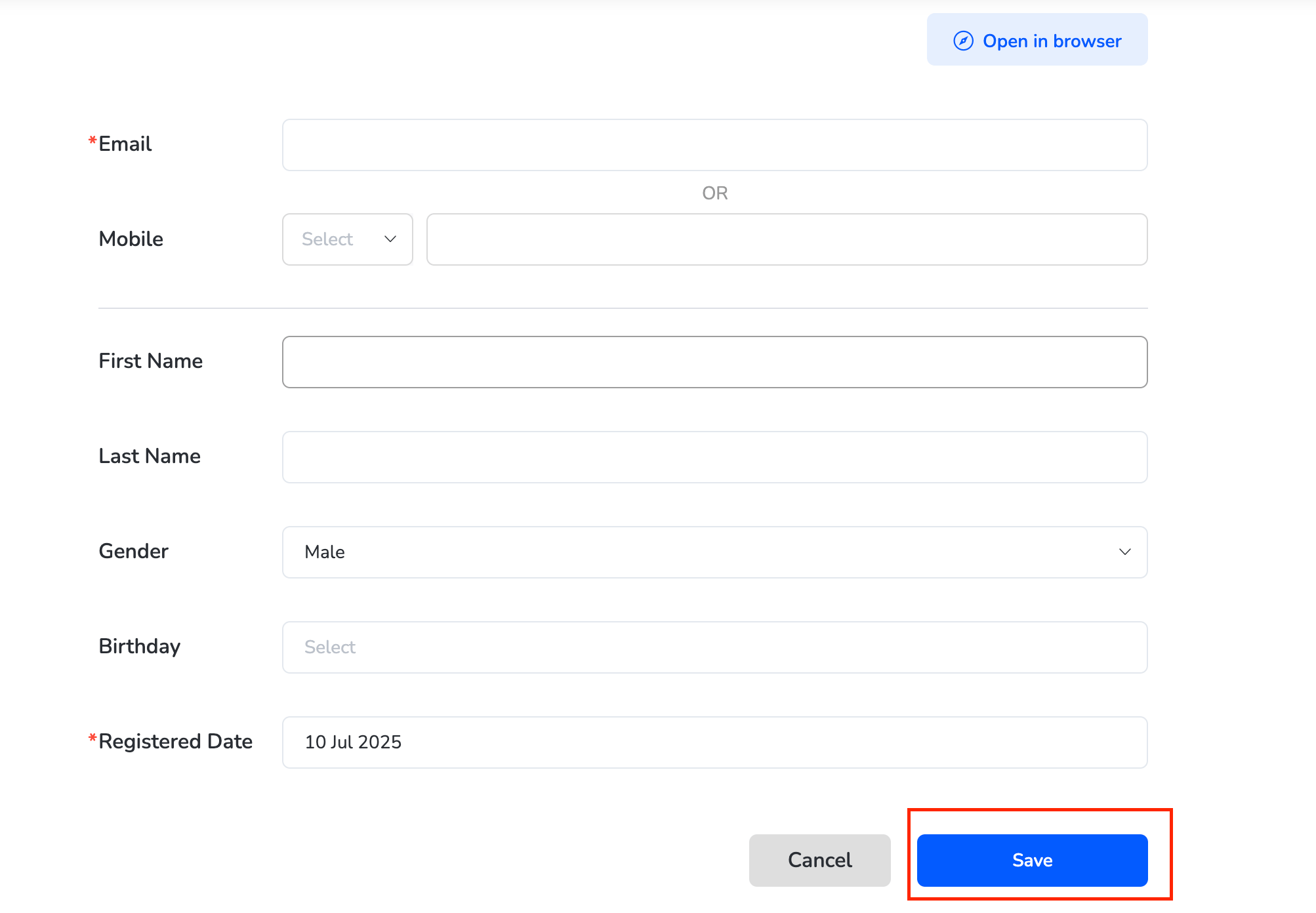
* Fill in details (name, email, mobile, birthday). Once done, Click "**Save**".
<Frame>
  <img src="https://mintcdn.com/plum/FAXZYoma53rhWTdG/images/intercom/help-center-offers-management-offer-management-for-merchants-customer-module-13052123/0480b3536dc036441cdf4f45171b012f9222d26ae4516e5155ed979d374f18de-Screenshot_2025-07-10_at_11_14_16_AM.png?fit=max&auto=format&n=FAXZYoma53rhWTdG&q=85&s=ee3084ceb12267e636d8c97a6f7869d6" alt="" width="2006" height="1392" data-path="images/intercom/help-center-offers-management-offer-management-for-merchants-customer-module-13052123/0480b3536dc036441cdf4f45171b012f9222d26ae4516e5155ed979d374f18de-Screenshot_2025-07-10_at_11_14_16_AM.png" />
</Frame>

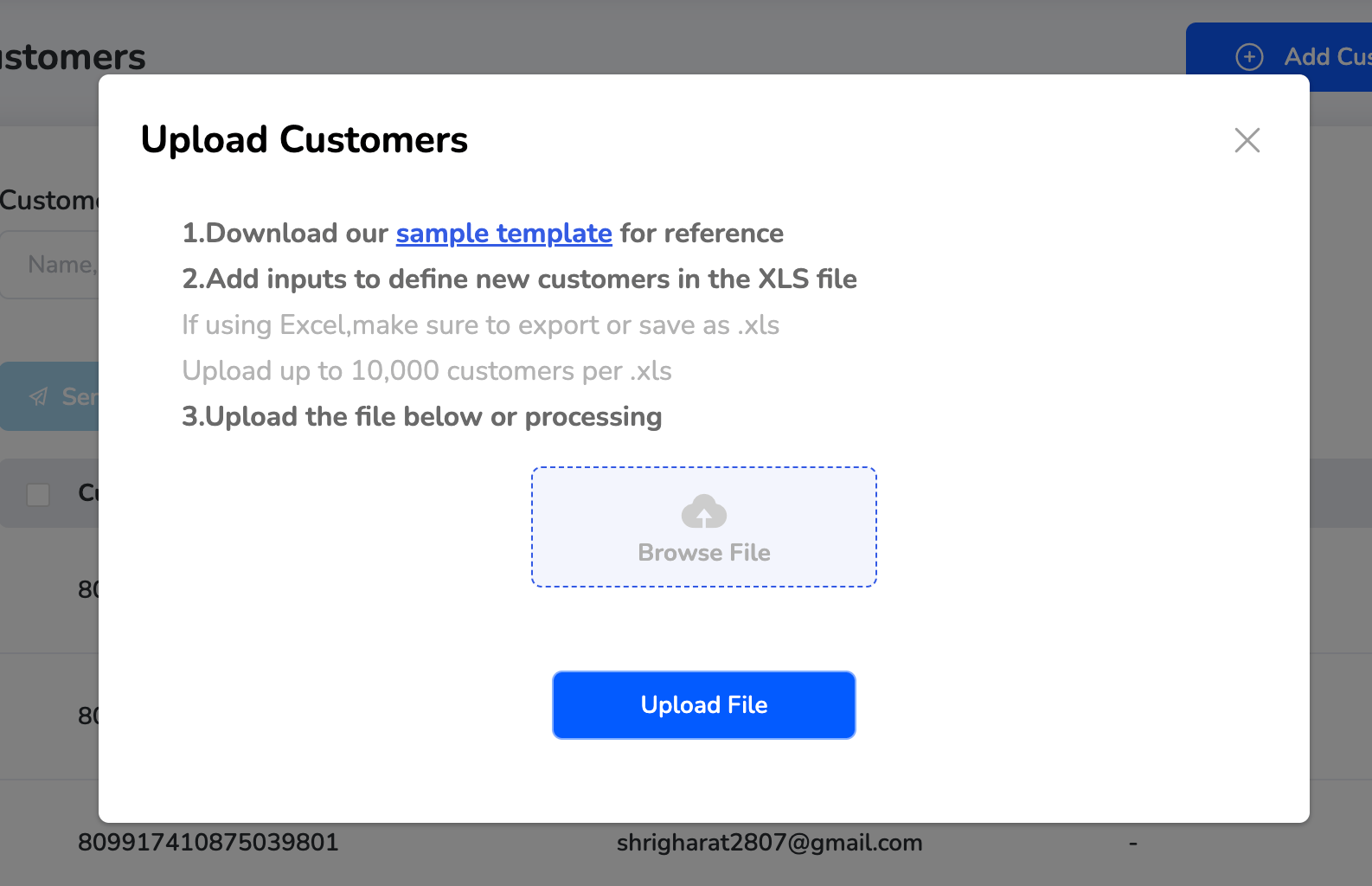
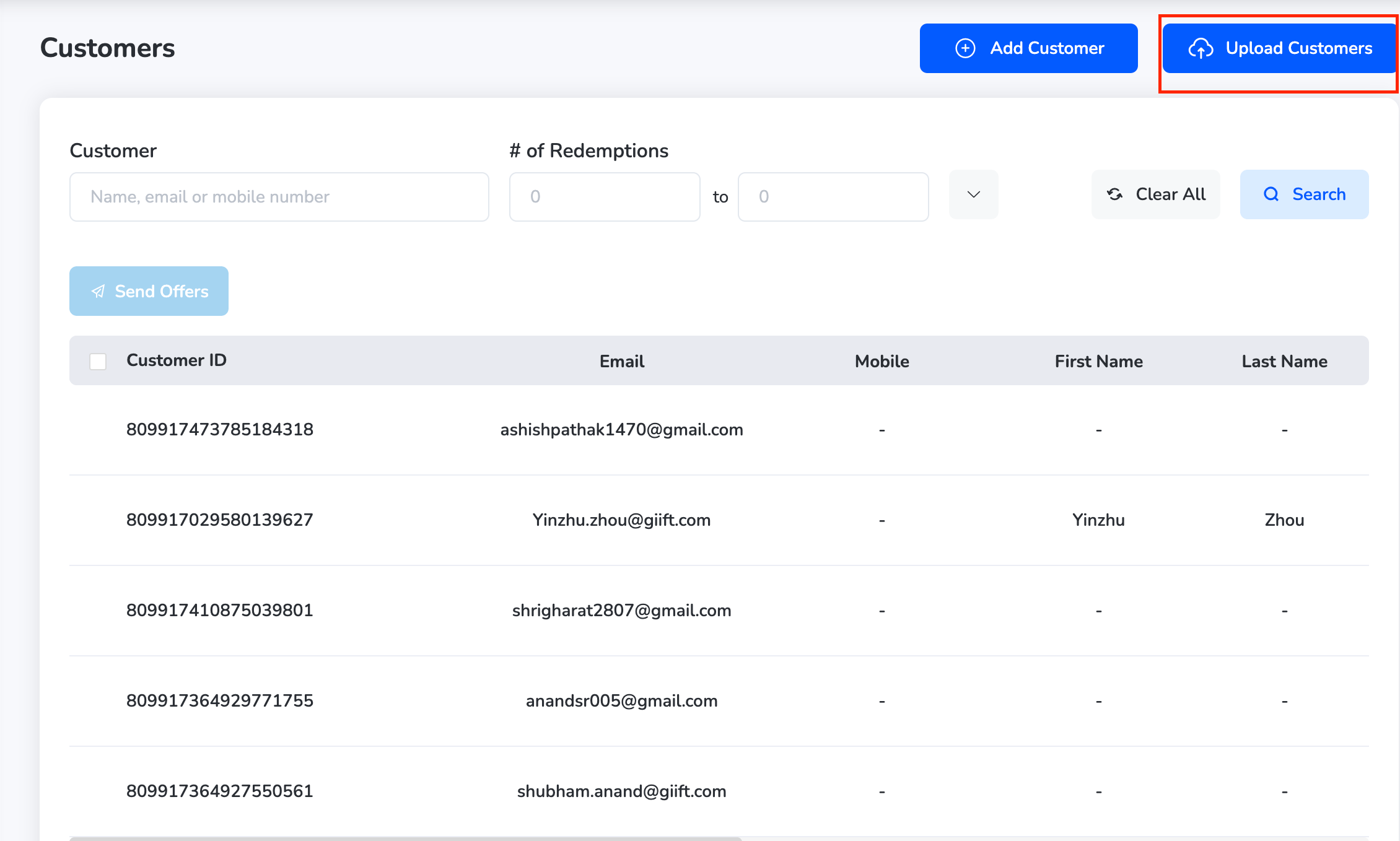
**Method 2: Upload Customers in Bulk**

* Click the "**Upload Customers**" icon.
<Frame>
  <img src="https://mintcdn.com/plum/FAXZYoma53rhWTdG/images/intercom/help-center-offers-management-offer-management-for-merchants-customer-module-13052123/2e8a507efab088e9fa8d0749711c528afedd71aee896fb1bb9ea5c7e49f19a41-Screenshot_2025-07-10_at_11_13_52_AM.png?fit=max&auto=format&n=FAXZYoma53rhWTdG&q=85&s=0bc0d09a06fd92b97b6a1f9f5eccdcdd" alt="" width="2260" height="1358" data-path="images/intercom/help-center-offers-management-offer-management-for-merchants-customer-module-13052123/2e8a507efab088e9fa8d0749711c528afedd71aee896fb1bb9ea5c7e49f19a41-Screenshot_2025-07-10_at_11_13_52_AM.png" />
</Frame>

<Frame>
  <img src="https://mintcdn.com/plum/FAXZYoma53rhWTdG/images/intercom/help-center-offers-management-offer-management-for-merchants-customer-module-13052123/5f12af75ecf5055879aface3ebc3addccf017484a9953cb83786741b57ad1cf9-Screenshot_2025-07-10_at_11_14_33_AM.png?fit=max&auto=format&n=FAXZYoma53rhWTdG&q=85&s=7fabf013a2c9aca8335f489c33d646d4" alt="" width="1586" height="1024" data-path="images/intercom/help-center-offers-management-offer-management-for-merchants-customer-module-13052123/5f12af75ecf5055879aface3ebc3addccf017484a9953cb83786741b57ad1cf9-Screenshot_2025-07-10_at_11_14_33_AM.png" />
</Frame>

* Upload the file. You can also download the sample template for reference.

***

## Managing Customers

In the Customers module, you can view, edit, or delete individual customer records.

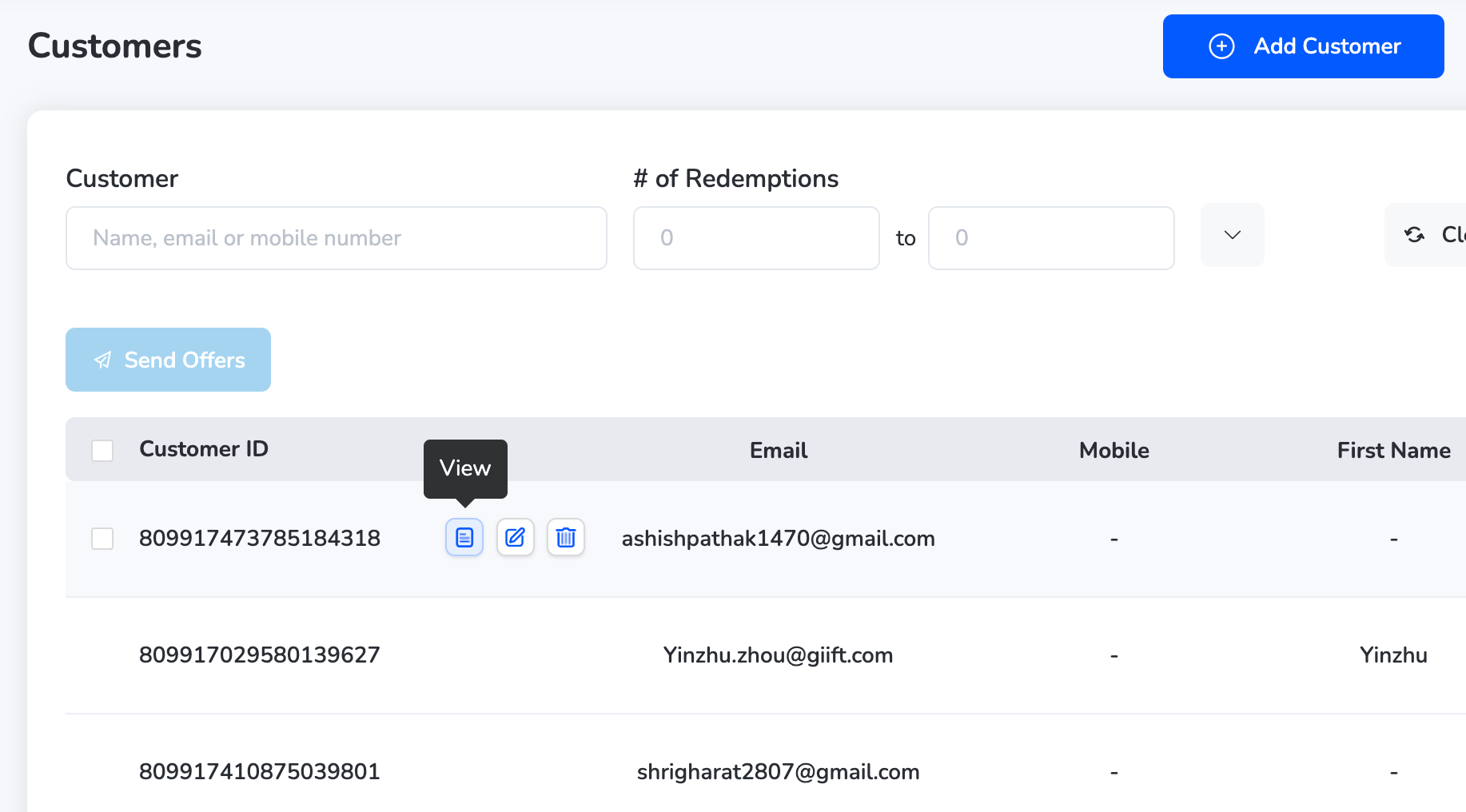
**View a Customer**

* Go to the Customers page.

* Find the customer in the list and click the "View" icon next to their name.
<Frame>
  <img src="https://mintcdn.com/plum/FAXZYoma53rhWTdG/images/intercom/help-center-offers-management-offer-management-for-merchants-customer-module-13052123/b985daab0e6fc2ac136c8ed17fb7636afcd53c480af0dbe8250f5e926e74ee87-Screenshot_2025-07-10_at_11_35_55_AM.png?fit=max&auto=format&n=FAXZYoma53rhWTdG&q=85&s=df699737c8203a7e4ccd50f39f5d85c9" alt="" width="1834" height="1016" data-path="images/intercom/help-center-offers-management-offer-management-for-merchants-customer-module-13052123/b985daab0e6fc2ac136c8ed17fb7636afcd53c480af0dbe8250f5e926e74ee87-Screenshot_2025-07-10_at_11_35_55_AM.png" />
</Frame>

* You'll see:

  * Full customer details

<Frame>
  ![](https://xoxoday-cc4bb9b9ac3a.intercom-attachments-1.com/i/o/qgtvujy1/1873252120/25a1caf260bcce4bcc03f41e4386/51e2bd36756d8f4a95d3462001507efdefcceb3d2d48bd71b251bb2a46905b06-Screenshot_2025-07-10_at_11_36_09_AM.png?expires=1776816000\&signature=a97140d3e9a26d676f06715298ed1c30b16cf986c44cdfcd0e01d5325e91fe8e\&req=dSggFct7n4BdWfMW3nq%2BgeC0OKjNwmqxR4kfW4nmtqACyZoiGNh%2FjZm2r%2FL0%0AAUfCt2E9NSta3inZEz8hj%2FkM1gM%3D%0A)
</Frame>

* A tracking section showing offers claimed, redeemed, or favourited by the customer

<Frame>
  ![](https://xoxoday-cc4bb9b9ac3a.intercom-attachments-1.com/i/o/qgtvujy1/1873252138/150e7c50563725e213c9078f6ea8/1d7c568edaf7a3654186bb5222bc775cfc40716ed752658a8f0349d0f4ba7515-Screenshot_2025-07-10_at_11_36_19_AM.png?expires=1776816000\&signature=6e20fac342edd01c3b4ae334aa47a6f18ba2065d6476d3b3e9ff88d38b4ed145\&req=dSggFct7n4BcUfMW3nq%2BgS2YvgfORQU6ihjoWHzJdYcLqmPOHB%2BndrR056tg%0ALWKje92XNEDjjaWLd8hcJ4zJAu8%3D%0A)
</Frame>

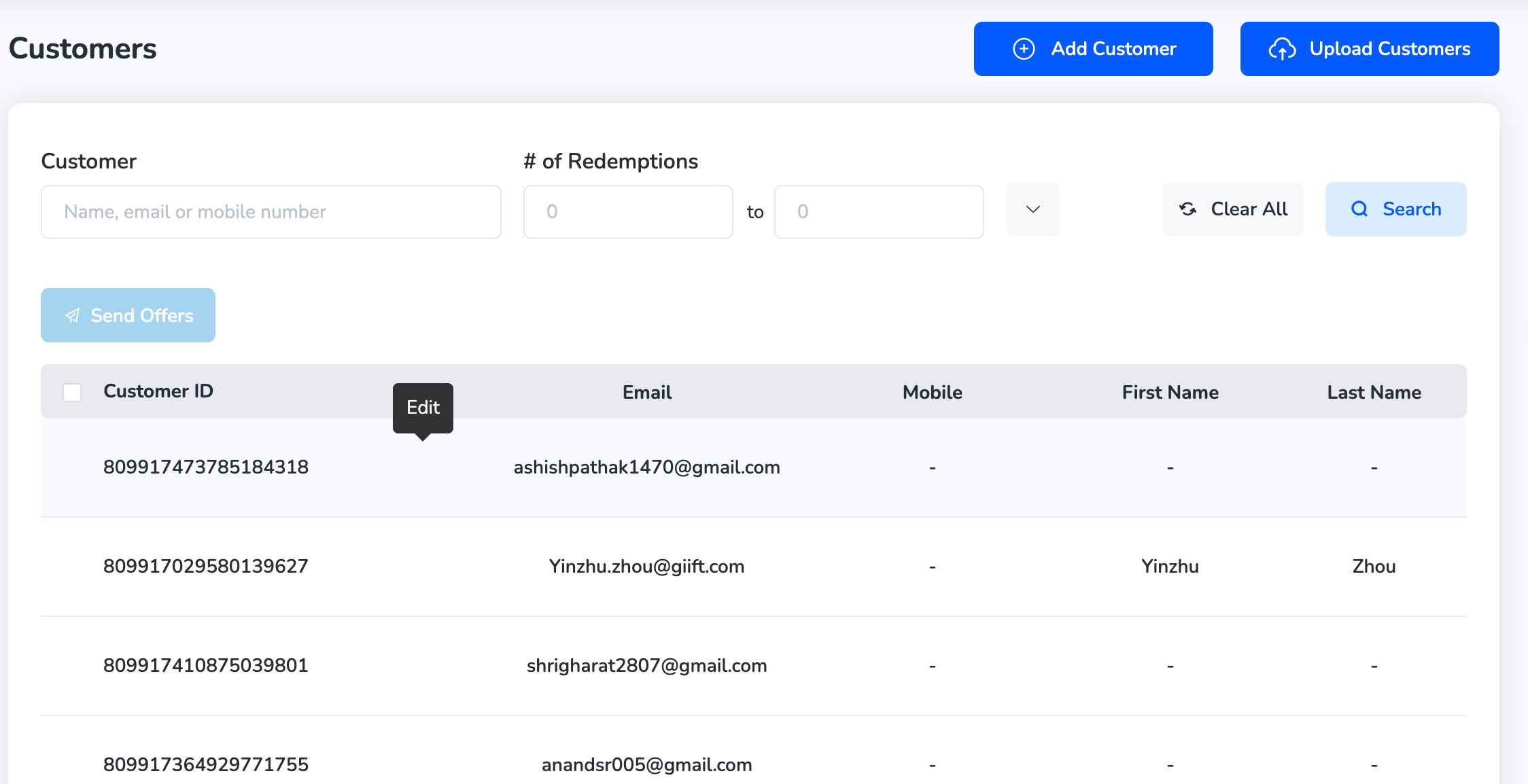
**Edit a Customer**

* Click the "**Edit**" icon next to the customer name.
<Frame>
  <img src="https://mintcdn.com/plum/FAXZYoma53rhWTdG/images/intercom/help-center-offers-management-offer-management-for-merchants-customer-module-13052123/45d6d26abfc615c2461c8f0ac2453c68a7993d979f8ecccde504e75da36dcae7-Screenshot_2025-07-10_at_11_59_20_AM.png?fit=max&auto=format&n=FAXZYoma53rhWTdG&q=85&s=bc655d17652f7a55cb4df7c526de327e" alt="" width="2248" height="1154" data-path="images/intercom/help-center-offers-management-offer-management-for-merchants-customer-module-13052123/45d6d26abfc615c2461c8f0ac2453c68a7993d979f8ecccde504e75da36dcae7-Screenshot_2025-07-10_at_11_59_20_AM.png" />
</Frame>

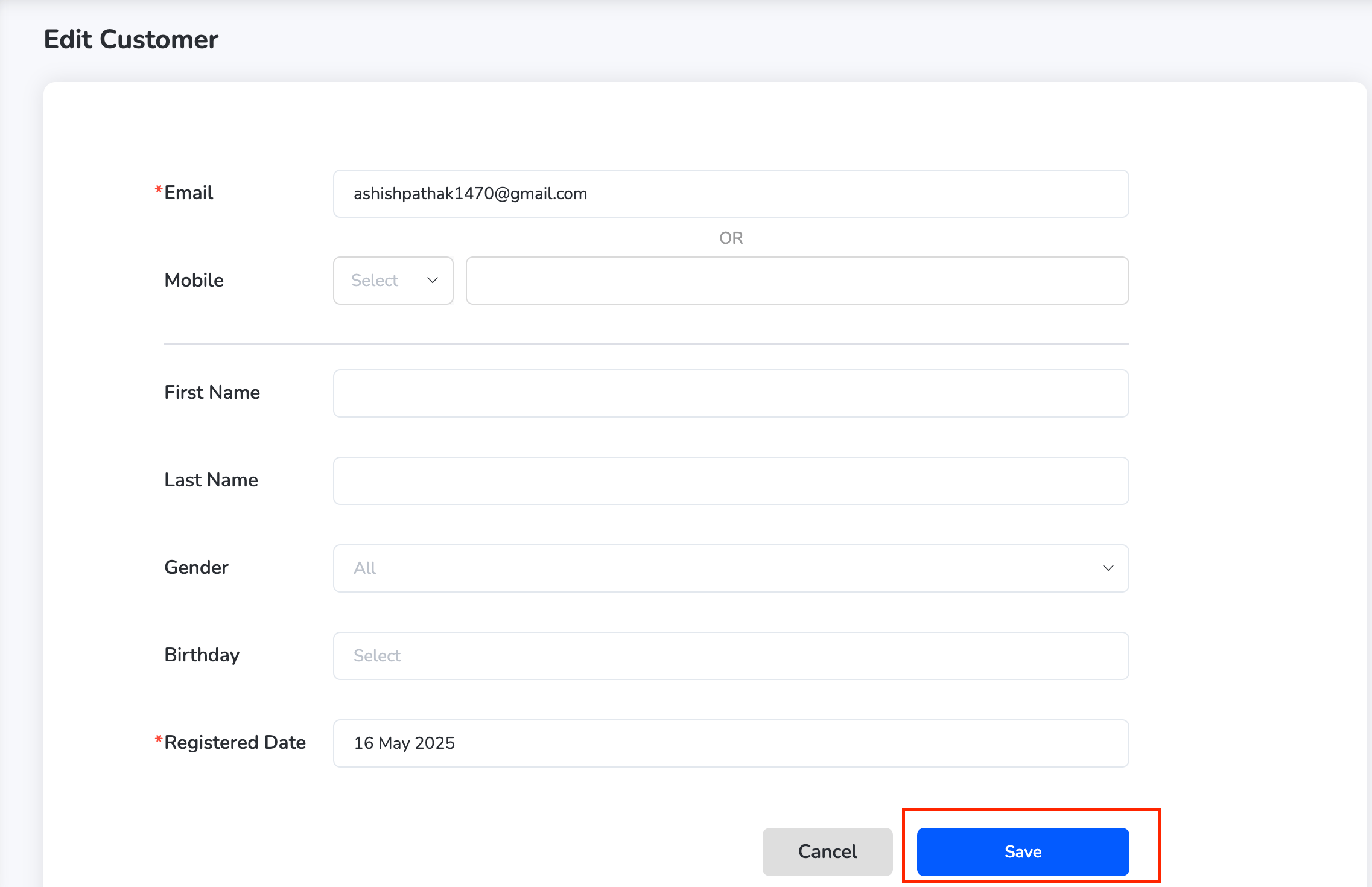
* Update any required details (e.g., email, phone, birthday).

* Click "**Save**" to apply changes.
<Frame>
  <img src="https://mintcdn.com/plum/FAXZYoma53rhWTdG/images/intercom/help-center-offers-management-offer-management-for-merchants-customer-module-13052123/74815dcb127858c60efabad079c9512da40dae8ae6eb938e1587f0c4fa1aea23-Screenshot_2025-07-10_at_11_59_35_AM.png?fit=max&auto=format&n=FAXZYoma53rhWTdG&q=85&s=2d49af625f3ecd8a92d570fb374530cd" alt="" width="2274" height="1470" data-path="images/intercom/help-center-offers-management-offer-management-for-merchants-customer-module-13052123/74815dcb127858c60efabad079c9512da40dae8ae6eb938e1587f0c4fa1aea23-Screenshot_2025-07-10_at_11_59_35_AM.png" />
</Frame>

**Delete a Customer**

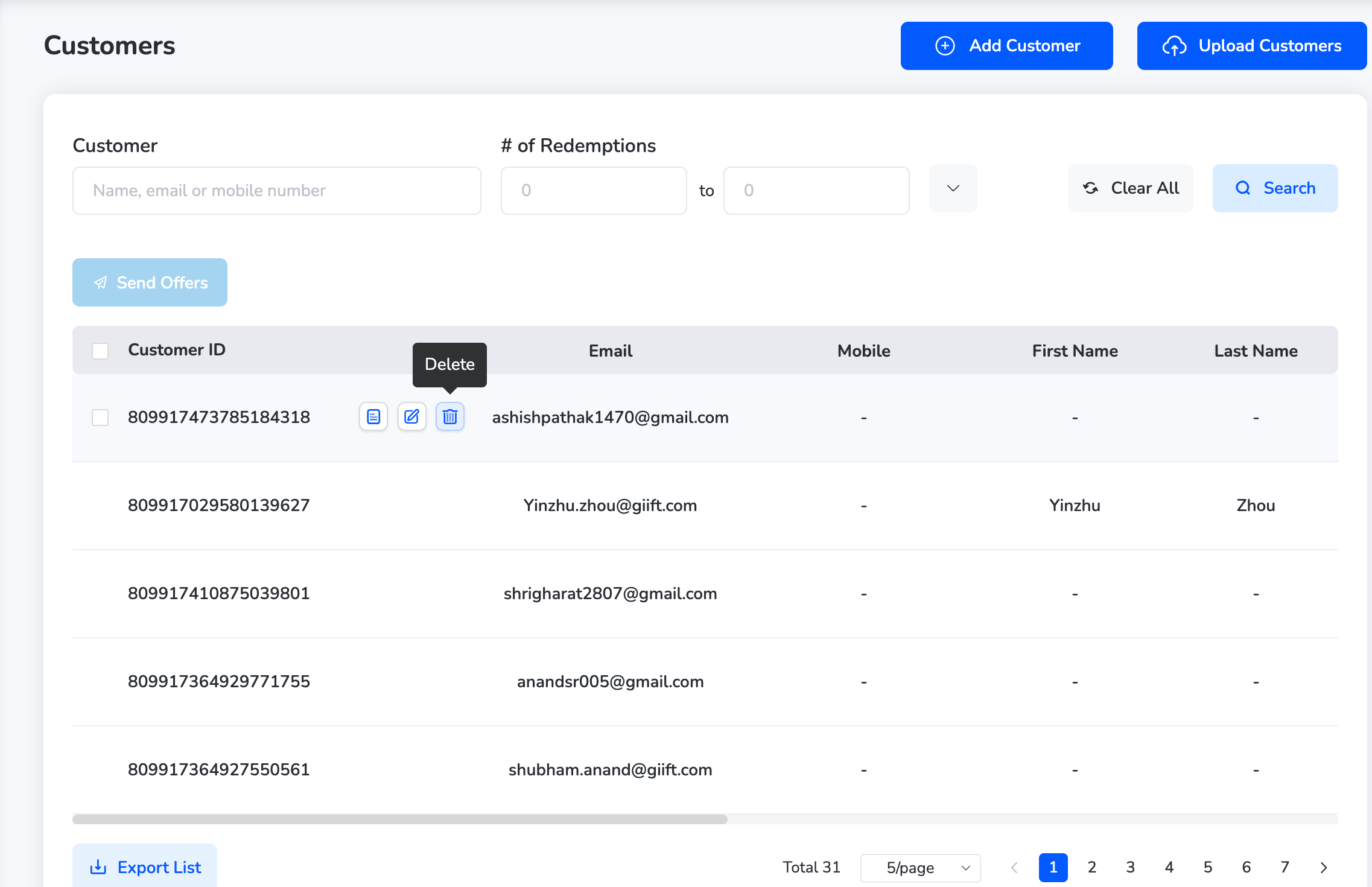
* Click the "**Delete**" icon next to the customer name.
<Frame>
  <img src="https://mintcdn.com/plum/FAXZYoma53rhWTdG/images/intercom/help-center-offers-management-offer-management-for-merchants-customer-module-13052123/22ff67b639f5d6c09cb0acf107601ee5fc4ff501c0631bc56360601e18dd7f93-Screenshot_2025-07-10_at_12_00_29_PM.png?fit=max&auto=format&n=FAXZYoma53rhWTdG&q=85&s=5b1d81b435927d00122bb57ea889698b" alt="" width="2274" height="1470" data-path="images/intercom/help-center-offers-management-offer-management-for-merchants-customer-module-13052123/22ff67b639f5d6c09cb0acf107601ee5fc4ff501c0631bc56360601e18dd7f93-Screenshot_2025-07-10_at_12_00_29_PM.png" />
</Frame>

* A confirmation pop-up will appear.

* Click "**Confirm**" to delete the customer.

Need help? Reach out to your support team or [cs@xoxoday.com](mailto:cs@xoxoday.com).