> ## Documentation Index
> Fetch the complete documentation index at: https://help-plum.xoxoday.com/llms.txt
> Use this file to discover all available pages before exploring further.
# History
*Learn how to view, export and sort Offer History*
Follow the steps to view, export and sort offer history:
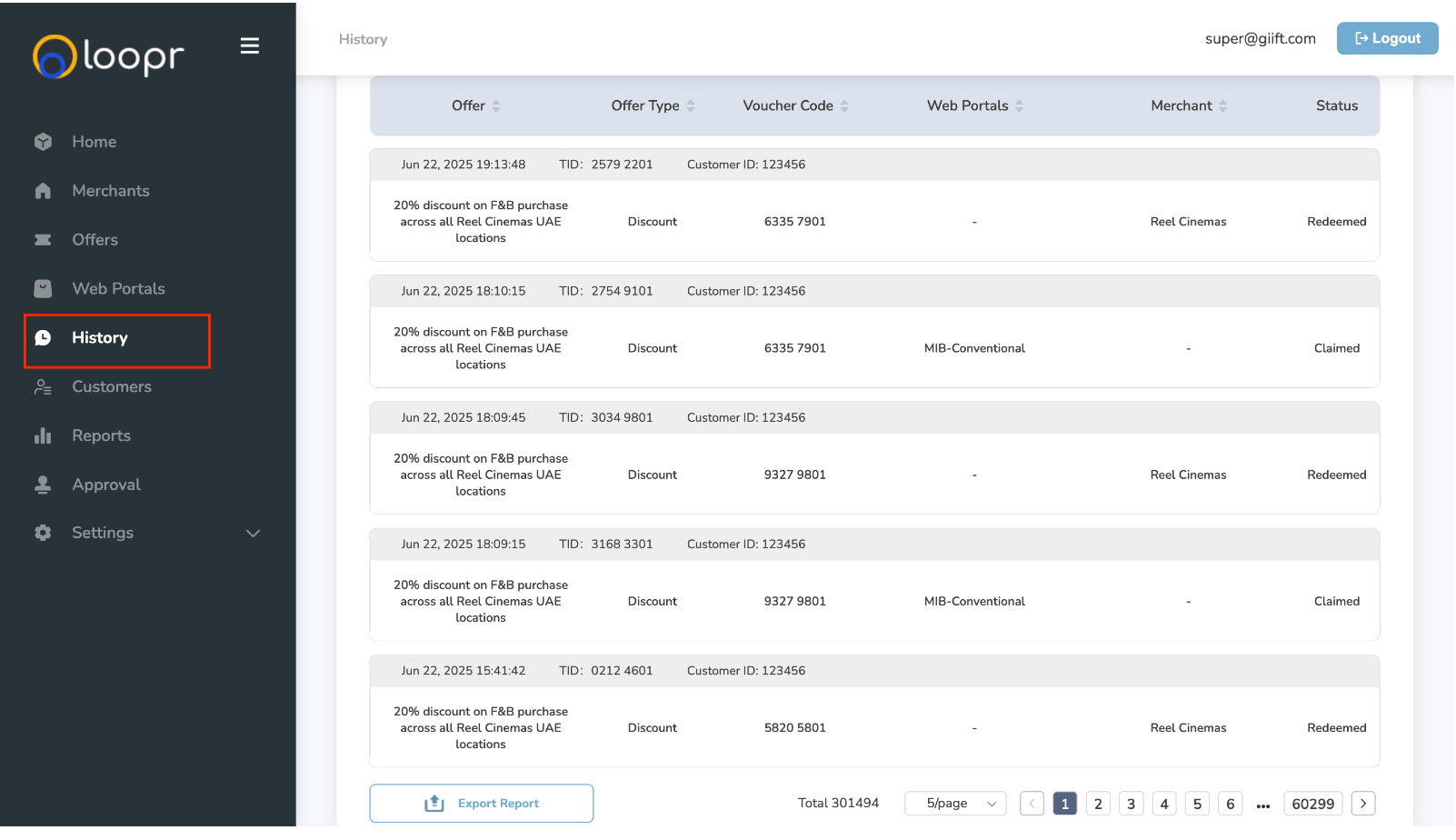
* Navigate to **History tab** on the LHS of the dashboard.
 ***
## To access and manage the list of offers, follow these steps:
### Access Redemption History
Click on "**History**" from the left-hand side (LHS) menu. This will take you to the Offer History page.
***
## To access and manage the list of offers, follow these steps:
### Access Redemption History
Click on "**History**" from the left-hand side (LHS) menu. This will take you to the Offer History page.
 ***
## What You Can View
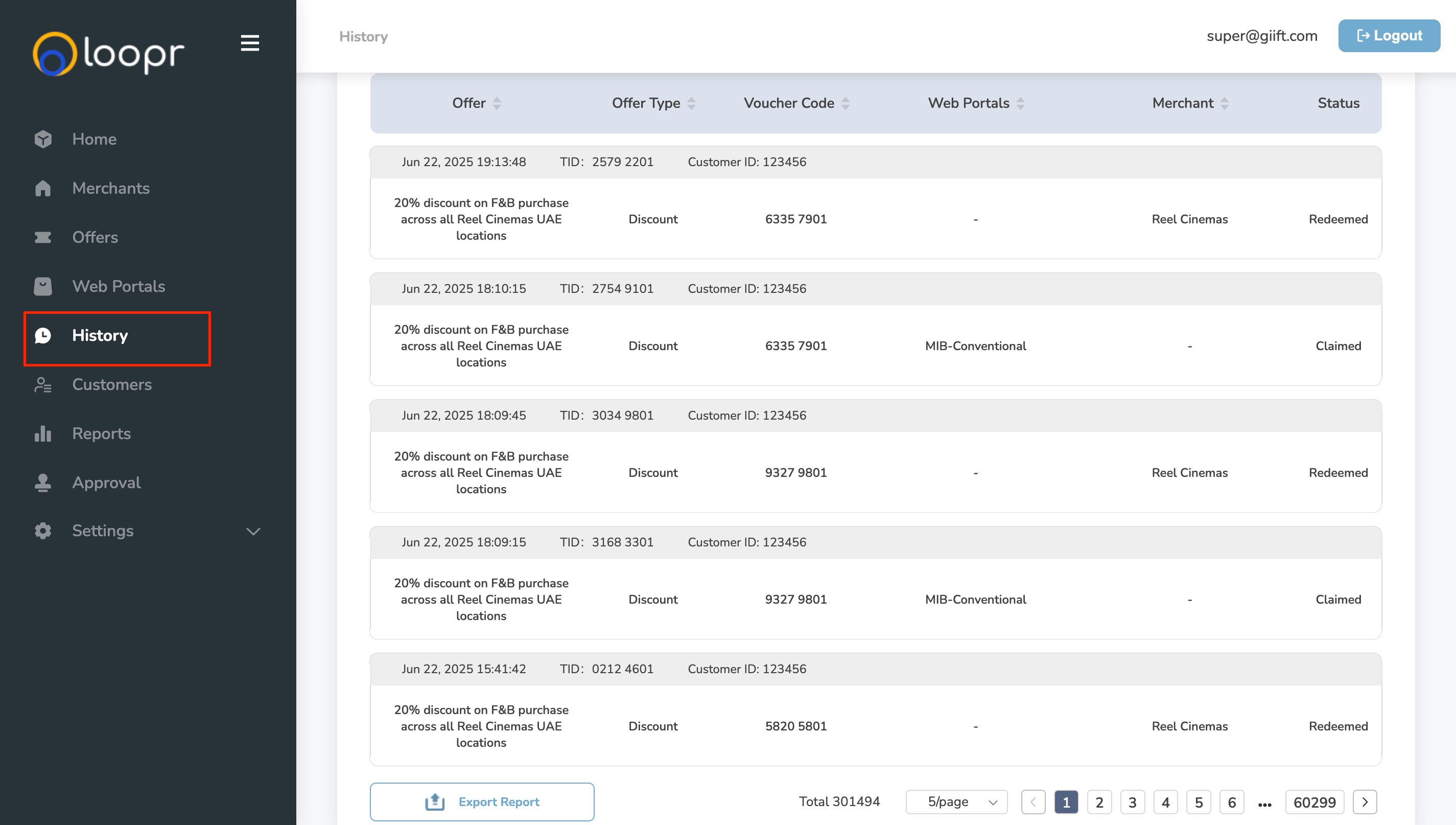
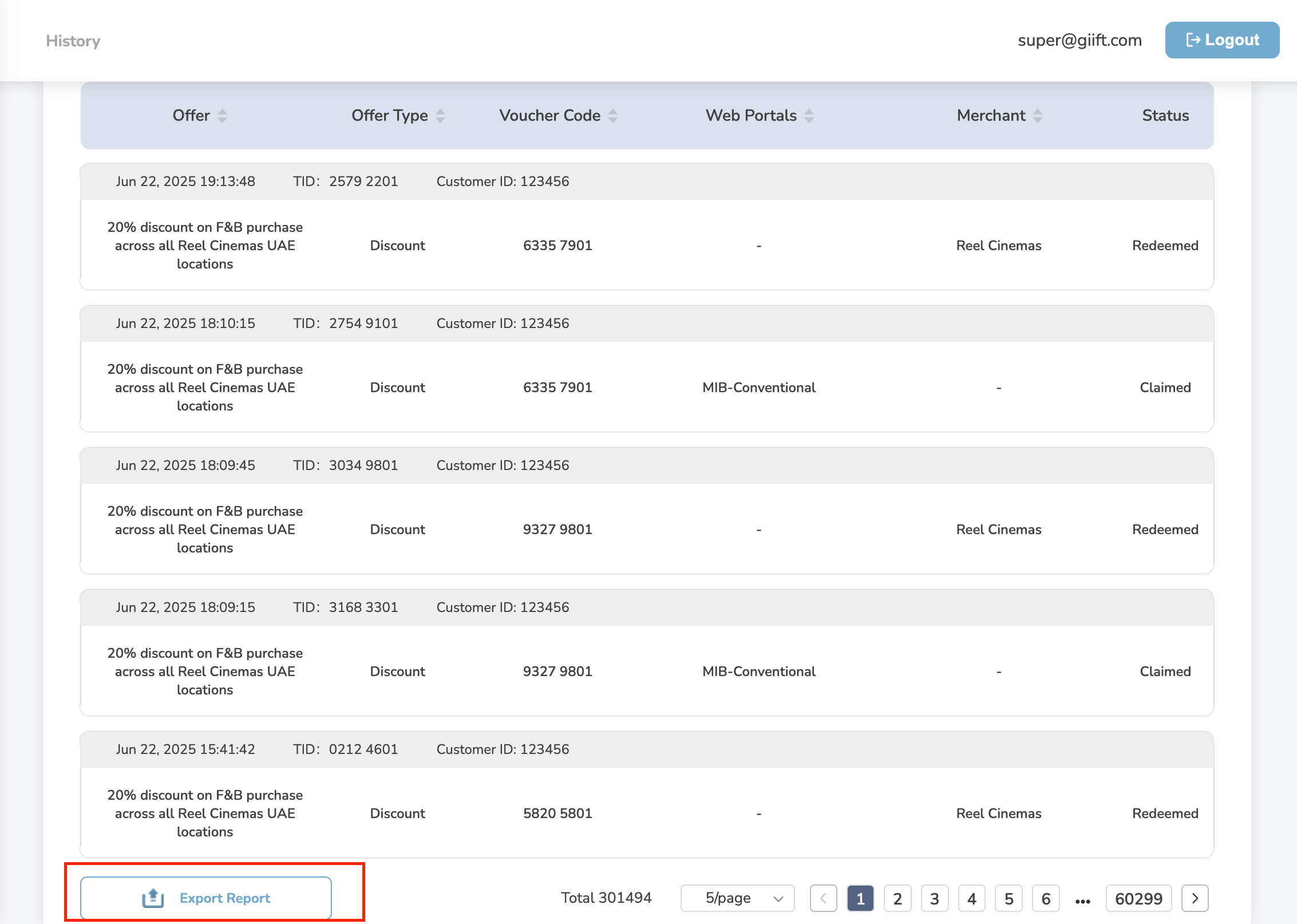
On the Offer History page, you can view details for each redeemed offer, including:
* Offer Name
* Redemption Date
* Offer Type
* Voucher Code
* Web Portal
* Merchant Name
* Status
***
## What You Can View
On the Offer History page, you can view details for each redeemed offer, including:
* Offer Name
* Redemption Date
* Offer Type
* Voucher Code
* Web Portal
* Merchant Name
* Status
 ***
## Filter the History List
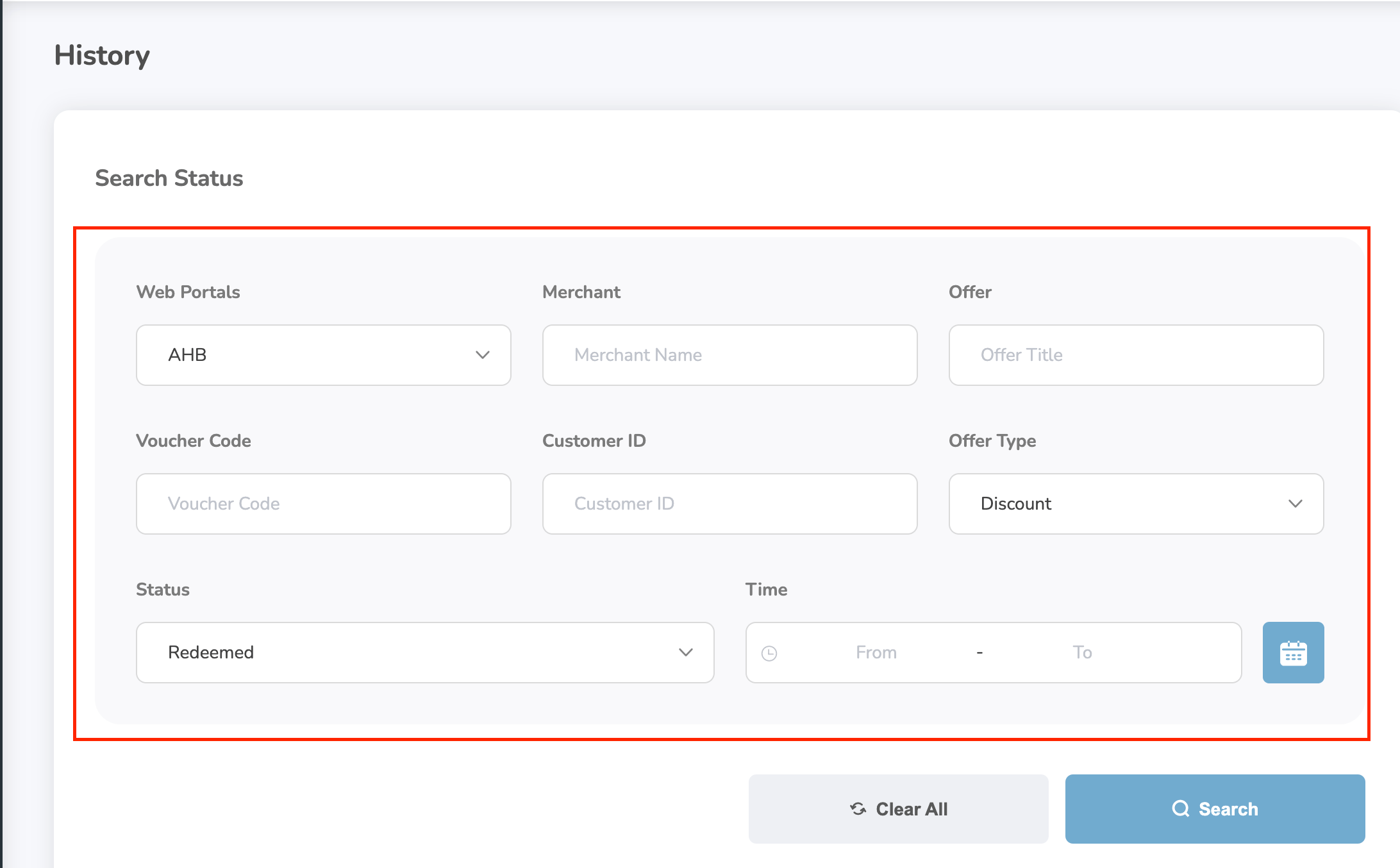
You can narrow down the results using the following filters:
* Web Portal
* Merchant Name
* Offer
* Voucher Code
* Customer ID
* Offer Type
* Status
* Time Range
After selecting the relevant filters, click **Search** to view filtered results.
***
## Filter the History List
You can narrow down the results using the following filters:
* Web Portal
* Merchant Name
* Offer
* Voucher Code
* Customer ID
* Offer Type
* Status
* Time Range
After selecting the relevant filters, click **Search** to view filtered results.
 ***
## Export the Report
To download the redemption history:
* Click on the **"Export Report"** button (see below image, if applicable).
* The report will be downloaded as an Excel file.
Use the export feature for record-keeping, audits, or further analysis.
***
## Export the Report
To download the redemption history:
* Click on the **"Export Report"** button (see below image, if applicable).
* The report will be downloaded as an Excel file.
Use the export feature for record-keeping, audits, or further analysis.
 ***
## Sort Listing
**To sort the list of offers:**
* Locate the column header you want to sort by (e.g., Offer Name, Date, Status).
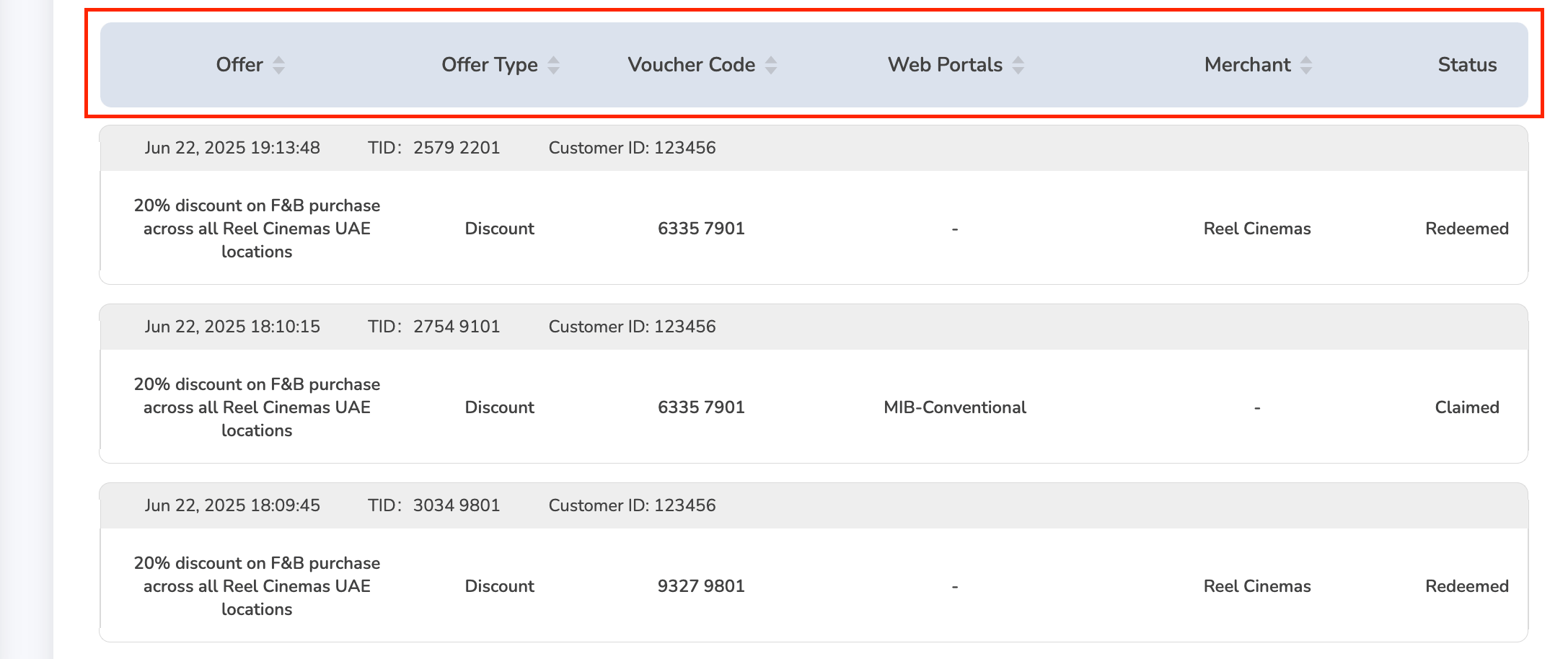
* Click on the **up/down arrow** icon next to the column header.
* On click, the list will be sorted in ascending or descending order, based on the selected column.
* Click the arrow again to toggle between ascending and descending order.
* This helps you quickly organize data for better visibility and analysis.
Need help? Reach out to your support team or [cs@xoxoday.com](mailto:cs@xoxoday.com).
***
## Sort Listing
**To sort the list of offers:**
* Locate the column header you want to sort by (e.g., Offer Name, Date, Status).
* Click on the **up/down arrow** icon next to the column header.
* On click, the list will be sorted in ascending or descending order, based on the selected column.
* Click the arrow again to toggle between ascending and descending order.
* This helps you quickly organize data for better visibility and analysis.
Need help? Reach out to your support team or [cs@xoxoday.com](mailto:cs@xoxoday.com).