> ## Documentation Index
> Fetch the complete documentation index at: https://help-plum.xoxoday.com/llms.txt
> Use this file to discover all available pages before exploring further.

# Merchants

*Learn how to create and manage merchants on Offer Management module*

This module allows Admins to efficiently onboard, manage, and organize merchants and their associated stores.

## Overview

The Merchants module empowers admins to:

* Create new merchants

* View, search, and filter existing merchants

* Edit merchant details

* Export merchant lists

* Manage merchant stores

***

## Accessing the Merchant List

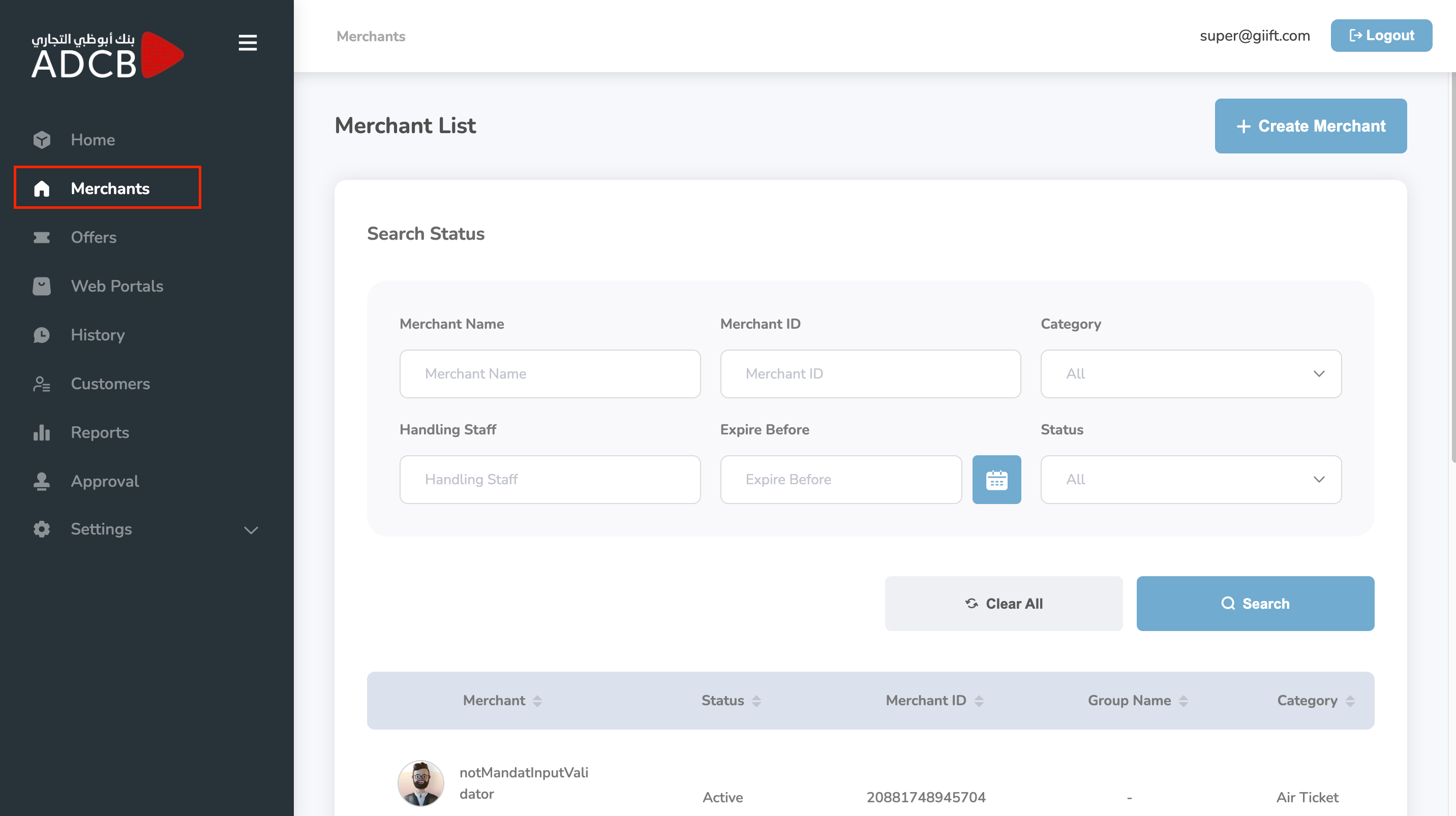
Admins can access a full list of onboarded merchants from the Merchants module. Here, they can:

* Search for merchants using filters (e.g., name, country, status)

* Edit merchant details directly

* Export the complete list in CSV or Excel format
<Frame>
  <img src="https://mintcdn.com/plum/FAXZYoma53rhWTdG/images/intercom/help-center-offers-management-merchants-13051720/f3413997714afe5414dce938742f5fa8387c5355e5317ea795430ef9ce8320df-Screenshot_2025-06-10_at_3_57_59_PM.png?fit=max&auto=format&n=FAXZYoma53rhWTdG&q=85&s=50741ba93b485a8d2a3f128300d6acfc" alt="" width="2864" height="1606" data-path="images/intercom/help-center-offers-management-merchants-13051720/f3413997714afe5414dce938742f5fa8387c5355e5317ea795430ef9ce8320df-Screenshot_2025-06-10_at_3_57_59_PM.png" />
</Frame>

***

## Creating a New Merchant

To create a new merchant:

<Steps>
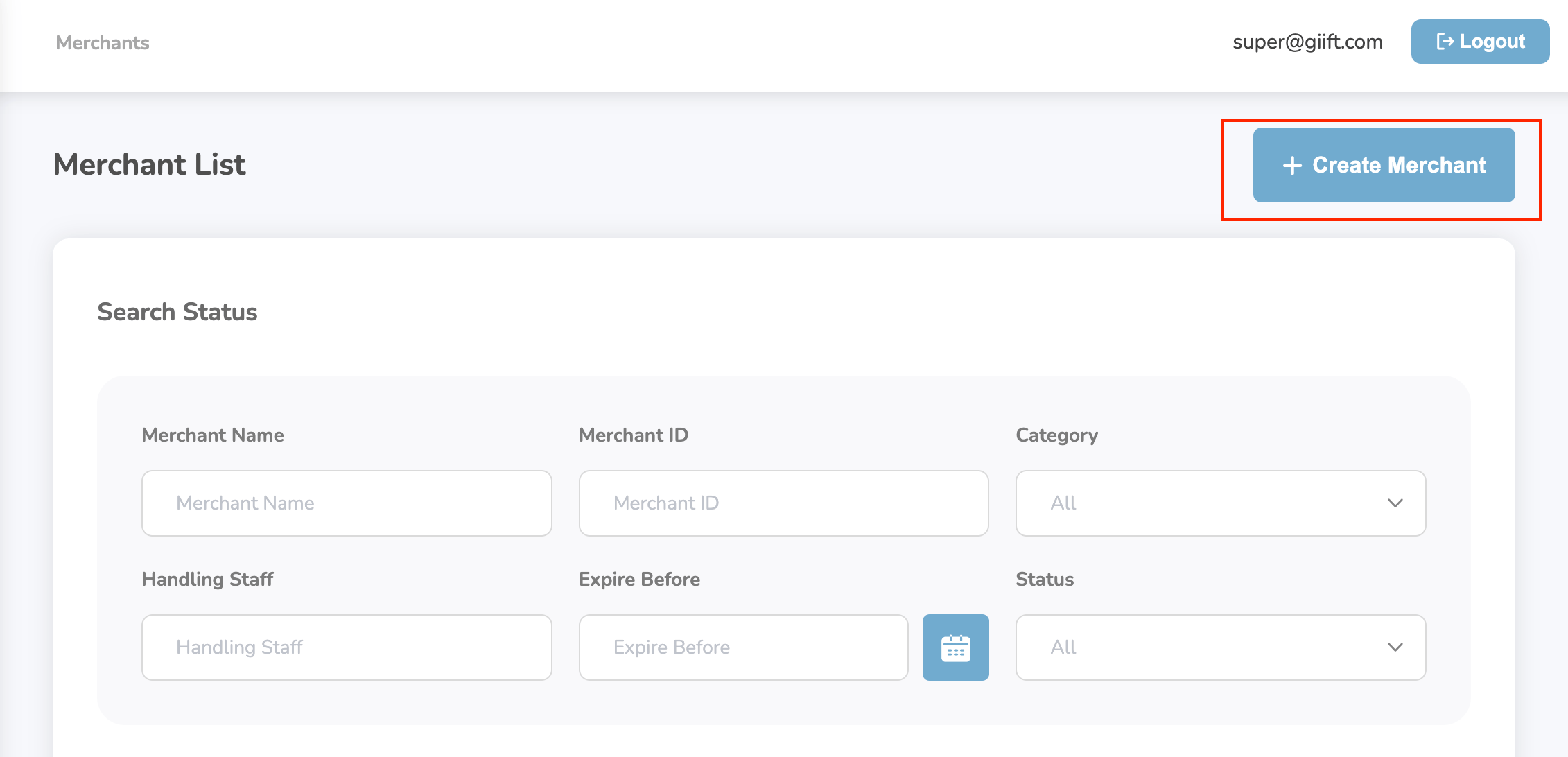
  <Step title="Click Create Merchant">
    Click the "Create Merchant" button.

    <Frame>
      <img src="https://mintcdn.com/plum/FAXZYoma53rhWTdG/images/intercom/help-center-offers-management-merchants-13051720/f3abe3b7fd37c9f949151d7f5040b2be4dcf12e9448f7617cc4ba52c9ee75620-Screenshot_2025-06-10_at_3_59_32_PM.png?fit=max&auto=format&n=FAXZYoma53rhWTdG&q=85&s=e689c88864239fcbb05abbd94d6b43af" alt="" width="2262" height="1092" data-path="images/intercom/help-center-offers-management-merchants-13051720/f3abe3b7fd37c9f949151d7f5040b2be4dcf12e9448f7617cc4ba52c9ee75620-Screenshot_2025-06-10_at_3_59_32_PM.png" />
    </Frame>

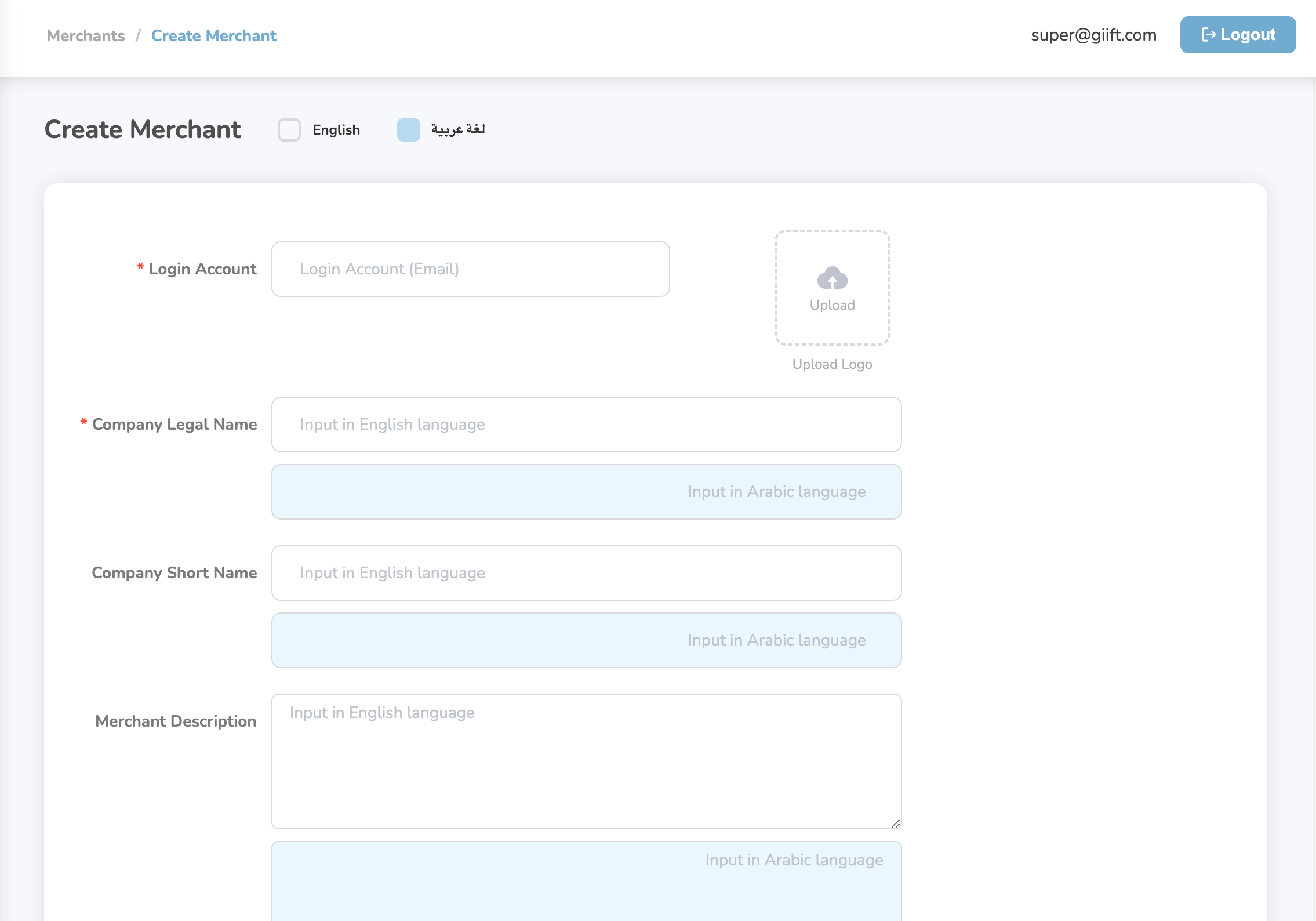
    Fill in the required fields in the form:

    * Merchant Name

    * Country

    * Contact Information

    * Business Category, etc.
    <Frame>
      <img src="https://mintcdn.com/plum/FAXZYoma53rhWTdG/images/intercom/help-center-offers-management-merchants-13051720/931c3df8a2a93933e443d4a0094958af94c90b9d7cc23361d069e8015022d9f8-Screenshot_2025-06-10_at_4_00_24_PM.png?fit=max&auto=format&n=FAXZYoma53rhWTdG&q=85&s=241040526ccbb70a6994e742221d81e0" alt="" width="2270" height="1588" data-path="images/intercom/help-center-offers-management-merchants-13051720/931c3df8a2a93933e443d4a0094958af94c90b9d7cc23361d069e8015022d9f8-Screenshot_2025-06-10_at_4_00_24_PM.png" />
    </Frame>
  </Step>

  <Step title="Click Create">
    Click "Create" to onboard the merchant.

    Once saved, the merchant will appear in the list.
  </Step>
</Steps>

***

## Managing Stores Under a Merchant

To manage stores:

<Steps>
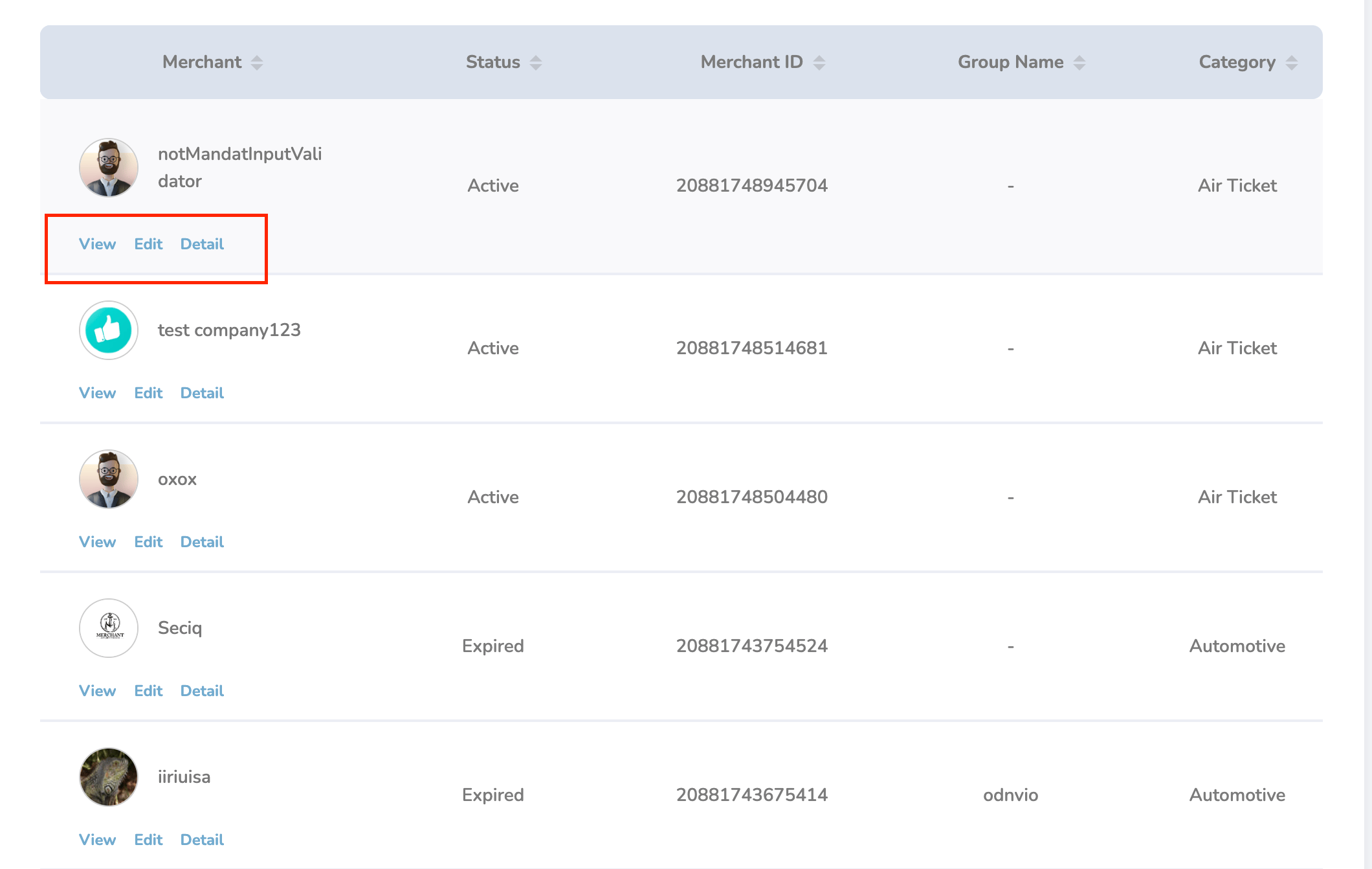
  <Step title="Click on a merchant's name">
    Click on a merchant's name and under it under actions click on the details:
    <Frame>
      <img src="https://mintcdn.com/plum/FAXZYoma53rhWTdG/images/intercom/help-center-offers-management-merchants-13051720/ea21517d912324e2de0d2a9ae28959e94cc43a0872bce847cf3dd69a5ecfa488-Screenshot_2025-06-10_at_4_01_17_PM.png?fit=max&auto=format&n=FAXZYoma53rhWTdG&q=85&s=a78c216f62f772fcd8f55a4912cd5e40" alt="" width="2120" height="1342" data-path="images/intercom/help-center-offers-management-merchants-13051720/ea21517d912324e2de0d2a9ae28959e94cc43a0872bce847cf3dd69a5ecfa488-Screenshot_2025-06-10_at_4_01_17_PM.png" />
    </Frame>
  </Step>

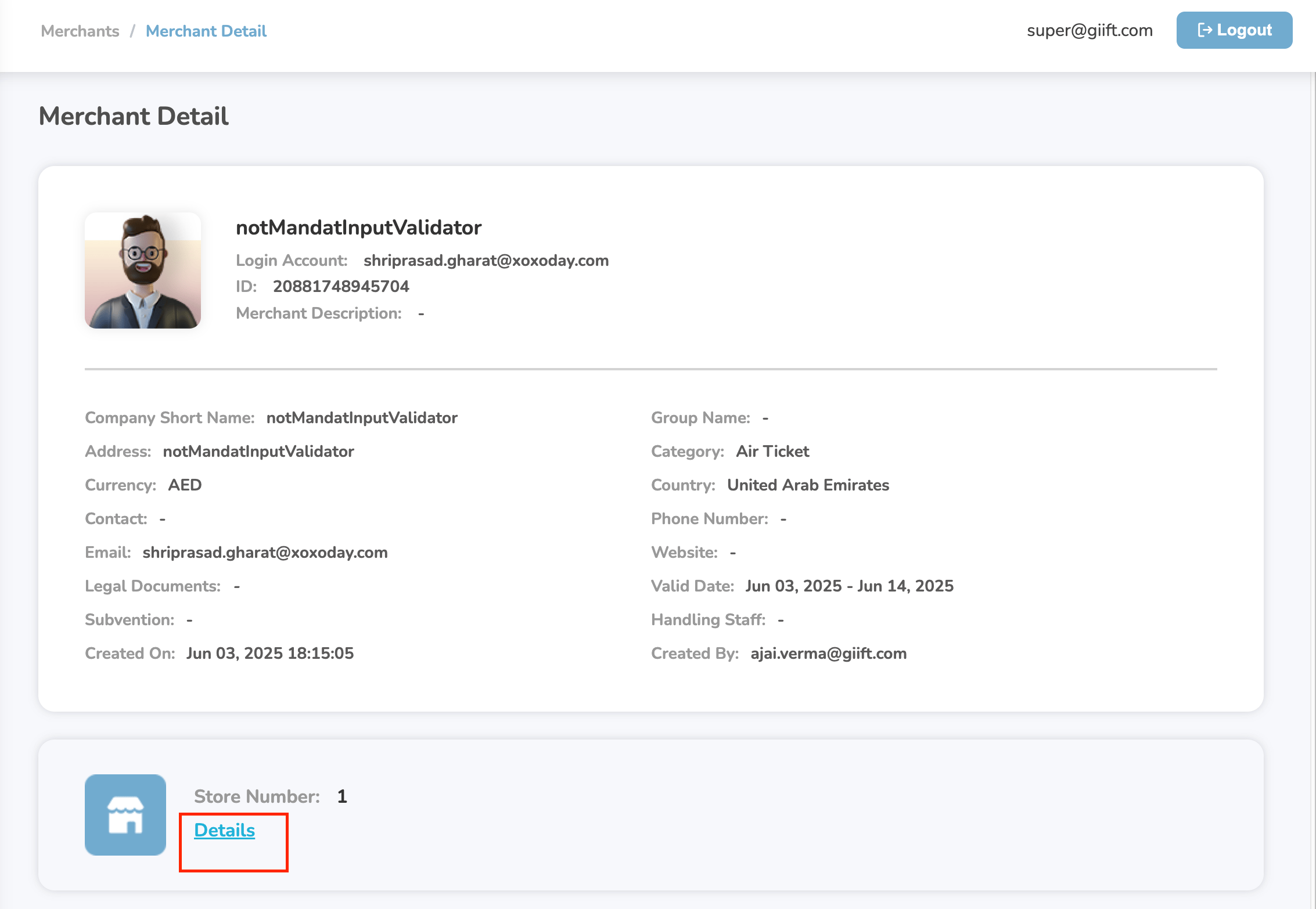
  <Step title="Navigate to the Store Details section">
    From here, you can:

    * View existing stores

    * Edit store information

    * Update Store PINs

    * Create new stores
    <Frame>
      <img src="https://mintcdn.com/plum/FAXZYoma53rhWTdG/images/intercom/help-center-offers-management-merchants-13051720/ef8d6a699f63d4ee3e94588449e6ac9a74a73fe872b392b758d980bf47c2a0c8-Screenshot_2025-06-10_at_4_03_29_PM.png?fit=max&auto=format&n=FAXZYoma53rhWTdG&q=85&s=438d32e6b58541b1877ec4edc6789e04" alt="" width="2266" height="1566" data-path="images/intercom/help-center-offers-management-merchants-13051720/ef8d6a699f63d4ee3e94588449e6ac9a74a73fe872b392b758d980bf47c2a0c8-Screenshot_2025-06-10_at_4_03_29_PM.png" />
    </Frame>
  </Step>
</Steps>

***

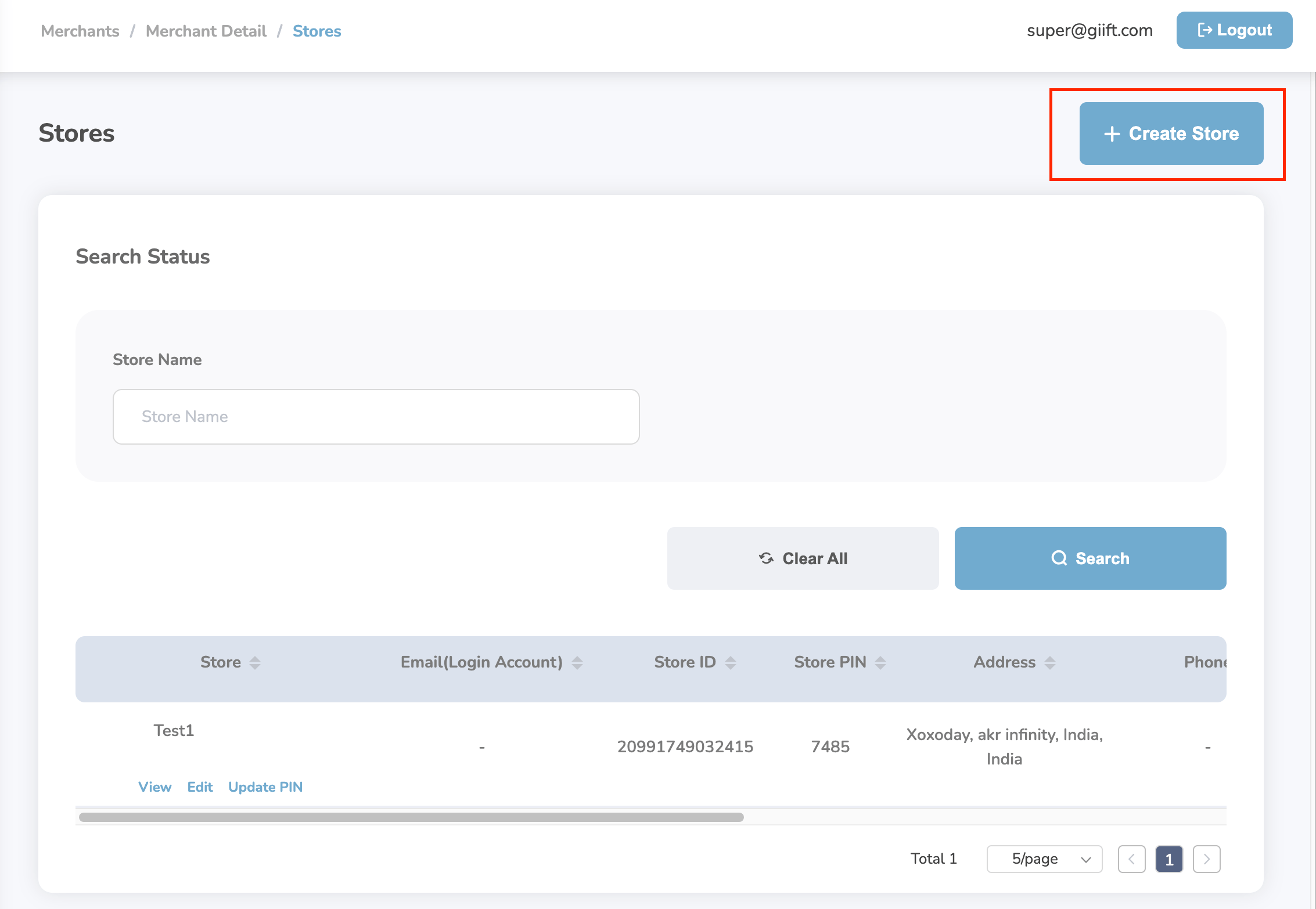
## Creating a Store

* Click the "**Create Store**" button.
<Frame>
  <img src="https://mintcdn.com/plum/FAXZYoma53rhWTdG/images/intercom/help-center-offers-management-merchants-13051720/df5a3f72ff1b745048b38adedfd46f0a82848ad8571ab9418c9023b846ba5a19-Screenshot_2025-06-10_at_4_04_26_PM.png?fit=max&auto=format&n=FAXZYoma53rhWTdG&q=85&s=d468f3222dc19e078ae216199ccd3058" alt="" width="2266" height="1566" data-path="images/intercom/help-center-offers-management-merchants-13051720/df5a3f72ff1b745048b38adedfd46f0a82848ad8571ab9418c9023b846ba5a19-Screenshot_2025-06-10_at_4_04_26_PM.png" />
</Frame>

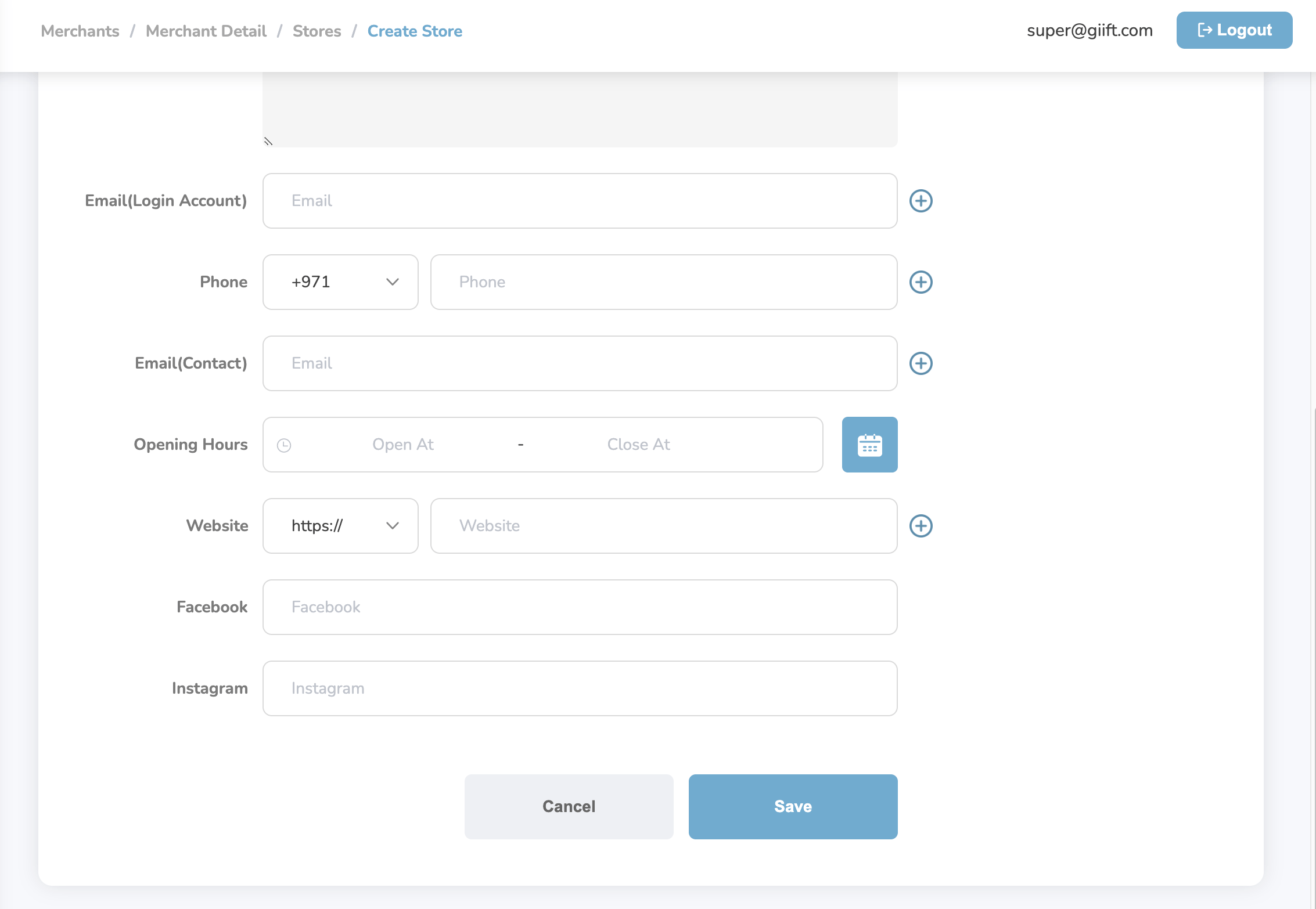
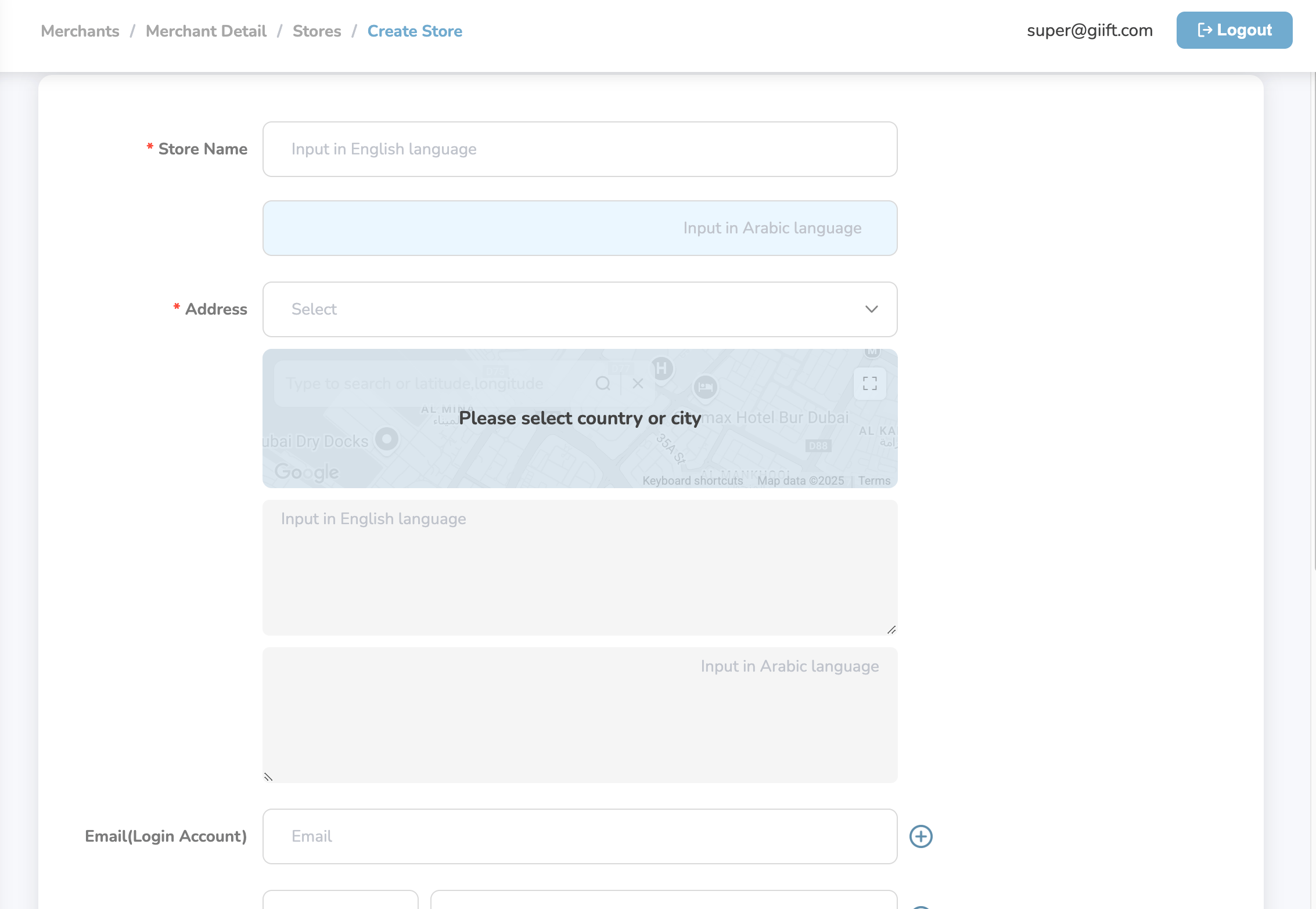
* Fill in the required store details:

  * Store Name

  * Address

  * Store PIN (if applicable)

  * Country/Location and more
<Frame>
  <img src="https://mintcdn.com/plum/FAXZYoma53rhWTdG/images/intercom/help-center-offers-management-merchants-13051720/1cd64fa4c20f911b7015d48e658b8e17179c74596f324644542d4164ef2596a3-Screenshot_2025-06-10_at_4_04_48_PM.png?fit=max&auto=format&n=FAXZYoma53rhWTdG&q=85&s=f16aef0ee57b8d8286bc80f860c007e5" alt="" width="2266" height="1566" data-path="images/intercom/help-center-offers-management-merchants-13051720/1cd64fa4c20f911b7015d48e658b8e17179c74596f324644542d4164ef2596a3-Screenshot_2025-06-10_at_4_04_48_PM.png" />
</Frame>

* Click "**Save**" to add the store.

<Frame>
  <img src="https://mintcdn.com/plum/FAXZYoma53rhWTdG/images/intercom/help-center-offers-management-merchants-13051720/063704f53a9c8e6aa38d4405675f5a28f5d11a88bdd2f4f41b184d2ad2b829f9-Screenshot_2025-06-10_at_4_04_52_PM.png?fit=max&auto=format&n=FAXZYoma53rhWTdG&q=85&s=5fd8c0f0cd74ec5e92c11f41a677fd7f" alt="" width="2266" height="1566" data-path="images/intercom/help-center-offers-management-merchants-13051720/063704f53a9c8e6aa38d4405675f5a28f5d11a88bdd2f4f41b184d2ad2b829f9-Screenshot_2025-06-10_at_4_04_52_PM.png" />
</Frame>

The store will now be listed under the merchant and available for further actions.

***

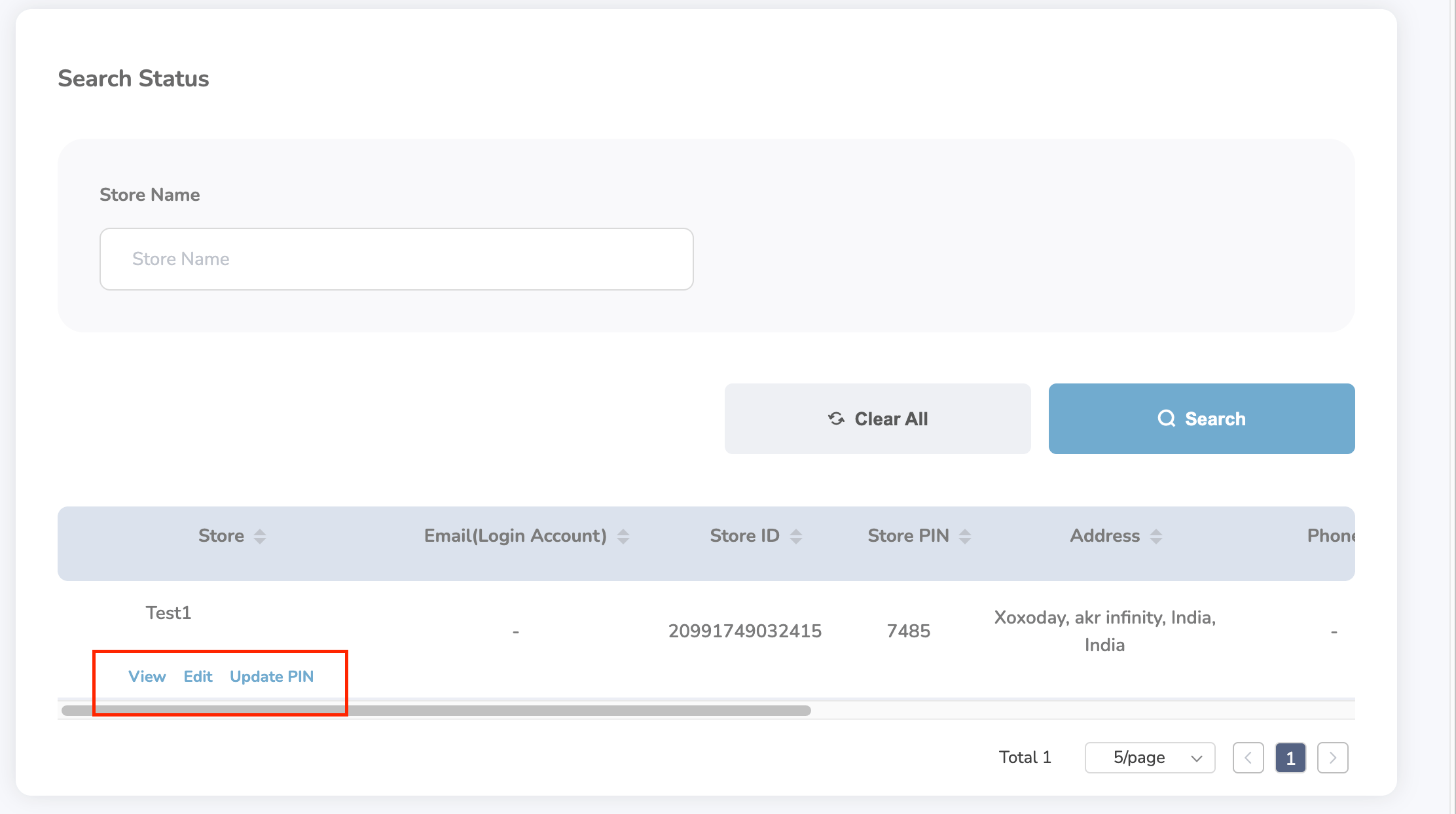
## Store Management Actions

In the Store Action Table, you can:

* View full store information

* Edit store details

* Update store PINs securely
<Frame>
  <img src="https://mintcdn.com/plum/FAXZYoma53rhWTdG/images/intercom/help-center-offers-management-merchants-13051720/1d80abf7dc2245ecb6e5529c7f6c2c154651806a78713888d6c208fc28652399-Screenshot_2025-06-10_at_4_06_35_PM.png?fit=max&auto=format&n=FAXZYoma53rhWTdG&q=85&s=4ab8b2c60b948afbeb351deaa2df9e6d" alt="" width="2224" height="1244" data-path="images/intercom/help-center-offers-management-merchants-13051720/1d80abf7dc2245ecb6e5529c7f6c2c154651806a78713888d6c208fc28652399-Screenshot_2025-06-10_at_4_06_35_PM.png" />
</Frame>

<Info>
  Tip: Regularly update store PINs for improved security.
</Info>