> ## Documentation Index
> Fetch the complete documentation index at: https://help-plum.xoxoday.com/llms.txt
> Use this file to discover all available pages before exploring further.
# Password
> Learn how to reset or update your password in Plum's Offers Management portal if you're locked out or want to change it.
*Learn how to reset password*
## Password Management
Admins and users can update or reset their passwords through the Password section in the Settings module. This helps ensure secure access to the platform and maintain data integrity.
***
## To Update or Reset Your Own Password:
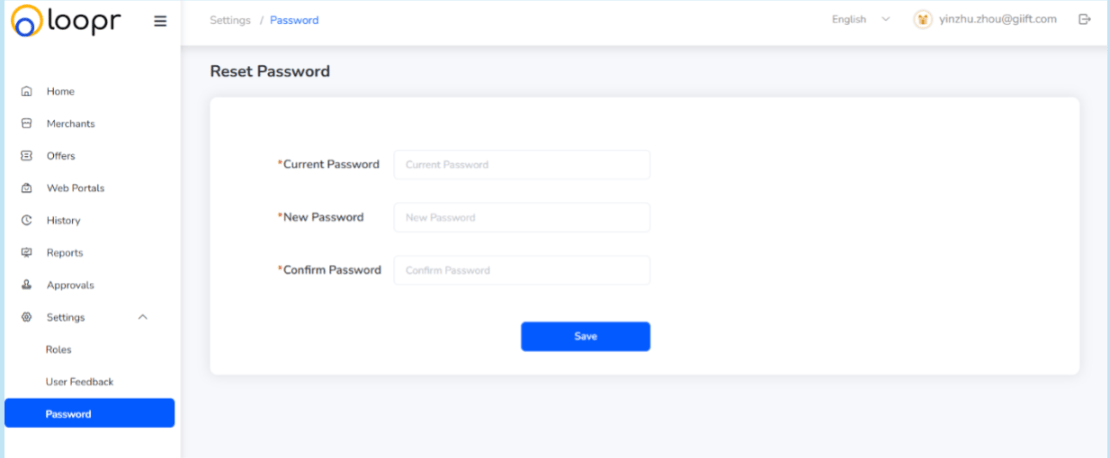
Click "**Password**" from the left-side menu under Settings.
* Current Password: Input your existing password
* New Password: Enter a new password
* Confirm New Password
Once all fields are filled correctly, click "**Save**" to reset your password.
 Your password will be updated successfully.
***
## Admin-Initiated Password Reset
* For security purposes, Admins can reset any user's password. This ensures continued access and protects the system from unauthorized use.
Note: It's recommended to set a strong password with a mix of uppercase, lowercase, numbers, and symbols.
Need help? Reach out to your support team or [cs@xoxoday.com](mailto:cs@xoxoday.com).
Your password will be updated successfully.
***
## Admin-Initiated Password Reset
* For security purposes, Admins can reset any user's password. This ensures continued access and protects the system from unauthorized use.
Note: It's recommended to set a strong password with a mix of uppercase, lowercase, numbers, and symbols.
Need help? Reach out to your support team or [cs@xoxoday.com](mailto:cs@xoxoday.com).