> ## Documentation Index
> Fetch the complete documentation index at: https://help-plum.xoxoday.com/llms.txt
> Use this file to discover all available pages before exploring further.
# Activate a deactivated user
> Learn how to reactivate a previously deactivated user in Plum's Offers Management portal and restore their access.
*Learn how to activate a deactivated user*
Admins can bring back access for users who were previously deactivated.
## Steps to Reactivate an Existing User:
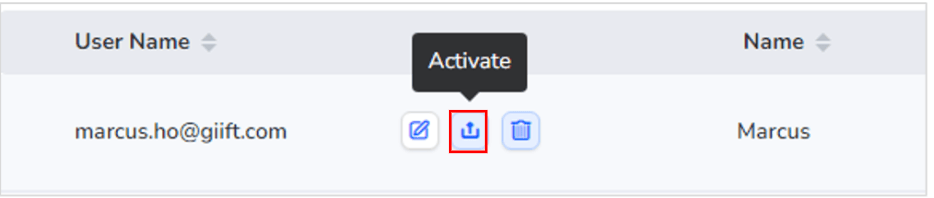
Click "**Active**" next to the user's name.
A confirmation pop-up will appear. Click "**Confirm**" to proceed.
 ### User Reactivated
* The user's status will change to "Active", and they will regain access to the platform.
Note: Only users with a "Disactive" status can be reactivated.
Need help? Reach out to your support team or [cs@xoxoday.com](mailto:cs@xoxoday.com).
### User Reactivated
* The user's status will change to "Active", and they will regain access to the platform.
Note: Only users with a "Disactive" status can be reactivated.
Need help? Reach out to your support team or [cs@xoxoday.com](mailto:cs@xoxoday.com).