> ## Documentation Index
> Fetch the complete documentation index at: https://help-plum.xoxoday.com/llms.txt
> Use this file to discover all available pages before exploring further.
# Delete a user
> Learn how to permanently delete a user from Plum's Offers Management portal, removing their access entirely and for good.
*Learn how to delete a user*
Admins can permanently delete a user from the system when they no longer require access or if the account is no longer needed.
## Steps to Delete a User:
Go to Settings > Roles.
Find the user you wish to delete from the user list.
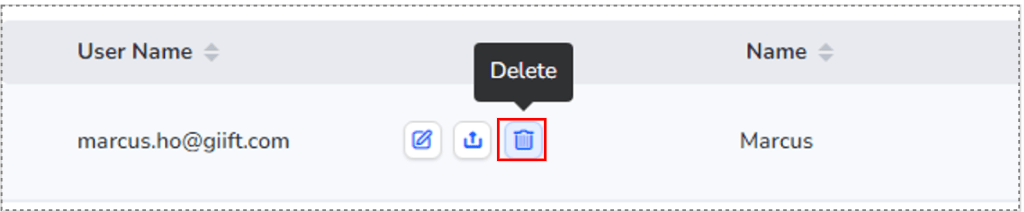
Click the "**Delete**" button next to the user's name.
A confirmation pop-up will appear. Click "**Confirm**" to proceed.
 ## User Deleted
* The user will be permanently removed from the platform
Note: Deletion is irreversible. Only users no longer in use should be deleted.
Need help? Reach out to your support team or [cs@xoxoday.com](mailto:cs@xoxoday.com).
## User Deleted
* The user will be permanently removed from the platform
Note: Deletion is irreversible. Only users no longer in use should be deleted.
Need help? Reach out to your support team or [cs@xoxoday.com](mailto:cs@xoxoday.com).