> ## Documentation Index
> Fetch the complete documentation index at: https://help-plum.xoxoday.com/llms.txt
> Use this file to discover all available pages before exploring further.
# Edit or Delete User Feedback
> Learn how to edit the details of, or permanently delete, existing user feedback in Plum's Offers Management portal.
*Learn how to edit or delete a User feedback*
## Editing an Existing Feedback Option
To update a feedback option:
On the User Feedback Management Page, find the feedback you want to edit.
Click the "**Edit**" button beside the selected feedback.
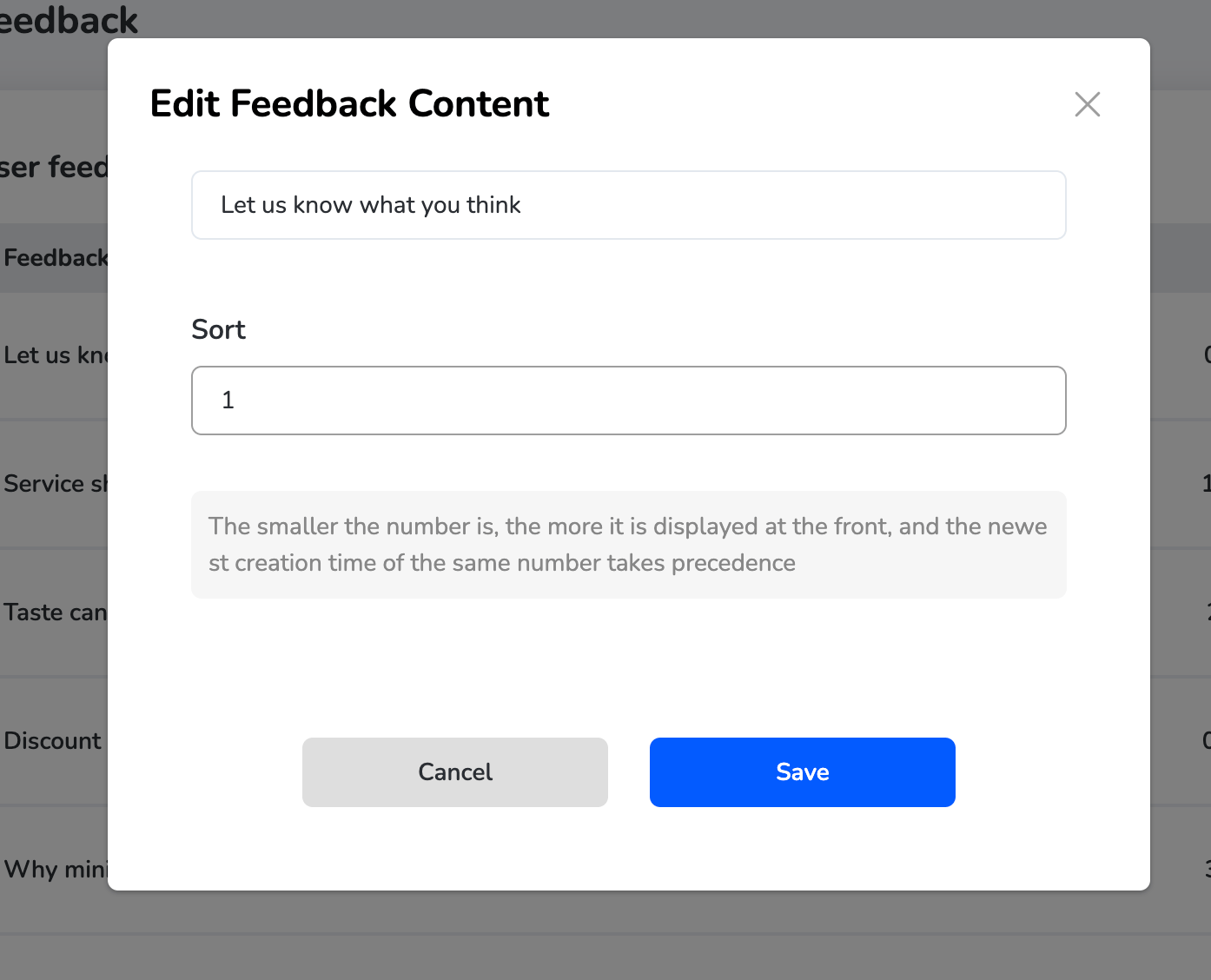
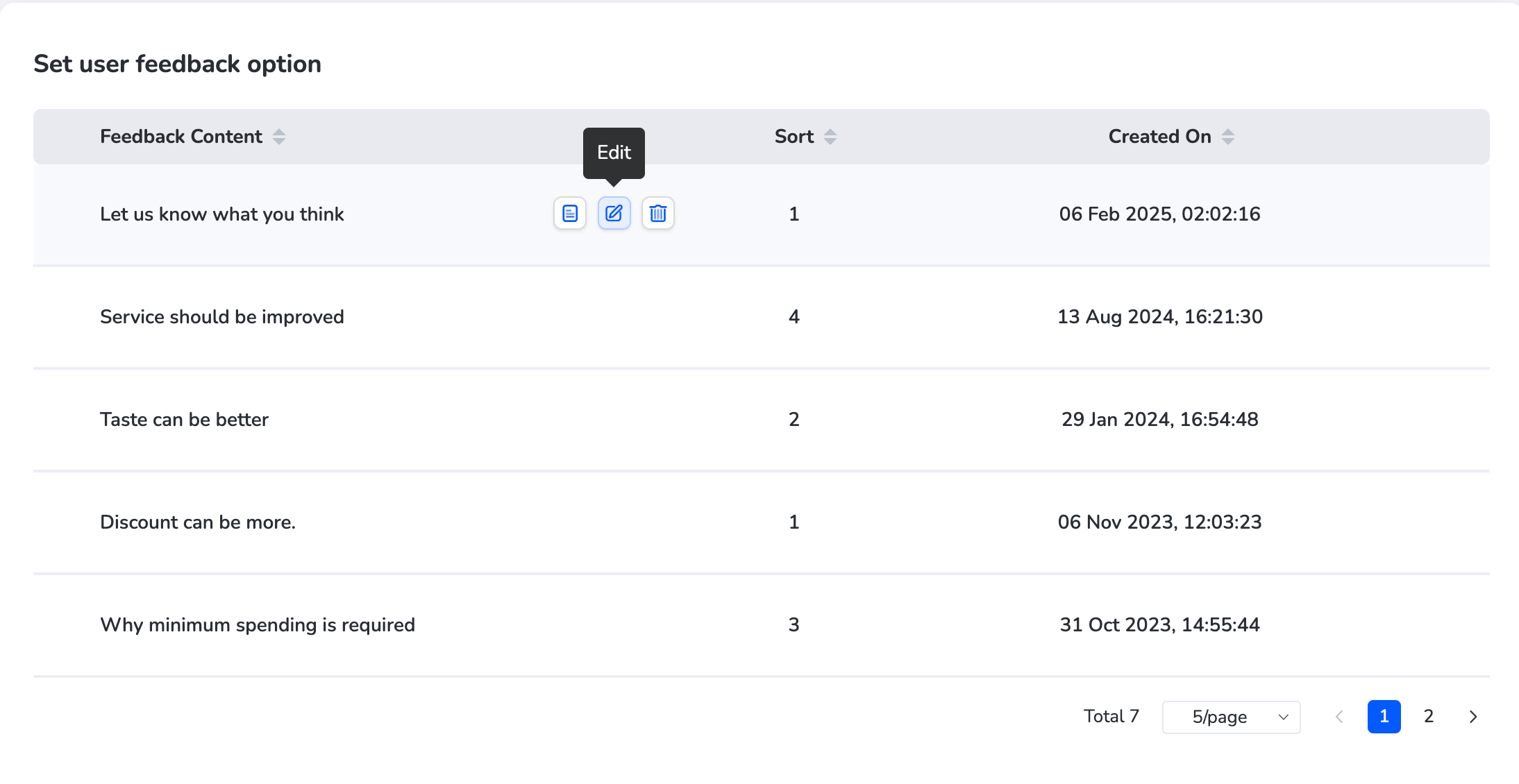 An edit overlay window will appear, allowing you to update the feedback content. Make the necessary changes and click "**Save**" to apply the updates.
 ***
## Deleting a Feedback Option
To remove a feedback option permanently:
On the User Feedback Management Page, find the feedback you want to delete.
Click the "**Delete**" button next to the selected feedback option.
***
## Deleting a Feedback Option
To remove a feedback option permanently:
On the User Feedback Management Page, find the feedback you want to delete.
Click the "**Delete**" button next to the selected feedback option.
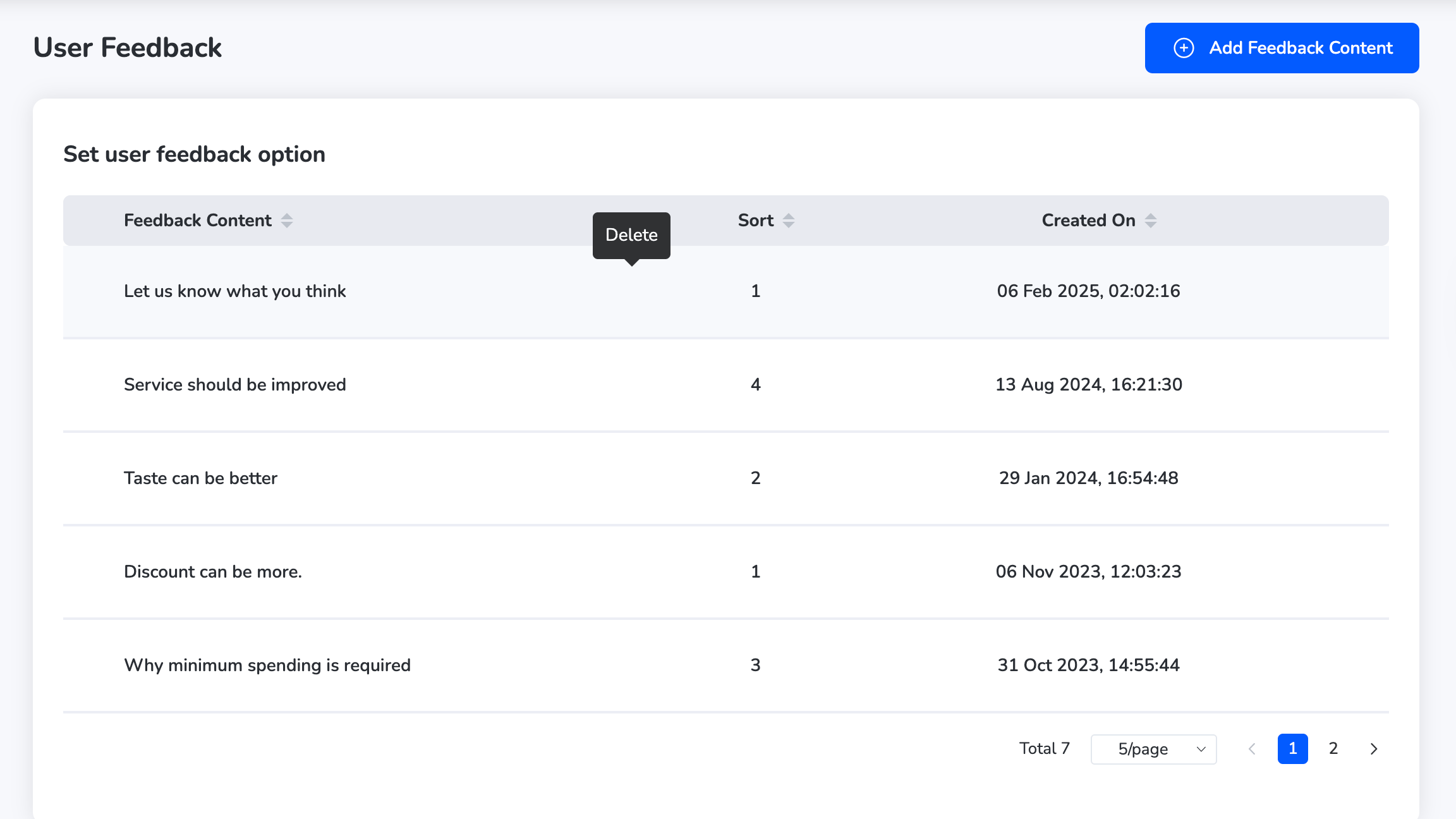 A confirmation pop-up may appear. Confirm to delete the feedback option.
Need help? Reach out to your support team or [cs@xoxoday.com](mailto:cs@xoxoday.com).
A confirmation pop-up may appear. Confirm to delete the feedback option.
Need help? Reach out to your support team or [cs@xoxoday.com](mailto:cs@xoxoday.com).