> ## Documentation Index
> Fetch the complete documentation index at: https://help-plum.xoxoday.com/llms.txt
> Use this file to discover all available pages before exploring further.
# User Feedback - Overview
> Get an overview of the user feedback feature in Plum's Offers Management portal and how submitted feedback is used.
*Learn more about User feedback*
Admins can access and manage all user feedback options through the User Feedback section in the Settings module.
## How to Access the User Feedback Page:
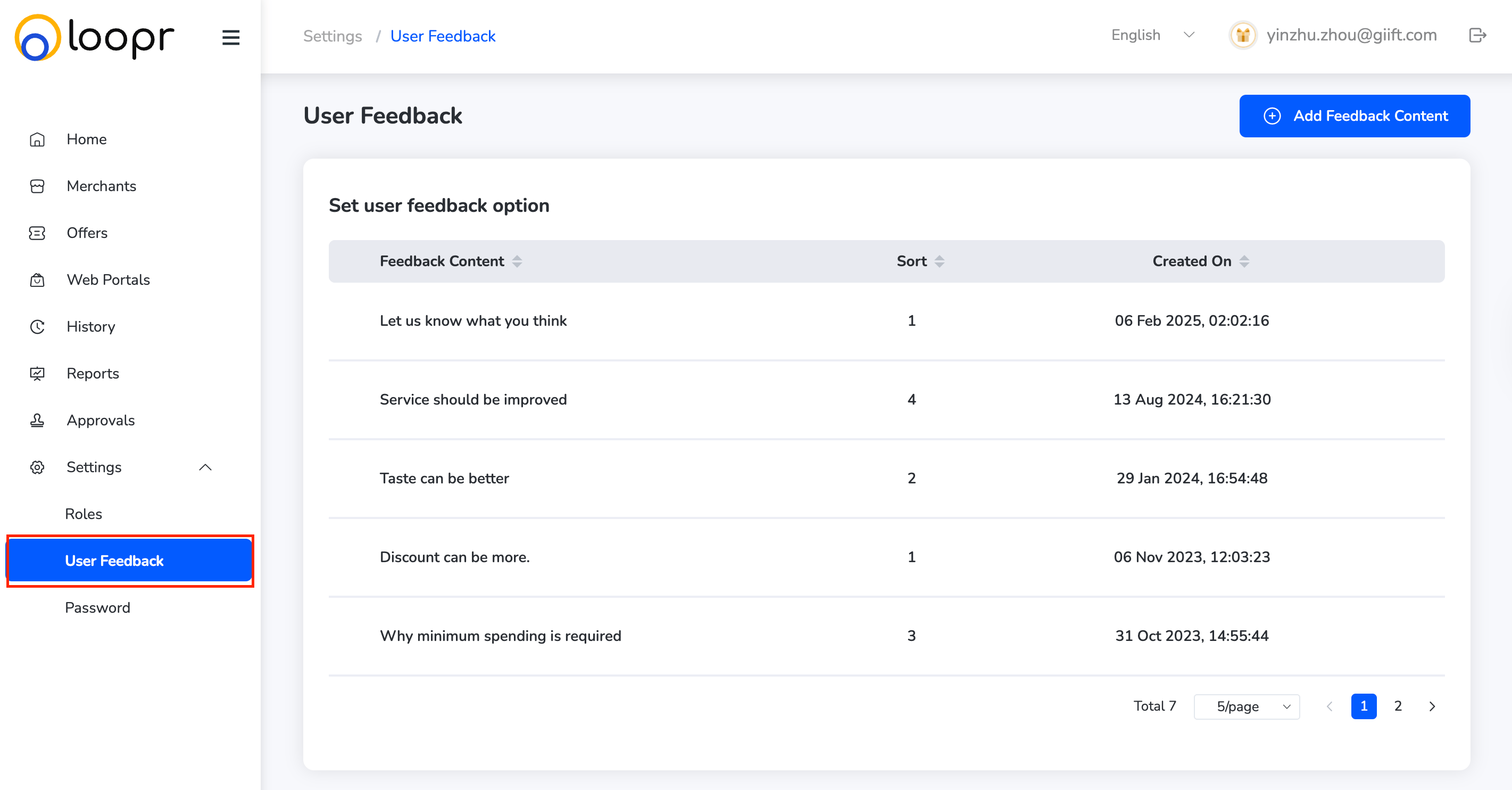
* **Navigate to the Left Menu** — From the dashboard, click on "**User Feedback**" under the Settings module.
* **Open the Feedback Management Page** — Clicking on "User Feedback" will direct you to the User Feedback Management Page, where you can view and manage feedback options.
 ***
## What You Can Do on the User Feedback Page:
* **View Feedback Options** — See a list of all existing user feedback options currently available on the platform.
* **Edit Feedback Option** — Modify the content or category of any feedback option by clicking the "**Edit**" button.
* **Add New Feedback Option** — Click "**Add**" to create a new user feedback option. Enter the required details and save.
* **Delete Feedback Option** — Remove outdated or irrelevant feedback options by clicking "**Delete**" next to the corresponding item.
Need help? Reach out to your support team or [cs@xoxoday.com](mailto:cs@xoxoday.com).
***
## What You Can Do on the User Feedback Page:
* **View Feedback Options** — See a list of all existing user feedback options currently available on the platform.
* **Edit Feedback Option** — Modify the content or category of any feedback option by clicking the "**Edit**" button.
* **Add New Feedback Option** — Click "**Add**" to create a new user feedback option. Enter the required details and save.
* **Delete Feedback Option** — Remove outdated or irrelevant feedback options by clicking "**Delete**" next to the corresponding item.
Need help? Reach out to your support team or [cs@xoxoday.com](mailto:cs@xoxoday.com).