> ## Documentation Index
> Fetch the complete documentation index at: https://help-plum.xoxoday.com/llms.txt
> Use this file to discover all available pages before exploring further.
# Send Gift Cards
> Learn how to send digital gift cards to one or more recipients using Plum, from selecting a brand to confirming delivery.
*Learn how to send brand vouchers to users from your Admin Dashboard*
## Brand Gift Card (Brand Vouchers)
Instantly send brand gift cards to recipients' inboxes. There are over 8,000 top global brands from Amazon to Walmart and everything in between!
### Best fit if you want to:
* Rapidly distribute gift cards within minutes
* Offer hassle-free redemption with specific brand gift cards, no login or registration required
* Generate a gift card for yourself, shareable via any channel
You can use your Xoxoday's Rewards APIs to procure the voucher and front-end the communication yourself. Click here to learn more [About Rewards API](https://developers.xoxoday.com/reference/about-rewards-api).
***
## Step-by-step guide to sending brand vouchers: to a few
Click on the **Gift Cards** section under the **Send Rewards** section.
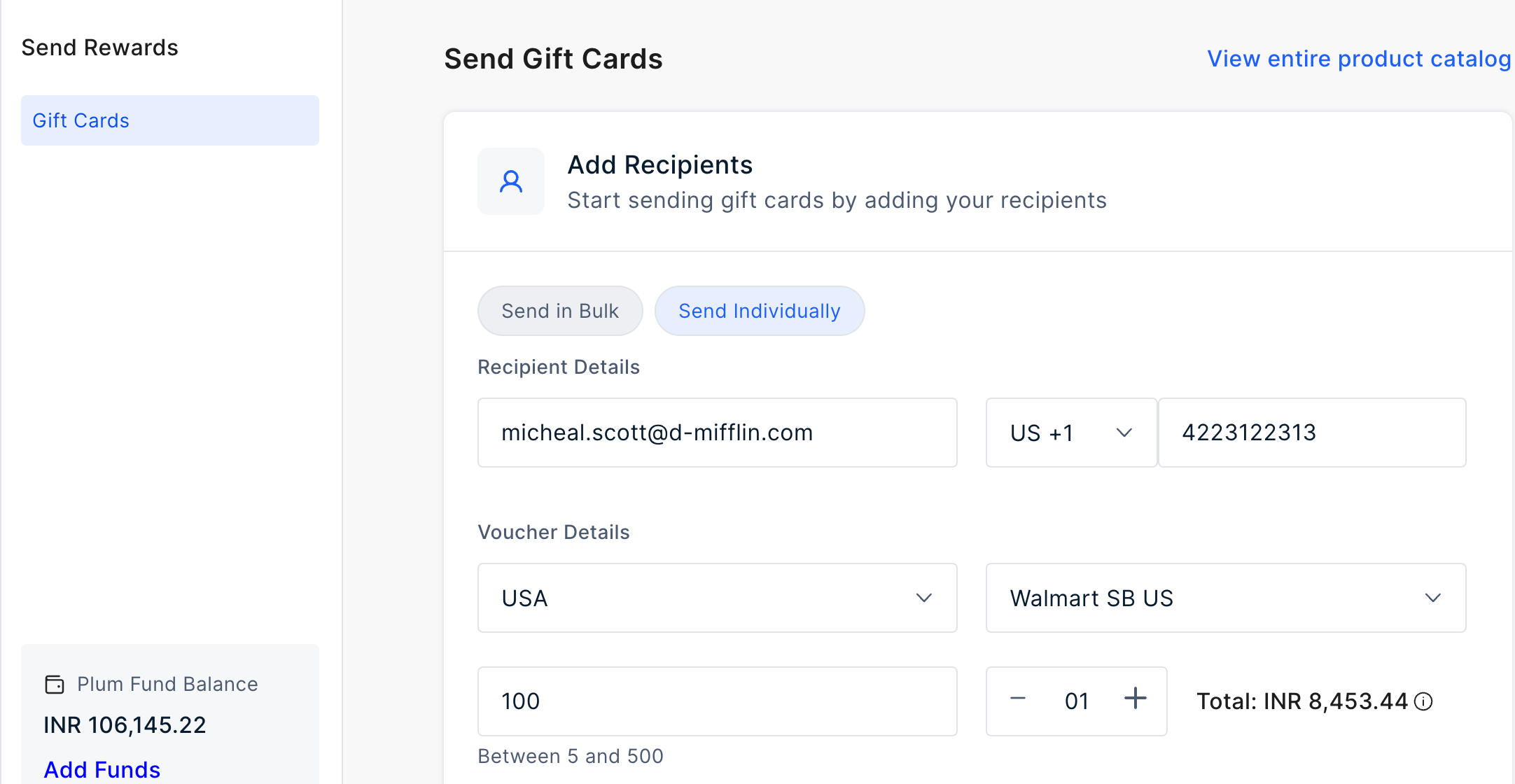 On this page, enter the following information to send a voucher:
**Recipient Details**
* Email address
* Phone Number
**Voucher Details**
* Select Voucher Country
* Select Voucher Brand
* Enter a value of the brand (Note: add a value within the indicated range. This indicated range represents the brands' denomination available).
* Select the Quantity. You can add upto 999 gift cards in one go.
Lastly, click '**Add Recipient**'.
On this page, enter the following information to send a voucher:
**Recipient Details**
* Email address
* Phone Number
**Voucher Details**
* Select Voucher Country
* Select Voucher Brand
* Enter a value of the brand (Note: add a value within the indicated range. This indicated range represents the brands' denomination available).
* Select the Quantity. You can add upto 999 gift cards in one go.
Lastly, click '**Add Recipient**'.
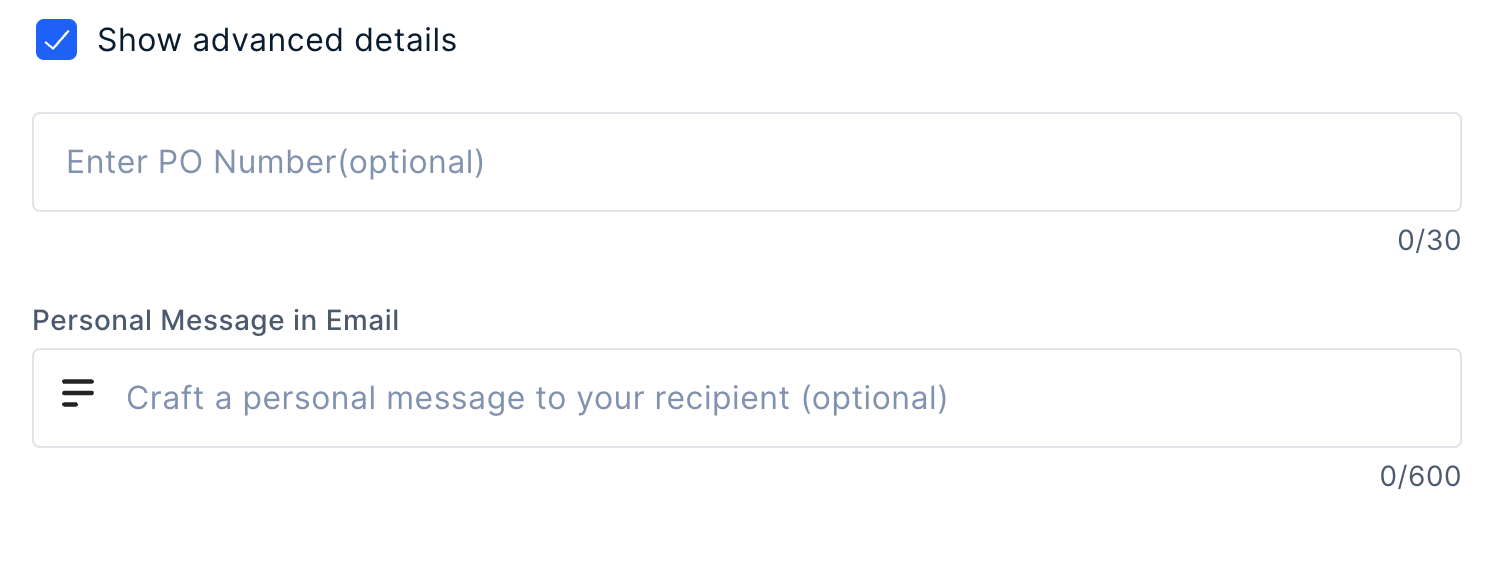 With advanced settings you can use following:
* Add a PO Number if you need
* Add a personal message in the email body for the recipient. The message that you enter here will be sent to all the recipients in the batch. Except otherwise as indicated in the .CSV file in case of bulk.
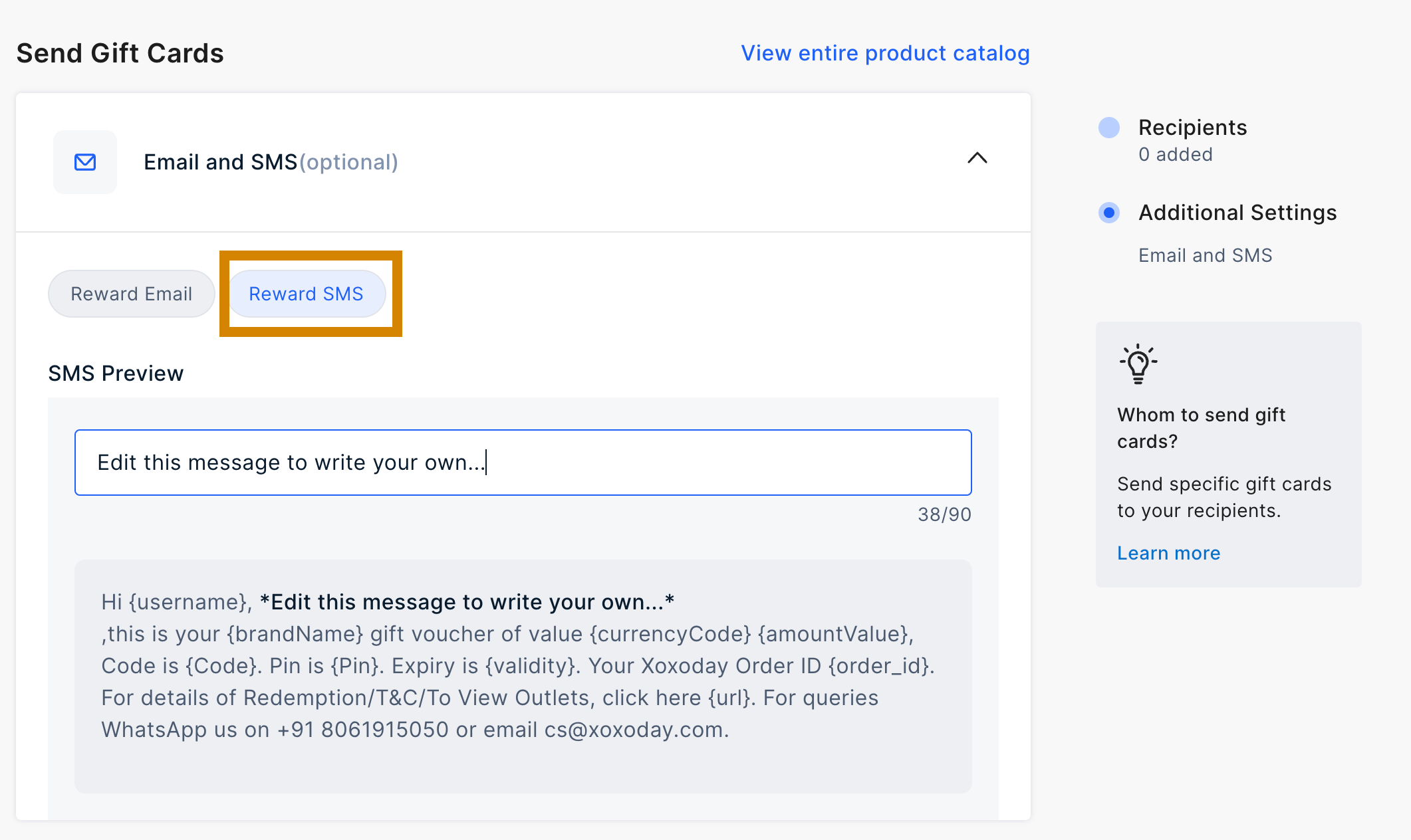
To customize SMS follow these steps:
* Select 'Reward SMS' tab and add your desired message.
With advanced settings you can use following:
* Add a PO Number if you need
* Add a personal message in the email body for the recipient. The message that you enter here will be sent to all the recipients in the batch. Except otherwise as indicated in the .CSV file in case of bulk.
To customize SMS follow these steps:
* Select 'Reward SMS' tab and add your desired message.
 Preview the details and send the Gift Voucher.
***
## Resend Gift Cards to a contact or in Bulk
Navigate to **Reports > Gift Cards.**
Preview the details and send the Gift Voucher.
***
## Resend Gift Cards to a contact or in Bulk
Navigate to **Reports > Gift Cards.**
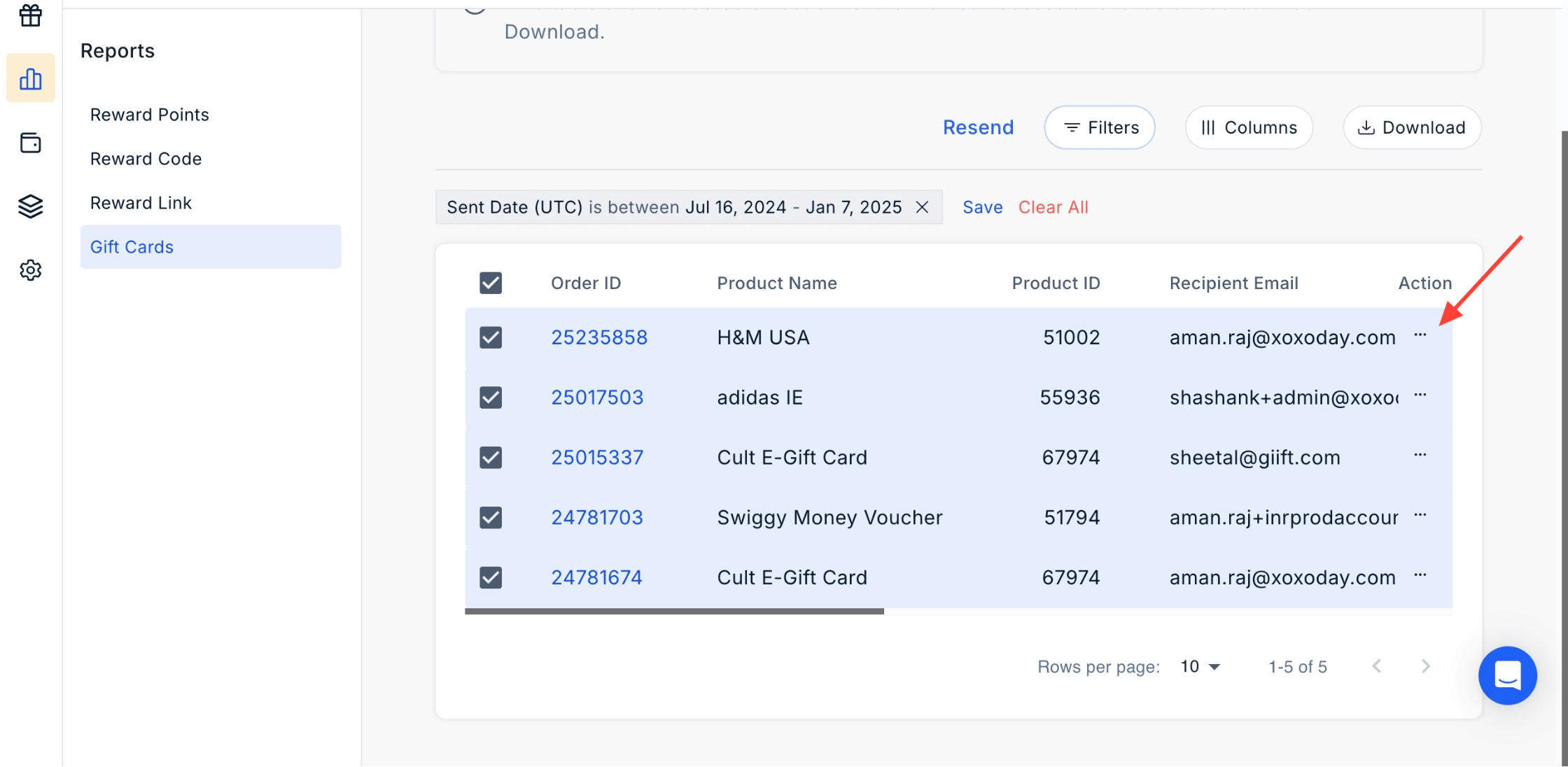
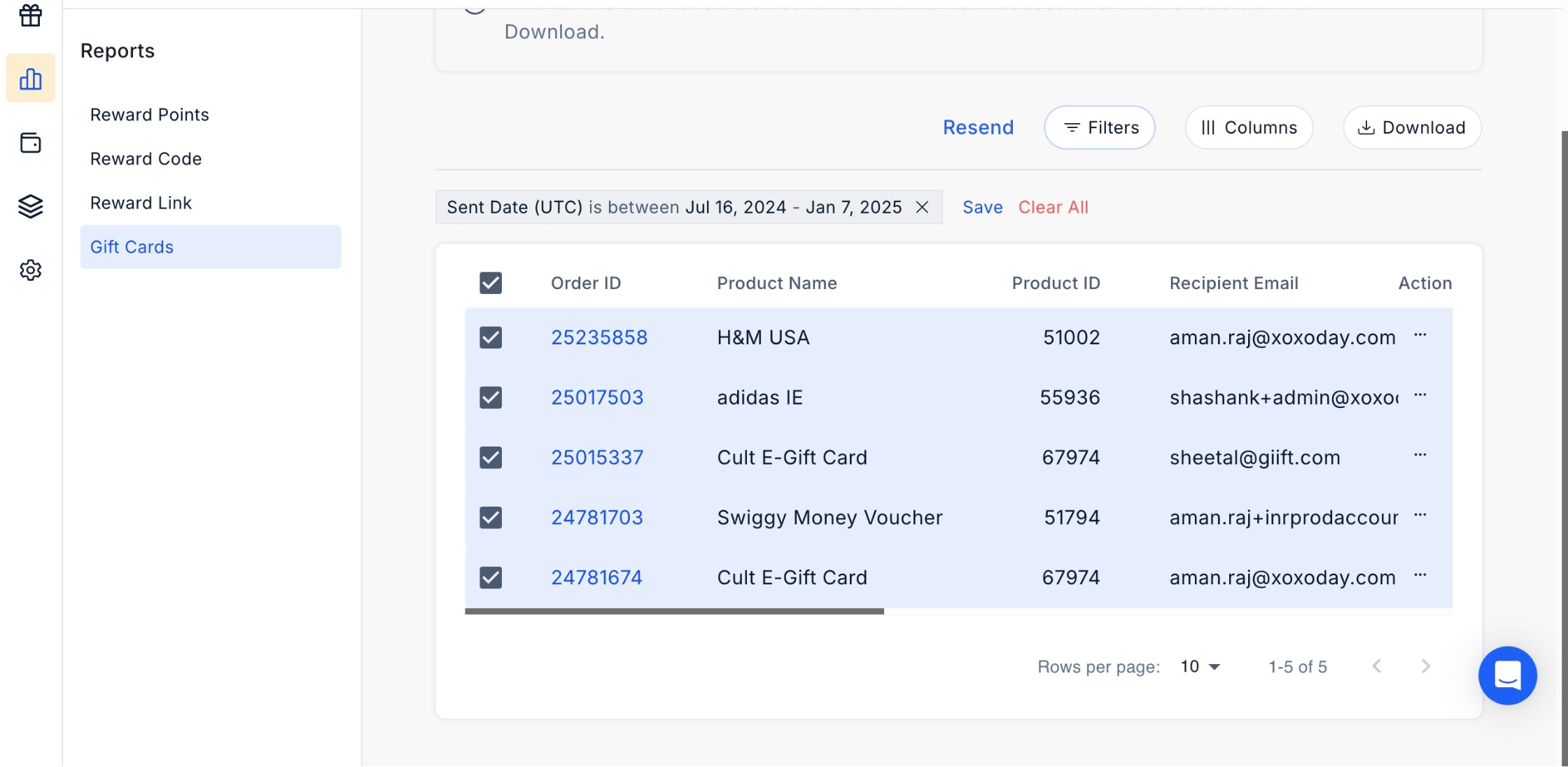 **Select Contacts:** Choose the contacts you want to resend the rewards.
**Resend Option:** Click the three dots next to the selected contacts, then click **'Resend'**.
**Select Contacts:** Choose the contacts you want to resend the rewards.
**Resend Option:** Click the three dots next to the selected contacts, then click **'Resend'**.
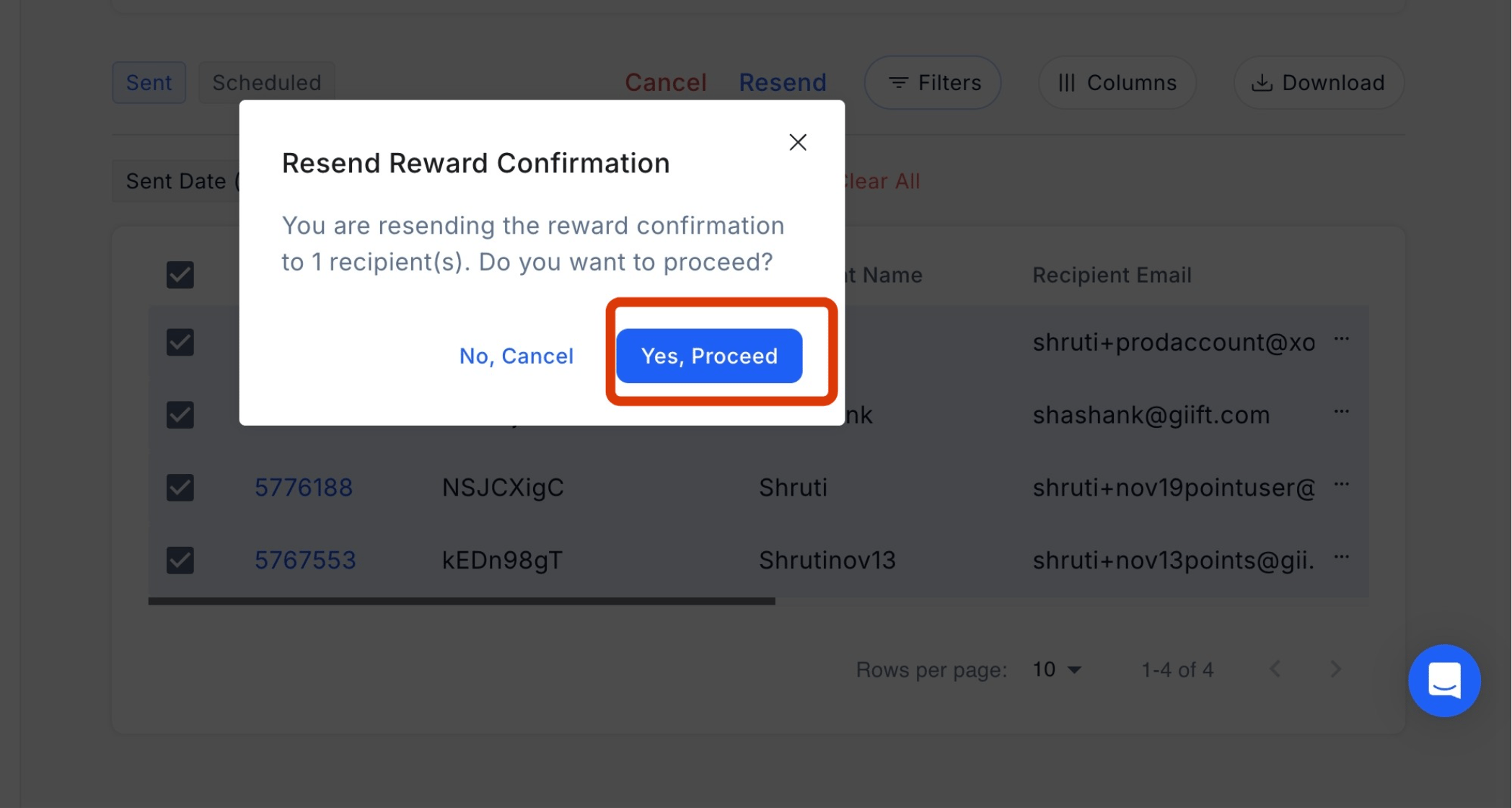
 **Confirm Action:** A confirmation pop-up will appear. Click **'Yes, Proceed'** to resend the rewards.
 Feedback or Questions: Email [cs@xoxoday.com](mailto:cs@xoxoday.com)