> ## Documentation Index
> Fetch the complete documentation index at: https://help-plum.xoxoday.com/llms.txt
> Use this file to discover all available pages before exploring further.

# Send Individually

### What is Reward Points?

Reward Points let you credit points directly to a recipient's Storefront account. Recipients use their points to redeem gift vouchers and other products on Plum Storefront.

<Info>
  Recipients need a Plum account to receive points. If a recipient isn't registered yet, they receive a link to set up their account.
</Info>

### How to send Reward Points to individual recipients

<Steps>
  <Step title="Navigate to Reward Points">
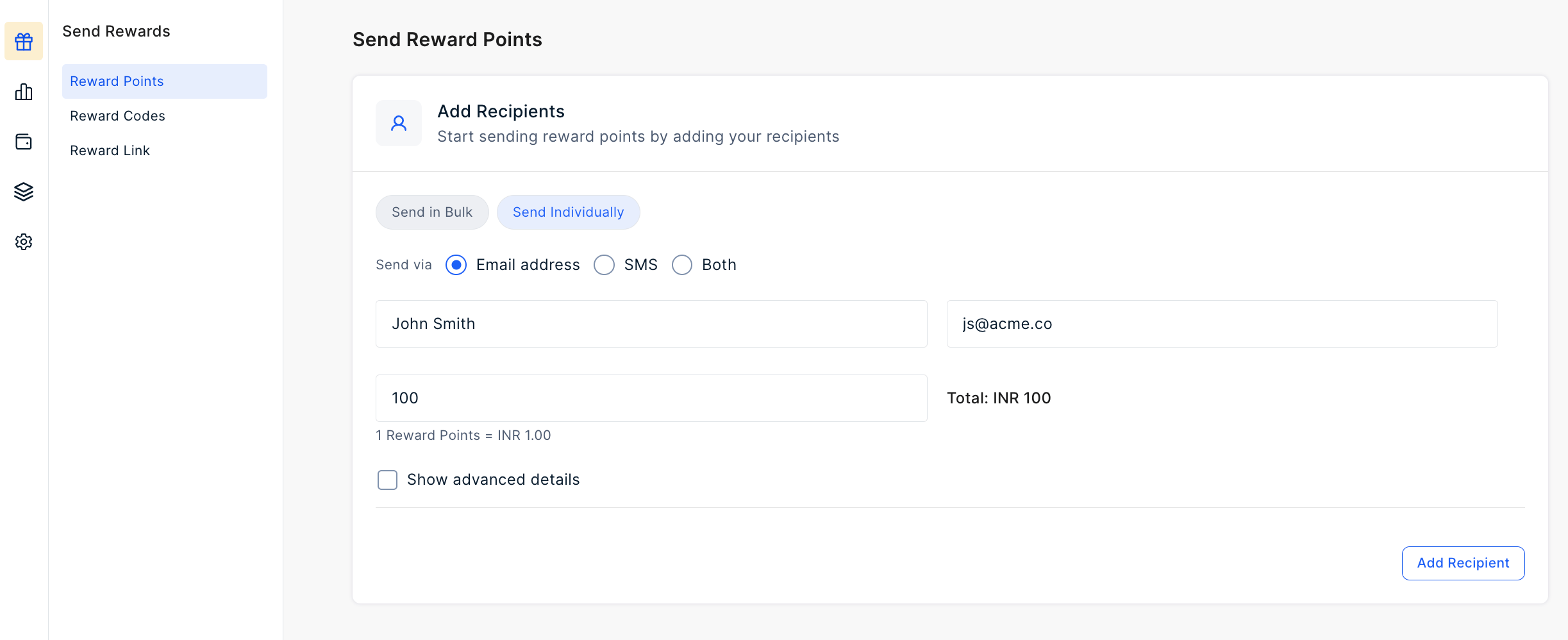
    Log in to the **Plum Admin Portal**. Go to **Send Rewards > Reward Points**. Select Send Individually.

    <Frame>
      <img src="https://mintcdn.com/plum/ikjqTnOEvj0xLMFQ/images/Screenshot-2026-10-03-at-8.10.06-PM-3.png?fit=max&auto=format&n=ikjqTnOEvj0xLMFQ&q=85&s=fbd77586f9554cc1a5d716cf26420d27" alt="Screenshot 2026 10 03 At 8 10 06 PM 3" width="2859" height="1291" data-path="images/Screenshot-2026-10-03-at-8.10.06-PM-3.png" />
    </Frame>
  </Step>

  <Step title="Next to **Send via**, select **Email address**, **SMS**, or both.  ">
    <Frame>
      <img src="https://mintcdn.com/plum/ikjqTnOEvj0xLMFQ/images/Screenshot-2026-10-03-at-8.10.06-PM-4.png?fit=max&auto=format&n=ikjqTnOEvj0xLMFQ&q=85&s=cd9450f684dcb33b7987e63b302ac5d2" alt="Screenshot 2026 10 03 At 8 10 06 PM 4" width="2859" height="1291" data-path="images/Screenshot-2026-10-03-at-8.10.06-PM-4.png" />
    </Frame>
  </Step>

  <Step title="Enter the recipient's details and points you wish to send. Click on Add Recipient.">
    * **Name**
    * **Email ID**
    * **Number of Points**
    * **Mobile Number**
          <Frame>
            <img src="https://mintcdn.com/plum/ikjqTnOEvj0xLMFQ/images/Screenshot-2026-10-03-at-8.10.39-PM-1.png?fit=max&auto=format&n=ikjqTnOEvj0xLMFQ&q=85&s=95d495b03d912d9d371553a5283fa3a3" alt="Screenshot 2026 10 03 At 8 10 39 PM 1" width="2869" height="1283" data-path="images/Screenshot-2026-10-03-at-8.10.39-PM-1.png" />
          </Frame>
  </Step>

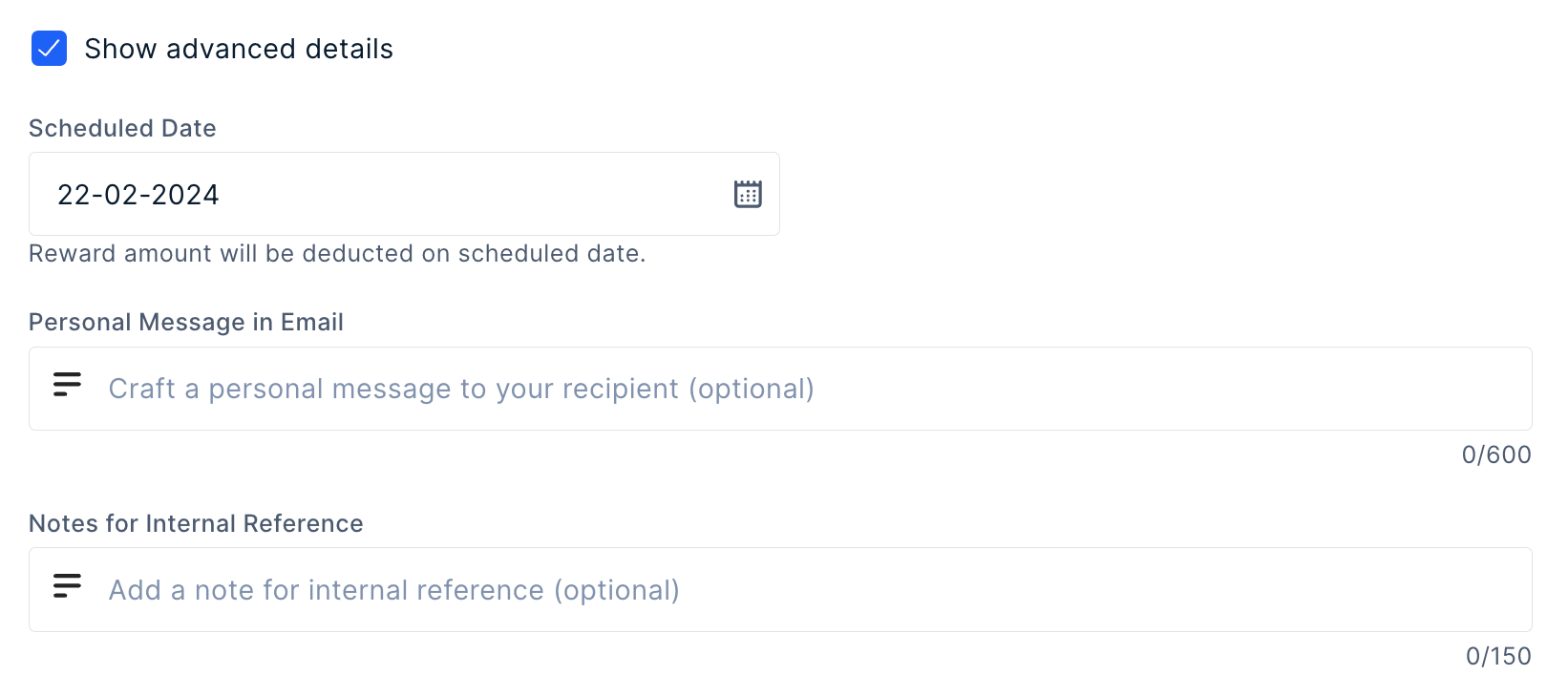
  <Step title="Configure advanced settings (optional)">
    Click **Advanced Settings**. Set any of these options:

    * **Schedule:** Send the reward on a future date. Scheduled rewards go out at 12:00 AM UTC on the date you choose.
    * **Personal message:** Add a message to the email body. The same message goes to every recipient in this batch.
    * **Internal reference note:** Add a note for your own records. Recipients don't see this note.
          <Frame>
            <img src="https://mintcdn.com/plum/ikjqTnOEvj0xLMFQ/images/Screenshot-2026-10-03-at-8.14.42-PM.png?fit=max&auto=format&n=ikjqTnOEvj0xLMFQ&q=85&s=eed6253888f1cfa08a642711d8c66cb5" alt="Screenshot 2026 10 03 At 8 14 42 PM" width="2880" height="1396" data-path="images/Screenshot-2026-10-03-at-8.14.42-PM.png" />
          </Frame>
  </Step>

  <Step title="Review the recipient details. Add more recipients and enter their details.">
    <Frame>
      <img src="https://mintcdn.com/plum/ikjqTnOEvj0xLMFQ/images/Screenshot-2026-10-03-at-11.00.15-PM.png?fit=max&auto=format&n=ikjqTnOEvj0xLMFQ&q=85&s=6fedff7dc5a87339bf44ca0a6e5bb462" alt="Screenshot 2026 10 03 At 11 00 15 PM" width="2878" height="1308" data-path="images/Screenshot-2026-10-03-at-11.00.15-PM.png" />
    </Frame>
  </Step>

  <Step title="Customize the marketplace (Optional)">
    Choose which reward categories and products recipients can redeem their points on.

    1. In the **Campaign** section, open the **Global Reward Catalog**.
    2. Under **Customize Catalog**, select the categories you want to include, such as **Gift Card**, **Shop**, **Lounge**, **Charity**, **Experience and more**. Clear any category you want to hide from recipients.
           <Frame>
             <img src="https://mintcdn.com/plum/ikjqTnOEvj0xLMFQ/images/Screenshot-2026-10-03-at-8.17.52-PM.png?fit=max&auto=format&n=ikjqTnOEvj0xLMFQ&q=85&s=4a3cb1e394a7852b9e65efba48205583" alt="Screenshot 2026 10 03 At 8 17 52 PM" width="2878" height="1394" data-path="images/Screenshot-2026-10-03-at-8.17.52-PM.png" />
           </Frame>
    3. To narrow down the products in a category, click **Customise** next to it.
       * **Denomination:** Filter by voucher value.
       * **Country:** Filter by country.
       * **Select Gift Vouchers:** Search for brands, then select or clear individual products. To include everything, select **Select All**.
             <Frame>
               <img src="https://mintcdn.com/plum/ikjqTnOEvj0xLMFQ/images/Screenshot-2026-10-03-at-8.18.26-PM.png?fit=max&auto=format&n=ikjqTnOEvj0xLMFQ&q=85&s=1dcc3dd6cce7d40231c67f339933bf3f" alt="Screenshot 2026 10 03 At 8 18 26 PM" width="2880" height="1394" data-path="images/Screenshot-2026-10-03-at-8.18.26-PM.png" />
             </Frame>
    4. If you customized a category, click **Done**.
    5. Click **Save**.
  </Step>

  <Step title="Personalize Communication (Optional)">
    Update any of the following elements:

    * **Subject line** — Edit the subject line recipients will see in their inbox.
          <Frame>
            <img src="https://mintcdn.com/plum/Vn_qVAKfMQZRDEtg/images/Screenshot-2026-09-07-at-12.23.15-PM.png?fit=max&auto=format&n=Vn_qVAKfMQZRDEtg&q=85&s=2051141799d174c6fa9ca8d35e882097" alt="Screenshot 2026 09 07 At 12 23 15 PM" width="1668" height="630" data-path="images/Screenshot-2026-09-07-at-12.23.15-PM.png" />
          </Frame>
    * **Banner image and logo** — Upload an image to appear at the top of the email or choose from the
          <Frame>
            <img src="https://mintcdn.com/plum/Vn_qVAKfMQZRDEtg/images/Screenshot-2026-09-07-at-12.24.16-PM.png?fit=max&auto=format&n=Vn_qVAKfMQZRDEtg&q=85&s=0ff809b20a628c676bf63bd6acda1d8b" alt="Screenshot 2026 09 07 At 12 24 16 PM" width="1604" height="610" data-path="images/Screenshot-2026-09-07-at-12.24.16-PM.png" />
          </Frame>

    **Headline message** — Click **Edit Message**, enter the message title and body, then click **Save**.

    <Frame>
      <img src="https://mintcdn.com/plum/ikjqTnOEvj0xLMFQ/images/Screenshot-2026-10-03-at-8.16.11-PM.png?fit=max&auto=format&n=ikjqTnOEvj0xLMFQ&q=85&s=e8da6f38ba2b97e589d45350316f6450" alt="Screenshot 2026 10 03 At 8 16 11 PM" title="Screenshot 2026 10 03 At 8 16 11 PM" className="mx-auto" style={{ width:"88%" }} width="1802" height="1136" data-path="images/Screenshot-2026-10-03-at-8.16.11-PM.png" />
    </Frame>

    * **Background** — Click the pen icon to choose from available colours or enter a hex code. Update the background text by selecting an available option or entering your own, then click **Save**.
          <Frame>
            <img src="https://mintcdn.com/plum/ikjqTnOEvj0xLMFQ/images/Screenshot-2026-10-03-at-8.16.26-PM.png?fit=max&auto=format&n=ikjqTnOEvj0xLMFQ&q=85&s=7ee58160fedd16e41321a9b185fc8fe7" alt="Screenshot 2026 10 03 At 8 16 26 PM" width="1814" height="1112" data-path="images/Screenshot-2026-10-03-at-8.16.26-PM.png" />
          </Frame>

    * **Email footer** — Add or update footer content to match your brand or campaign needs. 

    * Customise the SMS message - Enter your message in the input field to replace the default SMS content, then click **Save**
  </Step>

  <Step title="Send the reward">
    Review the recipient details.Click **Send Reward**.
  </Step>
</Steps>

<Info>
  **Still need help?** [Raise a support ticket.](https://xoxoday-30135.zendesk.com/hc/en-us/requests/new)
</Info>

<Info>
  Points are deducted from your **Company Balance**. If your balance is too low, a warning asks you to recharge or remove recipients.
</Info>