Overview
Boost survey response rates and gather meaningful insights with instant rewards! Xoxoday Plum, integrated with Forsta, automates digital rewards, letting you engage respondents effortlessly. Create reward automation campaigns to send rewards instantly, eliminating manual gift-code management for a seamless experience.Highlights of the Integration
Once the integration between the two platforms is enabled, you no longer have to juggle between spreadsheets to track or manage reward campaigns, or manually procure and distribute rewards. Xoxoday Plum not only simplifies the rewarding process but also brings a host of value additions to the integration. Here are some of the key highlights:- Automated Rewards on Completion of Survey The integration allows you to set up Reward automation Campaigns on Xoxoday Plum and send out rewards to respondents who complete the survey. Not just that, the survey respondents can choose gifts, perks, and experiences of their choice from Xoxoday’s extensive global catalog.You can also restrict the number of rewards sent out based on criteria like - campaign time range, Maximum Reward count, etc.
- Built-in Approval Workflows
- Customised Communication Templates
- Dedicated Redemption Support
How does the Integration Work?
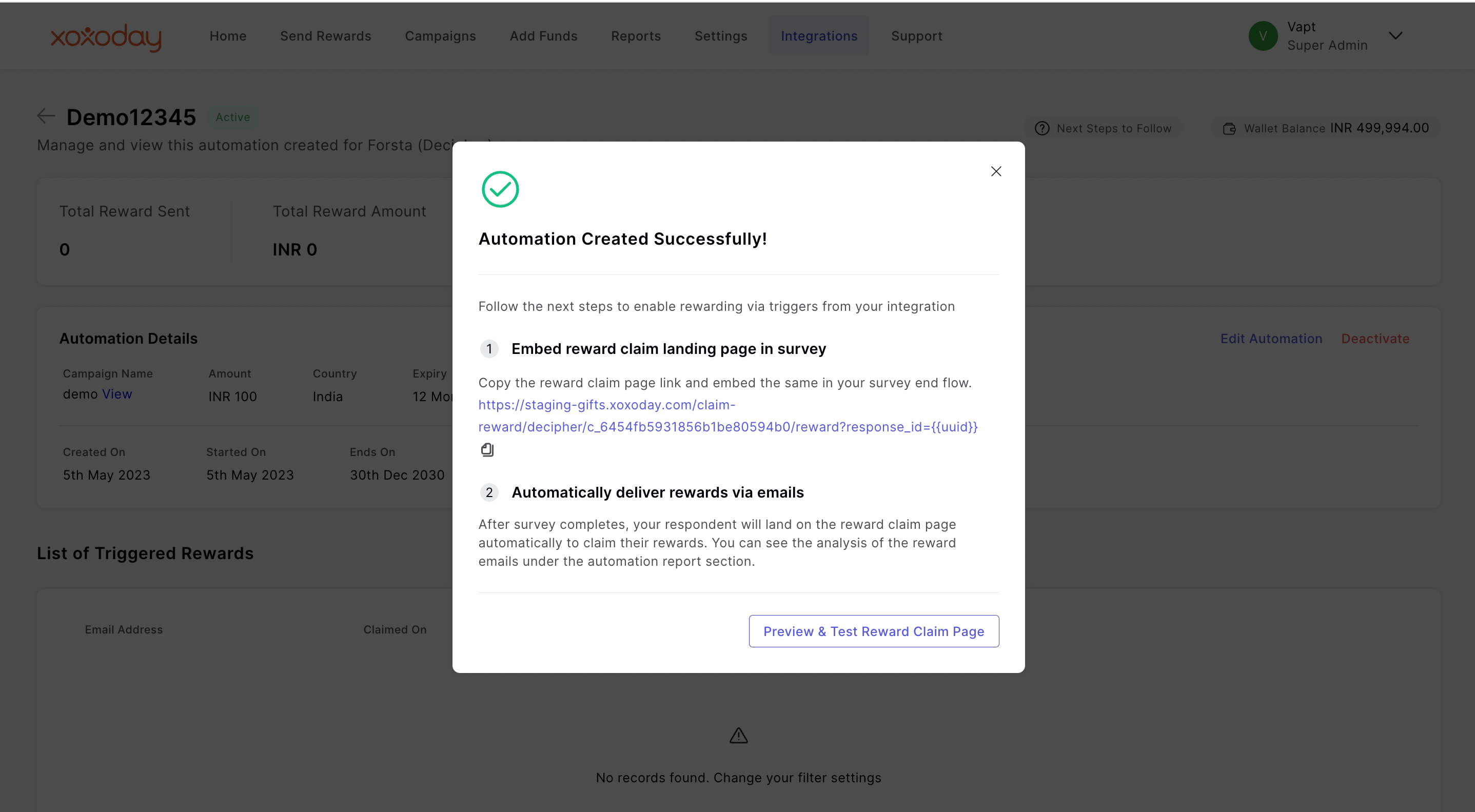
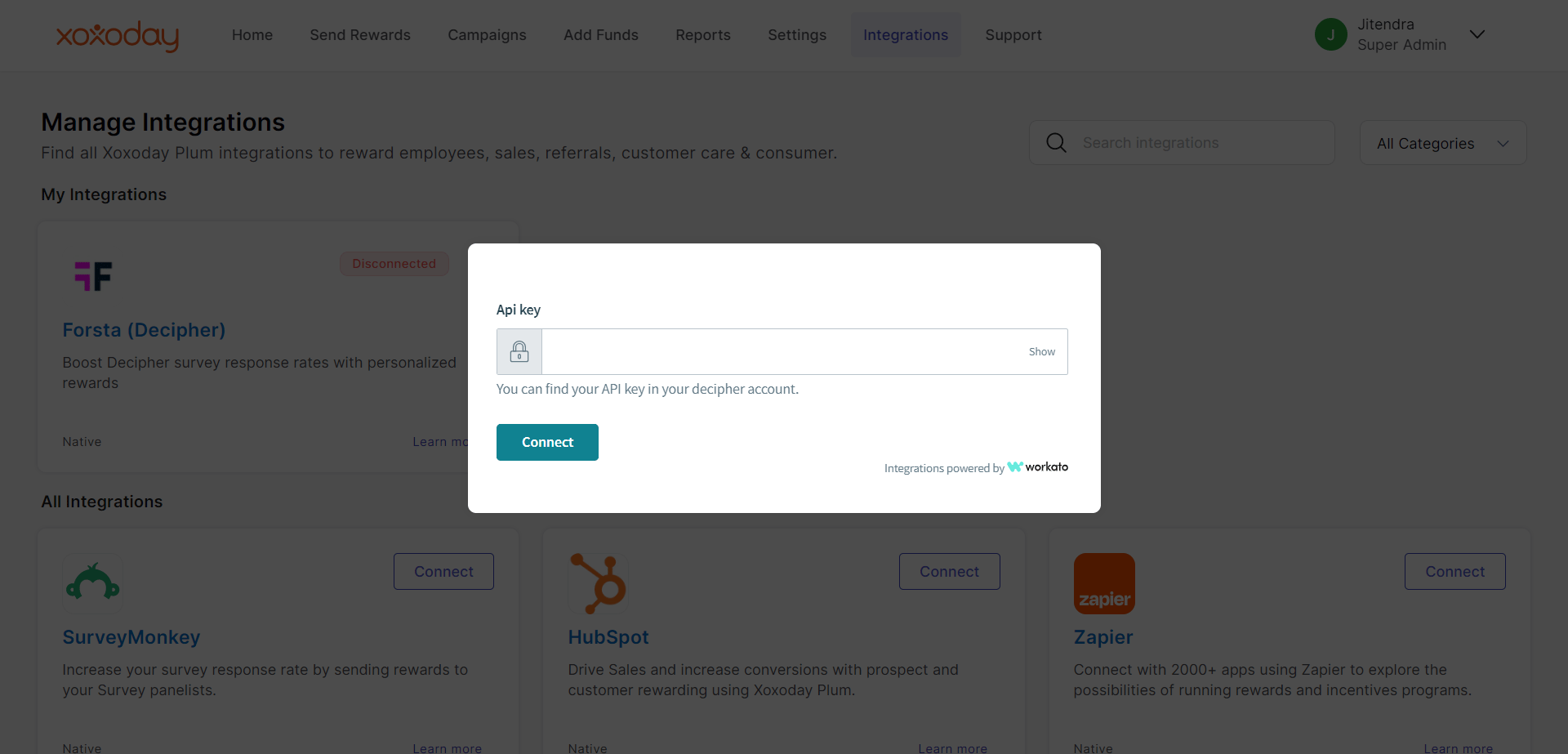
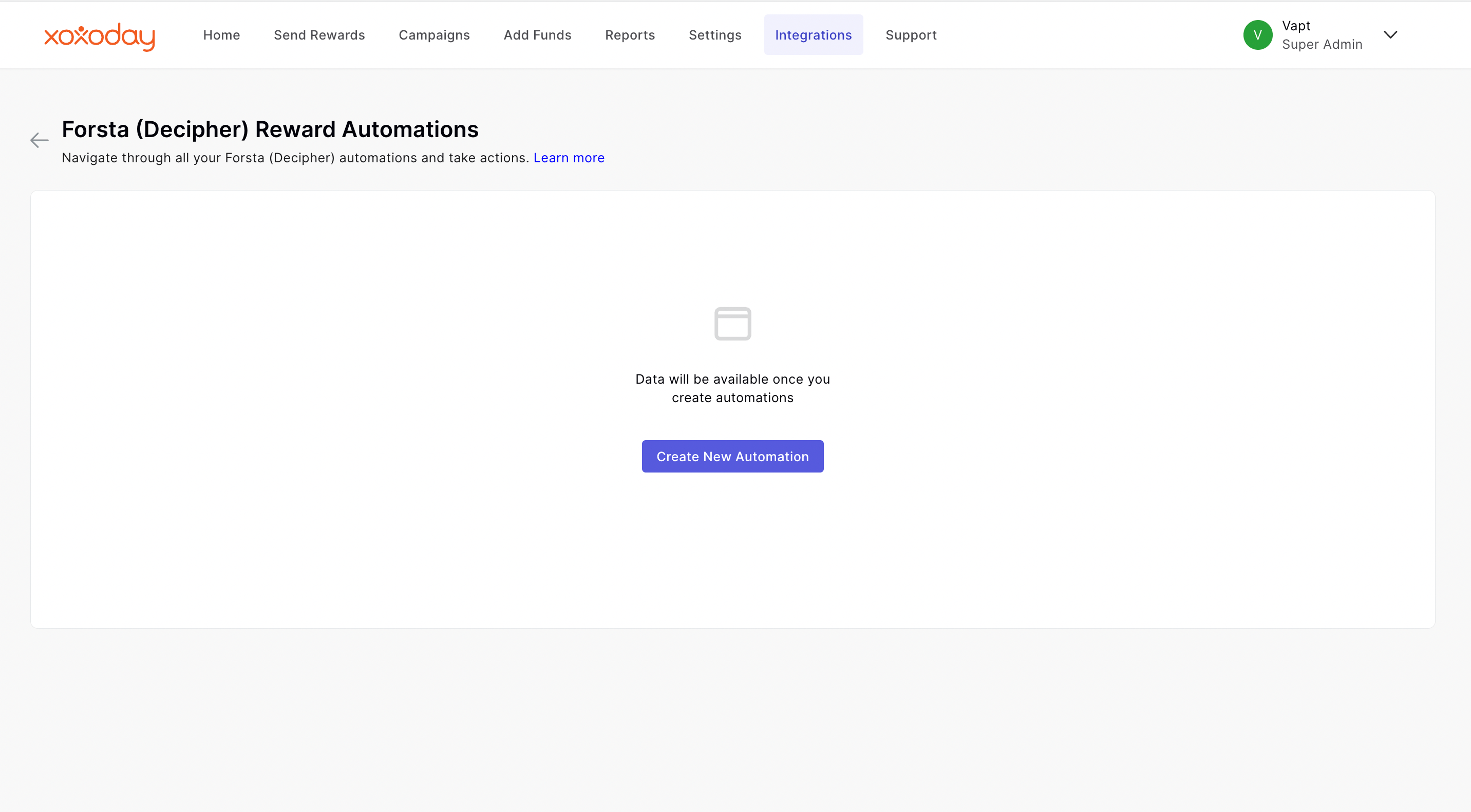
Follow the step-by-step guide to set up the integration between Xoxoday Plum and Forsta, and create & run reward campaigns.STEP 1: Connect to Decipher
Go to Integrations and Search for Forsta (Decipher). **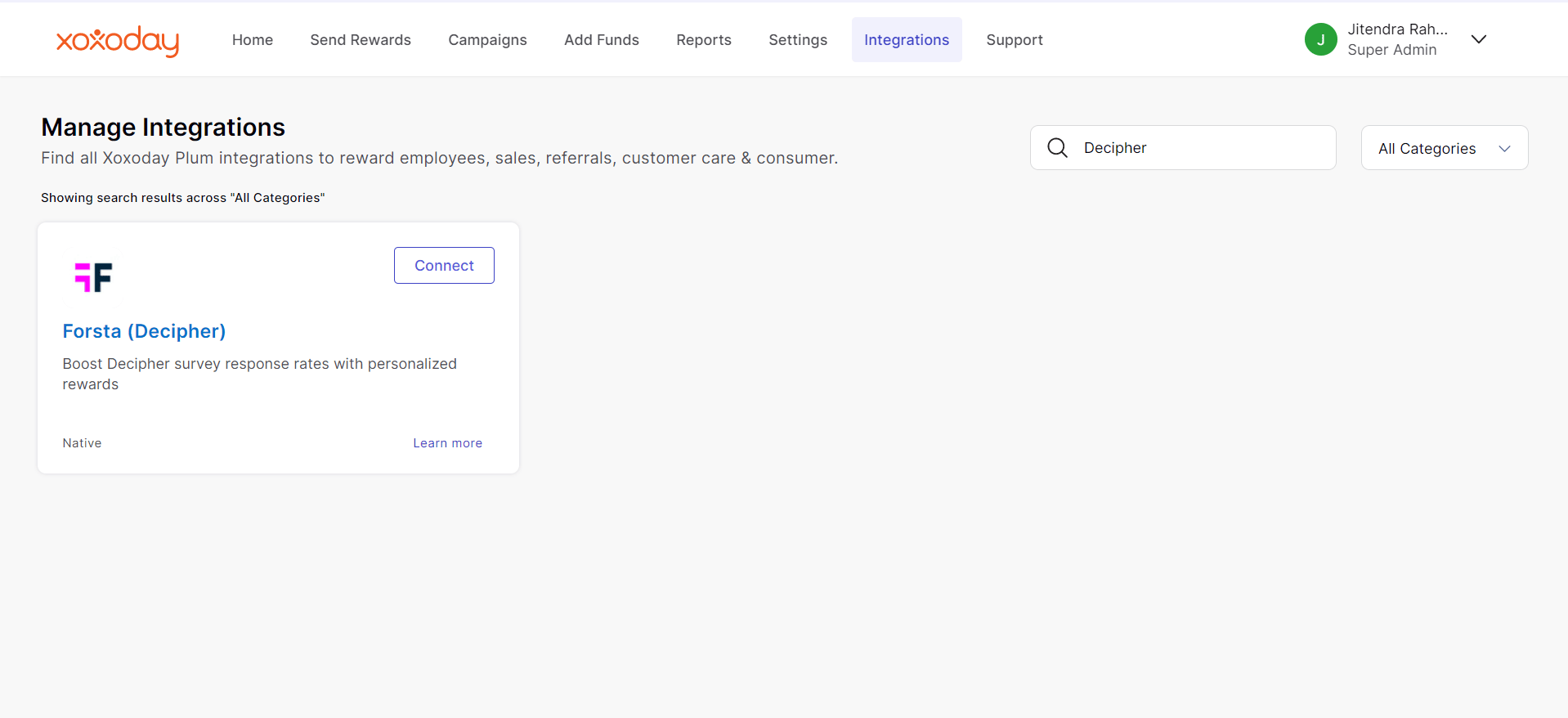
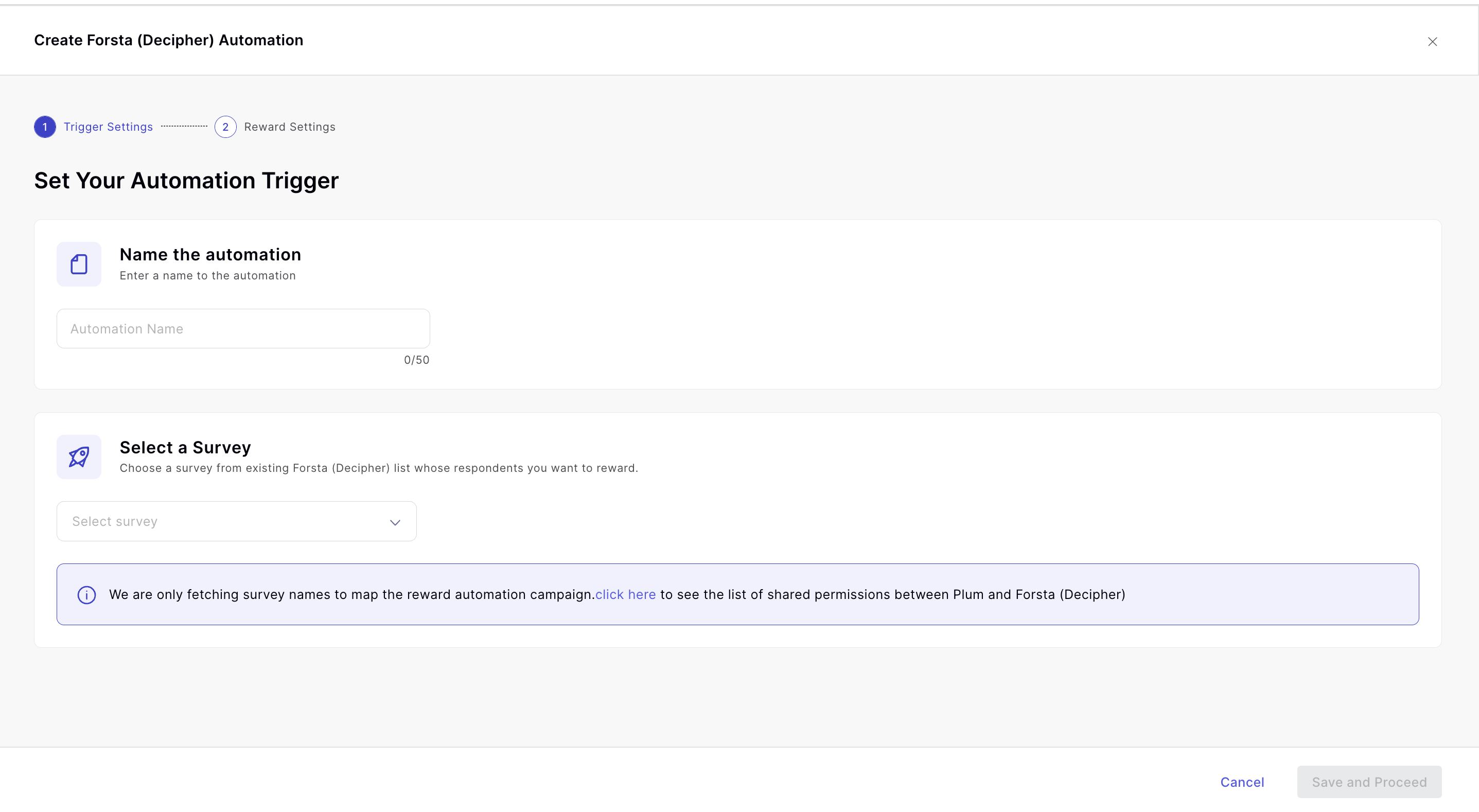
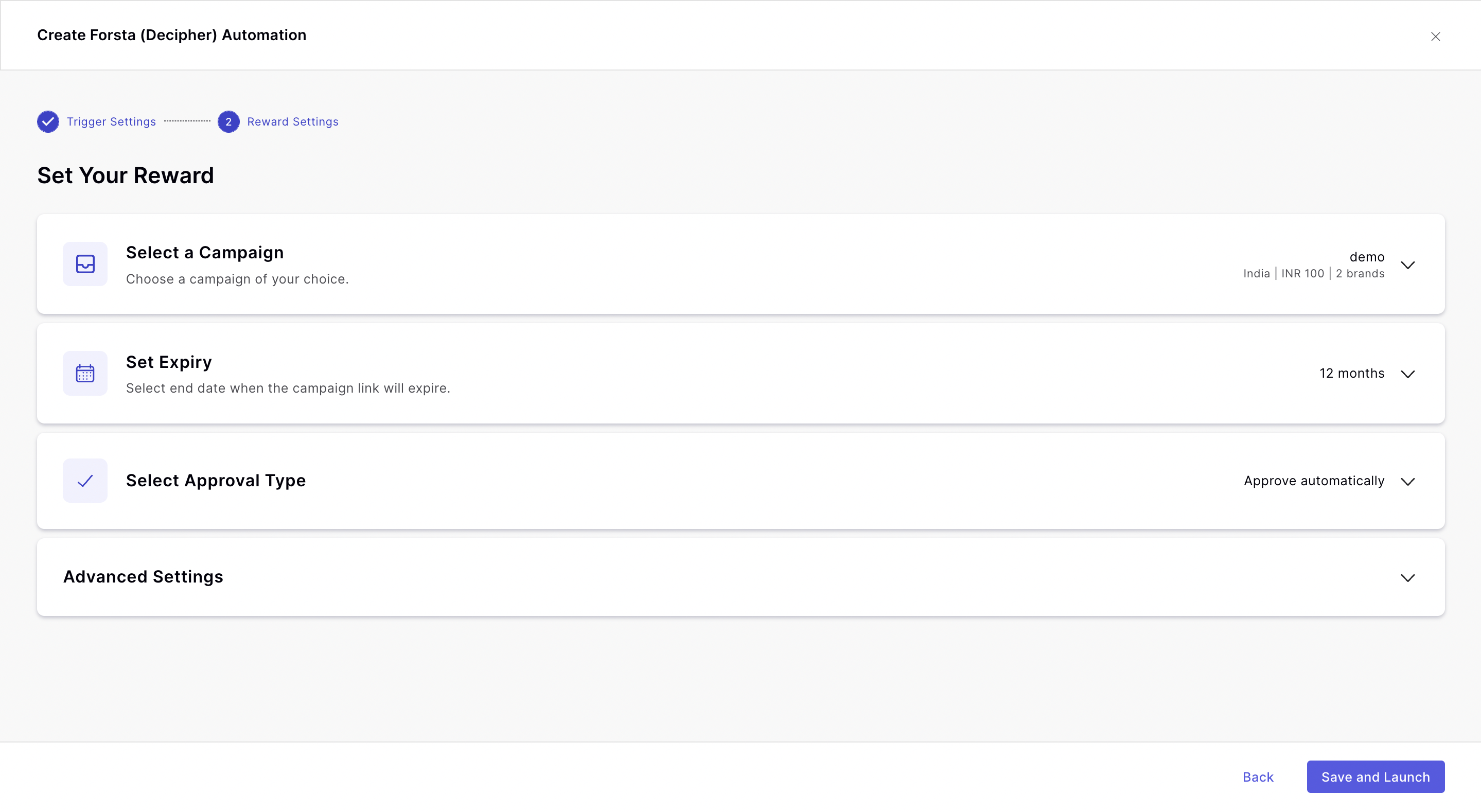
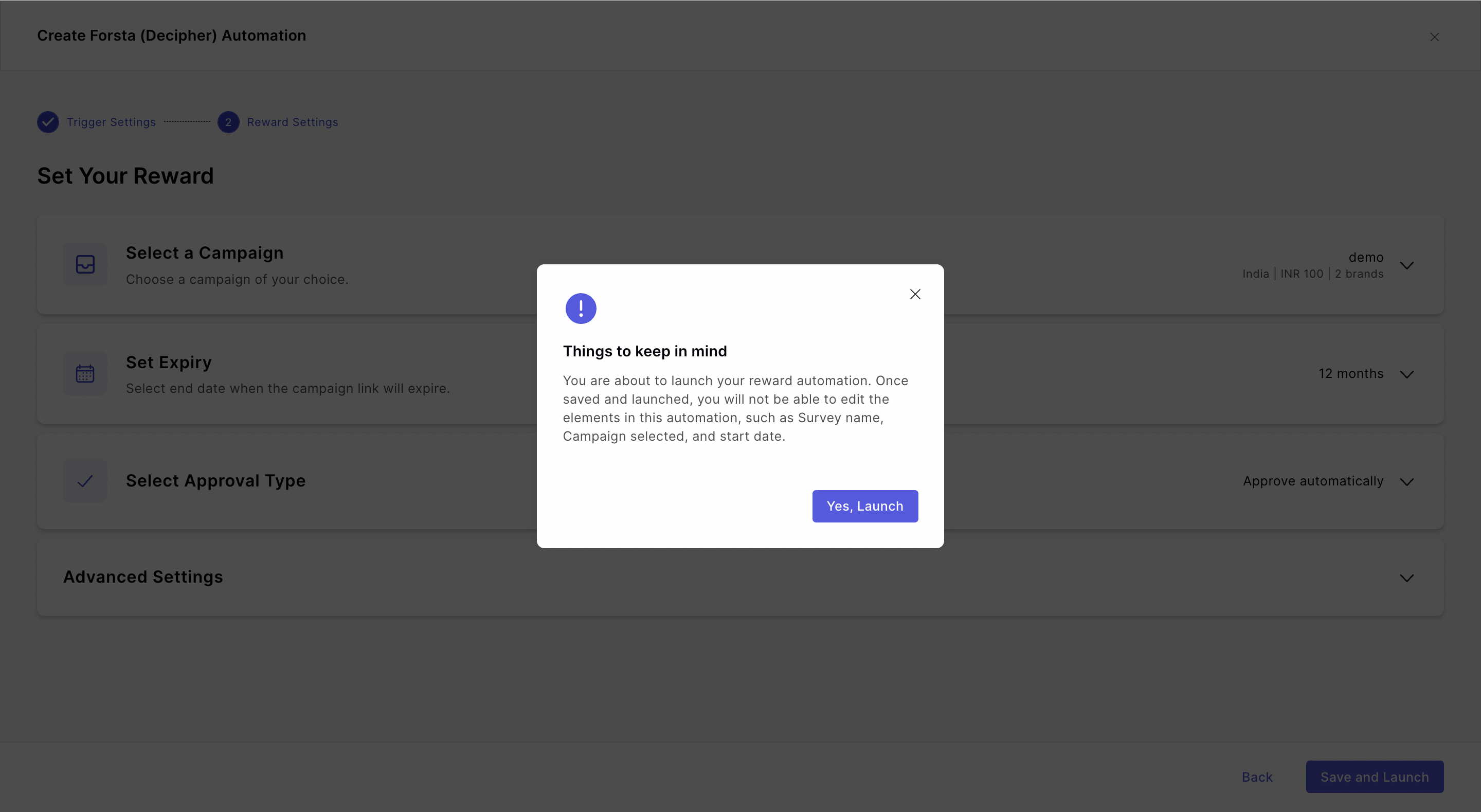
- Expiry of Automation: Define the end date of automation.
- Approval type:
- Manual: This will capture the respondents and you can choose whom they send reward by simply choosing to Approve or Reject button.