
Creating a Reward Code Campaign
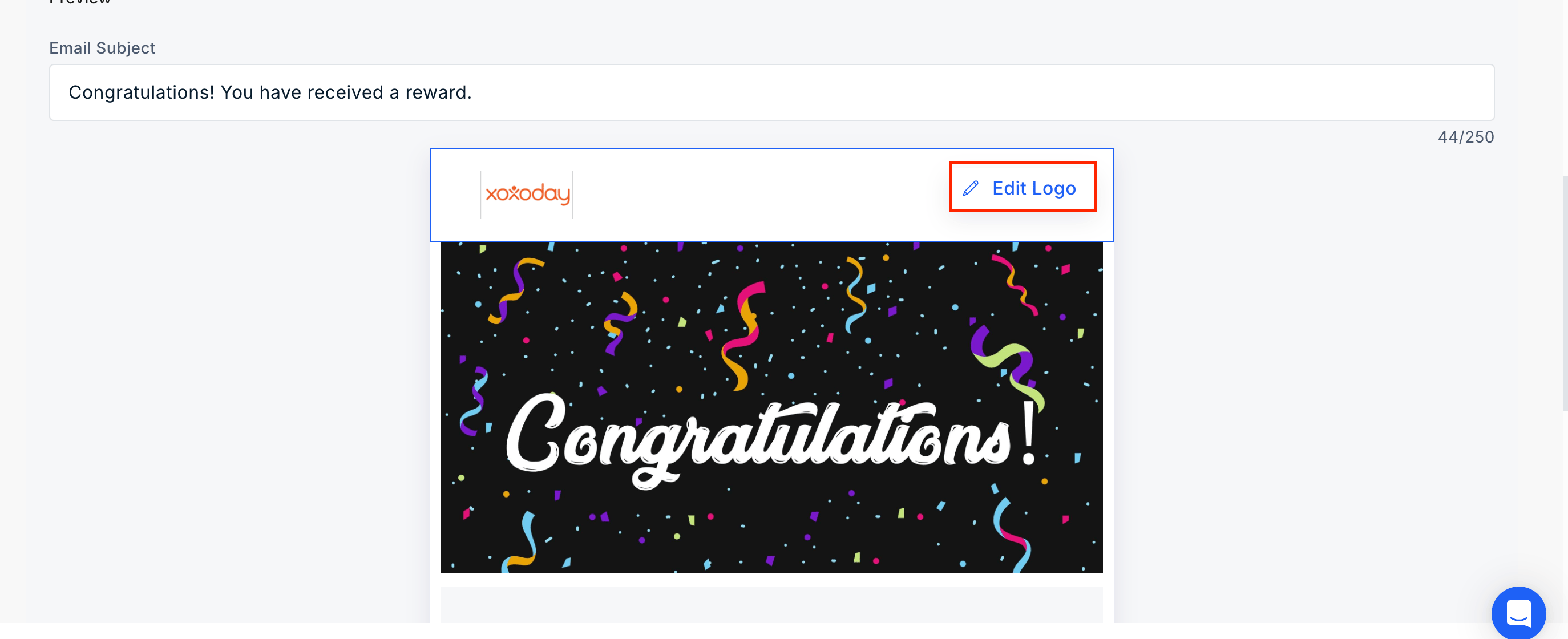
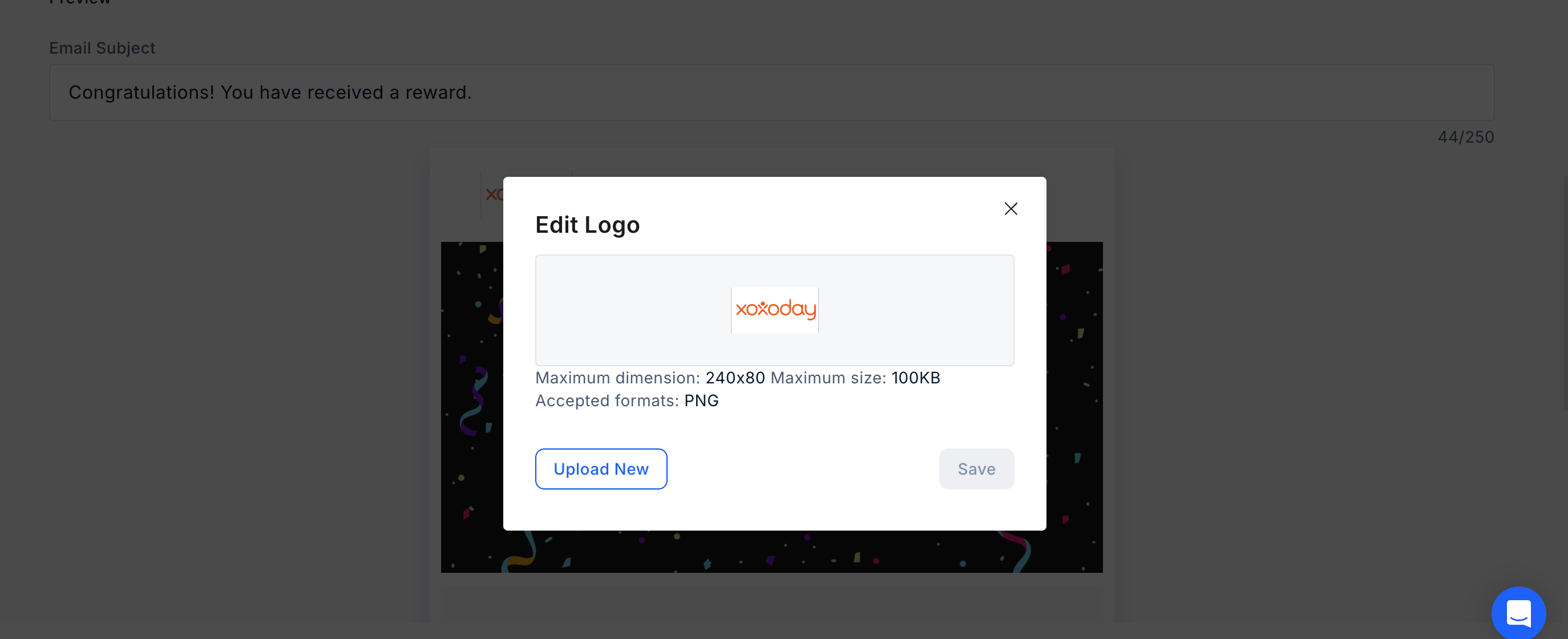
 - You can also edit the logo by clicking on “Edit Logo” and uploading a new logo.
- You can also edit the logo by clicking on “Edit Logo” and uploading a new logo.
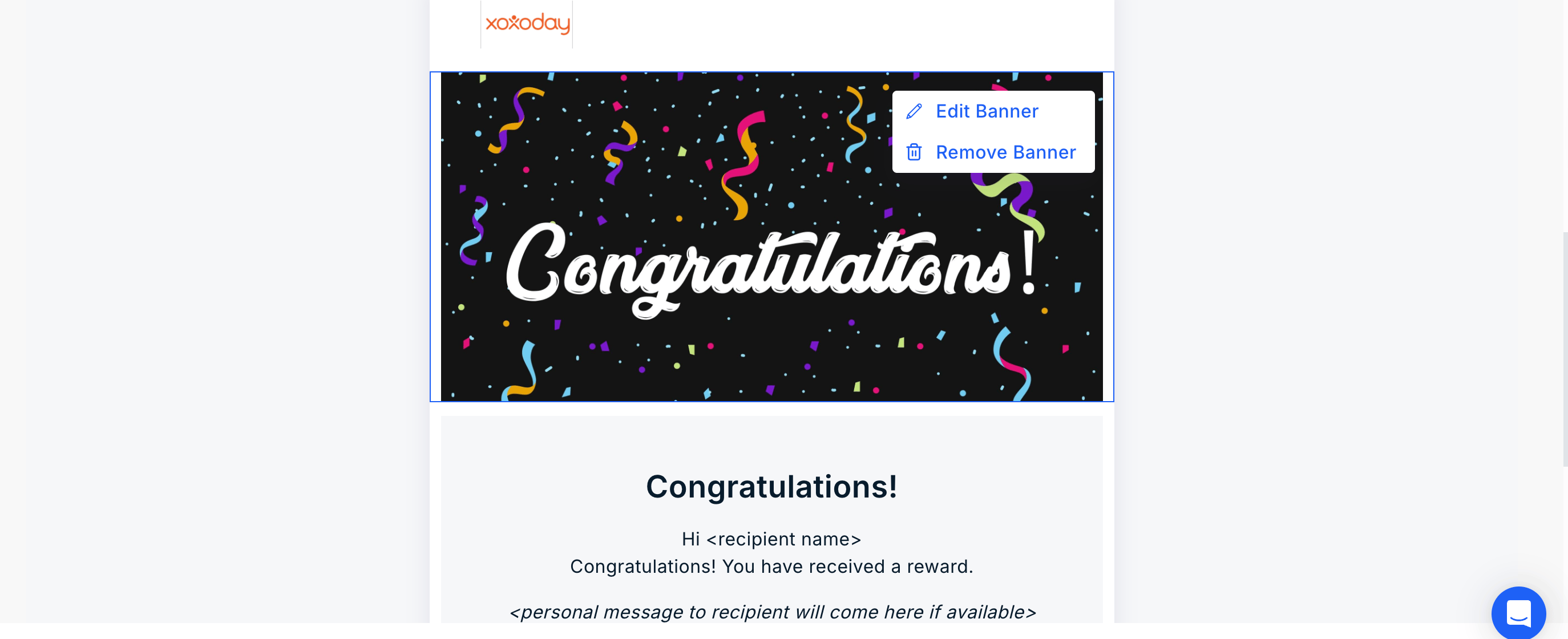
- Xoxoday Plum allows for editing or removing the banner. Click on “Edit/Remove Banner” and follow the steps.
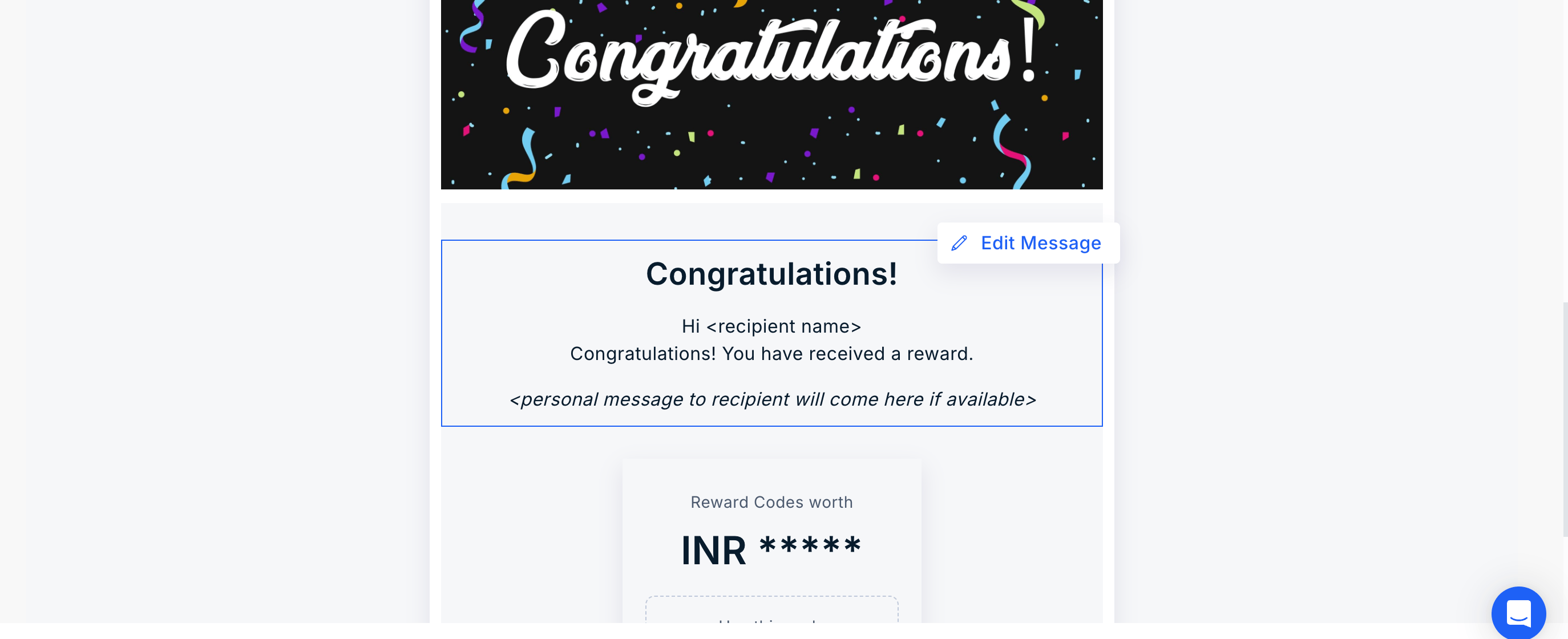
 - Click on “Edit Message” to make changes to the message.
 #
#
- Click on “Edit Message” to make changes to the message.
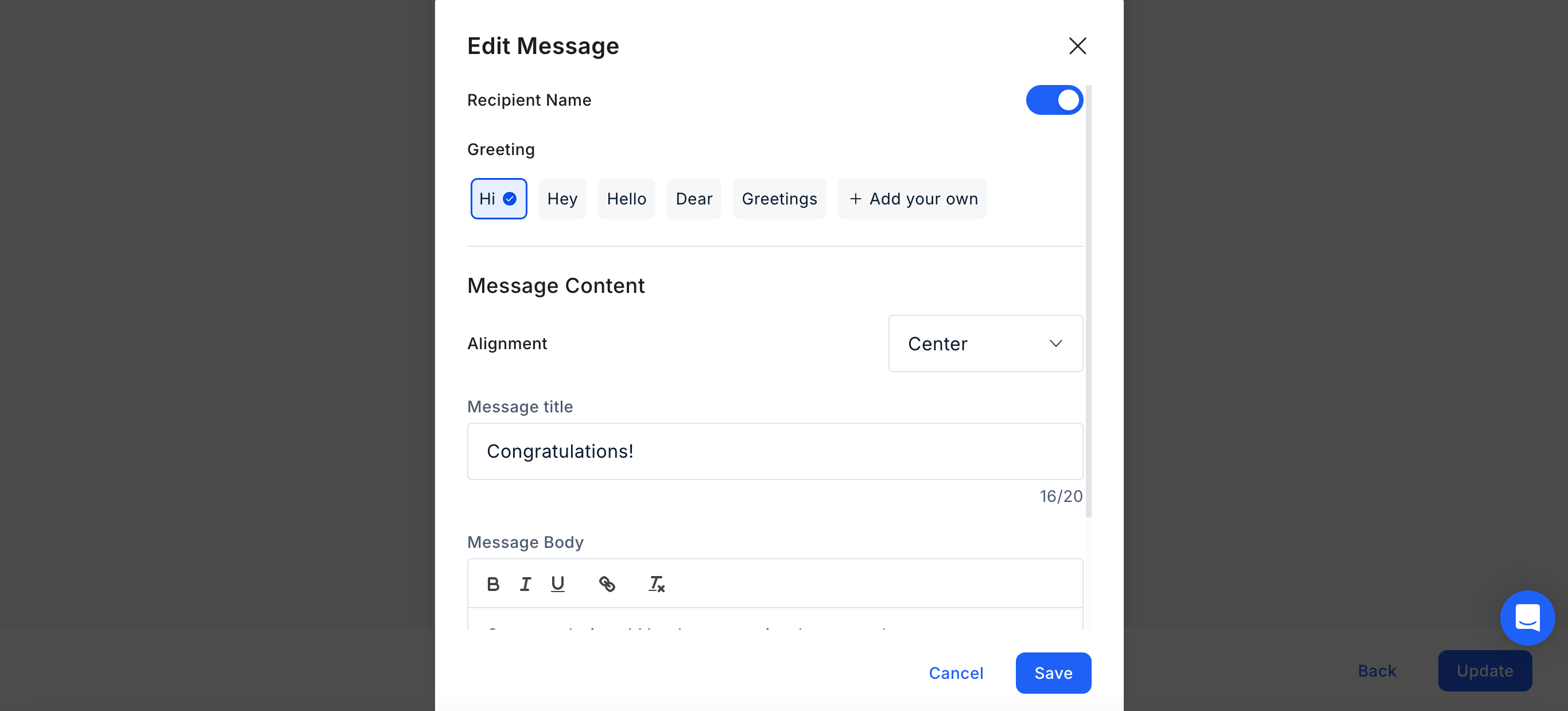
- Configure Message Details Toggle the recipient’s name on or off and choose from our library of greetings (or create a custom one). Define your message by entering a title and body text, then adjust the content alignment to your preference.
**Step 6: Setting Up the Campaign
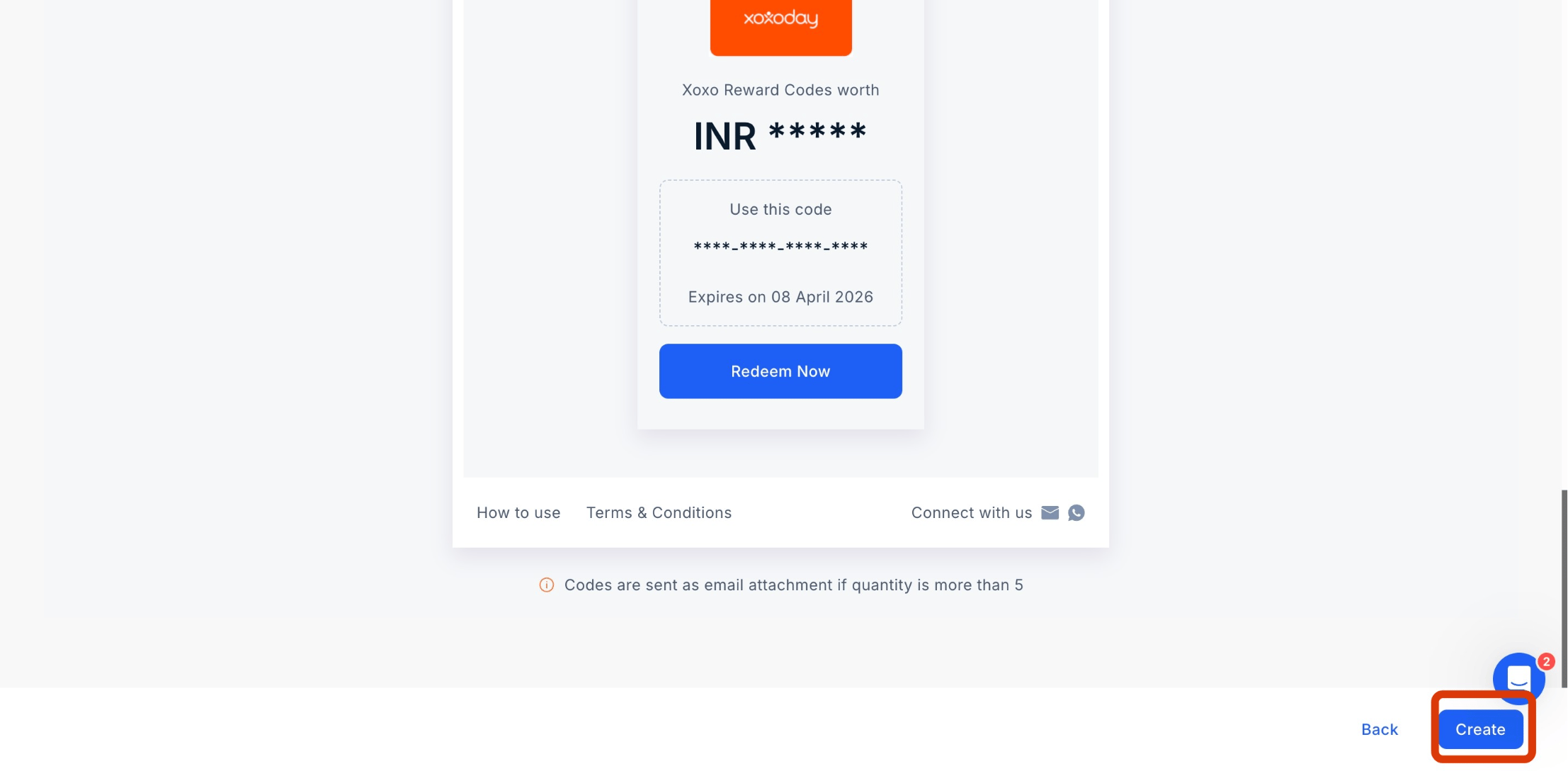
## Step 6: Setting Up the Campaign Once all configurations are complete, click “Create” to launch your Reward Code Campaign. Once all configurations are complete, click “Create**” to launch your Reward Code Campaign.
1
Navigation
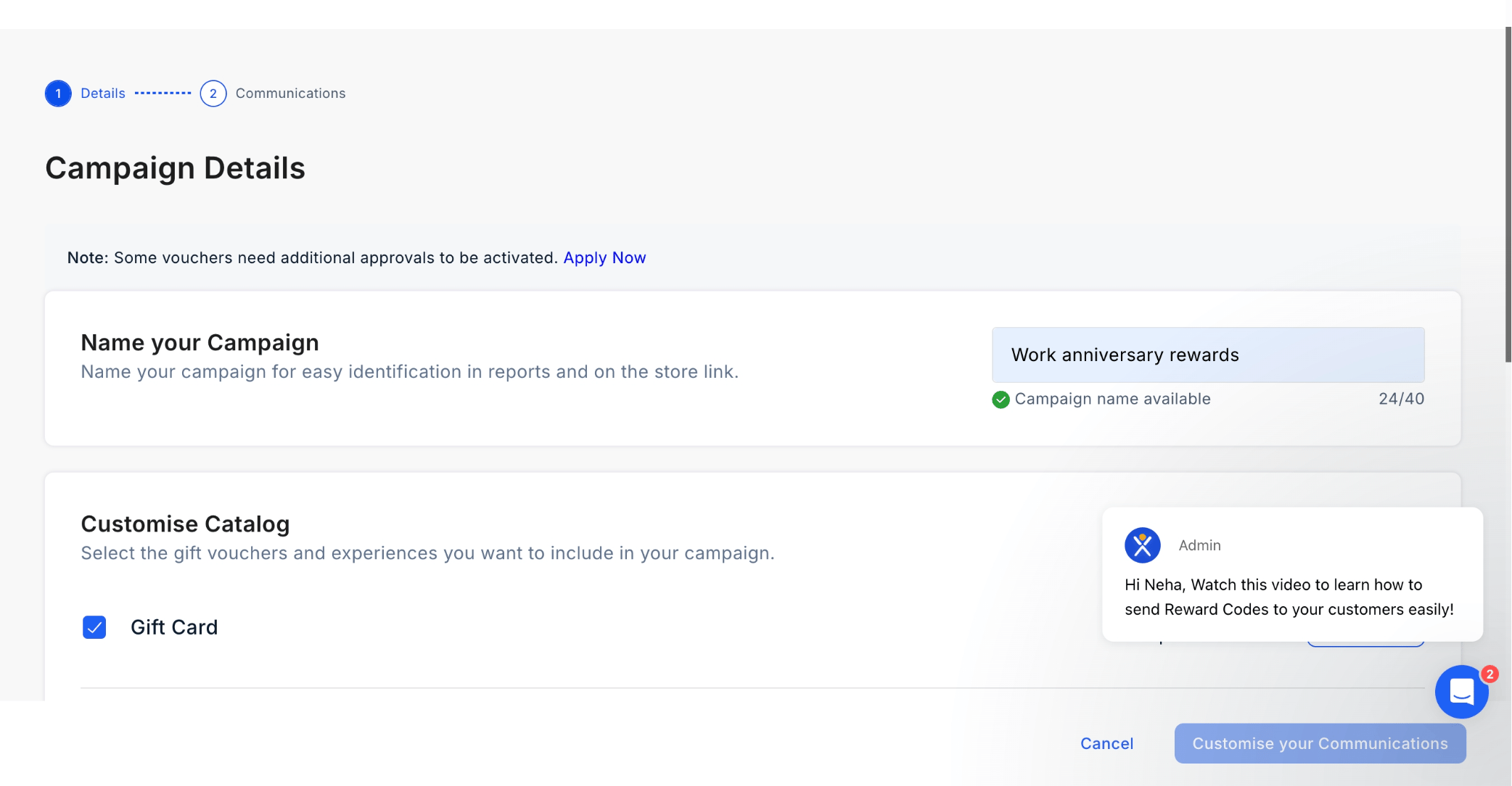
Navigate to Settings > Campaigns, select Reward Code and click “Create Reward Code Campaign.”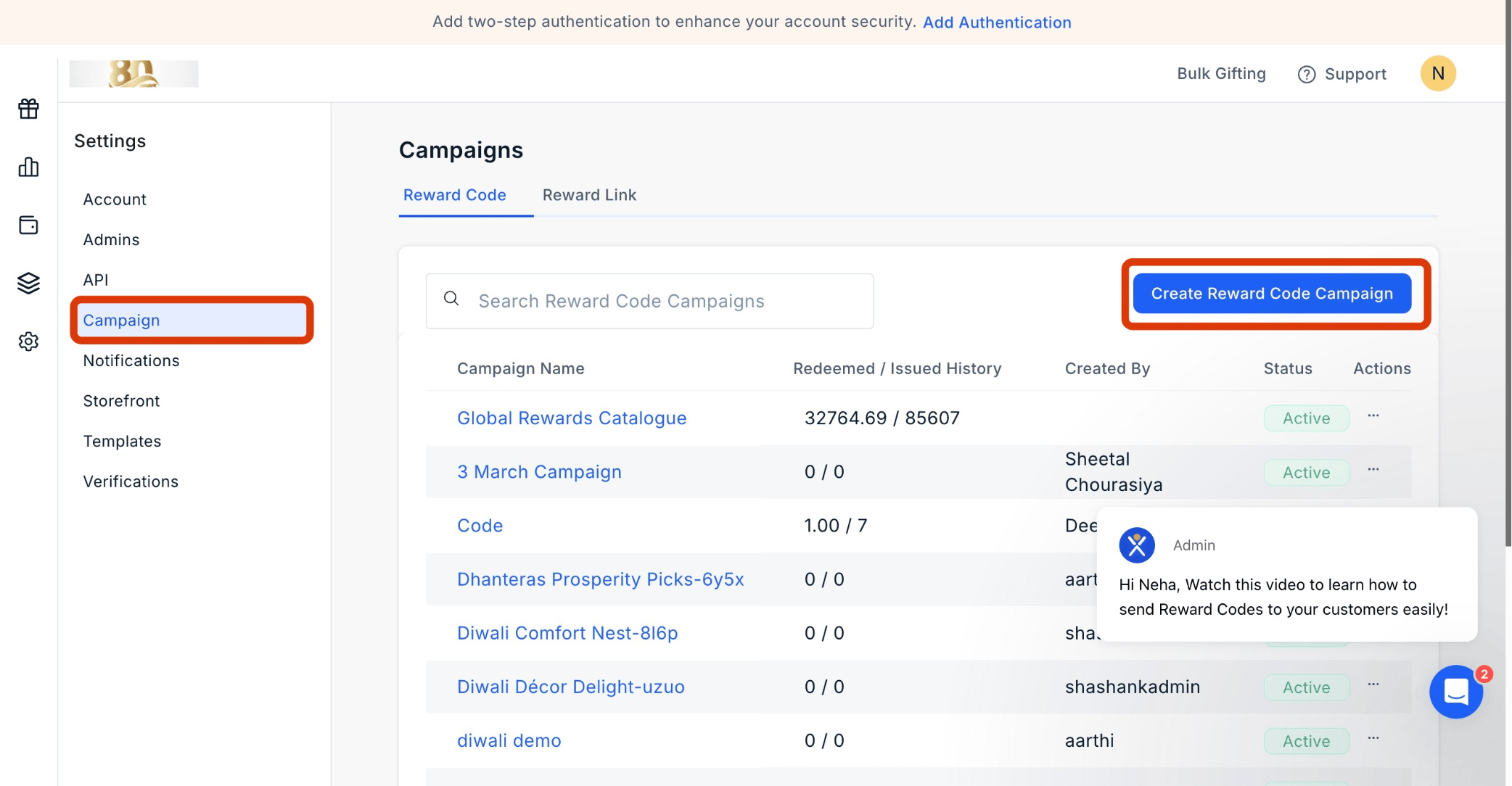
2
Naming the Campaign
Start by giving your campaign a name. You can then choose the specific categories you wish to include or exclude.
3
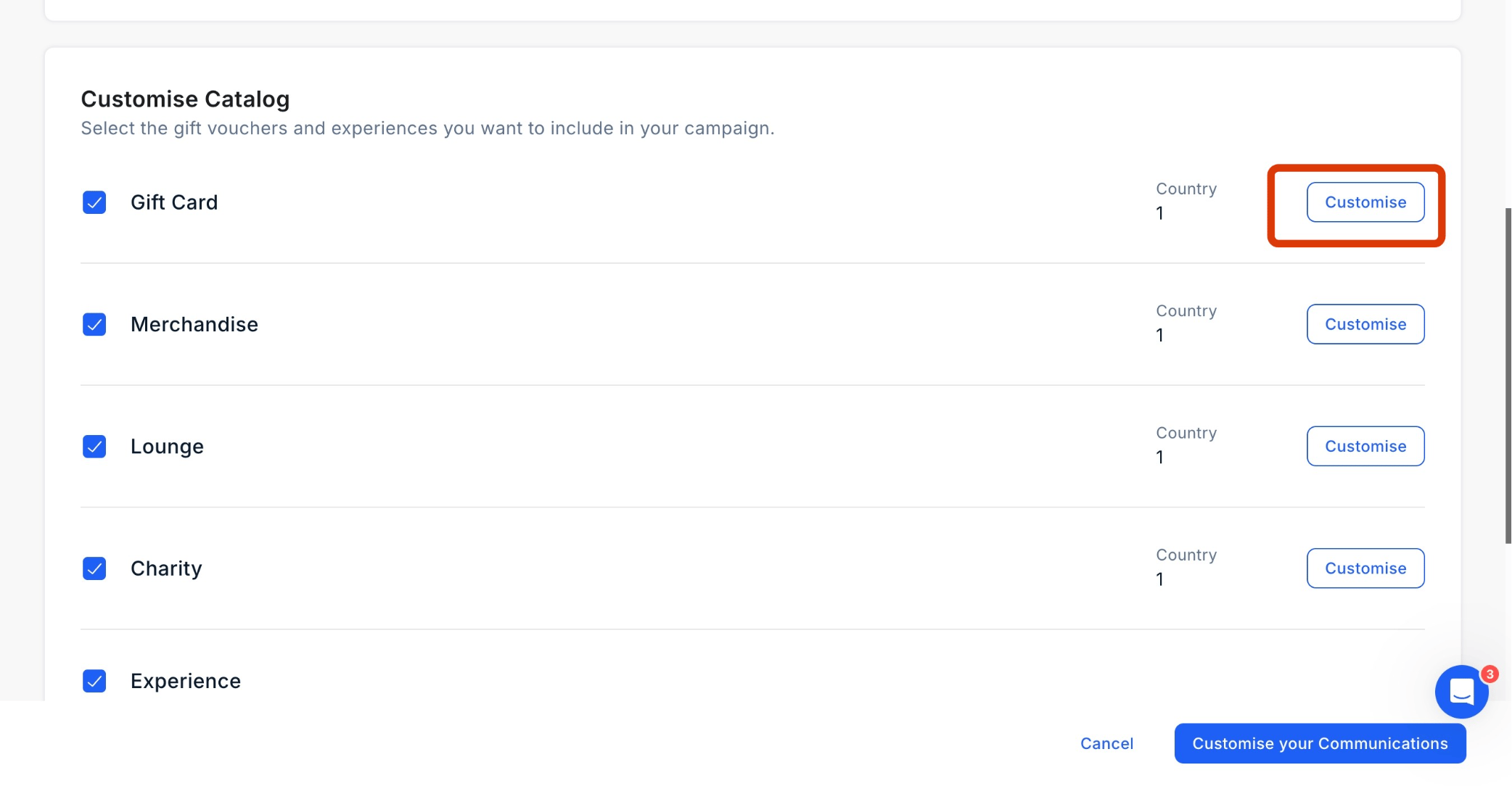
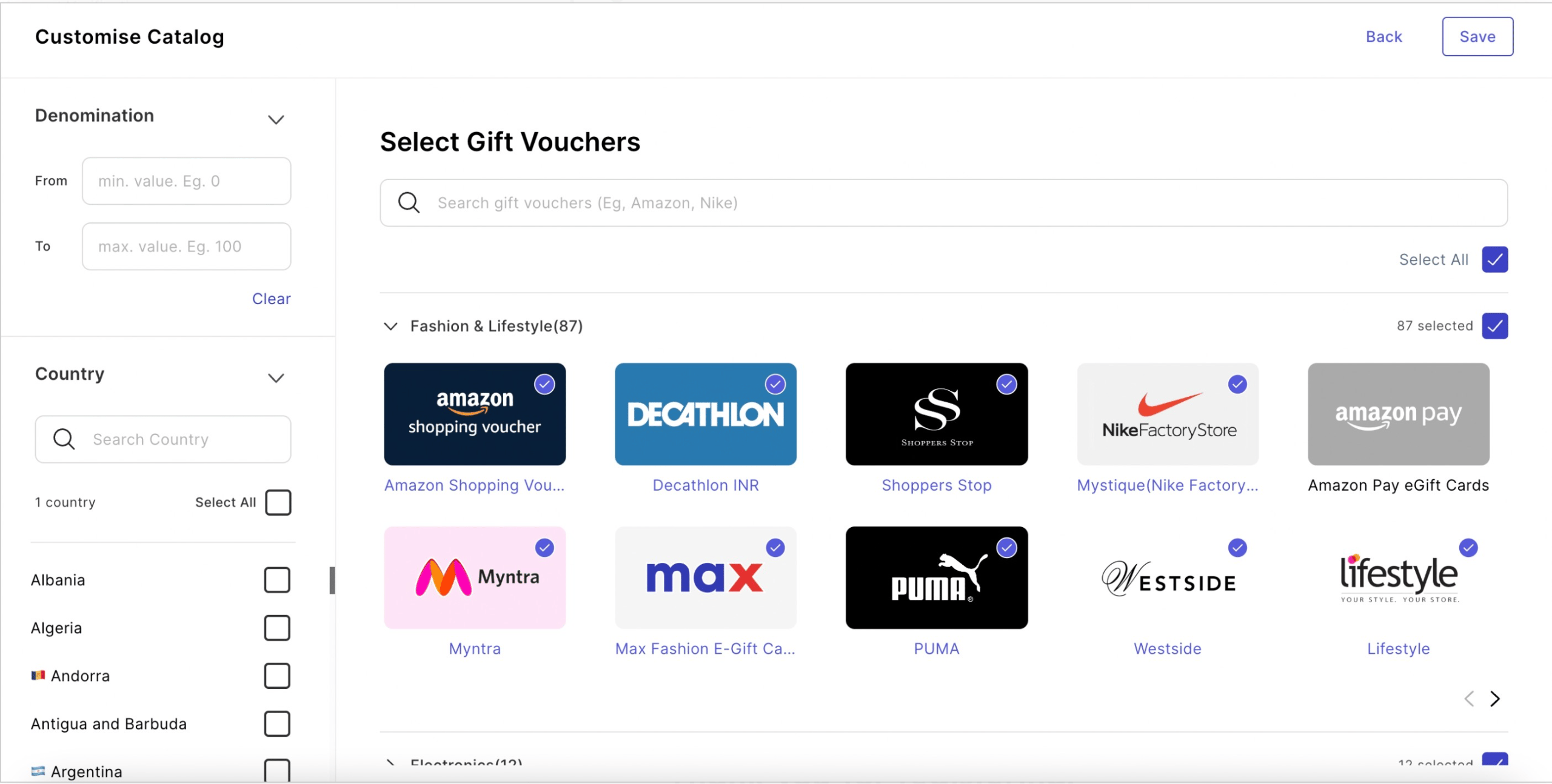
Customizing the Storefront
Utilize the campaign to tailor the storefront for your end-users. This customization encompasses options such as country, brand, and categories. Once adjustments are made, remember to save the changes.
4
Adding a Custom Landing Page
Enhance personalization by incorporating a custom landing page. When recipients receive the reward code, they will first encounter this landing page before being directed to the storefront for redemption.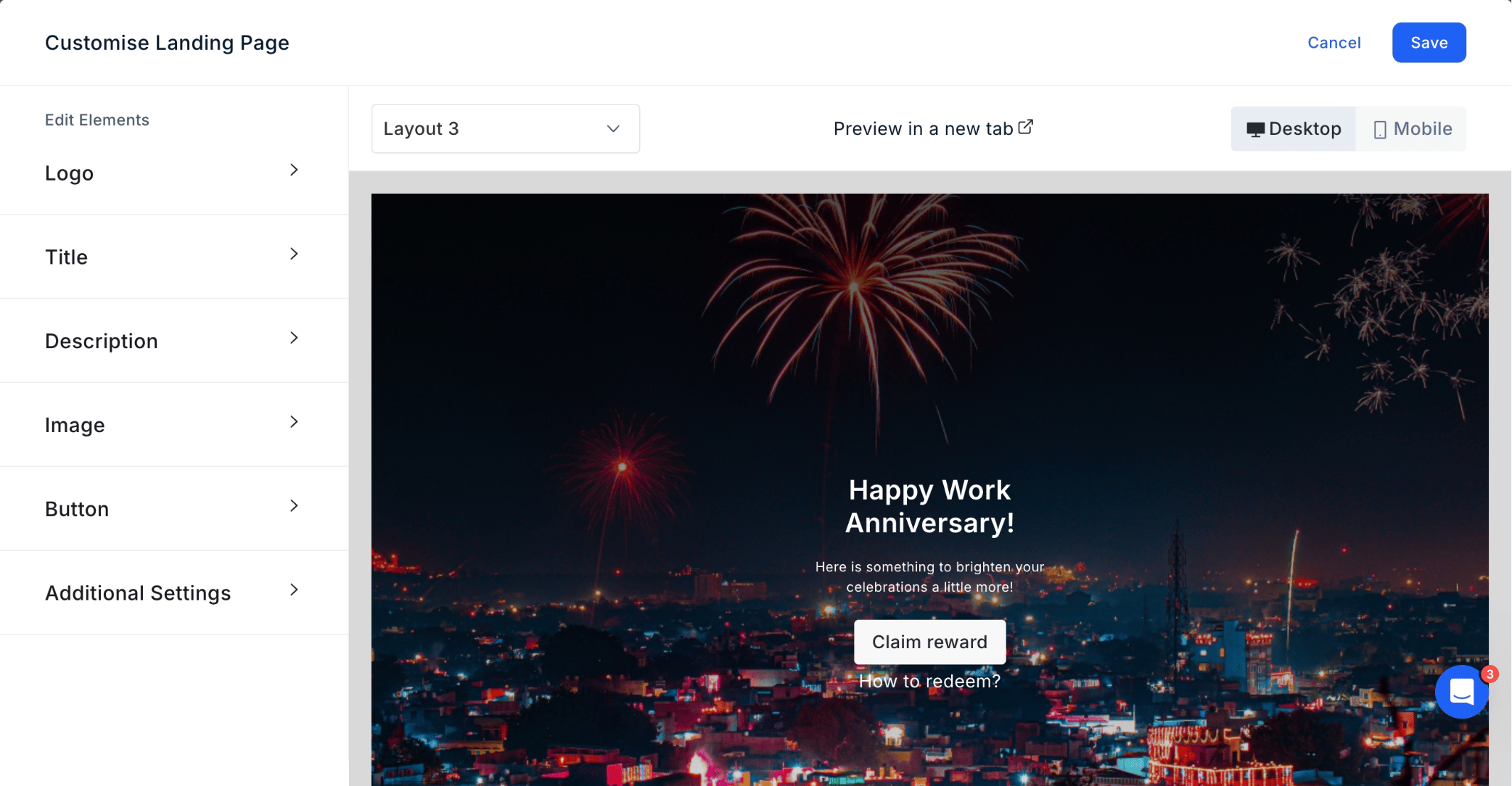
5
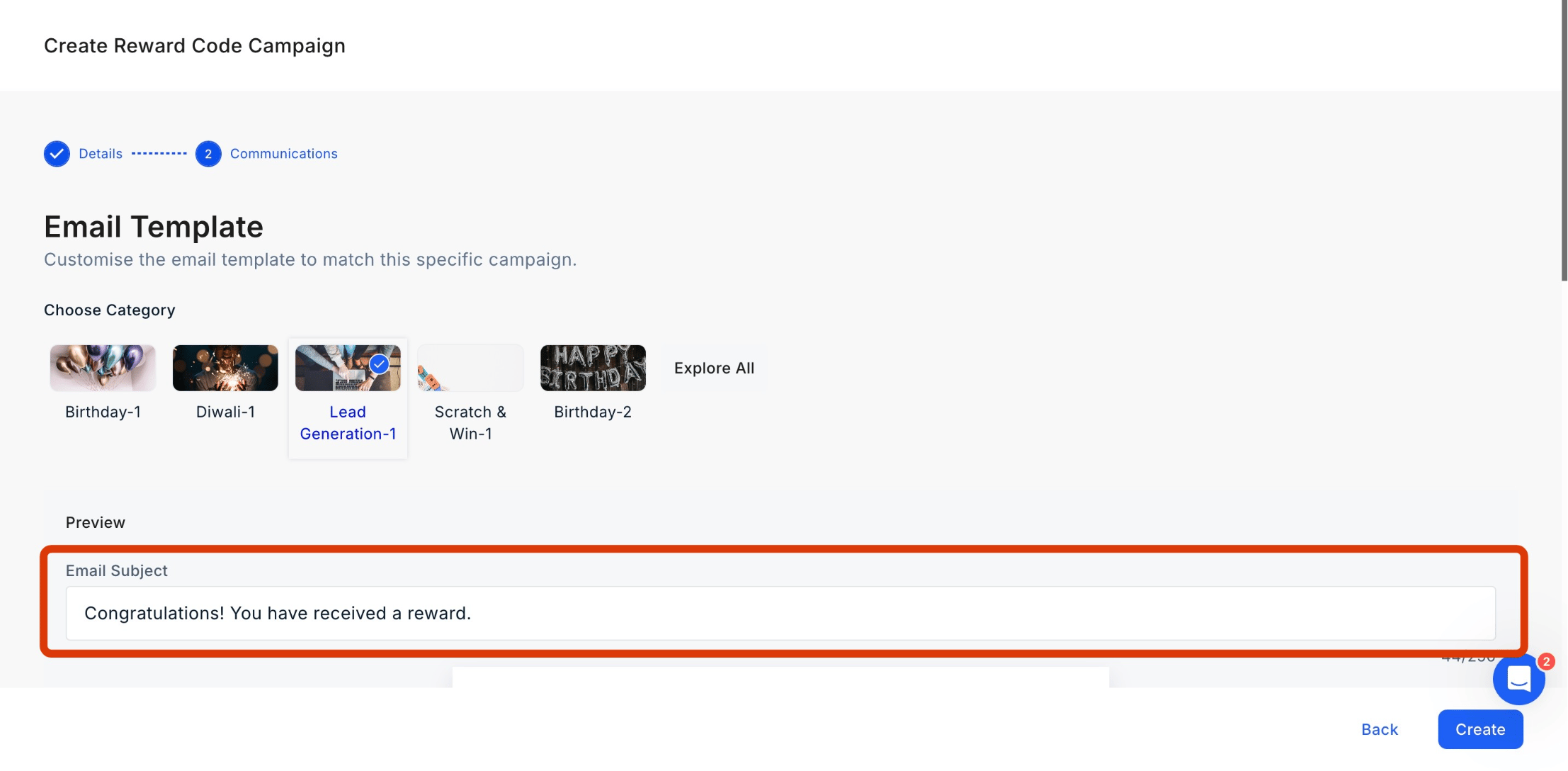
Add the Email Subject and Content
- You can also edit the logo by clicking on “Edit Logo” and uploading a new logo.
- You can also edit the logo by clicking on “Edit Logo” and uploading a new logo.
- Xoxoday Plum allows for editing or removing the banner. Click on “Edit/Remove Banner” and follow the steps.
- Click on “Edit Message” to make changes to the message.
- Click on “Edit Message” to make changes to the message.
- Configure Message Details Toggle the recipient’s name on or off and choose from our library of greetings (or create a custom one). Define your message by entering a title and body text, then adjust the content alignment to your preference.
6
Setting Up the Campaign
Still need help? Raise a support ticket.