
Creating a Reward Link Campaign
Step-by-step guide to creating Reward Link Campaign:1
Navigation
Navigate to Settings > Campaign, select the tab Reward Link and click “Create Reward Link Campaign”.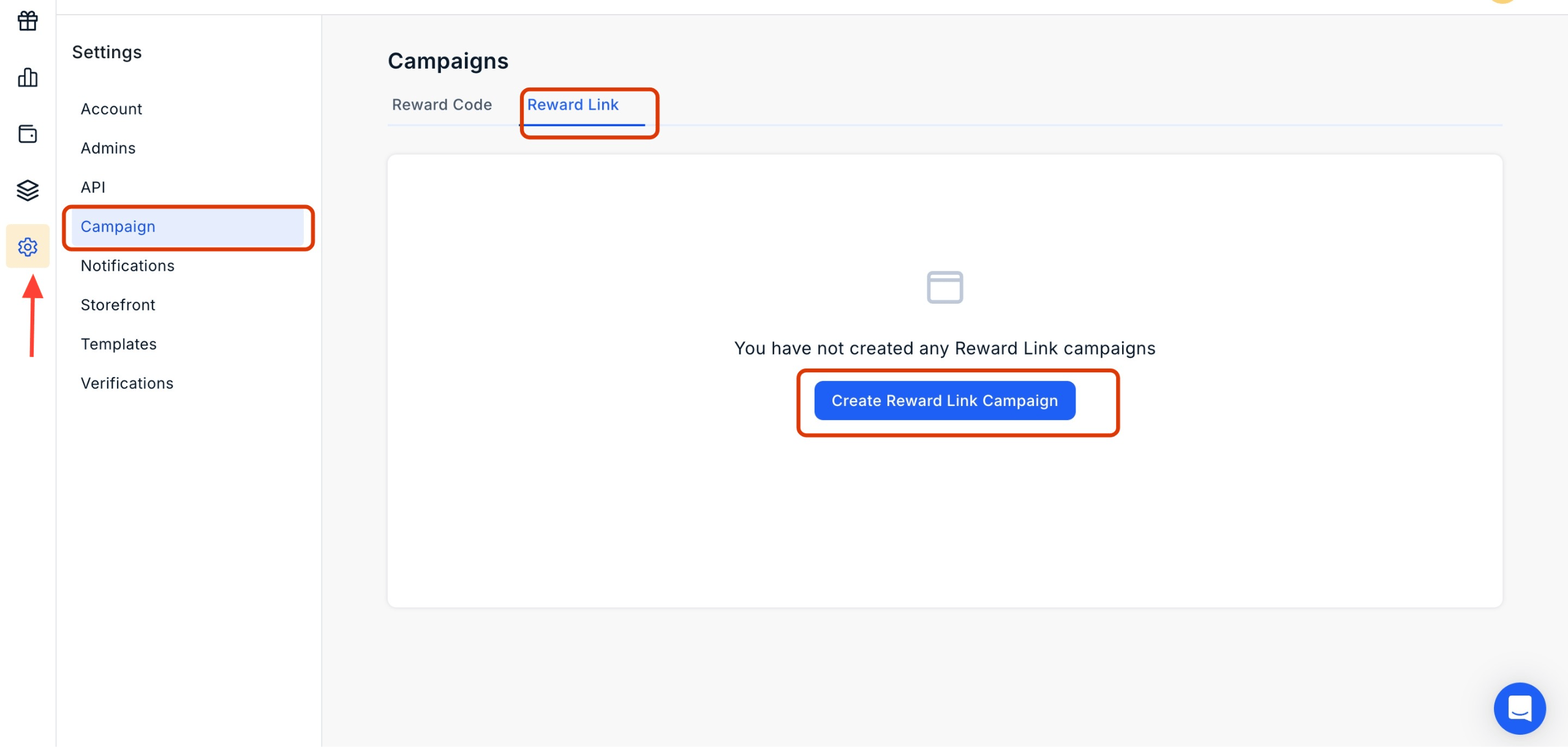
2
Choose a Name
Choose a descriptive and memorable name for your campaign so that it is easy to identify later. Consider including the campaign objective or target audience in the name.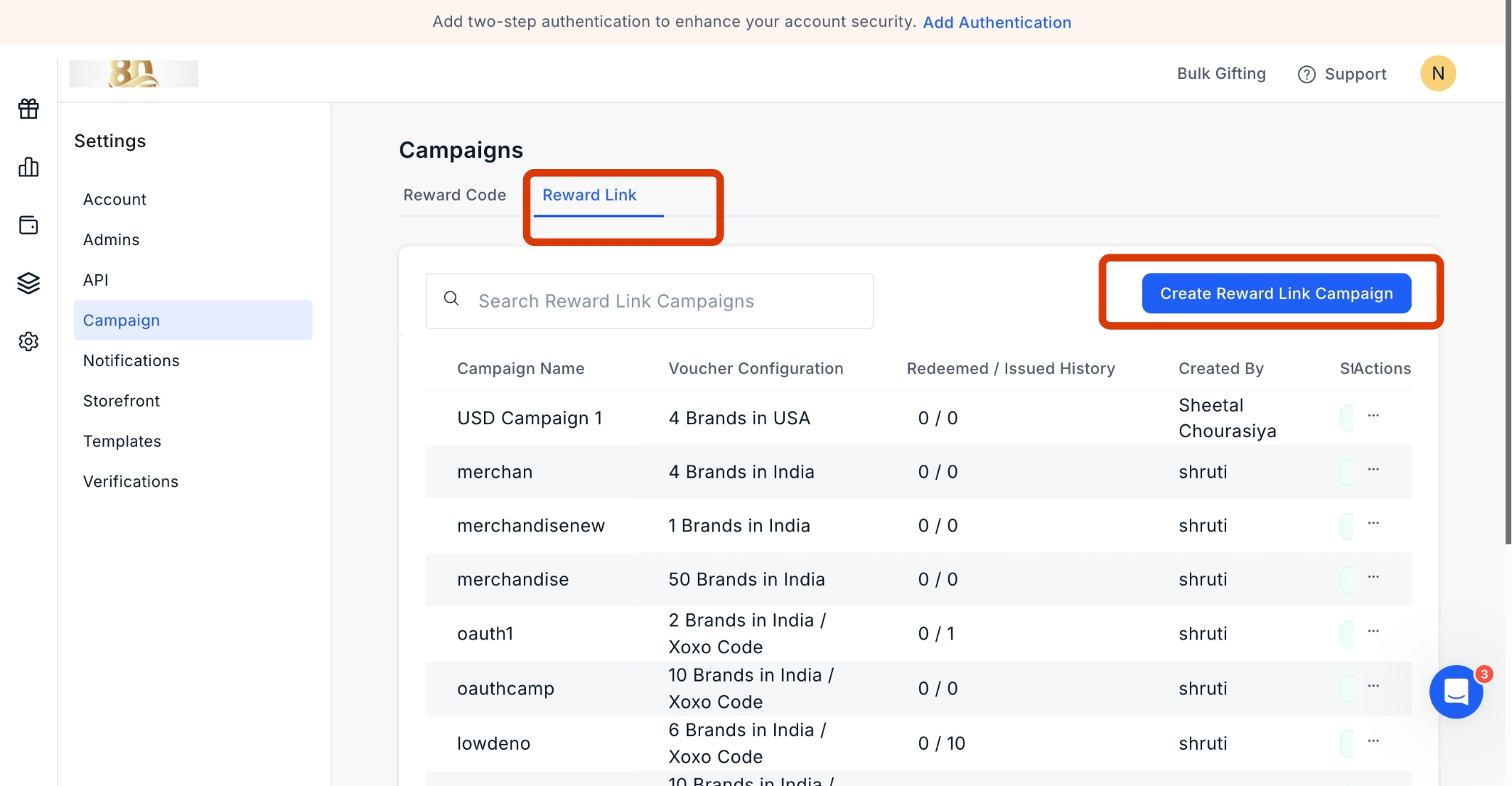
3
Customize the Catalog
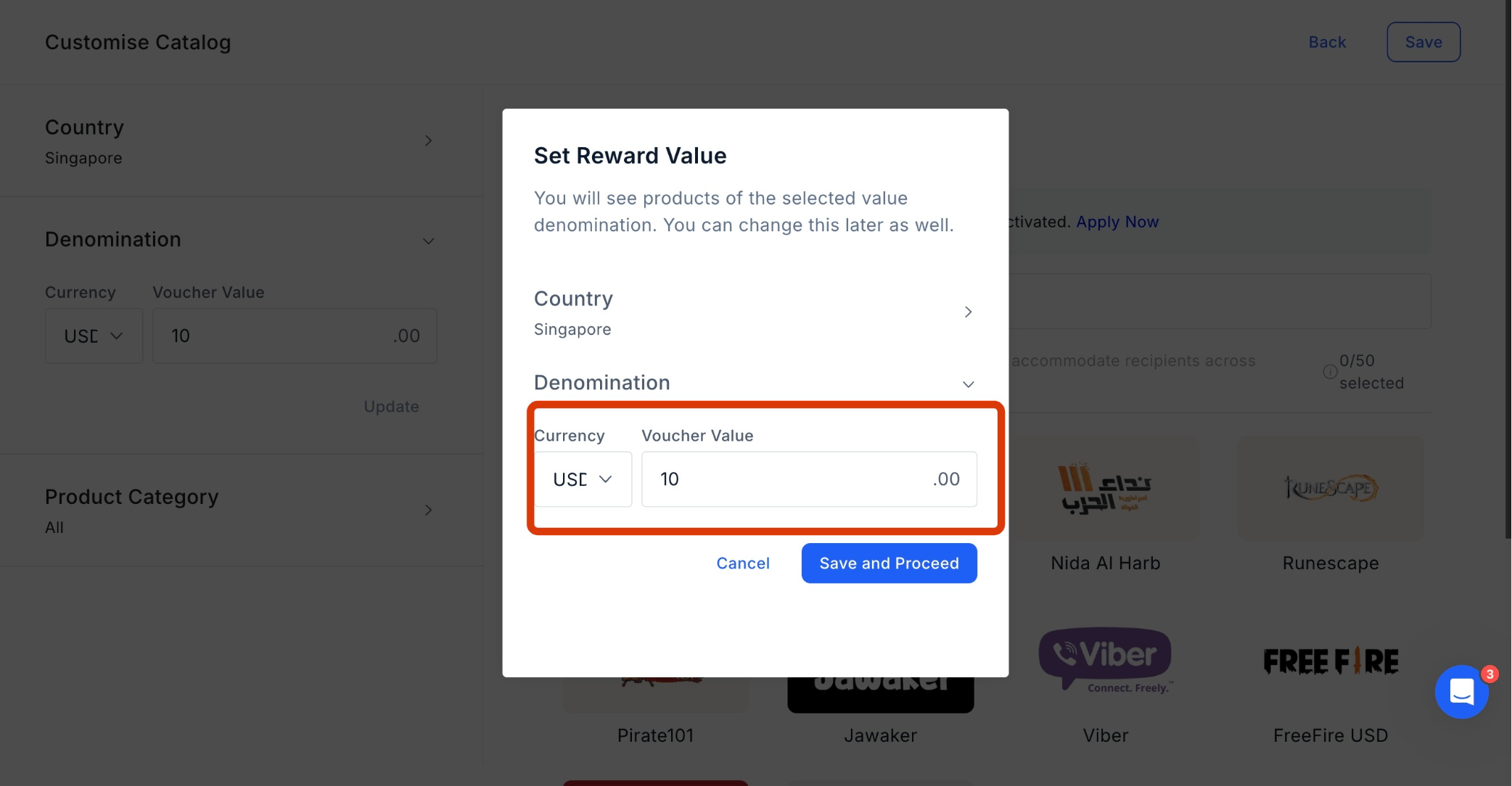
Tailor the reward amount and country selection based on your target audience’s preferences. You can choose either gift cards or merchandise as the reward type. Click “Customise” to adjust the amount and currency.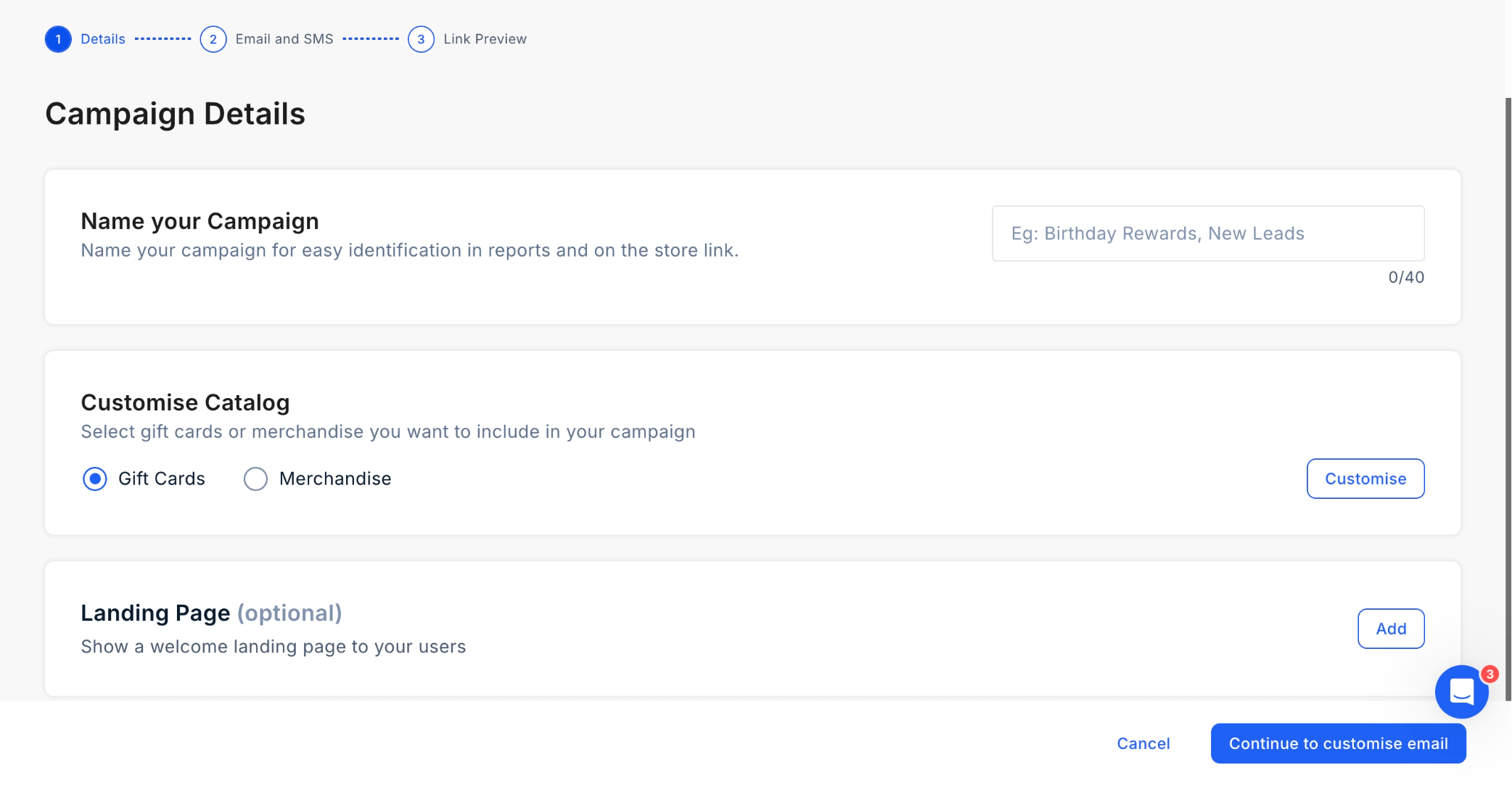
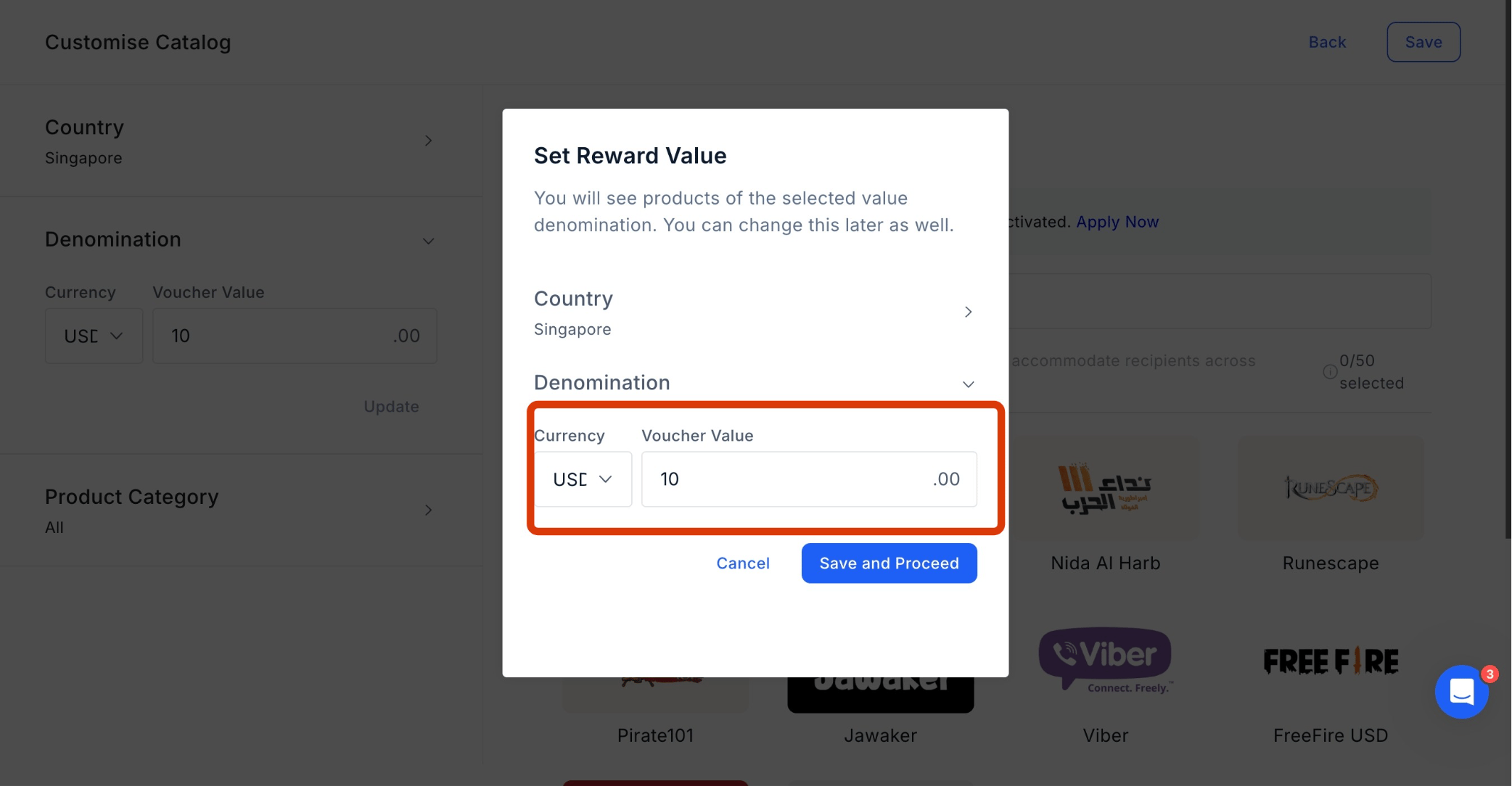
4
Add the Currency type and Voucher value. Once done, click on "Save and Proceed".
5
Voucher Selection
Carefully select vouchers that align with your audience’s interests and preferences.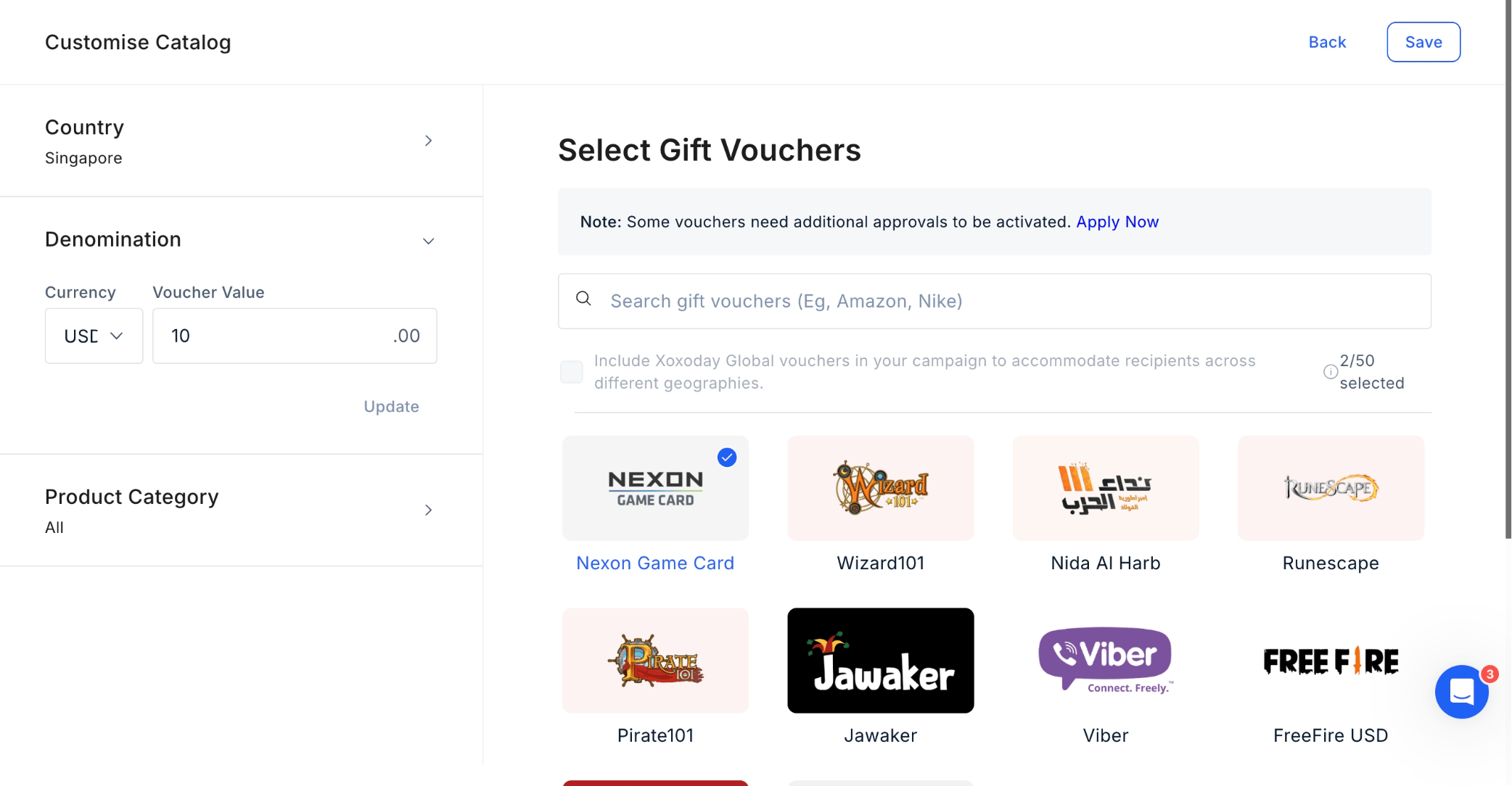
Pro tipConsider offering a variety of options to cater to diverse tastes and maximize redemption rates.
6
Personalized Communication
Customize your email and SMS campaigns to resonate with your audience by using personalization tokens to address recipients by name and segmenting your messaging based on demographics or past interactions.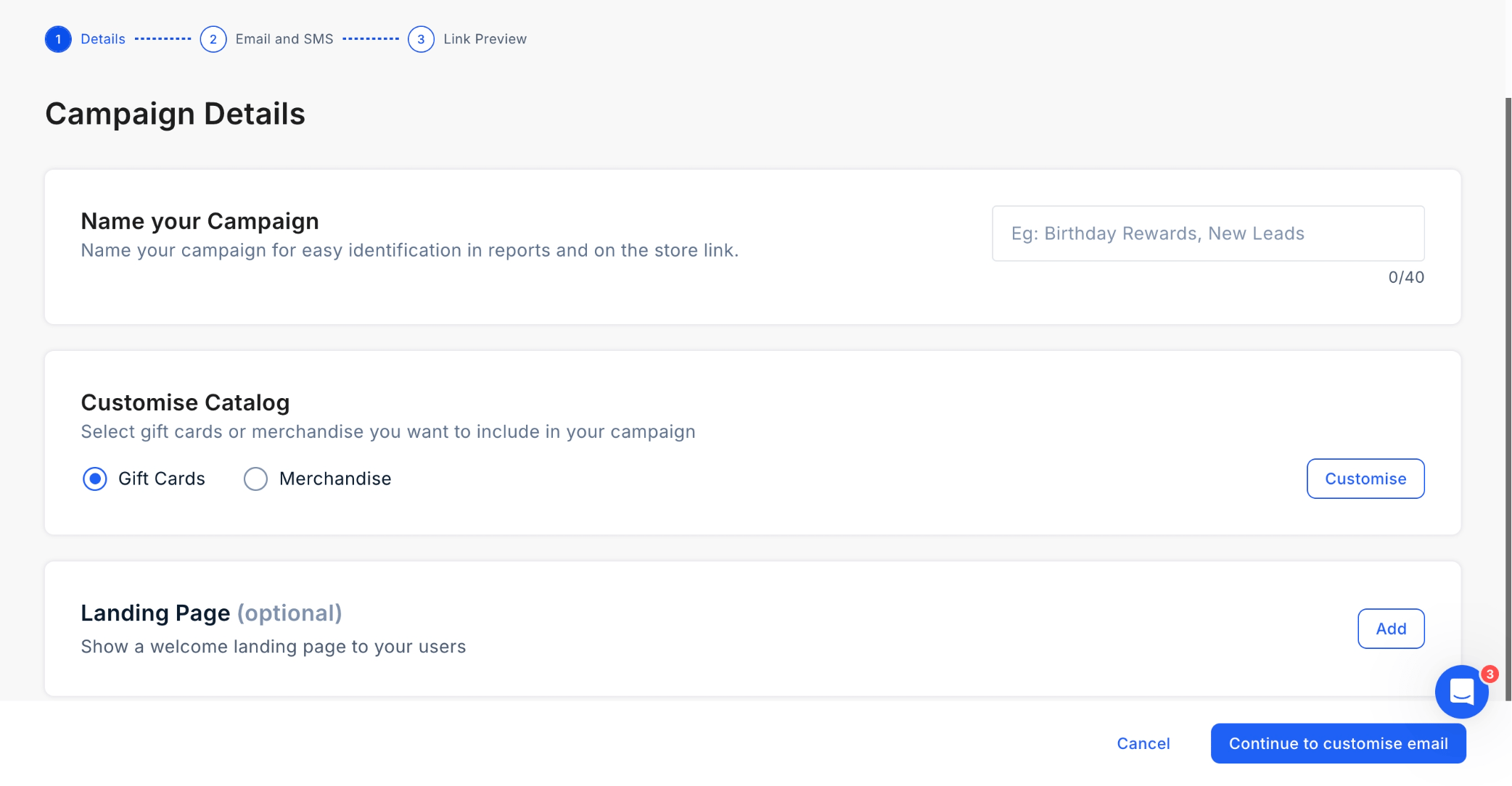
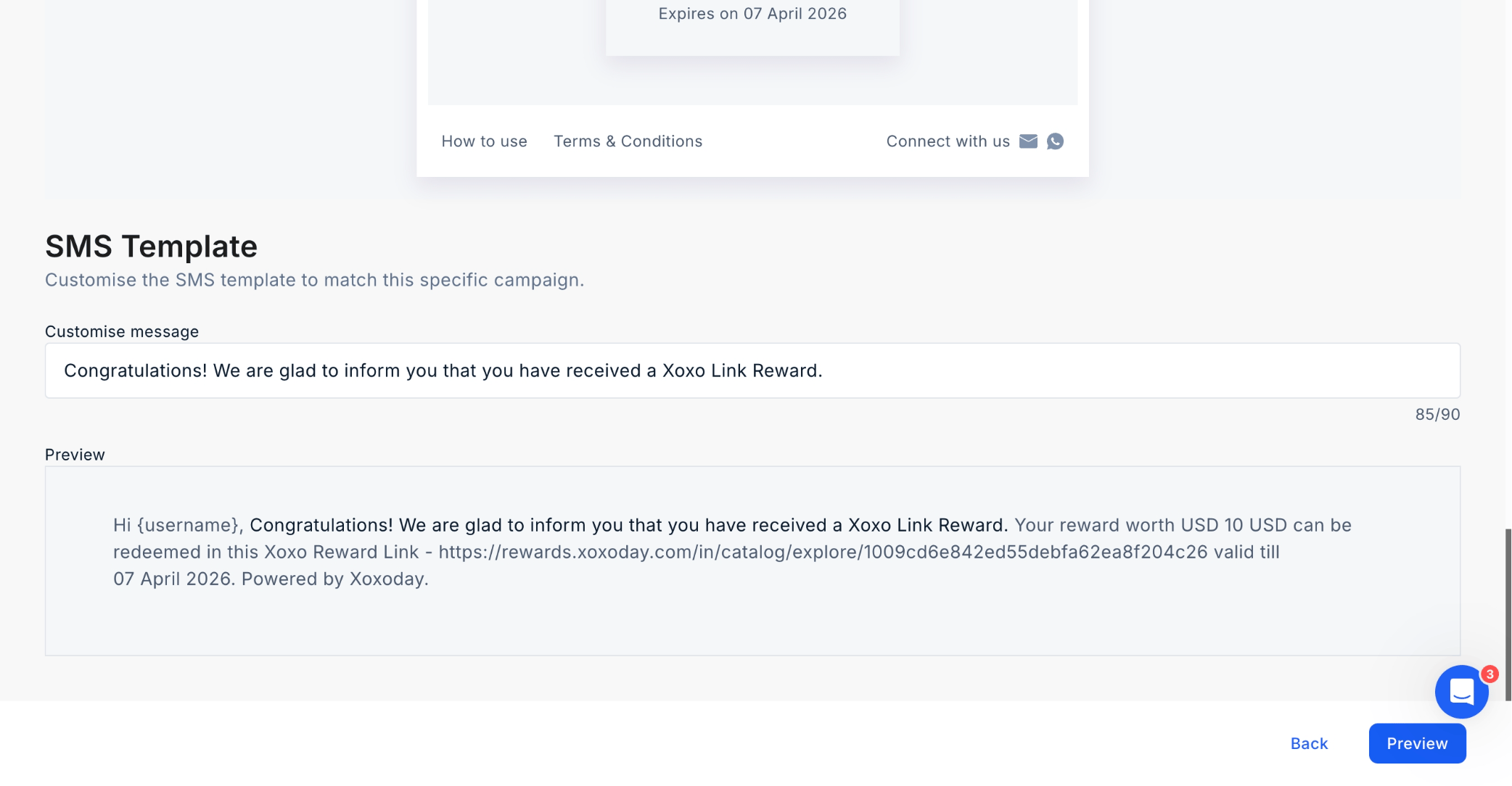
Pro tipYou can customize communication at the time of sending reward links as well. Learn more here: Customize Reward Communication
7
Preview
Always preview your campaign setup before finalizing it. Check for any errors or inconsistencies in the content and ensure that the campaign flows smoothly from start to finish. Once previewed, click “Create” to proceed.
Still need help? Raise a support ticket.