
Documentation Index

Fetch the complete documentation index at: https://help-plum.xoxoday.com/llms.txt

Use this file to discover all available pages before exploring further.

Zapier + Plum

How to integrate Zapier with Plum?

SurveyMonkey + Zapier + Xoxoday Plum

Integrate SurveyMonkey with Xoxoday Plum to send a gift card to respondents on SurveyMonkey. ​Benefits of this integration
  • Saves time – Seamless and automated workflow triggered by just a few clicks.
  • No human intervention or Technical support needed - No code workflow set-up with a step-by-step walkthrough.
  • Ease of workflow creation improves Customer Experience.
  • Provides a hassle-free method for organizations to reward and recognize people.
  • Instant Rewarding/Gratification - Provides a sense of fulfillment for the user on completion of a particular task, leaving behind a good taste of the application or platform used.
​To integrate SurveyMonkey with Zapier follow the following steps:
  • Create a Zap workflow by first choosing an online app (HubSpot, Salesforce, SurveyMonkey, Slack, Google sheets, SurveySparrow, etc.) and then choose a trigger, such as ‘when a survey submission is completed by the user’. Test the trigger to Find data.
  • Next, pick Xoxoday Plum as the “Action” application to send rewards in the form of e-gift cards automatically as a response to the “Trigger”.
  • Sign in to the Trigger App. Next, to sign into the Action App, complete the self-serve set-up of Xoxoday Plum.
Below are the steps to register:

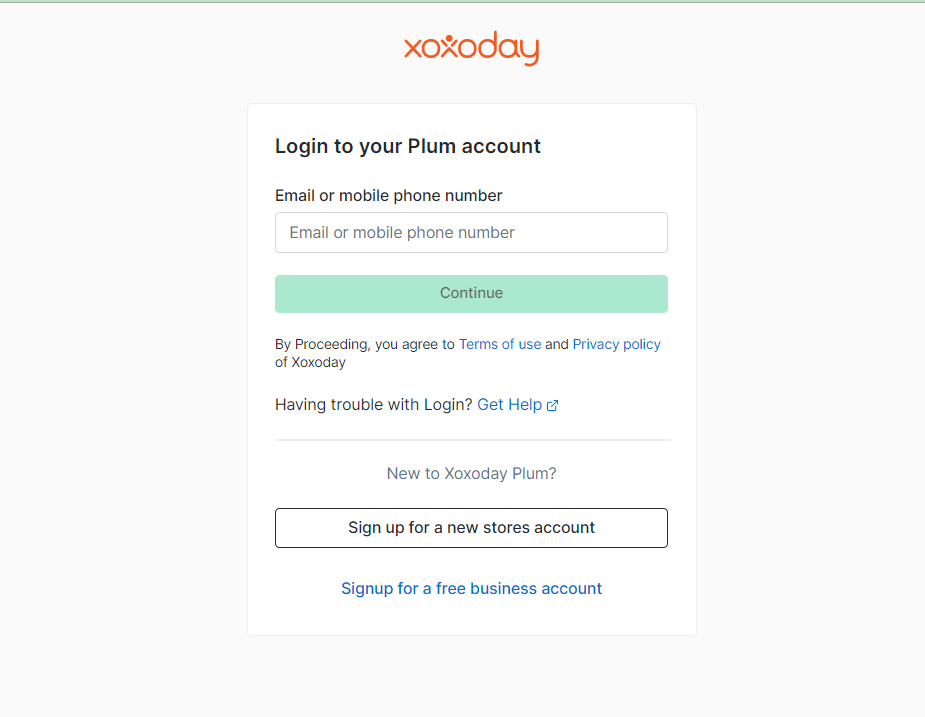
Signup or Sign In on Plum(if you already do not have a plum account)

If you are new to Xoxoday Plum, click on the “Signup” button. You can learn how to set up a Plum account here. It’s recommended that you use the email registered with HubSpot to signup with Plum as well.**​ 📘 If you are an existing user, use your xoxoday credentials to log in to the admin dashboard.** Congrats, you have successfully installed the application.
Click on the Recharge option on the Menu bar to Recharge your Plum Account for the Reward automation campaign
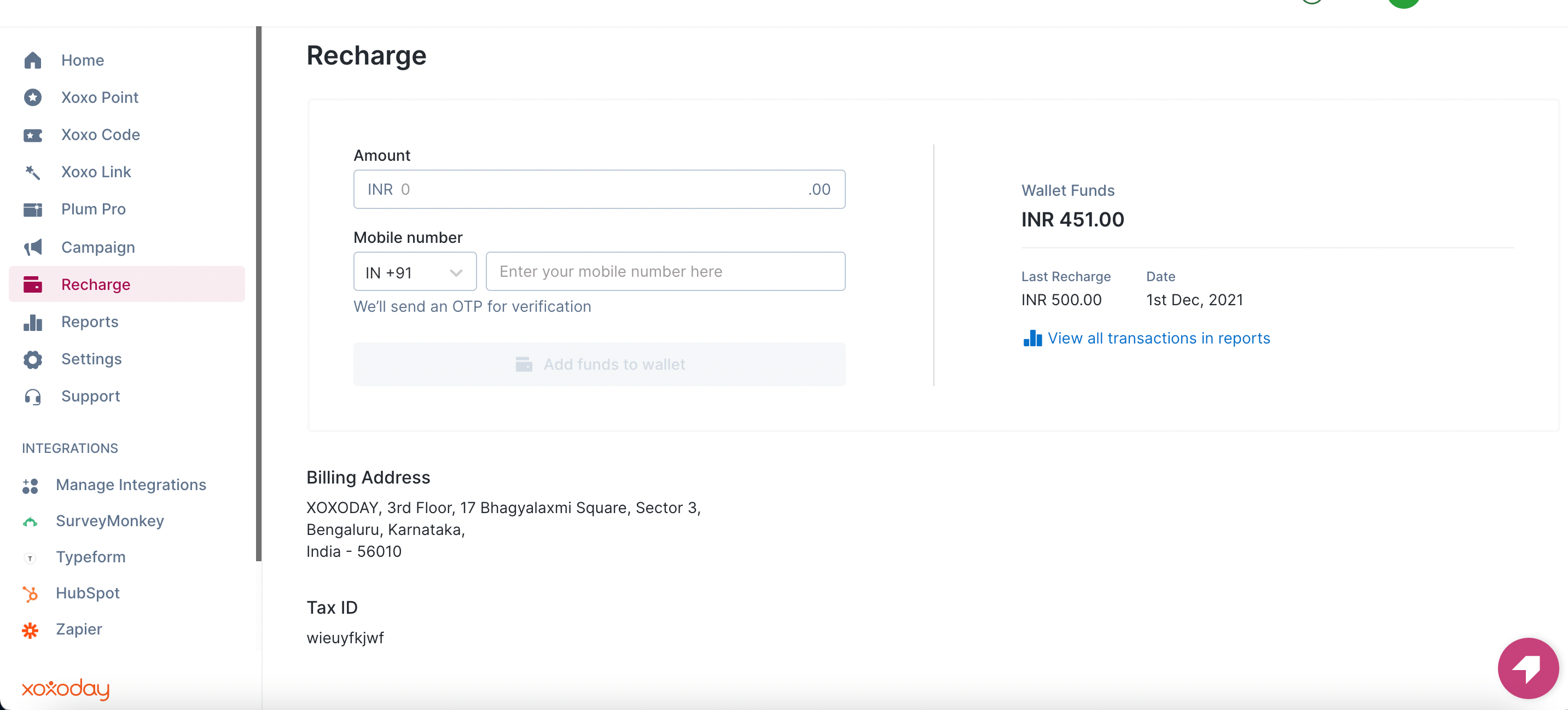
## Recharging the account
  • Click on Add Funds and Proceed with the Payment.
​Step 5: Now authorize your Zapier account with the Plum account for seamless data sync. ​Now you are successfully registered with Xoxoday Plum. 📘 Already existing customer: Sign in using your existing user ID and password.

​Authorize your account

Now you are successfully registered with Xoxoday Plum.
  • Once signed into Plum, click Continue and start Customising your reward, fill up all the fields depending on the use-case of the Action you have set. Double-check everything. For example, the Recipient Email field is important if the gift card(s) need to be sent to the user via email.
  • Click Continue. You may now test it for review or proceed to the next step.
  • Turn on Zap to complete the workflow.
**Congrats! You have successfully created the Zap. As a result, whenever a respondent completes the selected Survey on SurveyMonkey, he will instantly receive the customized Gift Card from Xoxoday Plum! Could this process of workflow creation get any simpler?!

Salesforce + Zapier + Xoxoday Plum

Integrate Salesforce with Xoxoday Plum to send a gift card to new Prospects/leads added to your Salesforce account ​To integrate Salesforce account with Zapier follow the following steps:** ​Step 1: Select Salesforce as the Trigger application, the Trigger, in this case, is “when a new lead(a record) is added”. First, log in to your Salesforce account and Test the trigger to Find data. ​Step 2: Next, pick Xoxoday Plum as the Action application to send rewards in the form of e-gift cards automatically as a response to the Trigger, i.e. to a new record added on Salesforce. ​Step 3: After DIY set-up or log in as a registered user of Xoxoday Plum. ​Step 4: Click Continue and begin Customizing the Reward. Fill up all the fields depending on the use-case of the Action you have set. Double-check everything. For example, the Recipient Email field is important if the gift card(s) need to be sent to the user via email. ​Step 5: Test and Review or Continue. ​Congrats! Your Zap is now ready. As a result of this integration, whenever a new record is added to Salesforce, the user receives Xoxoday Plum’s customized Gift Card via email. ​ ​ ​ ​ ​ ​