
Microsoft Outlook Email Whitelisting Process
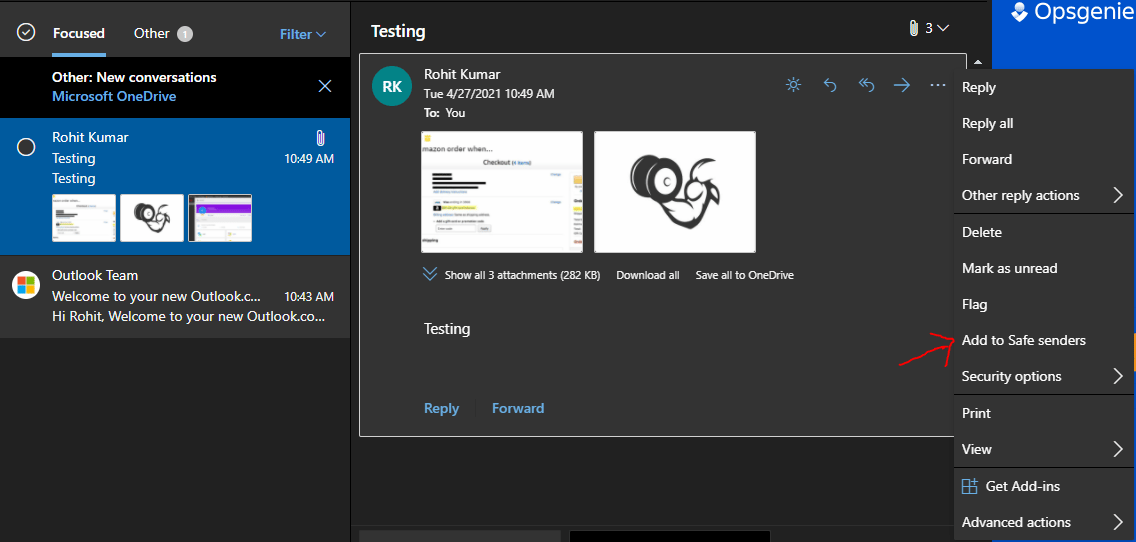
Option 1: For Individual Email Addresses to be whitelisted from inside email message
In an open message that was sent from a particular email address or domain, right-click on a blocked item. Do one of the following:- Click Add Sender to Safe Senders List.
- Click Add the Domain [@domain] to Safe Senders List.
Option 2: For Email Address to be whitelisted from settings
1
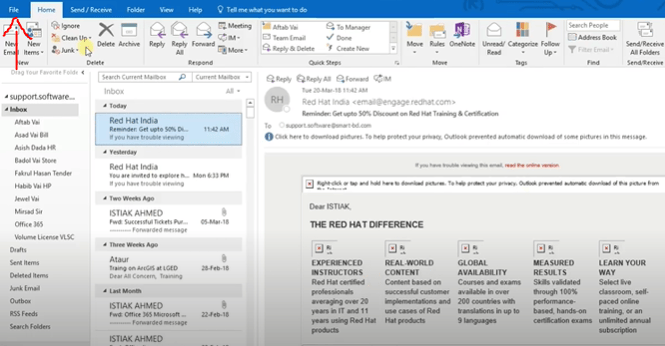
Click on the File option in the header
2
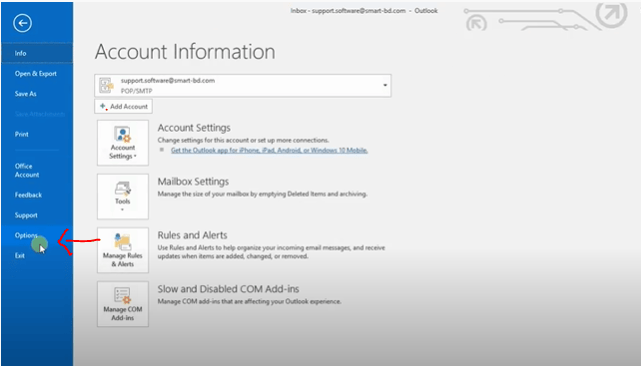
Select Options on the left side menu
3
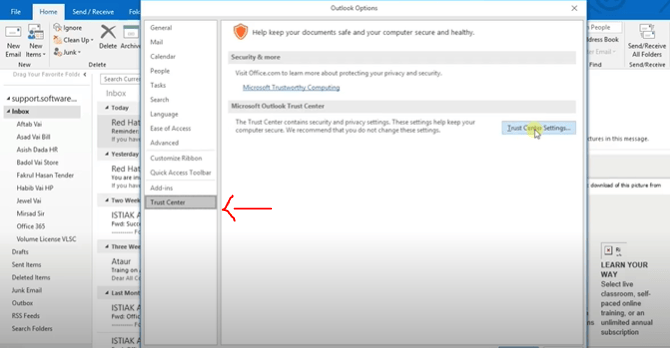
Select Trust Centre again from the left Panel
4
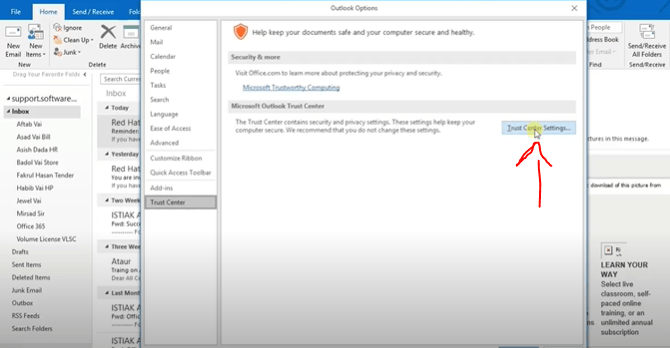
Click on the Trust Center Setting
5
Untick the option which says Don't download pictures automatically
Untick the option which says “Don’t download pictures automatically in HTML email messages or RSS items.”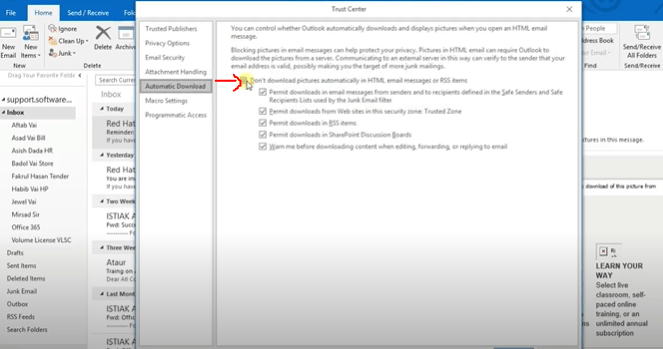
6
Refresh and Restart Outlook Again
Option 3: For Email Address to be whitelisted from Microsoft Admin
Step by Step Instructions (Admin Side)- Login to https://portal.microsoftonlie.com
- Go to Admin > Exchange > Mail Flow
- This is similar to setting rules using Outlook’s built in rules.
- New rule details in Office 365. Click to view larger.
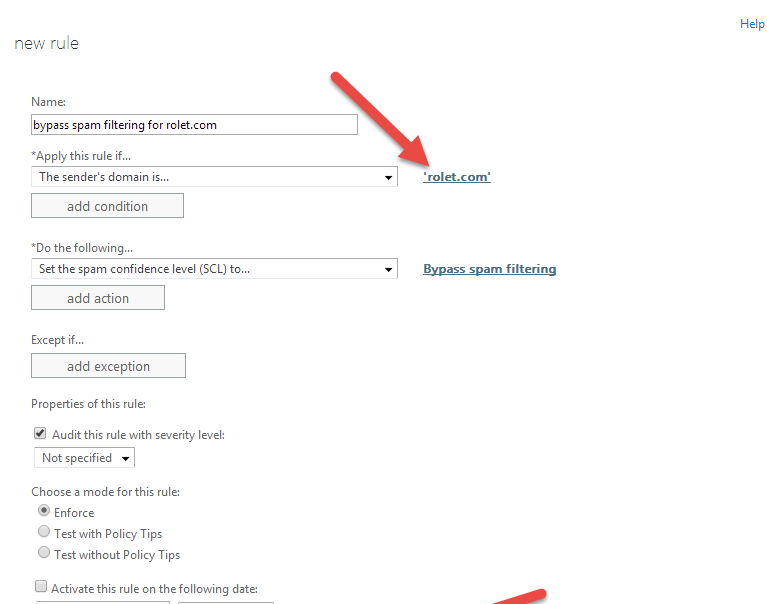
- Click the + and select Bypass Spam Filtering
- Apply this rule if… > The sender… > domain is
- Under specify domain, be sure to click the + to add the domain to the list.
- Click ok
- Check Stop processing more rules
- Click save
Google Email Whitelisting Process
- In the Admin console Go to Apps > G Suite Gmail > Advanced settings.
- Scroll to the Spam section, hover over the setting, and click “Configure”.
- Enter a unique name for the setting.
- Check the Bypass spam filters for messages received from addresses or domains within this approved senders lists box.
- Click “Use existing or Create a new one”, enter a new list name, and click “Create”.
- Hover over the list name, click “Edit”, and then click “Add”.
- Enter domain name ‘abc.com’
- Save
DMARC Quarantine Issue
Error Message: DMARC Message from domain xoxoday.com, DMARC fail, (SPF aligned False, DKIM aligned False) DMARC policy is quarantine, applied policy is quarantine. For the above Error, please do the whitelisting process for your respective email services.Still need help? Raise a support ticket.