Step 1: Logging into Salesforce Loyalty Cloud
- Open a web browser and navigate to your Salesforce Loyalty Cloud login page.
- Enter your username and password, then click Login.
- Ensure that you have the necessary admin permissions to install external apps.
Step 2: Installing the Xoxoday App Package in Salesforce
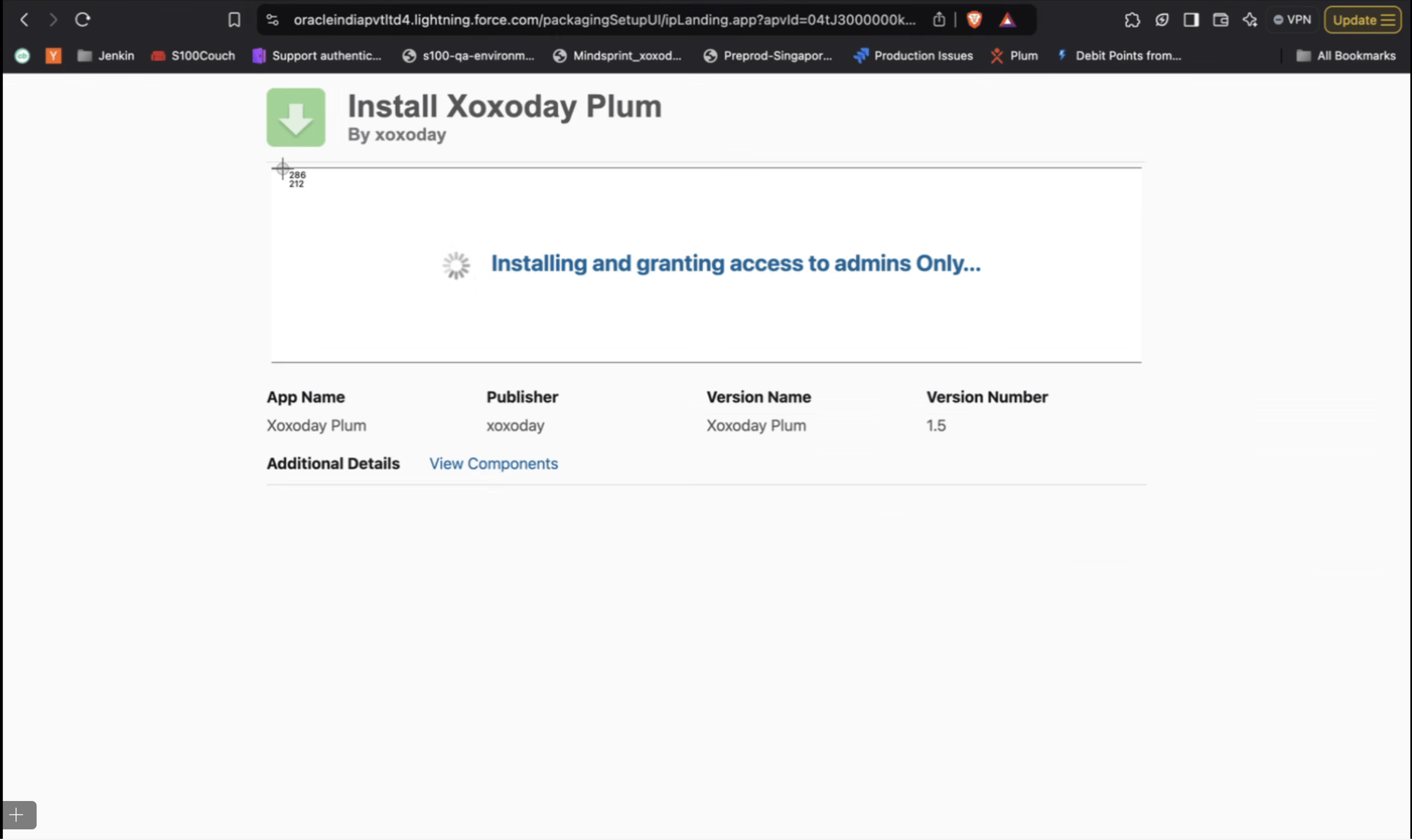
- Navigate to Salesforce AppExchange and search for the Xoxoday Plum Integration Package, or use the link below:Xoxoday Plum, Version 1.5
- Choose the Salesforce environment (Production or Sandbox) where you want to install the package.
- Follow the on-screen prompts to complete the installation.
- Once installed, ensure that all necessary permissions are granted for the app to function properly.
Step 3: Connecting Salesforce Loyalty Cloud with Xoxoday Plum
3.1. Logging into Xoxoday Plum
- Open a new browser tab and navigate to Xoxoday Plum.
- Enter your Xoxoday login credentials and sign in.
3.2. Navigating to the Integration Page
- Once logged in, go to the Integration page from the Xoxoday dashboard.
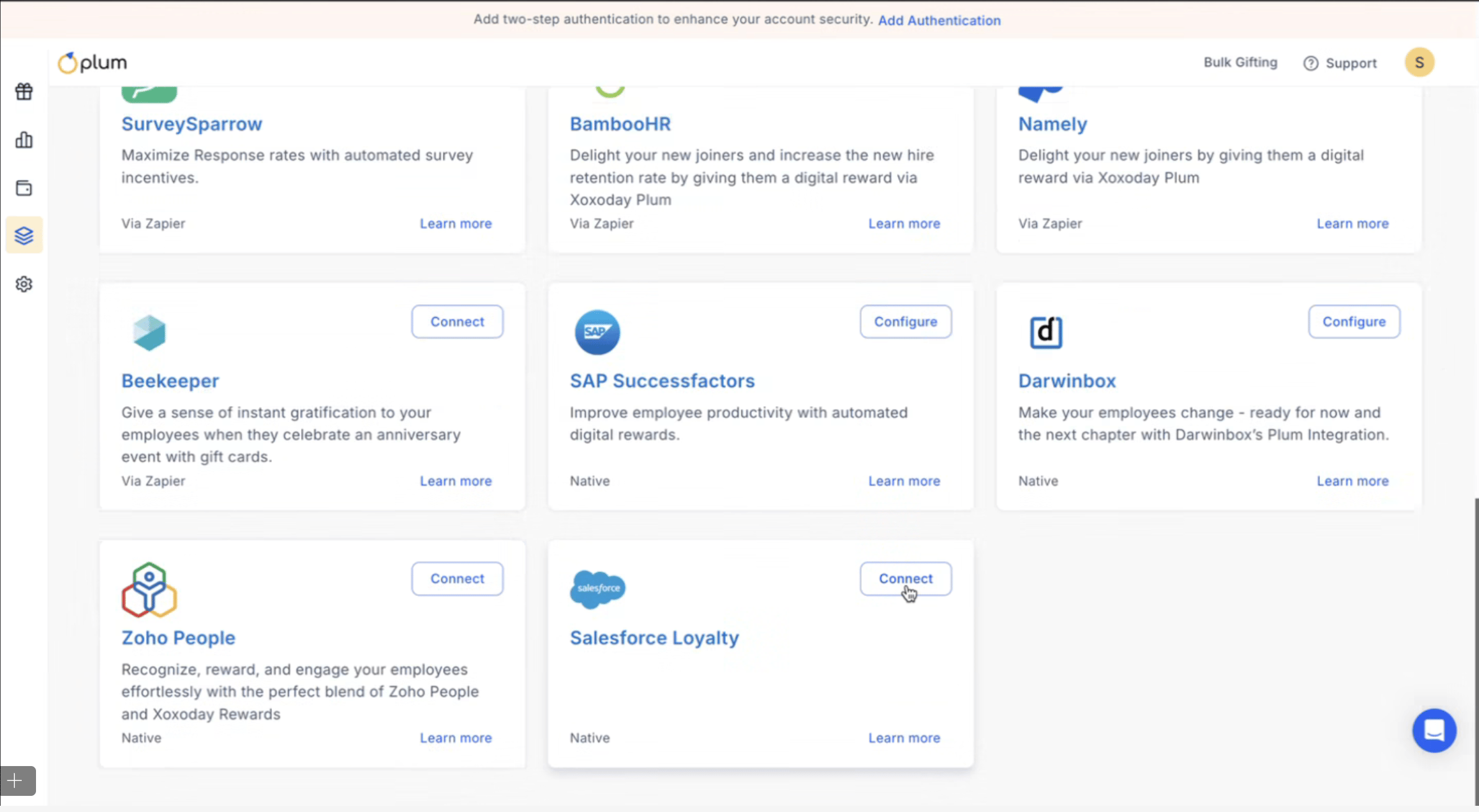
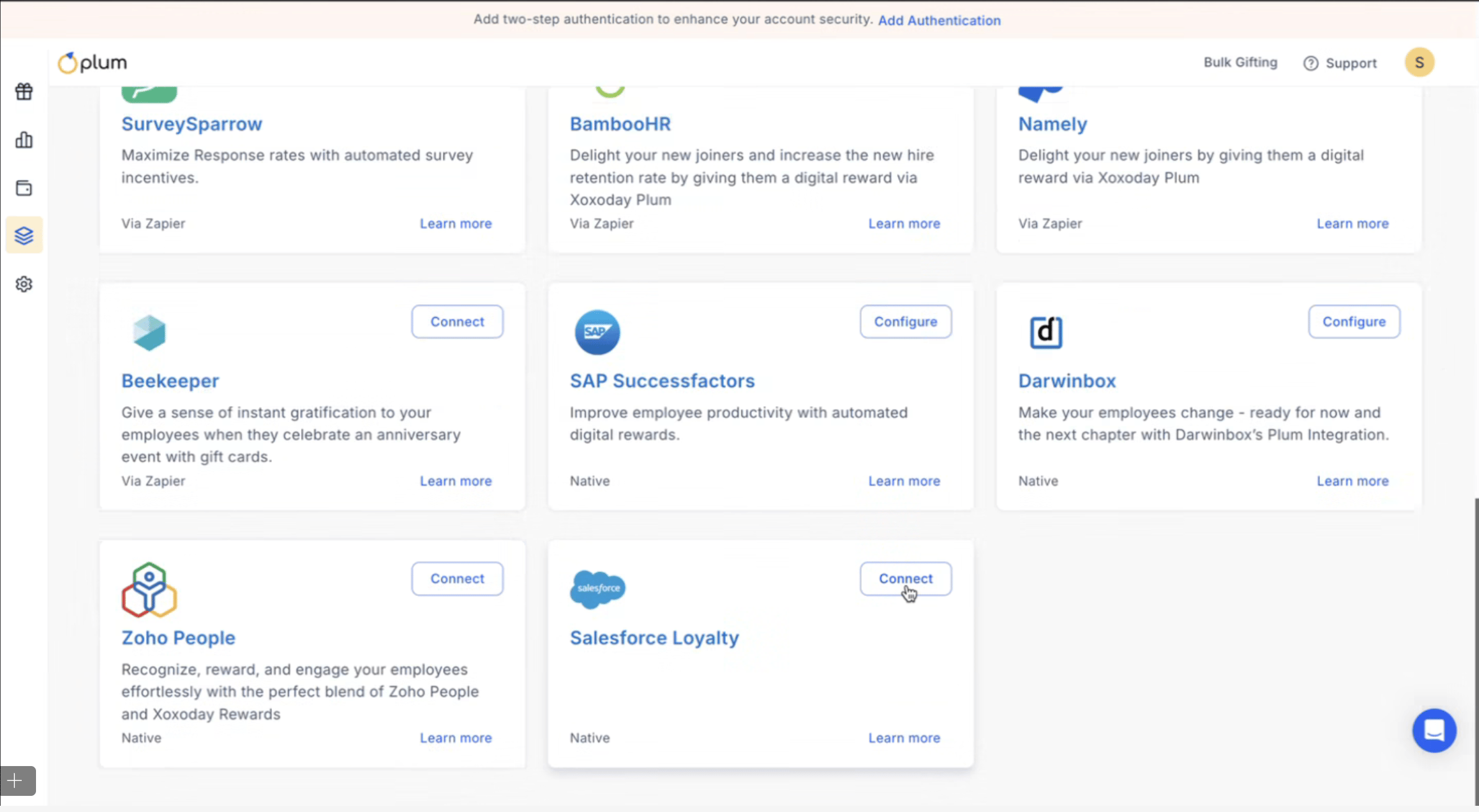
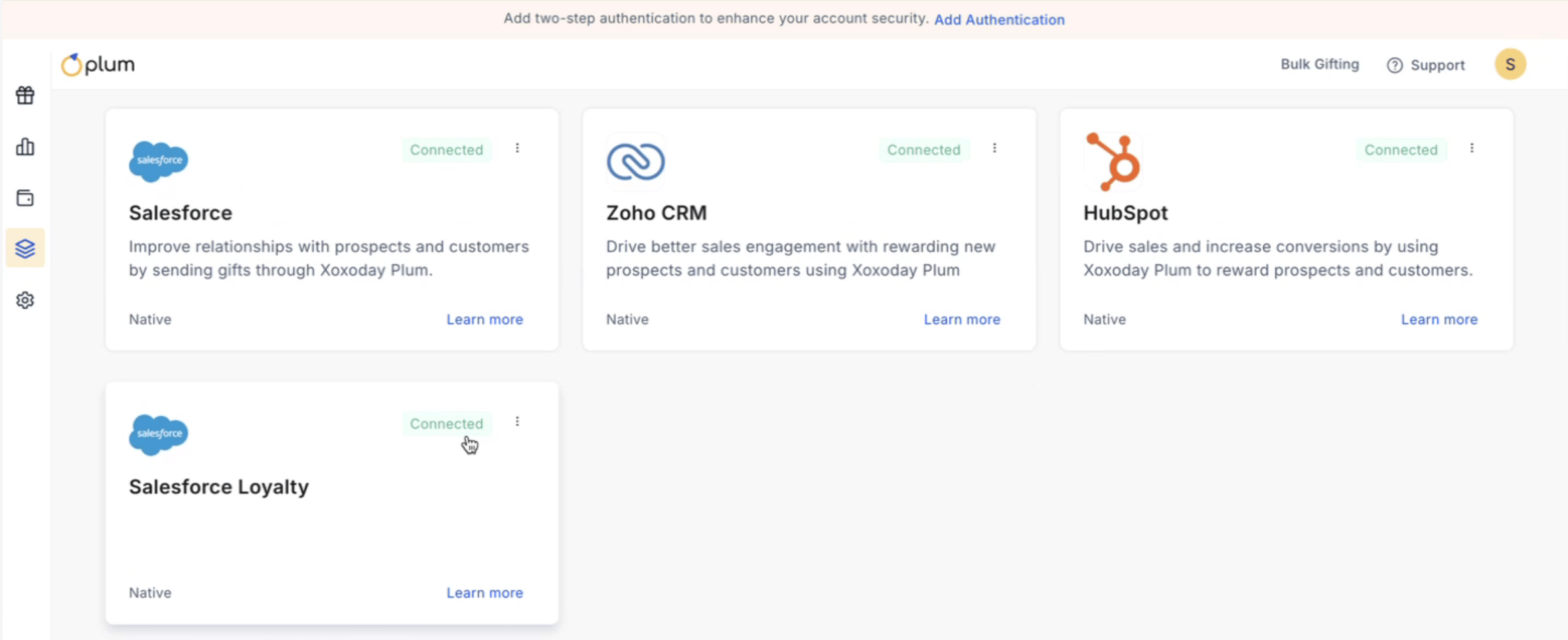
- Locate the Salesforce Loyalty card in the list of available integrations.
3.3. Initiating the Connection
- Click the Connect button on the Salesforce Loyalty integration card.
- You will be redirected to the Salesforce login page.
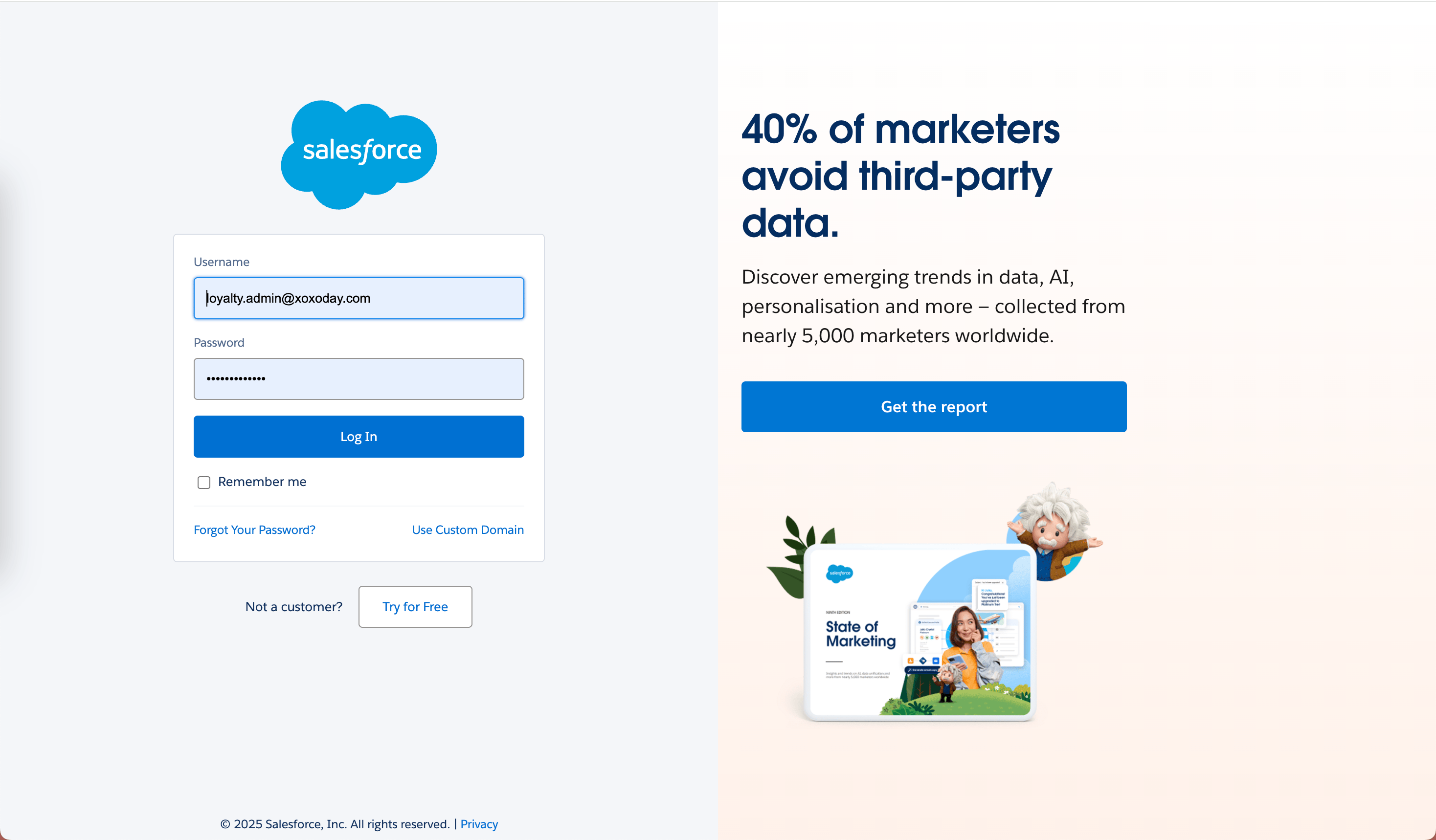
3.4. Logging into Salesforce Loyalty
- Enter your Salesforce Loyalty credentials and click Login.
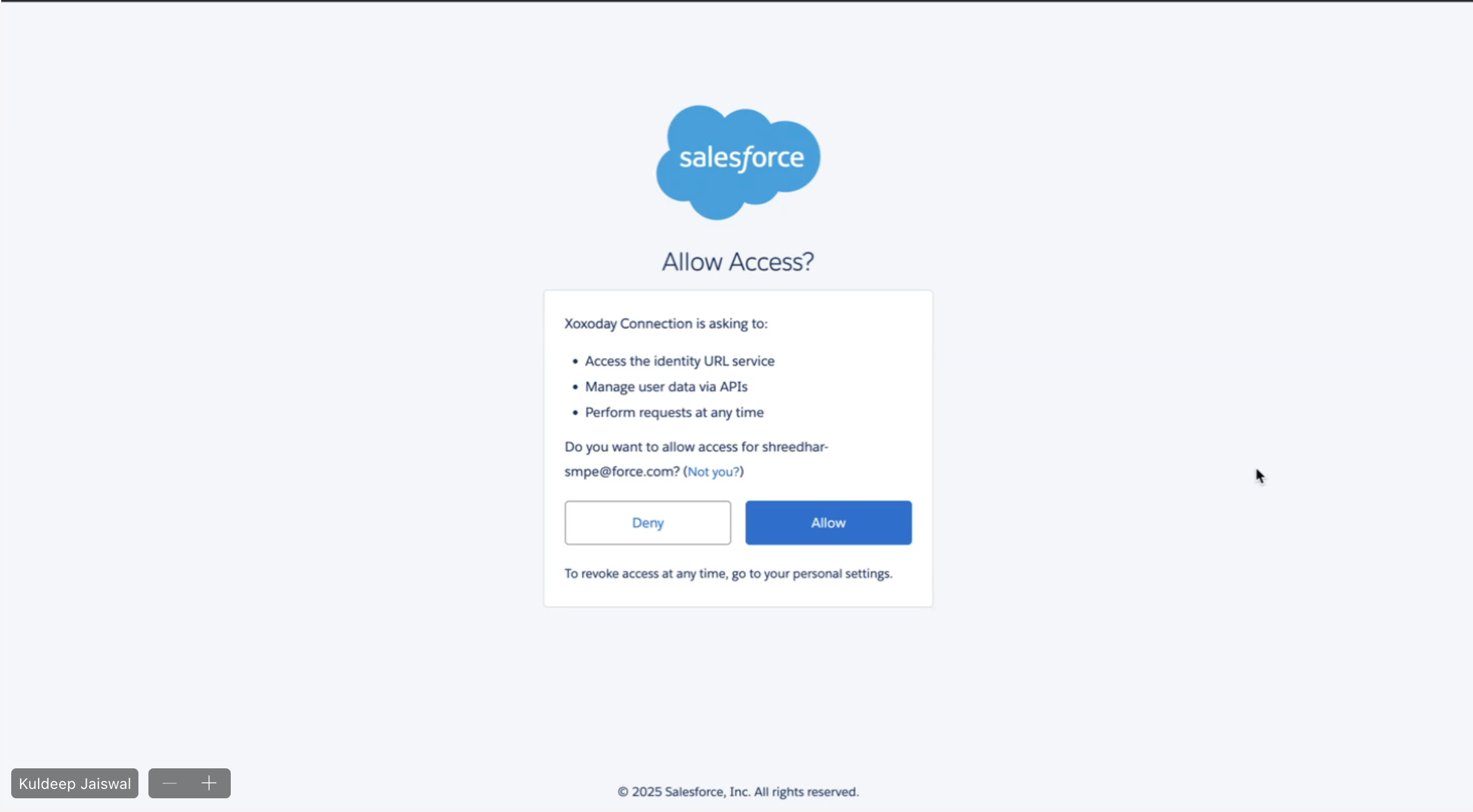
- After successful authentication, you will be prompted to approve permissions.
3.5. Approving Permissions
- Review the list of permissions required for Xoxoday to function within Salesforce Loyalty.
- Click Allow to grant access.
Final Steps & Confirmation
- Once the connection is approved, you will be redirected back to Xoxoday Plum.
- A confirmation message will indicate that the integration has been successfully established.
- The Salesforce Loyalty Integration Card on Xoxoday will now show a Connected status.
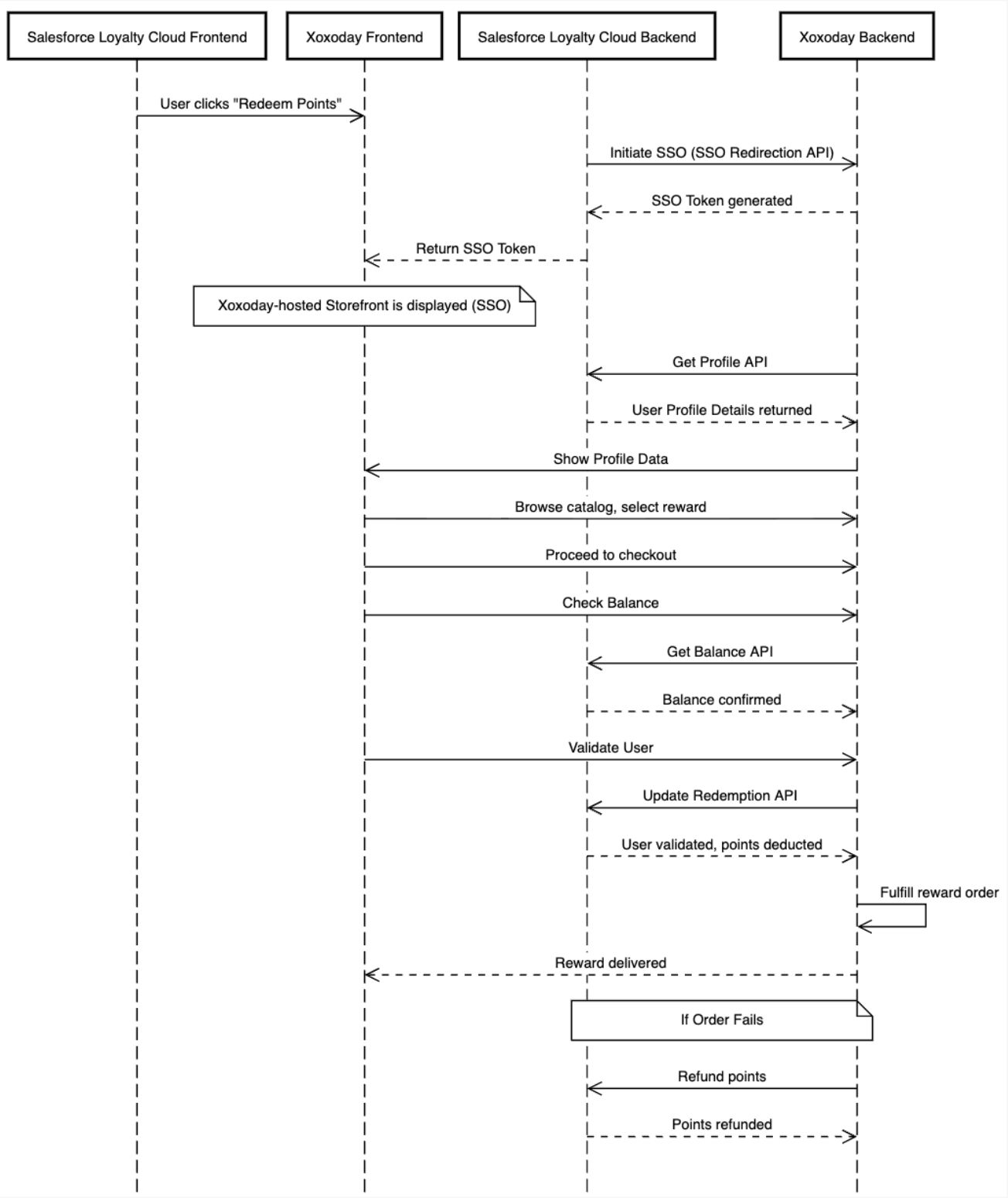
Standard Workflow for Salesforce Loyalty Cloud Integration