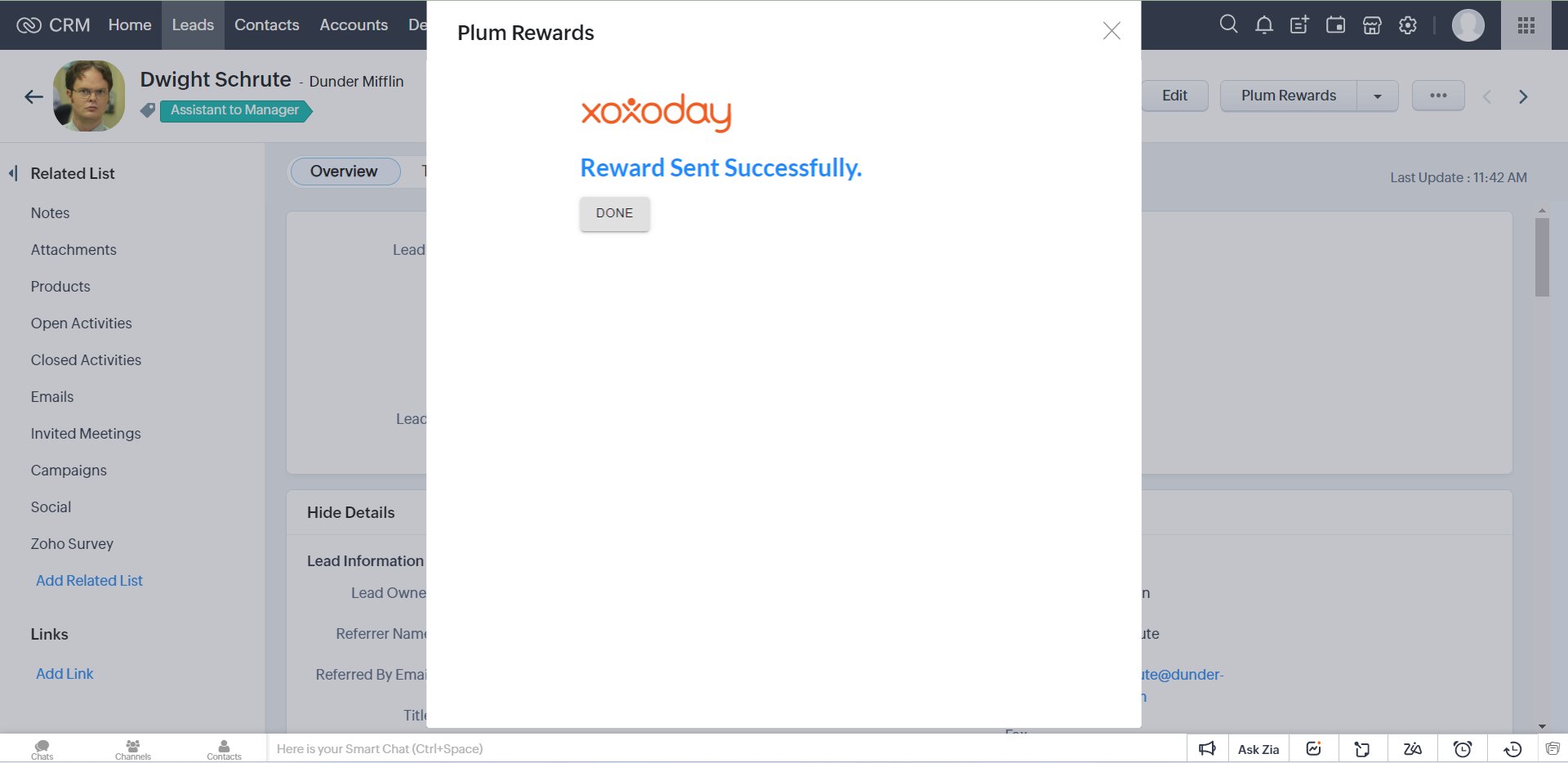
Integrating Zoho CRM and Plum
STEP 1: Connect with Zoho CRM
Go to Xoxoday Plum Admin Dashboard and click ‘Integrations’ and search for Zoho CRM. Click “Connect”, and you will land on ZohoPeople’s App Marketplace.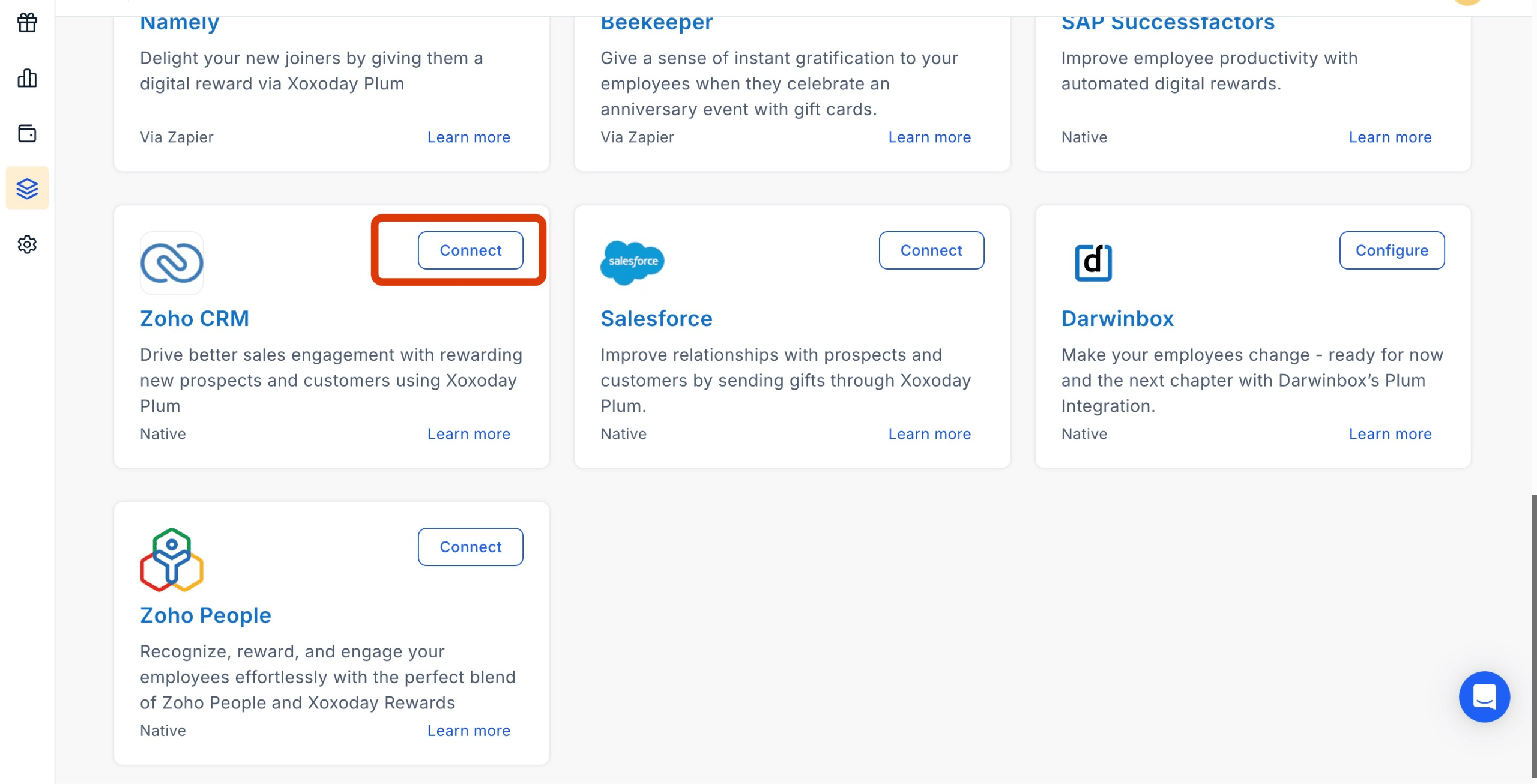
STEP 2: Install Xoxoday Rewards for Zoho CRM App
Click on the Install button.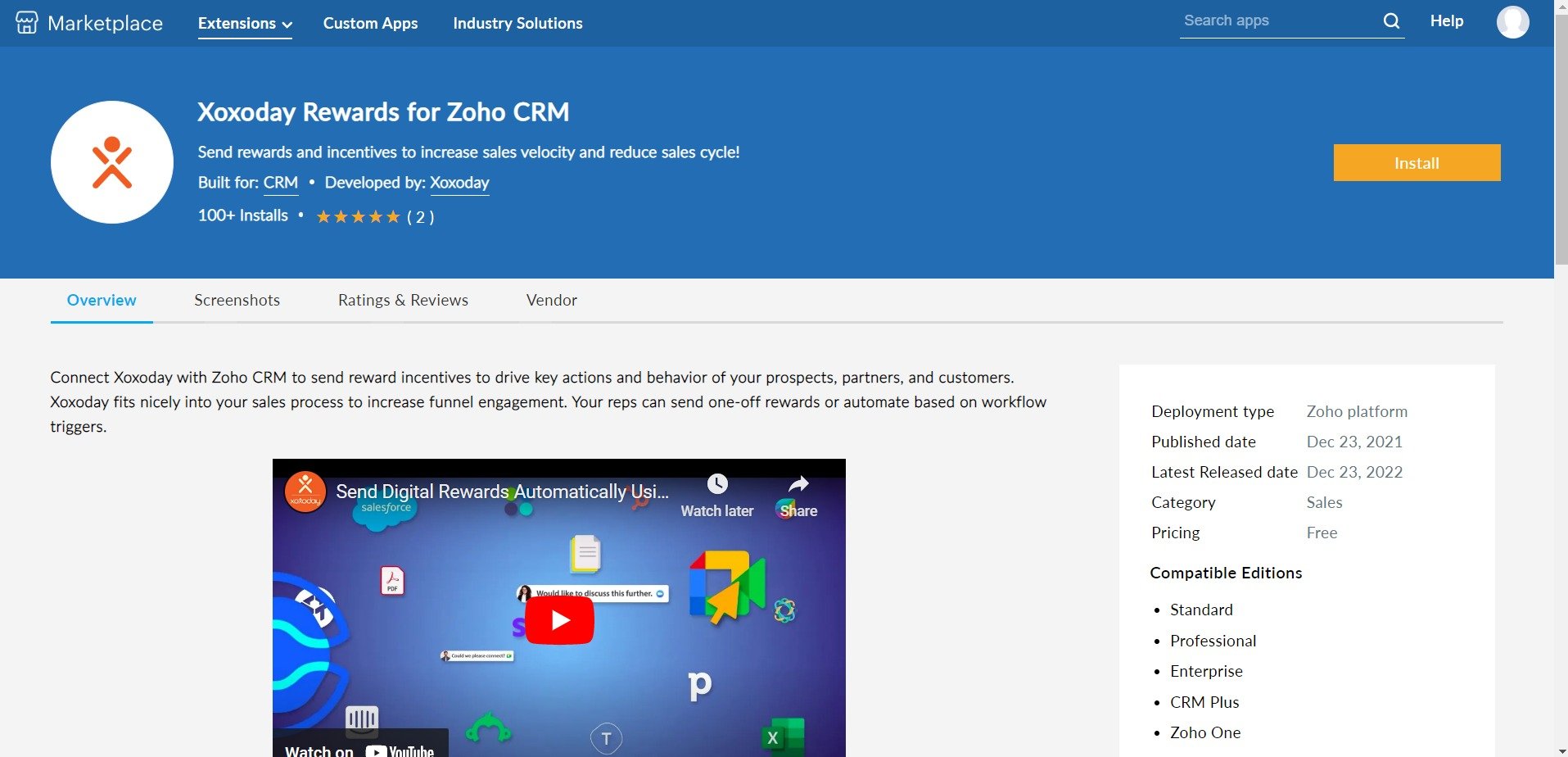
Sending Rewards to Leads and Contacts
STEP 3: Select the Contact or Lead you want to send Rewards.
After the Xoxoday Plum App installation, click ‘Plum Rewards’ on the Leads and Contacts detail page.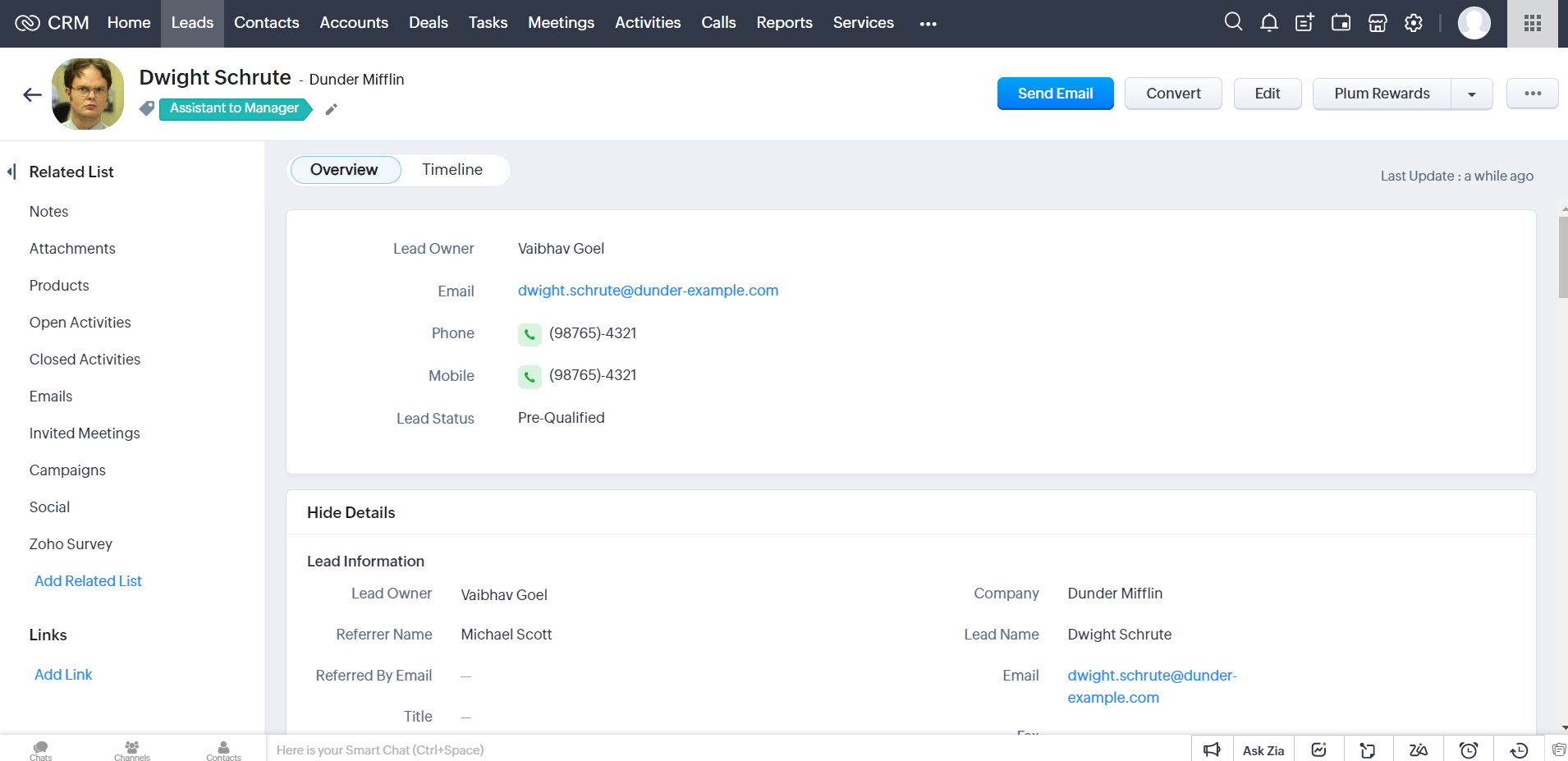
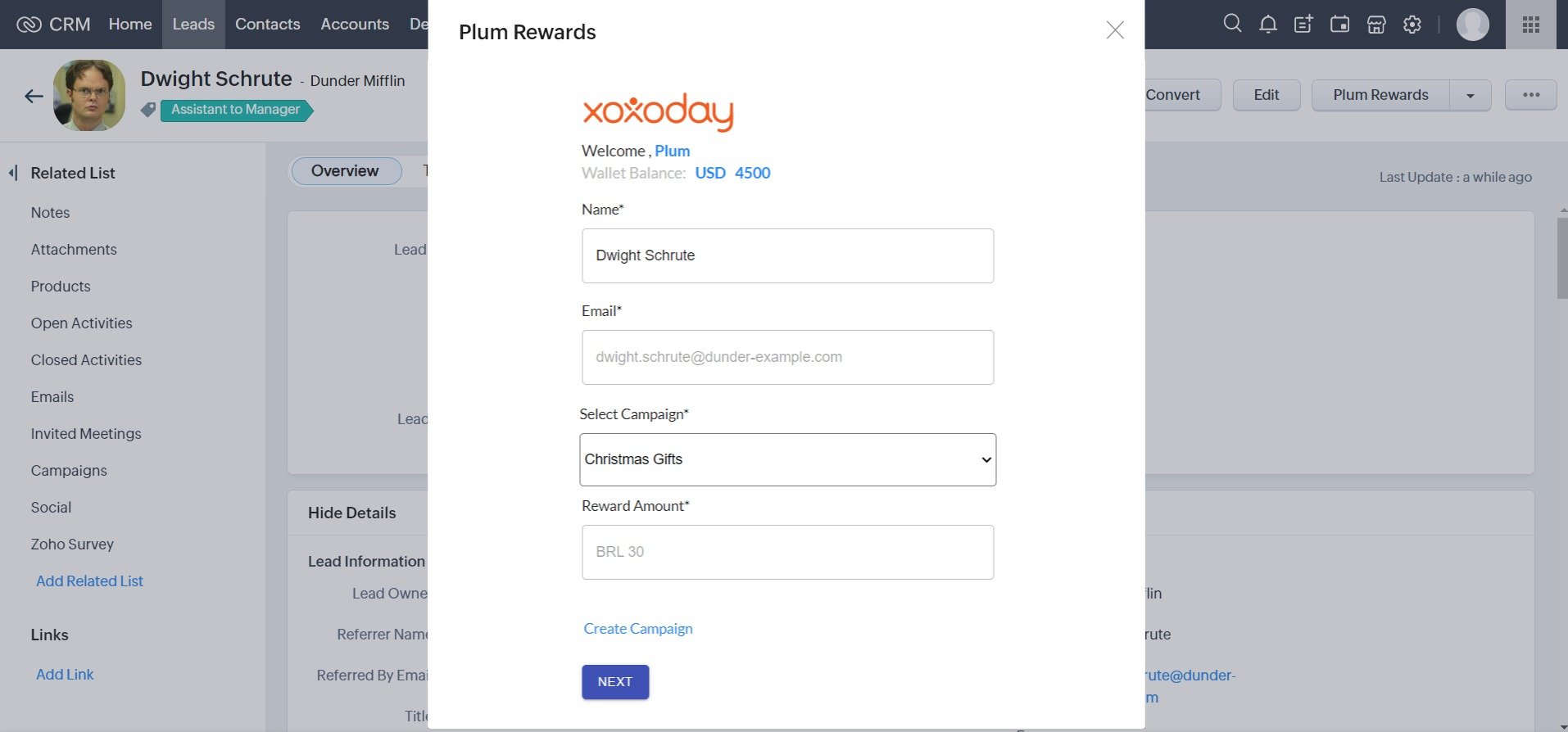
STEP 5: Customize Reward Email
**Now you can customize your reward Email. You can change the Email Subject and Message to send personalized rewards to your contact or lead. 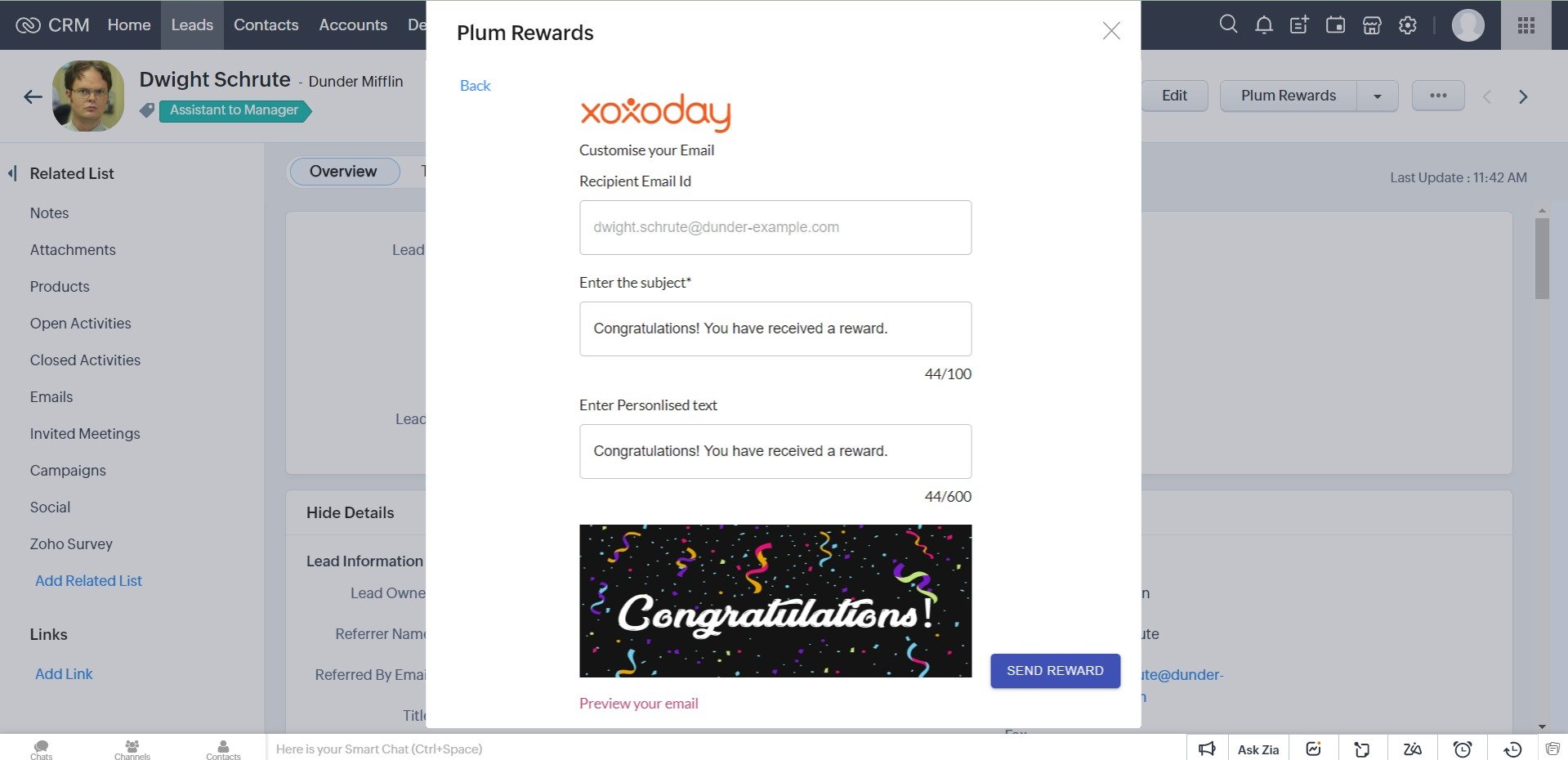
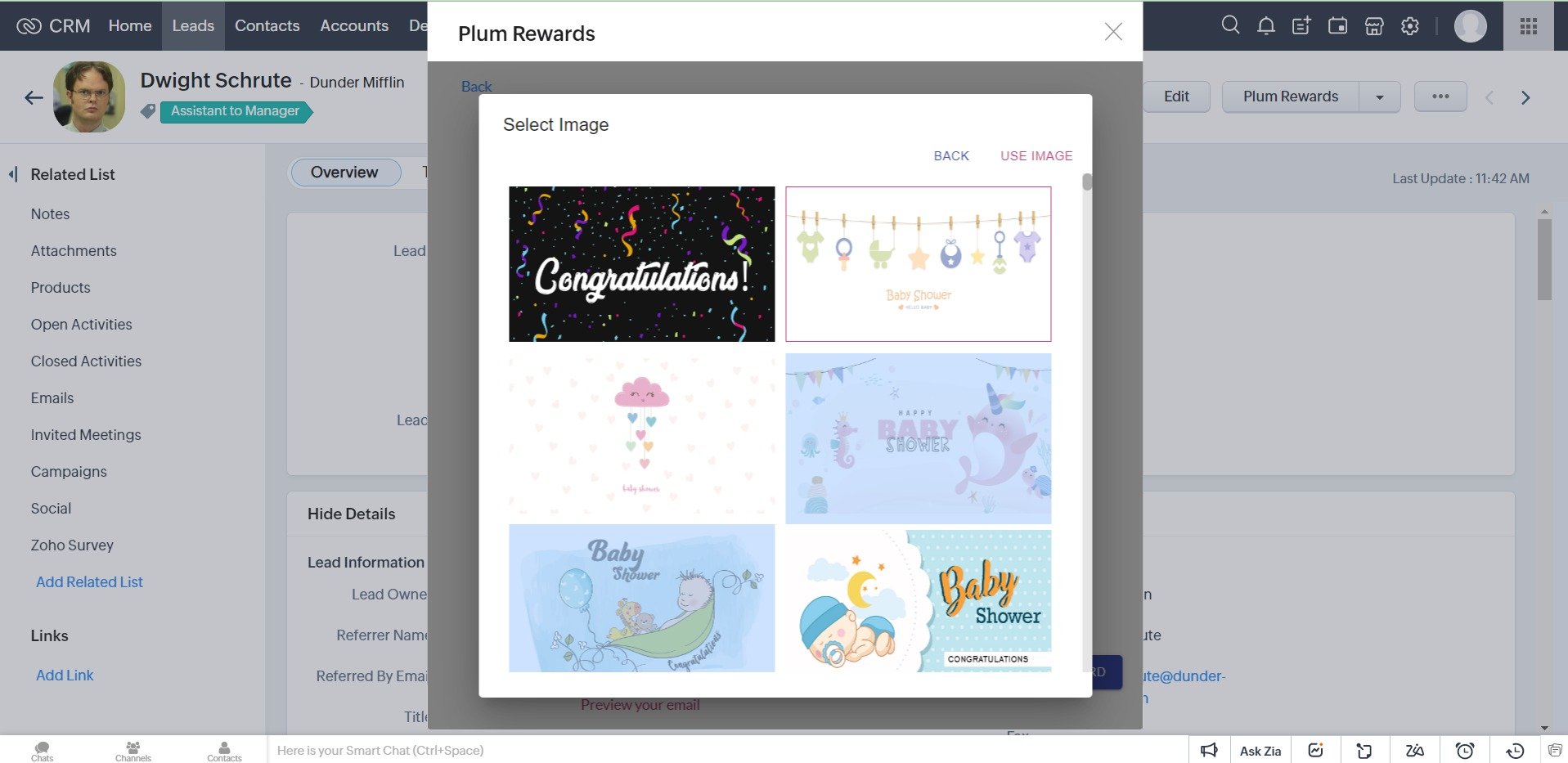
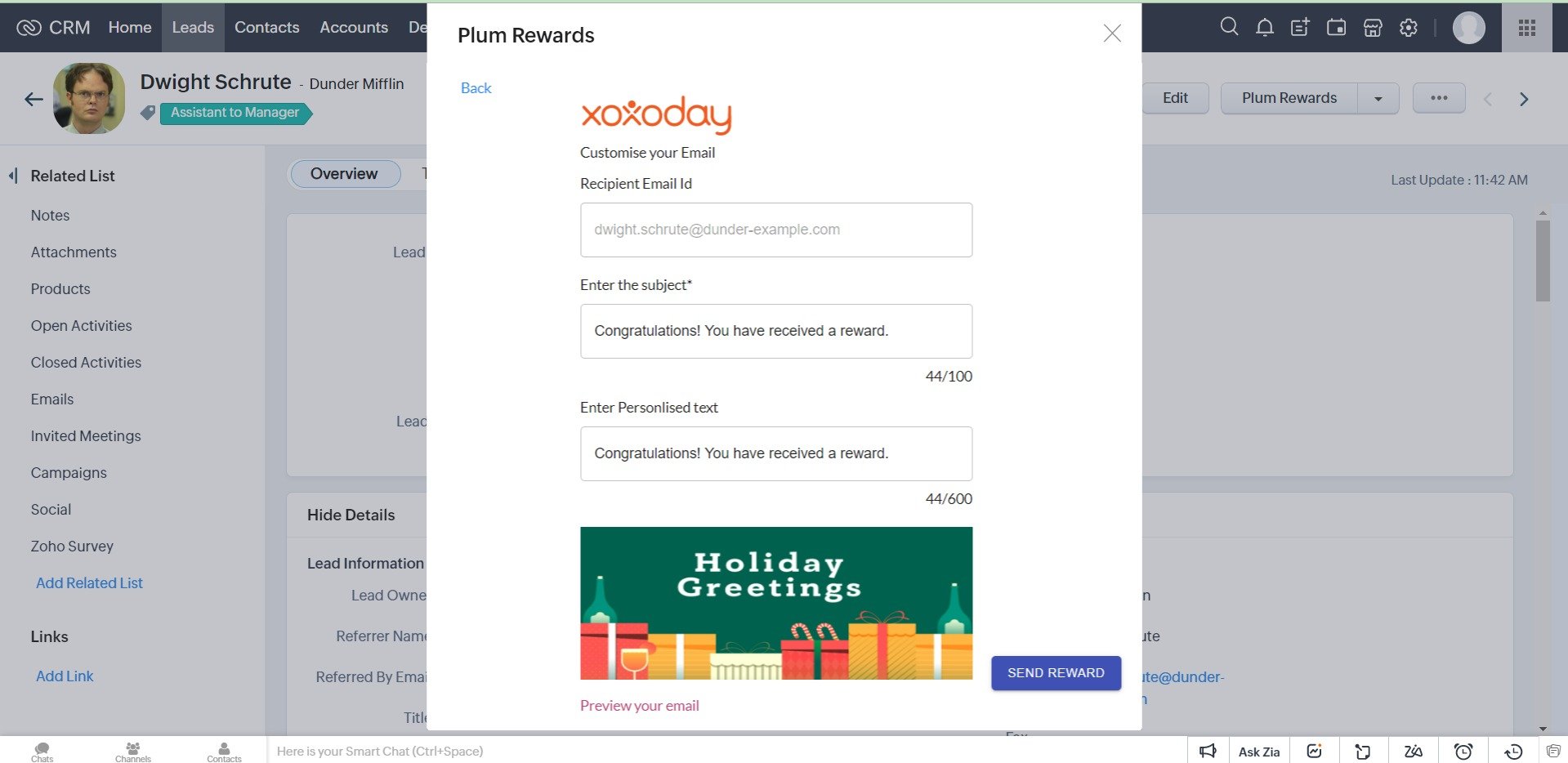
**STEP 7: Preview your Reward Email
Click ‘Preview your email’** below the banner to check how your reward email will look to your rewardee.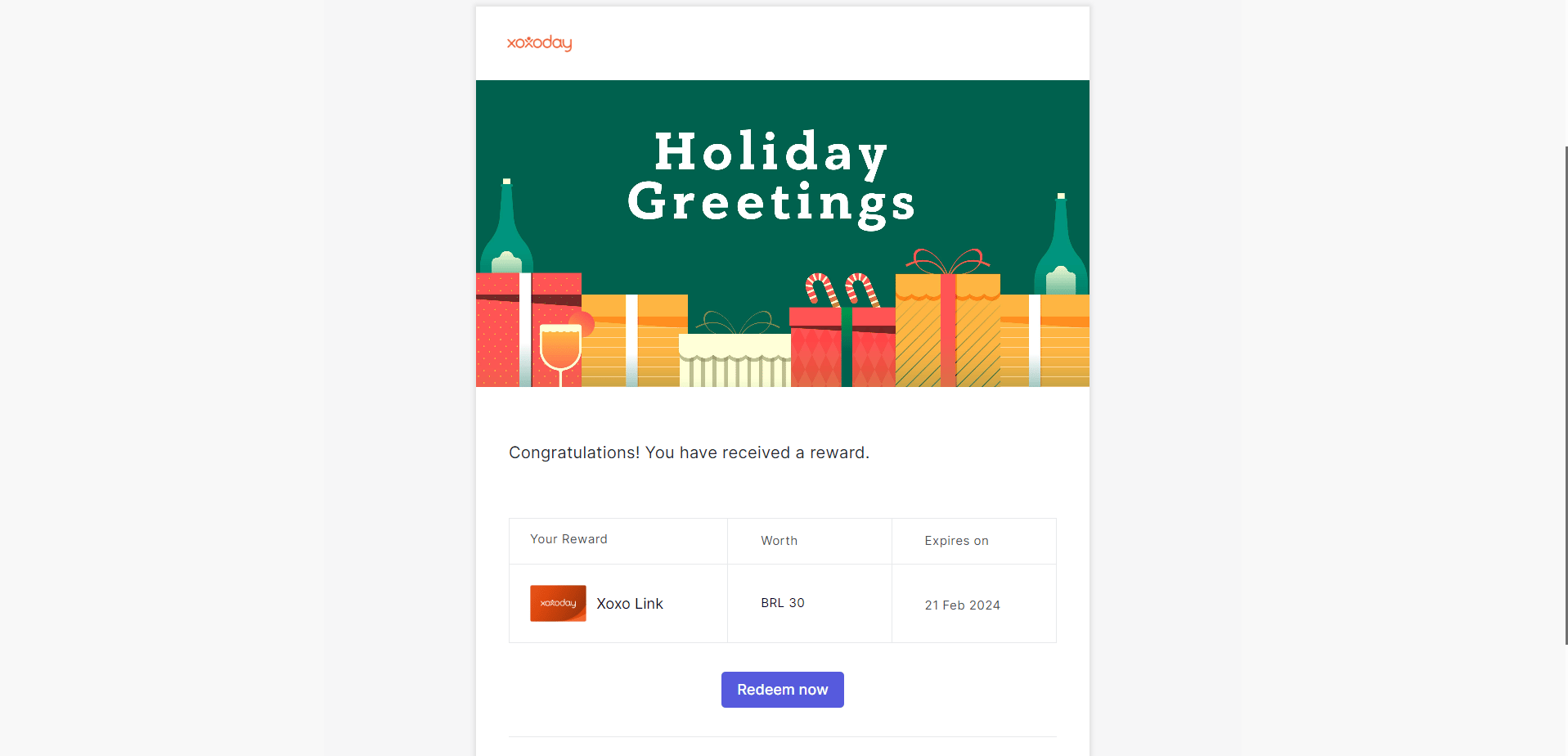
STEP 8: Send Reward
Congratulations! You have sent a reward to your contact or lead. Continue sending reward emails to win more deals and manage relationships with your customers for choosing you.