Sending 1-1 rewards using Xoxoday Plum Widget
Prerequisites As an admin, You should have already connected the Xoxoday with HubSpot. If not check this article. HubSpot users who need access to 1-1 rewards widget should be added as a user in Xoxoday Plum with Admin or Super admin access as required.Steps to send 1-1 Rewards
Step 1: Open Xoxoday 1-1 Rewards Widget
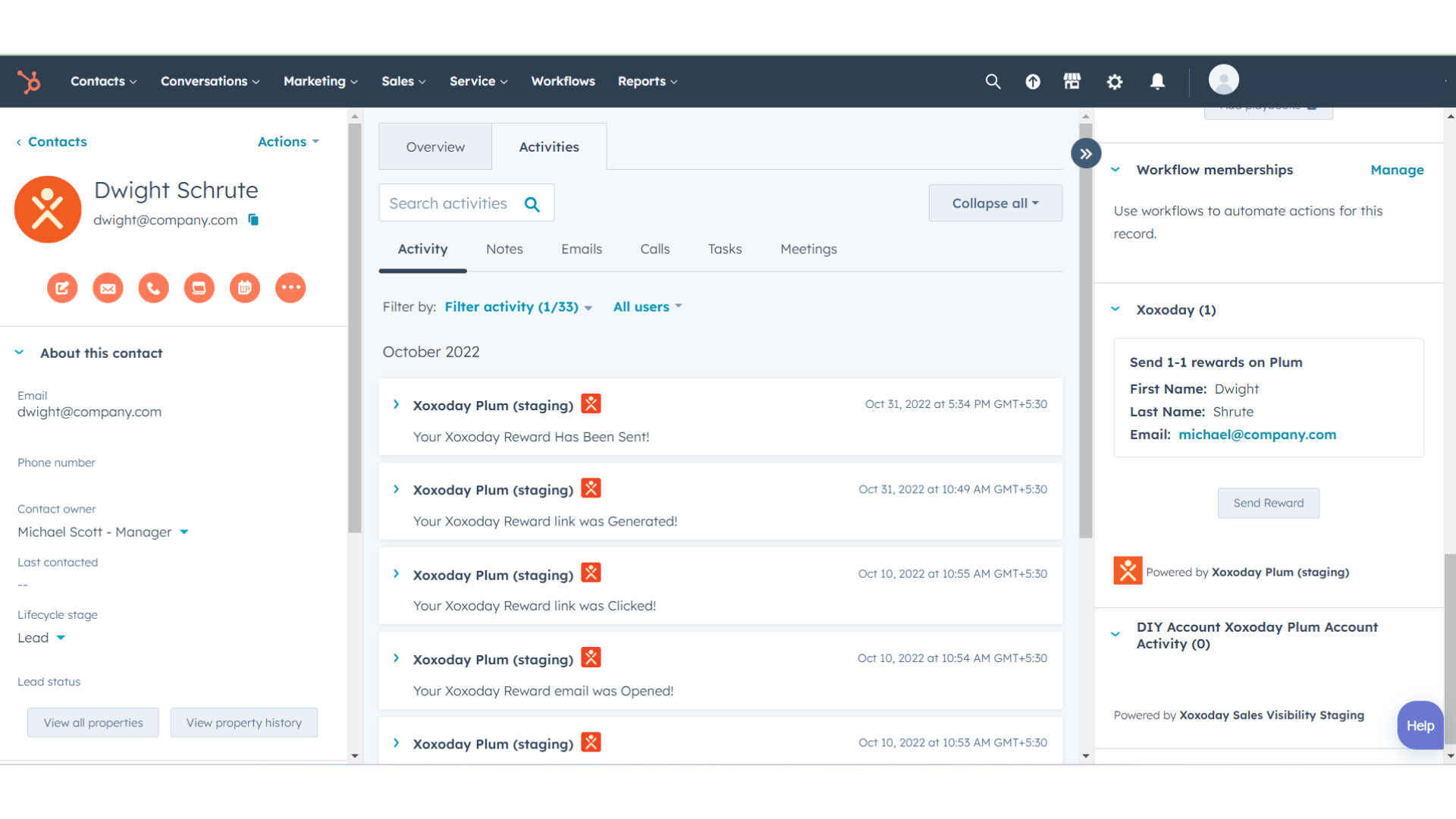
- Open the detail page of the contact to whom you want to send rewards in HubSpot.
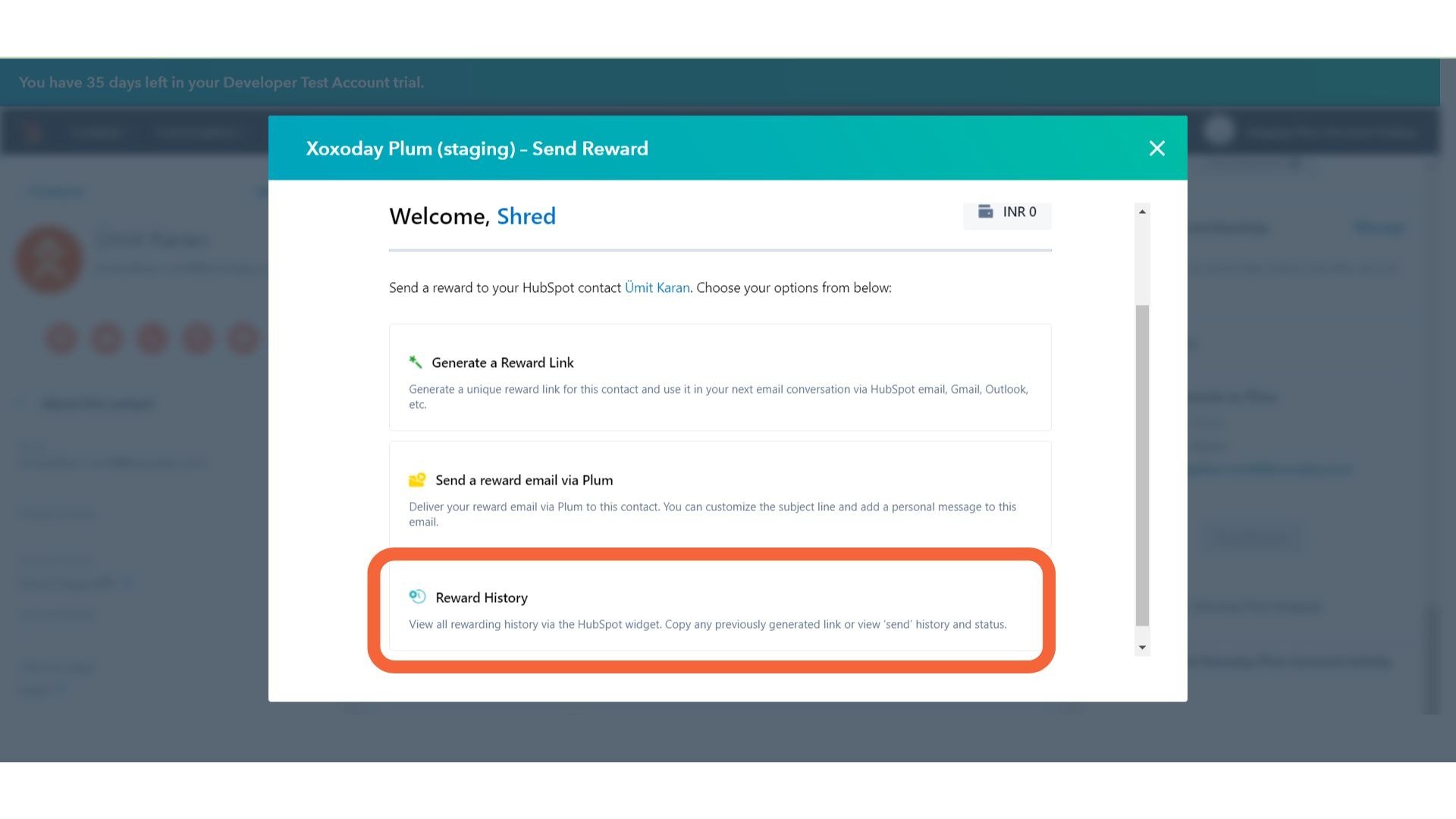
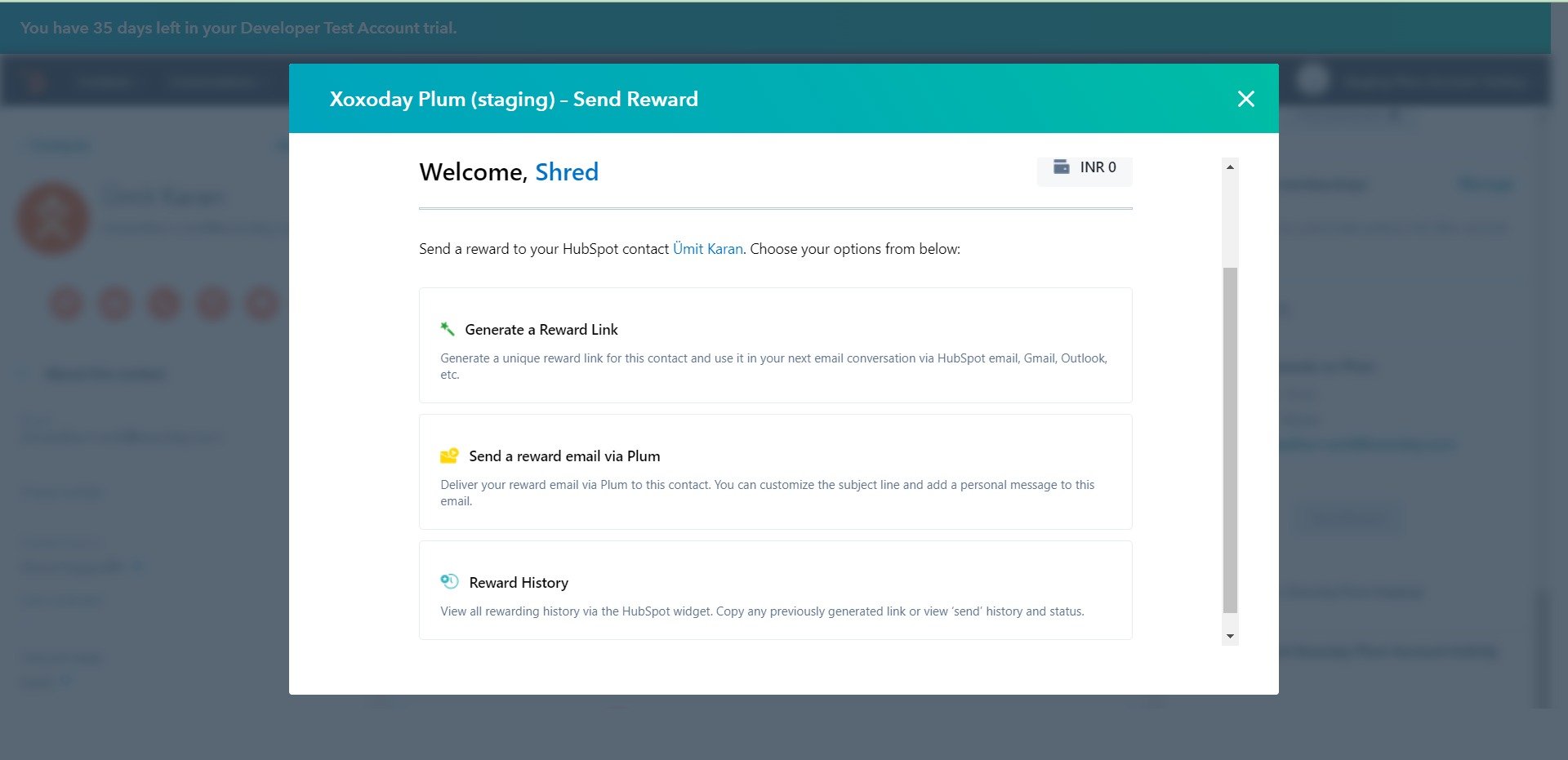
- Find Xoxoday Card on the left panel and click ‘Send Rewards’,** then Xoxoday’s 1-1 widget opens.
Through a Reward Link
This features generates a unique reward link. This link can be embedded in your custom emails to send rewards.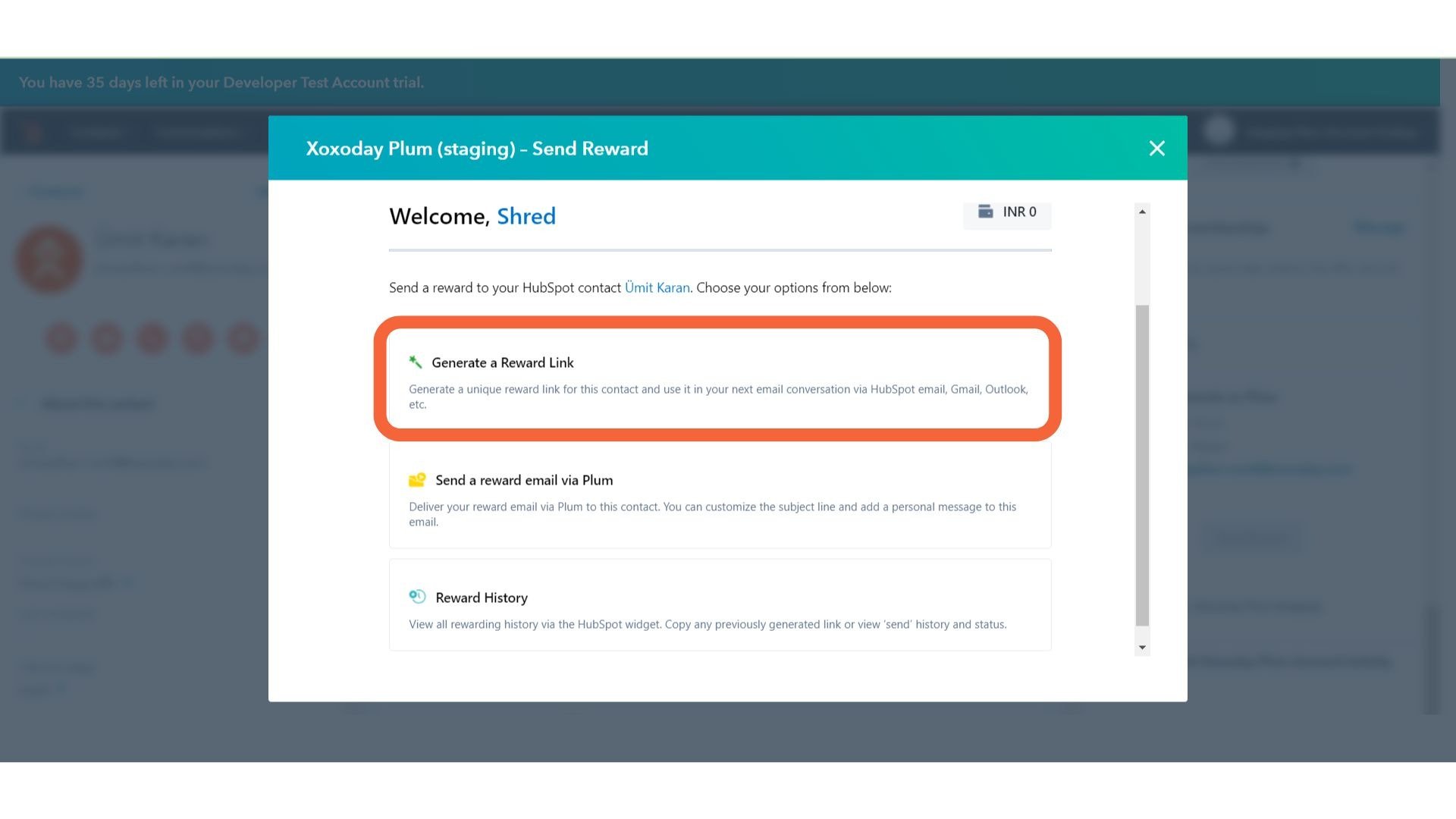
Step 2: Select Campaign
Select your Campaign from the dropdown menu.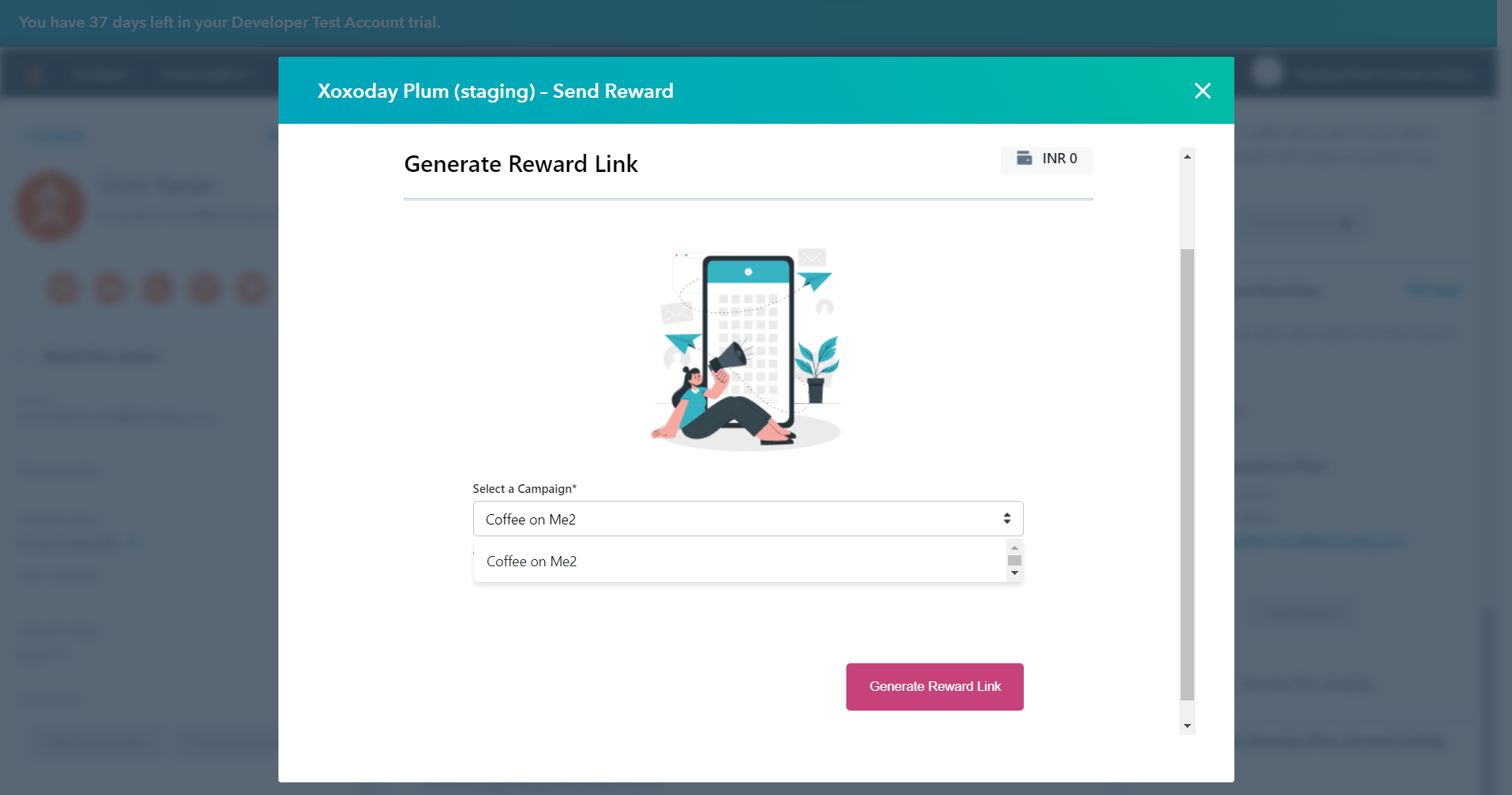
Step 3: Reward Link Generated
Voila! a unique Reward Link is generated for the Contact. This link can be sent to contact through any medium. We suggest you include this link in your custom emails**.** 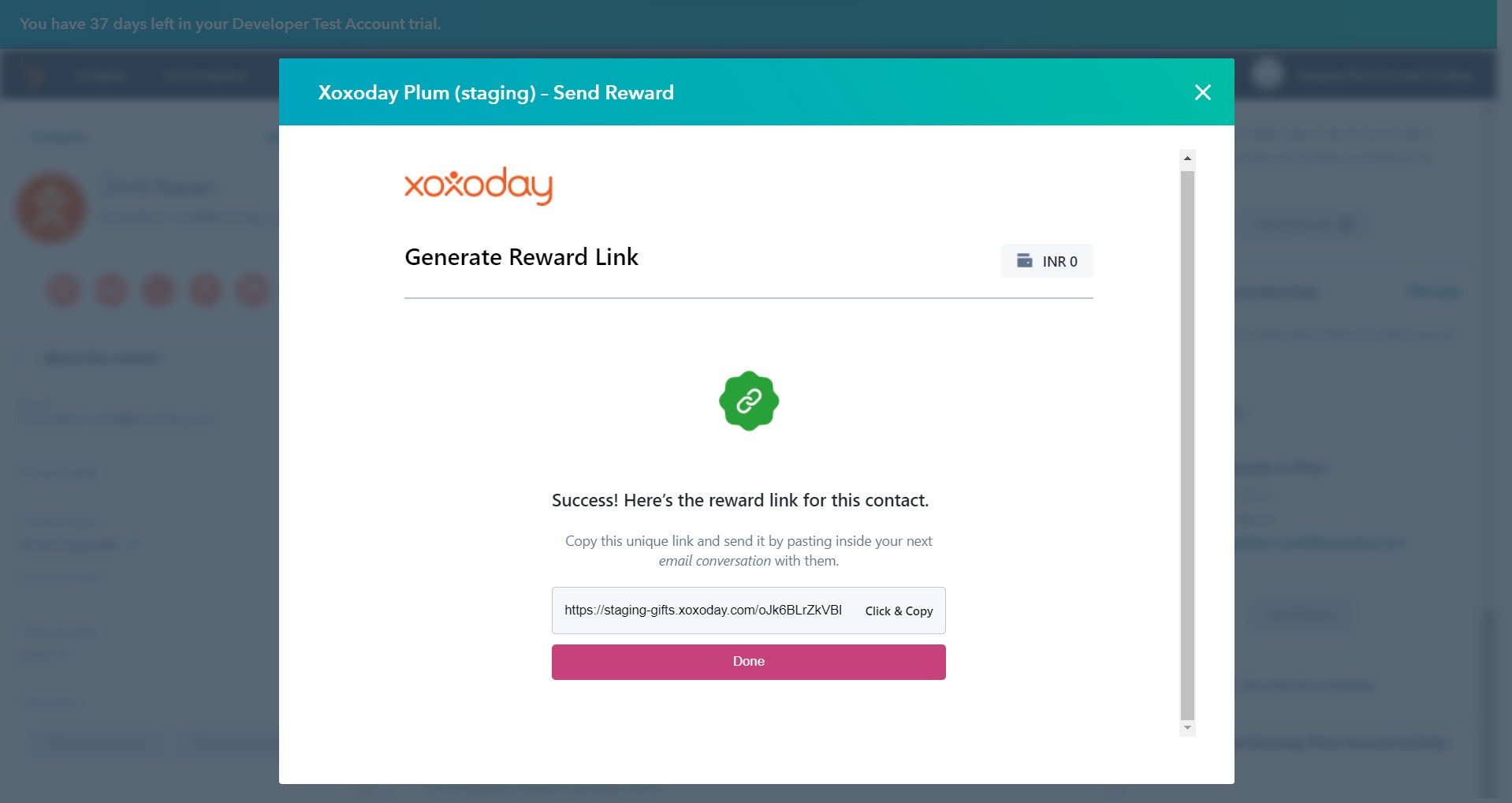
Reward Email via Plum
This feature will send a custom email from the selected Campaign to the Contact.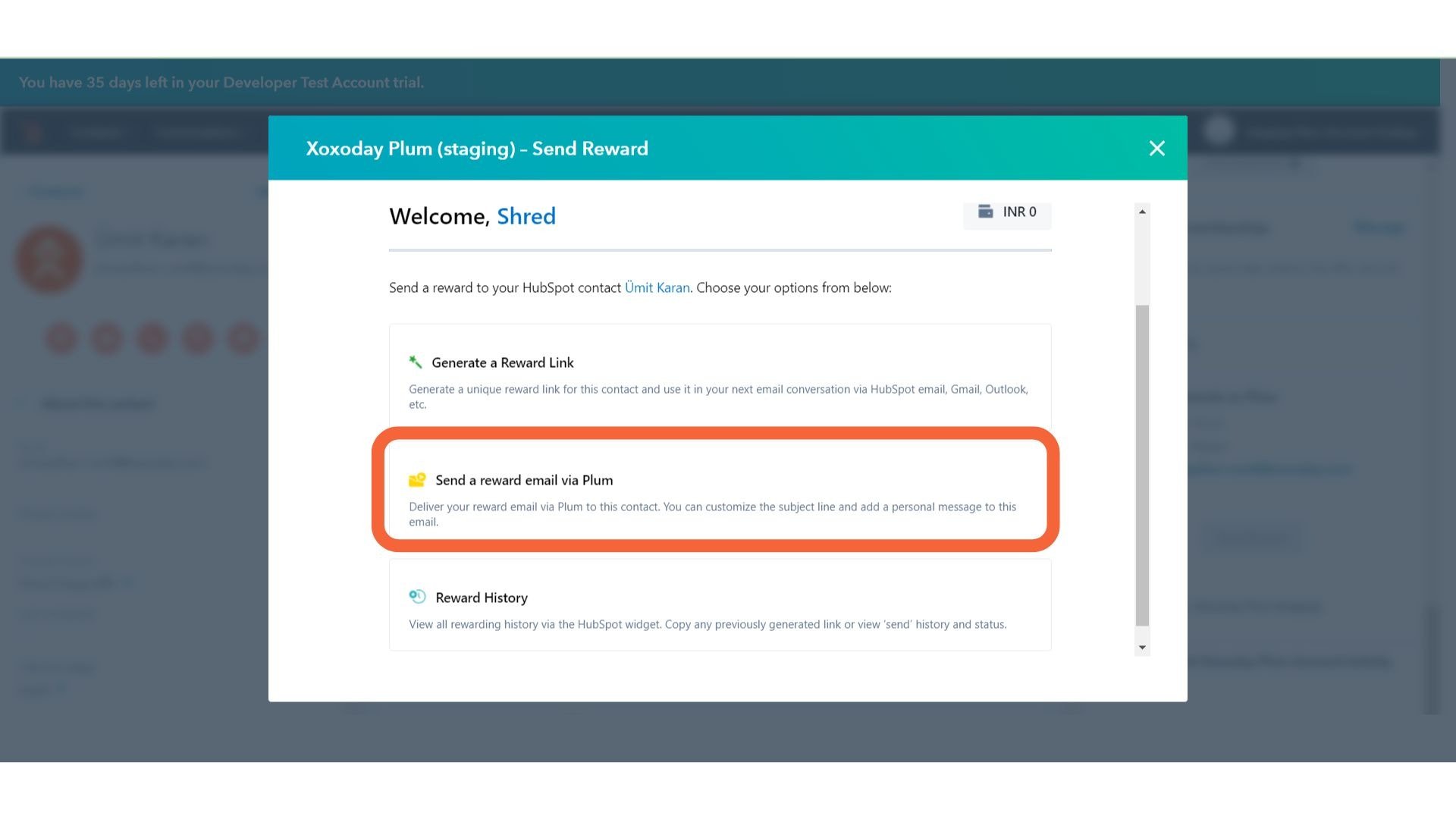
Step 2: Select Campaign
From the Dropdown option, select your preferred Campaign.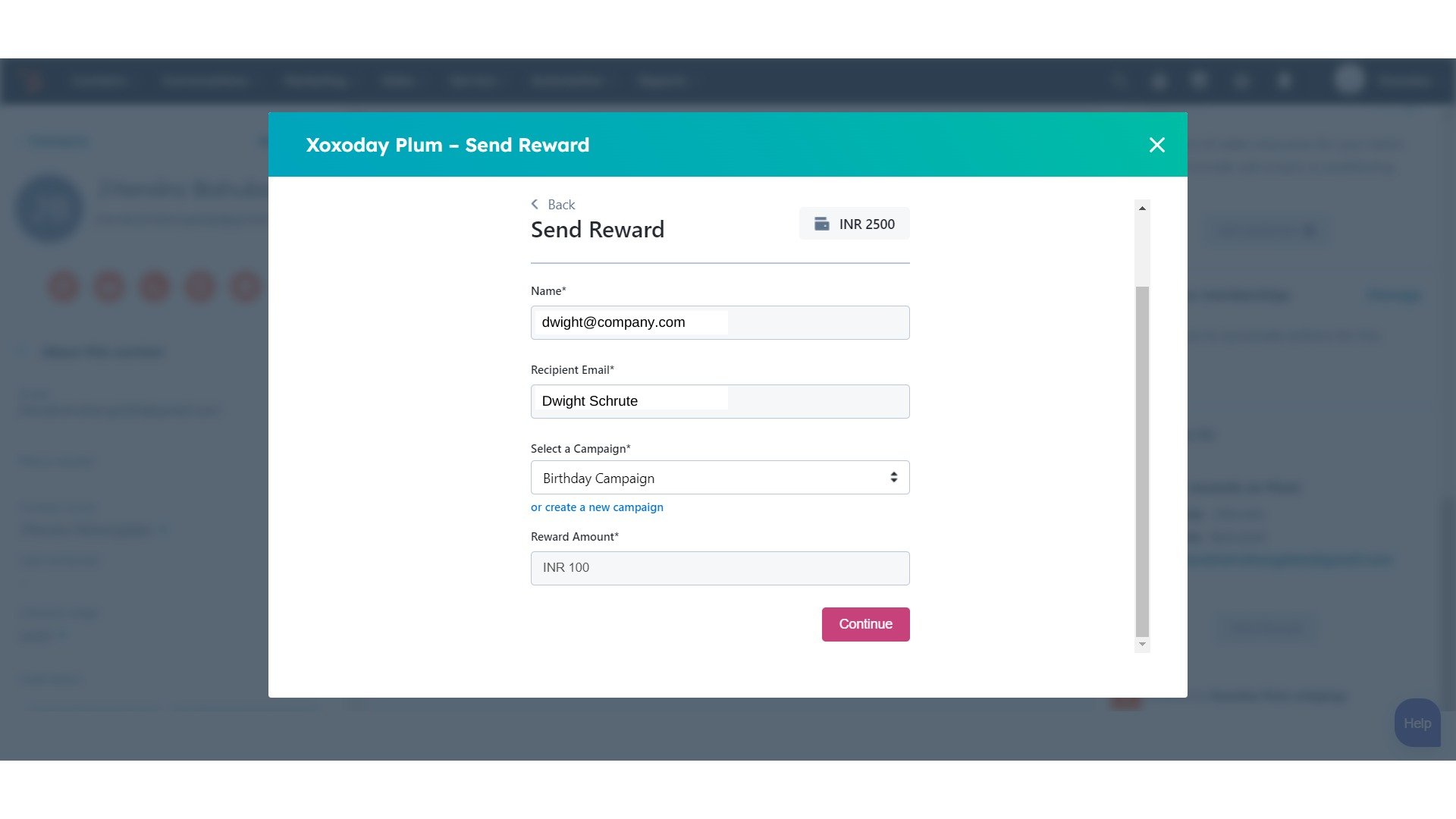
Step 3: Reward Email Sent
Voila! The Reward email is sent.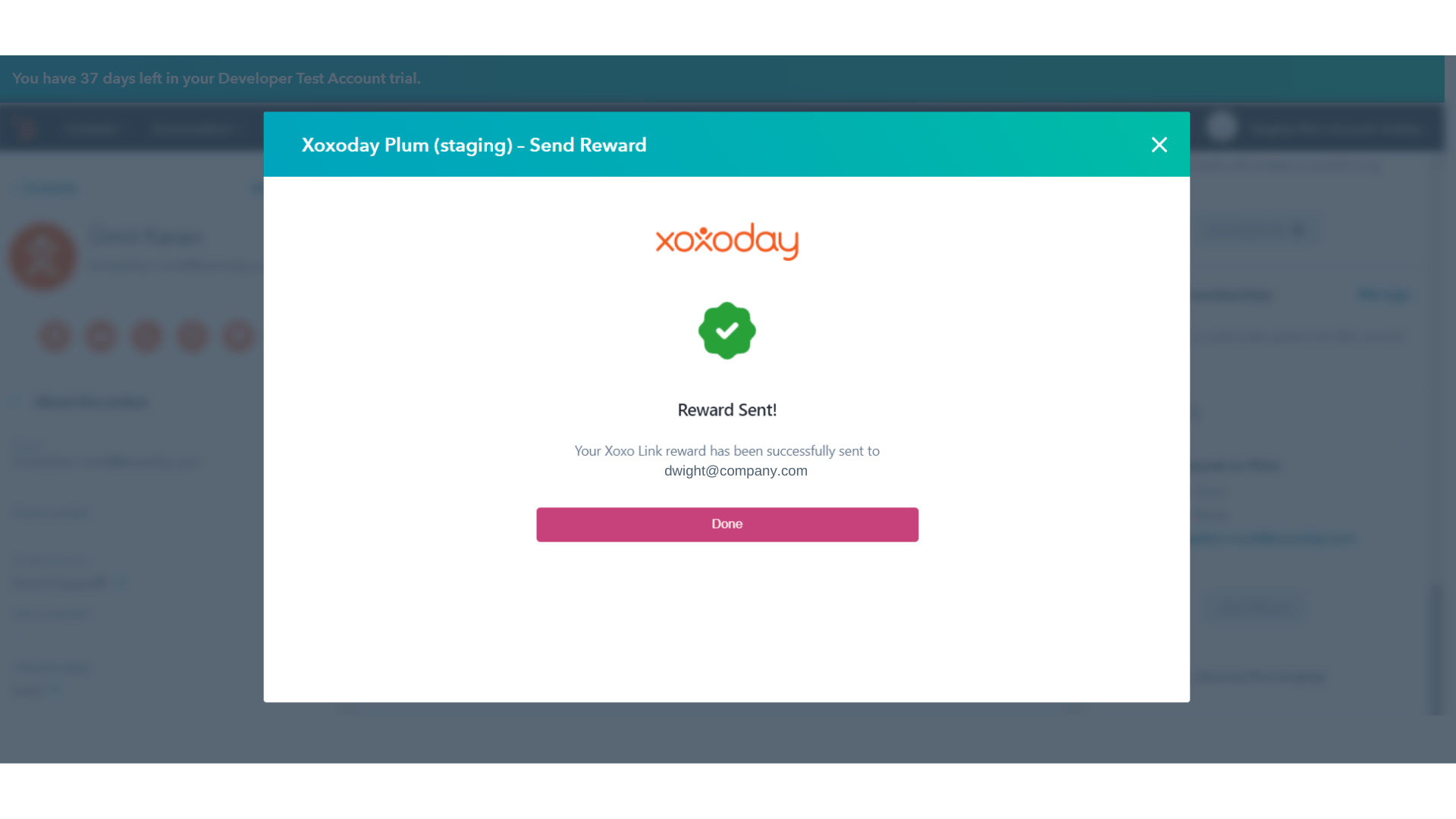
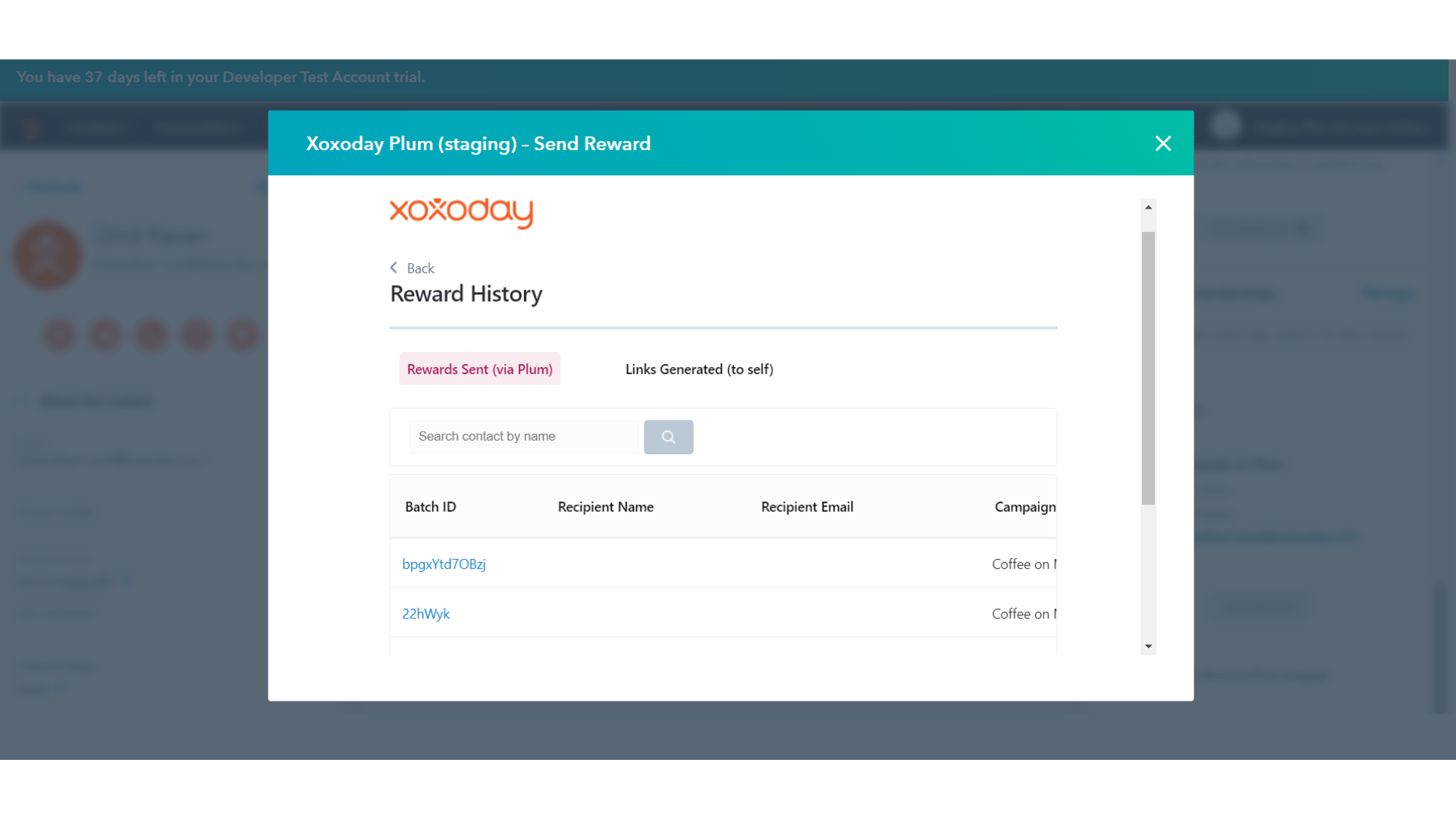
- Reward History shows the rewards sent through ‘Rewards by Plum Email’ and ‘Reward Link’.
- Only Super-admins will be able to view the global list of Rewards sent by the team.