
1
Navigate to Gift Card
Log in to the Plum Admin Portal. Go to Send Rewards > Gift Card. Select Send Individually.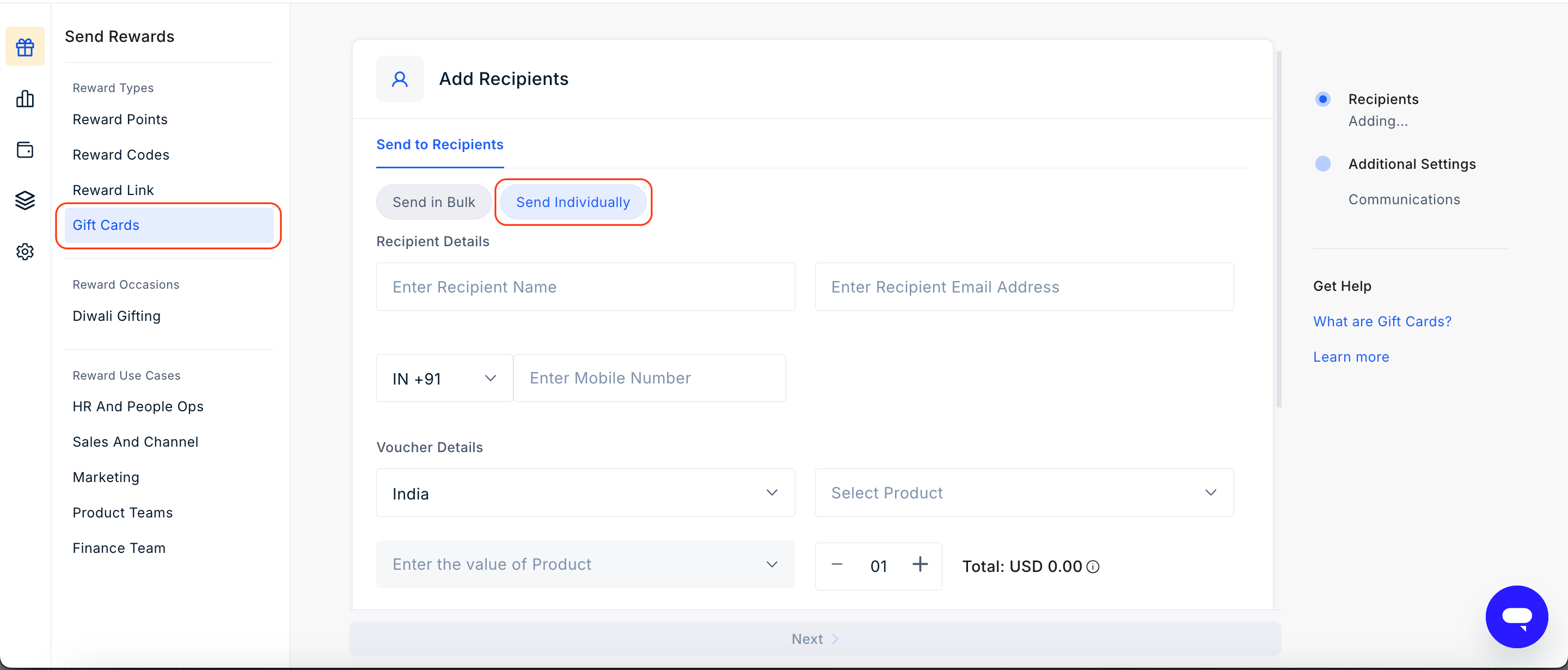
2
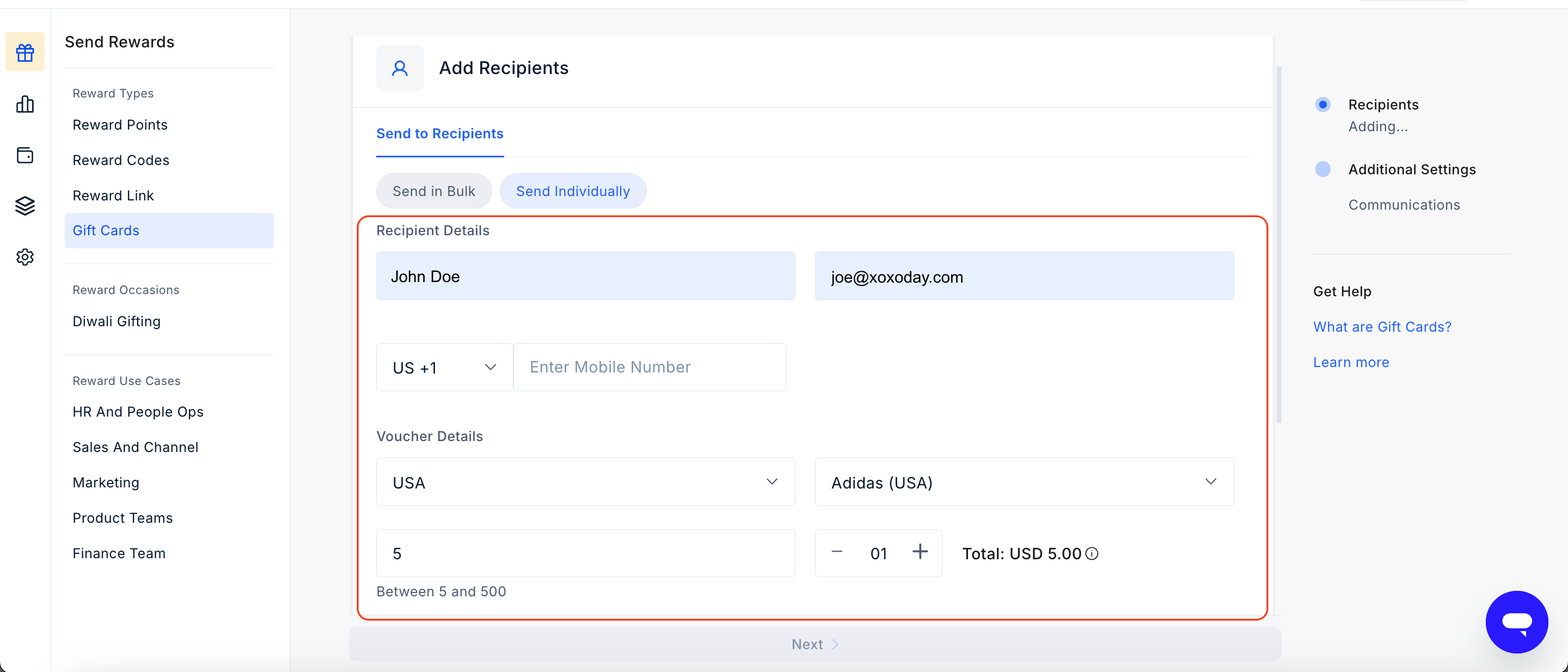
Enter the recipient's details and voucher you wish to send. Click on Add Recipient.
- Name
- Email ID
- **Mobile Number **
- Country
- Product
- Value
- Quantity
3
Configure advanced settings (optional)
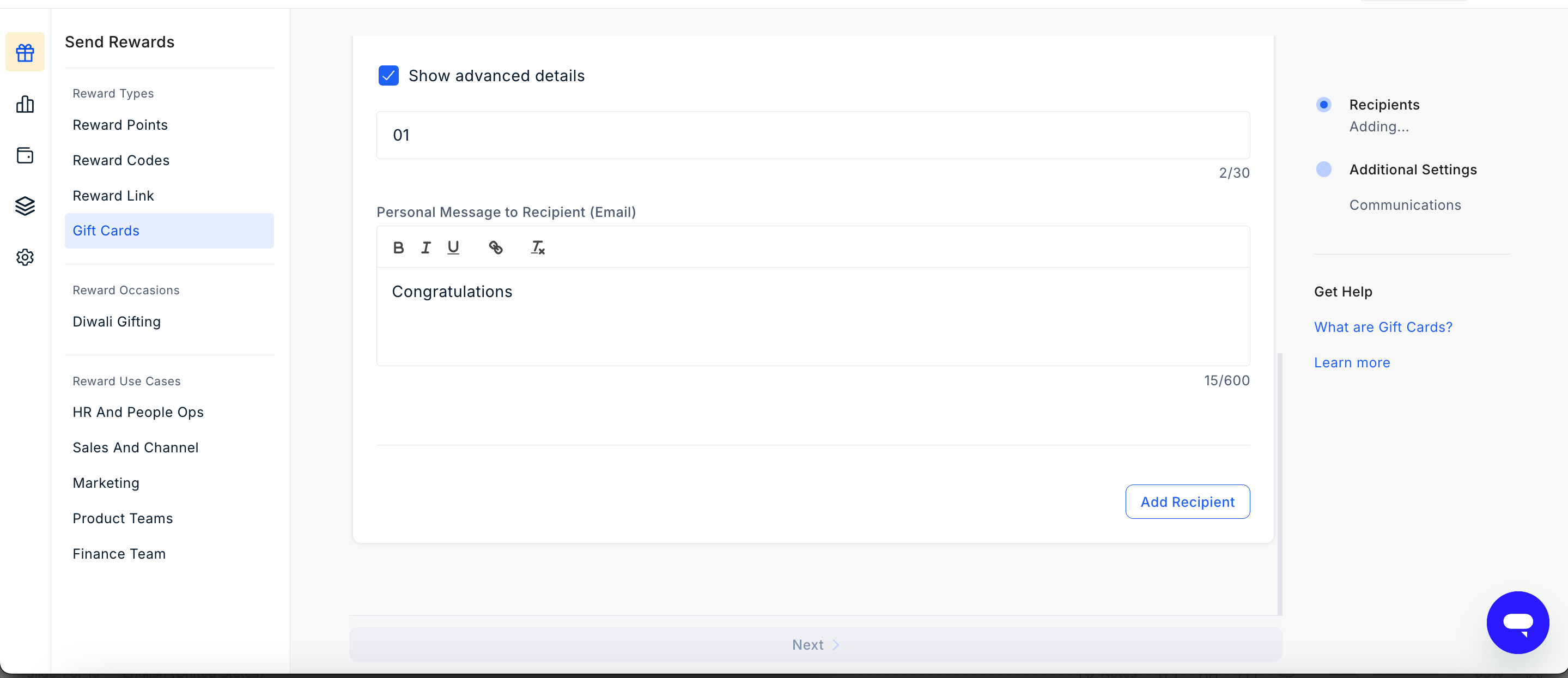
Click Advanced Settings. Set any of these options:
- Personal message: Add a message to the email body. The same message goes to every recipient in this batch.
- PO - Add a PO number for internal reference.
4
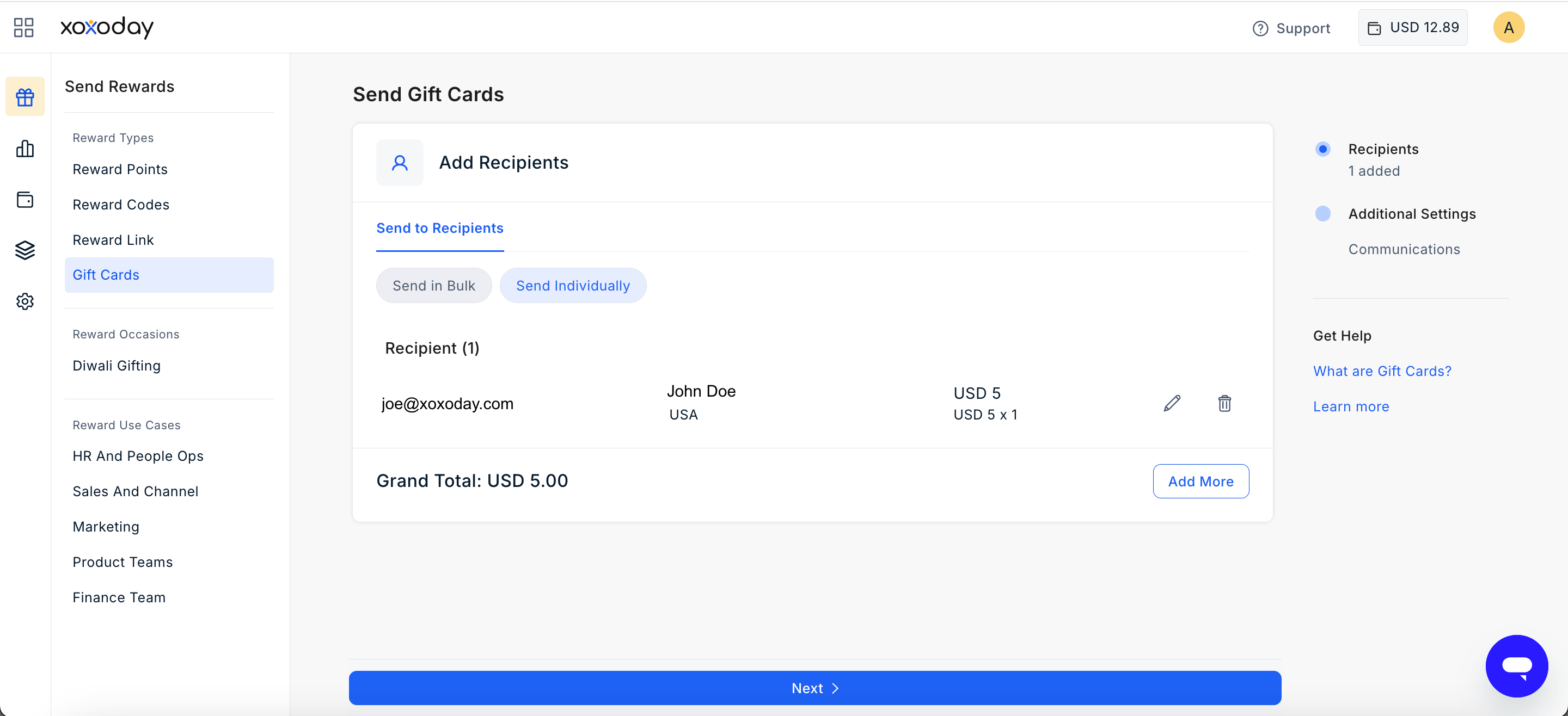
Review the recipient details. Add more recipients and enter their details. Click Next.
5
Customize the email (optional)
You can pick a template directly from the suggested templates under Email Template. To see all available templates, click Explore All.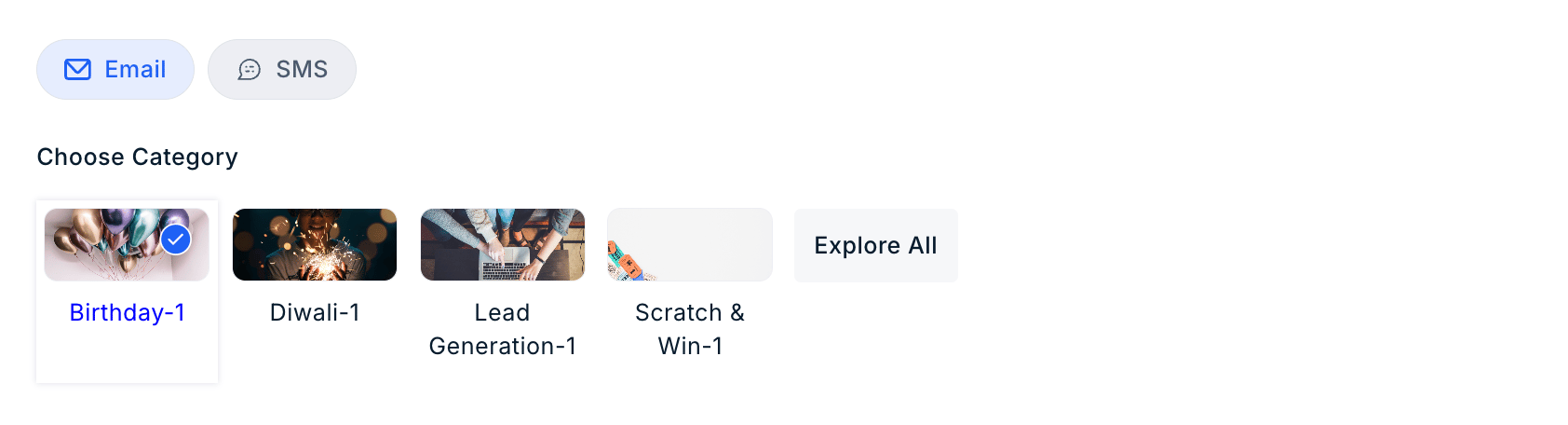

- Subject line — Edit the subject line recipients will see in their inbox.
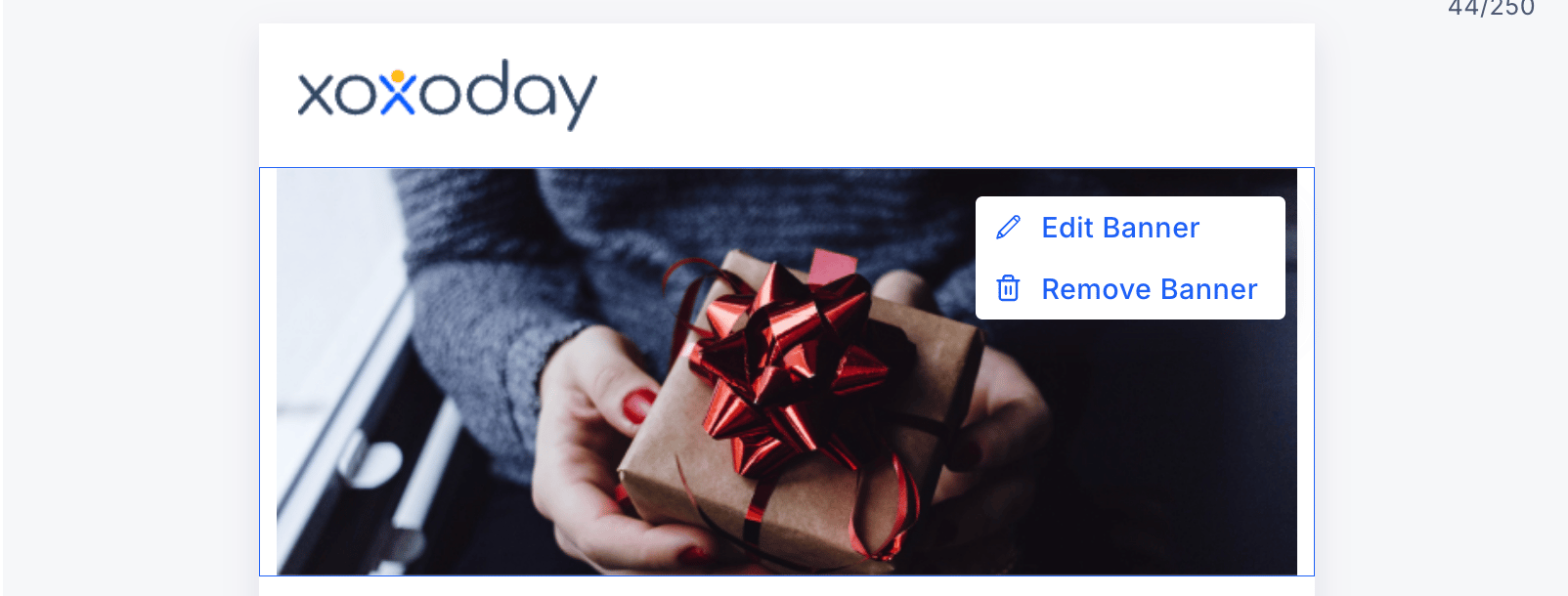
- Banner image and logo — Upload an image to appear at the top of the email or choose from the templates
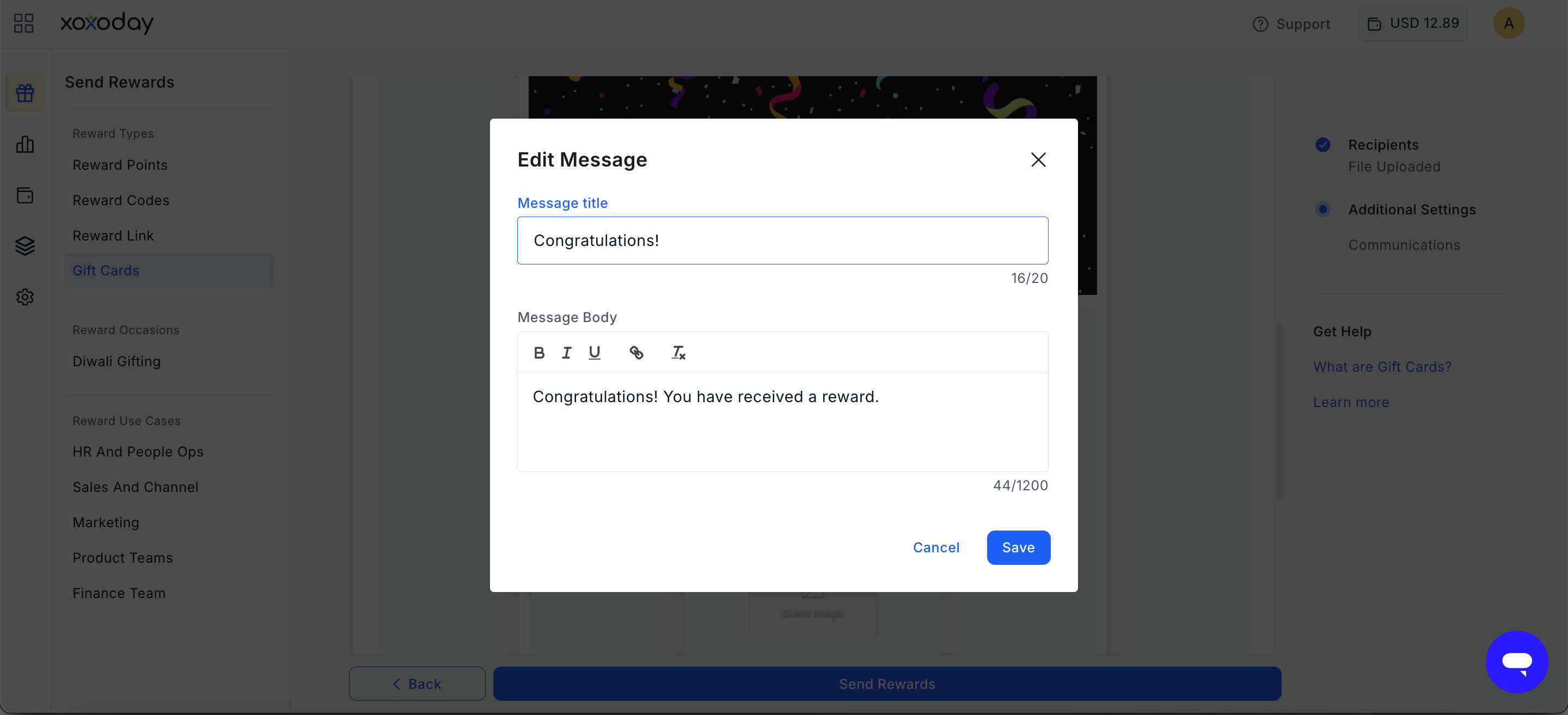
- Message Title
- Message Body
- Background — Click the pen icon to choose from available colours or enter a hex code. Update the background text by selecting an available option or entering your own, then click Save.
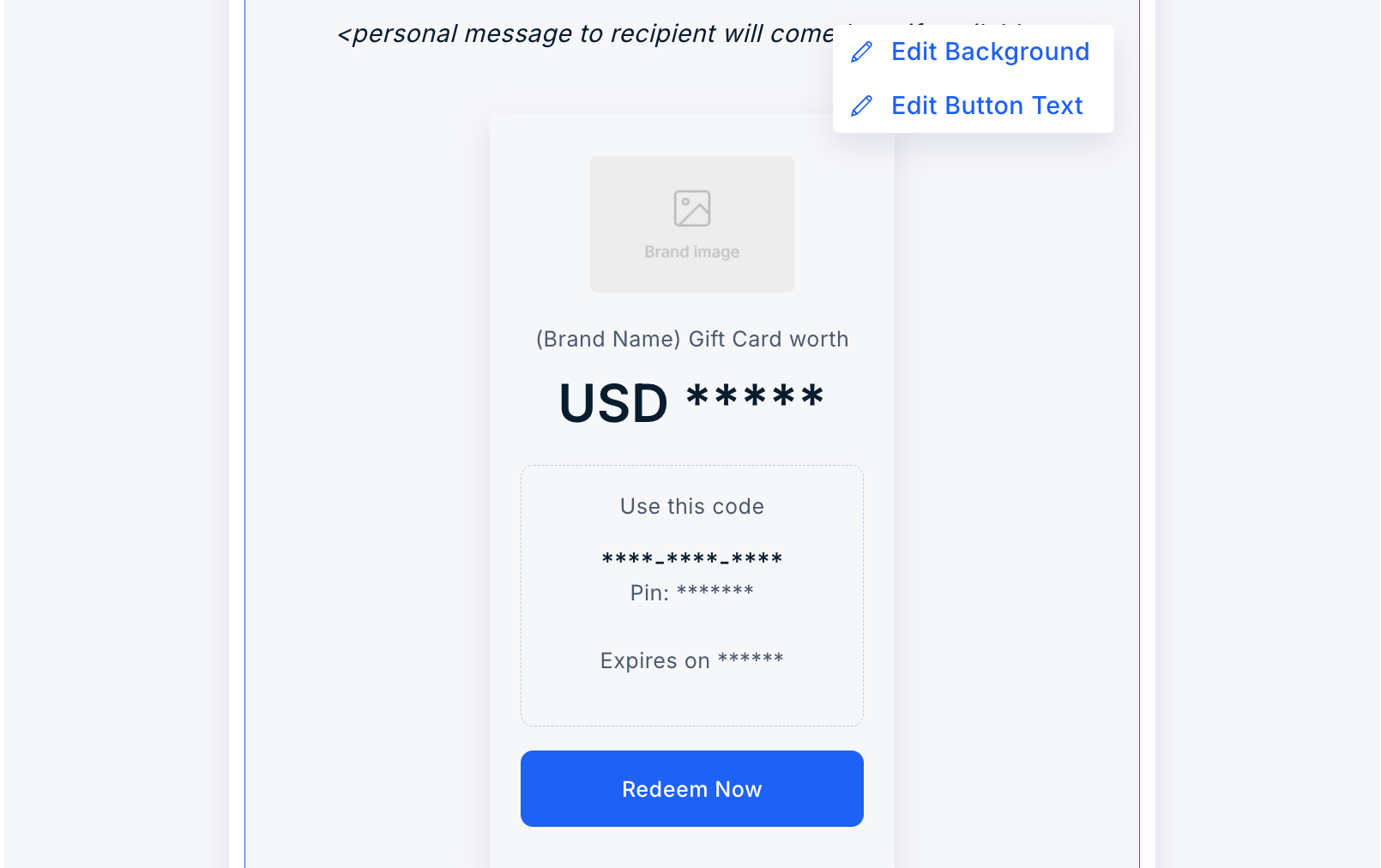
- **Button **— Update Button text to match your brand or campaign needs.

6
Customise the SMS message (optional)
Enter your message in the input field to replace the default SMS content, then click Save.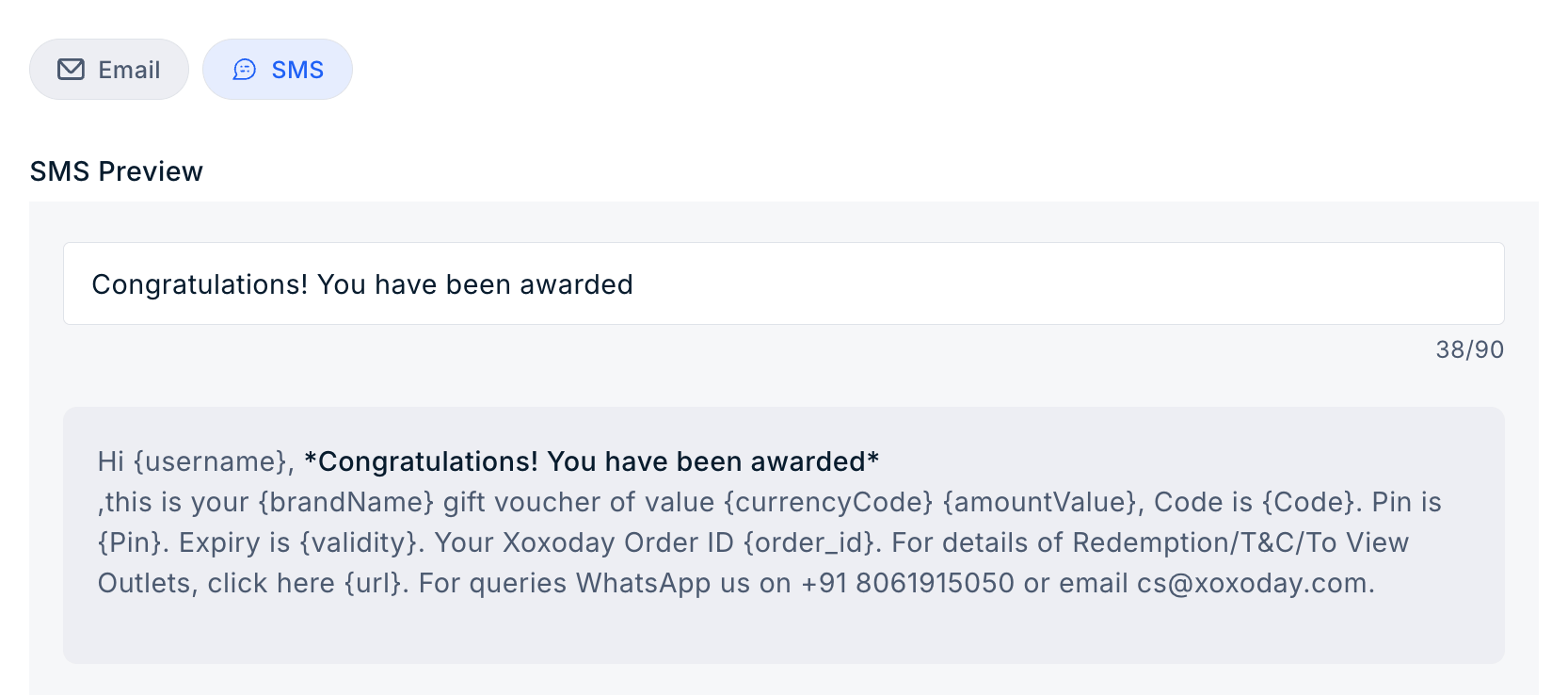
7
Send the reward
Review the recipient details and communication preview, then click Send Reward. The Gift card will be delivered to the recipient immediately.