
Reward Code
Reward Code (reward code) provides a fast and secure method to send unique reward codes to different participants in your ecosystem, regardless of their location.About
A Reward code is a 16 digit alpha numeric code that looks something like this: S1H2-R3E4-D5I6-S7T8B Here are some of the features:- Allows guest checkout (recipient doesn’t need to log in)
- Allows partial redemption
- Can be combined with up to 10 codes for a single checkout!
Best fit if you want to:
- Allow easy redemption from our marketplace without account creation
- Enable partial redemption or combining codes for larger rewards
- Launch campaigns with unique landing pages and reward catalogs
- Set expiry dates tailored to campaign duration and needs
Send Reward Code to many
Pro tip: Download the available template directly from the dashboard for your convenience.
1
Select who can redeem the code
Click on the “Reward code” section in the admin dashboard (under settings) and select and input “Choose who can redeem” settings.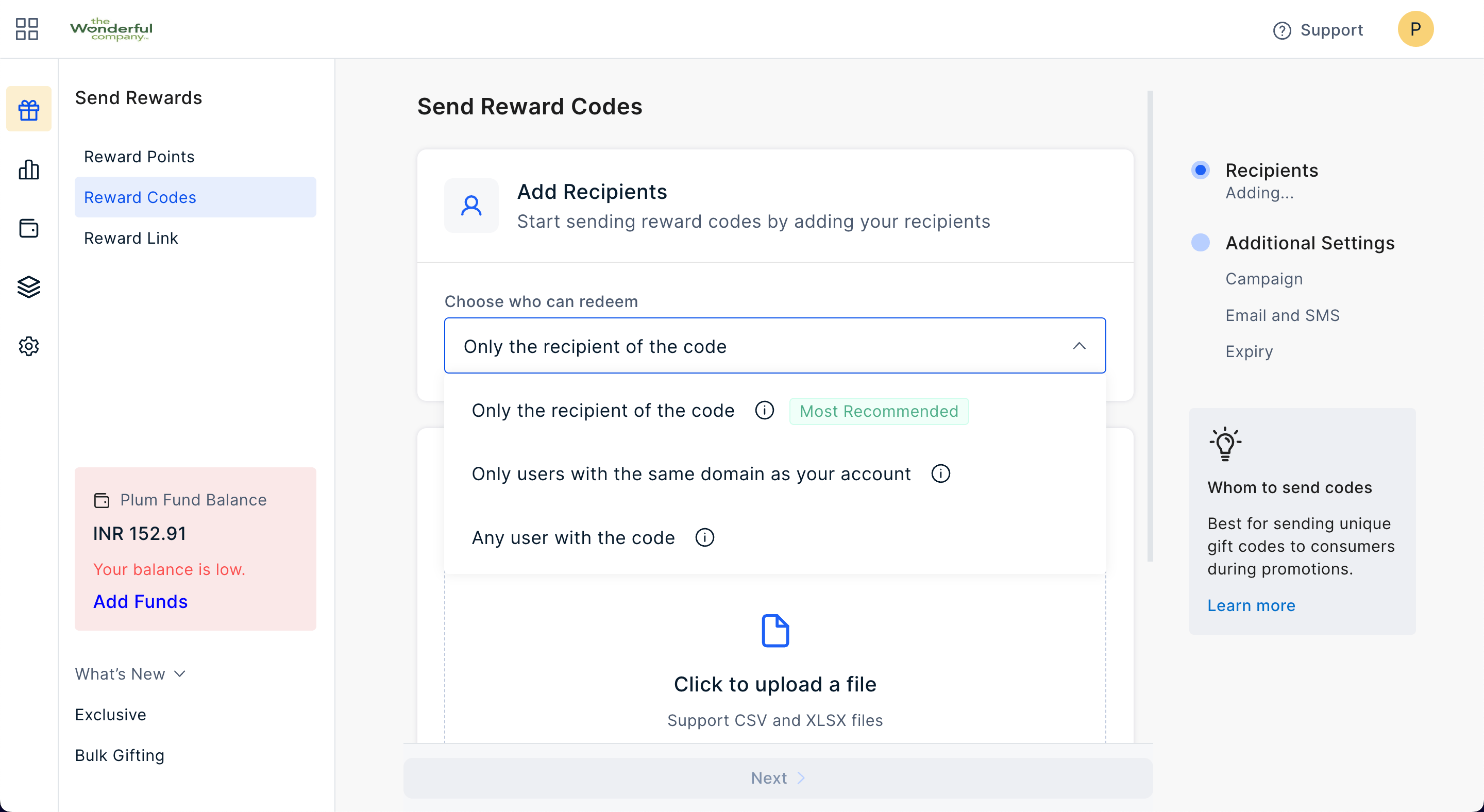
2
Select who can redeem
Here are the three options to choose from and what they mean:Only the recipient of the code — In this option, the recipient (and their email address) you mention at the time of sending the reward code, say john.smith@acme.com as the recipient email, only that person can use the Reward Code (to collect vouchers on that specified email address). It’s best for direct sends to ensure the right person gets the reward.Only users with same domain as yours — In this option, if your email is john.doe@xyz.com, only those email address on the same domain (xyz.com) can use the Reward Code. This is recommended if you’re sending the codes to people who might share them.Any user with the code — In this option, any user that has code can use/redeem it against your pre-funded wallet. This is the least secure of options, and to be used only when needed.
3
Upload recipients via CSV
Prepare a list of recipients in the CSV format and upload it in one shot. You can download the template directly from the Admin portal (as seen below).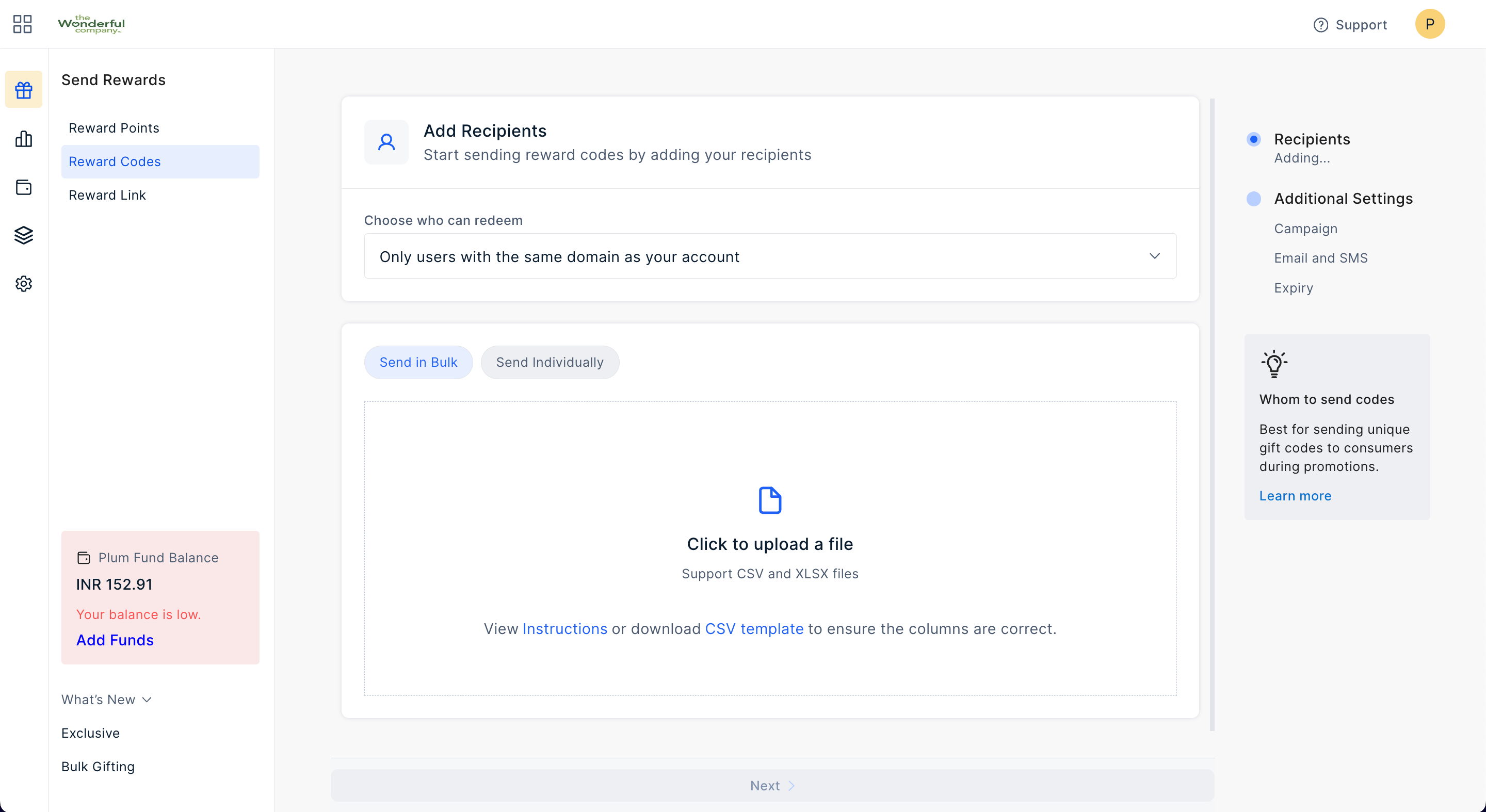
4
Set expiry and customize messages
Set an expiry (default is 12 months or can set custom) and customize email and SMS messages as needed.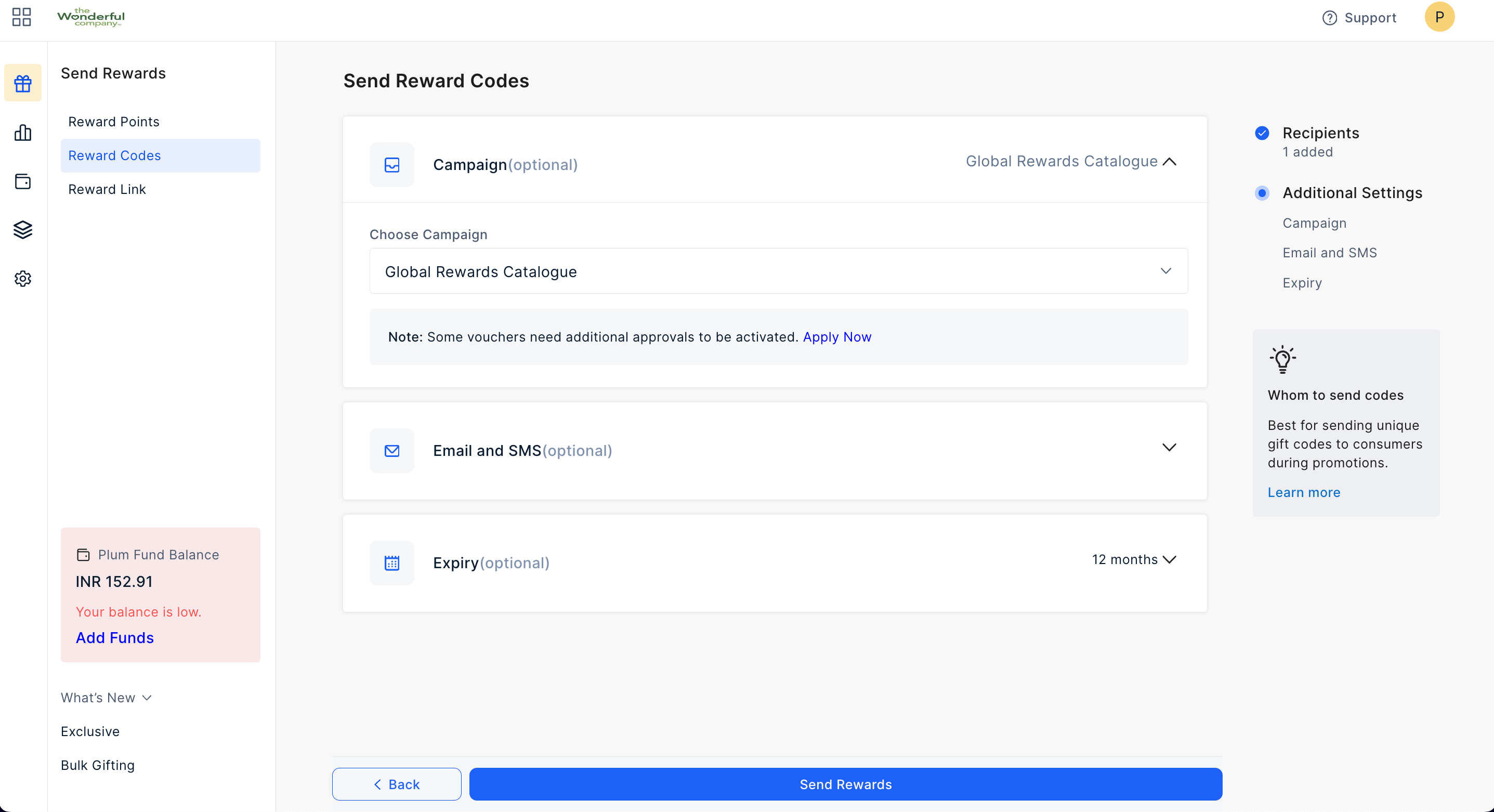
Learn more about campaigns for Reward codes. Click here >
Still need help? Raise a support ticket.