
Reward code
Reward code provides a fast and secure method to send unique codes to different participants in your ecosystem, regardless of their location.What are Reward Codes?
Reward Codes are unique alphanumeric codes you send to recipients anywhere in the world. Recipients redeem them on the Xoxoday marketplace.- Guest checkout: Recipients redeem without creating an account or logging in.
- Partial redemption: Recipients can use part of a code’s value and keep the balance for later.
- Combined checkout: Recipients can combine up to 10 codes in a single checkout.
- Flexible expiry: You set expiry dates to match your campaign’s duration.
How to Send Reward Codes Individually
Here are the quick steps to send one at a time:
1
Navigate to Reward Code
Go to Send Rewards > Reward Codes. The Send Reward Codes page opens on the Add Recipients step.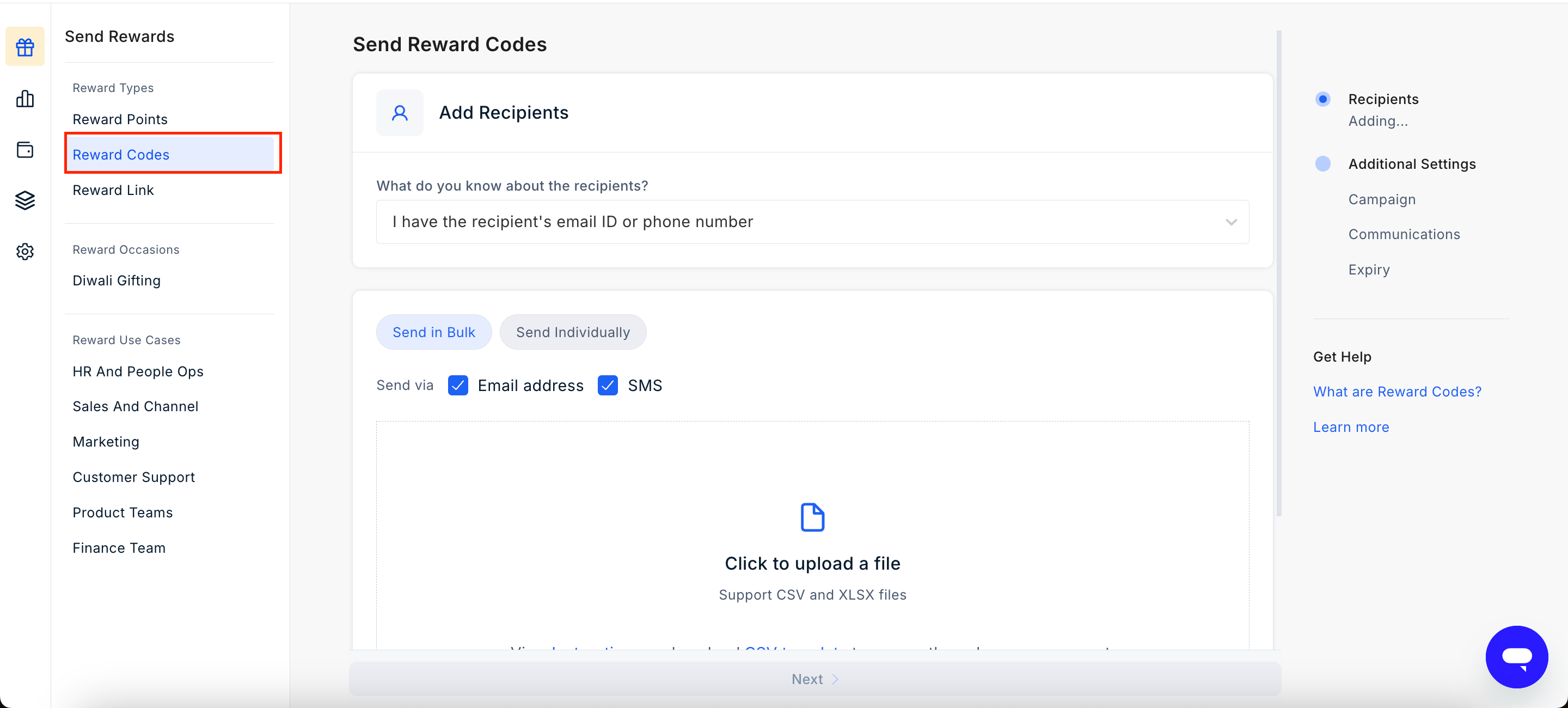
2
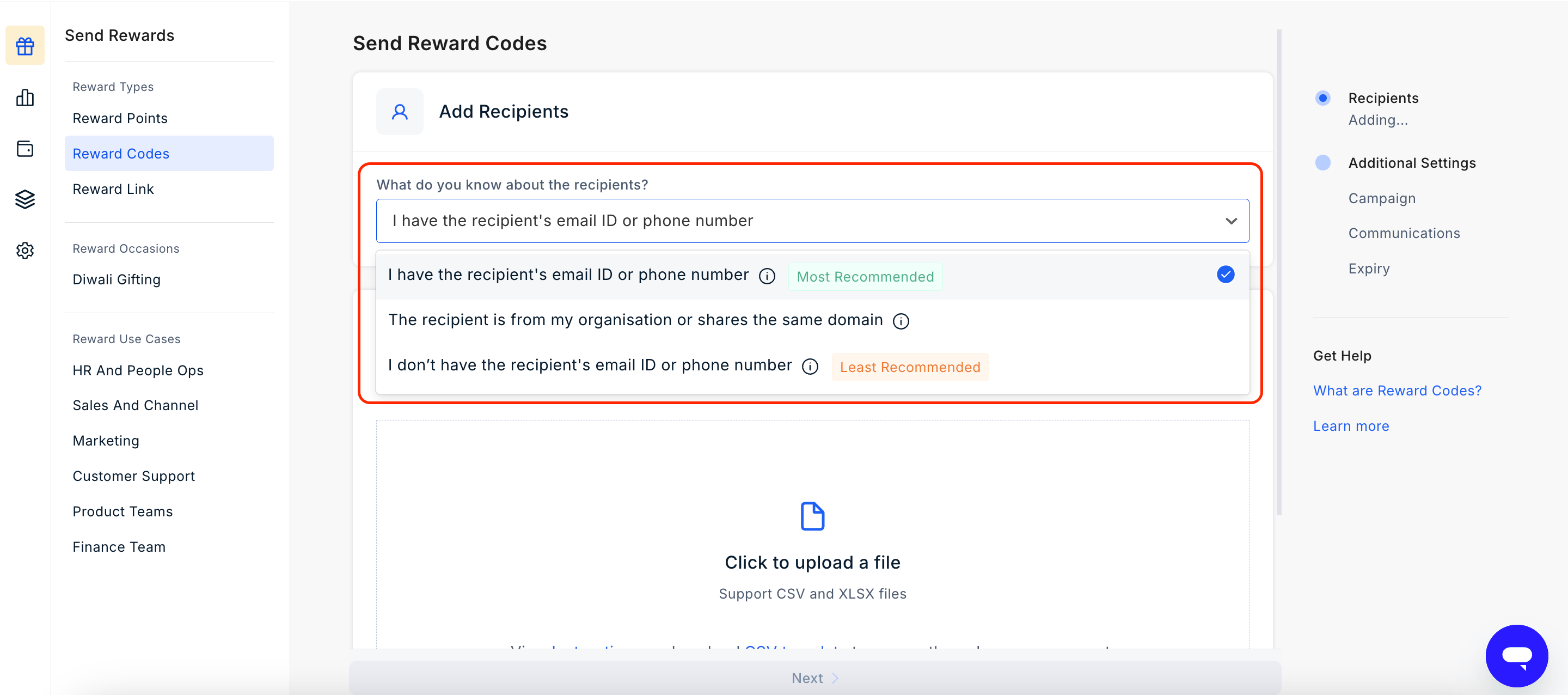
Under What do you know about the recipients?, select who can redeem the code:
- I have the recipient’s email ID or phone number (Most Recommended): Only the recipient you enter can redeem the code. For example, if you send it to john.smith@xyz.com, only john.smith@xyz.com can redeem it.
- The recipient is from my organisation or shares the same domain: Anyone with an email address on your domain can redeem the code. For example, if your email address is john.doe@xyz.com, anyone with an address ending in xyz.com can redeem it.
- I don’t have the recipient’s email ID or phone number (Least Recommended): Anyone who has the code can redeem it. This option is the least secure and can lead to unauthorized use, so use it only when you have no recipient details.
3
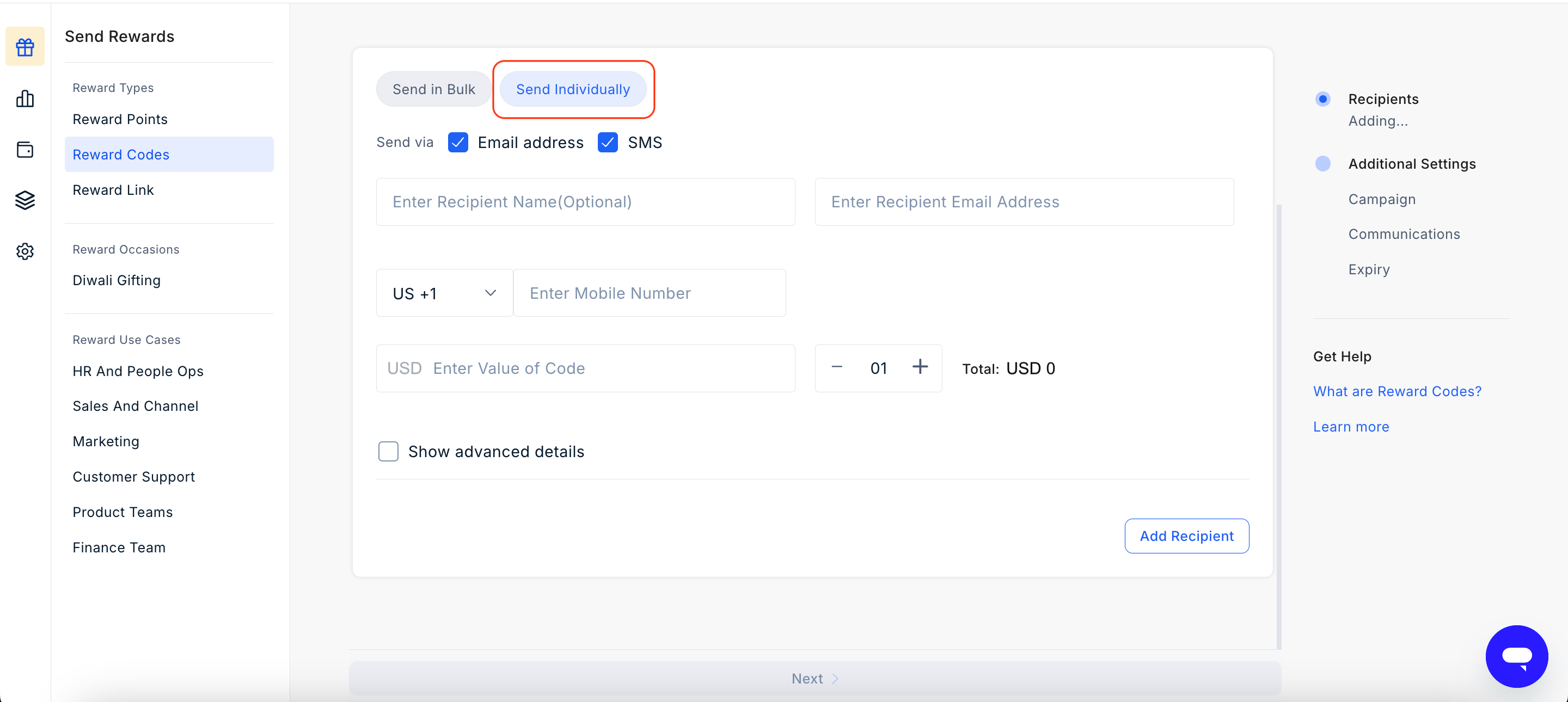
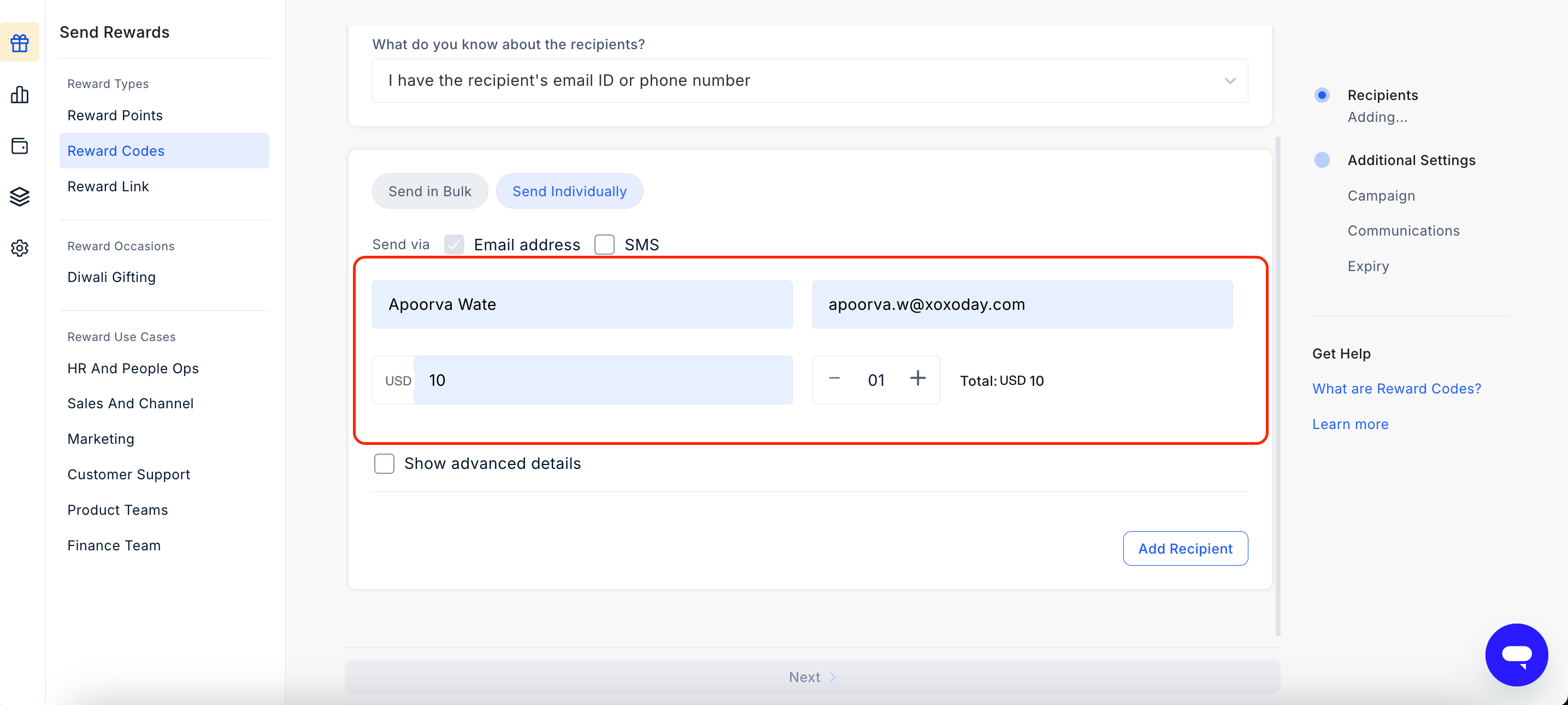
Select the Send Individually tab.
4
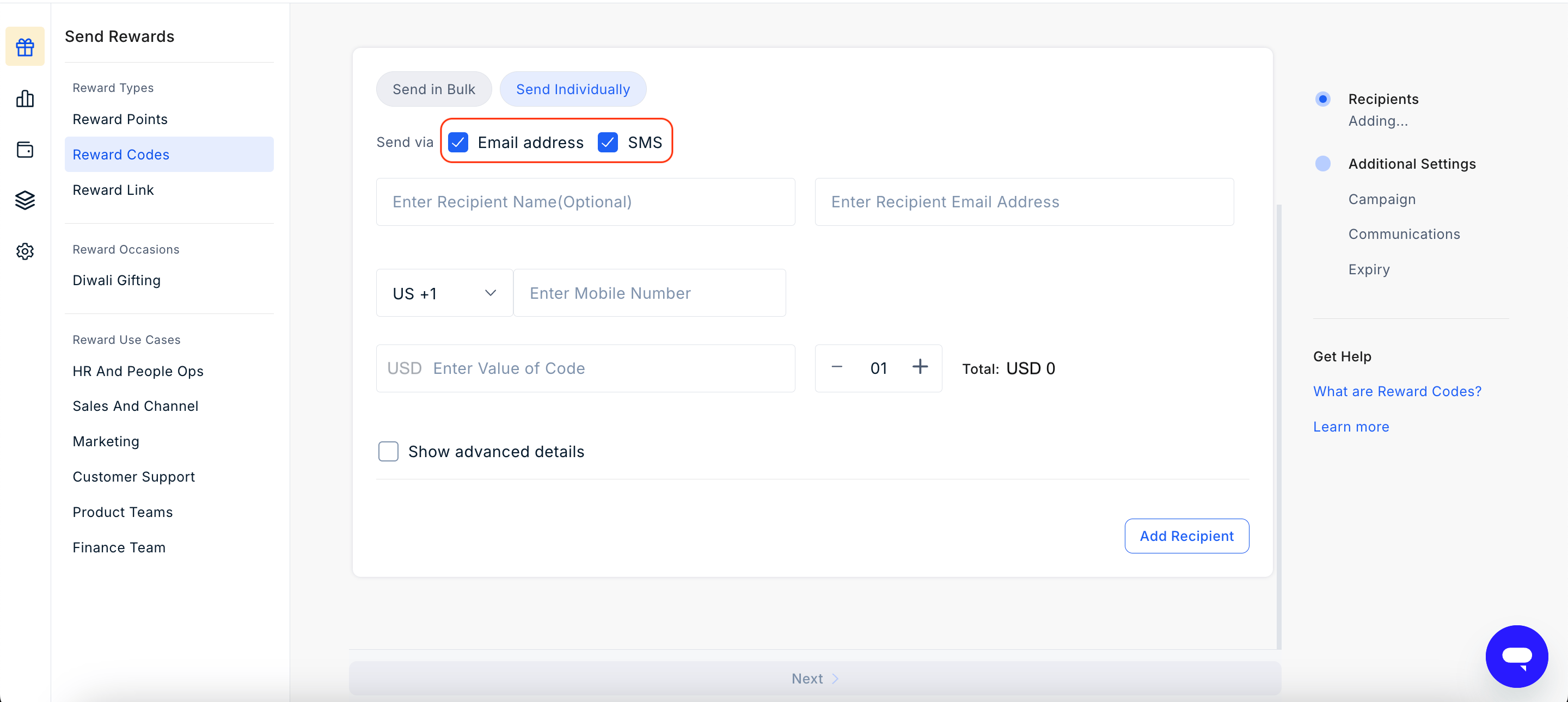
Next to Send via, select Email address, SMS, or both.
5
Enter the recipient's details:
- Name
- Email address
- Reward Code value
- Number of Reward Code (you can send upto 100 reward codes to one individual)
6
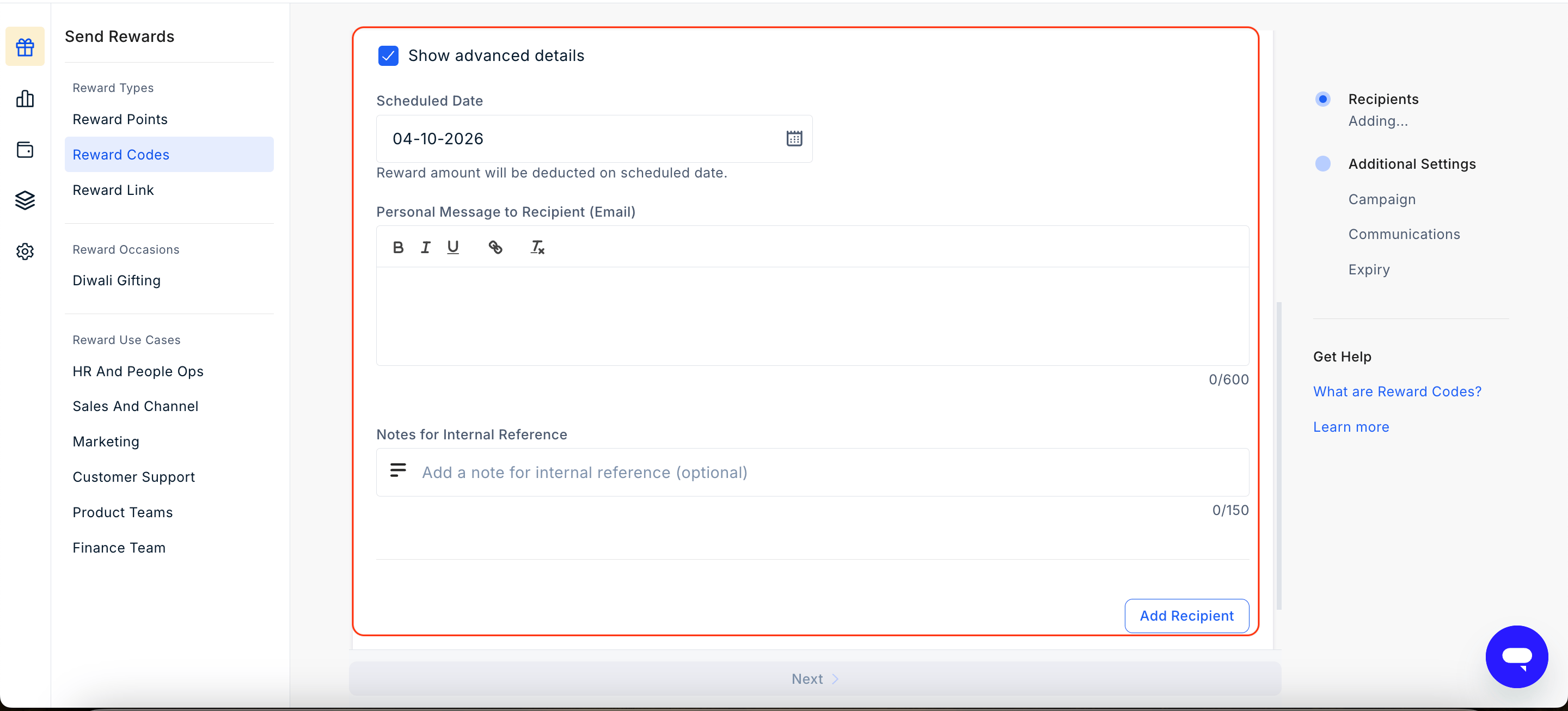
Advanced Details
Click Advanced Settings. Set any of these options:
- Schedule: Send the reward on a future date. Scheduled rewards go out at 12:00 AM UTC on the date you choose.
- Personal message: Add a message to the email body. The same message goes to every recipient in this batch.
- Internal reference note: Add a note for your own records. Recipients don’t see this note.
7
Click on Add Recipient
Review the recipient details. Add more recipients and enter their details.
8
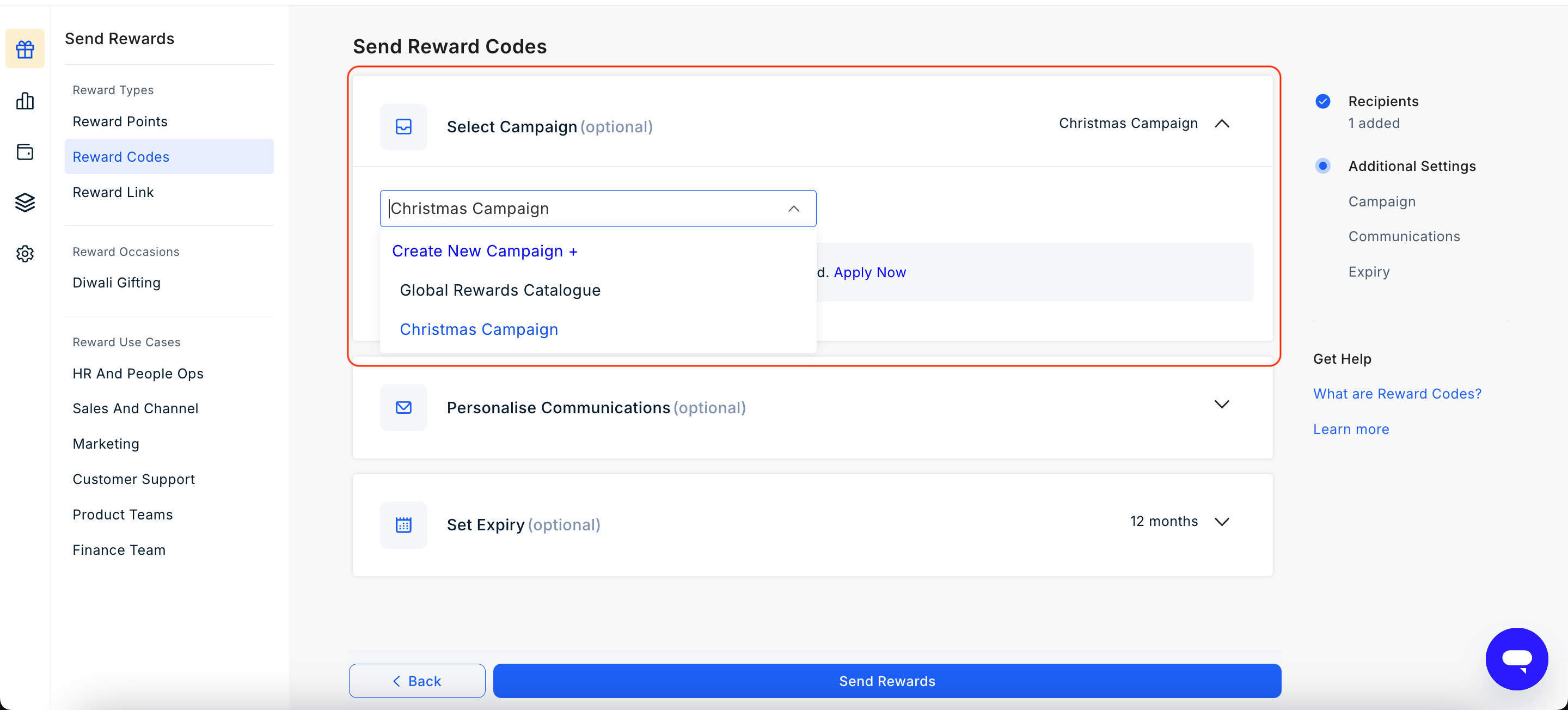
Under Select Campaign, select an existing campaign from the dropdown, or click Create New Campaign to set up a new one.
9
Personalize communication
You can also personalize the communication each time you send Reward Code. Those changes override the campaign defaults for that send only. Learn how to customize Reward Code communication 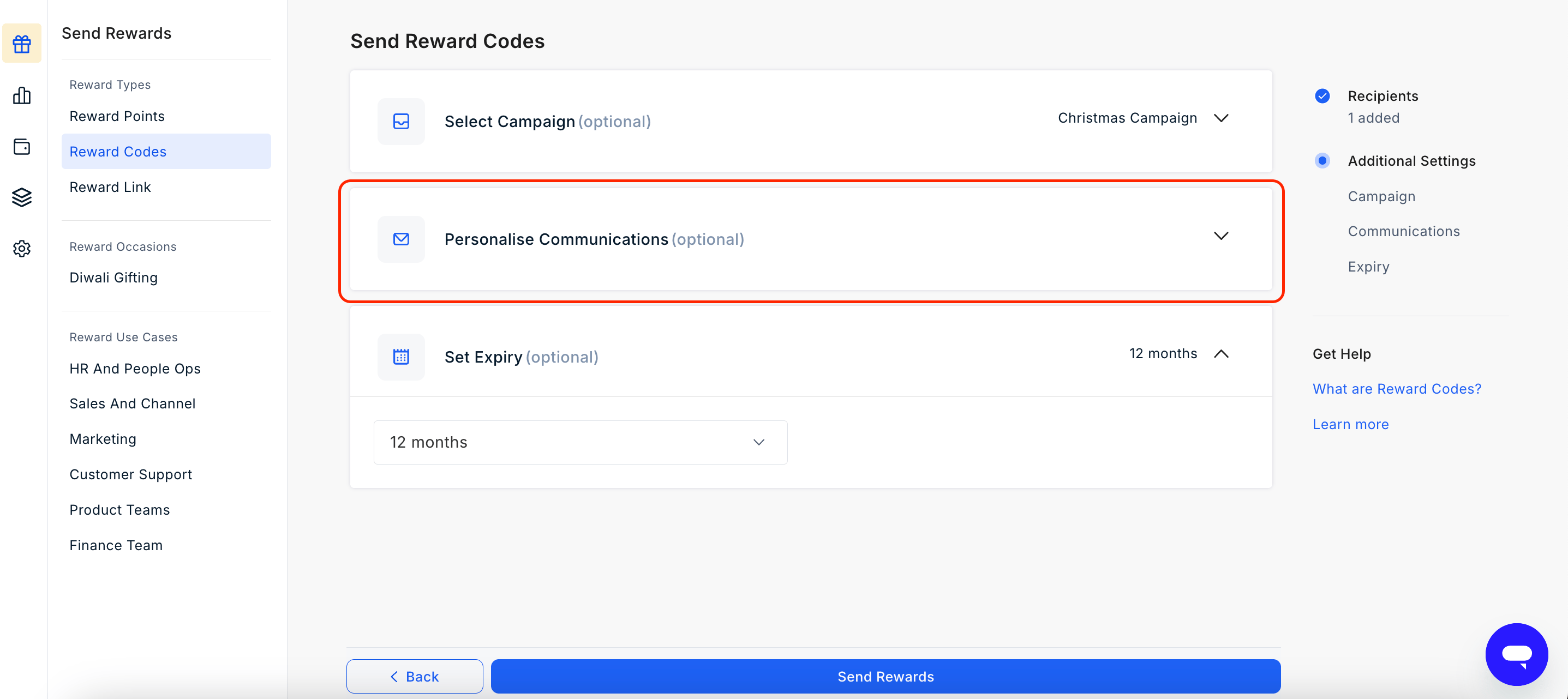
10
Set the expiry date
Set how long the Reward Code will remain active by choosing an expiry period (1, 2, 3, 6, 9, or 12 months) or pick a Custom date to match your campaign timeline. The default is 12 months.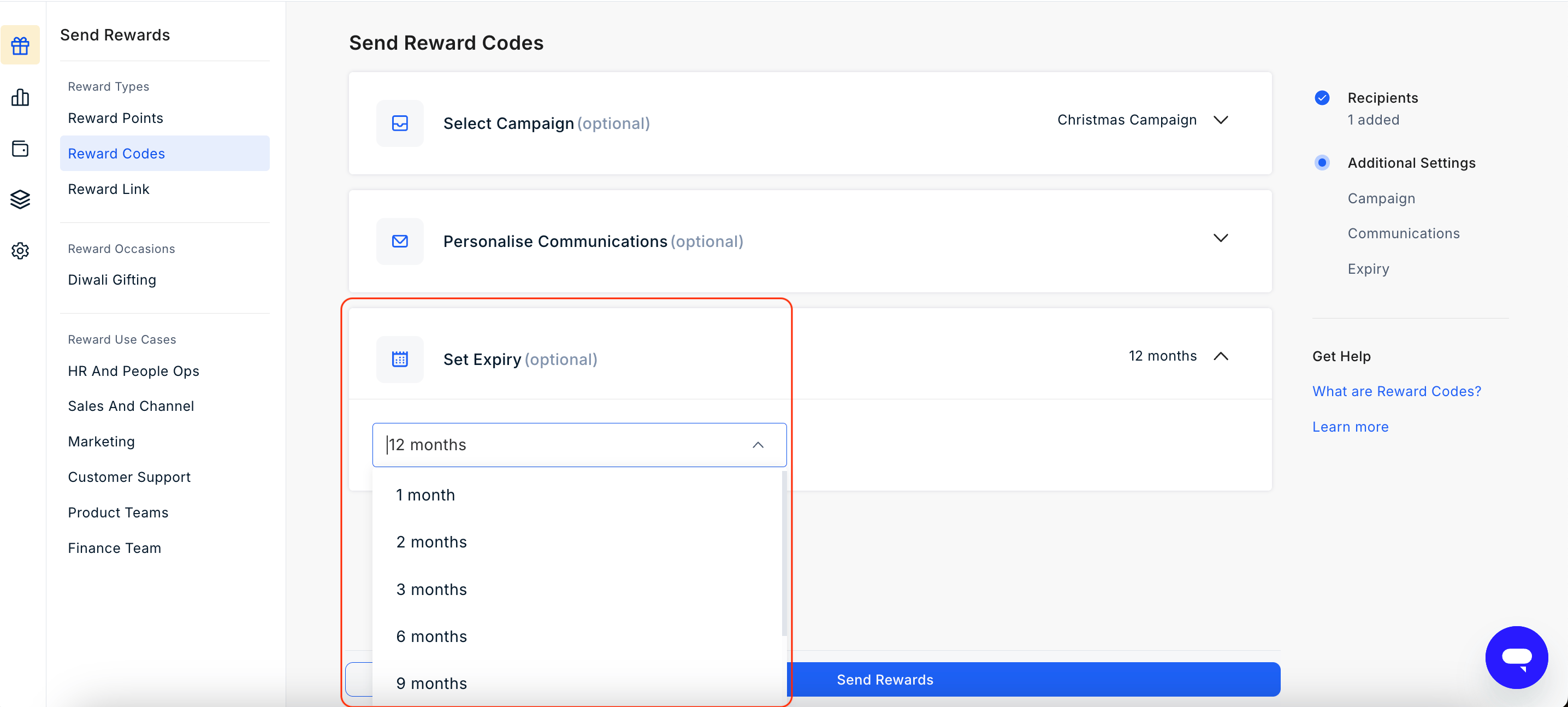
11
Send the reward
Review the recipient details and communication preview, then click Send Reward. The Reward Link will be delivered to each recipient immediately.
Still need help? Raise a support ticket.