
Users must be registered on Plum to receive points; if not, they will receive a registration link to set up their account.
1
Navigate to Send Rewards > Reward Points
2
Enter recipient details
Enter the user’s “Name,” “Email ID,” “Number of Points,” and “Mobile Number.”Optionally, provide a citation explaining the purpose of the points, such as Long-time employee, Birthday, Work Anniversary, etc.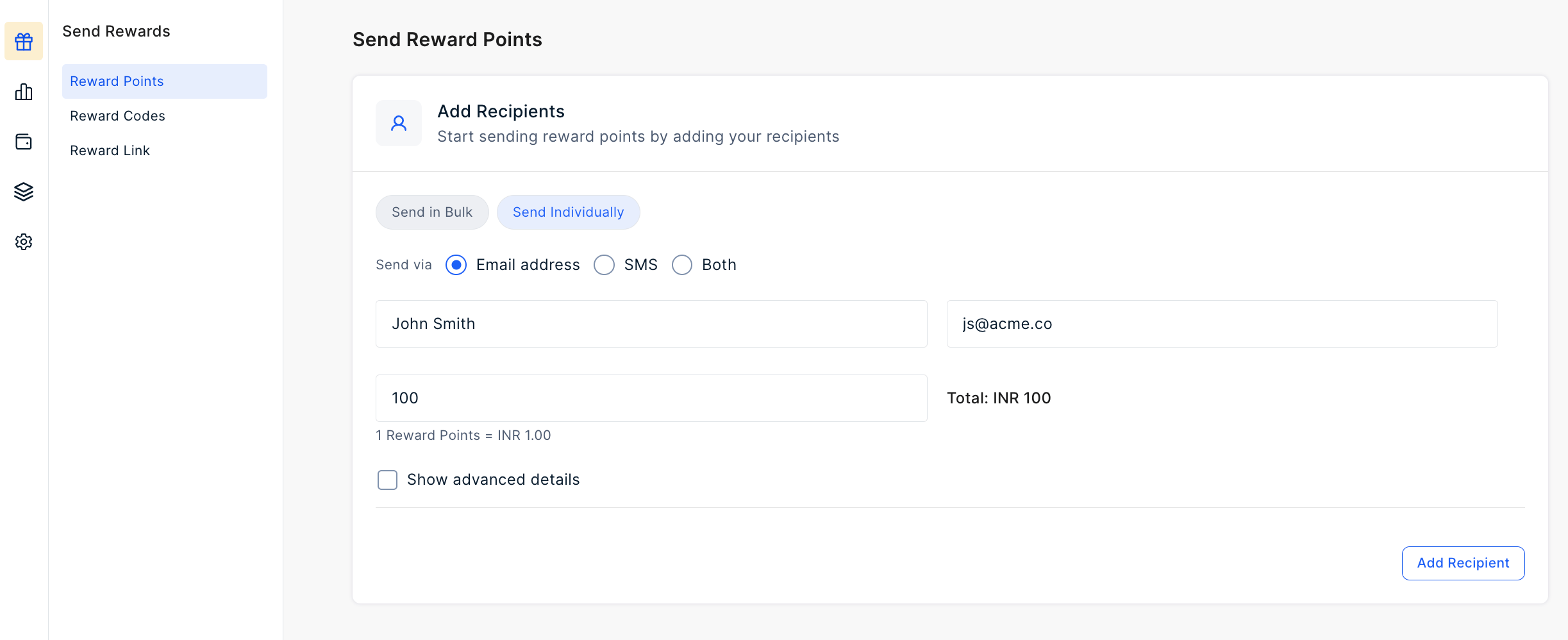
3
Review and send
Once all user details are entered, proceed to distribute the points.
- Users must be registered on Plum to receive points; if not, they will receive a registration link.
- Points will be deducted from the existing “Company Balance”; if insufficient, you’ll receive a warning to recharge or remove entries.
Advanced Settings
Here are some advanced settings that you can use to customize your reward points.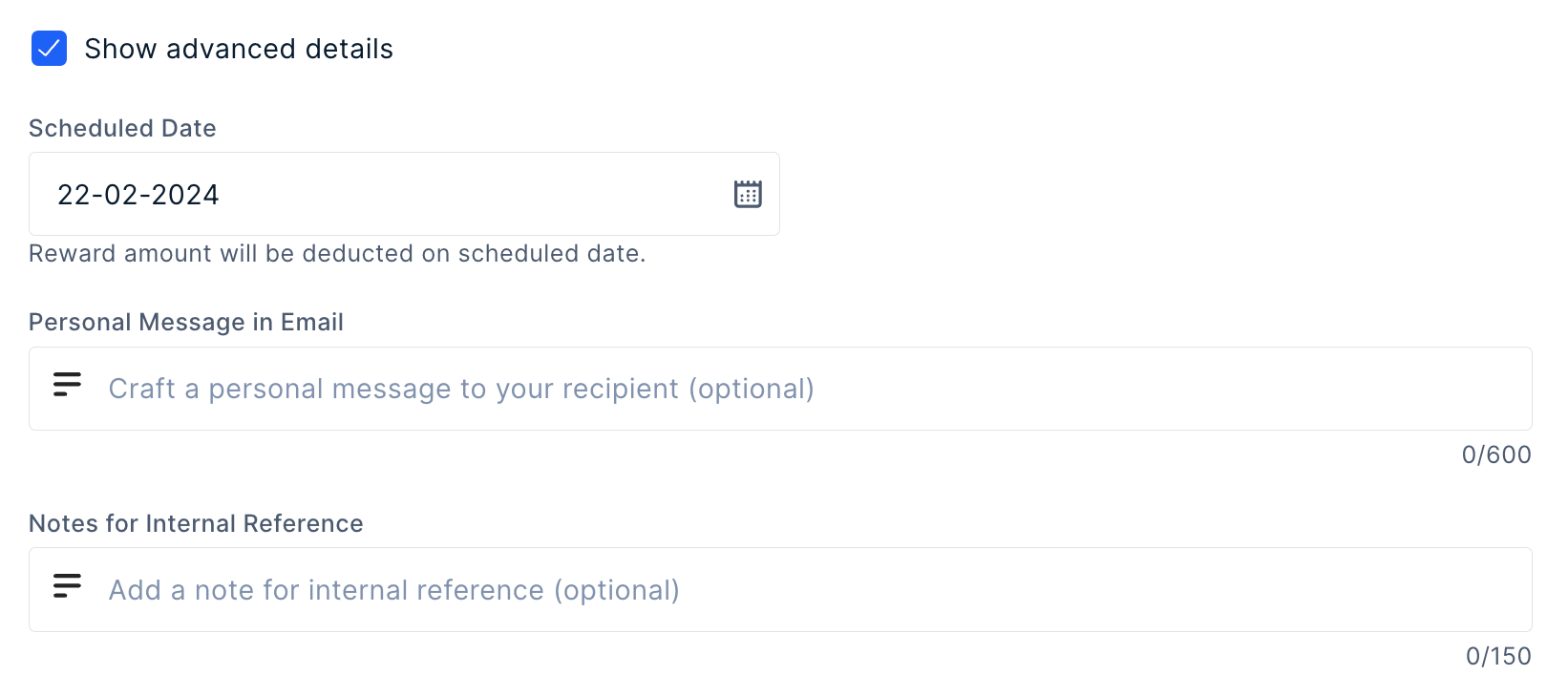
- Schedule the reward sends to a future time date. It will be sent out at 12 AM in the UTC.
- Add a personal message in the email body for the recipient. The message that you enter here will be sent to all the recipients in the batch. Except otherwise as indicated in the .CSV file in case of bulk.
- You can also add an internal reference note — a note to self that you’ll can recall at a later time.
Still need help? Raise a support ticket.