Learn how to create a flow in Salesforce.

Creating a Flow in Salesforce for Xoxoday Plum Reward Automation

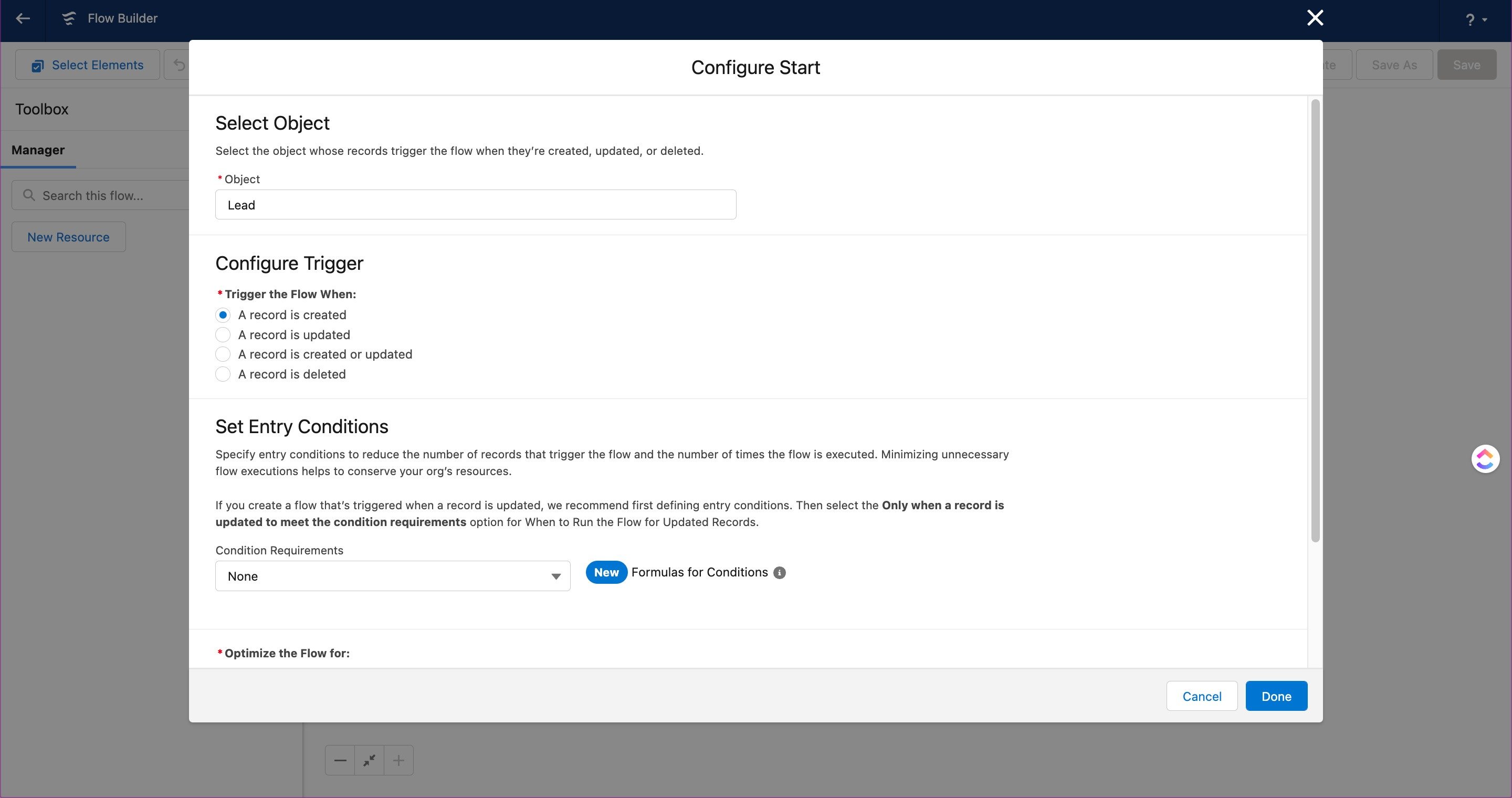
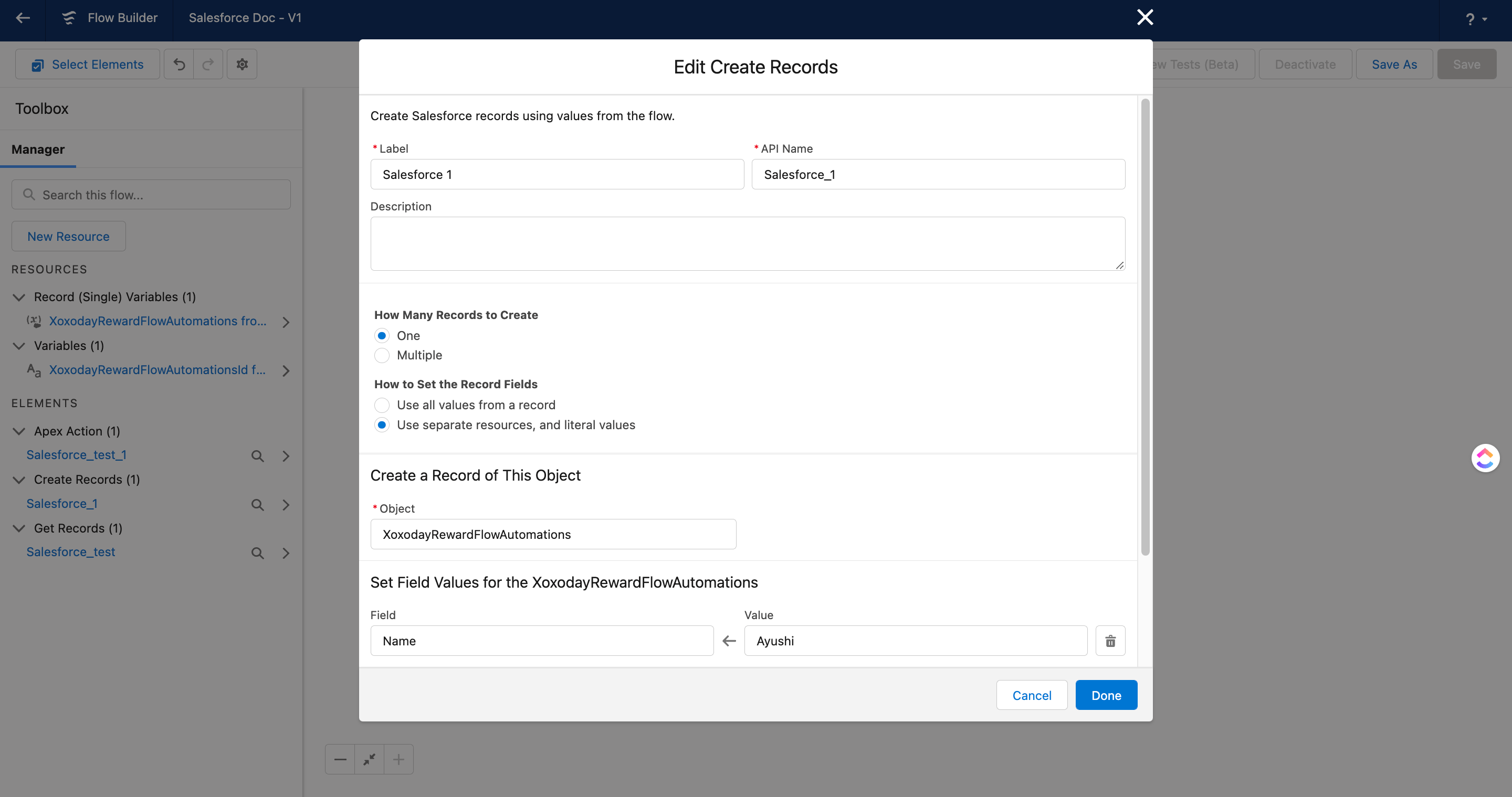
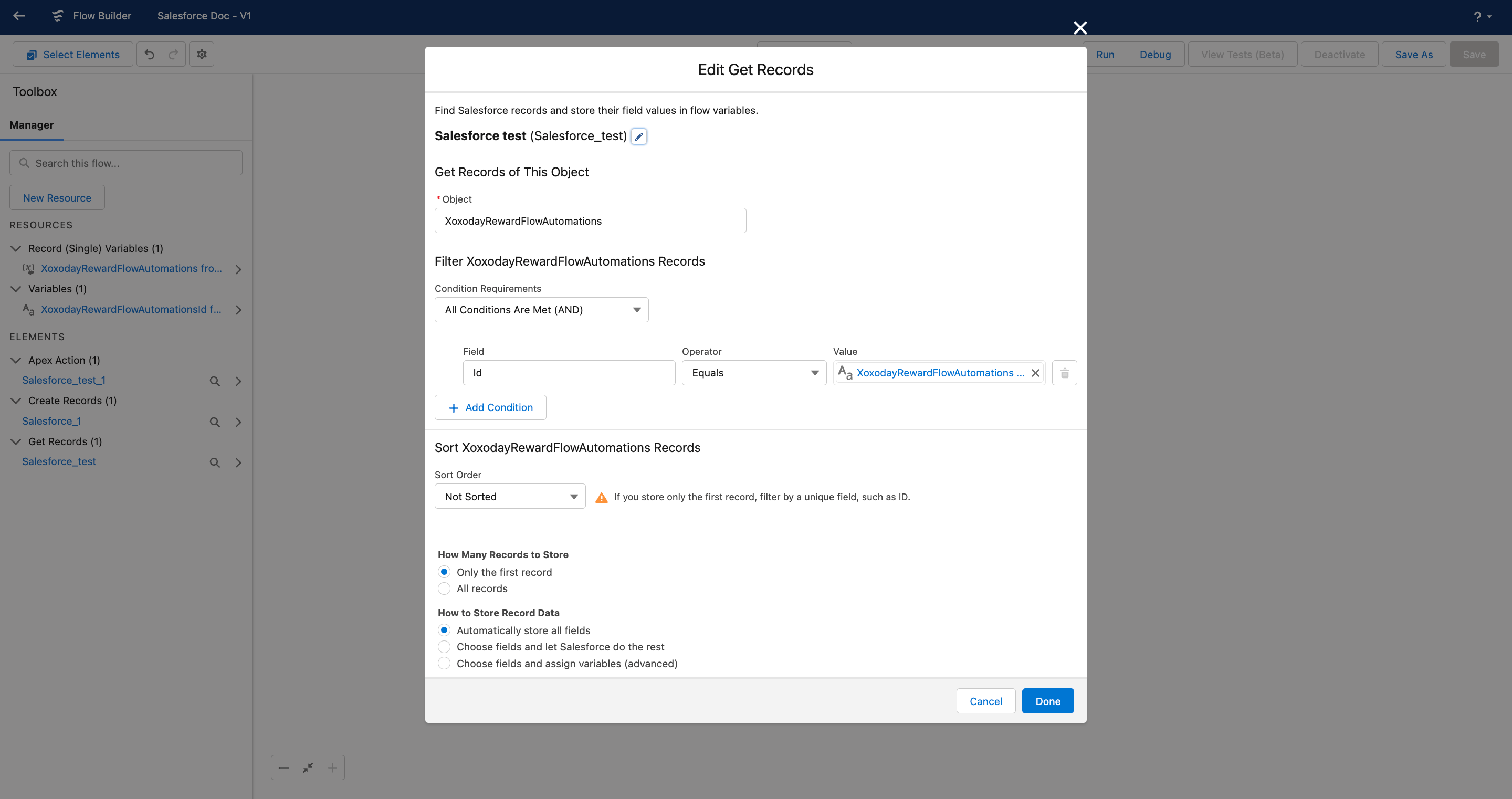
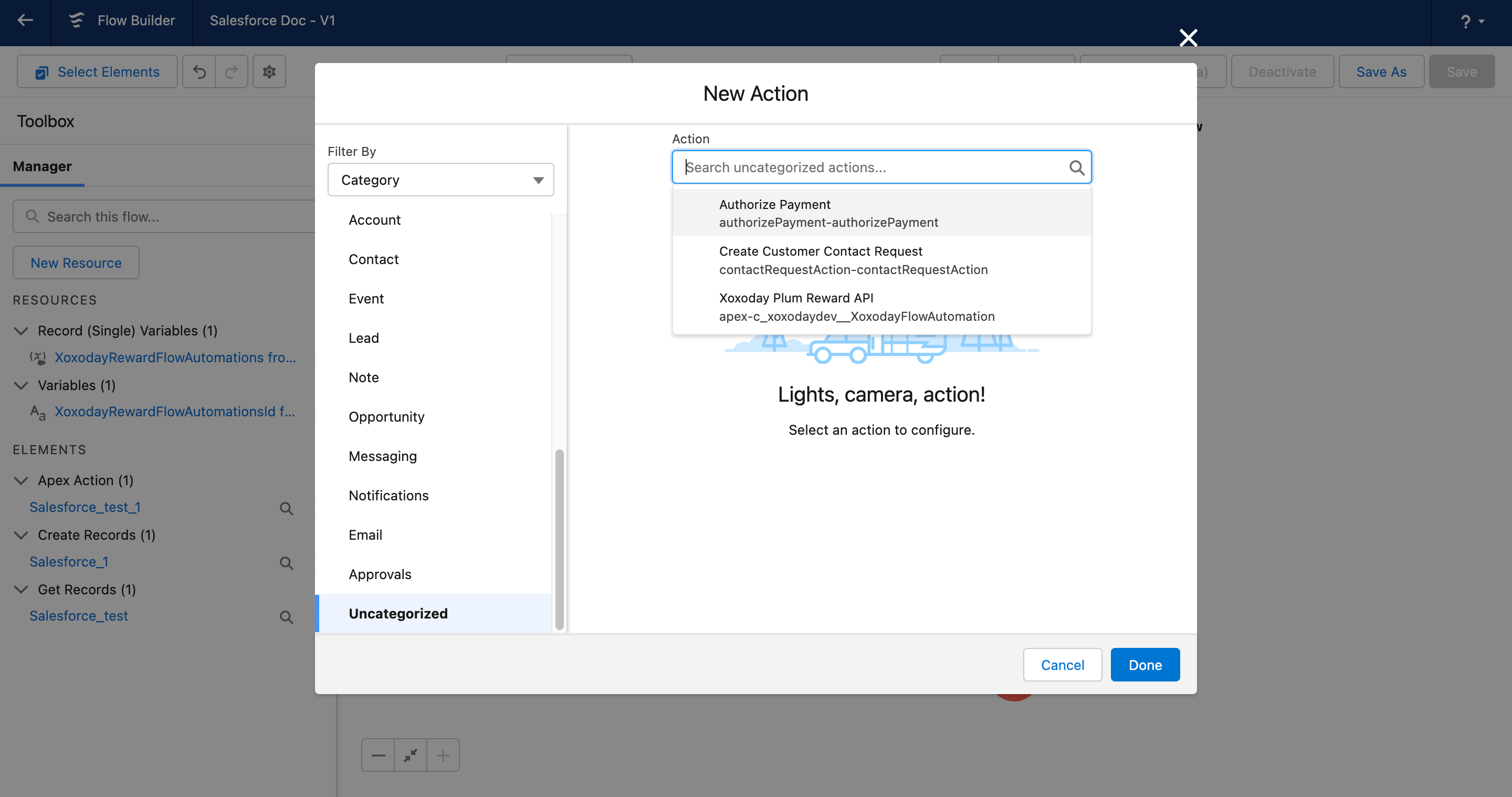
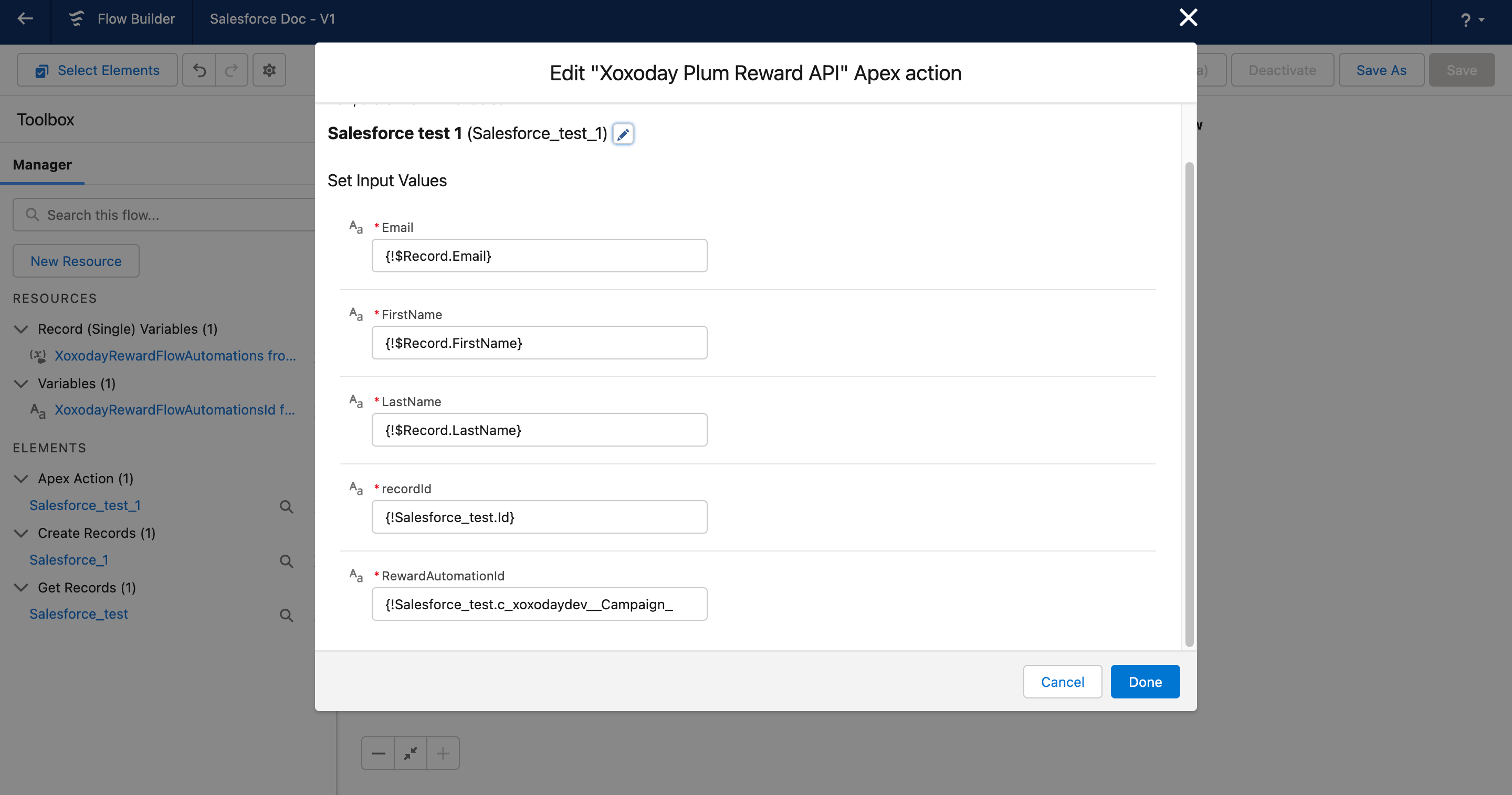
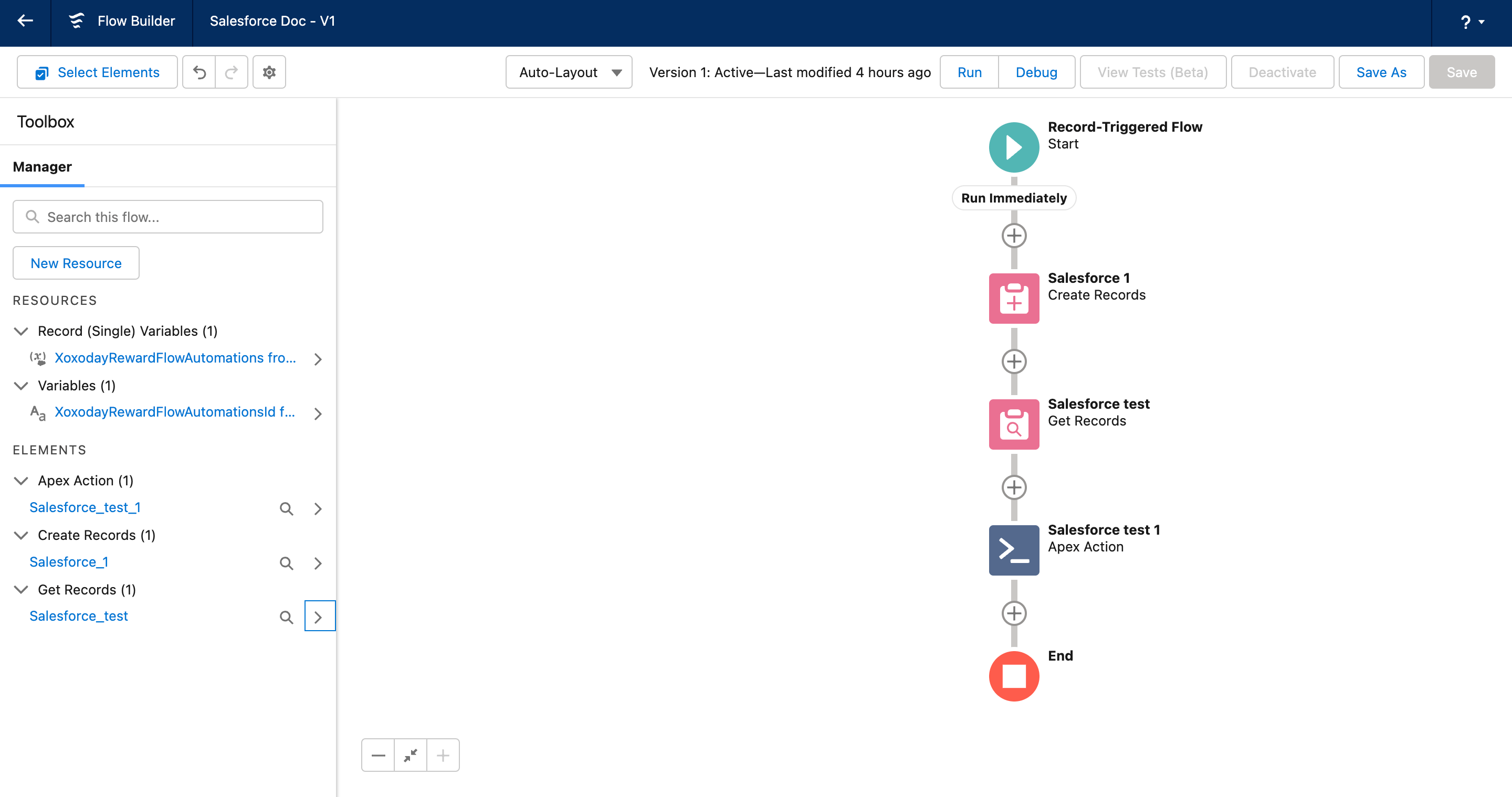
Before you get into creating your flows, you need to Create a Campaign and automation in Xoxoday Plum, Add the Xoxoday Refresh widget, and refresh it, to have all your old and new automation synced in. ​Step 0: Once you have added the widget, click**“Refresh”.​Step 1: On the homepage, Go to Navbar->Select Setup and Click”Setup”​Step 2: On the Setup Dashboard, Search for “Flows” under Process Automation and Click”New Flow”.​Step 3: Now select the template type and Configure the Start Trigger Settings, Under Object: Select Lead/Contact and Click”done”.** **​ Step 4: Now next step would be to add a new element: from options select”Create records”.** **​ ​Step 5: Edit the Create Records settings and under object look for “XoxodayRewardFlowAutomations” and then Click “Done”.** (refer to above image) ​Step 6: Now add another element and Select “**Get Records”.**​Step 7: Edit the Get Records settings and under object look for “XoxodayRewardFlowAutomations” Once done, “Filter XoxodayRewardFlowAutomations Records” has to be updated. - In fields select “id” - In Values look for “Record (single) variables” ->Select your Xoxoday automation->Select “ID”.​ Step 8: Now the element that has to be added is “Action”: Add element->Select Action->Uncategorised-> Action name: Xoxoday Plum Reward API. Step 9: Update Input fields as per your flow (refer below image) Step 10: Now “Save” your flow and Activate it.