Steps to Install Salesforce Integration
Step 1: Sign in to Salesforce using your credentials:**
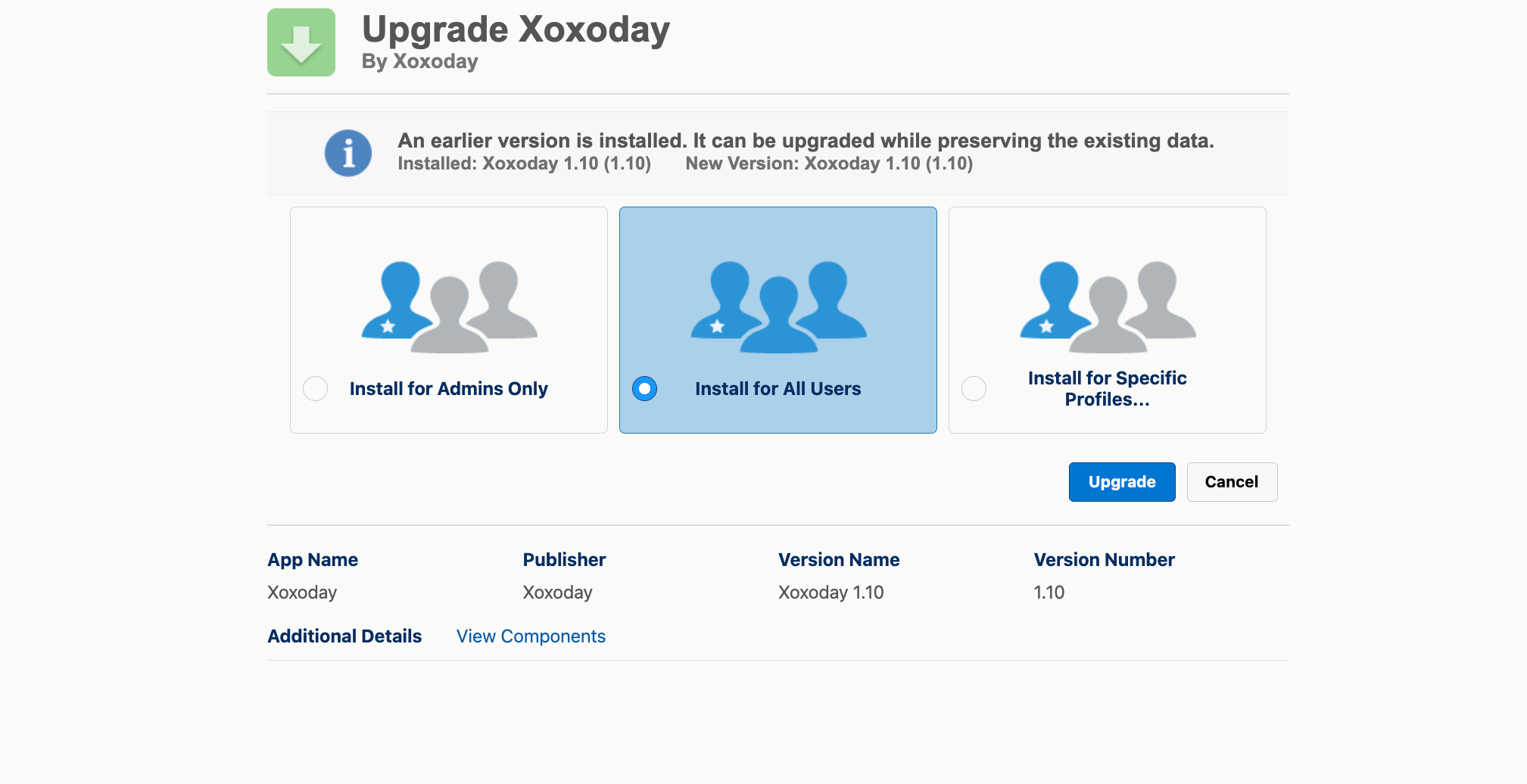
- Install for Admins only
- Install for all users
- Install for Specific Users
Steps to Authenticate and Connect
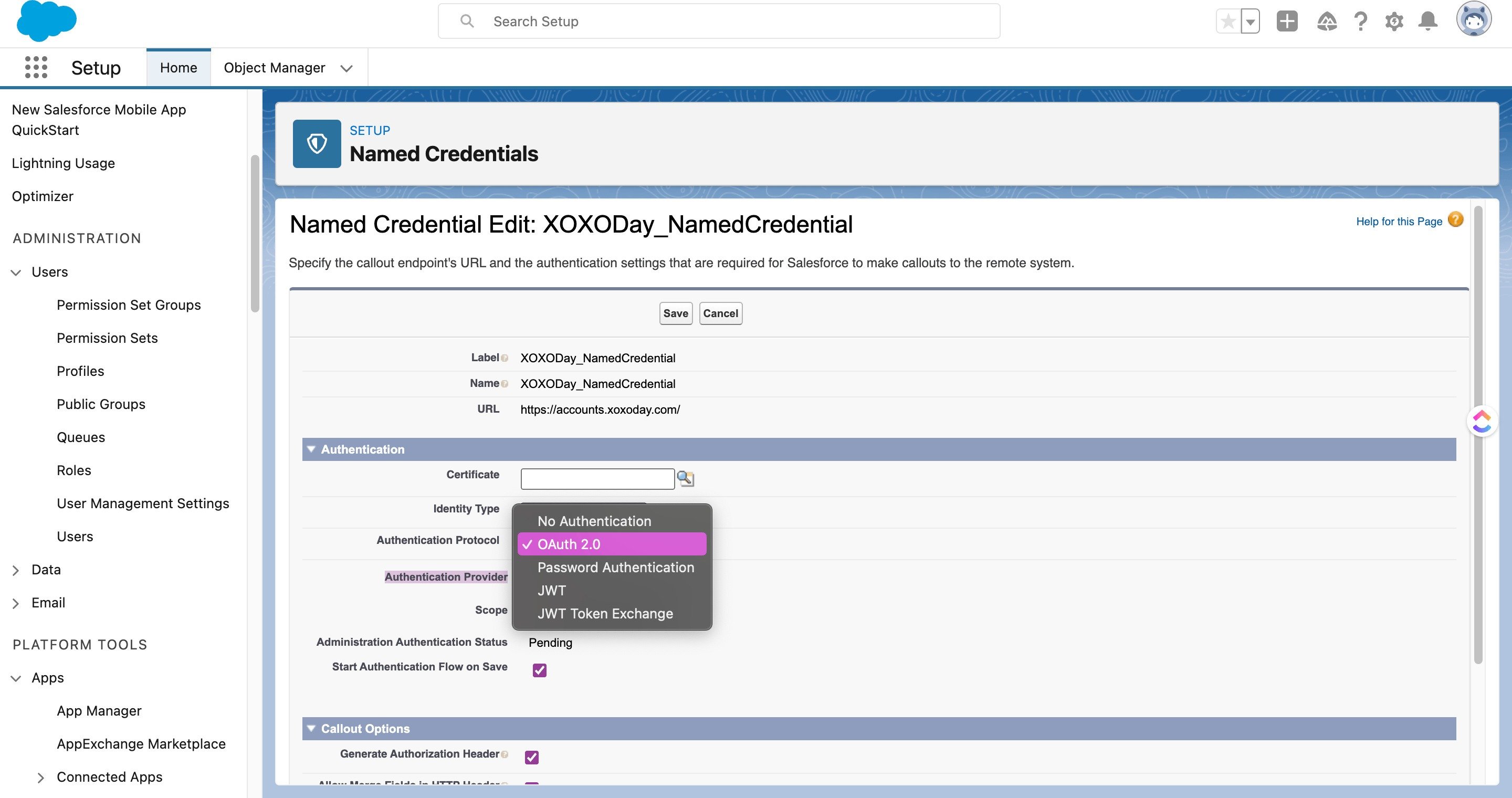
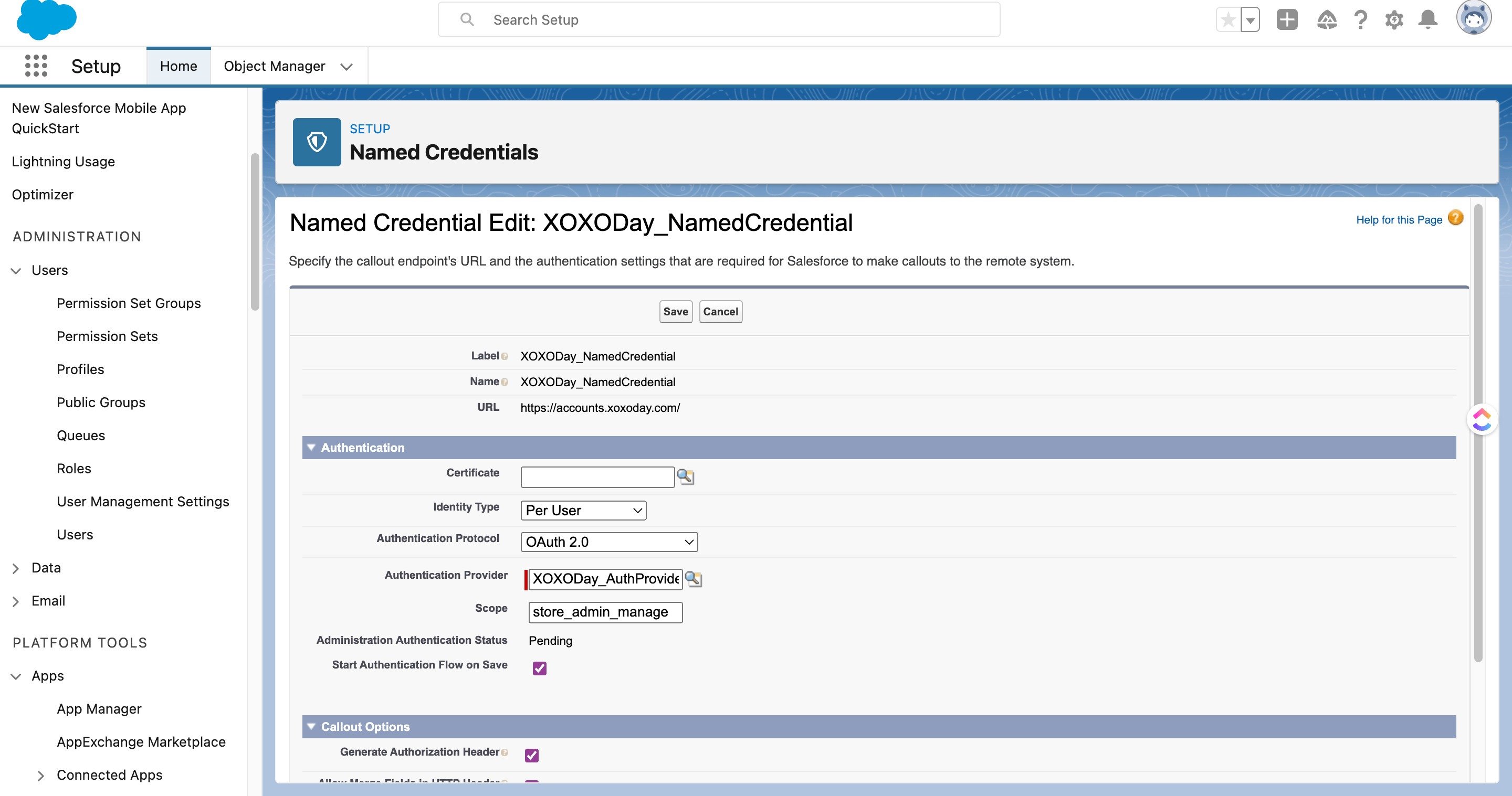
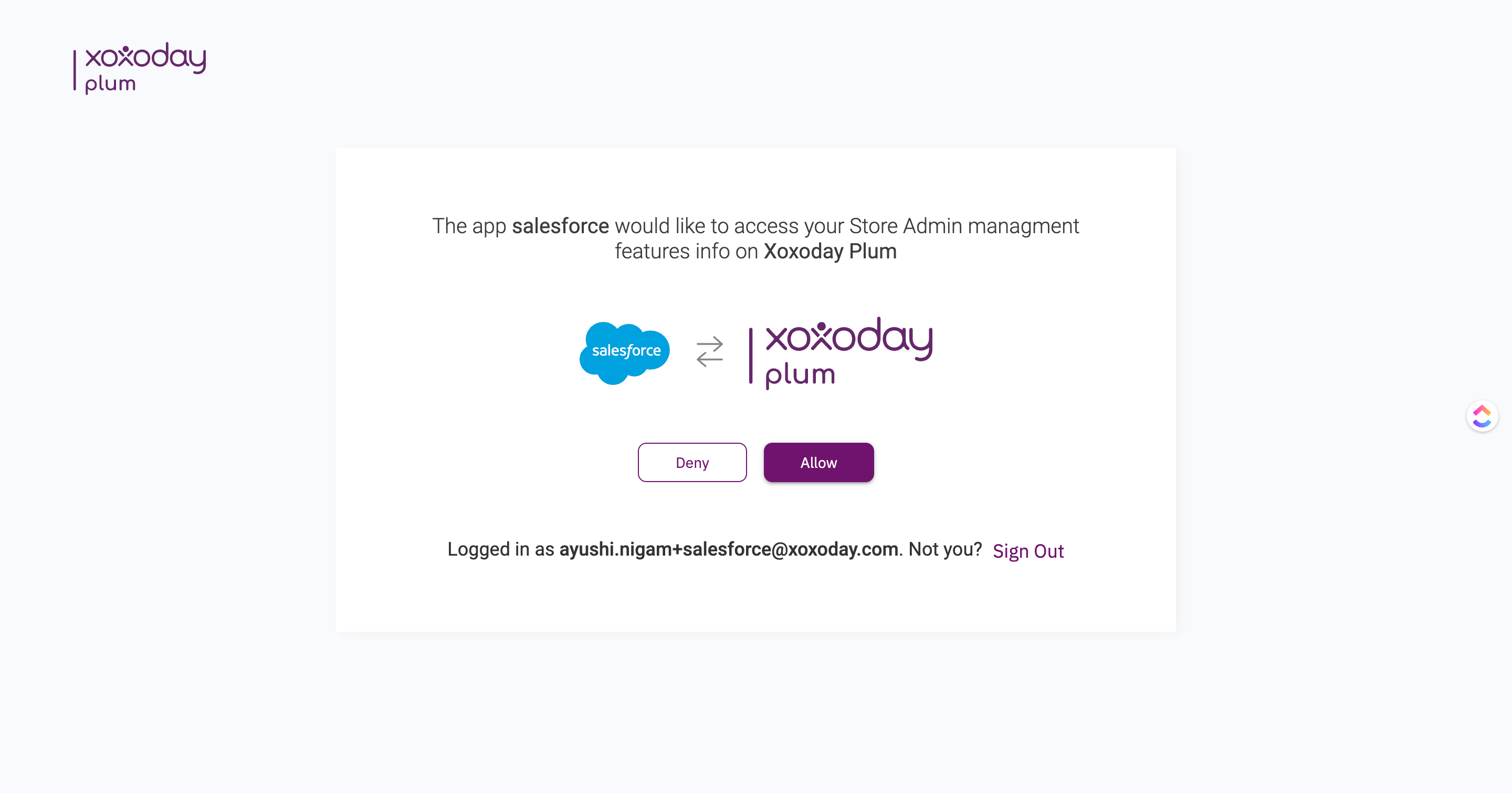
Before you start sending any rewards your connection to Xoxoday Plum AppExchange integration has to be authenticated with your specific callout end-points URL and authentication settings, this helps Salesforce to make callouts to Xoxoday’s remote system. Step 1: In the home section: Go to Setup->Users->select users->Auth settings for external -> Named Credential.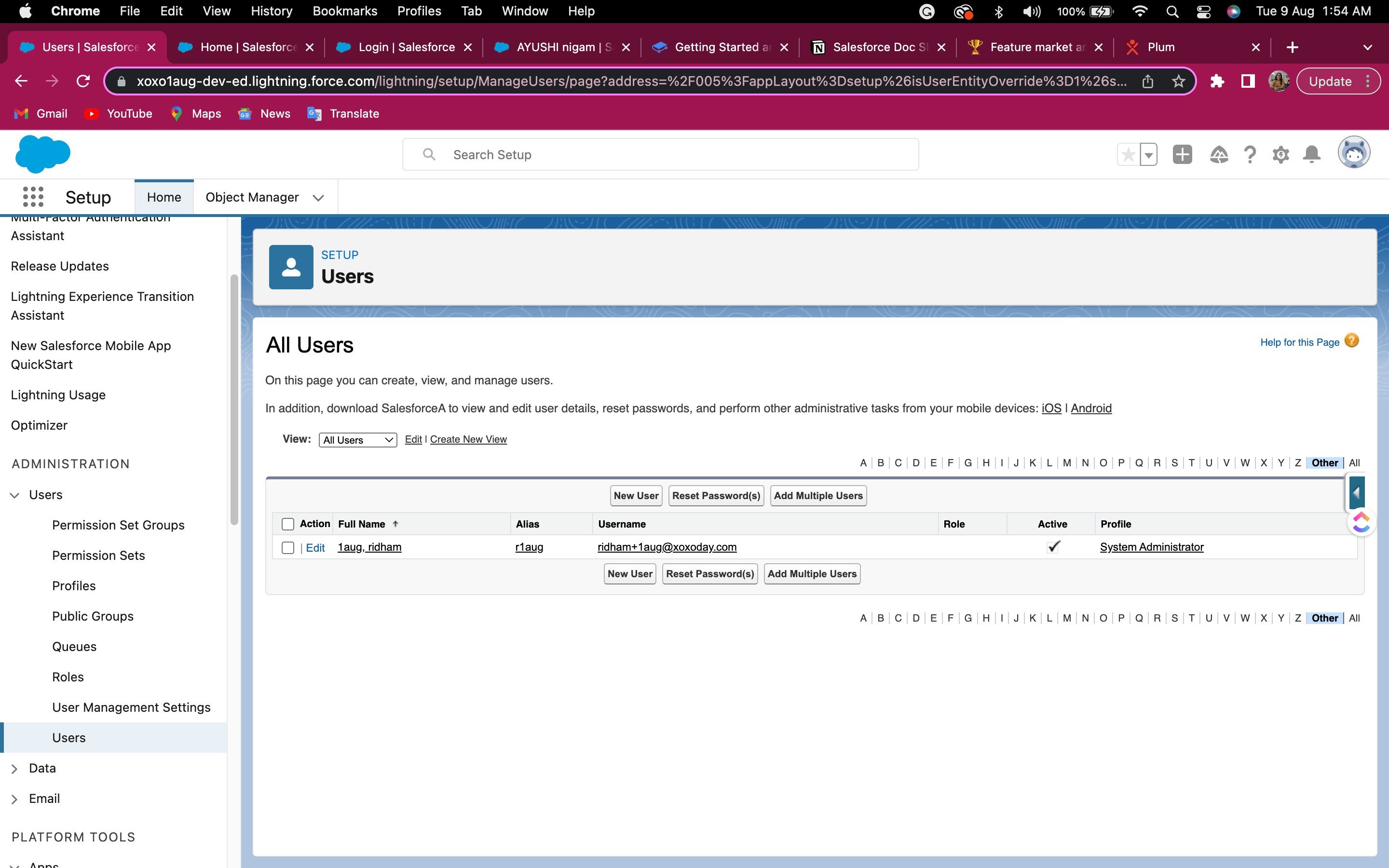
 Step 2: Under Authentication-> Select Authenticator Provider->Click Edit->Under Authentication Protocol select Auth2.0.
Adding 1-1 Widget
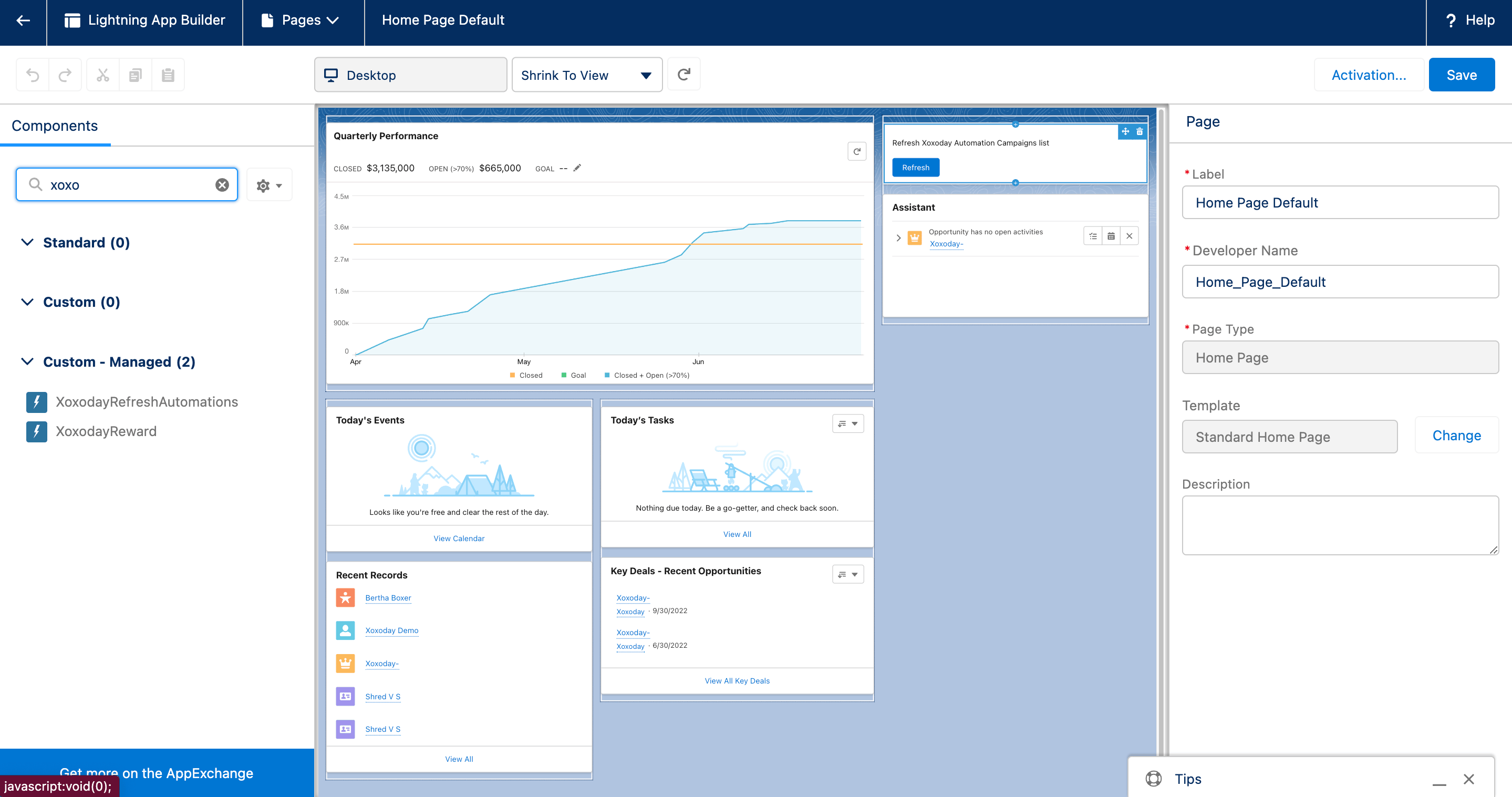
**Once the installation is done and you have finished the authentication, now you can access widgets by Xoxoday Plum to send your rewards. Step 1:** On the Salesforce homepage-> Select either Leads or Contacts-> Select a Lead (to whomsoever you wish to send a reward) Step 2: From the Navbar-> Select the Setup icon->Select Edit Page. Under Components search for**“Xoxoday”-> Drag and drop “Xoxodayreward”on page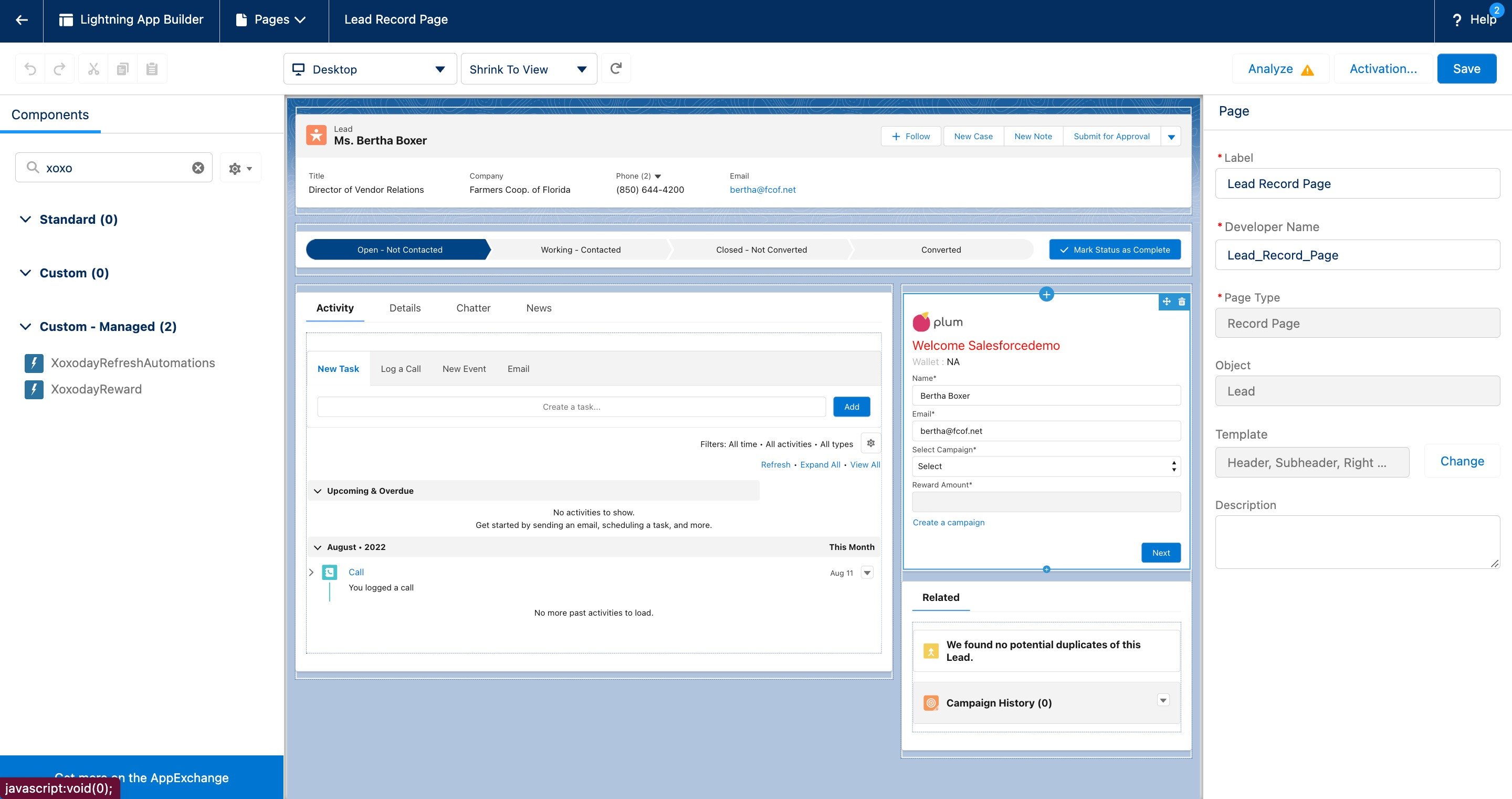
Adding Refresh Widget for Automation
Once the installation is done and you have finished the authentication, now you can access widgets by Xoxoday Plum to send your rewards. Step 1: On the Salesforce homepage Step 2: From the Navbar-> Select the Setup icon->Select Edit Page. Under Components search for “Xoxoday”-> Drag and drop “XoxodayRefreshAutomations” on page.**