
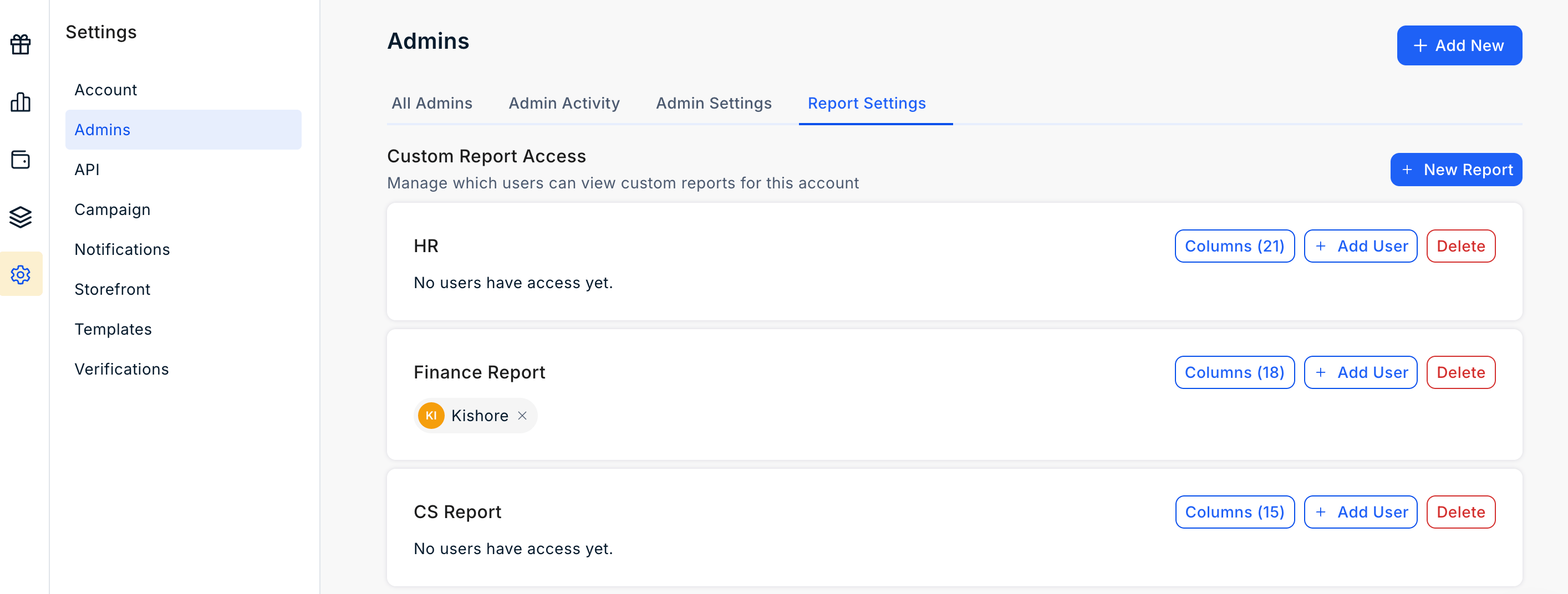
Create a Custom Report
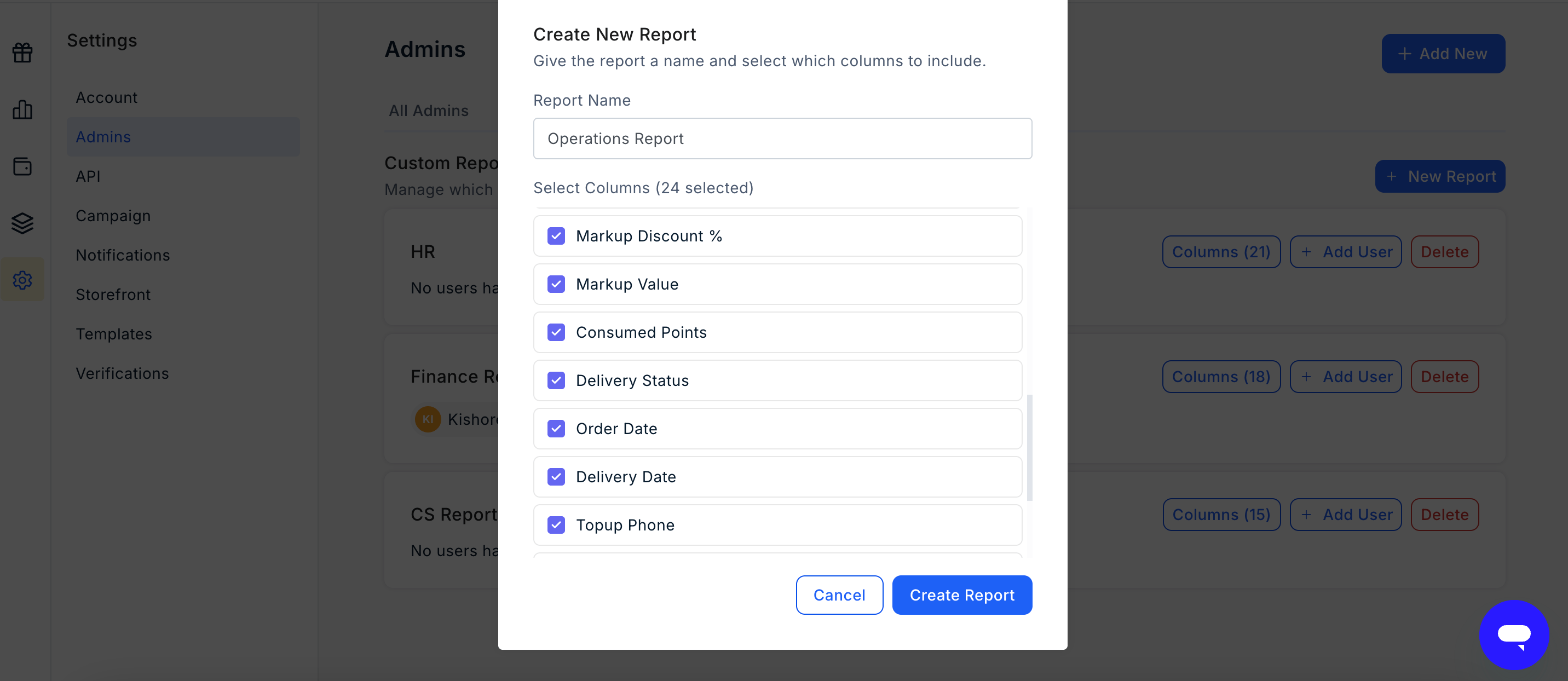
Super Admins can create custom reports based on the organisation’s reporting requirements. When creating a custom report, you can:- Enter a Report Name.
- Select the Columns to include in the report.
- Assign the report to one or more users.
Share a Custom Report
Super Admins can provide selected users with access to a custom report. Once a report is assigned to a user, the user can access it from the Reports section of the Plum Admin Dashboard. A user can be assigned to multiple custom reports based on their responsibilities.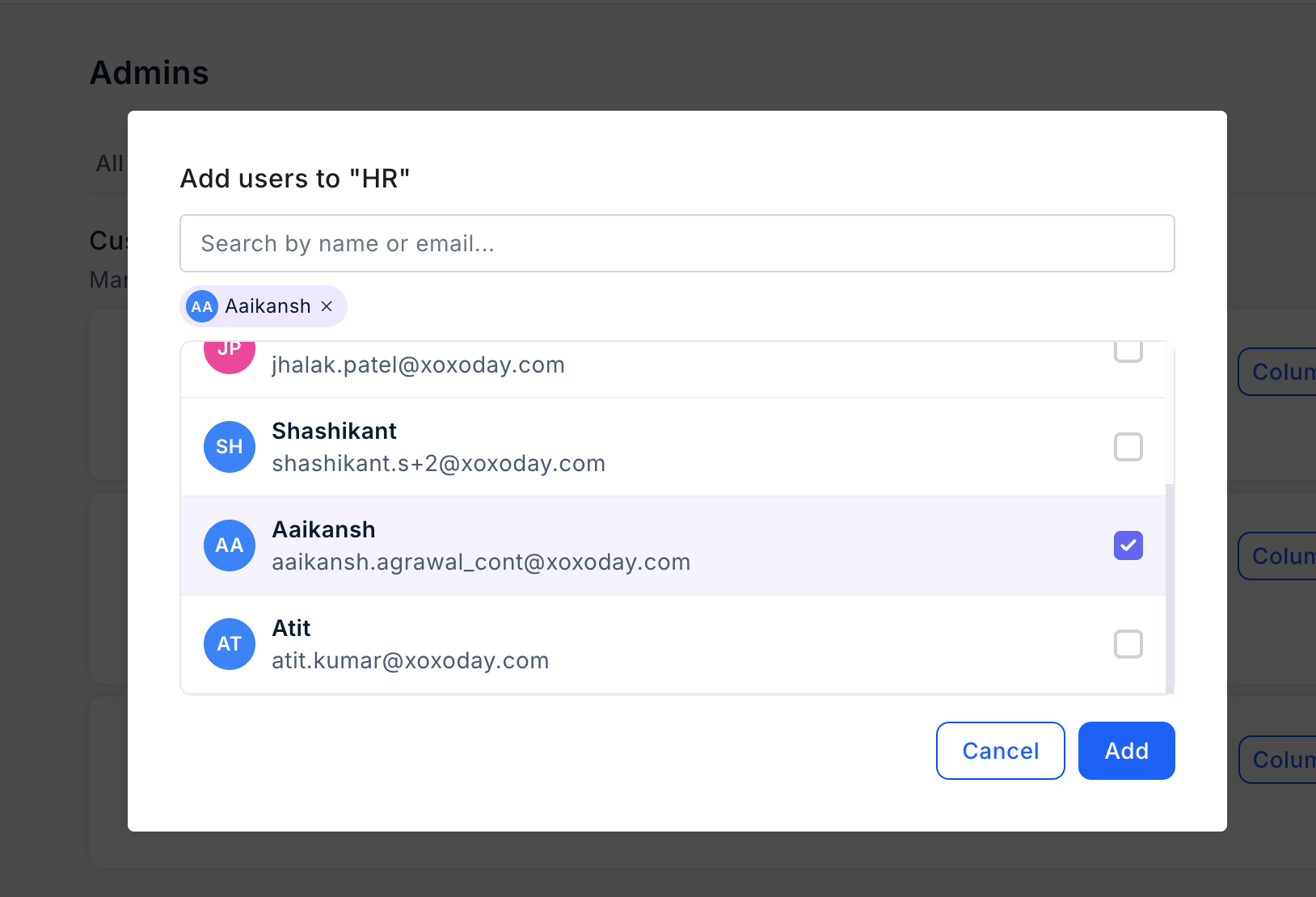
Edit a Report Configuration
Super Admins can update an existing custom report at any time. You can:- Change the Report Name.
- Add or remove Report Columns.
- Add or remove users who have access to the report.
Revoke Report Access
Super Admins can remove a user’s access to a custom report at any time. If a user is no longer assigned to any custom reports, their Report Viewer access is automatically removed.Example
Custom reports can be configured for different teams based on the information they require. For example:- A Finance Report can include fields such as order value, cost, and markup.
- A Customer Support Report can include fields such as customer name, product, and delivery status.
Still need help? Raise a support ticket.